Monthly Archives: November 2025

Freedom from want

Rockwell’s finest.

For an index of articles on art illustrators, click here.


Freedom from want.

Painted in November, 1942, Norman Rockwell’s most famous illustration shows the American family gathered around the Thanksgiving table, with the cook delivering an enormous bird, to the delight of the assembled family and friends. It’s a masterpiece of ‘white on white’ painting. You can read the full history here.

This painting, its kitschy and exclusively white aspects notwithstanding, holds a special place in my mind for it always reminds me of my first Thanksgiving in America, after immigrating in November, 1977. I confess I had never heard of the feast, my native England not exactly a place which celebrates agricultural plenitude. You can read more about my first experiences in my new home here.

Quite how Americans managed to afford such a generous meal in times of war time austerity mystifies me yet today, in Pig’s America, 40 million poor people are being forced to choose between paying for food or for shelter. May he rot in hell.

Rockwell was a superb illustrator, For more on art illustration click here.

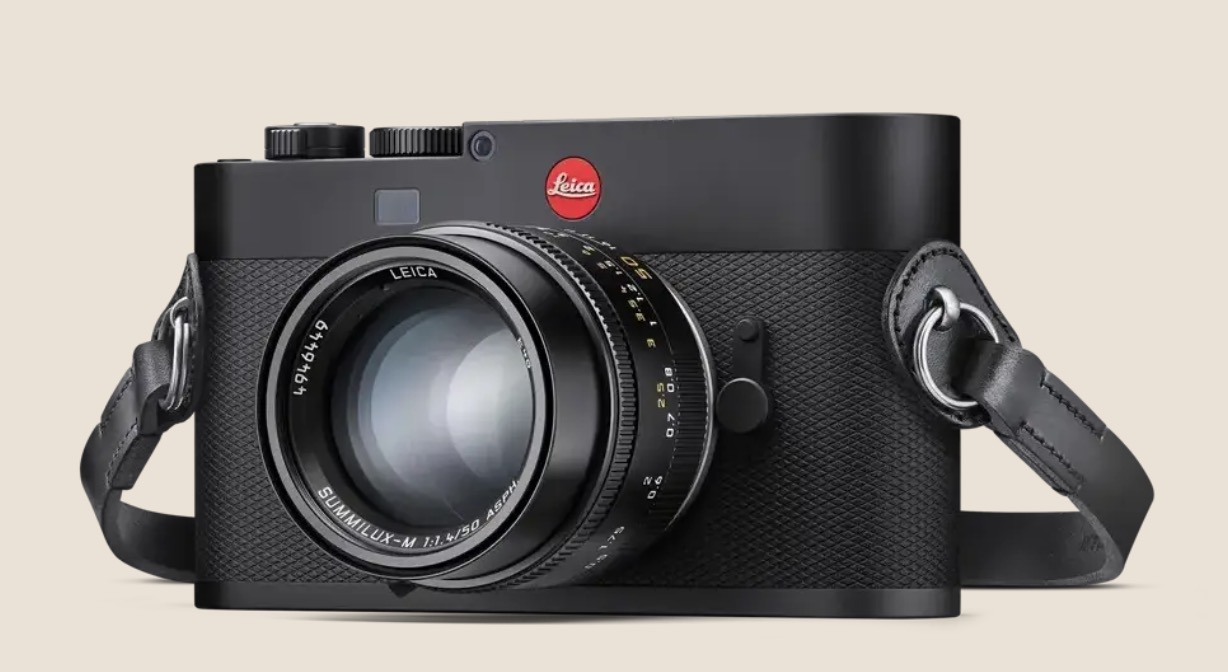
Leica M EV1

Curious.

For an index of all Leica-related articles click here.


Odd looking with no finder window.

Introduced in 1954 the Leica M3 brought the best optical viewfinder experience to 35mm photography. Comparing that finder with the one in my digital Leica M10 shows that a good thing can be made better. The greater eye relief of the M10’s finder along with the electrically illuminated finder frames which adjust to the level of ambient light made things even more useable.

But even with digital M bodies – and the sensors in the M10 and M11 are superior to anything film can deliver – the age old limitations of the body’s design remain. That means no autofocus, no in-body vibration reduction and a limited range of finder frames for different focal length lenses. The M10 and M11 display 28, 35, 50, 75, 90 and 135mm frame lines, in pairs. The 28mm is barely visible to eyeglass wearers and focus with fast 90 or long 135mm lenses is a decidedly iffy proposition at larger apertures, necessitating the addition of an eyepiece magnifier. So while the limitations of the M’s optical finder are many the advantages more than compensate for this snapper. That means seeing outside the finder frames for what is about to enter the picture and the wonderful absence of myriad data displays in the finder which detract from the pure picture taking experience. All you see is the shutter speed and a small indicator telling you if exposure compensation has been dialed in. And, of course, that wonderful central focusing rectangle. Perfection.

However, someone at Leica determined that the world needed an M body, with all its svelte appeal, married to an electronic viewfinder. That’s nice as you can use any focal length and get accurate framing, even if you lose the ‘see outside the frame’ function of the optical version. For a premium price, barely discounted from the regular M11, you retain the ability to change lenses but still get no AF or IBIS. Yes, you can dial in finder magnification with the lever located where the frame selector lever normally resides, but it’s unclear whether this springs back when released or clicks in and stays in position. If the former, then it’s poorly designed as you need your left hand under the lens to effect focus operation. None of the reviews I have read indicate how this works.

One possible advantage of the EVF over the optical rangefinder, the latter with its considerable complexity and fragility, is that the EVF should be more resistant to knocks and bumps. The Leica M’s optical finder/rangefinder does not take kindly to being jarred and while adjustment back to the proper setting is easy, this is pretty far from the robustness of, say, a Nikon body. (I show how to adjust the rangefinder here).

The sensor? It’s the same as in the M11, meaning 18/36/60 mp options, as good as it (Sony?) gets, with the addition of microlenses to correct for axial ray aberrations of very wide angle optics.

Options? You can add the electronic Visoflex finder to an M10 or M11 for almost $1000, adding a clunky top plate protrusion but retaining the features of the separate optical finder. Or you can opt for a Leica Q3/Q3 43 which adds IBIS and AF but loses the interchangeable lens feature, meaning you get either a 28mm or 43mm lens. And while the Q3 is not cheap at around $7,000, it’s chump change compared with the $9,000 M EV1 plus $4,000 and up for a lens.

In conclusion, I rather doubt the M EV1 will have much appeal to traditional Leica M snappers but if it carves out a new niche for Leica …. well, good luck to them

Epson ET-8550 – troubleshooting

A period of no use sees issues.

For an index of all articles about the Epson ET8550 printer, click here.

Having upgraded (meaning Adobe forced me to upgrade using a strategy of planned Mac hardware obsolescence) to the subscription version of Lightroom, I went to print a favorite image the other day and everything was wrong. The 13″ x 19″ print shot out in seconds and what little color there was in the printed image was completely wrong.

The problems were twofold.

First, Adobe managed to lose all my preferred printer settings on the upgrade to the latest version of Lightroom. In the print module LR switched to Print Job->Color Management->Managed by Printer. This is exactly wrong. What you want is for Lightroom to manage color, not the Epson printer. This permits use of the right paper profile for the printing paper used. It means you control – through Lightroom – color matching rather than having some unknown profile used by the Epson printer. Here’s what you want to see:
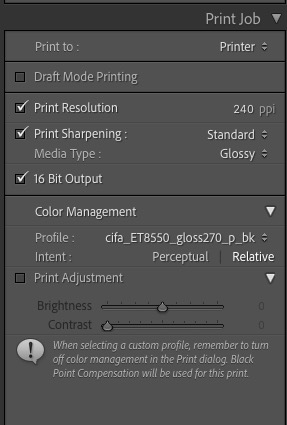


The color profile is the one for Canson Photogloss Premium RC paper.

You can check that LR is using this profile in the Print module by going to Printer->Printer Options->Color Matching, where you will see two options, neither selectable (both are greyed out) with ColorSync being the selected option, thus:
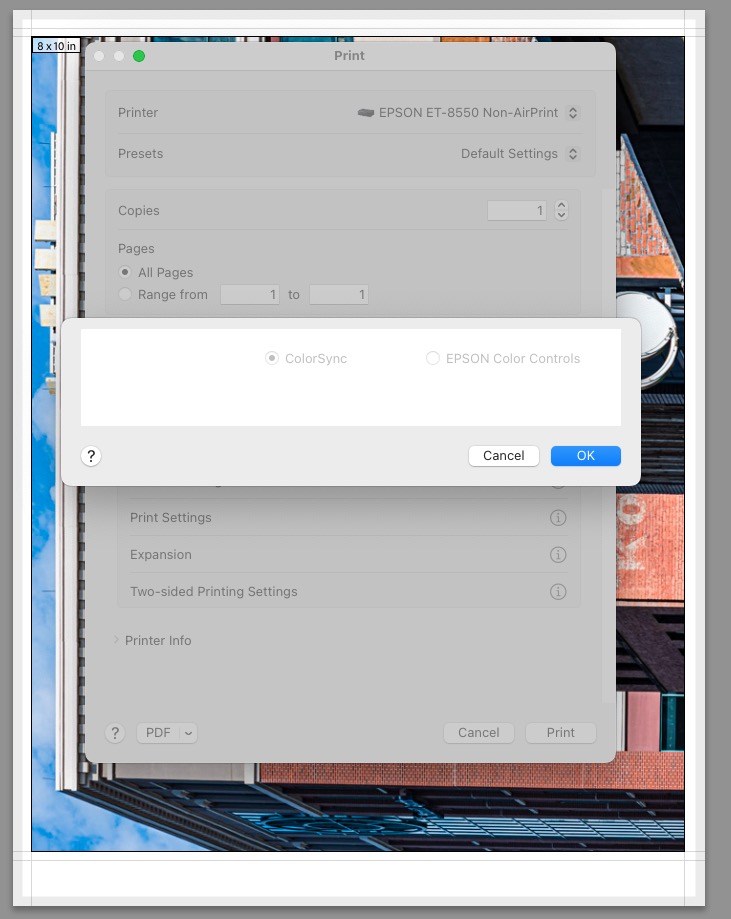


ColorSync is invoked by Lightroom.

Click ‘OK’ NOT ‘Cancel’ to make sure this setting remains undisturbed. Next, click on Print Settings and you should see:
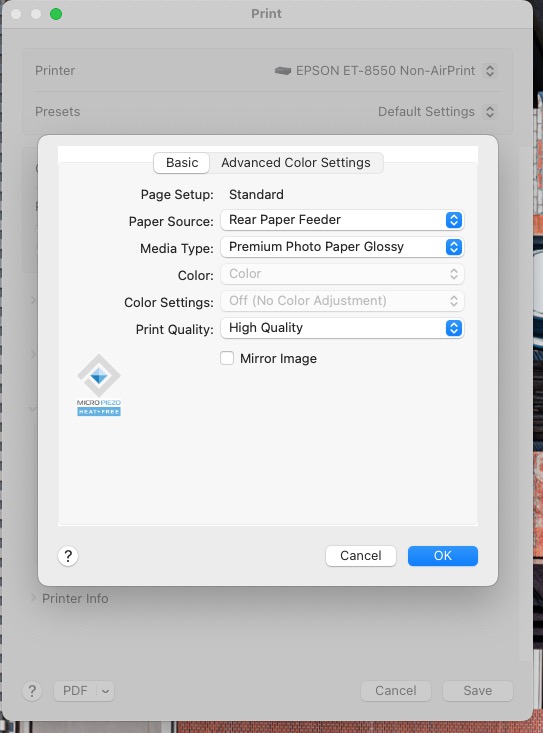


Print Settings after dialing in the correct Paper Source, Media Type
and Print Quality. All three were incorrect.

Now in that same dialog box click on Advanced Color Settings. You should see:
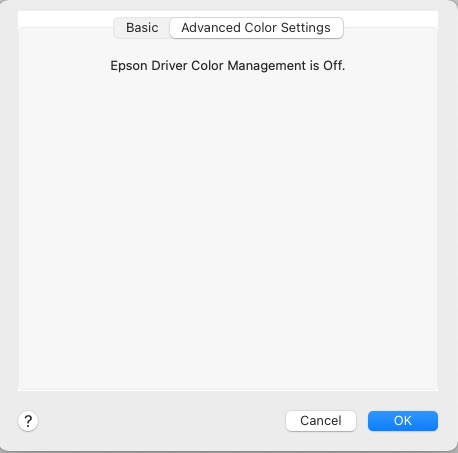


Confirmation that the printer is NOT controlling color.

So now I had LR set up for the right paper, paper source and paper specific profile, but the print quality was still awful.

Going to the touch control panel of the Epson ET-8550 go to Maintenance->Print Head Nozzle check, load some 8.5″ x 11″ plain paper in the second tray, and run the check. Mine came out showing bad clogging of both the Magenta and Grey print heads, disclosed by jagged lines in the print out. After running the Maintenance->Print Head Cleaning process twice, again using the touch screen on the printer, I finally got continuous lines for all six heads, thus:
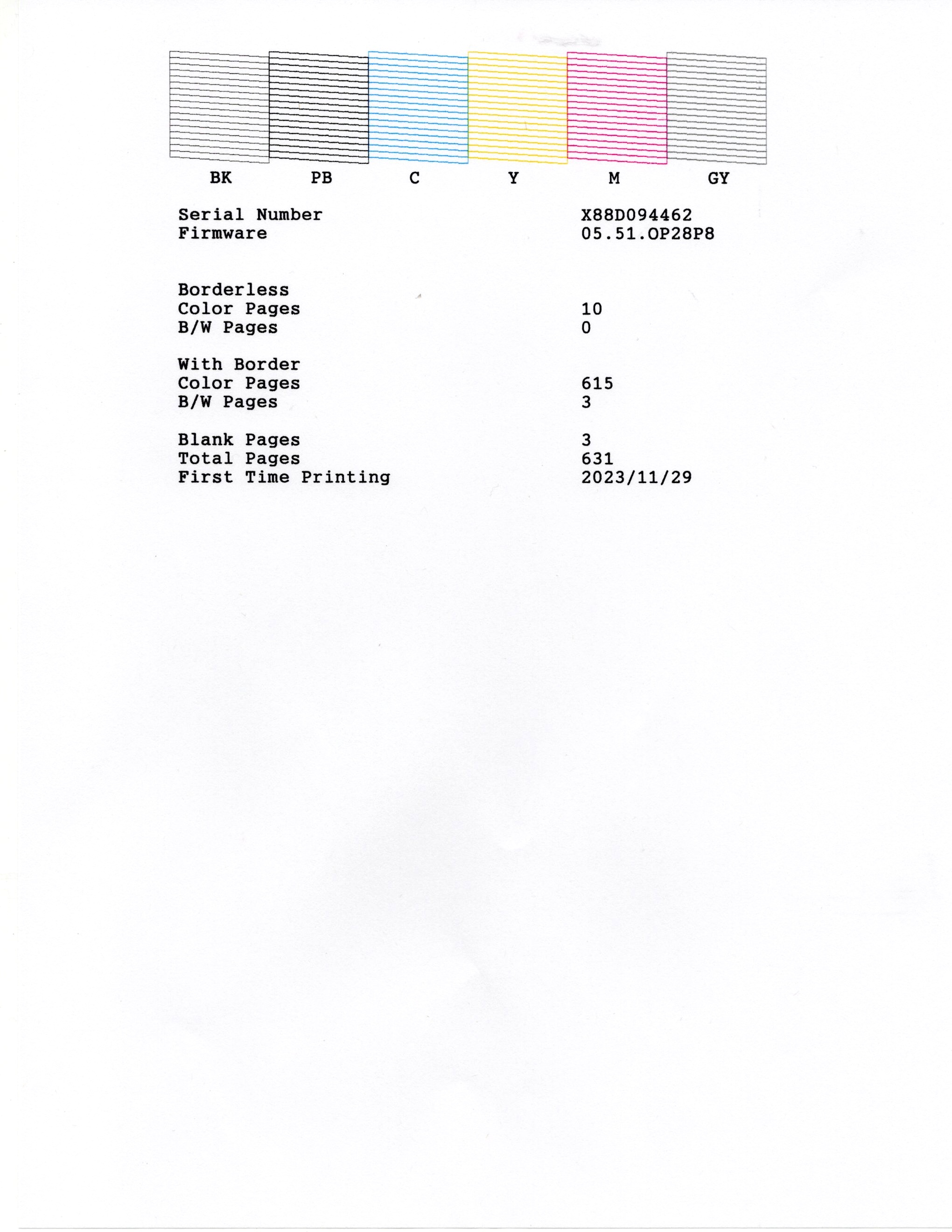


Six clean ink nozzles, designated by continuous lines in the print.

Finally I checked Settings->Printer Settings->Bidirectional and, sure enough, either dastardly Adobe or dastardly Epson had switched this setting to ‘Bidirectional->On’, which is sub-optimal for best print quality, if faster. I switched Bidirectional ‘Off’ and had at it with LR. A couple of minutes later a pristine 13″ x 19″ print was lying on my desk:



Perfect printing once more. Leica M10, 135mm f/4 Elmar at f/8 – as good as lenses get.

So a conspiracy of errors – Adobe’s poor ‘upgrade’ engineering and the printer’s recent lack of use resulting in clogged ink nozzles – is the sort of thing to expect in that most fragile of hardware devices, the ink jet printer. In conclusion, if your printer has not been used for a few months, run a nozzle check using plain paper before inserting costly photo paper.

Steve the master businessman

A fascinating interview.

In addition to his fascination with design and form, Steve was a masterful businessman.

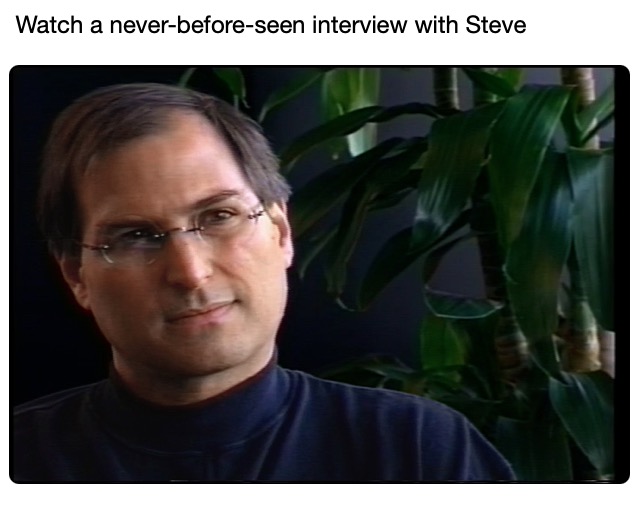
His widow, Laurene Powell Jobs, curates the Steve Jobs Archive and has just published a 1996 interview about Steve’s engagement with Ed Catmull and John Lassiter of Pixar and with the Disney Company to create the first ever completely computer generated animated movie. Toy Story would go on to be a huge hit.

There are many great business insights into the great man’s thinking in this interview. For example, he explains how he thought long and hard about compensation design in trying to meld the disparate cultures of Hollywood and Silicon Valley at Pixar: “Hollywood uses the stick – the Contract. Pixar adopted the carrot – Stock Options”.

To see the previously unpublished video click the image below.


Click the image..

Lightroom masking in v15

Extraordinary.

I’m one of the crowd that detests Adobe’s subscription model for its many photography applications, having paid to own Lightroom many years ago only to find that Adobe made sure it refused to work on the Mac Mini M4, forcing me to ‘upgrade’ to the subscription version with its predatory pricing. So much for lifetime ownership.

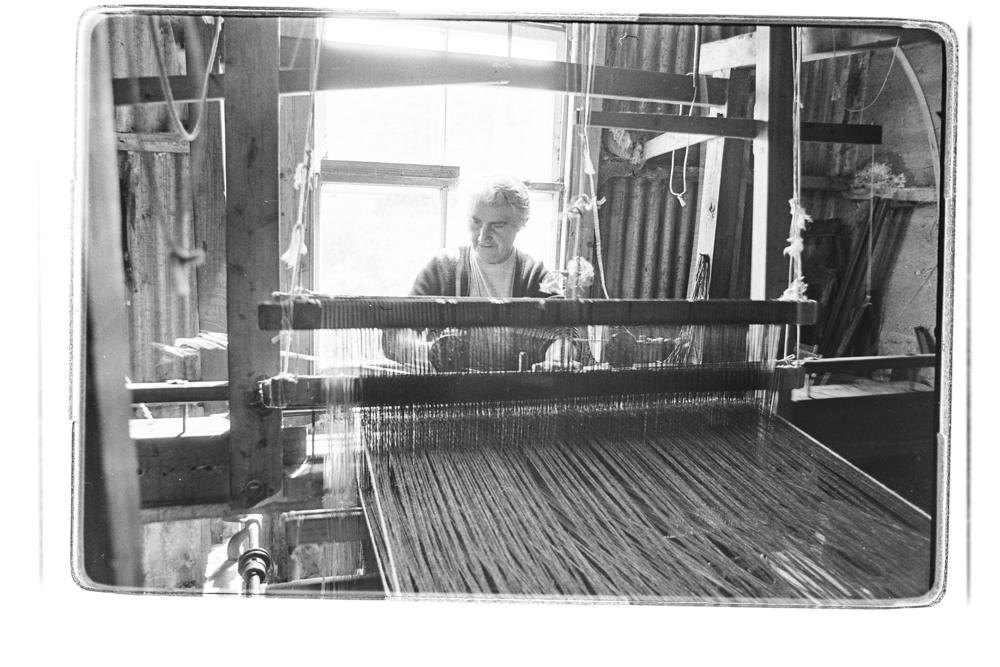
However, giving credit where it’s due, the masking and highlight recovery capabilities of v15, the latest upgrade, are extraordinary. These are best illustrated by the image I took of Marion Campbell in 1977 in the Outer Hebrides island of Harris, off Scotland’s northwest coast.

Back in 2008 I wrote:

I have been trying to process this snap for thirty years. Every decade it gets better as processing technology improves. Oh! if only I had had a fill in flash with me. Anyway, I now have the burned out highlights largely recovered and some vestige of detail in that wonderful, craggy face.

And that effort was tortuous indeed, requiring much work in Photoshop.

Now, with Lightroom v15, the process has become an order of magnitude easier. A while back I had re-‘scanned’ my early Tri X film images using the Nikon D800 and a Micro Nikkor lens. Definition is as good as you will ever get from a film scan, and far faster than using a flat bed scanner with its mediocre results.

Still, the ‘scanned’ image does not look great. After importing the image into LR and straightening things up, with some added tweaks on the sliders I had a half decent image but one which still has horribly burned out highlights from the window behind Ms. Campbell’s head:


The unprocessed film scan from the D800.

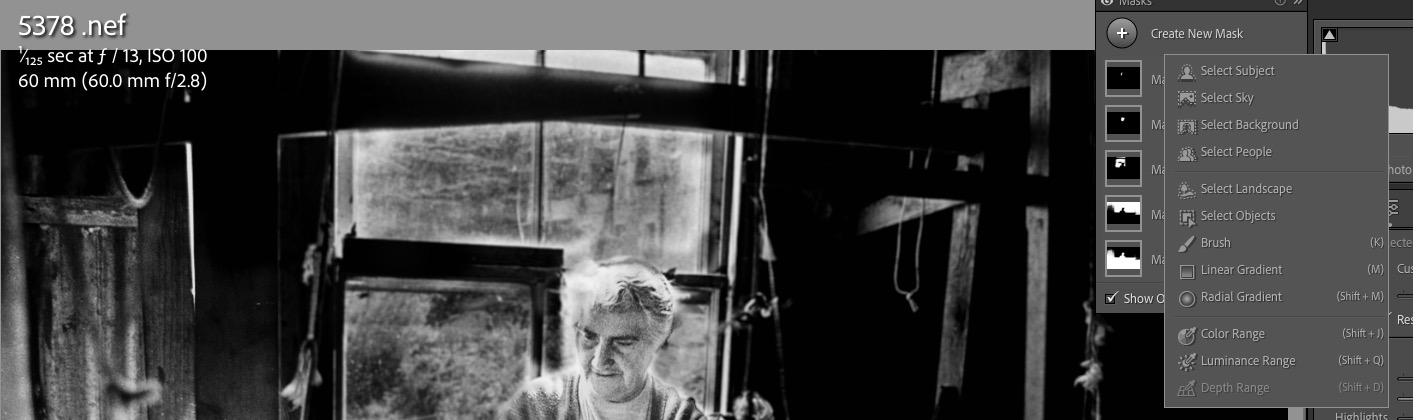
Adobe claims that v15 of Lightroom uses AI – doesn’t everyone claim AI as the magic sauce today? – in helping with masking, so I had a go using the dropdown box which gives several masking options:


Masking options.

I chose ”Select Subject’ and LR did a great job of doing just that, allowing me to add contrast and vibrance to the face. Next I added another mask, this time choosing ‘Select Background’, which LR accurately did, and had at it with the Highlights slider, for a truly exceptional result. A third mask using the ‘Brush’ this time allowed me to paint in her blown out hair with another tweak on the Highlights slider and here is the result which took less time to do than to write about:


The final result.

So finally, 48 years later, I have the displayed image which, until now, has resided in my mind’s eye.

Why, I’m almost feeling good about that Adobe subscription ….