Category Archives: Hardware

Stuff

The Hackintosh gets a speed boost

35% faster on graphics. Cost – zero.

Background:

This is going to sound like an ad for hair restorer, weight loss or one of Steve Jobs’s rollouts of Apple’s latest piece of hardware, but bear with me and read on.

One of the beauties of the CPU + motherboard in my Hackintosh is the ability to overclock the CPU with great control over dozens of settings – meaning to run it at a faster clock speed than the stock 2.83gHz. I have run mine stock until now, almost two years, and decided it was time to speed things up in light of the improvements in the latest CPUs and to counter the small 2-3% speed loss with the Lion upgrade in case that gets worse with newer versions of Lion.

To do this, I changed some settings in the BIOS on the motherboard after studying overclocker fora (!), and applied a modest overclock of 27% – thus increasing the stock CPU clock speed from 2.83gHz to 3.60gHz, or some 27% faster. This is conservative compared to what the hard core gamers on these fora with liquid cooled (!) CPUs do – they take it as high as 4.50 gHz or + 60% over stock.

The new settings can be saved as a separate set in the BIOS of the Gigabyte EP45-UD3P motherboard, so reverting to stock is a simple matter of recalling your stock settings when restarting. The Gigabyte’s superb dual BIOS (meaning there’s a backup if the main one blows) can store nine different sets of settings if you are that way inclined. On the handful or really warm days here (95F) I would simply restart the HackPro with the stock settings to keep things cool – we have no air conditioning. I simply take note of the Temperature Monitor reading for CPU1 in my menu bar – CPU1 always runs the hottest on the multi-core CPUs I have used.
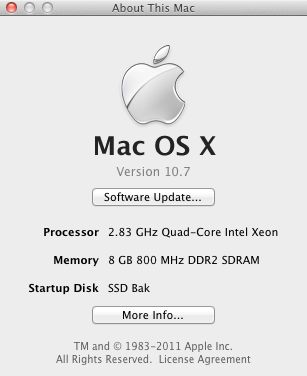
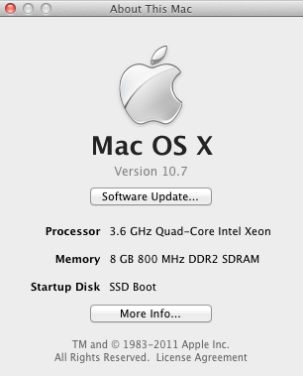
System Profiler before and after. The CPU is actually a Core2Quad, Q9550 Yorkfield.

Geekbench Before and After:

Geekbench is the objective way of testing CPU speed and is recognized as the standard by many geeks. The pictures below are using 10.7.0 Lion measured in Geekbench 64-bit mode.
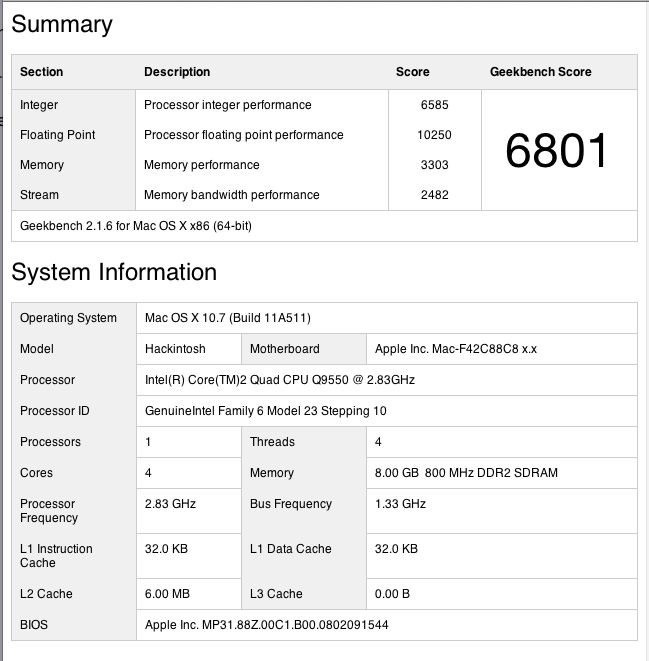
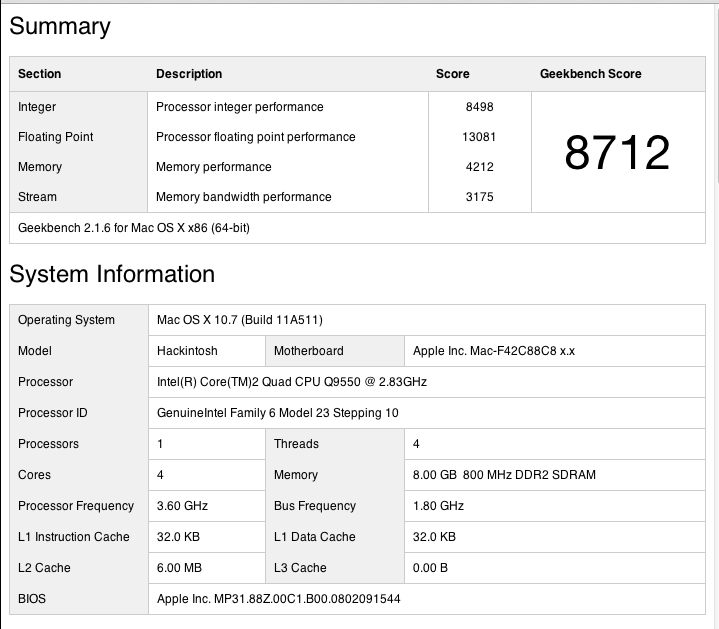
Core2Quad CPU at 2.83gHz and 3.60gHz, respectively.

That’s 28% faster compared to the theoretical 27% (3.60/2.83).

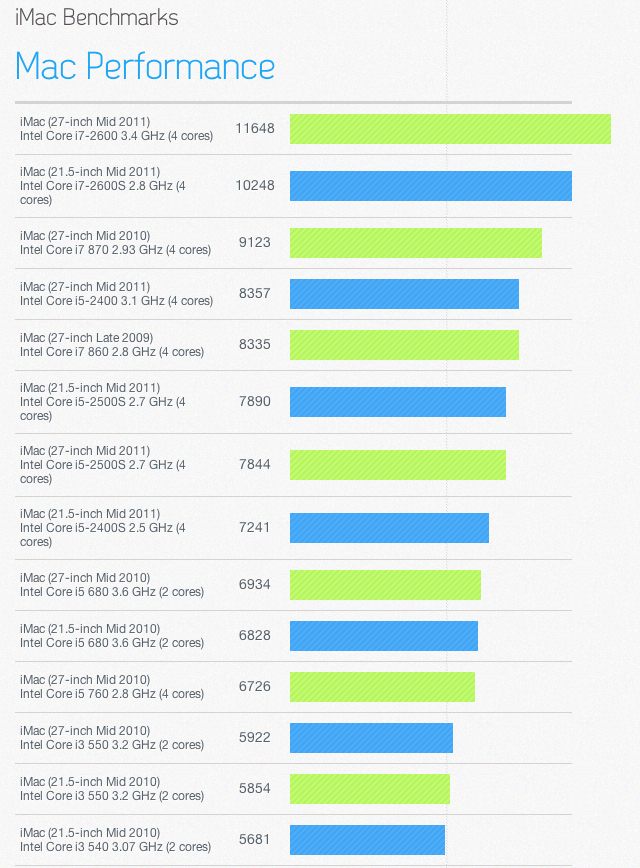
Comparison with latest iMacs with i5/i7 CPUs:

The above Geekbench score compares very favorably with the iMacs sold in the past year – HP1 has gone from bottom to top quartile:
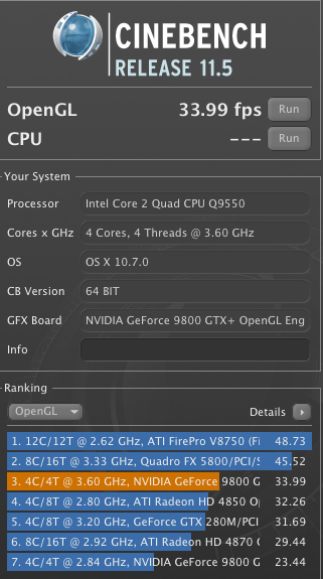
Cinebench Before and After – GPU:

Cinebench is a commonly accepted GPU test for graphics rendering.
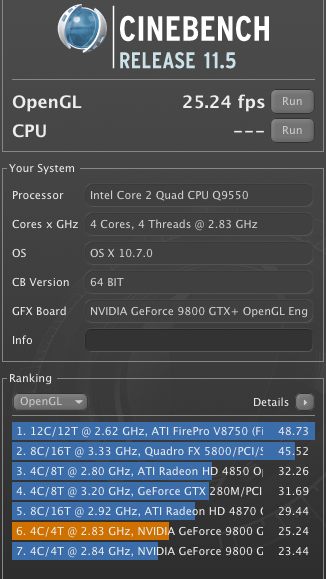
Cinebench reports a 35% increase in framing rate.

Both Geekbench and Cinebench tests were made using the 64-bit versions of the applications.

Subjective ‘feel’:

I hate subjective data. This is an engineering process, not an exercise in emotions. Subjective clap trap is about as reliable in the computer world as in the stock market. Just because you saw the Apple store full of people doesn’t mean the stock will take off. For all you know they were having a fire sale.

Still, in LR3, the sliders reflect changes even more immediately – almost a ‘real time’ experience. Enough with the subjective stuff.

Trade-offs:

What are the trade offs?

  • Stability. The built in CPU/BIOS failsafes may kick in and switch your machine off. I have run this (modest) overclock hard with no issues.
  • Heat. HP1 was running its CPU1 core at 115F. With this setup it jumps to 138F, still well below the 176F service limit for the Core2Quad. Still, that’s higher than I like so I opened up the case and …. lo and behold …. found that the cable for the CPU fan, attached to the Coolermaster radiator was detached! This must have occurred when I was installing the SSD drives. I reattached it and the ambient CPU1 temperature in overclock mode dropped immediately to 115F. So heat is not an issue if your CPU is properly cooled – my Hackintosh’s CPU has run in the 106-115F range for two years without one problem.

How hot can the Core2Quad be allowed to get?

In my original Hackintosh piece I stated that Intel’s specs dictate a core temperature no higher than 160.5F. That translates to an external case temperature maximum of 185F, as evidenced by Intel’s static storage data:
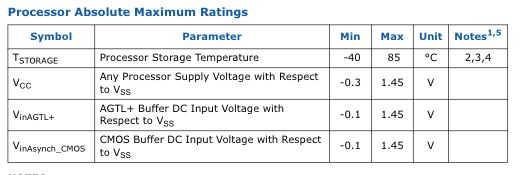
How hot can the outside get?

Temperature Monitor reports the outside case temperature, so a reported 185F (85C) is the same as the 160F core limit. On heavy Handbrake video conversion I have seen an indicated 169F (CPU cooler fan disconnected!), which is still 16F below the service limit. Limits on Core2Duo CPUs are higher – you can find them on Intel’s web site.

And this is what I mean by properly cooled – not the wimpy, stock Intel fan but something that really works:
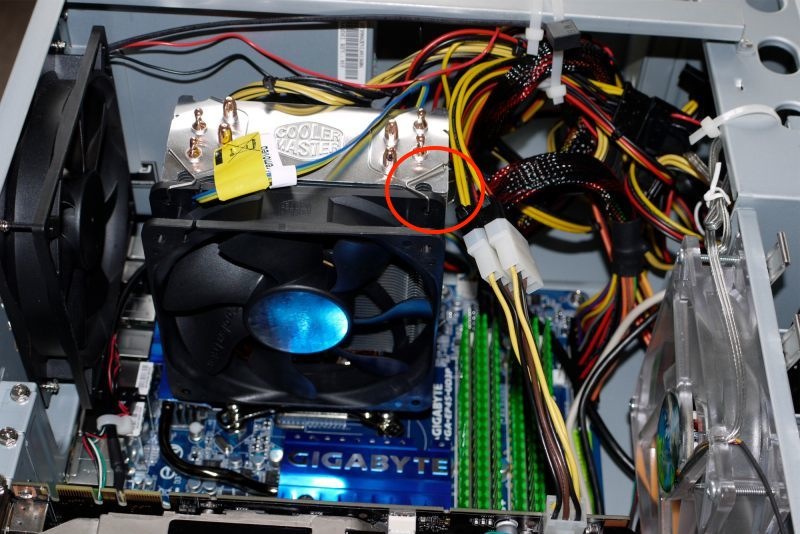
Coolermaster 120mm variable speed fan in place. The red circle denotes the proper installation point for the fan clips.
Case exhaust fan on the left, HDD fan on the right.

Given the low cost of these after market fans – $30 for this radiator and fan – there’s no excuse for not installing one. I would not risk overclocking if I was using Intel’s stock CPU fan. In the chart below, you can get a sense of CPU1 temperature when doing a common task – exporting an image from Lightroom3, after converting the 12 mB RAW original to TIFF, to Photoshop CS5, doing heavy manipulation of the image and then re-saving the 80mB TIFF file back to Lightroom3. The temperature rises to 136F and quickly drops back to the steady state 115F.
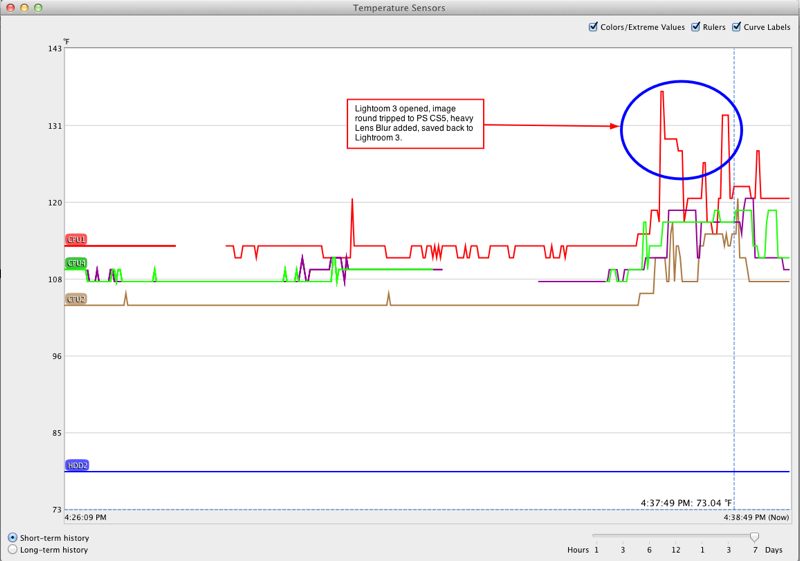
Temperature changes in LR3 and PS CS5.

Stress test:

To stress test the system I ripped a double layer 7.4gB movie DVD using RipIt!; this took a scant 12 minutes, for a maximum CPU temperature rise of just 2F. I then compressed that ripped movie down to a 1.26gB .m4v file, using Handbrake, another 40 minutes, for a temperature rise of 20F to 133F.

Rip = green box; compress = red box.

Nothing to be worried about here. By the way, the comparable times for this task on my MacMini (Core2Duo, 1.83 mHz, 320M GPU), were 30 and 75 minutes, respectively, albeit with the CPU temperature soaring to 169F.

BIOS settings:

You can see all the revised BIOS settings on the Gigabyte EP45-UD3P motherboard by clicking the picture below. The RAM is Patriot DDR2/800mHz. This board uses the 775 socket common to many Core2Duo and Core2Quad CPUs from Intel. The latest i3/i5/i7 CPUs use a different socket and require a different motherboard and upgraded memory. Changes from stock are marked with green arrows:
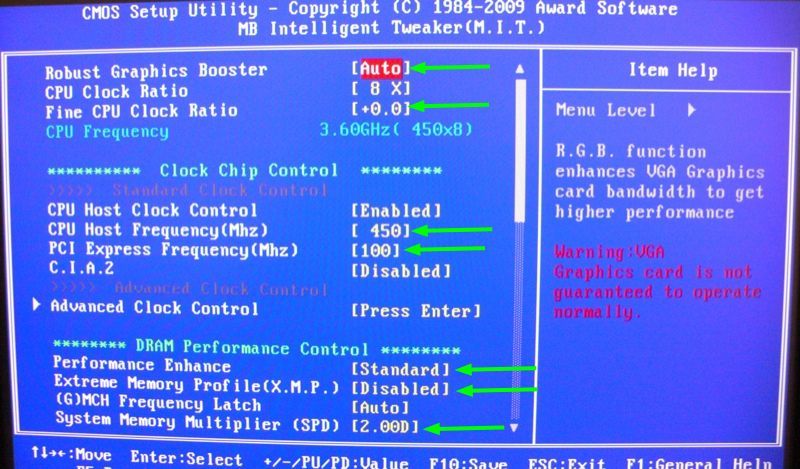
Click the image to see revised BIOS setting slides.

To make things easy, as your Hackintosh will be disabled while you are in the BIOS, follow the above pictorial on your iPad while making these changes.

Gigabyte EP45-UD3P motherboard:

When Adam Pash at Lifehacker conceived the design of the HackPro over two years ago, he choose the Gigabyte EP45-UD3P motherboard (775 spec CPU socket). A wise choice as this electronic hardware is a masterpiece of design and flexibility. While it’s no longer available new, there are many used ones on the market available for around $100, and you can download the related manual by clicking below.

Click to download the Gigabyte motherboard manual.

I would guess you could build the HackPro using its previous generation parts with two 1tB HDDs for $500 today with mostly used parts, before adding displays, and have performance as good as the latest iMacs, with far superior engineering design and longevity for heavy users. A good new Dell IPS display 1920 x 1080 widescreen, like the U2211H, will add $250 – it’s probably too great a risk to buy a used one.

Overclocking:

Intel has realized that the overclocking/gaming fraternity is a meaningful business segment to market to, so in their latest i5/i7 CPUs they sell ‘locked’ and ‘unlocked’ versions; the latter can be overclocked and are $10-20 more. Such distinctions were not available for the earlier CPUs like the Core2Quad and Core2Duo used in the HackPro, all of which could be overclocked, so it’s more than likely that the three year warranty on your CPU will be rendered invalid if you overclock. However, if you use a competent motherboard like the Gigabyte, above, your risk of damage should be greatly reduced owing to the many failsafes in the motherboard’s code, or BIOS. Just avoid getting greedy and don’t use voltages which are too high. My selected speed of 3.6gHz is a fine trade off between the last word in speed and long term reliability.

Lion on the Hackintosh

A bit tricky, but now working.

My Hackintosh was resolutely refusing to download Lion from the App Store, telling me the new OS cannot be installed. Despite trying every trick in the book, I was stuck. My Hackster is the original Adam Pash Lifehacker build (click Hackintosh menus at the bottom of the page) and despite many upgrades to hardware – RAM, HDDs, two SSDs, better cooling, you name it – has been rock solid for the past two years, running 7/24. I have little need for the new things in Lion, many of which seek to emulate the IOS experience and to some extent dumb down Mac OS, but am aware that once you fall behind, Apple has every incentive to brick your machine so they can sell you a new one. As I got tired of recycling Apple’s poor hardware and of the related burning smell from its graphics cards, I very much decided to go with OS Lion ASAP to keep my Hackster burbling along, if not boiling.

Time to call FU.

What follows was written by my old geek buddy FU Steve, who was responsible for building the HackPro originally. ‘I’ refers to FU in what follows:

*****

So I went to Thomas’s MacMini (Core2Duo CPU), had him pay $29.99, downloaded Lion and, before hitting install, copied the installation file to an 8gB USB flash card – like the one used in cameras. The Lion license applies to all machines you own – no more Family Pack premia. Thomas uses the Mini as a Home Theater PC only – it’s too lightweight for his heavy duty processing needs.

After experimenting with various methods, I settled on the Kakewalk one, mainly because it provides specific support for Thomas’s Gigabyte EP45-UD3P motherboard. This mobo uses the Intel Core2Quad (Q9550) CPU, clocked at 2.83gHz and while that’s considered dated, your Mac is as fast as its slowest part which, for Thomas, is his mediocre AT&T broadband. There’s no reason to junk the mobo, CPU and RAM just because something theoretically faster on paper is out there. If Kakewalk works as well for you as it does for me, please be sure to make a donation to the author.

You can download Kakewalk here. It supports a very large variety of motherboards and graphics cards; the complete list is here. You will also need Chameleon 2.0 RC5-r1083 – Google it. That’s the small app which makes a drive or partition bootable. With the Lion flash card in one USB slot and another empty 8gB flash card in another USB slot (both originally formatted Mac OS Extended (Journaled), GUID partition), create the USB installer on the empty flash card. Now here’s where the Kakewalk instructions failed me. I restarted and tried booting from the Kakewalk USB flash drive, as instructed. No go. Some research disclosed others were having difficulty here, so I did what follows.

First, be aware that Thomas uses two SSDs in his Hackintosh. Boot and Backup. (His Data and Data backup are on HDDs).

  • I divided the Backup SSD into two partitions – 110gB and 10gB, the latter named Lion.
  • I then used Carbon Copy Cloner to clone SSD Boot to SSD Backup and tested that I could boot from SSD Backup.
  • I then cloned the Kakewalk USB flash drive to the SSD Backup – Lion partition.
  • Next I ran Chameleon and applied it to each of SSD Boot, SSD Backup and SSD Backup-Lion, testing the first and second in turn to make sure I could boot from either.
  • Then I removed the Kakewalk USB flash card from the USB port (essential or the system freezes), restarted and told the Hackintosh to boot from the SSD Backup-Lion partition. Tons of script scrolled by and the installer started.
  • I told the installer to install Lion to SSD Backup (which contains Snow Leopard and all Thomas’s applications) and after about 5 minutes (SSDs are fast) the installation was done.
  • Next I restarted and told the Hackster to boot from SSD-backup and all was well.

What’s going on here? The Chamelon app works off a hard drive or SSD but will not work off a USB flash card. By cloning the USB install data to a partition on the Backup SSD I made it possible to boot the installation ‘disk’ from the SSD. An HDD will work as well, but will be slower.

This is what greeted me after restarting from SSD Backup:

The CPU is actually an Intel Core2Quad, but Kakewalk is fooling the OS into believing it’s a Xeon as the Core4Quad was never shipped in any Mac.

The beauty of this approach is that you are installing onto a drive which already contains all your apps, so no use of Migration Utility is required.

Thomas had me run a bunch of tests on apps and hardware he uses most. Here are the results.

First steps after installation included downloading the Java update from Lion’s Software Update, updating Apple Mail (click), updating SpamSieve for Mail (click-click), installing the updated 1Password (essential for Thomas) and generally getting a feel for things.

What does not work:

First, the OWC Sales/Newer Technology USB->DVI adapter no longer works, meaning Thomas has lost the use of the third Dell 2209WA display he uses; the Hackster has but one Nvidia 9800GTX+ GPU card and that supports only two displays. The third needs the USB->DVI adapter. This will have to await a software update for Lion; System Preferences->Displays still ‘sees’ the third Dell. (See ‘Anomalies’ below).The alternative wireless dongle from Newer Technology does not work, another candidate for a software update. No old PPC apps work – Quicken 2003/5/6/7 (Thomas converted all his Quicken 2005 data to iWork, the least bad alternative, and they are all bad), EyeOne Match for the EyeOne Display2 colorimeter, as discussed earlier here.

Update: OWC has released an updated driver for the dongle and all is now well.

Sleep:

I could never get Sleep to work in Snow Leopard – any version. If you put the computer to sleep using the mouse or to timed sleep (System Preferences->Energy Saver) the BIOS would be reset and the Hackintosh would refuse to restart, requiring a complete boot cycle. As Thomas requires ‘instant on’ functionality, he simply left his Hackintosh running 7-by-24. Very energy wasteful.

Well, Sleep still does not work with the factory provided Lion OS; the BIOS is trashed and has to be recovered on restart. Even worse than with Snow Leopard. But I have finally managed to get it working in Lion – keyboard/mouse or timed. You need to replace the SleepEnabler.kext kernel extension in Lion. To do so, download the Kext installer here – it’s named KextBeast. Then download the replacement SleepEnabler.kext here. Install it. Sleep now finally works. Set your preferences for Sleep in System Preferences->Energy Saver.

What does work:

Sound and wireless broadband (TP-Link card with an Atheros chip emulating Airport) worked immediately.

Photography applications:

  • Lightroom 3.4.1 with Camera Raw 6.4.1 – no issues. Running in 64-bit mode.
  • iPhoto ’09 v 8.1.2 – no issues.
  • Bonjour printing – all Thomas’s printing is wireless. Brother HL-2170W monochrome laser printer – perfect. Hewlett Packard HP DJ90 color inkjet dye printer – perfect. Tested by making a big print from Lightroom. Phew! Real deal breaker for Thomas if this failed.
  • Photoshop CS5 v 12.0.2 64-bit – no issues

Speed benchmarks:

Geekbench – CPU performance:

In OS Snow Leopard 10.6.7:

On OS Lion 10.7.0:

That’s virtually identical.

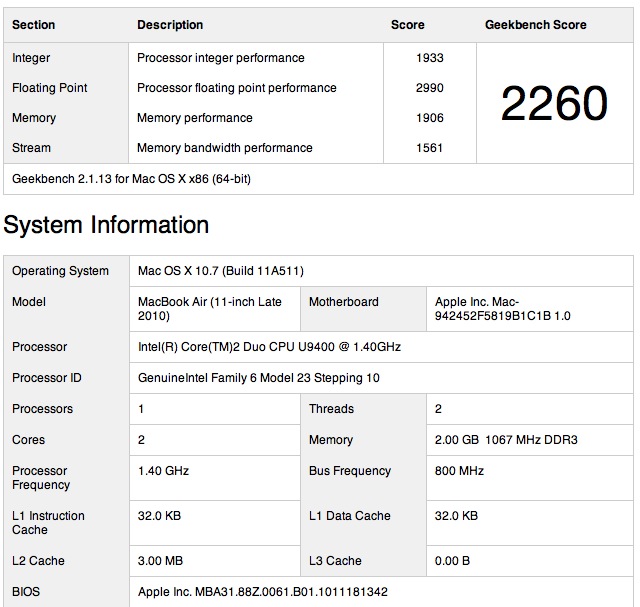
For reference, here’s Geekbench running on my MacBook Air, the one with the 1.4gHz Intel Core2Duo CPU:

Those running Intel Core-i7 CPUs with 1333mHz RAM can expect a score of around 12,000 with up to 16,000 on the fastest (and costliest) systems.

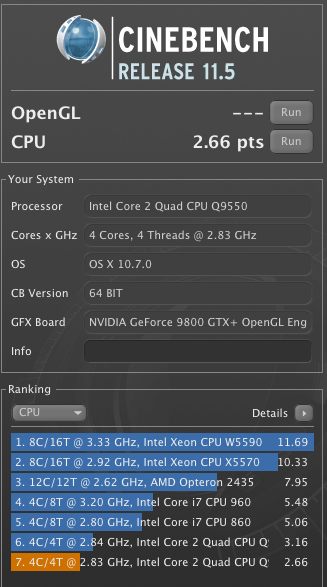
Cinebench:

You can see how Thomas’s Hackintosh compares with some of the fastest machines out there in this test – here’s the Open GL test. The GPU is an Nvidia 9800GTX+:

And here’s the CPU test – you want to make sure your machine is really well cooled before doing these:

CPU operating temperature:

The key design brief for my Hackintosh was exceptional cooling. Thomas lost several MacBooks and iMacs to overheating. Here’s the recent history of the steady state idling CPU temperature in his machine:

OS Snow Leopard 10.6.0 through 10.6.7 – 107F
OS Snow Leopard 10.6.8 – 115F
OS Lion 10.7.0 – 115F

Snow Leopard 10.6.8 incorporated much of the Lion code and accounted for the 8F temperature rise. Lion keeps it unchanged, so realistically Lion runs 8F warmer than Snow Leopard. That’s never a good thing, but with a case temperature operating limit for the Intel Core2Quad Q9550 of 176F, there’s lots of headroom left. If your CPU is a Core2Duo the operating limit is higher – check it at Intel’s excellent site.

Other useful apps which work fine (nearly all have been reviewed by Thomas here – click the search box at the top of the page):

  • Total Finder – Finder with tabs and split screen
  • Moom – screen splitter
  • HideSwitch – shows invisible system files
  • Firefox 5.0.1 – second rate browser
  • Fingerprint – print from an iPad or iPhone
  • Transmit – with an update
  • Dropbox – what MobileMe should be
  • MouseLocator – flashes a green circle to help find the mouse cursor – see ‘Anomalies’ below
  • NetNewsWire – RSS feed aggregator
  • ImageWell – used for posting images to blogs

Other applications which do not work yet – meaning they probably do not work on genuine Macs either:

  • LogmeIn – remote desktop. Update July 25, 2010 – LogMeIn just issued a new desktop Lion app upgrade and the app now works properly.
  • Realtek Wireless Utility for Newer Technology wireless USB dongle – fixed – new driver installed
  • Newer Technology USB to DVI display adapter and software – fixed – new driver installed
  • SecondBar – shows the menu bar on all displays – fixed – see ‘Anomalies’ below
  • TrimEnabler – garbage management on SSDs – fixed – just re-download and re-install the current Snow Leopard version

Anomalies:

  • Thomas uses Dell 2209WA displays, which come equipped with two USB pass-through sockets per display. These USB sockets have ceased working though I have confirmed that the related sockets on the Hackintosh work fine. There’s a driver update here and once installed the third display comes back to life and the Dell USB pass through sockets become live again! Further, the new driver finally allows screenshots to be made from the related display.
  • The Hackintosh has a built-in Sony SDHC card reader. This has ceased working. However, plugging Thomas’s SDHC card into an inexpensive Transcend USB card reader and plugging this reader into one of the two front USB sockets on the Hackintosh has the card recognized and readable.
  • Re-downloading TRIM Support Enabler and reinstalling it has TRIM working on both SSDs, as confirmed by System Report-Hardware-SerialATA.
  • MouseLocatorAgent – causes jerky mouse cursor behavior, so switched off in System Preferences.
  • AirDrop, Apple’s new file sharing technology, does not work on the Hackintosh, but is fine on other Lion-equipped Macs.
  • Second Bar is a wonderful utility which permits display of the Finder menu bar on multiple displays. There’s an update for Lion, though it does not work on USB-DVI connected displays. The Snow Leopard version is unstable.
  • AirDisplay, which permits the use of an iPad as a second (or third or fourth or ….) display, needs a new driver for the Hackintosh.

Final steps:

With everything working well, I used Carbon Copy Cloner to clone SSD-Backup to SSD-Boot and restarted from SSD-Boot, the default startup drive. I left the SSD Backup Lion partition in place in the event Lion ever needs to be installed elsewhere, or reinstalled. If the drive with the installer fails, Thomas has the SDHC flash card installer which can be cloned to a new drive from which a fresh installation can be made. The beauty of this approach is that a fresh install can be made to any drive. The latter need not contain any predecessor OS.

So if you, like Thomas and I, are a reluctant but resigned upgrader to Lion and use a Macintosh, things overall do not look too bad. I expect Thomas to get an easy two more years from his HackPro.

*****

Thank you FU Steve, for all your hard work in keeping the HackPro current.

This blog post was written and posted from within Lion.

Does a Hackintosh make sense? An addendum from FU Steve.

With the latest iMacs increasingly price competitive and very fast, do the blood, toil, tears and sweat involved in crafting a Hackintosh still make sense? Thomas addressed this at length here. In summary, if you want the last word in robustness, reliability, easy parts availability worldwide and low repair costs there is no Mac, whether Mini, iMac or Pro, which compares with a Hackintosh. Further, modern software ‘builds’ allow the OS to be updated using Software Update, with manual labor only involved at major version changes. If you need the latest in CPUs/GPUs/RAM speed you would be building a Hackintosh with Intel’s fastest i7 CPU, an ATI Radeon HD5970 graphics card and 16-32gB of 1666 mHz RAM. Your all in price would still be less than half that of a MacPro and parts availability/upgradability infinitely better. So it’s a ‘horses for courses’ decision. With the exception of the MacPro, there is no Mac made which I would trust when it comes to reliability under hard use, all failing the test of proper ventilation/cooling with exorbitant repair costs when they break once out of warranty.

Since Thomas wrote that piece, the iMac and Mini have added Thunderbolt high speed data ports; this is Intel’s LightPeak technology on which Apple has a one year exclusive, meaning that PCI-E LightPeak cards will become available for PCs some time in early 2012. Tests confirm that this technology is faster than USB2 by an order of magnitude (meaning ten times faster) and is faster than eSATA. If you are moving large quantities of data – like video files or BluRay movies – this is a worthwhile investment and Thomas has told me he will likely ask me to add a card to the Hackster once disk drives sporting Light Peak connectivity become common and affordable.

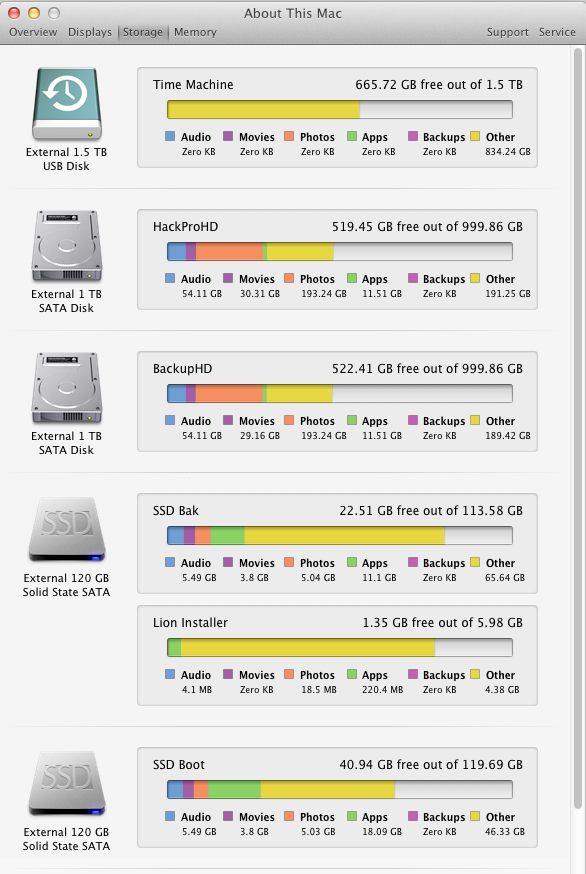
The capacious box of the Hackintosh not only provides ample space for cooling radiators and fans, it also accommodates many drives:

Drives in the Hackintosh. All are internal (labels are wrong) except
TimeMachine which is in an external cradle.

You can see how all these drives work together by clicking here.

3M Precise Mousing Surface

Well blow me down.

As one originally trained in the discipline of mechanical engineering you would expect me to display many of the characteristics of that genre and you might well be right. These characteristics include:

  • Attention to detail
  • Refusal to let well enough alone
  • A binary approach to problem solving – right or wrong, no grey
  • A general conviction that I am right and it’s up to you to prove otherwise
  • A fundamental belief in the empirical over the theoretical
  • Horrible working in ‘teams’ or whatever the management-speak BS of the day is for shucking responsibility for your actions
  • When something sucks, I will make it a point of telling you to your face

Now the desire not to retire as a ward of the state saw many of these tendencies moderated over the past years as I had to act the sycophantic fool to all and sundry in the process of relieving them of their capital and making it mine. And while I had some modest success in doing that I can’t say it was much fun. Now I’m a retired old fart I can happily default to the above traits and feel better for it.

Anyone who has done any serious work with machines, meaning building or repairing them, knows better than to skimp on tools, hard, soft or liquid. When it comes to the vast range of chemicals and related materials involved in cars, motorcycles and machines of all guises, the wise man pays a little more and buys 3M products. Whether adhesives, abrasives, solvents, tapes, coverings, you name it, the products from Minnesota Mining & Manufacturing remain the standard to judge by. Just recall the last time you chintzed and bought aftermarket Post-It sticky notes, only to find they stuck to nothing. Or refused to let go. That’s 3M for you. The standard.

Long time readers of this journal know that one of my areas of ceaseless pursuit is that of a good computer mouse for the Hackpro desktop. I much prefer a mouse over a tablet for Photoshop outlining tasks, for example, so a good mouse is a key tool. I have written of several here and am now happier than ever (maybe that should be ‘least unhappy’?) with the Logitech MX900 recommended by a fellow photographer (thank you, Roy!), allied with SteerMouse software. Having tracked down two of these, used, I am happy as can be. Or at least I was until a while back when the cursor of the one at the HackPro started jumping about like a crazy thing. I tried all sorts of settings on SteerMouse for sensitivity and speed, but no. Nothing worked. The jumpiness seemed random and not related to CPU activity or the presence of other devices which I cycled to see if there was any cause and effect to be found.

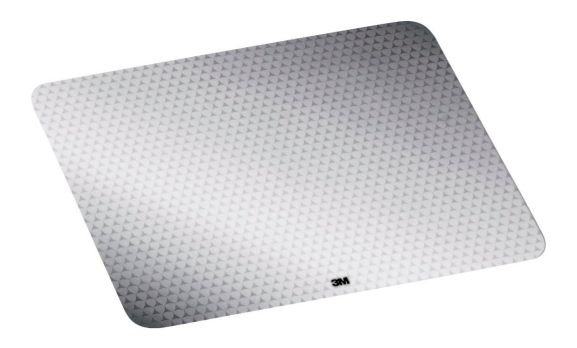
Then it occurred to me that I had not followed my own rule and had bought a chintzy mouse pad. Well, $6.88 later and Amazon delivered the 3M Precise Mousing Surface and it’s night and day. Very thin, with Post-It style repositionable adhesive backing, hard with no ‘give’, it has a lightly textured surface and simply takes away any erratic cursor behavior.

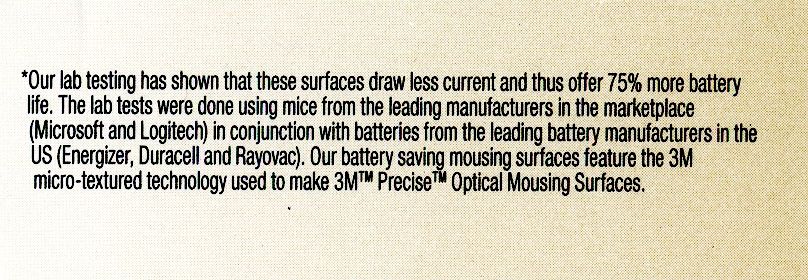
Further the (very) fine print on the packaging makes the odd claim that the surface improves battery life for a wireless laser mouse up to 75%. My engineer’s reaction was to discount this as something written at 1 Infinite Loop, the gold standard for BS.

Here it is, greatly enlarged:

That’s pretty detailed, naming names.

3M rarely lies, in my many years experience with many of its products. Follow their instructions and the product delivers what is promised. But as I share St. Thomas’s most laudable characteristic, his engineer’s side, meaning one of extreme skepticism, I cannot let that go unchallenged. As the Logitech MX900 reliably starts blinking its battery light after 5 days resting on the old mouse pad, it will be simple to prove. So revisit here in a few days and all will be revealed.

Meanwhile, even if the battery bit is untrue, get yourself one of these and, like me, stop complaining. At least for now.

Update after much use: The battery life claim is pure BS. But it’s still a great mousepad.

Two years with the Panasonic G1

Twenty-four blissful months.

As a street snapper I am convinced that someone on Panny’s design team for the G1 shares my avocation. It’s been two years now since I bought mine and the file counter now says 13,566, so I have been averaging over 500 snaps monthly with this little wonder and have never been happier.

Lock-ups? None. Breakdowns? None. Bad exposures? One or two which were my fault. Backache from carrying the camera? None. Obtrusiveness? None.

To see what I wrote after one year of ownership click here. I haven’t checked but can say with reasonable assurance that 95% of those snaps have been made with the splendid 14-45mm kit lens, the rest shared by the Oly 9-18 and Panny 45-200mm optics.

What would I change? Not much. With less than 1% of my snaps being out of focus (I use auto everything except ISO where I mostly use ISO 320) and maybe some of those in poor lighting being grainier than I would like, faster focus and a better sensor is about all I would ask, both claimed enhancements in the G3 body which I have on order. The latter seems to be forever out of stock but it’s not like I am dying without it. I skipped the G2 as I have no use for the movie mode or touch screen and the sensor was unchanged. Indeed, the only time I use the LCD screen in the G1 is to check battery charge status.

These two happy years have proved to this street snapper that the eye and brain are muscles like any other. Use them often and they become sharper, faster, more acute. The fitness for purpose of Panny’s G1 has done wonders for my vision and reactions, taking me back to those early years with the Leica M3 when I was still a young pup making his way in tired old monochrome.

But results talk and BS walks, so here’s a little bit of fun.

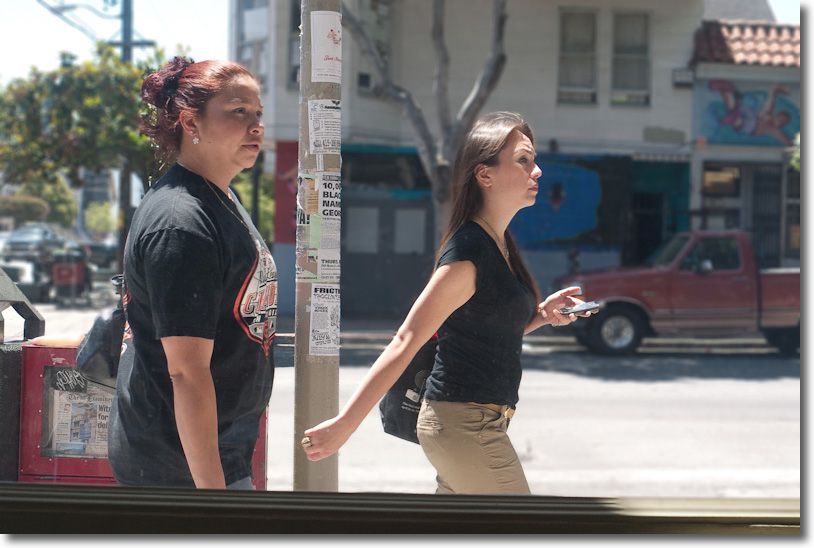
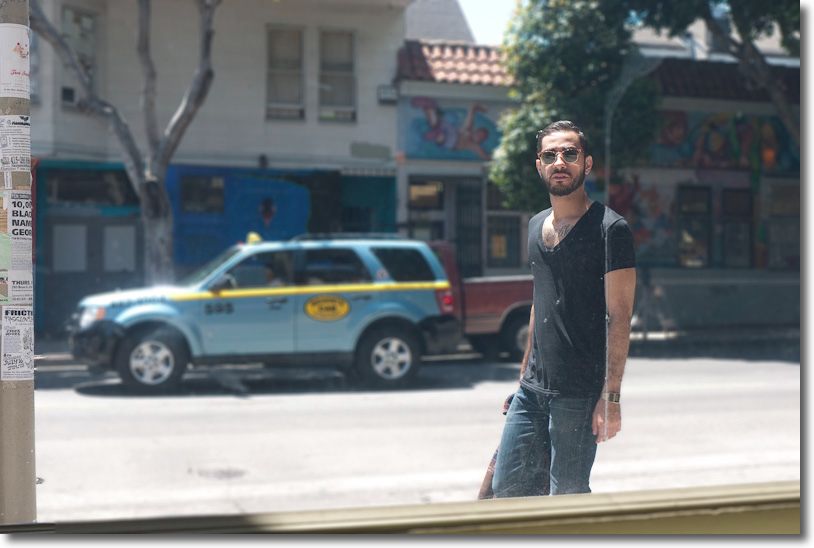
Sitting happily in a coffee shop on 24th Street in San Francisco’s Mission District I set myself the task of snapping the next twenty or so interesting passers by while munching my cream cheese bagel and drinking the fine cup of joe served there.

I liked ten of the twenty – all were well exposed and so on, but these have the most interesting faces. A diversity of cultures, styles and dress which makes this vibrant area so fascinating for the street snapper. My window seat afforded me a wide angle of view, making anticipation easier. It’s amazing how fleeting these moments are.

Enjoy, and here’s to the Panasonic G1, the best street snapper yet. Time stamps are below each snap.

12:04

12:11

12:15

12:19

12:23

12:26

12:29

12:32

12:36

12:45

All with the kit lens at 25mm, 1/1000, f/5.6, ISO 320.

Olympus gets serious

Two new lenses.

[column width=50% padding=3%]

I have but three lenses for my Panasonic G1 and that’s pretty much all I need.

Two are from Panasonic, with OIS built in – the stellar 14-45mm kit lens and the wonderfully compact 45-200mm. The third is from Olympus and it’s the ultrawide zoom, the 9-18mm MFT.

While the Olympus zoom suffers from barrel distortion to varying degrees, click this link and you can download my profiles to remove these distortions in LR3 or in Photoshop. Unlike for the Panasonic lenses, the G bodies do not correct distortions from the Olympus lens range, so if it matters you have to do it manually. It takes seconds for the occasional architectural snap which requires such correction. That apart, I have found the 9-18mm to be an outstanding optical performer, indistinguishable in practice from the excellent Panny 14-45mm kit lens as far as definition goes.

[/column]

[column width=45% padding=2%]

The Olympus 9-18mm is an indication that Oly is getting serious about making better lenses for its underwhelming Pen MFT bodies. I write ‘underwhelming’ as any camera whose primary mode of viewfinding requires the user to hold it arm-outsrteched, inches from his face, is not a serious camera for this photographer. First, I like to actually see what I’m viewfinding. Second, adding Oly’s clunky clip on EVF makes the whole thing bulkier than any G-series Panny with a built-in (and outstanding) EVF. Third, I prefer to remain unobtrusive. And last, I would rather not look like a dork. The sole advantage I can see to Oly’s bodies is that OIS is built into the body, meaning it works with any lens, whereas with the Panny lenses, selected lenses have OIS built into the lens. The Oly 9-18mm has no OIS but it is hardly missed at those focal length on my G1.

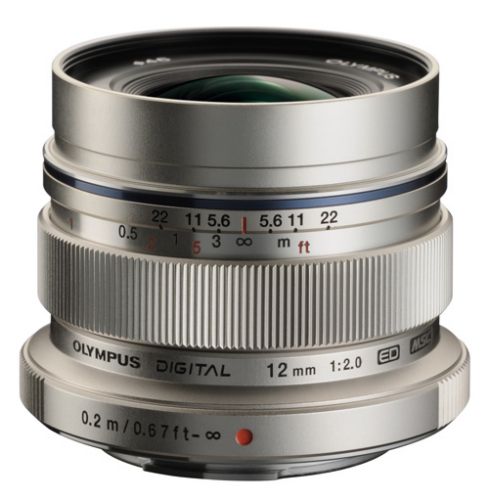
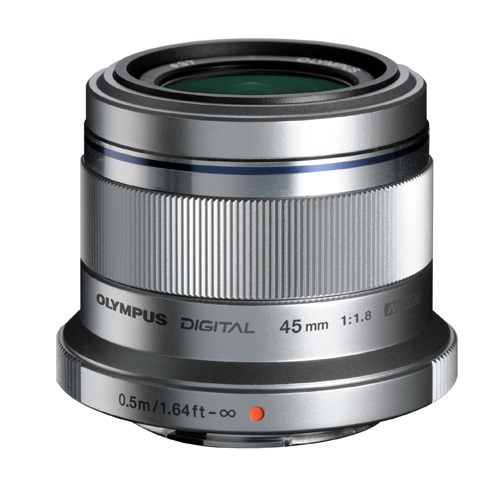
Now Olympus has announced two very interesting lenses for MFT – the 12mm f/2 (24mm FFE) fast ultrawide and the 45mm f/1.8 (90mm FFE) portrait lens.

[/column]

[column width=50% padding=3%]

Priced at $800 and $400, respectively, and available in July and September 2011, these fill two important niches, but it’s the latter lens which especially interests me. Since selling my 5D outfit, which included Canon’s simply superb 85mm f/1.8 portrait lens I have lacked a wide aperture portrait lens.

Sure, I can emulate shallow depth-of-field by selectively blurring details in Photoshop, when they are rendered too sharp with the Panny kit lens at 45mm. At 45mm the Panny kit lens is a modest f/5.6 and often has too much d-o-f for head-and-shoulders portraits. But using PS in a studio portrait to keep the eyes sharp and the ears blurred is not so easy. The Oly 45mm is a full 3.5 stops faster than the kit lens at 45mm so will afford far greater control over (shallow) depth of field. Thus it interests me greatly.

[/column]

[column width=45% padding=2%]

It remains to be seen whether these new Oly lenses are up to the performance of the 9-18mm, but at the prices asked I would guess that the quality will be fine. Obtrusive chrome finish? Who cares what color it is in the studio? Size? The Panny kit zoom at 45mm protrudes some 3.4″. Best as I can tell, the 45mm f/1.8 is much more compact, protruding maybe 2.5″ or as much as the kit zoom at 14mm, its smallest size. So this promises to be a truly compact portrait lens but with enough barrrel to permit support from underneath the lens. Lack of OIS? I’ll be using it with my Novatron studio flash outfit so camera shake is not an issue.

It will be a long wait to September for my 45mm f/1.8!

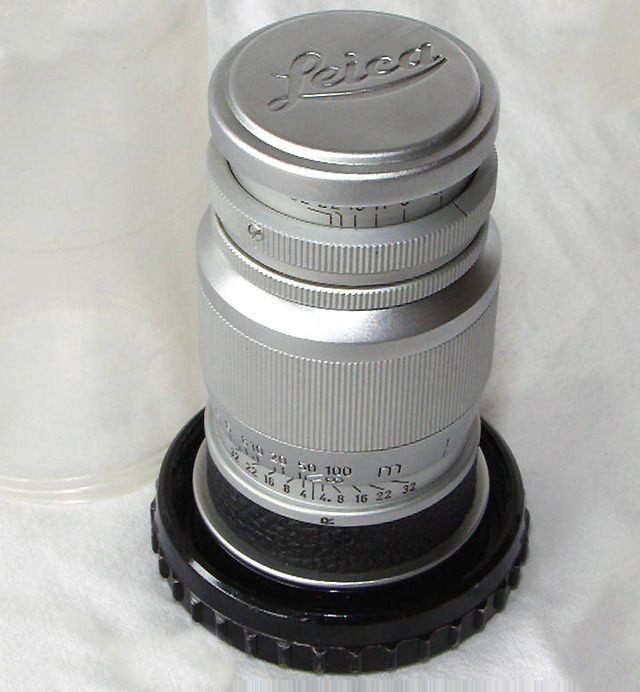
Curiously, the machining of the Oly’s focus collar is identical to that on my first portrait lens, bought in 1972, the estimable 90mm Elmar f/4 for my Leica M3:

[/column]

The Oly’s technology is just a tad more sophisticated. The Elmar was f/4, manual focus, manual aperture (the aperture ring rotated with the focus collar!), was twice the length of the Oly and the lens head unscrewed for use on bellows and close-up devices. There were no electronics in sight and construction was serious chrome coated brass. A fine optic which ran me £32 or $492.61 in today’s money. So the Oly is almost 20% cheaper!