Category Archives: Hardware

Stuff

Plasma displays

The sweet point.

Plasma and LCD displays continue to compete, with the latter now making the manufacture of plasma screens much below 42″ an uncompetitive proposition. But though plasma displays are heavier and use more energy than LCDs, and though they use a glass front plate with all the attendant issue of reflections, they remain the standard by which contrast range is judged. Nothing beats the blacks of a plasma screen.

What prompts this piece is my use of an inexpensive LCD display for display of art on the wall. I thought it might be interesting to compare prices of plasma displays at different screen sizes.

For some five years now the 104″ Panasonic plasma display has been the largest readily available plasma display, starting out at some $90,000. You see them now and then on TV where they are used for presentation purposes, though it is ordinarily far cheaper to simply use a blue screen behind a news anchor to project charts and the like.

The Panasonic 104″ display.

That Panny whopper has come down in price a lot, and I compare the most common Panny 1080p plasma displays for size, price and weight in the following table. The ‘Area ratio’ refers to the relative surface area of each screen compared to the 42″ one. So the Panny 104″ has more than six times the area of the 42″:

The chart clearly shows that the pricing sweet spot fades rapidly once the screen size exceeds 65″, and you can bet that there’s not that much left to be gained from economies of scale, as it’s unlikely that displays larger than 65″ will ever sell in the quantities needed to really bring prices down. Homes are simply not large enough, for the most part, and the logistical nightmare of installing a 500 lb. display does the rest.

Not that I would complain if you gave me that 104″ display, having lived with a 100″ projection screen in our previous home. The problem with the projection screen was that you needed a darkened room for the overhead projector to cast a contrasty image, but the price of the installation was a small fraction of the Panny plasma whopper.

Cost of a 100″ projection system.

Power consumption – a few watts, compared to 1,500 for the giant Panasonic.

200 megapixels

Innovation from Hasselblad.

The newly introduced Hasselblad H4D-200MS digital camera body is not for everyone at almost $50,000. However, for the working professional who needs to make barn-sized prints for a living, the price of entry is easily recovered.

Click the picture for more.

The body is a modified variant of the existing H4D-50 which makes six consecutive pictures of a subject, shifting the sensor in between, thus exposing all photosites (digital receptors) to equal amounts of light. The camera then merges these six images into a 200 megapixel whole. Commendably, the regular camera ($31,000) can be upgraded by the maker. The loss of some 100 megapixels (6 x 50 = 300) presumably arises from the process deleting duplicated data points.

A 200 megapixel file size (200 megabytes) is nothing to laugh about. You will need high speed data processing power to manipulate such files and a lot of storage to back them up. Further, the technology can only be used with stationary subjects, but for the contemplated billboard-sized results, subjects will likely include product advertisements, food shots for the sides of trucks and so on. These are largely static so that hardly seems a limitation.

Fuji, the owner of Hasselblad, deserves congratulations on this innovative camera.

London’s Tate Gallery uses this technology, and you can see more by clicking the picture below. The difference is readily visible in the small reproduction below, but on their site you can really zoom in to see what this is all about.

Click the picture to go to Hasselblad’s comparison page.

Wi-fi dongles

Cheap speed.

The location of my Hackintosh makes it uneconomical to run wired broadband from the Airport Extreme router in the adjacent room, so when I built the machine I installed a PCI-E wireless card to receive wireless. This card emulates the Airport card in Macs and works natively through the System Preferences->Network pane. Yes, a lot of brain cells were destroyed trying to find the right driver to make this work!

The other day, wanting to add a little more computing power to my office, it occurred to me that I had an older MSI Barebone in the closet. This inexpensive computer had been used as a media center but the poky Intel Atom CPU and Intel GMA 950 GPU struggled with routing movies, resulting in stuttering. So I replaced the Barebone with a MacMini and the problem went away, owing to the faster CPU/GPU in the Mini. The Barebone was consigned to the closet – it has negligible resale value.

However, for my use – streaming stock quotes – the Barebone would be ideal. The only snag is that it had no wireless capability and as it had been hacked to run OS X Leopard adding wireless would be tricky as there are no expansion slots in the machine.

Now my Apple Airport Extreme router is not the latest dual band version. It can deliver 802-11n in either shared b/g/n mode at 2.4gHz or n mode only at 5 gHz. I cannot use the less interference-prone 5gHz mode (where baby monitors, cordless phones, etc, do not venture) as that makes my older iPhone unworkable and also disables the HackPro whose internal card runs at 2.4gHz only, albeit in n mode.

So when I started shopping around for a device to add wireless to the Barebone, I limited my search to 2.4gHz devices, as I could not use 5gHz because of these limitations, and I did not want to spend another $180 to upgrade to the latest dual band auto-switching Airport Extreme router. I bought one of these, having owned one ages ago to add n mode to an old Mac iBook:

The Newer Technology n mode wireless dongle. Click the picture for MacSales’s site.

I plugged it in to the Barebone and, voila, after installing the driver (I downloaded it from NT’s site rather than using the older one on the provided disk) I was up and running.

The next thing was to run Speedtest.net on the Barebone and …. blow me down …. but the dongle was far faster than the Hackintosh with the internal card.

Ping/Download/Upload measurements were as follows (Ping, or latency, should be as low as possible, the others as high as possible):

MSI Barebone: 71/7.6/1.2
Hackintosh: 24/6.5/1.5

Both machines are in the same location.

So now, getting ambitious, I switched off Airport in the Hackintosh and plugged in the Newer Technology Dongle. Wow!

Hackintosh with NT dongle: 24/9.1/1.5 (The maximum download speed possible is 10.0 with my service)
Hackintosh with internal PCI-E card: 24/6.5/1.5

So the download speed was 40% higher with the dongle in the Hackster than with the PCI-E internal card!

Finally, I went to the MacMini which is hard wired to the cable modem which pipes broadband to the home:

MacMini hardwired: 26/8.6/1.3

So the Hackster + dongle on wireless, in a remote location, was faster than a hard wired MacMini!

These dongles run their own software and do not use the Airport app. In the past they deposited an ugly icon in your dock but the latest version of the software now places a discrete Ralink icon in the status bar, thus:

Click the icon and you get:

The Ralink software supports WPA2 secure encryption, even if it’s not pretty to look at:

All those disparate wireless sources reflect the additional Airport Express wireless extenders throughout the home, and the Virgin one is the MiFi portable 3G wireless gadget, of which more here. ‘2WIRE665’ is the router provided by AT&T. Fire up System Preferences->Network and you will see both the Airport-emulation PCI-E card inside the Hackintosh and the external dongle, identified below as ‘802 11 n WLAN’. In practice, the slower of the two – Airport – is switched off and the Hackintosh enjoys the faster speed conferred by the $30 dongle. You can save the Profile for your network, thus obviating the need to enter your password every time you reboot or restart. As I never switch off my desktop computers, it’s not an issue for me.

Bottom Line? If you are OK with using 2.4gHz n mode wifi and want speed with a minimum of futzing about in your Hackintosh, or you want to add n mode to an older computer which has b/g mode only or has no wireless capability, plug in one of these NT dongles into an available USB port, download the software from NT’s site and off you go. It protrudes some 2 3/4 inches. If that does not work, plug it into the provided cradle and connect the cradle to your Mac using the provided USB cable.

Snow Leopard 10.6.8 update – late June, 2011: The existing Ralink wireless utility fails to work after upgrading Snow Leopard from 10.6.7 to 10.6.8. However, the maker, Ralink, is on the ball, and you can find an updated version here – it’s the file named USB(RT2870 /RT2770 /RT3X7X /RT537X) and dated 6/21/2011. I had to try the installation twice before it worked and after rebooting all was fine again.

iMac HDD swap? No way.

Another consumer unfriendly move from the fruit company.

I wrote of the clear evidence that the new iMacs continue to have cooling problems here.

Now yet another reason has surfaced to avoid these machines. You cannot change or add internal hard disk drives yourself!

While accessing the drives in an iMac has never been easy, the post-white aluminum shell models with the ghastly glossy screens are easier to dismantle than their white predecessors. The glass screen is removed with a couple of small suction cups, the glass being retained by magnets. (Talk of form over function). A bunch of Torx screws retaining the LCD in place is removed and the LCD carefully raised while connecting cables are detached. The drives are then easily accessed. There’s room in there for an SSD in addition to the HDD. SSDs rock and I highly recommend the use of one as a boot and application drive.

But forget about swapping the HDD for a bigger one or replacing a blown one yourself, because Apple has made jolly well sure that your replacement will not work properly. You see, the greedy fruit company has installed unique connectors in its machines and in the HDDs they use. The connecting cable to the HDD controls the cooling fan speed for the HDD. Install a regular off-the-shelf HDD and the fan will spool up to a roar at 6,000 rpm, rather than the <2,000 rpm at which it ordinarily runs. So the only way you can get an HDD exchanged is to tramp down to the local Apple Store with your whopper iMac and tramp back there weeks later when it has been fixed. And if your 'local' Apple Store is 200 miles away, well then you are going to have to move closer, right? Or would you rather drive 800 miles per round trip? All so that they can hose you down an extra $100 for installing a replacement drive. A supremely thoughtless move by Apple, which I can only think is motivated by greed. Hard to explain it any other way. Here's the scoop from the fine people at OWC where I buy all my hard drives:

Any hard user of a Mac should avoid the iMac like the plague. When it does overheat or blows out its HDD, you will be stuck without a machine for a considerable period of time. And if that happens after the warranty has expired you are looking at very high repair costs. Remember my old 20″ and 24″ white iMacs which fried their graphics cards? Apple wanted $900 to repair that and to this day refuses to admit fault despite widespread comment on the flaw. Ridiculous.

There has never been a better time for demanding users to build a Hackintosh, at a fraction of the cost of the overpriced MacPro. Why, you could build two – talk of redundancy – and still have over $900 to spare, not to mention superior performance. Oh! and by the way, replacing an HDD in my HackPro takes two minutes – and that’s with one hand tied behind my back with breaks to play with the resident border terrier.

Overheating issues? Get real.

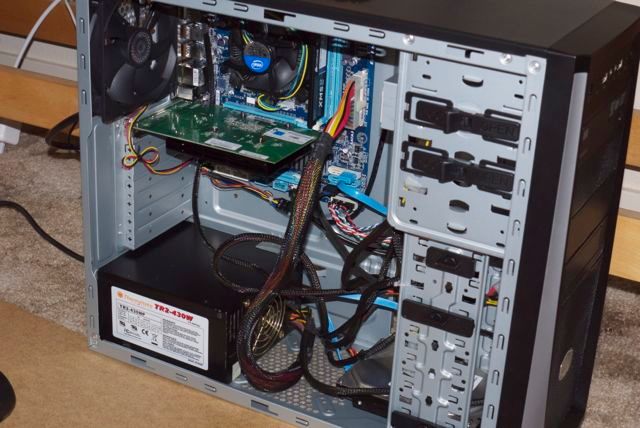
Intel SSD in the HackPro. Two 1 tB Samsung HDDs to the right. Drives slide in and out on spring-retained mounting plates.
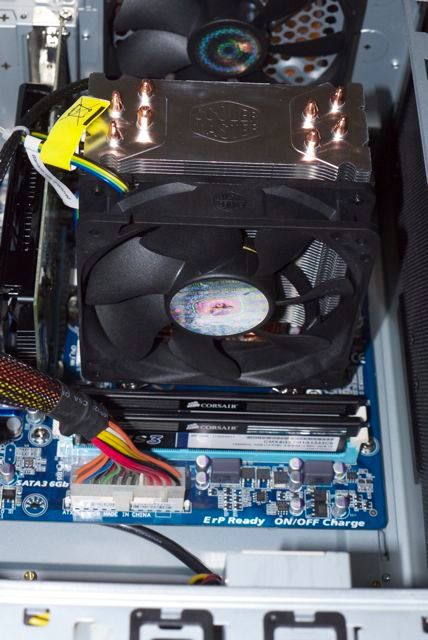
The massive cooling fan at the top cost all of $10 and is many times the size of the one in any iMac. A replacement
can be found at your local computer store.

My HackPro has 2 x 1tB HDDs and the smaller SSD for the OS and applications. Replacing the HDDs with 3 x 3tB ones would give me nearly 10 tB of storage for a total cost of $575. I just don’t need that much storage (though my movie file server is now up to 10 tB!) but it’s nice to know I can use any off-the-shelf HDD if I ever do.

The Razer Death Adder 3500dpi mouse

I take a leaf from the gamers’ book.

My initial enthusiasm for the Apple Magic Mouse has cooled.

There are three reasons.

The first is that it frustratingly loses the Bluetooth connection now and then which simply drives me up the wall. It does this both with my HackPro and, far more often, with the MacMini I use to watch stored movies. You would think it would work better with Apple’s hardware, but no. And that’s from two MagicMice – so unlikely it’s a sample fault. Go figure.

The second is that the ergonomics are not right. Even though the device is gorgeous to behold, it’s too low and I am developing wrist pain after extended use. And whoever designed that sharp edge – on a device meant to be held in the hand – well, the less said the better.

The third, another cause of extreme frustration, is that I cannot consistently get to the desktop by touching a selected point on the surface no matter how hard I try, using the MagicPrefs application I mention in my earlier piece. The touch point seems to change at random, working when it wants to. Just beyond irritating and the reason that finally made me change.

I checked around and one photographer friend recommended a Logitech model (the MX900) but sadly that is discontinued here. Others prefer to use the multi-touch pad on the MacBook Pro or whatever. However, I need a mouse for business use and also find it the easiest way to outline areas in Photoshop where localized manipulation is required.

So as those in the farming community like to say, I got me to thinking. Who would know most about mice? Why, the gaming community of course. They use them all day long, use them hard and are very demanding when it comes to smooth and instantaneous response. So I checked reviews of gaming mice with the following dictates in mind:

  • Must be wired. I am through with batteries, RF and Bluetooth.
  • Must have outstanding ergonomic design.
  • Must be programmable for use with Mac OS X Snow Leopard.
  • Must be super responsive.
  • Has to have a scroll wheel.

I eventually settled on the fancifully named Razer Death Adder 3500dpi mouse, replete with glowing scroll wheel and adder design on the body. Mercifully, the glow can be switched off. On receipt, I downloaded the latest software from Razer’s site and read through the comprehensive instructions. The application runs as a stand alone program rather than installing as a System Preference pane. The Mouse pane in System Preferences continues to work so you can experiment between that and the settings in Razer’s application, though the latter has many more options.

The contrast in shape with the MagicMouse is clear from the picture:

Two side buttons circled. Illuminated scroll wheel and death adder (!) switched on for this picture.

The Death Adder is larger in all dimensions, maybe too large for small hands; most importantly it is far taller, meaning your palm rests lightly on it, which is impossible with the Magic Mouse. It’s some 1 3/4″ tall compared to 7/8″ for the Magic Mouse – that’s a big difference. The indented sides further aid comfort. The left and right buttons are discrete and a comfortable concave shape, unlike on the Magic Mouse which uses a contiguous convex surface and, although the Razer’s two programmable side buttons are on the left only, the mouse can be configured for left hand use. Nice. For serious lefties there’s a true left handed version with the buttons on the right. Every control surface can be programmed for any action and macro programming is also possible. I left dpi and polling at their maximum settings (only a slow CPU working near capacity would need these reduced) and simply programmed the side buttons for Desktop and Dashboard, respectively, and programmed a press on the scroll wheel for Exposé- all windows. I hop into the desktop and between apps often.

The dramatic height difference is clear.

Double click speed, scrolling sensitivity, cursor speed/acceleration are all adjustable. I have scrolling set to the lowest speed otherwise it’s crazy fast. It’s a fraction heavier than the Magic Mouse which means just right. There’s a satisfying heft to it. The cord provided is very long at 7 feet – no issues reaching the HackPro under my desk. When shipped the lower surface is protected with clear plastic; once removed the mouse is wonderfully smooth on a mouse pad, resting on three protruding nylon pads. The side buttons are responsive and you can even adjust the delay before they kick in. There is no ball, a laser beam being used for tracking. Tracking is very smooth – I can detect no jerkiness or ‘steps’ as the cursor is moved on screen. It’s as good as the Magic Mouse in that regard, meaning excellent.

What’s not good? Vertical scrolling is stepped rather than smooth, something that only Apple seems to do right. The scroll wheel does not tilt sideways for horizontal scrolling, though it’s not a feature I miss. Let’s hope that the eventual ingress of dirt through the scrolling wheel will not wreck the mouse in the way the Magic Mouse’s predecessor, the Mighty Mouse, would fail. The Lazer’s body is sealed, so it’s not like you can clean it.

Other than that, the Razer Death Adder seems like a winner, at under $50. I had $20 left over after unloading both my (not so) MightyMice for $35 each. Good riddance. The only thing that ‘Just Works’ here is eBay.

The current issue of The New Yorker has an interesting piece by experienced technical writer Malcolm Gladwell about how a young Steve Jobs saw a prototype of the original mouse at Xerox’s Palo Alto Research Center in the 1970s. He had his engineers make it mass produced and cheap. Too bad Apple has forgotten how to design a good mouse. Like its iMac, the Magic Mouse is a triumph of form over function, looks trumping all else in the design brief.