An early review.
Spanish site Quesabesde has a review with picture samples of the Fuji X100. I was able to download the samples earlier and can report they are excellent – very fine grain even at the highest ISO settings, and sharp. Fuji has since instituted a blackout as the article states : ” Note: At the request of Fujifilm Japan has agreed to withdraw QUESABESDE.COM samples taken with a preproduction unit of the FinePix X100, with a view to publishing the short term a more extensive analysis from a final model of the camera.” The article also has RAW samples but as even SilkyPix has yet to process X100 RAW, they were unable to make any sense of them. These early samples were great so hopefully things will only get better.
Here’s a translation courtesy of the pidgins at Google Translate:
WANTED
Thursday, February 17, 2011
Fujifilm FinePix X100: first samples
Although it sounds like a worn cliché, the truth is that for some time that a model did not arouse the interest of the Fujifilm FinePix X100. Since it was seen at Photokina, there are few professional and amateur gourmets who have believed to see in the philosophy of this compact $ 1,000 responses to their requests. QUESABESDE.COM advantage that we have a working model of the X100 (do not ask how), it is time to stop philosophising and start answering questions with the camera in your hands.
Iker Morán .- Do not go on sale until March, but patience is not our forte. Faced with the prospect of waiting a little longer to get their hands on the FinePix X100-just that we were recommended from Fujifilm Spain-QUESABESDE.COM secret services have been launched to find a preproduction model of the compact.
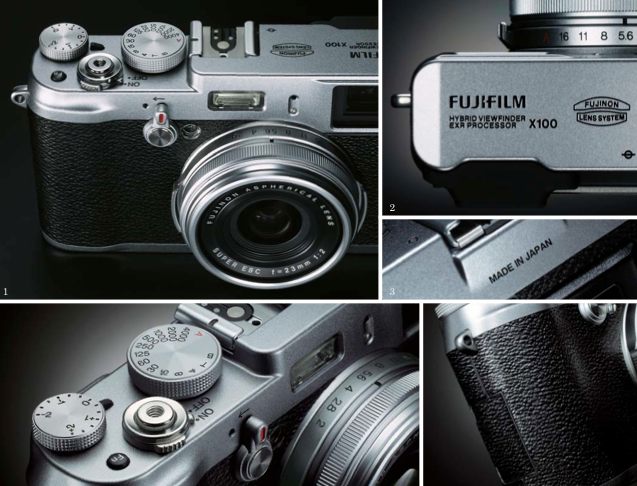
Fujifilm FinePix X100
Have been 48 a few hours of living with a body that has installed the firmware version 0.69. Although it is early to draw conclusions (some camera functions were not operating at 100%), and we are working on a first test and a video that shows its performance and operation.
Anyway, thinking of the more impatient and in recent months who have asked for details of the expected camera, here are some early samples galleries and a fast response to an impromptu autocuestionario.SE SEARCH
Thursday, February 17, 2011
Although it sounds like a worn cliché, the truth is that for some time that a model did not arouse the interest of the Fujifilm FinePix X100. Since it was seen at Photokina, there are few professional and amateur gourmets who have believed to see in the philosophy of this compact $ 1,000 responses to their requests. QUESABESDE.COM advantage that we have a working model of the X100 (do not ask how), it is time to stop philosophising and start answering questions with the camera in your hands.
Iker Morán .- Do not go on sale until March, but patience is not our forte. Faced with the prospect of waiting a little longer to get their hands on the FinePix X100-just that we were recommended from Fujifilm Spain-QUESABESDE.COM secret services have been launched to find a preproduction model of the compact.
Fujifilm FinePix X100
Have been 48 a few hours of living with a body that has installed the firmware version 0.69. Although it is early to draw conclusions (some camera functions were not operating at 100%), and we are working on a first test and a video that shows its performance and operation.
Anyway, thinking of the more impatient and in recent months who have asked for details of the expected camera, here are some early samples galleries and a fast response to an impromptu autocuestionario.
“The ergonomics are as good as it seems at first sight?
The finish, the feel of the camera in your hands, the distribution of controls and, in general, the management allowed a few snags. Already discuss in more detail, but it’s nothing that we did not know for several months.
When you apply a good dose of common sense (almost everything is invented, you just have to reinterpret it in digital) is difficult for some to fail. But, as always, there are fringes that are not as well finished off (at least in pre-production model has fallen into our hands.)
Screen menus, for example, broadly follow the aesthetics of the compact Fujifilm. Not that they are very complex, but we expected something more special and personalized for a camera like this. Neither the rotary dial back-too deep in the body, not suppose to press it by mistake, is very comfortable to drive when changing any settings.
How does the viewer hybrid?
Located on the right side (the SLR used to have to retrain and learn to let the left eye wide open to see what happens out of frame), the X100 combines a direct optical viewfinder with an electronic 1.4-megapixel resolution . Simply activate the lever on the front of the camera to switch from optical to electronic form.
Although the viewfinder can boast excellent performance (only when the soda weakens a bit in low light remember his nature) is particularly interesting to the viewer directly. It not only shows the typical framing guides-with parallax correction, and the meter, but also information such as sensitivity, image size, or even an electronic level superimposed.
Is it fast?
It is one of the most recurrent questions of those interested in this camera. In this sense, they can rest assured that the startup and shutter response is very fast even in this model the end he has given us a headache in other ways.
Concerning the burst, the camera can reach speeds of up to 5 frames per second, but, attention, as follows: the blast was triggered in full to fill the buffer and then plays a few seconds to see the results.
Advertising
Less happy we are with the recording time on the card. At least in the final model is not proven (insist on this detail) and working with SD Card SanDisk Class 10, the simultaneous recording of a picture in two JPEG and RAW was delayed about 5 seconds, during which itself was possible to re-shoot but can not access or browse menus making.
And silent?
This is another of its strengths: the X100, like all cameras of this type, has a very stealthy shutter. Although the camera comes standard activated a sound that plays when you press the shutter-very well done, indeed, worth disconnect and go completely unnoticed.
How was your approach?
The autofocus of the X100 performs well in terms of speed and accuracy within the predictable in-focus by contrast. Even in poor lighting conditions and with the assist light turned off, your reaction is correct, but it takes a little worse in areas of low contrast and macro shots.
Fujifilm FinePix X100
However, the approach is one of the benefits that usually recorded improvements through new versions of firmware, so hopefully this model evolved from 0.69 to final chamber.
Besides the two automatic modes of approach (simple and continuous), also has a ring on the lens to manual mode. This is not a mechanical system, but this ring starts the electric motor approach, with small movements that are executed at every touch. When working with an optical viewfinder, no confirmation of an outbreak, but a guide to the distance that can be very useful.
And the results, what?
The images speak for themselves. Although this is a preproduction unit you must take the results with pliers and no definitive conclusions (white balance, for example, has room for improvement), obvious that Fujifilm has done its homework in terms optics (23 mm equivalent to 35 mm f2 in step universal) and CMOS (APS-C size with a resolution of 12 megapixels).
Hits: 12 MP © QUESABESDE.COM
Catches were made with a Fujifilm FinePix pre-X100 (firmware 0.69):
Note: At the request of Fujifilm Japan has agreed to withdraw QUESABESDE.COM samples taken with a preproduction unit of the FinePix X100, with a view to publishing the short term a more extensive analysis from a final model of the camera.
All outlets, of course, have been made with the default settings of color, sharpness and saturation, and using the optional lens hood for optics.
Does it EXR processor?
Although it is assumed that CMOS has not been manufactured by Fujifilm, from the company has insisted that it is a custom version for this camera, especially with her EXR processor.
Hits: 12 MP © QUESABESDE.COM
Catches were made with a Fujifilm FinePix pre-X100 (firmware 0.69):
Note: At the request of Fujifilm Japan has agreed to withdraw QUESABESDE.COM samples taken with a preproduction unit of the FinePix X100, with a view to publishing the short term a more extensive analysis from a final model of the camera.
In this sense, among the options menu provides a dynamic range control settings from 100% to 400%, although the latter value is only operational from 800 ISO. In short, we will post some samples to check the camera performance in this area.
What noise?
Another of the greatest fears of those interested in this camera was what that will endure when the light touches is complicated and increase the sensitivity. Again, the samples are the best answer.
Samples: high sensitivity © QUESABESDE.COM
Catches were made with a Fujifilm FinePix pre-X100 (firmware 0.69) with sensitivity settings from 640 to ISO 12800:
ISO 640
ISO 800
ISO 1600
ISO 3200
ISO 6400
ISO 12,800
Note: At the request of Fujifilm Japan has agreed to withdraw QUESABESDE.COM samples taken with a preproduction unit of the FinePix X100, with a view to publishing the short term a more extensive analysis from a final model of the camera.
Adjustments between 100 and 12,800 ISO-the latter not available in RAW-format, the camera supports up to 3,200 ISO smooth and even further if the conditions are not very critical. In all cases, the system has remained active noise reduction in standard mode.
What to do with the RAW?
That’s what we ask ourselves after filling out a card with dozens of images in RAW format and verify that there is not any software capable of reading them. Even tried a beta version (and in Japanese!) Of SILKYPIX 5, but no luck. Anyway, there we three files in original format in case anyone is encouraged to investigate.
Samples: RAW © QUESABESDE.COM
Catches were made with a Fujifilm FinePix pre-X100 (firmware 0.69). Photographs taken in RAW format and processed using the function included in the camera menus.
Note: At the request of Fujifilm Japan has agreed to withdraw QUESABESDE.COM samples taken with a preproduction unit of the FinePix X100, with a view to publishing the short term a more extensive analysis from a final model of the camera.
For now, what we can do (more to satisfy curiosity, to see the real potential of RAW) is to try to process them and export them to JPEG using the camera function that includes among its menus. That is precisely what we have done with these three images.
“I can leave the charger at home or autonomy is a fair bit?
With all the quotes that requires a non-final model in our quick test battery has supported more than 250 shots (JPEG and RAW formats) and about 20 clips from 10 to 20 seconds each.
Exactly the video recording (although nobody seems to remember, is an option there) seems to be the major consumer of battery, as it was to start experimenting with this feature when the camera started to show signs of exhaustion.
We believe that dosing the use of the screen and restricting the recording of sequences, we can stretch well over the autonomy of this battery of 1,700 mAh.
Is that all?
No. This is just an appetizer for the more impatient. Although circumstances have forced a stay of the X100 among us has been very short, we are working in a field test a little more detail and a video that shows the most interesting features of this camera in action.
Everything is to brighten the wait until we get a final chamber as those hit stores next month’s deck.
Note: Memory cards are pictured in this article have been released by SanDisk as part of an advertising agreement reached between the company and QUESABESDE.COM.
End of translation.
Here’s what I got out of that mess:
- They are using firmware 0.69, so not final
- Shutter lag is very low (this is THE key feature for a street snapper)
- Switch off the electronic sound and the shutter is very quiet
- It takes 5 seconds to write a JPG + RAW file to a Class 10 SDHC card but the camera’s buffer allows you to keep snapping in the meanwhile
- ‘Manual’ focussing actually operates a servo focus motor. Not sure if that matters.
- ISO with JPGs goes up to 12,800 but stops at 3,200 for RAW files
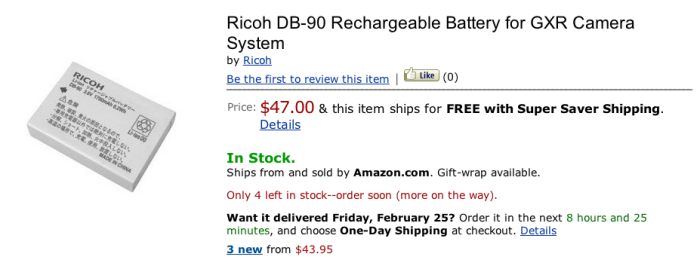
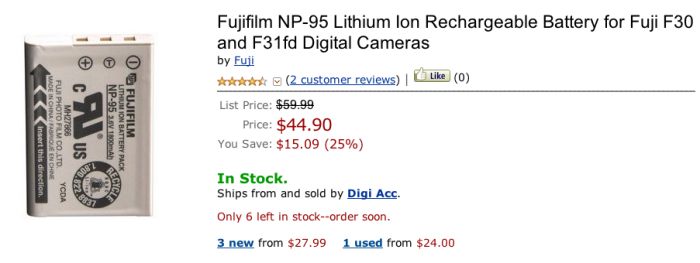
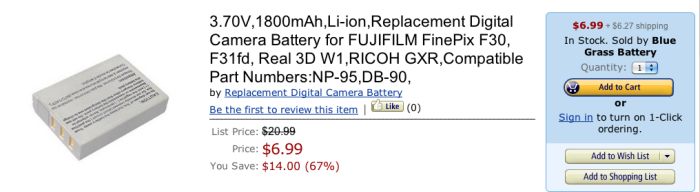
- The battery lasts 250 snaps only – not great – and burns up faster with movies. (Spare batteries are under $20 in the US). If you are buying this camera to make movies check back with me for the number of a good loony doctor. You are wasting your money – this camera is for street snaps. Period.
By the way, how much longer is Fuji going to keep calling itself Fujifilm? It’s even emblazoned on the X100’s top plate. Time to wake up, boys.
I’ll be writing about mine as soon as I get one, strictly in the context of real world use on the street. If you want pictures of test charts you can go to DPreview.com. Just don’t expect to find any photography there.