Category Archives: Hardware

Stuff

The HackMini

Keeping it cool.

When I bought the Mac Mini as a home theater PC, I knew it was but a temporary solution until time to make my own became available. I named it the Mac Fry and so it has proved, with CPU temperature soaring to 168F when ripping/compressing a movie with Handbrake. The service limit is 176F for the C2D CPU and all that thermal cycling so close to the limit is not consonant with a long life.

So when the opportunity arose, I procured the parts to make my own, and the Mini will move to a less demanding home for near zero net outlay. But first I will have to replace the slot loading DVD drive because, like every other Mac slot loading drive I have owned, it has just failed.

As before, ace builder TU Steve writes what follows:

To keep things simple, I used the same parts as in the HP10, my utility machine which runs super cool and has performance comparable to all but the fastest iMacs at a fraction of the cost. The only thing which would change is that an elegant case would be used, as the HackMini is very much on show below the TV screen.

Well, I thought I was using the same parts, but the restless people at Gigabyte conspired to change the audio chip used on their mini H67M-D2-B3 motherboard from the Realtec ALC888b in HP10 (v1.0) to the ALC889 in the HackMini (v1.1), meaning the build started with no sound until I applied the fix here. Then OS Lion refused to allow login to the AppStore – essential for software updates – and a few seconds here quashed that little bug.

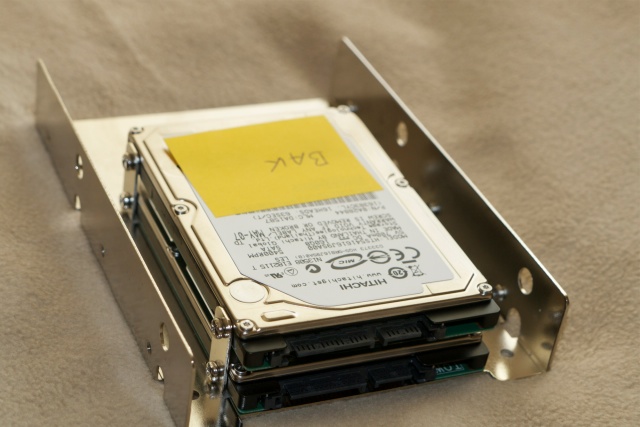
As I had a couple of small notebook drives in a drawer, remaindered from fried Apple laptops, I used those doubled up on a Silverstone adapter plate, allowing installation in a 3.5″ slot.
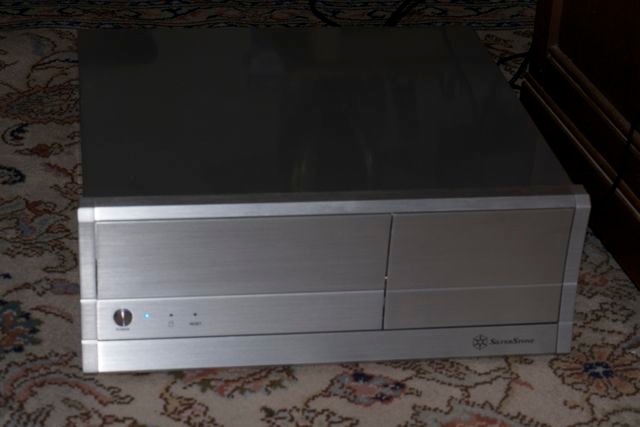
I spent a long time choosing a case, wanting something less than full sized but not so small that cooling would be an issue. This machine is going to be worked hard, and must have front USB slots for sneakernet movement of movie VOB files. I finally decided on the Silverstone LC03S in unpainted alumin(i)um, as I really dislike black, with neat front flaps covering the USB sockets and the full size tray loading Sony DVD reader/burner. I have never had one of the latter fail and they are dirt cheap.

The build was dead easy, taking just two hours from box opening to start up, and I had prepped the drives using HP10 while waiting for the parts. The case is premium priced but you get rolled steel edges inside, meaning no injuries when building.
There are two small, silent case fans, so I had to procure a two-into-one connector as the mobo sports but two fan connectors, the other used by the CPU cooler. Another $2 was blown on a small beeper speaker which announces itself with a single beep at power-on, indicating all is well. Just like in a crappy Windows machine. As you can see, there’s tons of room in there, with space for another 3.5″ device – I will likely add an SDHC card reader – and several more drives. Many build their HTPC Hacks with micro ITX mobos but that makes for small boxes and hosts of issues. This case will actually accommodate a full size ATX mobo, but that would be overkill for the intended use. As it is, the Gigabyte mobo used sports no fewer than eight rear and two front USB sockets, including USB3 if desired, so it’s not like connectivity is an issue.

Finally, the motherboard includes two SATA3 sockets which will support the latest 6gb/s fast HDDs and SSDs. The two notebook drives are ancient SATA2 devices, and as disc access is infrequent in this application, that’s just fine.

As you can see, space is abundant inside:
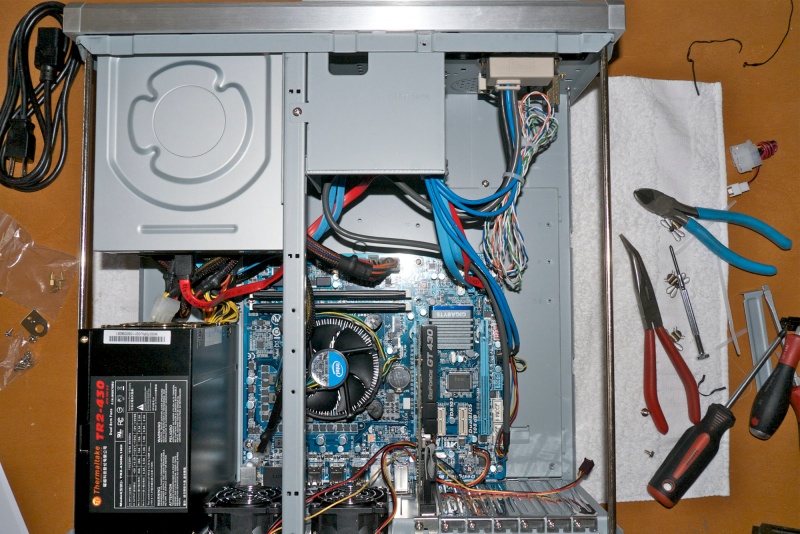
The over-spec’d Thermaltake PSU, at 430 watts, will not break a sweat and I like the brand for it’s neat cloth covered cable sheaths.

And that’s about it. Here it is in place, happily replacing the awful Mac Mini which may just be the worst designed computer I have ever owned.
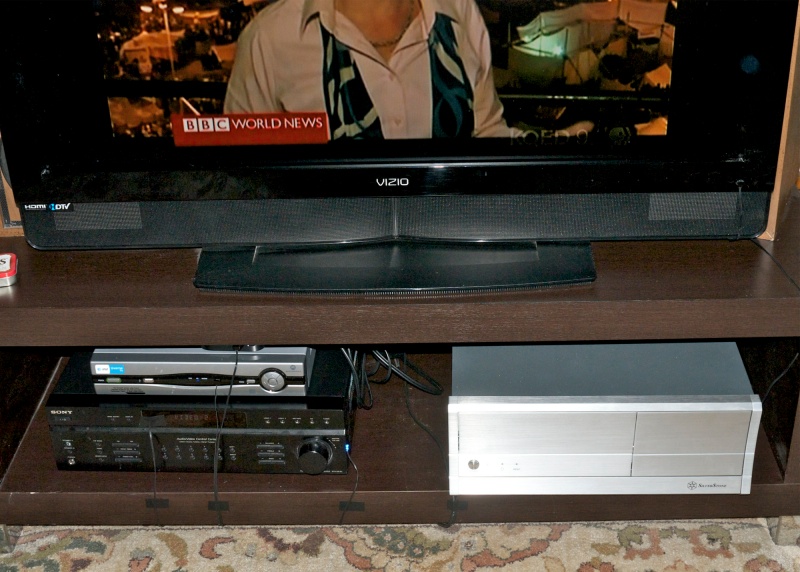

The ugly small black ‘wires’ are optical fiber cables for an IR blaster.

Here’s the parts cost – I used the awesome Intel Core i3 Sandybridge CPU:

Case $86
Wifi card 38
GT430 GPU 75 (EVGA with HDMI/VGA/DVI)
Motherboard 96
Drive plates 16
RAM/DVD/CPU/PSU 237 (8gB Corsair 1333mHz)
Beeper 2
Y fan cable 3
EVGA rebate (15)

Total $538

To be fair, the cost of an HDD has to be added to strike a comparison with the MacMini which is certainly price competitive. Until it fries, that is. And the current Mini no longer includes a DVD burner.

Performance is everything you would expect of the Core i3 and the outstanding GPU:
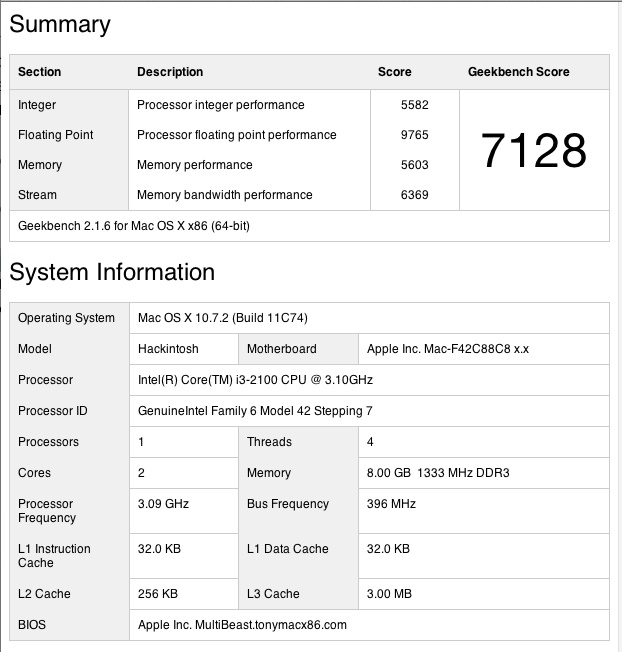
Start-up and Geekbench run, using the stock Intel CPU cooler.

While the machine is used as an HTPC, it would also make an excellent desktop. I will likely replace the poor stock Intel CPU cooler with something better once I figure out sizing ($30) and will also add an internal multi-format card reader ($15). For a machine which is never switched off, an SSD makes little sense.

The HackMini is controlled with an RF Microsoft Mobile Mouse 6000, RF being far superior to Bluetooth in range and stability, not to mention battery life, and with Mobile Mouse on the iPad when typing names of movies into the DVDpedia database. This has interactive, clickable links to movie files residing on 10 tBs worth of external disc storage.

Audio is 2.1, with sound output from the motherboard routed to an ancient Sony receiver and thence to even older B&W DM4 speakers. With a little more hacking 5.1 surround sound using the multiple sockets on the motherboard would be easily added.

Want to add BluRay playback? Swap the regular Sony DVD burner for a BluRay SATA one ($60) and add this $50 software, and enjoy something Apple does not provide on any of its hardware.

Factory warranties are three years on the CPU, motherboard and graphics card and lifetime on the RAM, with only the Mobo being a pain to remove. No money wasted on AppleCare here. It should be added that of the many Hackintoshes in which I have had a hand, several used hard in professional settings, the sole failure over the past five years has been to one 1tB Samsung HDD, which was still within its three year warranty.

As befits an HTPC, the Hack Mini computer is silent as the grave.

* * * *

Thank you, TU Steve!

There are many reasons to avoid the poorly designed MacMini, even more so in its latest guise where the DVD burner has been deleted (though, arguably, that’s an improvement over the awful slot loader in mine); for the full scoop just click here. Hint: It’s nowhere near as cheap as you think.

Bluetooth update: To learn how to really get this fragile, wireless technology working well with the HackMini in its rôle as a keyboard-less home theatre computer, please click here.
Using reviews

Where not to go.

One of the striking aspects of the many remembrances of Steve Jobs is how assiduously he cultivated big name journalists. He wasted no time marketing to Mac fan sites. Once you have used a Mac the number of switchers returning to the horrors of Windows probably compares with the number of Americans applying for resident status in North Korea. No, preaching to the converted is time wasted. Indeed, the ace fan site and magazine, Macworld, numbering many decent journalists in its ranks, admitted that not one of them had ever had a face-to-face discussion with Jobs, absent the occasional “Hi! Nice to see you” sort of thing at a product roll out. There’s a reason for that.

Jobs’s primary focus was on the NYT, WSJ and Time. Who do you think got pre-release versions of all the new hardware? And why? Big readerships, with lots of Windows and Android users ready for conversion. But while these publications have decent writers, they are converts also, so objectivity is not the reason you go there.

Let me put this in focus by explaining how I go about choosing parts for a Hackintosh. The two in my home do not have a single piece of Apple hardware, for good reason. I want proper ventilation, which rules out everything except the MacPro, I want a decent price which rules out the MacPro, and I want a mouse which has solid ergonomics, unlike the Magic Mouse which is an ergonomic disaster. I want a keyboard with mechanical scissor keys providing proper tactile and aural feeedback. The Apple keyboards, whether in a laptop or sold separately are a catastrophe in those regards. I want a matte screen which I can profile properrly with a colorimeter. No such device exists in the Apple hardware line. I write this having used just about every example of the Apple hardware I am criticizing. Their non-iOS hardware is simply so deficient in so many ways there’s nothing – absent maybe the MacBook Air – which works for me.

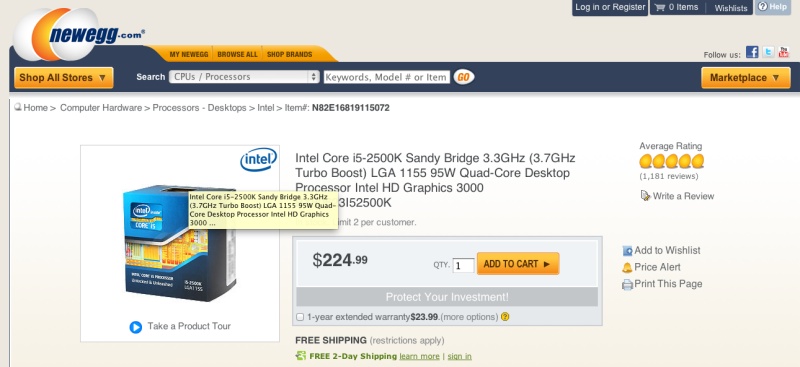
So my ‘go to’ places to assess hardware for OS X are different. They include AnandTech, Tom’s Hardware and buyers’ comments at Newegg.com.

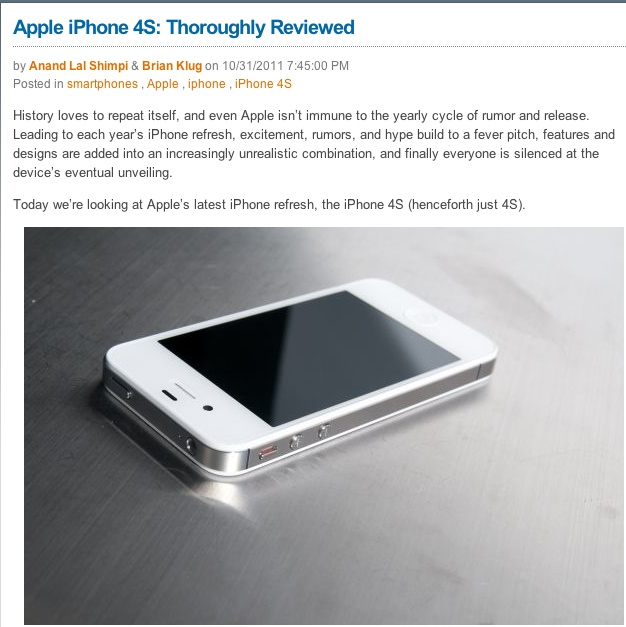
Anandtech is written by engineers for engineers. The writing is of a high technical standard by experienced men. Take a look at their outstanding review of the iPhone 4S, largely written by an optical engineer. Note especially the stellar writing about the camera and video.

Click for the review

Did you know, for example, that AnandTech tested the latest iteration of Apple’s Airport Extreme router and found it massively changed and far superior to earlier ones? Apple didn’t even tell anyone about the changes, and you can read Brian King’s outstanding analysis here.

Tom’s Hardware has fine technical writing about motherboards and graphics cards, and the reviews and comparisons pull no punches. A high quality source for the computer builder.

And finally, Newegg is the place gamers buy their hardware. I’m not into games but game playing is usually the most demanding use of a computer’s processor and graphics, and the sheer number of reviews here makes the result statistically meaningful. Absent the usual number of cheaters writing for a manufacturer, the writers tell it as it is. If something sucks, you’ll read that here.

When 1,200 customers/buyers say something emphatically does not suck, you know you are onto something.

So if you want real analysis, go to these places and avoid the fan sites and national press at all costs.

It’s fairly easy with computers – most of the variables can be measured and few are subjective, such as keyboard/mouse feel and display rendering. Everything else can be pretty much reduced to data – speeds, capacities, temperatures and so on.

With cameras it’s far harder. You can find lots of technical sites on the web which tell you about the knobs and dials and lens resolution

They have some value but none can answer whether the feel and operational realities work for you. I have extolled the virtues of the MFT format in the Panny G1 and G3 here, and have told you that both render files good for large prints. But until you try it for yourself, that opinion is non-transferable. So, unlike with computers, the best way with camera gear is to try it and see. And if you pay $5,000 for a Leica lens, you can convince yourself and all who care to listen to your mental meanderings that you can really feel that Leica glow. It’s actually the red ink on your bank statement.

iPhone auxiliary lenses

Clutter or value added?

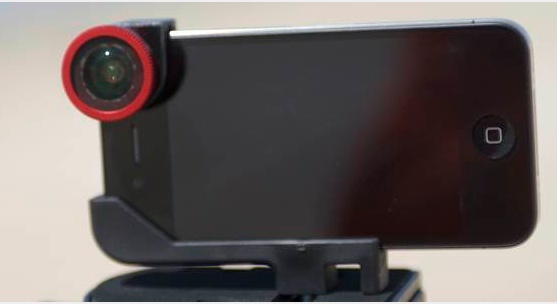
A friend sent along a link to Olloclip (eh?), a maker of auxiliary lenses for the iPhone 4/4S. Click the picture to go to their site.

Click the picture

This particular variant adds wide angle, fish eye and macro capabilities when clipped over the iPhone’s rear facing lens.

Auxiliary lenses are nothing new. Zeiss Ikon in their Contaflex and Kodak in their Retina IIc/IIIc folders and Retina Reflex cameras used this approach in the 1960s. The standard lens would have a small removable element which could be replaced with wide and long focus front elements, invariably gargantuan and, in the case of the Contaflex, there was even a macro and a monocular adapter. The bulk and clutter these added to the camera bag were in no way repaid by image quality. The wides were not very wide, typically 32-35mm, and you could get better long focal length quality by simply enlarging the 35mm negative more, in preference to using the attachment. Most of the ‘teles’ were 75-80mm with the Retina Reflex boasting a 200mm.

Accordingly, I confess I have mostly negative opinions of this sort of thing. First, auxiliary lenses seldom are much to talk about when it comes to definition. Look at the fish eye examples on that site and the definition is pretty awful. Second, you are fiddling about with attachments rather than taking pictures.

So the Olloclip device, and its cousins, none of which I have used by the way, fail the test of ‘small and simple’. Futzing about with add on gadgets when snapping with the quite decent camera in the iPhone 4S seems, to me, to destroy the small and fast concept, and the displayed images suggest that anything larger than a wallet sized print will embarrass both photographer and viewer. On the other hand, I just made some 13″ x 19″ prints from my naked 4S and the quality needs no excuses. I see no pressing reason to mess with that.

The last Hackintosh – the HP100 – Part IV

Proof.

Part III is here.

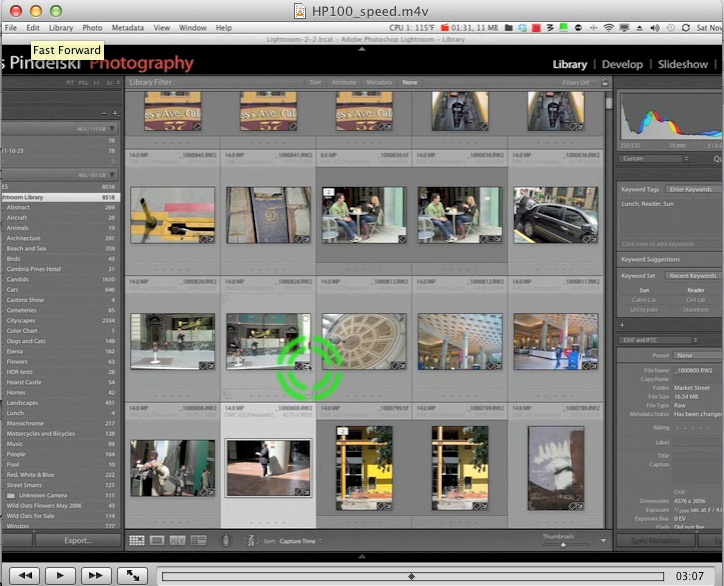
Here’s a video which shows you what I’m going on about when it comes to the raw speed of the HP100 Hackintosh.

Click the picture to view.

Click the picture for the video.

For thoughts on the obsolescence of this machine, check this piece written two years ago. The biggest speed gain since then has been from the use of solid state drives for the OS and applications, but those thoughts were largely on point. The future doubtless holds faster CPUs, GPUs and memory but at this point HP100 is so fast in photo processing tasks that further speed adds little. Maybe LR4 and CS6 will bring with them code bloat which will dictate migration to the next generation of hardware. We will see.

Update: You can read about overclocking the i5 and i7 Ivy and Sandybridge CPUs here.

Intel released the successor to the Sandy Bridge CPU, the Ivy Bridge, in May, 2012. An update addressing Ivy Bridge use in a Hackintosh appears here.

The last Hackintosh – the HP100 – Part III

Assembly and benchmarks.

Part II is here.

In the spirit of taking the high road, my anonymous colleague and ace computer builder FU Steve has changed his moniker to TU Steve, and writes what follows. TU – Thank You.

While Gigabyte’s motherboards have proved reliable once up and running, I have had a high rejection rate of new ones. Chat boards confirm it’s not just my bad luck.

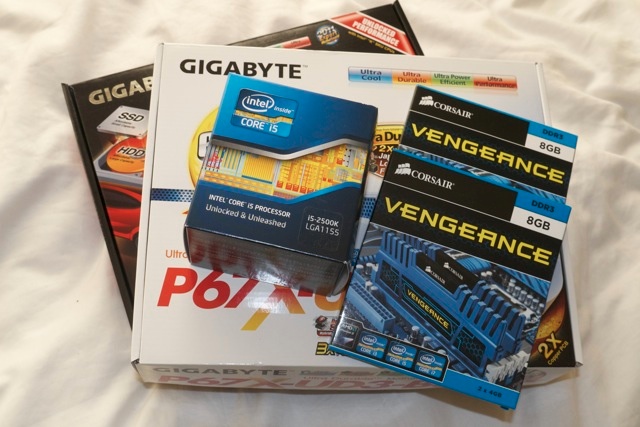
So this time I bought not one but two motherboards from Amazon – One Z68 and one P67. The latter deletes support for Intel’s integrated GPU (as used by Apple in almost all its laptops and desktops) but adds two more USB sockets for a total of 14! The cost of this insurance is return shipping of one of the boards – money well spent.

Parts for the HP100 upgrade, including two mobos.

By contrast, I have never had a bad Intel CPU or memory in the many machines I have assembled.

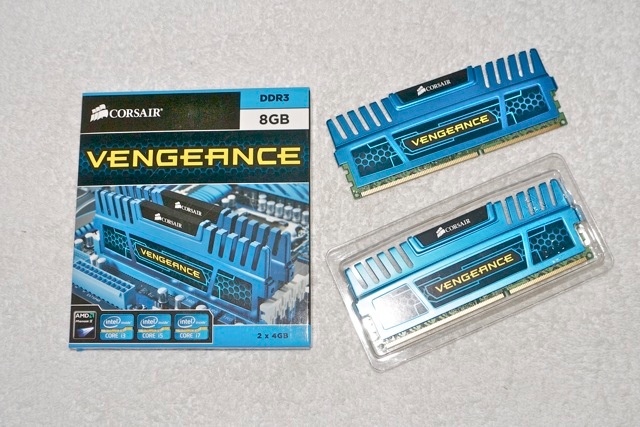
It’s amusing to note the wild neo-Mayan design of the cooling fins on the Corsair memory, named ‘Vengeance’ of all things:

16gB of 1600mHz DDR3 RAM on four sticks.

The Mayan variant. Slower, but longer lived.

As is my habit, I pored over the Gigabyte manual and stared at the board for a good half hour, thinking of obstacles to a smooth installation. Gigabyte has moved sockets around a bit so that will affect wiring. Least helpful is the move to edge connectors for SATA HDDs, meaning the cables connect parallel to the mobo’s surface rather than perpendicular to it, making access, once installed, tricky. While other makers’ mobos do it better, Gigabyte is the best supported board from a hacker’s perspective, so I’m sticking with the brand.

Mercifully, the layout of the socket for all those fiddly, small front panel connectors (power LED, power, reset, HDD LED, etc.) is unchanged. These are a real challenge to aging eyes and, as they are not keyed, incorrect insertion will defeat function. All other connectors are keyed so when I say this is like building a Lego toy I really should say it’s easier. Absent those front panel connectors you cannot insert things incorrectly, unlike Lego. Both mobos add a couple of 6gb/s SATA HDD sockets (twice the theoretical speed of the older 3gb/s ones if you use SATA III HDDs, though my tests have disclosed that the speed gains are nearer 50% than 100%) plus internal and front panel USB3 sockets. As I have no USB3 devices I’ll pass on these, preferring to wait for the even faster LightPeak/Thunderbolt technology to become available on PCIe cards.

Because HP1 will be disabled once dismantled and reassembled, its software hacks now obsolete and of use for the old mobo and CPU only, I set up my backup SSD with the parameters for the new hardware, hoping that it would boot straight from that SSD. As insurance, I also created an installation flash drive stick with Lion 10.7.2 using the tool illustrated here as a backup boot device in case the SSD refused to cooperate. When it comes to these things I’m a strong believer in the old saying that has it that “If it can go wrong, it will”. Irishmen know it as Murphy’s Law, but they are mostly drunk much of the time.

The Build:

Things went well. Studying the mobo in advance paid back mightily, as I had made a note to plug in the two SSDs, two HDDs, DVD burner and SDHC card reader into the mobo’s socket before installing the mobo in the chassis. They are virtually inaccessible once the mobo is installed. I also took the opportunity to vacuum out the amazing amount of dust which had gathered in the chassis these past 30 months of 7/24 use.

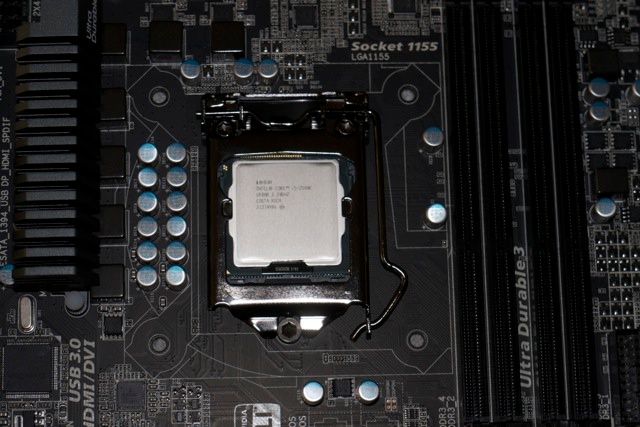
First the Intel i5-2500K (the ‘K’ designates it can be overclocked) is inserted in the mobo socket, and thin layers of Arctic Silver thermal paste are applied to both the surface and the mating plate on the Coolermaster CPU radiator. If you get squeeze out you have used too much and your thermal efficiency will be compromised The stock Intel cooler is recycled – it’s junk.

The Intel Core i5-2500K installed.

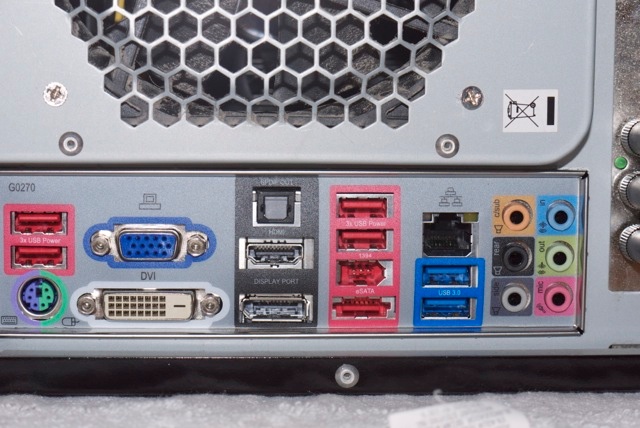
The final thing to remember before screwing the mobo down is to replace the socket plate, and as you can see the new Z68 board comes with high power USB sockets (for properly charging an iPad), USB 3.0 sockets, a DisplayPort and an HDMI socket, in addition to all the usual Firewire and sound connections. The Display port socket will allow the use of a third monitor – something I do with my rig with a separate USB->DVI powered adapter. Note also the DVI socket for the on board Intel GPU, integrated into the CPU, and the VGA connector. Some joker has left the PS2 mouse and keyboard socket. Who uses those?

Connections on the Gigabyte Z68 motherboard.

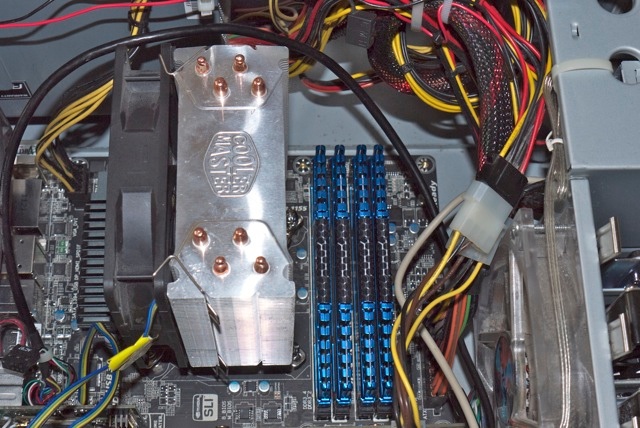
The holder for the large Coolermaster 212Plus cooler was installed before screwing the mobo into the chassis and, yes, the usual garage language was involved in installing the radiator and its fan with those finicky clips (improved on current production). Of course, the stock installation blocked one of the memory slots, proving that Murphy is alive and well:

Coolermaster 212+ radiator blocks #1 memory slot.

So a few more colorful words later, I had the radiator turned through ninety degrees and all was well with the world:

Coolermaster CPU radiator repositioned.

Stock performance:

After making sure all the various connectors were properly attached, I switched on and went into the mobo’s BIOS making the usual adjustments you can see from my HP1 pictorial here, then booted from the backup SSD which had previously been prepared for the Z68 motherboard. Everything ran perfectly first time. More time was spent futzing with that cooler fan than the whole rest of the process in total!

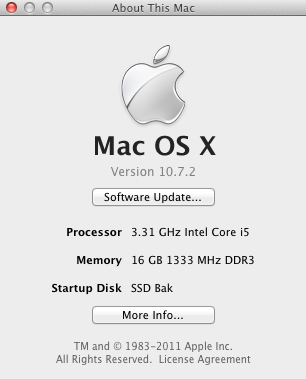
As you can see the memory is running at 1333mHz, compared to the 1600mHz rating, something addressed below when I overclock the CPU.

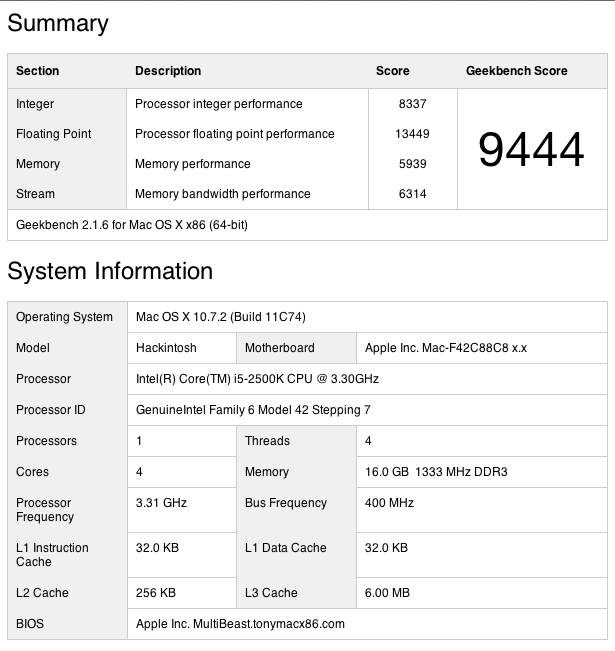
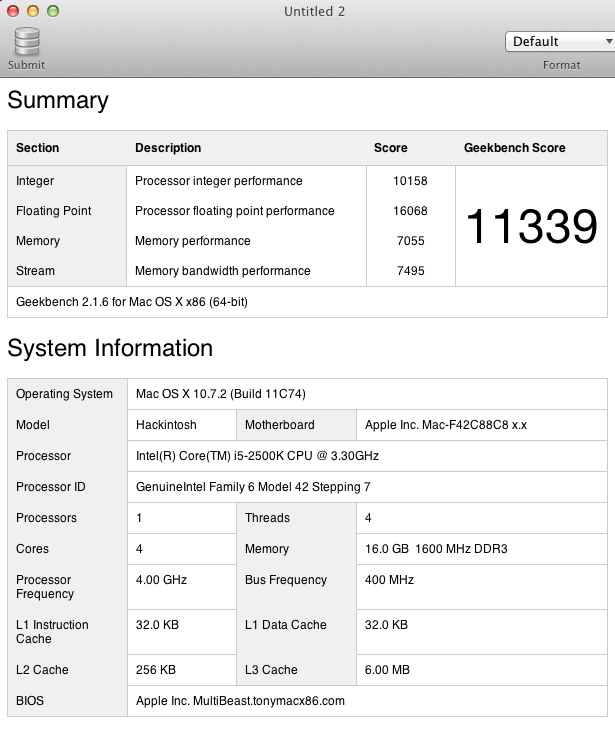
A quick Geekbench-64 test returns a reading 42% faster than the stock HP1 (Core2Quad) and 8% faster than HP1 overclocked at 3.6gHz.

Stock HP100 with slow memory setting.

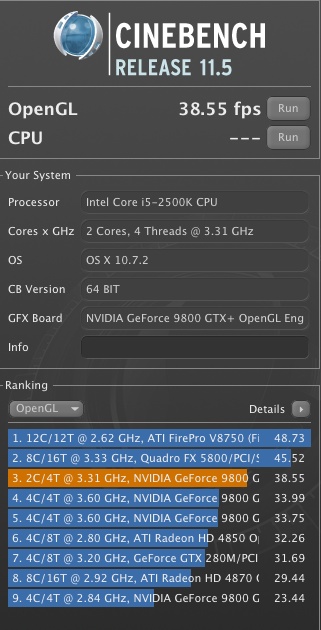
I reused the fairly dated EVGA Nvidia 9800GTX+ GPU and with just cause. The framing rate in rendering video is stunning, 47% and 13% faster than HP1 stock and overclocked, respectively.

HP100 graphics test.

Overclocking:

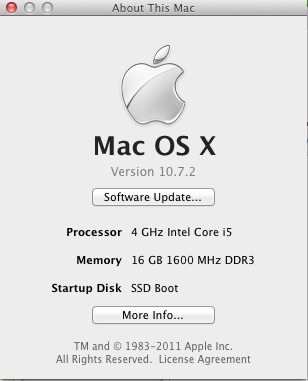
OK, time to get serious. The Core i5 is made to be overclocked, so back into the BIOS and an increase of CPU speed from 3.3gHz to 4gHz took seconds. I merely changed the multiplier from 33x to 40x, leaving the voltage unchanged, so as not to void Intel’s warranty. Gaming fora suggest that 4.5gHz, or another 13% faster, is stable with a small voltage increase, but why take risks and get greedy? This is meant to be a reliable workhorse, not a highly strung thoroughbred. At the same time I set the memory to its rated 1600mHz speed.

Here’s Geekbench-64 – 20% faster than the stock Core-i5 and a stunning 69% faster than HP1 stock (Core2Quad @ 2.83gHz):

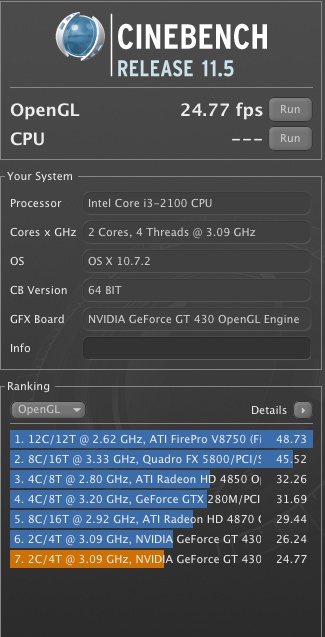
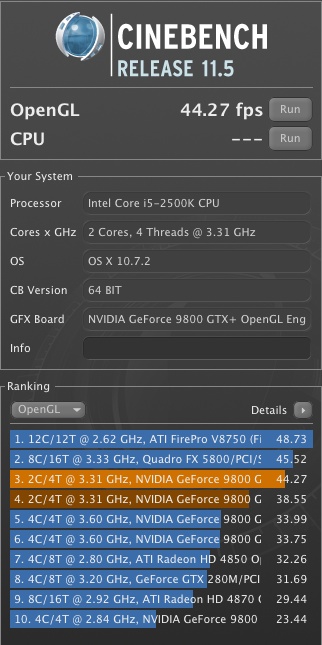
And here’s Cinebench – 15% faster than stock and no less than 69% faster than HP1 stock for an outstanding framing rate of over 44 fps. That’s getting into serious gaming and better spec’d MacPro Xeon territory at a bargain basement price!

HP100 overclocked, showing a very high framing rate.

Video test:

This is a tough test – rip a full length DVD (4.7gB) and compress the result to ATV2 file format (1.2gB) using Handbrake.

HP1 – 36 minutes – 100%
HP100 – 16 minutes – 44% of the above

Though the EVGA Nvidia 9800GTX+ graphics card used is a 4 year old design, not much has happened to improve mass market GPUs since, except gussied up looks and prices. The Nvidia 9800GTX+ rocks, more so when married to a state-of-the-art Intel CPU. The card has a scant 512mB of DDR2 video RAM.

You can see the dramatic increase in framing rate from the Cinebench tests above – and that’s what you are seeing in the above real world data.

Temperature management:

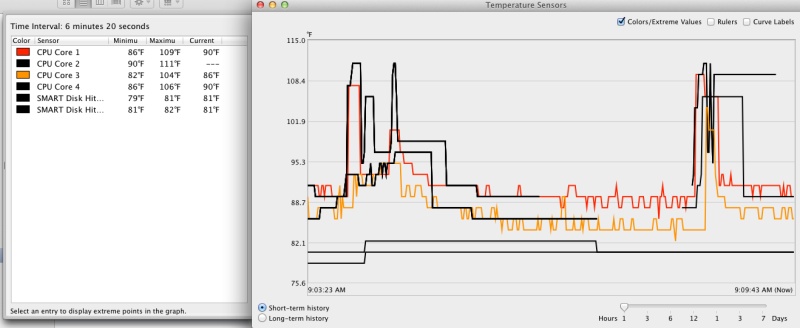
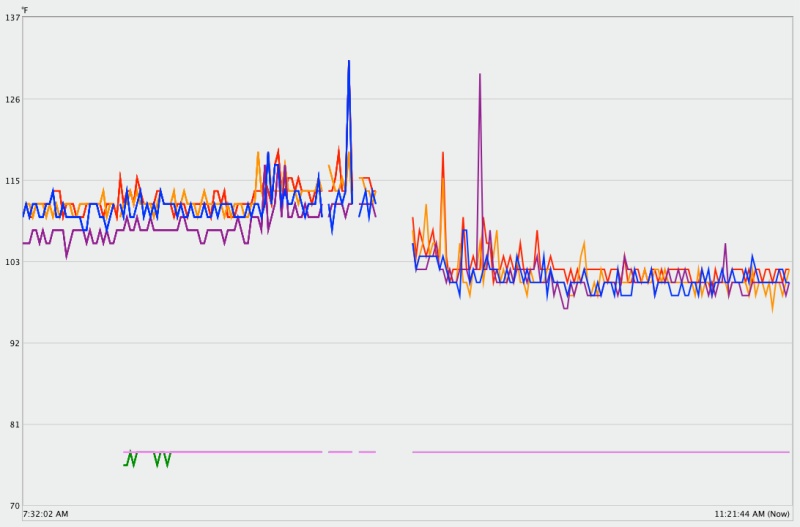
The BIOS which Gigabyte ships with the Z68 (mine came with the current F9 variant) is greatly enhanced over that in its earlier EP45 Core2Duo/Quad mobo, adding a host of temperature and energy management options. A few minutes adjusting things saw idle CPU temperatures drop 10F from 112F to 102F in overclocked mode. That compares with 122F for the overclocked Core2Quad with identical cooling – a significant 20F drop.

Effect of enhanced energy management settings on CPU temperature – all four cores shown.

The spikes are from the restart cycle.

Z68 or P67 mobo?

I bought both, in case one was faulty, and went with the Z68 ($160) because I liked the black finish! The Z68 adds support for the on board Intel 3000 graphics processor, which is integrated into the CPU. Nice idea, but not compatible with good thermal management, and a major cause of overheating in over-stressed and poorly cooled MacBooks and iMacs. The P67 ($135 and blue!) deletes this functionality, with both boards supporting overclocking of either the i5-2500K or i7-2600K Intel CPUs, the ‘K’ suffix denoting the CPUs’ unlocked state. The unlocked CPUs command a modest $10 premium over the stock units.

Overclocking compounds thermal stress and anyone looking for serious graphics performance will opt for a discrete graphics card with its own dedicated fan, in addition to an aftermarket CPU cooler to replace the ineffectual stock Intel model. Further, choose the right graphics card and it will come with dual DVI sockets for dual monitor setups, unlike what is available with on board graphics. So using the costlier Z68 makes no sense. But I do like the color ….

Real world experience:

Tests disclose data, not experience. How does the HP100 perform in real life? I recall when I built HP1 how my jaw dropped at the speed and fluidity of the machine. This is another jaw dropper. Simply stated, there’s no going back, especially for an upgrade whose net cost, after used parts sales, was under $200.

With 16gB of fast memory you can leave PS CS5 and LR3 loaded at all times, and everything in those much used apps just flies.

If you built HP1, build HP100. If you did not build HP1, build HP100.

Thank you, TU!

Part IV is here, complete with a video showing the machine’s operating speed.