AirPlay with multiple speakers

Full house sound, wirelessly.

This piece gets a bit technical so hold on to your hat; however, it may be helpful for those experimenting with AirPlay routed to multiple speakers simultaneously.

Following up on yesterday’s column on using AirPlay with TuneIn radio on an iDevice, I rooted around and found another set of Logitech powered speakers languishing in the place the black beetles call home in the garage. These are the estimable Logitech Z4i with a powered bass and two satellites, making for excellent sound. Back when I used an iMac G5 and later the ill fated 24″ iMac which fried its GPU thanks to Apple’s crappy design, the satellites velcro’d nicely to the sides of the iMac’s monitor with the bass out of sight under the workspace. I had put them away in favor of smaller desktop speakers when I built the HackPro and had quite forgotten about them.

Well, as the shared Brother printer in the office is attached to an Airport Express (AEX) as a Bonjour printer, naturally I could not leave well enough alone, realizing that I could connect these powered Logitech speakers to the AEX for yet another sound output from any iDevice. A few moments of plugging things in and TuneIn Radio sound on my iPad was coming from these Logitechs.

Now how about full house sound? Well, I can’t see any place where AirPlay on an iDevice permits selection of multiple speakers, though I would bet dollars to doughnuts that this is only a matter of time. Maybe the iPad needs to be upgraded to the multi-core ARM A9 CPU before this becomes possible. However, firing up iTunes on the HackPro, where my extensive music library resides, I clicked on the AirPlay logo and this is what I saw:
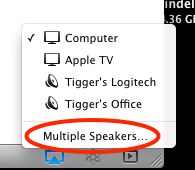
AirPlay on iTunes and the HackPro.

Clicking on ‘Multiple Speakers’ I got this selection panel:
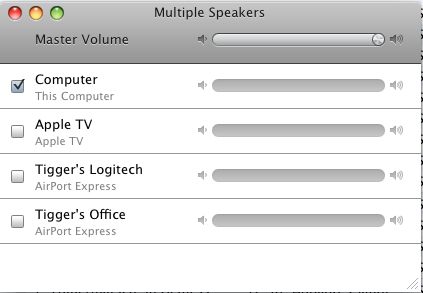
The multiple output panel in iTunes.

I checked off all the speakers and adjusted the volume but …. the sound keeps cutting out. Selecting just the HackPro’s speakers (“Computer”) all is fine, but select any other destination alone or in addition and the sound cuts out.

Going to Utilities->Audio MIDI Setup I adjusted the output settings to the least demanding, thus (2ch-24bit is the default):
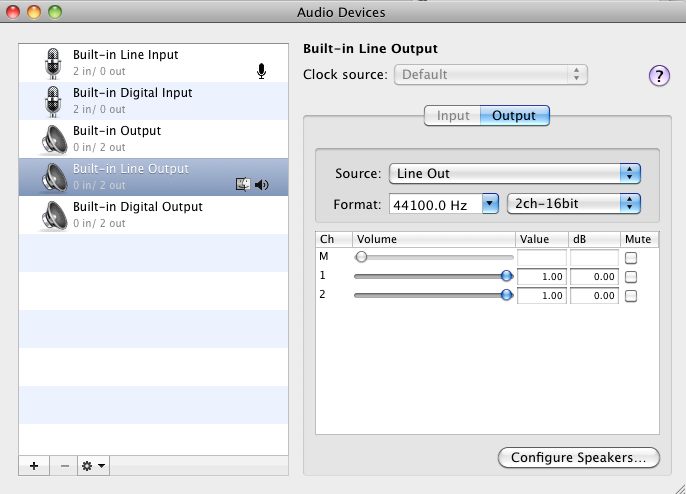
Audio MIDI settings.

This reduced the cutting out but did not eliminate it, so I’m guessing there’s some glitch either in my wifi system (the HackPro where iTunes runs uses 2.4gHz 802-11n wifi as I cannot use pure 802-11n at 5gHz as I need the 802-11g mode for compatibility with my iPhone, and do not own the latest dual band Airport Extreme). All my sound files are in uncompressed format, meaning they are large, for maximum quality. MP3 is a poor, over-compressed format for sound fidelity. The file size doubtless is not helping matters.

For further diagnosis I went to the MacBook Air which uses 802-11n wireless, started iTunes and tried playing a track stored locally in iTunes on the MBA. Perfect. I could enable all remote speakers and all played fine with individual volume control available for each, suggesting that the lower speed of the 2.4gHz 802-11n on the HackPro may be a limiting factor. There are a lot of variables here so it could well be something else, but I expect I’ll get there through a process of elimination.

Getting ambitious, I next loaded the remote library on the MacBook Air from the HackPro, where iTunes->Advanced->Turn On Home Sharing is set to ‘On’. Well, the stuttering, while greatly reduced, was still there so clearly there is a bandwidth or speed issue with the HackPro which looks like it needs 802-11n. Meanwhile, I’ll just move my favorite tunes from the iTunes library on the HackPro to the one on the MacBook Air for those occasions when whole house sound is called for.

An encouraging experiment.

Update: A solution to the stuttering problem:

I put on the old thinking cap and took the resident Border Terrier for a walk. Always clears the mind, I find. I had never paid any attention to the sound technology in the HackPro where my iTunes library resides. All I need it to do is drive pokey desktop speakers for the usual mail sounds, etc. I do not listen to music through its speakers. Its 802.11g should be more than adequate for routing sound files, even if uncompressed. So could it be the Digital to Analog Converter in the HackPro that was choking? Well, I fired up that ancient old iMac with the 1.25 gHz IBM G4 CPU and a scant 1 gB of RAM which we have owned some ten years now. It’s mostly used for web surfing and is by far the most reliable Mac I have ever owned.

I reckoned that I would simply update iTunes on the iMac (which runs Leopard, the last version of OS X supported on the G3/4/5 CPUs) and then point iTunes to the library of music on the HackPro. While the iMac uses 802-11n it would still be no faster than 802-11g as the slowest component in the equation is the HackPro and it’s 802-11g. But, and here’s the key, I would be using the iMac’s DAC to convert the digital stream to analog sound and my bet was that even the ancient DAC in the iMac would be pretty good, given Apple’s focus on sound reproduction.

And this proved to be the case! I told the iMac to send sound to three speaker sets (Apple TV, Office and Dining Room) and it is playing perfectly for the past hour. If it does start to stutter, I’ll simply move the library of music to its internal hard drive, taking the HackPro’s poky wifi out of the equation, but so far it’s working fine. I suppose I could also place the iTunes files on an external hard drive connected to the iMac but Apple has said that it does not support external HDDs for use with AirPlay, so I’m not pushing that angle. It may work. It may not. What is tremendous is that not only does this ancient hardware support AirPlay with the latest iTunes download (congratulations, Apple!) but sports a decent DAC which is better than the PC-grade one in the HackPro.

This analysis seems to make sense. The old iMac is receiving a digital file and locally converting it to analog. The original approach had the HackPro sending out an analog file to the speakers and, I’m guessing, that’s larger than the pre-DAC-processed digital file. The speakers attached to the HackPro worked fine with no stuttering as they are hard wired, whereas the remote ones stuttered owing to their use of wifi for reception. So it’s either a slow DAC in the HackPro or the lack of 802-11n in that machine.

Another alternative is to retrofit the HackPro with a better DAC but, frankly, I can’t be bothered and so far my total investment in this project is one AEX for $88. That’s enough!

Bottom line? If you have an old G3/4/5 Mac in the home, consider making it a music server for use with AirPlay.
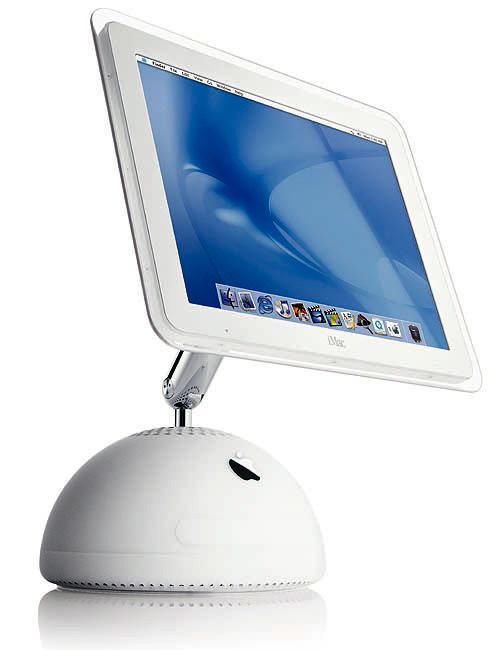
Meet my new old music server.

Second update:

After two hours of music play I would still get the occasional stutter. So I moved my iTunes library to the internal drive of the G4 iMac and loaded the library from there. After two further hours of listening there was no more stuttering.
TuneIn Radio

A superb app.

This piece has nothing to do with photography but when something as well engineered and executed as the TuneIn Radio app for iPad/iPod/iPhone comes along, it’s hard to resist writing about it.

To those despairing of the culturally arid desert that is American Radio, this app is a must. And it says something about globalization when I tell you that a British Americanophile photographer friend recommended it to this Francophile California UK expatriate!

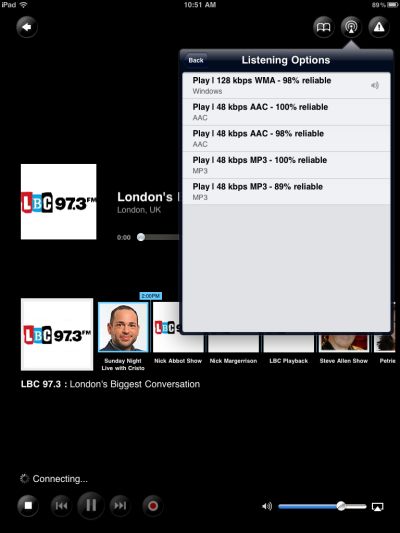
TuneIn Radio allows you to dial in seemingly any Internet Radio station on the planet (I have yet to check for Pyongyang Hits, and don’t hold your breath on that one) using point and touch maps, and your choices are easily saved as bookmarks. If you get stuttering then it’s a second’s work to switch to a lower bit rate stream using the app’s controls. The app is iOS 4 capable, meaning you can continue to listen while doing other things on your iDevice.

Typical streaming options for a radio station.

I decided to go one step further in distributing the iPad’s (and TuneIn’s) sound output around the home. With yesterday being the annual orgy of shopping which kicks off America’s season of gluttony, I did my bit for the side, got on the old push bike (a British Raleigh, of course) and toddled off to the local Apple Store, sadly far too close for fiscal comfort. They had the Airport Express for sale for $88 and moments later I was home installing it, my second. The first acts as a wifi extender in my office, sourcing its signal from the Airport Extreme router in another room. It also allows me to connect my Brother 2170W printer as a Bonjour printer for use as a wireless printer for any number of computers and iDevices, the latter using FingerPrint which does for iDevices what iOS4 has yet to provide – printing. The 2170W does have built-in native wifi but it stoutly refuses to work with OS Snow Leopard, so the AEX does the trick.

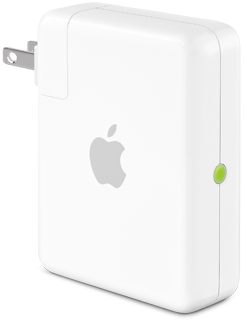
The AEX. The teal light is not that easy to get to ….

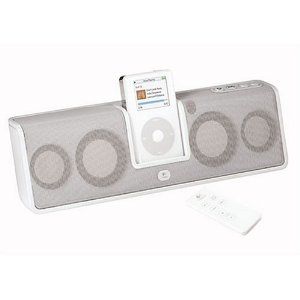
For reasons probably only known to Steve Jobs, every Airport Express (AEX) I have owned has been an absolute pig to set up. It must be made by Microsoft. Whereas the Airport Extreme is pretty much plug and play, the AEX is a horror story. You fire up the Airport Utility and hope and pray the new device shows up. Then you hope its configuration will be recognized. Then you learn there are no fewer than three reset modes on the gadget (that should tell you something) and next thing you know you are unbending a paperclip to activate the recessed reset microswitch. After four or five goes the thing comes around and eventually changes its amber trouble light to a teal ‘all is good’ one. At that point I plugged the AEX into the dining room wall socket and using a short mini-coax cable, connected the AEX to my old Logitech MM50 iPod powered speakers. If you buy this cable from the Apple Store then you have more money than sense.

The Logitech MM50 powered iPod speakers.

While the MM50 is long discontinued, and the rechargeable battery in mine died years ago, there are dozens of choices on the market. Just make sure there’s a loudspeaker input socket on the one you buy. That accepts the other end of the cable from the AEX. The MM50 is well made with an Apple-like attention to aesthetics. Unlike most Apple products it actually lasts longer than the warranty period.

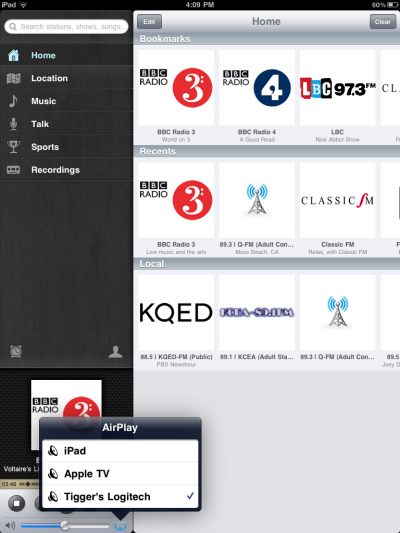
The rest is child’s play. Fire up your source app on the iPod/iPhone/iPad of your choice and touch the AirPlay symbol to see a list of output devices.

AirPlay output options in the TuneIn Radio app.

‘Tigger’s Logitech’ routes the sound to my MM50 and each output device remembers its volume setting, so you don’t blow the roof off owing to output level mismatching. I complained to TuneIn’s maker that I couldn’t see the other AEX in the home and they blamed Apple. Wrong. The fault was mine. The list of AirPlay devices scrolls with the swipe of a finger and the other AEX, hidden in the above screenshot, is there when needed. The absence of a scroll bar had me fooled!

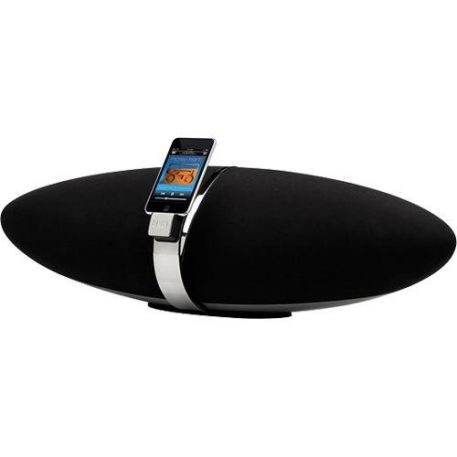
Best as I can tell you can only route AirPlay output to one device at a time, but this remains a very cost effective way of outputting sound to any one of multiple locations in the home, controlled with a portable iDevice. Cost per location is as much as you want to spend on powered speakers, but $100 buys you a decent pair and another $100 or so gets you an AEX, so call it $200 per location. Expensive? Have you priced running wires through walls recently? And if you want really good sound with a dedicated DAC, the English gentlemen at Bowers and Wilkins will be glad to relieve you of $600 for their oddly named (if appropriately shaped) Zeppelin which is as good as it gets. You would think the English would be tired of reminders of German aerial bombardment after two wars. Anyway, I’m going to resurrect those old B&W DM5 bookshelf monitors from the basement and maybe spring for a nice tube amp for my next AEX installation …. the output level from the AEX is like that from a preamp, so all you need is a power amplifier and regular unpowered speakers with this approach.

State of the art – the Bowers & Wilkins Zeppelin.

State of stupidity – the $26,000 Challenger01 – you will need two.

When you ripped all those old DVDs to your iPod you did use lossless not MP3, right?

Christmas gifts

Well, duh!

If you are a parent with young children, do yourself a huge favor and read my earlier piece The Unfair Advantage.

Then look at this chart from America’s taste-takers:

Sure, those kids want bragging rights and video games, but, properly policed, technology confers an unfair advantage and you owe it to your kids.

Disclosure: I have significant AAPL exposure today (but maybe not tomorrow) but if each of the several thousand daily readers of this journal rushes out and buys 5 iPads, the impact on AAPL’s bottom line and stock price will be precisely zero. Further, if you are coming here for stock advice you need to get a life, and a brain. Long AAPL stock and call options.

The AppleTV with the iPad and iOS 4

A dream combination.

Having just installed iOS 4.2.1 on my iPad I can scarce contain my excitement as to how it collaborates with a big screen TV and an iPad for a photographer.

It’s still a work in progress but this combination begins to finally show a meaningful, realistic step in the direction of coordinating disparate devices and making them work together painlessly.

Let me jump to the bottom line. I’m reviewing a photo album in my iPad on the AppleTV to the accompaniment of classical music, relayed by Pandora Radio. The source pictures and music are coming from my iPad. I flick the pictures on the iPad and the 42″ TV faithfully reproduces them. The colors are true also as I have profiled the TV with my EyeOne colorimeter.

For the amateur this is magic; for the pro, showing his pictures to the magazine editor, it’s essential. All that’s needed in addition to the iPad is a TV and the $99 AppleTV device, which I have reviewed at length here a few days ago.

So while much of what we are hearing about the latest iOS for the iPad is about multitasking, the real magic sauce for photographers is in AirPlay, the technology which makes what I describe above possible.

Setup is child’s play; after installing the new OS on the iPad, all you do is go to the Photos app on the iPad, select an album, turn on the TV, touch the AirPlay button on the iPad and you are off. Music? Add it in background mode from your iPad and route it likewise to your TV. The TV, of course, has two things the iPad does not – a huge screen and decent speakers.

Snags?

The iPad still needs a decent touchscreen photo processing app so that you can make changes and see them on the big screen, rather than round-tripping to your desktop. You still cannot turn pictures on the iPad through ninety or one hundred and eighty degrees.

And, worst fo all, you cannot print from the iPad. Mr. Jobs, please. All that hype about the new iOS 4 and we learn that the only way the iPad can print natively is through one of the latest AirPrint-enabled printers? What a crock! You expect me to buy a new printer? Well, BS says I.

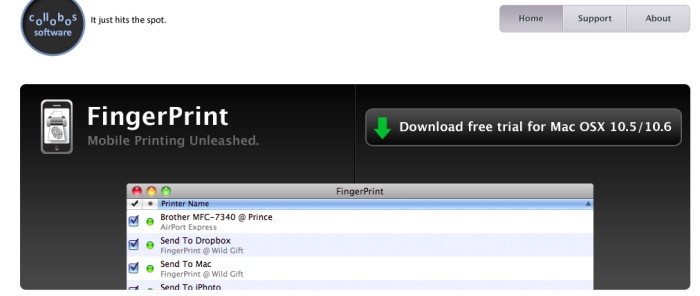
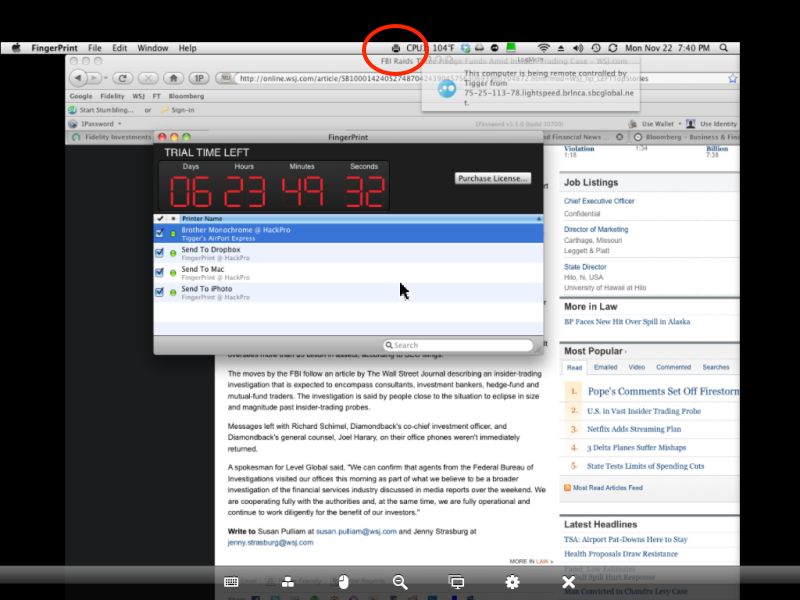
Click the picture below and you can download an $8 app to your desktop Mac, check off your Bonjour enabled printer, and the iPad will print to it (or to DropBox, etc.) just fine. It works fine with my Brother 2170W monochrome laser, and I have yet to try it with the HP DJ90 wide carriage color printer. What have you got to lose? The app comes with a 7 day free trial period.

Click to see more.

Here’s FingerPrint being installed on my HackPro – note that I have checked off my Brother printer:

That’s a screen shot of the HackPro taken remotely using LogMeIn on the iPad to remotely access the HackPro – another piece of magic which I wrote about here. Note the FingerPrint icon in the menu bar (circled), and be sure to add FingerPrint to the login items on your desktop to make sure it’s automatically loaded after a reboot.

So now you can display your pictures on the big screen from a 24 oz portable device and print them to your device of choice. I’ll let your imagination do the rest.

Installing iOS 4 on the iPad:

If you have tons of data on your iPad the process of upgrading from iOS 3 to iOS4 could scarcely be worse. Mine took 9 hours. There’s a fault in the code and iOS4 will not load until the 9 hour backup (a mere 40gB of data in my case) is done through iTunes. Ridiculous. And please don’t tell me Apple is ignorant of this error. Look at the hits regarding this issue on their discussion board:

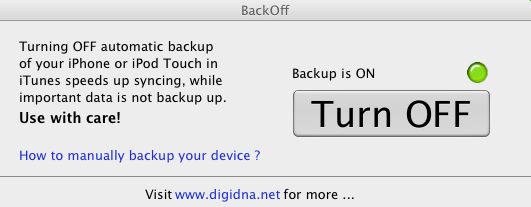
Only after I did the long backup to allow the installation of iOS4 did I learn of a free utility named BackOff which aborts the backing up of data and permits the iOS upgrade to proceed apace. Guess what I’ll be doing next time ….

BackOff comes in first world (Mac) and third world (PC) versions

We are at the cusp of a revolution in the ease with which devices can be connected in the home or business.

You need and AppleTV to go with your iPad.

Disclosure: I own tons of AAPL stock and call options. Your buying an AppleTV is hardly going to make me rich.

Market Street

1906 before the ‘quake.

The remarkable movie of a tram ride down Market Street in San Francisco, made in 1906 just before every building shown was destroyed by that year’s earthquake, is something I chanced on using the new ’60 Minutes’ iPad app. You don’t need that – you can see it on your computer by clicking the image below:

Market Street, 1906. Click the picture for the video.

The original was shipped east just one day before the earthquake and is not just history but tremendous fun. It ends at the Embarcadero and the Ferry Building, (seen above), splendidly restored today. More here.