The MacBook Air – Part V

Controlling fans and heat.

In Part IV I concluded that the MacBook Air was a credible tool for light, mobile use with Lightroom3. But I remained troubled by the significant rise in the heat of components during the relatively stressful tests of importing and generating 1:1 preview files for 50 RAW files from my Panasonic G1.

In this article I examine how photographers can better manage heat in the MBA and quantify the tradeoffs in terms of battery life when stock fan speed profiles are changed.

Because I have little trust in Apple’s heat management, having suffered innumerable Mac failures from overheating, I thought it might make sense to take a hard look at cooling in the new MacBook Air. Mine is the bottom-of-the-line version, meaning 11.6″ display, 1.4gHz CPU, 2gB RAM and 64gB (meaning it’s about 45gB when you have all the necessary things installed) flash hard drive.

Now from a specifications standpoint, the MBA has some obviously good and obviously bad heat issues.

The good:

  • The low powered 1.4gHz Intel U9400 Core2Duo CPU runs cooler than something faster, though that is making a virtue out of economic necessity. It’s also a mature design so cheap in bulk.
  • The absence of a spinning hard disk drive cuts heat.
  • The new generation of graphics GPU, like the Nvidia 320M used in the MBA, runs cooler than its predecessors on a separate chip.
  • The close fitting alloy case should be a far superior conductor of heat – meaning it acts as a heat sink – than the plastic ones which act as heat retainers on my many blown iBooks and MacBooks which came before.

The bad:

  • The MBA is the slimmest laptop netbook ever made, so there’s less space for heat to exit.
  • The heat exhaust slots of the earlier MBA have been deleted and the only exit for hot air is the very narrow slot at the base of the display hinge.
  • There is but one poncy little fan to cool both the CPU and GPU inside the case, as illustrated below.

The sole fan in the MBA, circled top right.

I had already noted the significant rise in measured and observed heat (my lap got hot!) in my tests where I imported 50 RAW files into Lightroom3, creating 1:1 previews. That chart is repeated below:
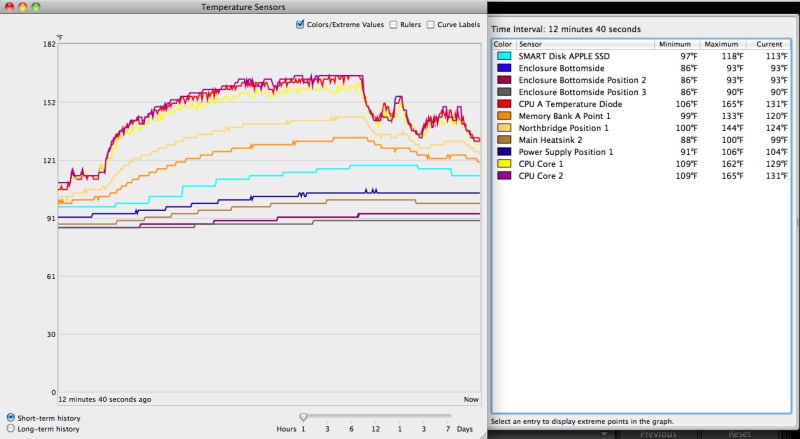
Component temperatures during RAW file import and processing.

As you can see, the CPU’s temperature rises from 106F to 165F during the import process. You can assume the GPU’s temperature rises a like amount as the two processors are adjacent to one another.

Tools used to measure temperature changes:

  • I imported the same 50 RAW files from a plug-in USB hard drive and Transcend 8gB Class 6 SDHC card as used in my Panasonic G1.
  • For constant temperature display in the status bar I used smcFanControl, which discloses that the default fan speed setting is 2000 rpm (where it is silent) and the maximum is 6500 (where it all but roars). smcFanControl’s readout appears in the status bar at the top of the MBA’s display.
  • I used MacBookPro/Extended Fan Control, which installs as a preference pane in System Preferences.
  • All tests were done on battery power, replicating real world use. Battery percentage remaining was displayed in the status bar at the top of the MBA’s display by appropriately dialing in the System Preference settings. I was especially interested in seeing what additional battery consumption would result from cranking the fan up to keep the MBA cool.
  • I used Temperature Monitor, as before, to graph the results.

MacBookPro/Extended Fan Control suggests a temperature range for the CPU of 86F to 194F with default fan settings – their display is a little confused showing two fans and a 1200 minimum fan speed, when the reality is one fan and a 2000 rpm minimum. However, the actual fan speed reported is identical to that reported by smcFan Control, so it’s a useful tool, not least because, unlike smcFanControl, MacBookPro/Extended Fan Control can be set to dynamically chane the speed of the fan depending on the CPU’s temperature. As there is no way on God’s earth that I am going to allow my MBA to run up to 194F (likely a degree or two from the service limit), I set MacBookPro/Extended Fan Control to a limit of 149F, the lowest I could get. I don’t care how much anyone lectures me about Apple’s sophisticated CPU and GPU thermal throttling, there is simply no way I’m going to buy it. Let it get to 194F and how long do you think the thing is going to last? Exactly.

Here are the MacBookPro/Extended Fan Control settings:
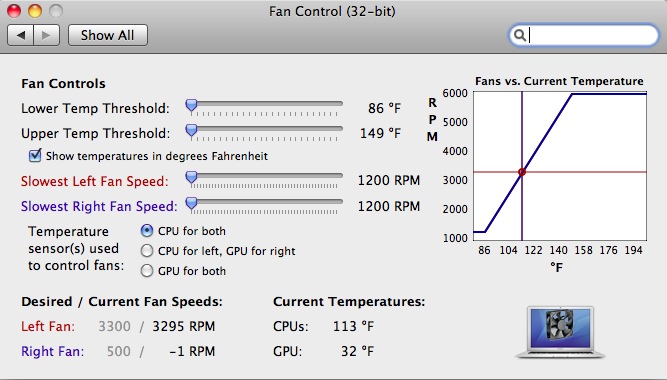
The single fan was running at 3,295rpm as shown at the base of the screen shot. CPU/GPU at 113F (not 32F).

Results: The results could hardly be more instructive.

  • Compared with Apple’s stock fan control, where the fan is never audible, the MBP’s fan spooled up to a maximum of 5013rpm during the import/preview generation process at which speed it was audible if not obtrusive. This is still well below the 6500rpm limit.
  • Battery capacity was depleted by 5% compared to 4% stock.
  • The CPU/GPU maxed out at 138F (see chart below) compared to 165F stock.
  • Import/preview generation time was unchanged.
  • CPU temperature was back to 108F within 5 minutes of completion.
  • Fan speed was back down to 2800rpm within 5 minutes of completion.

So for the cost of 1% extra battery capacity use, maximum CPU/GPU temperature was reduced by 27F, all of this at an ambient temperature of 75F. If you don’t think that’s worth 1% of extra battery use then I have a great bridge for sale at a bargain price, just for you, located in Brooklyn, New York. I only have one, so hurry.

Conclusion: The heat conscious MBA user will install MacBookPro/Extended Fan Control and set it the way I have. There is no earthly reason to trust Apple’s heat management and default fan profile settings when you can do much better for a modest battery drain increase.

Here’s the revised temperature graph which, frankly, is a jaw dropper – the enclosure bottom temperature (the part your lap feels!) remains unchanged:
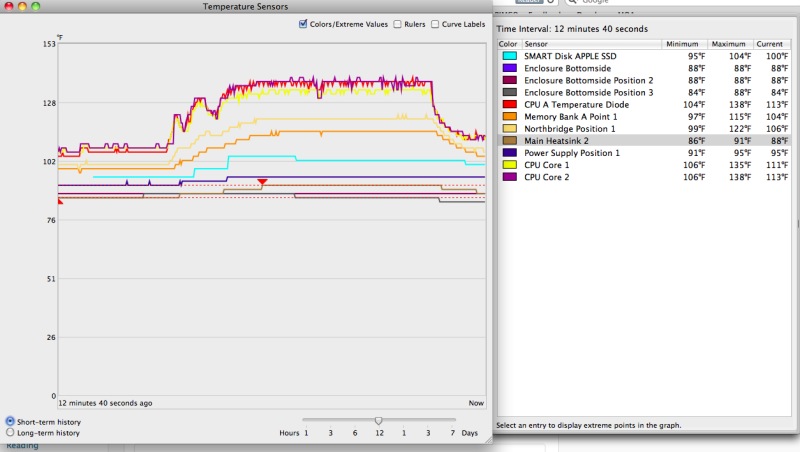
Key MBA component temperatures with MacBookPro/Extended Fan Control installed.

The five large fans and a monster CPU radiator in my HackPro do an even better job but the HackPro is not what you would call portable ….

What to do if you blow out the fan and have to replace it? Apple has sneakily used five pointed Torx screws to make it impossible for you to remove the base and access the fan. What I suspect they really do not want you doing is replacing the plug in flash drive with a larger one (it is not soldered in), and iFixit, when dismantling the MBA had to fashion their own screwdriver to access the innards. (By the way, the RAM is soldered in and cannot be user upgraded). Fear not. The ingenuity of man will ensure that higher capacity flash hard drives become available in no time for far less than Apple will charge you and ifixit already has a supply of five pointed Torx screwdrivers available, for all of $4.95, which will allow you to replace the fan yourself.
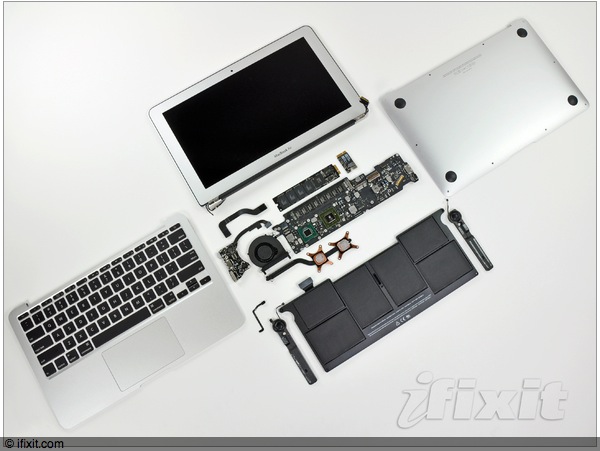
ifixit’s view of the 11.6″ MBA.

A note on use with 1Password: If you use 1Password to store all your passwords, be sure to uncheck the box shown below:
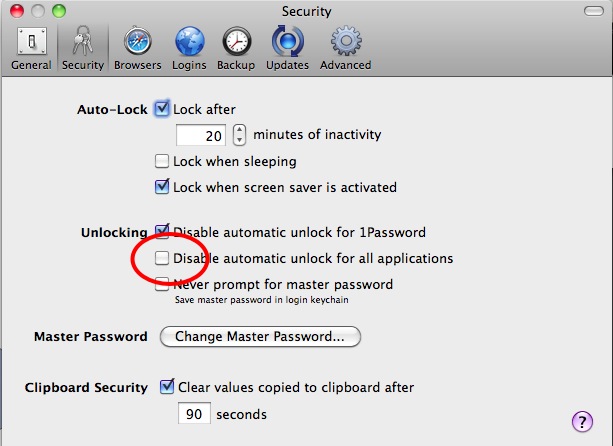
Failing to do this will mean that you have to re-input your master password every time you use 1Password after putting your MBA to sleep (meaning after you close and reopen the lid). I learned this thanks to 1Password’s superb support – a quick exchange of emails on a Sunday. That’s what it takes to succeed nowadays. An excellent product, superbly supported.
The MacBook Air – Part IV

Display calibration and remote storage.

Part III appears here.

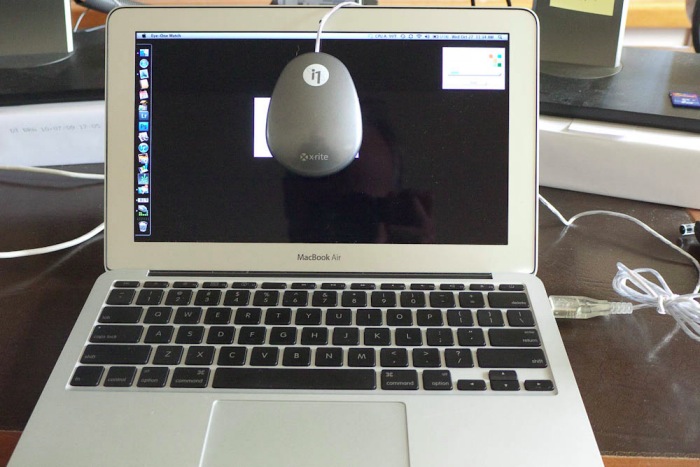
I use an Eye-One colorimeter to profile the two Dell 2209WA displays attached to my desktop HackPro and used the same tool to calibrate the MacBook Air’s display.

Software: As the MBA has no DVD drive, I imported the software for the Eye-One from the User->Applications directory on the HackPro by networking the MBA with the HackPro. All you need is in that one directory – there are no additional files to be found in the Library->Application Support directory.

The Eye-One is attached in the usual way.

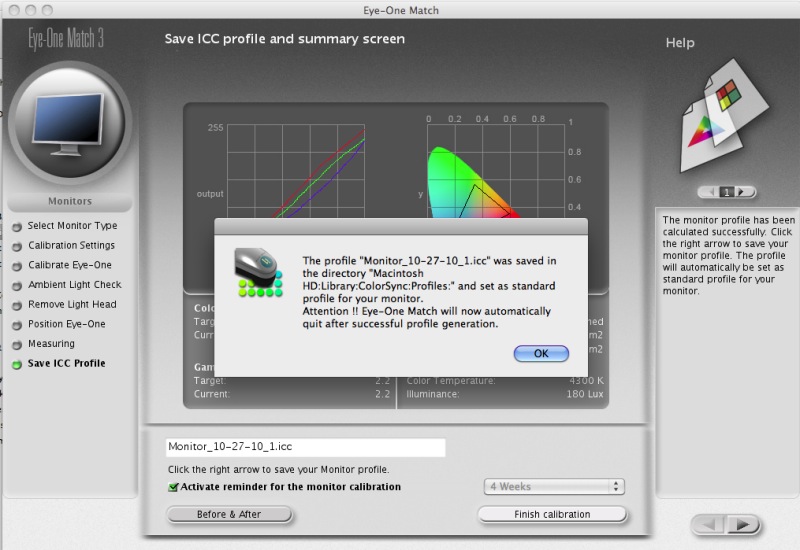
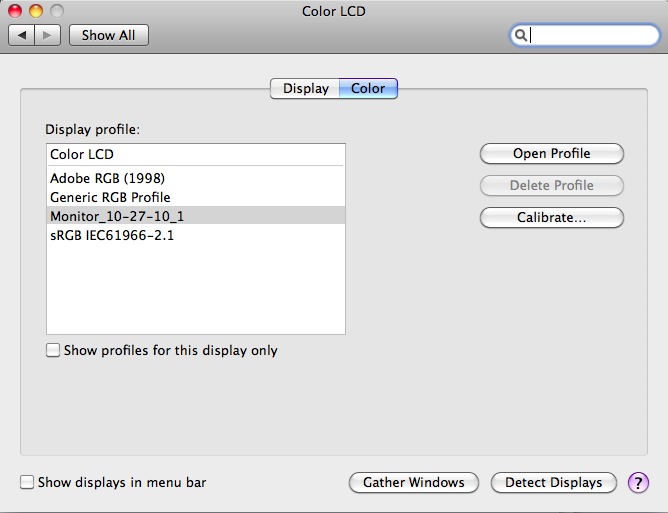
Electing the ‘Laptop’ option in the software, the whole process took maybe 5 minutes, with the profile being stored automatically as the default by Eye-One, visible in System Preferences->Displays:

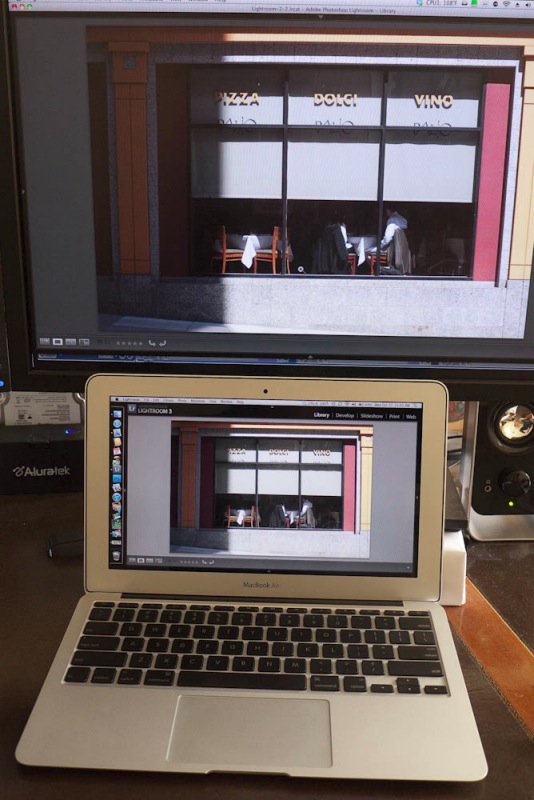
How do the images compare? First it has to be noted that the MBA’s display is far more sensitive to color changes with off center viewing than the 21.5″ Dell. That’s hardly surprising, given the large screen size of the latter. Second, the Eye-One software in Laptop mode does not provide for brightness adjustment so when lining up the two in the picture below I had to turn down the MBA’s brightness a couple of notches to match things up.

The MBA compared with the Dell 2209WA display.

Bottom line: You might not want to use the MBA for critical color matching but this quick and easy calibration gets me very close indeed to what I see on the calibrated Dell displays attached to my desktop Mac.

Remote storage: Users of services like MobileMe or Dropbox gain access to copious amounts of ‘cloud’ storage. Is this a cheap answer to significantly expanding storage of the MBA, given this netbook’s small internal storage drive?

If you want to store lots of small files then this is certainly a workable solution. Indeed, I use it for spreadsheets with both Excel and Numbers as it allows me to access a spreadsheet from any one of a number of computers. With MobileMe’s iDisk feature the remote storage is accessed like any disk drive.

But the situation is not so good with large RAW picture files. My internet service measures at 10mb/s download and 1.4 mb/s upload; in practice, it takes me almost a minute to upload one RAW file from the Panasonic G1 to the iDisk at MobileMe, and maybe 10 seconds to download it. That’s pretty slow. You can use this in a pinch but will burn up lots of battery power and waste a lot of time. A small USB self-powered external hard drive is, at present, a far better solution. Take a look at CarBak.

In Part V I look harder at heat management, the bugaboo of most of Apple’s hardware designs.

The new AppleTV – Part II

AirPlay and more use tests.

Part I appears here.

Here I examine the working of AirPlay, Apple’s update to the use of remote sources and speakers for playing music files.

At this time AirPlay only works for routing sound files, but Steve Jobs has promised that routing of video files will be added before 2011. In Part I, I mentioned that optimal control of the infra red sensor in the AppleTV for use with remotes results from the use of an IR blaster. This small device replaces the AppleTV’s sensor with a much less directional and more sensitive one and works for all IR controlled devices. Simply stated, once you have an IR blaster installed you can pretty much point a remote in any direction and it will work the hardware it is aimed at, however imperfectly. Just ask our 8 year old. I use this one and it’s excellent.

The alternative is to load Remote (free, from the AppStore) on your iPhone, iPod Touch or iPad and use the mobile device to control your AppleTV using wifi, provided you have a wireless network in your home. Thus approach does not require any line of sight to the device you want to control as it uses radio waves.

I downloaded the latest version of Remote and installed it on my iPhone and found that it was very quick to set up and easy to use. The screen shots which follow are from my 3G iPhone.

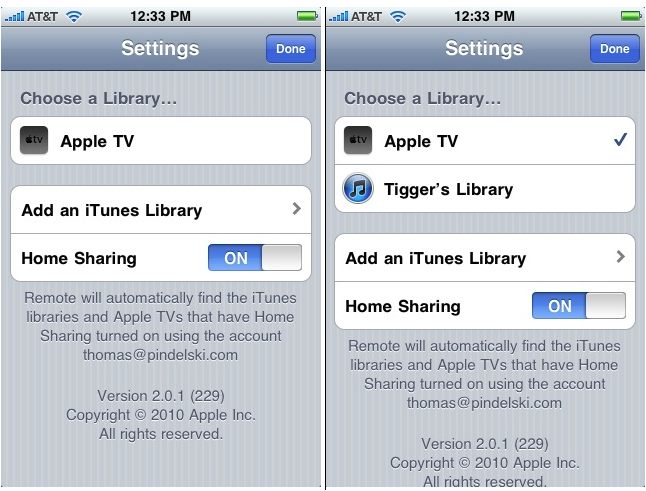
Fire up Remote and you are asked for the Library you want to use. Mine (“Tigger’s Library”) resides on the HackPro in my home office.

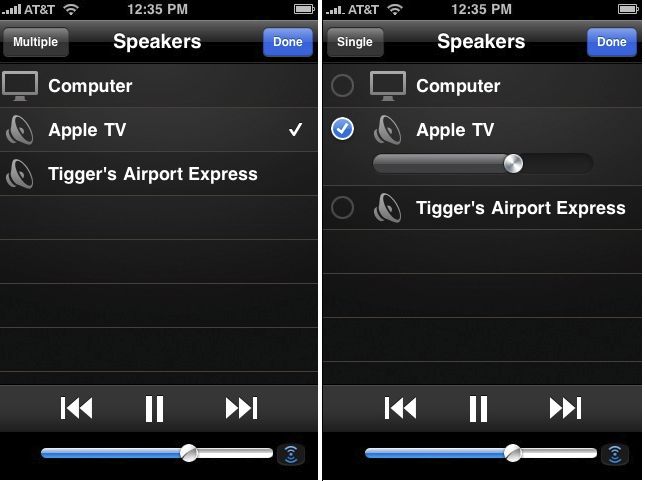
Checking that library as the source, the next two screens ask where you want the sound routed.

In the above, ‘Computer’ refers to the speakers connected to the HackPro. I simply chose ‘AppleTV’ and the music is routed to the speakers connected to our TV. Note the useful provision of a volume control in the second screen, above.

And that’s about it. It’s that simple. This approach allows centralized or distributed storage of music (and, soon, video) files which can now be output to any connected device on the network.

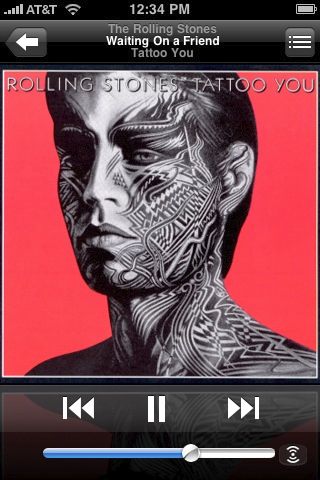
Cover art from your remote server is also fully displayed on the iPhone, thus:

A masterpiece of male chauvinism from Mick and the Boys.

More use tests:

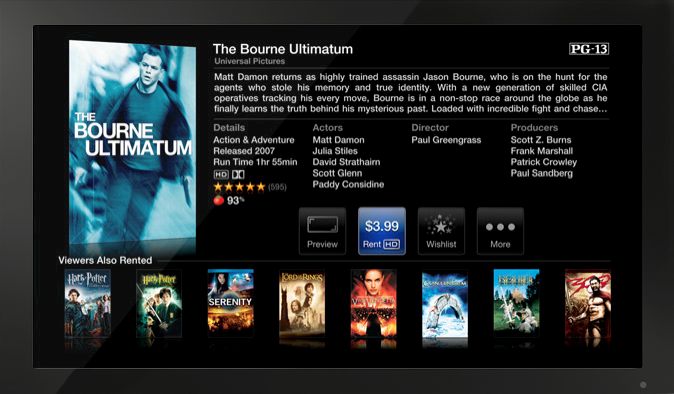
I have now watched several movies using AppleTV as the streaming device. Some were from Netflix, both in SD and HD, and some were purchased from the iTunes store $4.99 or less) also in SD and HD. At no time did any of these exhibit any stuttering or distortion in either video or sound and all loaded and started playing within 30 seconds or less. The AppleTV remains only barely warm to the touch, even after a two hour HD movie transmission and even a child could use the on screen menus. In fact Winston, our 8 year old boy, has proved that to be true. The appearance of the menus using Netflix is identical to that for the iTunes store.

Conclusion:

The AppleTV is unlikely to become the sole device for consuming sound and movies in the home, primarily owing to the dunderheads who run movie studios. They prefer to have a large slice of nothing in royalties than a small slice of something, having convinced themselves that the $0.99 cent pricing of songs in the iTunes Music Store has cheated them. Meanwhile, they conveniently avoid noticing that without iTMS music would be pretty much dead as no one wants to pay $10 for a CD which gathers dust in the home, is hard to access and contains many tracks you do not want. They are now making the same error with movies, on the principle that if your competitor’s candle dims, that brightens yours. I have never known that to be true in any field of human endeavor. You try and explain it to them.

After its previous failures with the AppleTV, Apple seems reluctant to even show the device on its web site and you have to search for the related home page, which can be found here. I can’t even find it on the specifications page, but the power consumption, even when working, does not exceed a couple of watts, which explains why there is no on/off switch.

The elegant and intuitive movie rental page.

However, as a device with a superb user interface which finally avoids the heat, poor performance and price issues of its predecessor, the AppleTV is going to find itself in a lot of Christmas stockings this December at the $99 asking price. I know I will be buying a half dozen or so with just that destination in mind.

In Part III I address the use of a Digital to Analog Converter to convert the AppleTV’s digital/optical sound output to analog for usew with traditional amplifiers and external speakers.

Disclosure: Long AAPL common stock and call options.

The MacBook Air – Part III

Photo use and other considerations.

Part II appears here.

As before, this complete article was created using the MBA.

Restoring the OS:

First a word about how Apple ships the back-up OS X ‘disc’ with the new MacBook Air.

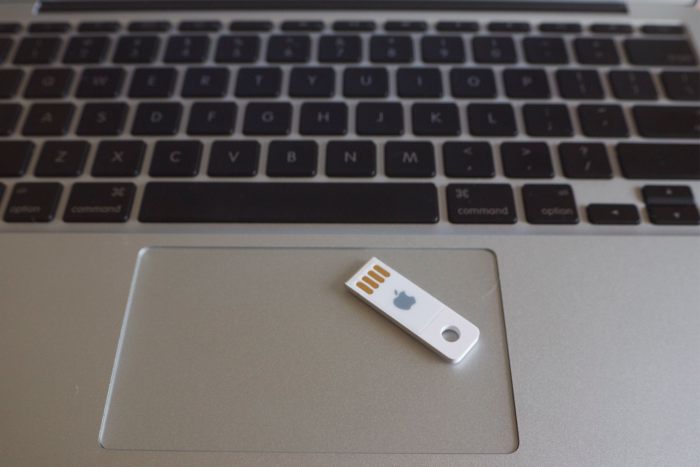
It comes on an extremely slimmed down USB drive which also includes iLife ’11. I erased the flash drive in my MBA and reinstalled the OS from this little stick. It took 28 minutes and worked perfectly. iLife ’11 adds 12 minutes to the process. Very smart and note the little hole for your key ring! And no, you cannot use it with any other machine – it’s tied to the MBA it comes with. Great idea and no more piracy.

Saving disk space:

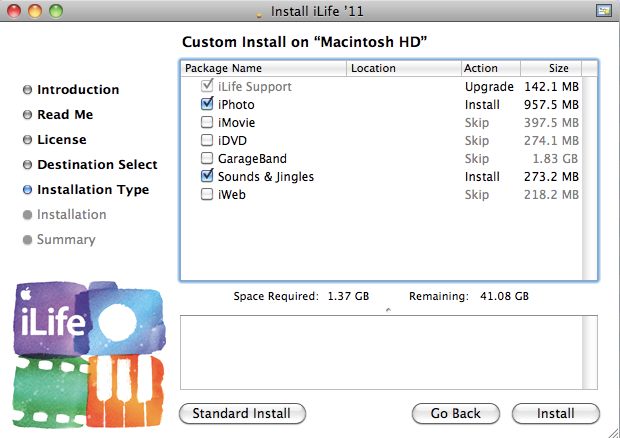
By reformatting the internal flash hard drive using the Disk Utility on the USB stick, above, you can get far smarter about installing iLife ’11 which is included on the stick. I will not be using iMovie, iDVD, GarageBand or iWeb on the MBA so I simply opted for a custom installation of iLife ’11 as shown below, saving a whopping 2.72gB of disk space.

Custom installation of iLife ’11.

Lightroom use:

For sake of comparison I’m including timings for the HackPro I use at home; it runs a 7200rpm Samsung 1tB internal disk, a 2.83gHz Core2Quad CPU, an Nvidia 9800GTX+ graphics card, 8gB of RAM and dual 21.5″ Dell 2209WA displays. Absent some specialized gaming machines and the very latest MacPros and iMacs, this is as fast as it gets in the real world.

So when looking at these comparisons, bear in mind what the MBA is comprised of. A 64gB (nominal) Flash hard drive, 1.4gHz Core 2 Duo CPU, an Nvidia 320M GPU, 2gB of RAM and a single 11.6″ backlit LCD display.

Long time readers will know of my many Mac hardware failures, most the result of poor thermal design, leading to overheating, so I am naturally rather obsessive about heat management. Accordingly I am also including temperature graphs in what follows so you can see what heavy video processing does to the MBA.

For testing I installed the current version of Lightroom3, version 3.2, on the MBA. The Adobe user license permits use on two machines. I also moved over my user defined libraries for import settings (these reside in User->Library->Application Support->Adobe->Lightroom) as it’s far faster to simply copy these over than to recreate them. I need these as I wish to apply processing presets at the import step. These take away most of the subsequent processing and make a great improvement to your efficiency.

For test purposes I placed 50 original, unprocessed, RAW files from my Panasonic G1, averaging 13.1mB each, on an 8gB Transcend Type 6 SDHC card (the same I use in the G1), and placed the card in a Transcend USB card reader which came free with it. This is a very small device, weighing an ounce or two and is required because, unlike the 13.3″ MBA, the 11.6″ one I am using has no SD card slot. Neither card nor reader can be said to be fast; indeed, they are probably near the bottom of the performance spectrum but it’s what I use as it works for me. I do not need serial-shooter saving speed with the sort of snaps I take.

Except for Temperature Monitor I had no other apps loaded during these tests.

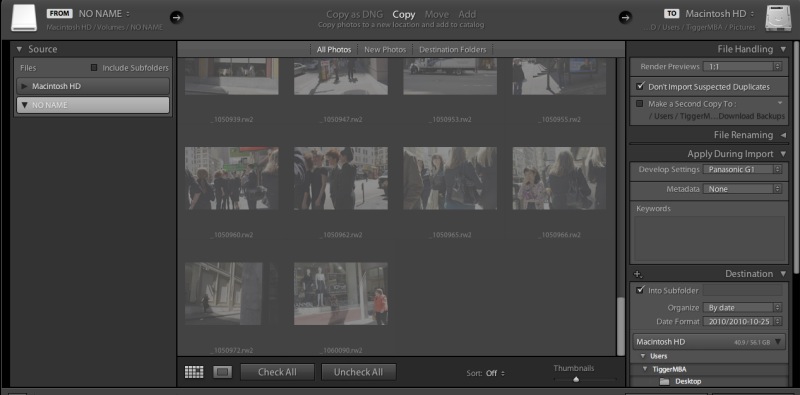
The import settings I used for these files are:

  • Generate 1:1 previews
  • Apply 100% sharpening, 1.1 radius, 64 detail

The latter are the optimal settings for the G1 determined after much use and some 5,000 snaps.

Here is how LR3 was set for import – I am actually copying the files from the SDHC card to the MBA SSD, to take advantage of the high speed of the Flash Hard Drive (FHD) for subsequent processing, rather than leaving the original files on the SDHC card which is far slower.

RAW file import settings in LR3.

The import process in LR3 actually has three steps. Here are the timings:

  • Generate JPG thumbnail previews – 11 seconds – the time taken from the start of the import cycle to seeing all the thumbnails on the screen
  • Copy 50 RAW files from the SDHC card to the FHD in the MBA – 40 seconds
  • Generate 1:1 full screen previews – 393 seconds, or 8 seconds per file

On the HackPro the first two are similar, the last takes some 6 seconds per file. So not much wrong with the MBA here.

I conducted this import using battery power because that’s what you will likely be doing in the real world. The 50 file import and preview generation used 4% of the total battery energy.

Flipping between full screen previews in the Library module is instantaneous. Holding the right arrow button on the keyboard took 4 (yes, four!) seconds to get from the first to the last of the 50 imported pictures. This is the module used to cull bad snaps and it is simply impossible to imagine this being any faster.

Switching to the Develop module and flipping between files in full screen view means waiting 8 seconds for each 1:1 preview file to finish loading (HP – 3 seconds); the file appears instantaneously on the screen but the ‘loading’ indicator takes 8 seconds to disappear. Loading Safari and Mac Mail apps did not make any measurable change to this timing.

All the processing sliders in the Develop module react in real time. There are no visible delays – a huge plus in real world use.

Switching to Print Preview takes 2 seconds to render the file (HP – 1 second).

Switching to the Slideshow module for all 50 pictures takes 3 seconds to render (HP – 1 second).

Heat: The MBA gets noticeably warm if you are using it on your lap while importing RAW files and generating 1:1 previews, as the following shows – the spike occurs as import commences, and drops at the conclusion:

Component temperatures during RAW file import and processing.

Networking: Networking the MBA with other Macs in the home is trivial. Enable Sharing in System Preferences and, if you want remote screen access, subscribe to MobileMe and switch on Back to my Mac. You can now see the screen of any Mac from any other. Networking is especially useful when transferring files wirelessly between Macs.

MobileMe and TimeMachine: The process of setting up a new, full featured Mac reminded me just how useful MobileMe is. For some $70 annually (from AMZN) your MobileMe password gets you shared access to automatically sync’d Calendars, Mail and Address Books between all your Macs. I barely fired up MM than it was done populating all three apps on the MBA. If your time is worth anything, MM is essential.

Likewise, the TimeMachine back-up for my HackPro proved immensely valuable when populating the flash hard drive in the MBA. TM allows you to import apps and document files to any Mac, once connected, using Migration Assistant. This process will not allow you to transfer the OS, the presumption being that the machine to which data are being transferred to is the one with the most current operating system. It makes an otherwise tedious and risky process foolproof and fast, which is worth a lot given the growing application and data volumes we all now store on computers. Most importantly, you no longer have to dig up all your original software discs for reinstallation; at most, some apps will ask that you simply reinput the serial number.

Battery life: During these tests, including multiple imports and much processing and with wifi on (a significant power drain) I noted that the battery capacity in the MBA dropped by 33% in 2 hours of heavy use, suggesting a life of 6 hours. That’s right in line with Apple’s 5-7 hour life claim for a fully charged MBA battery.

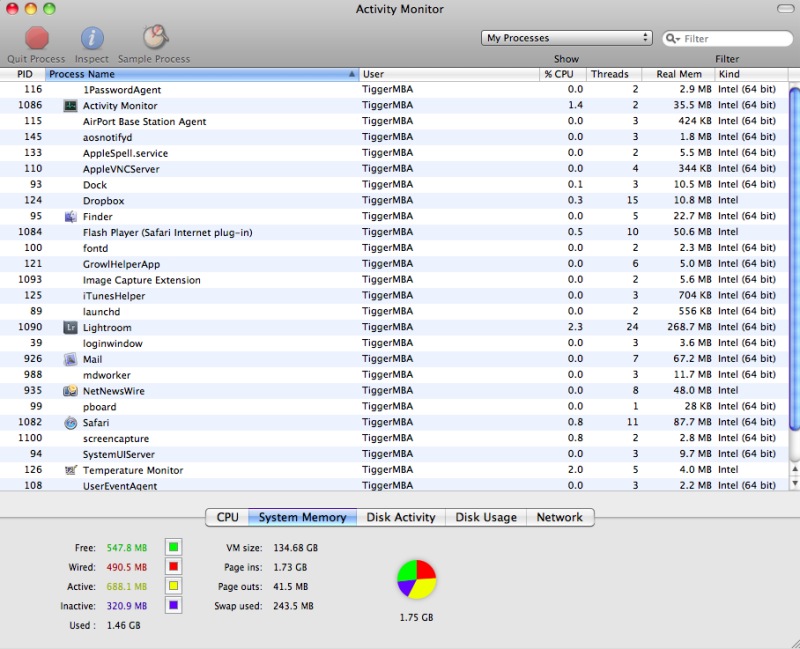
Memory use: Is 2gB of RAM enough or should you pay up for the 4gB version? The answer depends on how you use the MBA. Here’s a memory use screen snap with my MBA running 1Password, Activity Monitor, Finder, Image Well (used to upload pictures to this blog), Lightroom3 with a 13.1mB RAW file loaded in the Develop Module, Mail, NetNewsWire (an RSS feed reader) and that well known memory hog, Safari. And, yes, Mr. Jobs, the Flash player plugin for Safari has been downloaded and installed even though you arrogantly refuse to ship it with the MBA. Real world users use Flash. There’s still 0.55gB of RAM free and unloading all of these apps except Lightroom3 discloses no noticeable increase in performance in Lightroom. So for my purposes, 2gB is fine; however, if you frequently run many more apps simultaneously, you may need more RAM. I suggest the best way to evaluate this is to load up all your apps and Activity Monitor on your other Mac and see how much free memory remains. That will give you an objective measure of your needs.

Memory use in practice.

Longevity: If you expect to read claptrap like “It feels robust”, then you need to go to an Apple fanboy site. While the apparent build quality and material choices appear superior to those in my MSI Wind netbook, which broke its hinges after 15 months of hard use, look and feel is no basis for making predictions about mechanical longevity. Check back in a year and I’ll be pleased to tell you whether this is just another piece of overpriced garbage packaged as jewelry from Apple or whether it’s the real thing. My experience with Apple laptop longevity is so poor that I’m strictly in the “show me” camp and refuse to pass on any one else’s opinions about a product which has been on the market just one week. There is simply no basis for judging longevity at this time.

Conclusions: For on-the-road processing of RAW files using LR3 the MBA is fine. It gets noticeably warm during import and preview generation but cools quickly thereafter. (See Part V for the temperature fix). You should be able to get 5-6 hours of use from the battery during the process. Timings are good with the only significantly slowing compared to a fast desktop computer being the snap-to-snap loading times for full screen previews in the Develop module, which take 8 seconds. I had no difficulty using the small display to process my pictures. The slow preview to preview time in the Develop module is not that much of a hindrance in practice when offset against the immense processing power of the MacBook Air which, all told, weighs in at 2.2 lbs for the 11.6″ model. Further, as the cull will have taken place in the Library module, which is exceedingly fast, you only switch to the Develop module when …. developing/processing the pictures remaining.

Pony up an additional $200 for the 4gB RAM version and I would guess things will be faster still when processing. Remember it’s GPU and RAM amounts that dictate this speed variable, not CPU speed, and the same GPU is used in all versions of the MBA and in the base MacBook Pro.

So if you want a really lightweight, full featured laptop for mobile use, the MBA should be considered. If you need a lot more disk storage than provided by the MBA – which is limited to 64-128gB nominal, then use an external self-powered 2.5″ HDD. The total weight of the MBA + HDD will still be way below that of your MacBook Pro, the offset being faster battery drain.

Display profiling:

I address profiling of the MBA’s display in Part IV.

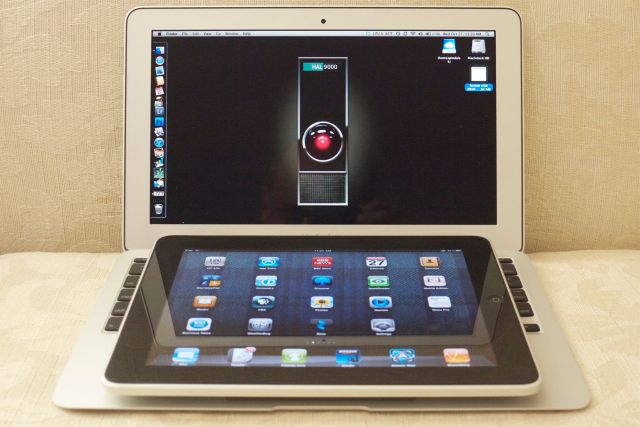
Screen sizes compared.

Do yourself a favor when using the MBA’s widescreen. Place the dock at the left as I have here. It works best with the widescreen aspect ratio of the display. In fact, it works best with any screen connected to any Mac. It beats me why Apple always displays the dock at the base of the screen in all their advertising.

The netbook alternative: Over a year ago I wrote of my experiences with a $400 MSI Wind netbook hacked to run OS X in a piece titled The Netbook Apple Will Not Make and I encourage anyone needing a cheap laptop, looking to save money and willing to undergo the tortuous hacking process (the two usually go together) to have a go. It’s a cheap introduction to netbook computing and you should disregard all the fashionable slanging of the keyboard and screen in these devices by people who think the sun rises and sets with Steve Jobs. Sure, the keyboard is cramped, but the screen is excellent and the machine will do a credible job as a mobile Lightroom platform. Most come with an SD card reader and the price is now down to $300. Down the road, when funds permit, migrating to the real thing, a MacBook, may make sense. But that in no way detracts from the netbook experience which I commend highly.

Disclosure: Long AAPL common stock and AAPL call options.

The MacBook Air – Part II

A two seater sportster, not a truck.

Part I appears here.

My 11.6″, 2gB RAM, 32gB flash disk storage Mac Book Air arrived yesterday and I have spent a few hours wringing it out.

I am writing this on the MacBook Air (MBA).

First impressions:

The MBA is a masterpiece of machine craft. Despite incredible slimness at the thin edge of the wedge (!) it feels robust rather than fragile. The full size keyboard is worth the price differential over a cheap netbook alone. Too bad it’s not backlit like on its much heavier (4.5lbs and up) brother, the MacBook Pro. The machine is unbelievably light – no self respecting student will want to be without one of these.

The battery on mine was 80% charged on receipt and the Magsafe power connector can be connected either way, only one of the two ways possible clearing the left hand of the two USB sockets The finish is, for the most part, Leica satin chrome, like they used to make in Germany. An iSight webcam is included. The Magsafe connector, which disconnects if yanked by an errant foot or child, has a minuscule tell tale light which glows orange when charging and green when charged. The LED appears on either side of the Magsafe plug – another example of Apple using the products it sells. Well done, Mr. Jobs.

The screen has a very high pixel density (1366 x 768) meaning the fonts are pretty small, but that’s more than compensated for by the high definition. After five hours of heavy use I had no headache. Surprisingly, after having tried an MBA in an Apple Store surrounded by monster iMacs, the screen appears far larger than that store test suggests. It’s widescreen (16:9) meaning you tend to scroll vertically more than you are used to, though my two years with a like format netbook made this pretty easy for me. You may have more of an acclimatization period if the widescreen format is new to you.

When using Safari hitting the Command-+ two key combination (actually Command-=, the latter being the key with the +’ sign on it) you can instantly increase the size of fonts on screen if you have difficulty reading the rather small size presented by the MBA.

Likewise, the need to depress the lower left function key to invoke the special features of the function buttons or to delete to the right (Fn-Delete) takes a bit of getting used to. However, the signal value added by the MBA’s keyboard is that it is full sized. Until you have used a $300-400 netbook that sentence is meaningless.

The screen is set to a ridiculous brightness level and, until I have a chance to properly profile it using the Eye One, I simply turned the brightness down a good deal.

Packaging is both effective and environmentally friendly, with very few plastics used. Hooray for that.

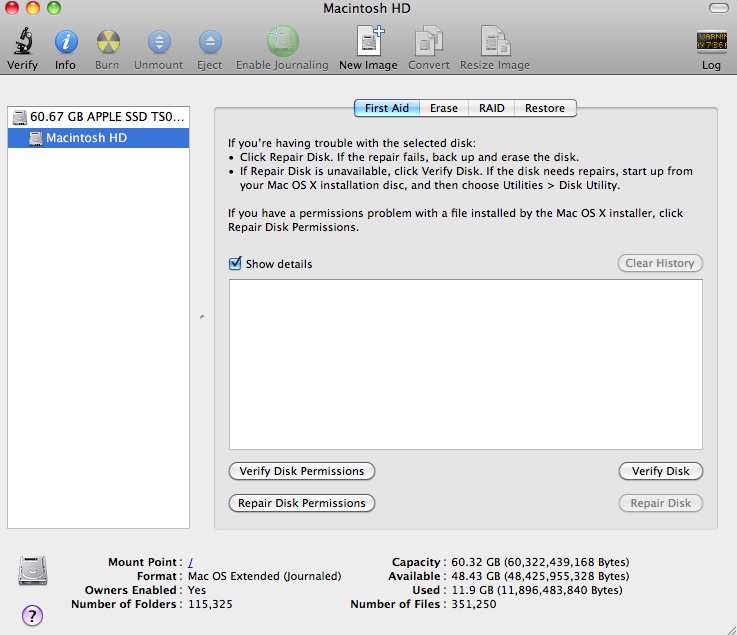
First I updated all the software using Software Update and was left with this capacity:

The advertised 64gB of flash memory is a little less, as this Disk Utility snap shows:

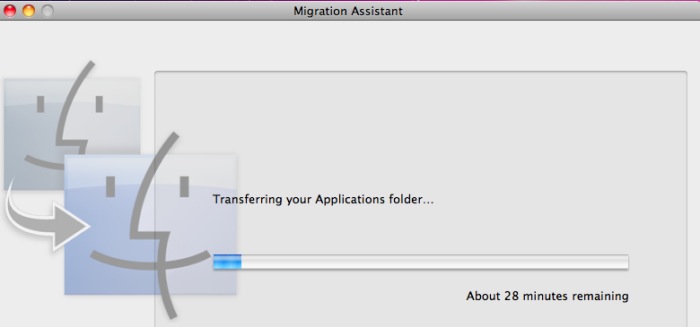
Thanks to my Time Machine backup on the Hackintosh desktop, I simply plugged in my backup drive to the MBA and some thirty minutes later I had imported the 28gB or so of Applications from the desktop, using Migration Assistant. After reinputting a couple of passwords for apps demanding same, I was up and running.

Overkill, sure, but I can always delete the apps I do not need on the MBA later. When all was said and done I had some 16gB of ‘disk’ space left in the MBA. That’s some 1200 RAW pictures from my Panasonic G1. Not bad for my purposes.

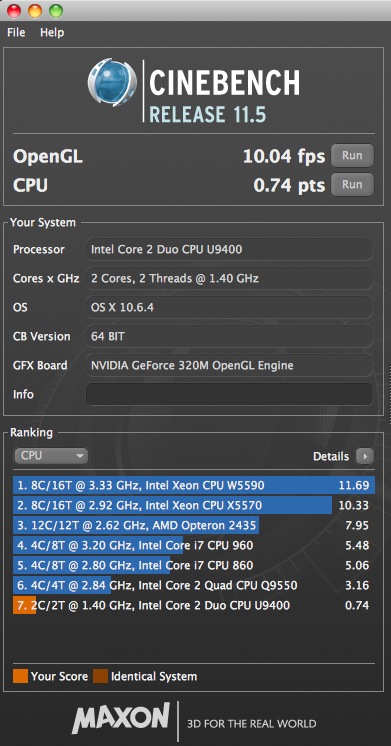
Next I ran the geeky tests – Geekbench and Cinebench which test CPU and GPU performance, respectively.

Geekbench, 64-bit comes in at 2205. For reference, the Intel Atom in my MSI Wind netbook, overclocked to 2gHz (1.6gHz is stock) reported a Geekbench (32-bit) score of 920.

And here’s Cinebench 64-bit:

I never ran this test on my old netbook with the poky, integrated Intel GMA950 GPU. Life’s too short. My Hackro with the Intel Core2Quad and Nvidia 9800+ GPU is #6 in the above list. The fastest machines in that list are mostly using the latest Intel i3/i5/i7 and Xeon CPUs.

To compare this to my Core2Quad Hackpro desktop, which with dual displays weighs some 100 lbs more than the 2.3 lb. MBA, look here.

Sure, the Hackintosh blows the MBA away in every respect. Then again, you cannot stuff the Hackster in your shoulder bag. The MBA is no speed demon, but as I captioned this piece above, the MBA is a two seater sportster, not a truck. You want a truck, get a MacPro or build yourself a Hackintosh for one third of the cost.

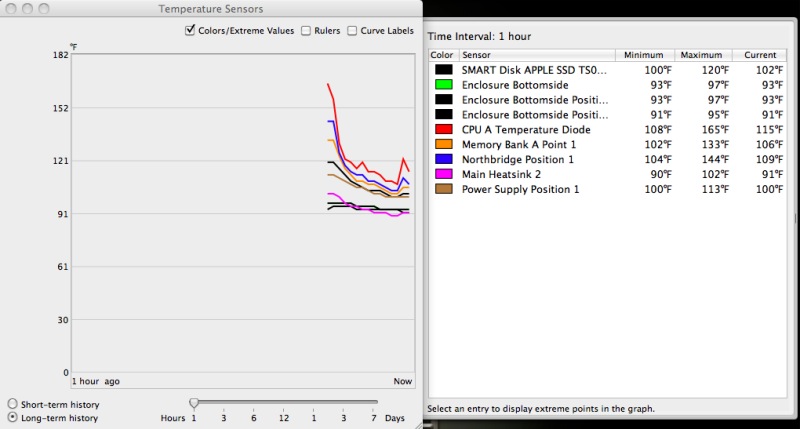
Right after running these very stressful tests, I fired up Temperature Monitor, noticing that the MBA was getting warm on my lap. Not as uncomfortably warm as a MacBook or an iBook, but noticeably warm, though at no time did I hear the MBA’s single fan at work. Fan tests appear in Part V. I did not want TM running during the geek tests to limit CPU and GPU cycles to the testbench apps, so what you see below is the hottest the machine got after the high stress Cinebench test:

As you can see the CPU hit 165F. I’m unsure of the temperature limit for this low powered Core2Duo 1.4gHz CPU (Intel U9400) but suspect that there’s not much more than 20F headroom left after the Cinebench test. A bit close for comfort, confirming that heavy duty video processing is not the MBA’s forte. So the bottom of the case was noticeably warm on my lap even though there was no smell of burning epoxy in the air! However, the CPU dropped to 115F or so within the hour and has remained below that ever since. CInebench is a brutal CPU and GPU test. The CPU is at 99F as I write, the enclosure base at 86F (75F ambient temperature) and the MBA feels no different on my lap than the iPad. Meaning it’s cool, both calorically and aesthetically.

Maximizing disk space:

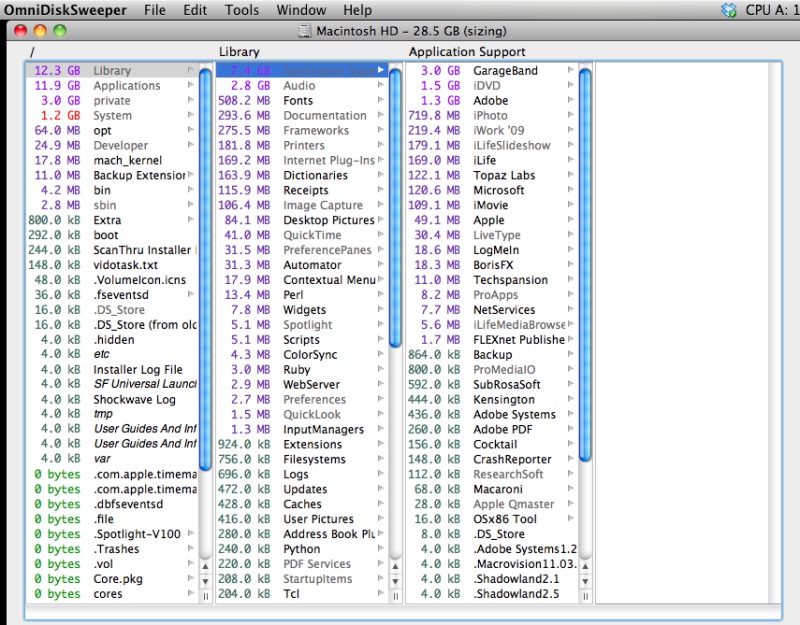
After doing a Time Machine restore of Applications from my HackPro I was left with some 16gB of space on the 60gB flash disk drive in the MBA. Many of these applications would never see use on the MBA but before I started erasing them I ran Omni Disk Sweeper to identify large files on the disk. You don’t want to erase any system files but applications typically reside in the Applications directory and often also in the Library->Applications Support directory. Look at the scan from Omni DIsk Sweeper, below, and you will see that Garage Band, which I will never use, takes up no less than 3gB in the latter directory, in addition to some 0.5gB in the Applications directory. So this tool provides a very efficient way of identifying the space hogs before deciding what to delete. After a few minutes work and after an Empty Trash command, my free disk space rose from 16 to 35gB!

Photo processing tests will be addressed in Part III, but suffice it to say that Lightroom 3 (v 3.2) loads in 6-7 seconds. My clunky old Rosetta-powered PPC Photoshop CS2 loads in 45 seconds, about the same as on the HackPro. I’m rather optimistic about the MBA’s performance with RAW files in Lightroom, as the GPU (Nvidia GeForce 320M) is a decent one and Lightroom is very computer friendly, unlike Aperture which is a resource hog. Hey, it sells hardware!

More when I have profiled the screen properly and processed some pictures.

In the meanwhile, be assured this is a serious piece of hardware and, yes, Jobs is right. One day every laptop will be like this. And you can be assured that pulled punches have no place on this journal. Just read my experiences with Apple’s awful hardware.

Part III appears here.

Disclosure: Long AAPL common stock and AAPL call options.