As odd as it gets.
This is one of the oddest poster advertisements I have seen, and I’m not sure whether it’s trying to be offensive or funny:

G1, kit lens @45mm, 1/1250, f/5.6, ISO320.

As odd as it gets.
This is one of the oddest poster advertisements I have seen, and I’m not sure whether it’s trying to be offensive or funny:
G1, kit lens @45mm, 1/1250, f/5.6, ISO320.
Horribly overpriced.
Let me preface this piece by saying that I own the previous generation MacMini with the Core2Duo CPU. It does service as a movie file server and has attached to it, using USB, 10 tB of HDDs containing movies. It’s small, quiet and fits in easily with the other electronics required for decent pictures and sound with a modern TV, though the poorly engineered slot loading DVD drive needs constant cleaning. However, as a stock computer for photo processing I can’t think of a worse choice. (OK, I can, but this writer does not use Windows).
This piece was prompted by a friend who asked whether the MacMini is a good choice for photo and video processing. The short answer? Not remotely.
The Mini fails on many fronts. The heat management is awful. The very last thing I would ever do with mine is use it to rip DVDs or compress movies using Handbrake for the iPad, having tried it just once. Try it on a Mini or any iMac, for that matter. Fire up the (free) Temperature Monitor from Bresink Software, invoke the history chart window and watch the CPU temperature go ballistic from some 105F (ambient) to 160F+ when ripping or compressing. That’s very close to the temperature limit of the CPU used. Even to get the ambient down to 105F I use a fan utility to spool up the pathetic single fan – there’s no room in the box for more – over the inadequately low stock setting.
Try and add more memory (easier in the latest Mini) or a larger HDD, and I have done both, and you have to be pretty smart with tools not to damage something when you crack the case open. It’s obviously the last thing Apple wants you to do given their default ‘form over function’ design philosophy.
The latest Mini addresses only the ease of RAM replacement (now easy, through a cover in the base) and use with SDHC cards. It has a reader, albeit inaccessibly placed in the rear. It now uses an Intel Core i5 (or i7 for another $100) CPU but both are significantly detuned, likely owing to heat management problems. The Mini’s i5 runs at 2.5gHz (3.3gHz is stock if you buy the CPU in a box) and the i7 manages a poor 2.7gHz (3.6gHz stock). The stock, boxed CPUs can be overclocked to 3.6gHz and 3.8gHz without voiding the warranty, if you buy the ‘K’ unlocked models for a $20 premium.
Not that you even need to overclock the i5/i7 if you make a Hackintosh. The i3 built for me by buddy FU Steve runs as fast as the i5 in the Mini.
Short of buying a MacPro ($$$$$) your only choice for robustness, ease of maintenance, proper cooling and reliability is a DIY Hackintosh. The iMac is not an alternative. It comes with a glossy screen which cannot be properly profiled for photographic use, owing to the restricted gamut. Both features help the machine pop when displayed in the Apple Store but neither does anything for photo processing veracity. Further, the iMac is every bit as heat challenged as the Mini (I have lost three iMacs from overheated GPUs so it’s not like I am making this up). But unless your time is worth so much that you don’t care (in which case you should buy a MacPro) just compare prices.
Here’s the Mini with 8gB of RAM and a 500gB HDD. You need the external DVD drive as the new Mini has none – go figure. You need the DVI adapter to actually make a regular monitor work.
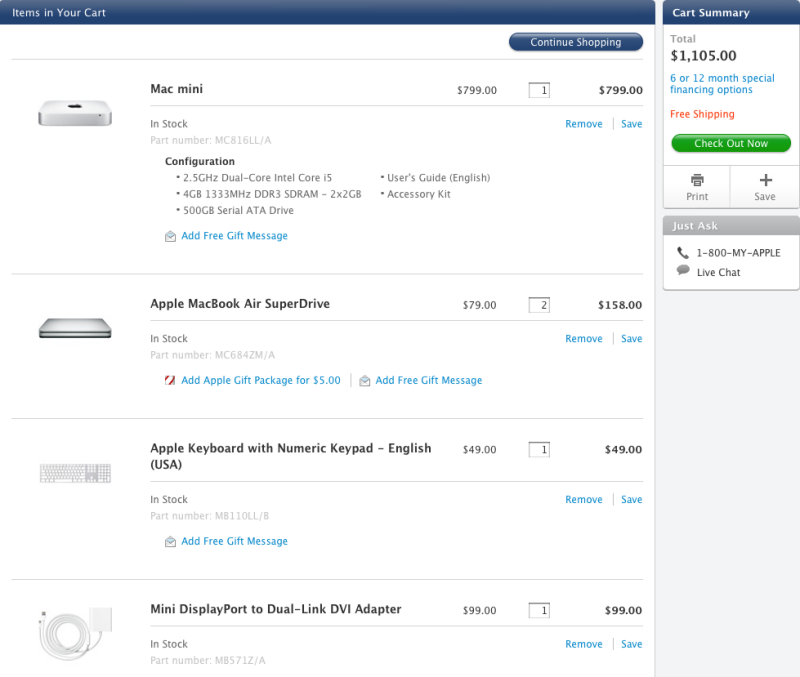
That’s a whopping $1,105 and you still have to add a mouse.
Now compare that to my HP10 Hackintosh. This runs an i3 CPU (as fast as the de-clocked i5 in the Mini), comes with a way superior dual-DVI Nvidia 430 graphics card (compared with the poor integrated one used in the Mini which shares its space and heat output with the CPU with which it is integrated) and has enough cooling for a small block V8:
Total for that little lot? $657.
Expandability – any number of internal SSDs or HDDs can be added in minutes. The i5 or i7 CPU is a drop in replacement for the i3 used. The graphics card supports two DVI-D single link or dual link monitors (meaning you can use two 27″ or 30″ whoppers with any dual-link DVI cable). Heat rise when ripping or compressing a DVD? From 84F ambient to 115F – compare that to the 160F+ in a Mini or iMac.
Assembly time – 1 hour. 2 hours if this is your first Hackintosh. Lion installation – 1-2 hrs with the free modern tools now broadly available and easy to use. And this will not only last you, if anything breaks a replacement is 24hrs away by mail order, with no part costing over $124.
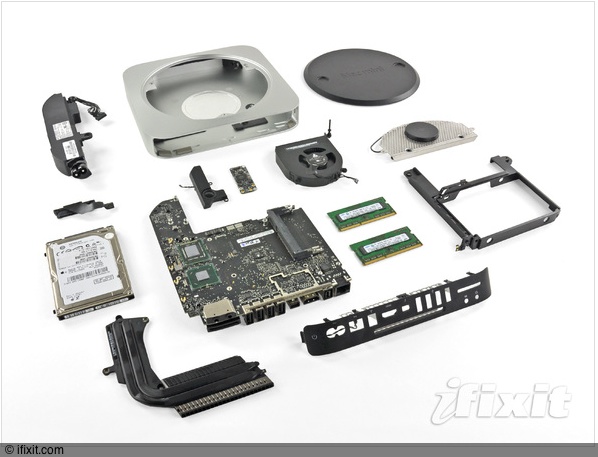
Impossible to cool properly under stress. The latest MacMini, dismantled by iFixit.
Here, by contrast, is a CPU temperature chart from my i3 Hackintosh, ripping and compressing a full length DVD – a real stress test:
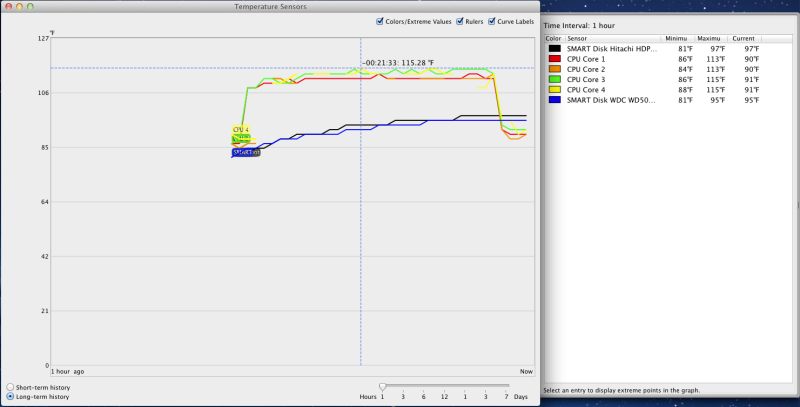
Stress test – Coolermaster 212+ CPU radiator used.
If you want to save $28 and use the stock Intel CPU fan shipped with the i3 CPU, your CPU temperature will rise to 149F, which has to be a false economy. $28 for the large and efficient Coolermaster 212+ radiator to keep it really cool? I can’t think of a better way to buy reliability and longevity.
The Mini is the worst possible choice for a hard working photographer who stresses his gear. Buy a MacPro or build your own. And if you need to do heavy movie compression, this is the machine for the job. Yes, the Hackintosh comes in a big box, enough to hold many Minis, but why would you care? Do you want looks or function?
If you really want to try and spend as much as Apple will charge you for its compromised MacMini, you will end up with a rig sporting an overclocked i7 CPU, a better motherboard (the one I use above does not support overclocking), a sexier box and performance 50% better. But you will fail on the spending front as you will still have $200 left over. Hey, it’s your money.
What is your time worth? The true comparison is between the $657 Hackintosh here and a like-spec’d MacPro which runs $2,973. Assuming it takes four hours to build the Hackintosh for a saving of $2,316, that figures to $579/hr, or an annual income of $1.2mm. So if you are making $1.2mm or more annually from your labor after tax, buy a MacPro as your time is worth too much to waste it on computer building. And congratulations – you are in the top 1% of US plutocrats who control 50% of the country’s wealth – a statistic last reached in 1929 ….
What use is the Mini? For light processing, web surfing and the like, it’s fine. None of these stress the Mini’s poor thermal dynamics. For use as a movie server or for accessing services like Amazon VOD which are not available on the AppleTV, it’s fine, especially as the latest model adds an HDMI socket, making connection to a big screen TV easy. But as a desktop, even for light use, it’s a poor choice. By the time you add a half decent display and a DVD player to the $600 base model you are getting close to the $1,000 base iMac in price, with inferior performance.
Smoke and mirrors.
You see them all the time in the Bay Area of San Francisco. Little Hondas with a gigantic and noisy tailpipe, invariably driven by someone about five feet tall, almost hidden behind the wheel. Lots of chrome, lots of noise, not all that much ooomph to show for it.
It’s an image which kept coming to mind as I tested Perfect Resize 7 which, in a past life, was better known as Genuine Fractals. The product’s stated aim is to allow you to make monster prints from small files, with the best possible quality, better than your regular processing application can achieve.
PR7 claims to get a quart out of a pint pot, just like that Honda driver, and it can’t be done. As the old car guy saying has it, there’s no substitute for cubic inches or, in the case of digital imaging, large sensor sizes.
PR7 retails at a costly $70-100 and installs as a Photoshop, Lightroom 2 or 3 or Aperture 2.1 or later plugin, accessible from within each application. Alternatively, you can open your file in the stand-alone variant which comes with the download. The download is 38.5mB and there’s a useful base tutorial; the others refuse to open (and they want how much?) owing to carelessness by the makers, but use is intuitive ebough. I tried PR7 in LR3.
After checking that it’s correctly installed as a plugin in LR3 –
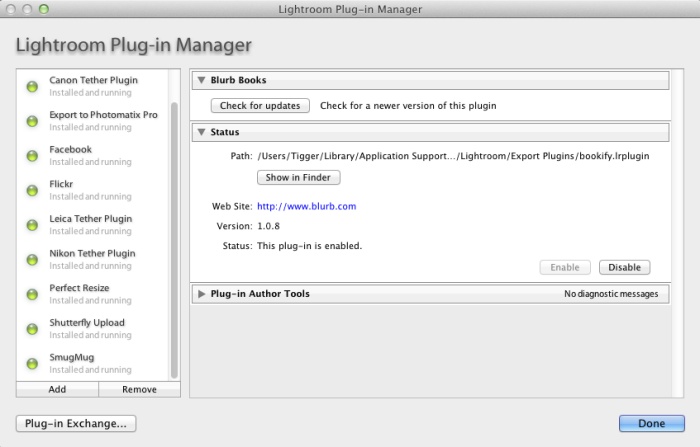
– I invoked it using a favorite Canon 5D file of our son. The app opens within LR3 thus –
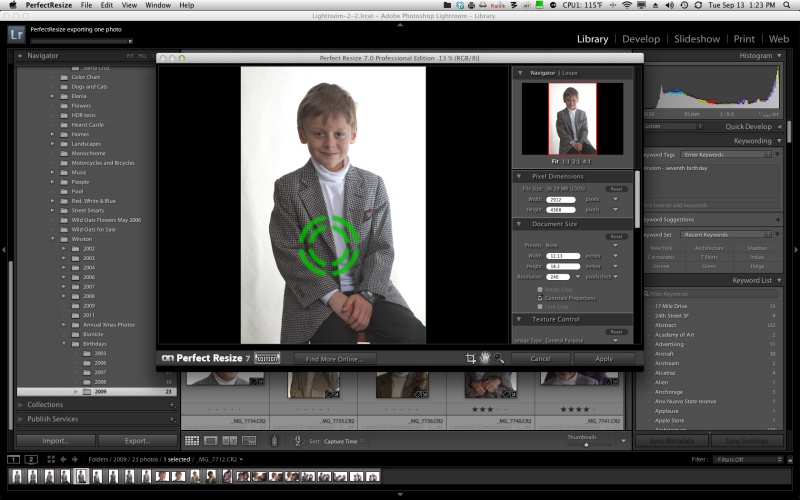
– and the controls are self-explanatory. I took the image from its (approx) 13″ x 19″ native size and enlarged it 4 times to 26″ x 38″, saving it back into LR3. The difference in the 5D RAW file size and the PR7 file size is startling –

– fully 19.4 times the size! Generation of the PR7 file took 45 seconds on my speedy Core4Quad 3.6gHz Hackintosh – a very fast machine. Do this a lot and you will be buying more hard drive storage fast. And if your computer is slow, be prepared to wait while PR7 does its non-magic. Is it worth it?
In a word, no.
Here are side by side screen shots of the 5d original and the PR7 versions:
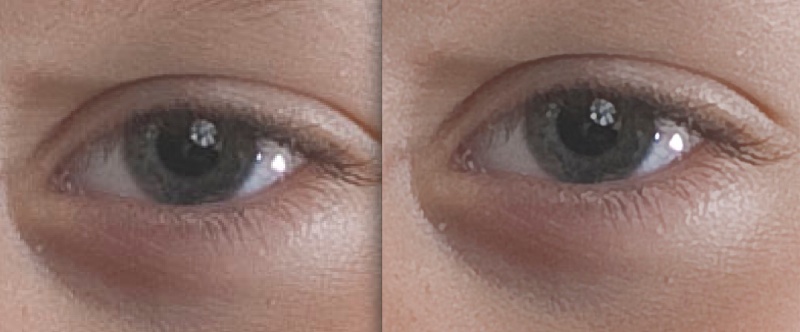
5D original RAW image on the left; 4x PR7 on the right.
In addition to tweaking the micro-contrast (something LR3 can do with the Clarity slider), color balance changes slightly, as visible above – not good – and noise is reduced.
The original, taken on the superb 85mm f/1.8 Canon EF lens with my Novatron studio flash clearly shows the flash umbrella reflected in the eye. So does the PR7 version but the details are fuzzed in exchange for reduced noise and pixelation. It’s far clearer with full screen display of the original images than in the reduced size here. Frankly, you can get as good or better results using LR3’s native noise reduction tools with a touch of sharpening, without the nasty color shift PR7 introduces. You profiled that monitor for a reason, no?
So if you want wall sized prints – and PR7 does offer a nice tiling option but not something I would blow $70 on – and don’t want to be buying ever larger hard drives for the ridiculous file sizes created by (not so) Perfect Resize 7, save your money and use LR3 as is. Further, the tiling option does not work properly with LR3 – I told PR7 to make a tiled print with two constituent images of 18″ x 24″ each for a 24″ x 36″ original on two prints. When reimporting back and trying to stack the modified file into LR3, a single image is saved even though I told PR7 to ‘stack with original’. Save it to your desktop and you get the two images required which then have to be reimported into LR3 – a royal pain. It’s simply faster to tell LR3 to print a 24″ x 36″ original and do it in two passes.
A memory.
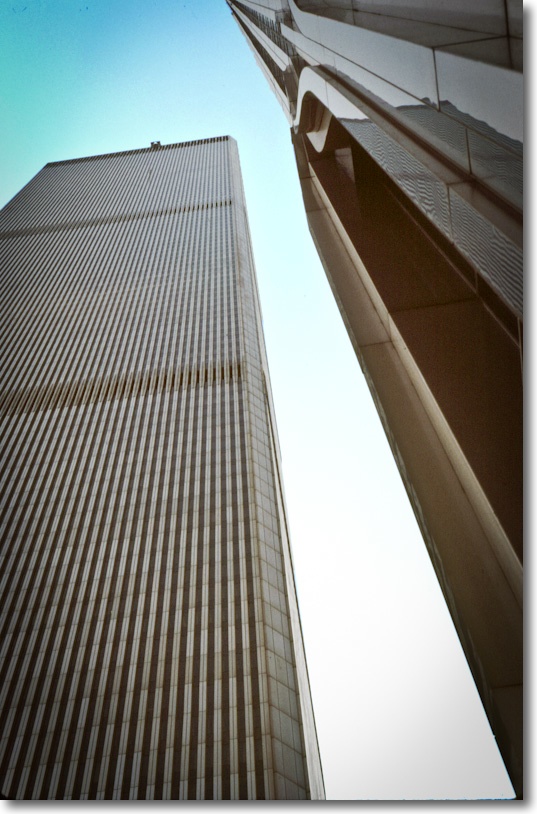
1982
No one could accuse them of being great architecture. Minoru Yamasaki’s sole nod to aesthetics were the Mayan columns at the base. Everything else was just bigness. Get as many rentable square feet in as possible. Then double it to save money on design fees.
The plaza was one of the most soulless places on earth. Dominated by an ugly spherical sculpture in its center, you rarely saw anyone out there at lunch. The ugliness was one reason. The wind tunnel that the design had created was the other.
On some days the upper floors would quite literally have their head in the clouds. My client on the 95th floor of the south tower could see nothing but white from the windows. On others, it was so clear that the sheer gargantuan overkill of these monoliths left all around them dwarfed. The lovely art deco Bankers Trust building at 1 Wall Street seemed like a miniature. All you could see was the steam rising from the rooftop air conditioners.
They were so large and housed so many that the Postal Service gave them their own zip code. At traffic hours the flow of people through the giant rotating doors was a spectacle that simply said ‘New York’ – energy, speed, bustle.
Windows on the World was the restaurant on the 106th floor of the north tower. You took a separate elevator for the last few floors. Once, when I was in it, the high winds made the tower rock and twist causing failsafes to lock the elevator car half way up. We waited patiently, helpless, for the thing to restart. At 100 floors up you are the obedient, hapless servant of structural engineers. The restaurant, strangely for a tourist location, was as good as it gets.
The only time they really came to life was on a clear night. I was walking up Broadway from 1 New York Plaza, late, where I worked at Salomon Brothers, to the Chambers Street station inside the towers, and was dumbfounded by the sheer beauty of the digital art they portrayed. I simply stopped and stared. Some windows lit, others black, it seemed like a perfect realization of the synapses of a digital computer, silently coming on and off in their obedient response in Ones and Zeroes.
I lived on West 56th Street and would take the subway downtown at weekends to Wall Street to wonder at the architectural wonders everywhere to be seen. The area was always deserted. No one lived in the financial district back then. And, try as I might, I never did take a good picture of WTC. I’m not sure it was something that was possible.
(Snapped with a Leica M3, 50mm Summicron, Kodachrome 64).
A British institution.
The British Journal of Photography has been around since Fox Talbot was snapping on his wet plates, meaning over 150 years. While today if you want detailed, insightful gear reviews you go to DPReview.com (if, that is, you can stomach the endless brand flame wars and detritus passing for Comments), until digital came along the place to go was the BJP.
Under its former long standing editor Geoffrey Crawley (editor 1966-87), you got technical analysis at a high level, unsullied by commercial considerations. Maybe his landmark work remains his review of one of the most advanced (and complex and expensive) cameras from the end of the film era, the Zeiss Ikon Contarex Super. He also extensively reviewed pro grade equipment, frequently Nikon and Canon hardware, each eventually accorded a book of his reviews.
When I was a kid you would find me every Saturday morning at the Kensington Public Library poring over the latest edition of the BJP, back when it was a weekly. The BJP was always a very serious – and slim – offering and once a year they used to publish an annual book of the best avant garde photography, containing some 150 pages – the BJP Almanac of Photography, to give it the full Victorian-era name. I remaindered my many issues a while back. What was purportedly new and modern in 1970 was simply awful in 2000. Tired, derivative, excessive. But it seemed like fun at the time.
Now the paper magazine is monthly and I’m not even sure if you can get it in the US. However, BJP just released an iPad app which I have been trying for a couple of days now, with mixed results.
What follows is based on my use on the iPad1. As the iPad1 represents fully 45% of all iPads ever sold, it doesn’t cut it to excuse slowness because of the more modest A4 CPU in this model. It accounts for almost half of all readership, after all. Maybe it’s faster with the A5 in iPad2? I do not know as I do not own one.


The blinking model on the cover of the first issue. A needless gimmick.
The first issue is free if, that is, you can figure out how to download it, matters being made worse by the fact that a couple of the articles in it are also advertised as for sale. Stability is reasonable – I was kicked out a couple of times in a couple of hours of browsing, and returned to the last page viewed. Screen refresh rates are so-so – it takes a couple of seconds for the image to sharpen. Zinio started much like this and progressively improved. BJP has to do better if it is to succeed as an online publication. Blur-to-sharp delays look most unappealing. Navigation is sub-optimal. Sometimes a touch-and-drag is refused. You flick side-to-side to view photographs yet many pages require the iPad be turned to landscape to view the 5% of the image cut off in portrait mode. Everything should be in portrait fit – that’s how we read. Keep the landscape option, by all means, but make everything fit in the portrait orientation. Worse, when the content switches from photograph to text, the text has to be scrolled vertically rather than simply continuing to the next page. Consistency of finger motions between pages is a must for touch screen consumption.
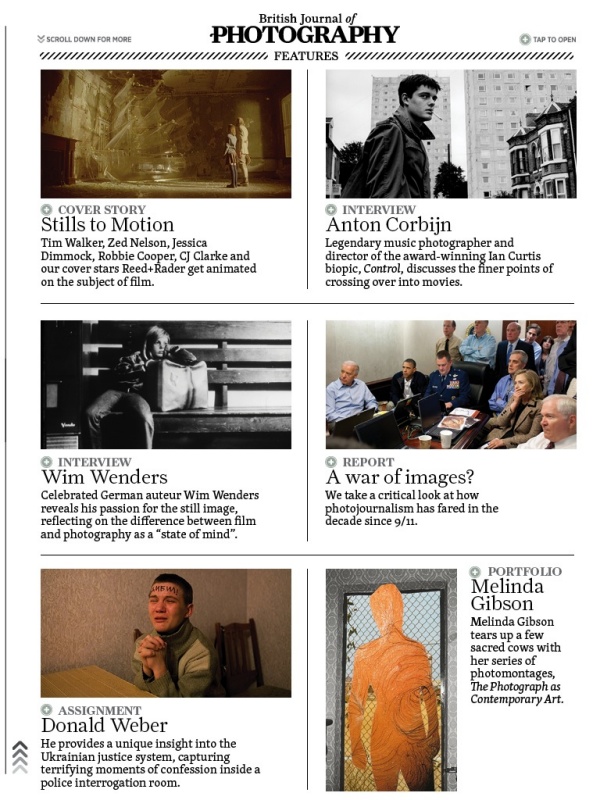
One of the (many) index pages.
I have no idea what the eventual price will be but if I have a major issue with the iPad magazine it is that the editors seem to have forgotten the old dictum that ‘less is more’. The first issue resembles more of a core dump than edited content, running to some 182 unnumbered pages, and it’s simply too much. No working pro, who is after all the target audience here, will have the time to go through this sea of mediocrity in search of the occasional gem. Over half the pages contain photographs, which is good, but the content is shockingly mediocre. There are some two dozen photographers featured and most, names withheld, really should consider road construction or sewer cleaning as hobbies, where they would doubtless excel. A random search of online photoblogs will, for the most part, find better work. That one of the photographers interviewed seemingly prides himself on his ignorance of technique makes a statement about editorial policy in a pro magazine that I do not want to think about.
As for the gear reviews, they vary from poor to awful. with the one addressing the Sigma SD1 being one of the worst pieces of pseudo-technical clap trap I have ever read. It manages in one fell swoop to leave you confused, angry and dumber than when you started reading it. Quite an accomplishment.
Indexation is a mess. The main index at the front repeats every page of the many subsequent indexes buried in the body of the work. What is needed is a simple multiple choice main index – Features, Profiles, Technology – with a touch on any one of these jumping the reader to the relevant sub-index where the contents can be displayed without clutter or confusion. The sub-index, in turn, should have a ‘return to main index’ touch icon. As it is, the consolidated index page at the front is very hard to use, being one huge, scrolling mess. Simple always wins, especially within the space-constrained confines of an iPad’s display.
There are also a dozen or so gear advertisements – not enough, I fear, to sustain this effort – with many including videos to display features. The Hasselblad ads are especially well done.
It obviously took a lot of hard work to produce this massive tome, but hard work alone does not correlate with success. The publication needs the underlying code tightened and made to work faster and more responsively, indexation needs a major work over, the photography content needs drastic editing and a move to excellence and the gear reviews would best be dropped, being largely useless. These are done much better by any number of web sites and it’s hard to see how the BJP adds value here. Geofrrey Crawley must be spinning in his grave. You might as well read manufacturers’ press releases where the lies are more prolific, but the English far better.