Category Archives: Hardware

Stuff

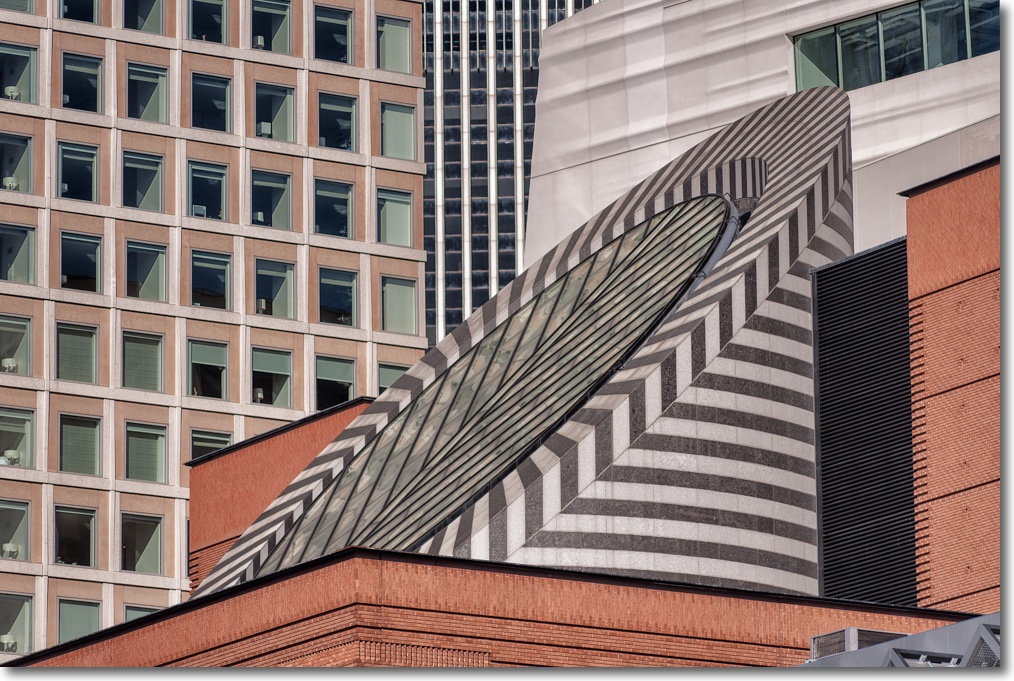
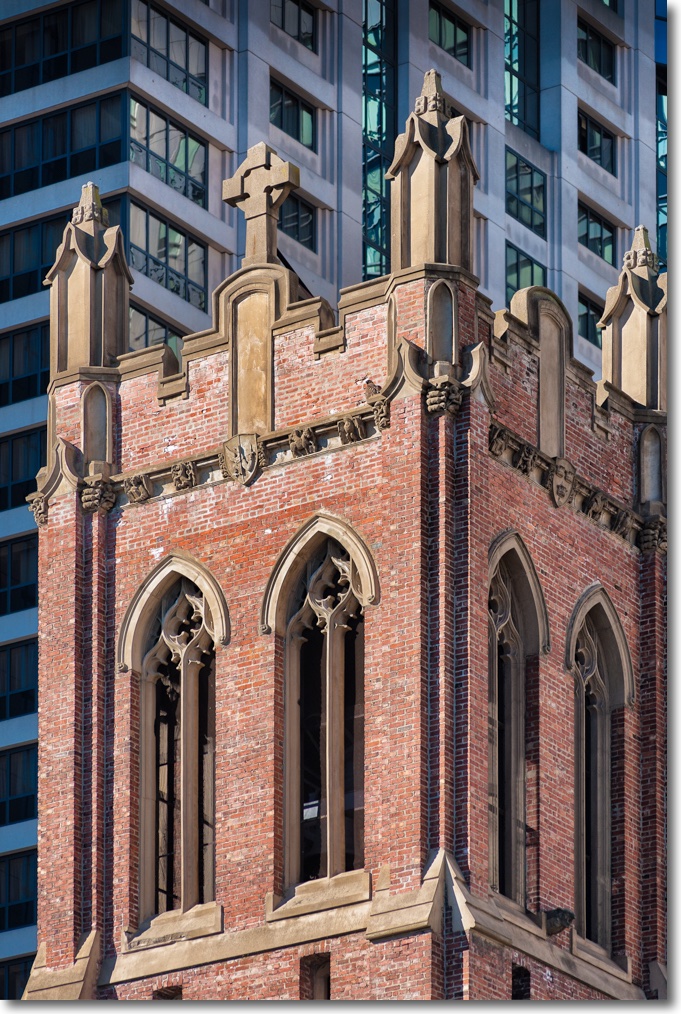
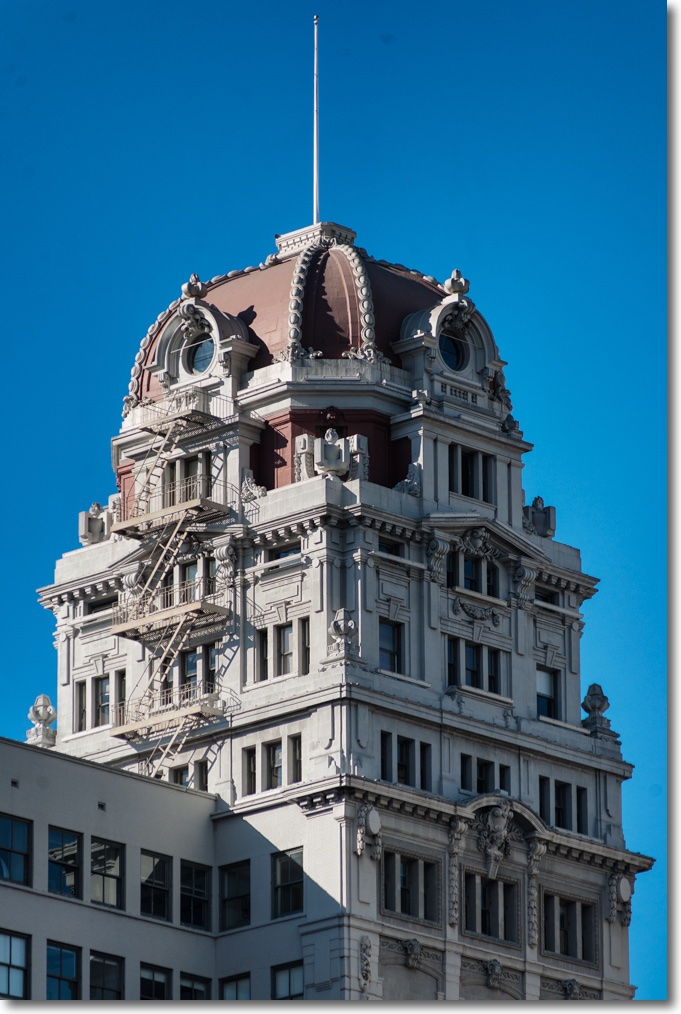
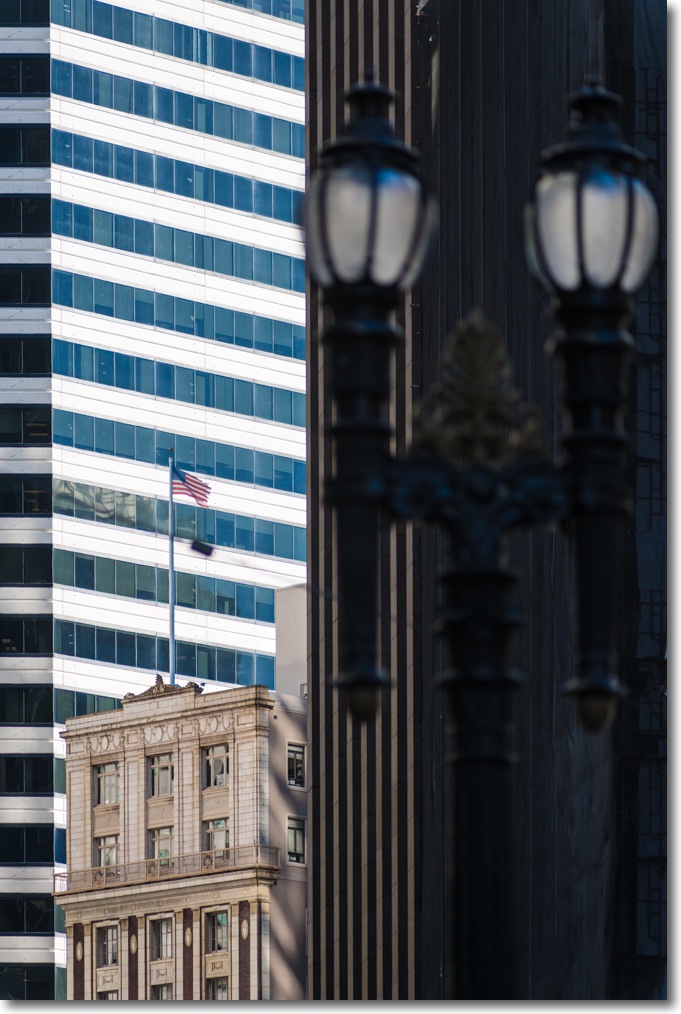
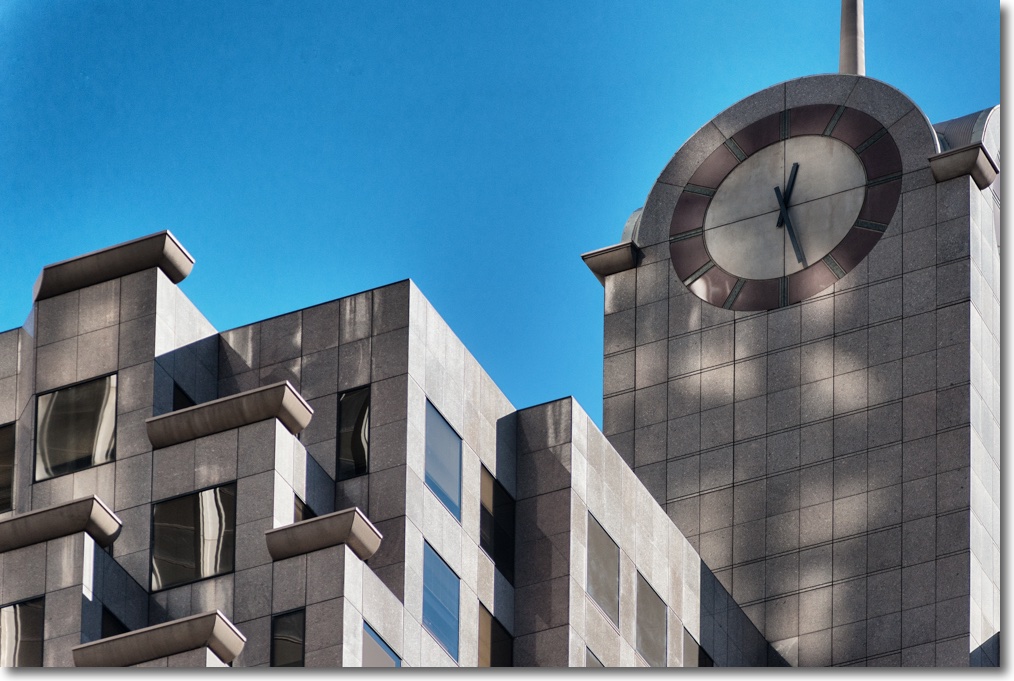
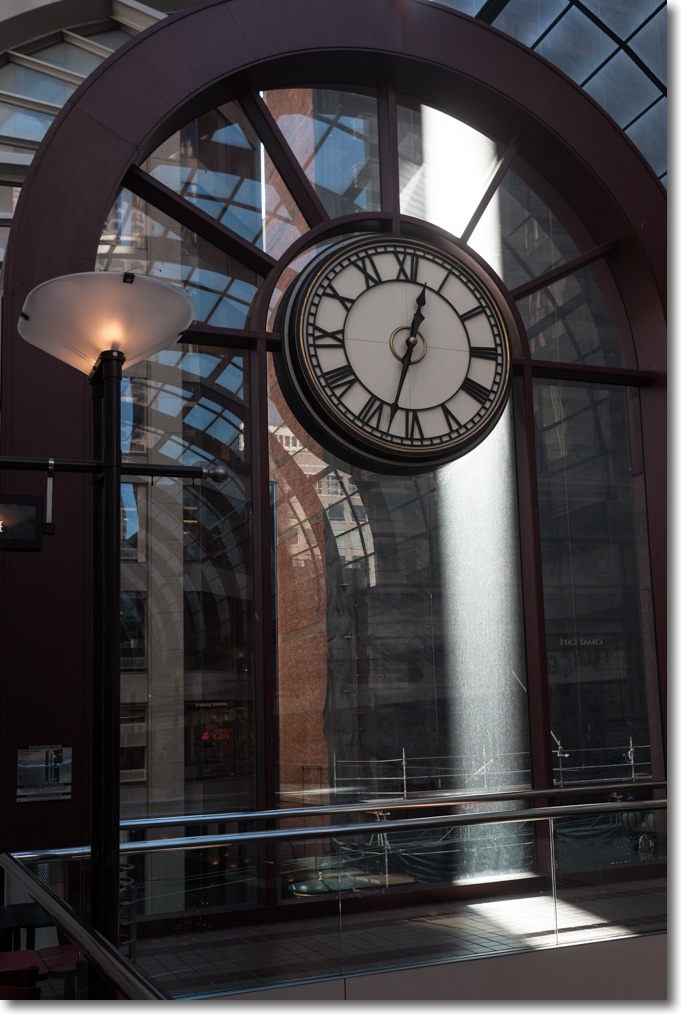
Some architecture

A great way to end the year.

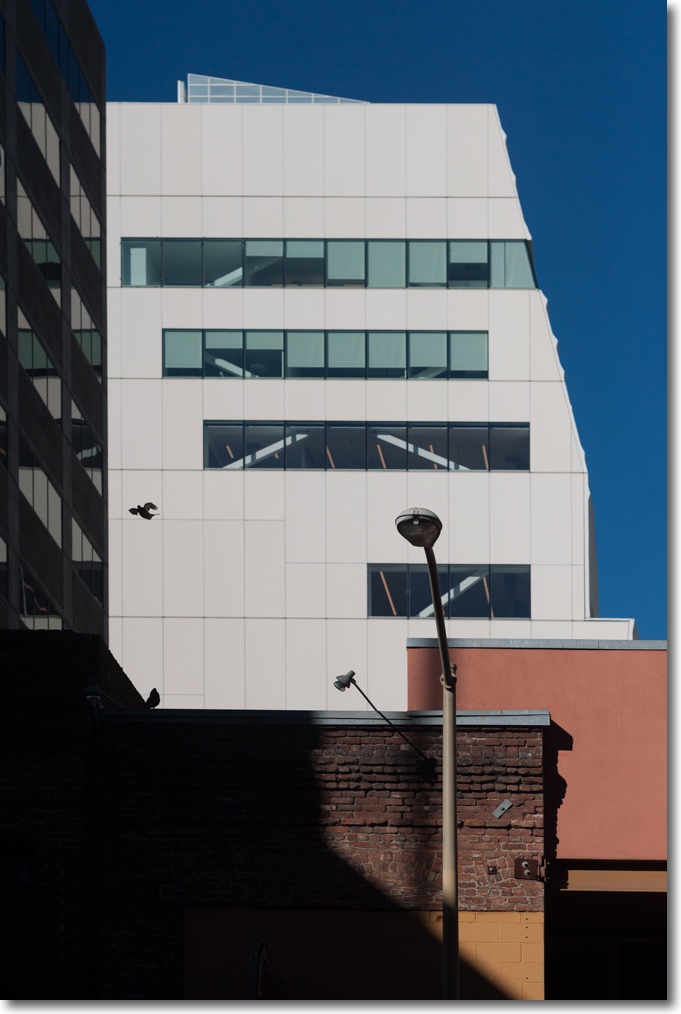
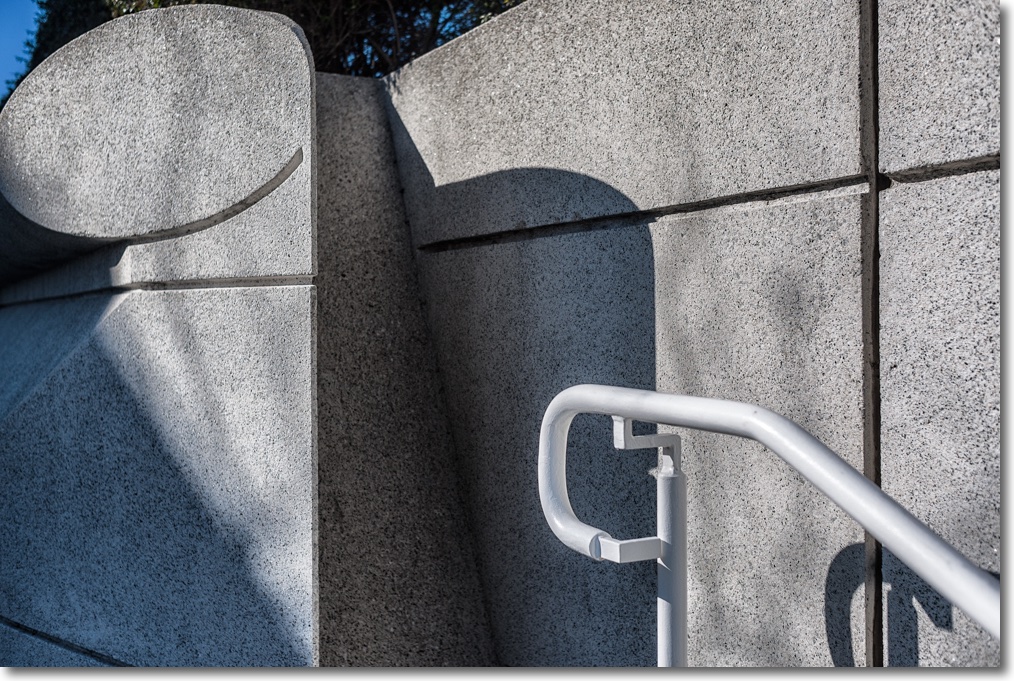
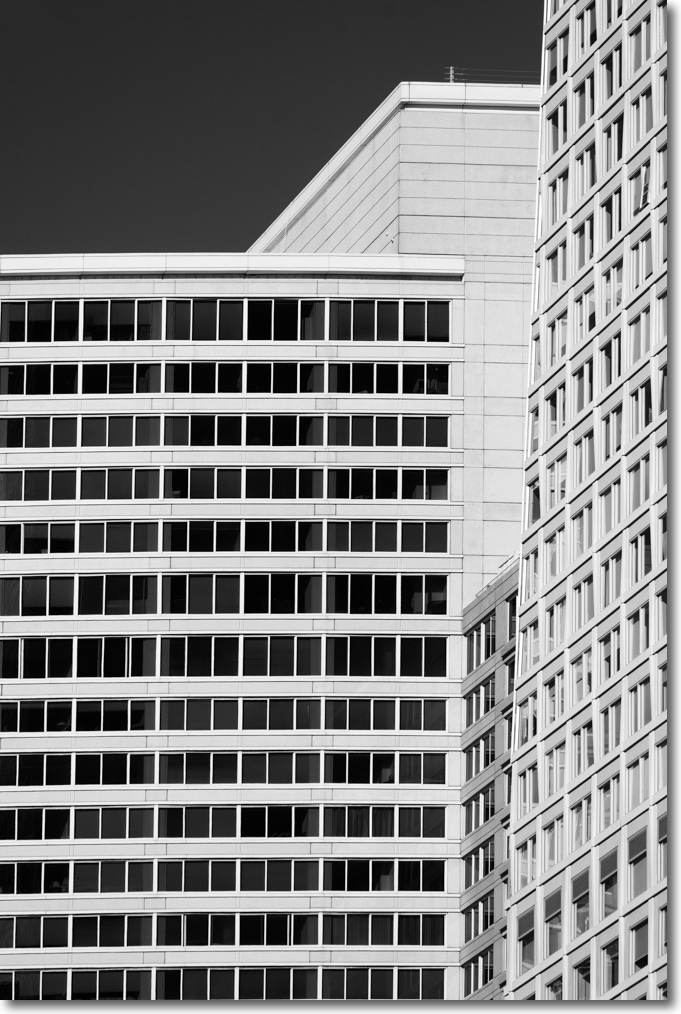
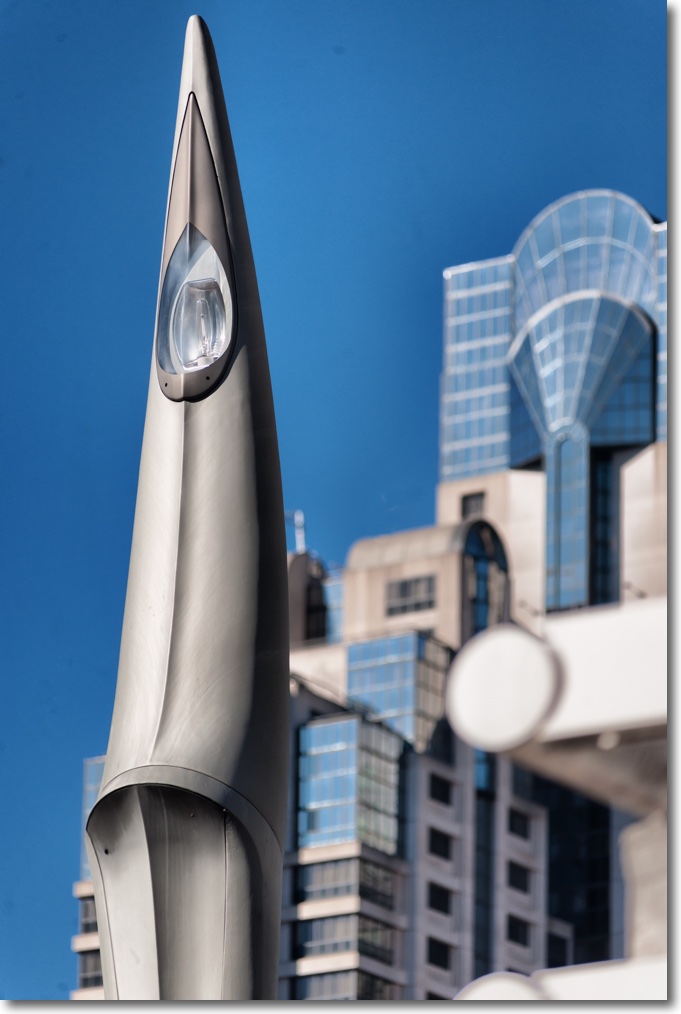
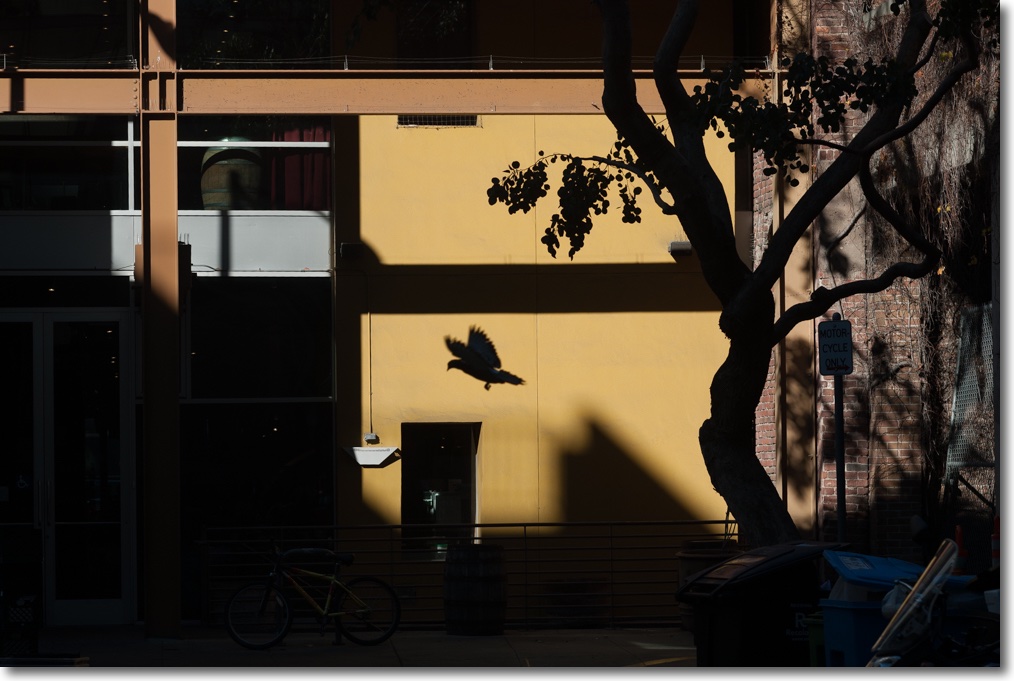
Few things beat a crisp, sunny day in San Francisco, and the city’s propensity for preserving its old buildings means more subject matter for an itchy trigger finger.

These were all snapped today on three classic ‘metal era’ MF Nikkors from my copious inventory on the D3x – the 35mm f/2, the 85mm f/1.8 and an all time favorite, the 200mm f/4, an outstanding optic for picking out gorgeous period details.

The absence of autofocus for this type of subject matter is anything but a hindrance. If anything, the more contemplative approach required is a benefit.

Processed in LR6, some verticals straighened in PS CS5, some juice added here and there in Snapseed.

Nikkor 20mm f/2.8 AiS lens

Still in production.

The most remarkable thing about the Nikon Nikkor 20mm f/2.8 AiS lens is that Nikon continues to make it. It’s available new for some $650 – not cheap – and will work on just about any Nikon body, film or digital, since the groundbreaking Nikon F of the 1960s. This example belongs to a friend of the blog for whom I volunteered to create lens correction profiles for use with Lightroom or Photoshop to correct linear distortion and vignetting. As a general rule, the wider the lens the greater is the incidence of these aberrations.

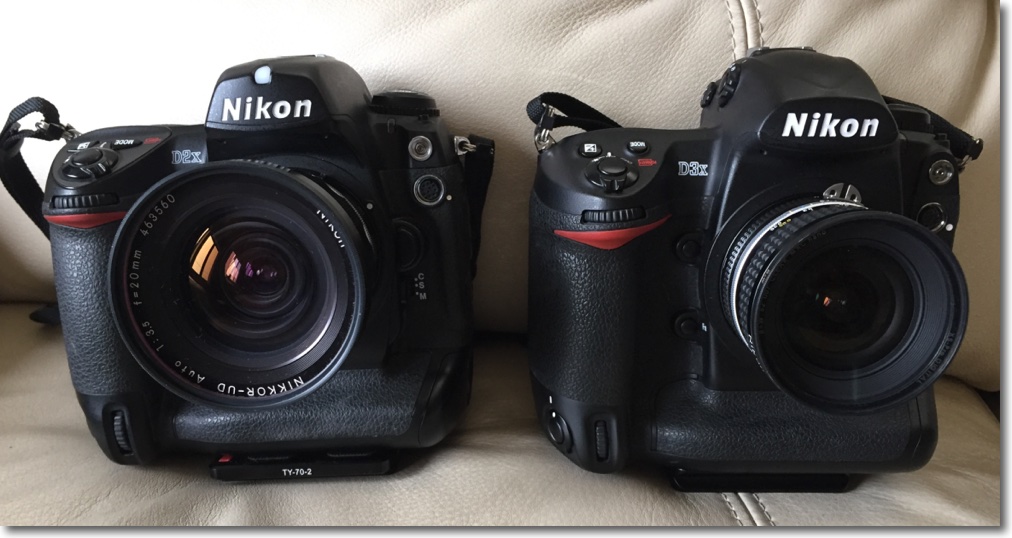
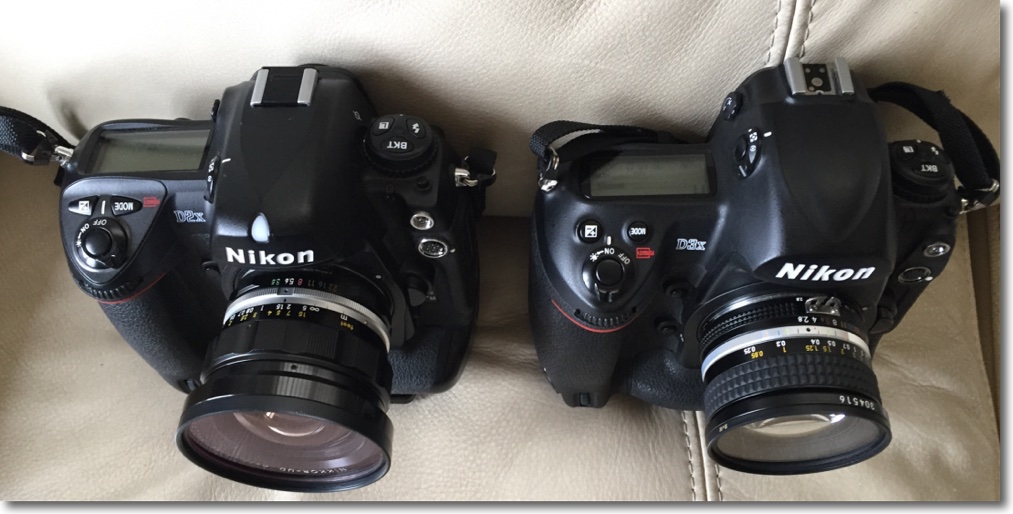
My 20mm Nikkor of choice is the original and massive 20mm UD f/3.5 Nikkor which is nearly a half century old. Mint examples can be found for around $300; many are available and there is no excuse for buying a ‘beater’. It has outstanding center resolution at all apertures, with the edges catching up by f/8. You can read about it here. The current 20mm AiS is much smaller, and both lenses are manual focus only:


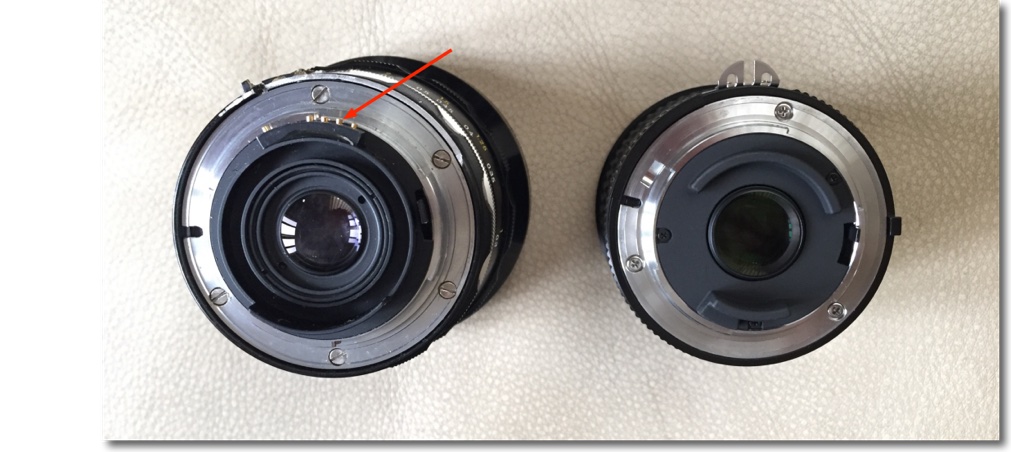
The old UD Nikkor is on the D2x at left.


The current 20mm AiS optic is on the D3x at right.

Where the UD adopts the early ‘all metal’ finish of the classic era, the AiS uses rubberized focus and aperture rings. Both lenses are manual focus.

Despite the high price, Nikon does not fit a CPU to the lens so the user has to manually dial in the aperture and focal length on the Nikon body if any lens profile is to be automatically recognized in LR or PS; the CPU I have fitted to the UD dispenses with this need. You can always tell LR which profile to use if you forget to dial it into the body or dial in the wrong one.

The owner of the 20mm f/2.8 AiS shown here advises that Lightroom CC (the cloud version) no longer permits profiles to be dialed in manually, but Photoshop CC does. So if you are solely a Lightroom user and need to manually input profiles, I recommend you use the stand alone Lightroom 6 desktop version, still available. Adobe really does no want you to do that, preferring to steer you to the rental model of the CC version, but follow my guide here and you can download it easily. Given that PS and LR are pretty much stalled and at the end of their development cycles, there’s little justification for buying the CC version with its purported ‘constant updates’. A disingenuous business model if ever there was one, but that’s Adobe for you.

CPU on the UD is arrowed.

Given the narrow rear flange of the AiS, installation of a CPU would be a trivial process, and I describe that here.

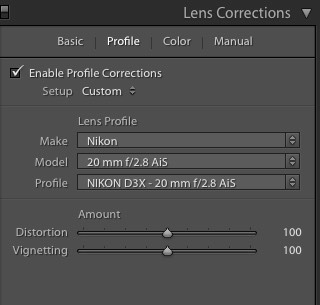
I created the lens profile for the AiS using Adobe Lens Profile Creator in the usual way, at f/2.8, f/4, f/5.6 and f/8. After f/8 nothing changes. Here is the profile invoked in the Develop module of Lightroom 6 – LR 3-5 will work just as well. The profile is placed in the User’s Library directory as explained in the above link. To ‘see’ the directory in Finder be sure to hit the ‘Option’ key when in Finder->Go as the fools at Apple have seen fit to hide it in recent releases of OS X.


Profile invoked in LR.

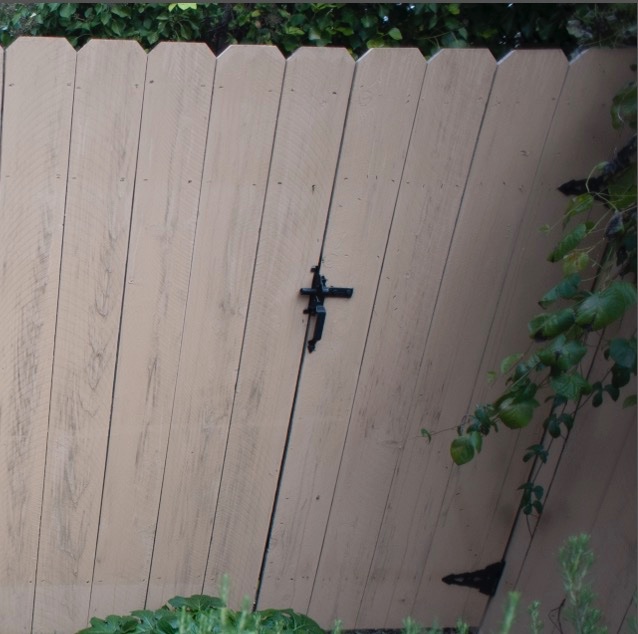
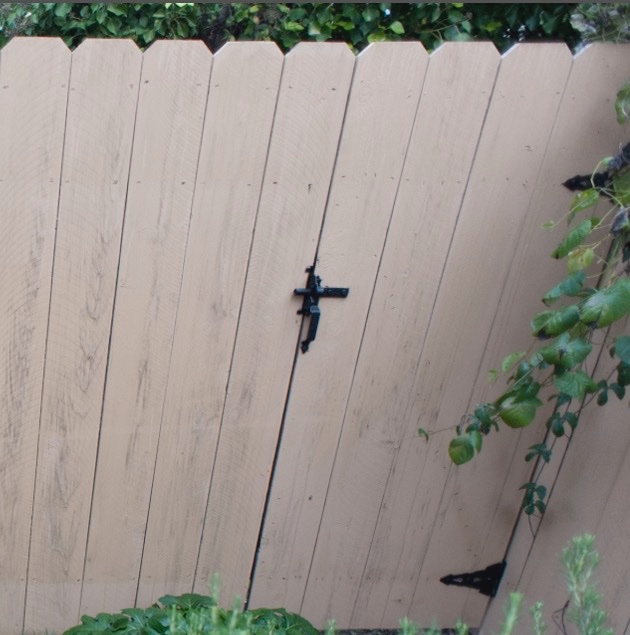
While the profile says ‘D3x’ in the title it is non-body specific and will work with any Nikon digital image, FX or DX (APS-C). In practice the profile does an outstanding job of correcting the fairly pronounced vignetting at wider apertures, as well as correcting the minor but very complex linear distortion which is of the ‘wave’ or ‘moustache’ type common in Nikkor 20mm lenses – both my UD and my (now sold) 20mm f/3.5 Ai lens exhibit it. The vignetting is slightly less pronounced – uncorrected – than in the old UD, but there is little in it between the two and after applying the respective profiles there is no difference in this regard.


Top right corner at f/2.8 – no profile.


Top right corner at f/2.8 – with profile.

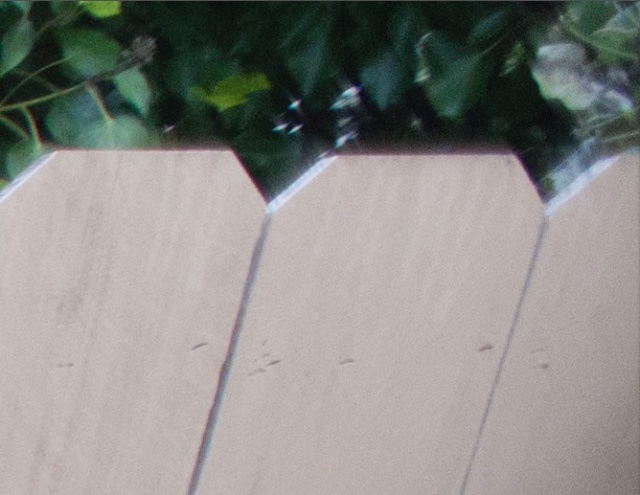
The profile cannot correct for chromatic aberration and the AiS exhibits red fringing (the UD displays green fringing, by contrast):


Red fringing in the AiS at f/2.8.

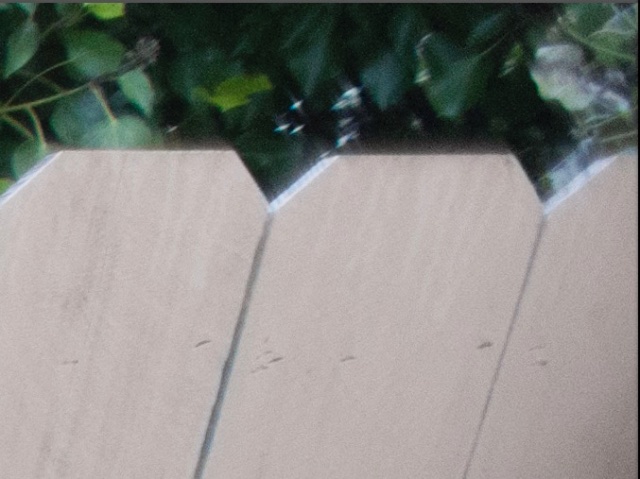
A quick tweak in LR removes the fringing:

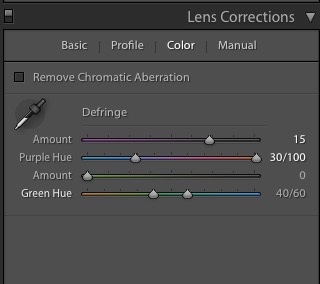
Here are the settings:


Removing the AiS’s red fringing in LR6.

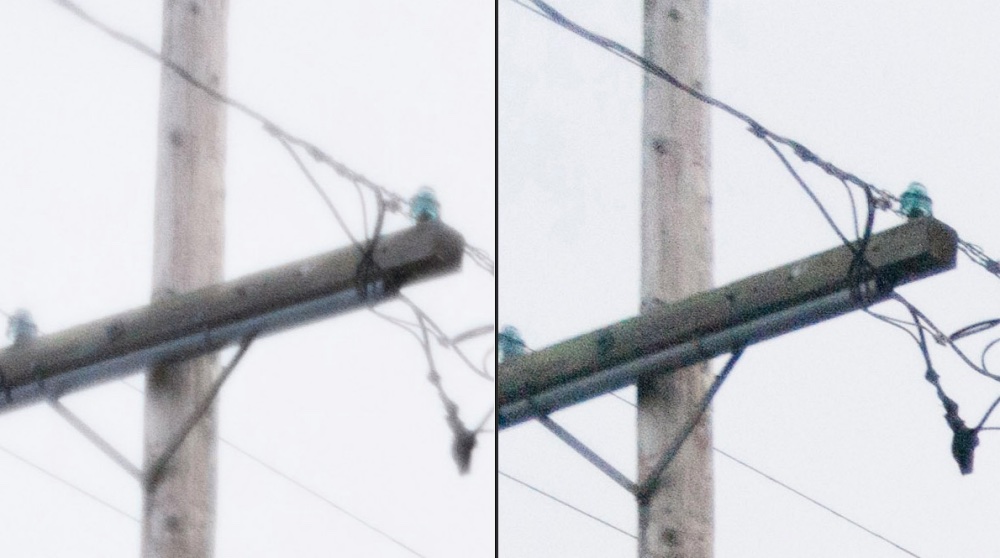
How does the extreme corner definition compare with the UD? As my earlier UD review discloses, the UD is optimized for center sharpness at full aperture (f/3.5) so the corners suffer. Yet despite that the UD is clearly superior in the extreme corners as the image below shows. This would make a 72″ print and was taken in very overcast, low contrast conditions, a very challenging environment for any lens:


Extreme top left corner – AiS on the left, UD on the right. Both with lens profiles and color correction applied.

So maybe not all progress is forward. You get two thirds of the bulk and weight but lose corner resolution at full aperture with the newer lens. The UD maintains an advantage in corner resolution at all apertures, though the difference falls as the lenses are stopped down. While I do not publish them here, center resolution of the UD is 1 stop better than for the AiS through f/5.6, after which the two lenses are identical.

You can download the lens correction profile for the 20mm AiS Nikkor by looking for it here.

Here’s a far better illustration of how the ‘wave distortion’, seemingly common to 20mm Nikkors, is corrected. These were taken by the lens’s owner:


No profile – see how the lintel drops then rises – top right hand corner.


With profile. Red chromatic aberration remains to be corrected but the ‘wave’ is gone.

OS X – the new Windows

QC out the window.

For an index of all my Mac Pro articles, click here.

There was only one reason I dumped Windows in 2002 for OS X (10.2 – Jaguar, but not like the car at all as regards reliability). The value of my time. The instability of Windows and the constant blue screens had long ceased being a joke, becoming a massive time sink, and I moved on.

And this proved a sage move all the way through Snow Leopard – 10.6 in 2009 – which was the last version to include Apple’s superb Rosetta emulator. Apple had switched from power hungry IBM G3/4/5 PPC CPUs to Intel’s more capable hardware in the interim and had crafted Rosetta before the switch, to permit seamless use of PPC apps with the Intel CPUs. Rosetta was a masterpiece of coding, completely invisible to the user and never failed me, remaining essential to this day if you want to use the online printer management utility for the no less superb HP 90/130 wide carriage dye printers, as HP never upgraded that utility to work with Intel CPUs.

Then things started going off the rails. Sheer inanities like Launchpad (added in Lion – 10.7) and extremely buggy iMessage support (10.8 – Mountain Lion) only detracted from the user experience. Library directories started disappearing unless you knew where to look and ‘Save As’ in common applications had disappeared from the drop-down menus and required you to remember to hit the Option key to enable these. What was Apple thinking?

Mavericks (10.9) added little, mercifully, other than bug clean up but with Yosemite the ADD-afflicted programming team in Cupertino was back at it, adopting Jony Ive’s truly awful ‘flat’ icons for everything and adding Handoff so that you could take phone calls on your computer – one of the most irritating intrusions in any professional’s work day. Steve must be spinning in his grave. But Yosemite added one more borderline criminal ‘feature’, a switch in fan management from keeping it cool to keeping it quiet and hang longevity. You can see my test data here. Suffice it say that if you are involved in heavy duty audio or video processing that an aftermarket fan management utility is de riguer if you use Yosemite.

Then along came El Capitan. Clearly the OS X crew is under daily threat of unemployment if they do not come up with something new weekly, and they managed to make El Capitan (10.11) the worst OS X release ever in the process.
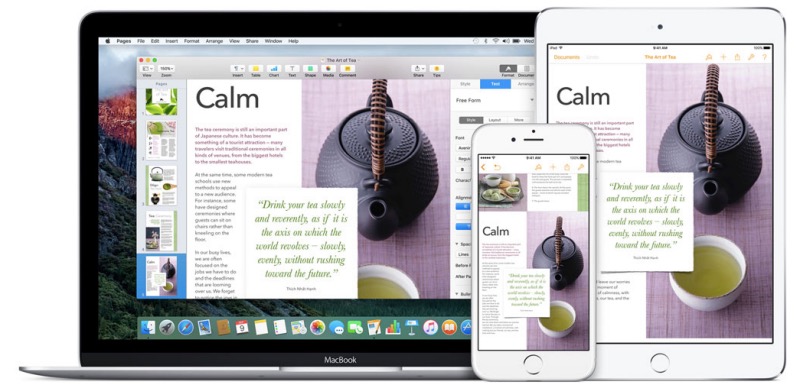

El Crapitan. Pull the other leg – it has bells on for the festive season.

Most of my professional customers use RAID – generally RAID0 – which allows two HDDs or two SSDs to be paired, doubling the i/o channel width and thus doubling speed. The result is near-Thunderbolt speeds at non-Thunderbolt prices, all effortlessly achieved though a few keystrokes in Disk Utility. Only there’s one snag in El Capitan – Disk Utility no longer supports this feature. So you have to go into Terminal with its unintelligible ‘language’ and try things there. Good luck with that.
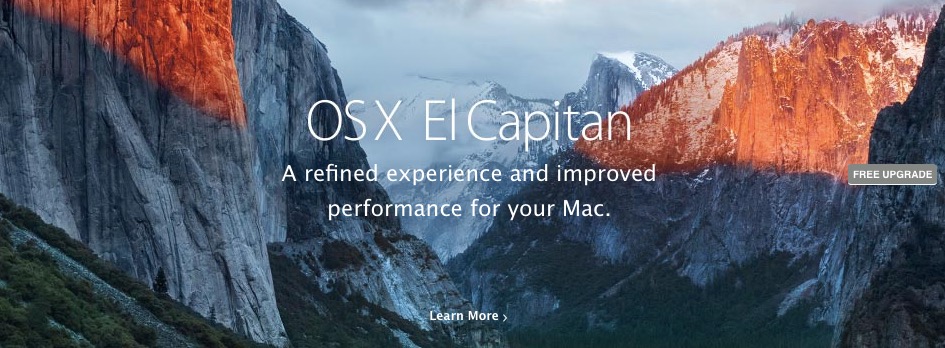

Utter mendacity from Apple – and it’s ‘free’ only if your time is worthless.

Want to repair System Permissions in Disk Utility? No chance. It’s been deleted. Again, what is Apple thinking of, dumbing down the OS in this manner?

But there’s another great new ‘feature’ in El Capitan which, three months after introduction, Apple seems unwilling/uncaring/unable to fix. Ask any user and you will hear that he only needs three things from an OS – stable Mail, robust internet access and support for his aftermarket apps which does not break with every iteration of the OS. Well, Apple has managed to impugn all three principles. I’ll dwell on Mail.

I had stupidly set System Preferences in my 2015 MacBook Air to automatically update the OS, having become sick and tired of the constant nagging from the OS to do so. The other day my MBA was running red hot at the pace of an Irishman at closing time leaving his local boozer. Hopping into Activity Monitor I saw that Mail was using 222% of the CPU. Yup, the ADD set at Apple cannot even compute percentages, let alone make a stable OS. As a result Mail, which has become more problematic with every OS X release, was slowing to a crawl, reboots fixed nothing, old deleted drafts and messages constantly reappeared and the whole thing was unusable. I installed a fresh El Capitan which proved as effective as rearranging the deck chairs on the Titanic and finally resorted to erasing the Mail setup for iCloud completely and resetting it up. A two hour process with scant feedback other than that a barely readable message that Mail was recovering “30,947 emails”, which gave me lots of confidence. Check the chat boards and you will see this is a common problem.
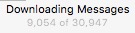

User feedback, the Apple way.

I confess that for the first time since 2002 I have started thinking of switching back to Windows, which I thought I would never write. Meanwhile I will revert my MBA to Yosemite (sadly, I cannot go to Mavericks – or better still Snow Leopard – as Apple’s mendacity prevents that) and suggest you do too.

I realize that the money is in mobile, Apple, but lots of your mobile users – maybe a majority? – use Mac hardware. Enough already with the OS – just leave it alone.

My Mac Pros remain happy and as reliable as a hammer on Mavericks and Yosemite (with the requisite fan management utility for the latter) and that is not likely to change any time soon as they will never see El Capitan.

Update 24 hours later:

See what I mean? This after doing the reinstall and finding my reproductive organs were being yet again fricassée‘d by the OS X team at Apple:
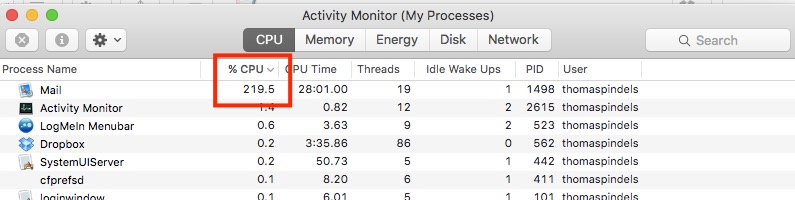
It’s Yosemite for me. The instructions appear here. You cannot just connect an external drive with a version of Yosemite and clone it over – Apple in its infinite arrogance really does not want you reverting to an earlier OS. Follow the instructions in the link and your MBA (or whatever) will revert to the OS it shipped with, Yosemite in my case. Sadly I cannot go back any earlier, but anything beats El Crap.
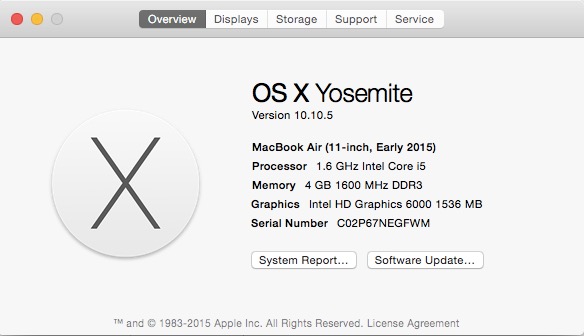

Sanity restored with Mail activity back to zero again, and everything cool once more.

Stop the nagging:

To turn off Apple’s thoroughly obnoxious, disruptive and dangerous (you click ‘Upgrade’ by accident) periodic nagging to ‘upgrade’ to Yosemite, go to the AppStore app, click on ‘Upgrades’ at the top of the screen, select Yosemite upgrade, then right click the circled icon below:
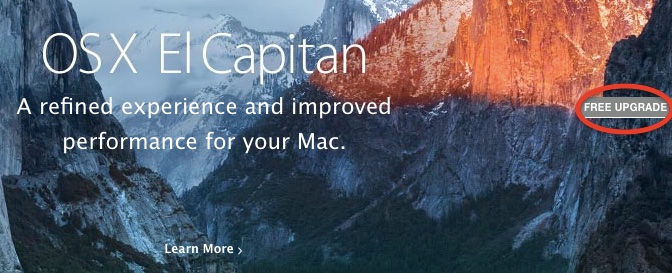

Right-click the circled icon for peace.
The LG 34UM95C ultrawide display

Supersize me.

For an index of all my Mac Pro articles, click here.


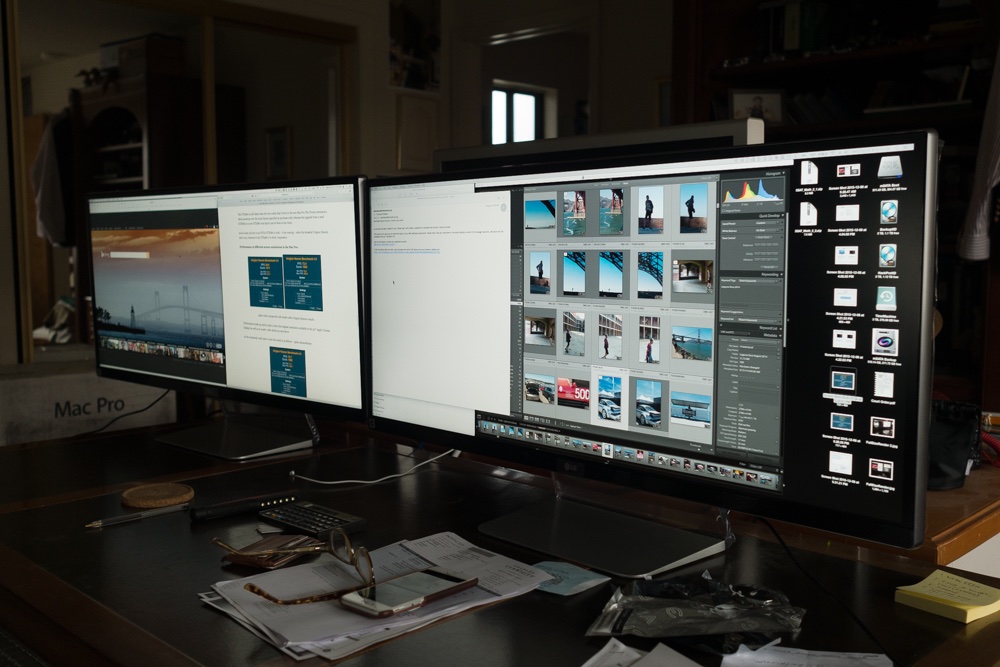
Dual LG displays, each running at 3440 x 1440 pixels. 30″ Apple Cinema Display in back.

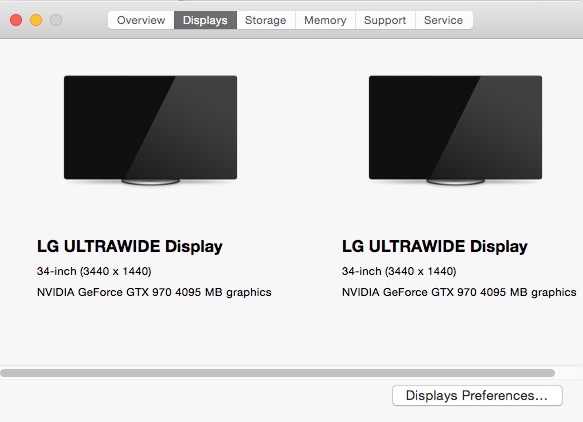
A custom Mac Pro build for a customer saw him requesting tests with two LG 34UM95C displays, which run $600 or so each at the time of writing. These are ultrawide IPS panels with definition just shy of 4K. The user is a video production professional and needs all the screen real estate he can get. The Mac Pro is a 2009 heavily modified by me, running dual X5690 3.46GHz 12-core CPUs, 64GB of 1333MHz registered server RAM, 4TB of mSATA SATA3 SSD drives on one PCIe card and 4 x 4TB WD Caviar Black 7200rpm HDD. The total investment of some $6,000 compares with an all in cost of $15,000 for like performance with the new (trash can) Mac Pro.

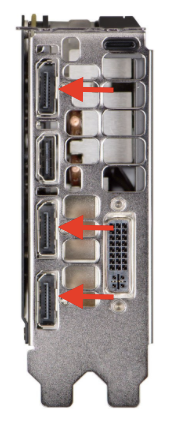
The displays are driven by an EVGA Nvidia GTX970 4GB card, model 04G-P4-3975-KR, which runs some $300 at Amazon. This card is distinguished by having no fewer than three DisplayPort sockets, in addition to DVI and HDMI. The GTX970 has the same performance capabilities as the earlier GTX680, but the latter comes with dual DVI, one DP and one HDMI sockets and while it will drive one of the LGs at maximum definition it will not drive two, both the HDMI and the DVI (using a DVI to HDMI cable) being limited to half a screen at 1720 x 720 pixels – useless. The GTX970 uses 25% less power than the GTX680 – 145 watts vs. 195 watts at full chat. That’s a non-trivial difference. If you can live with the issues in the next paragraph, this card is highly recommended.


The ports on the GTX970 – the three DisplayPort sockets are arrowed.

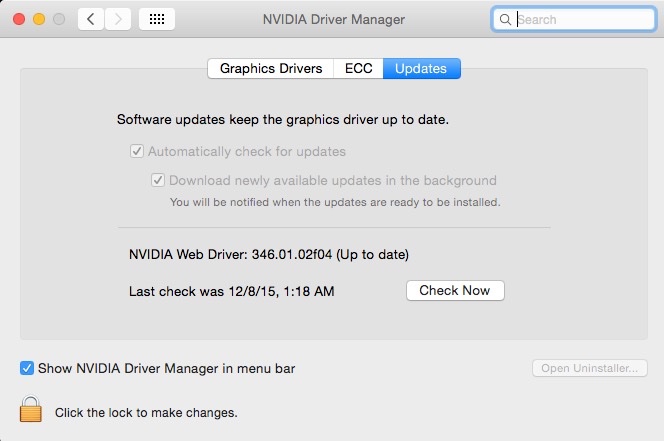
The stock GTX970 has two issues – there is no splash screen at start with the Mac Pro (no big deal unless you want to switch in and out of Boot Camp) and requires the use of Nvidia’s drivers which must first be installed (as a SysPrefs pane) or you will get a black screen. Further, as Apple does not include these drivers with OS X, any update to OS X may require the update of the driver first. Nvidia is very good about keeping these current as it helps them sell cards for the 9xx cards. By contrast, the 6xx and 7xx cards work with the native OS X drivers.


Nvidia driver loaded in the System Preferences pane.

If you need truly vast screen area, the LGs are recommended. There’s a costlier version with Thunderbolt sockets for the trash can Mac Pro, useless for classic Mac Pro users. The center base of the display sports a joystick which makes one-off tuning adjustments easy. The foot, a nice alloy match for the Mac Pro, is retained with two screws at one of two heights and limited tilt is provided. The displays have a very narrow frame and are both elegant and beautifully made. I would prefer the foot to be one inch taller, but that’s a personal preference.


Full definition on both, each running at 60Hz.

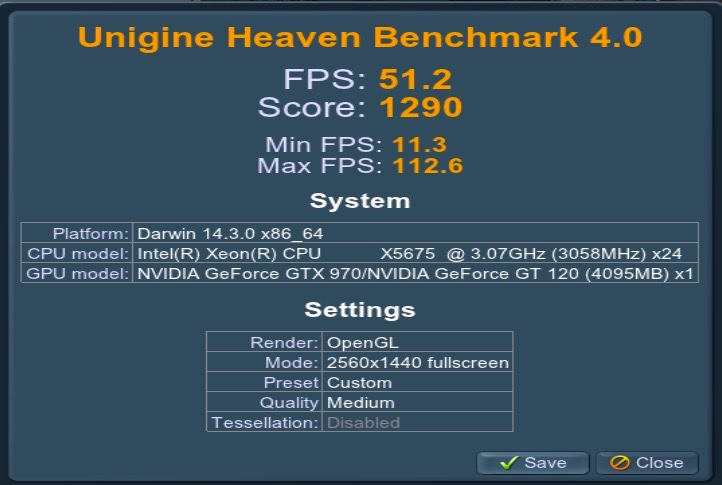
My copy of Unigine Heaven maxes out at 2560 x 1440, so the adjusted framing rate shown in the (stretched) screenshot below figures to 38fps – excellent performance especially when the number of pixels is taken into account.


Tested on a 12-core 3.06GHz 2009 Mac Pro which also sports an ancient GT120 card.

Performance of the displays is exemplary. There is absolutely no backlight bleed and the displays are easily tuned, being shipped far too bright for photo processing – as is the case with just about every display out there. If you need vast screen real estate – 23% more than on a 30″ Apple Cinema Display – these are a bargain, and involve none of the issues encountered with 4K displays (flickering, incompatibility, minuscule font sizes, etc.). The back is drilled for a standard 100mm VESA wall or arm mount plate. Surprisingly light for their size, each comes with a DP and an HDMI cable, and those are the only two graphics sockets on the display. A provided stick on clear sheet of plastic adds ‘slideability’ on your desktop of choice. I left it off. Unlike the current ghastly and horribly overpriced Apple 27″ Thunderbolt displays with their awful glossy screens, the LGs sport pleasantly matte screens and suffer no reflection issues. Ideal for professional use all day long.

Prices on all flat panel LED/LCD displays continue to fall rapidly – I would hate to be in that business. Here’s the trend for the LG:

Tracker blocking

Stopping evil.

Jean-Louis Gassée, former head of Apple France, writes a weekly column on his Monday Note blog which is always interesting. A few weeks back he wrote this interesting piece addressing the growing use of tracking software which allows the not-so-nice people at Google, and its runt offshoot Facebook, to Do Evil. Meaning that these crooks steal your tracking history for sale to the highest bidder, their customer, also known as an advertiser. You are not Google’s customer. You are Google’s merchandise, your behavior unwittingly sold every second of the day. Yeah, yeah, yeah, you agreed to their carefully obfuscated terms of service – I need no lessons in the law, thank you. I know theft when I see it.

One of Gassée’s points is that with the wimpier processors found in portable devices, especially iPhones and iPads, this invisible but very intrusive software has a significant effect on the speed with which content loads while all those nasty trawlers lodge inside your CPU and memory. With iOS9 being released by Apple today, I got off my duff, loaded it up on the iPhone and sundry iPads and immediately installed Marco Arment’s aptly named ‘Peace’ app which permits trackers to be blocked. Arment is a long time Apple developer, is a person with a great track record and I have been a happy user of his apps for years. Sure, there are free variants out there, but why not go with a known quantity? All of $2.99. The effect was immediately noticeable. One of the worst offenders is the New York Times and pages now load far faster on my iPhone and iPad – no measurements needed. It’s obvious.

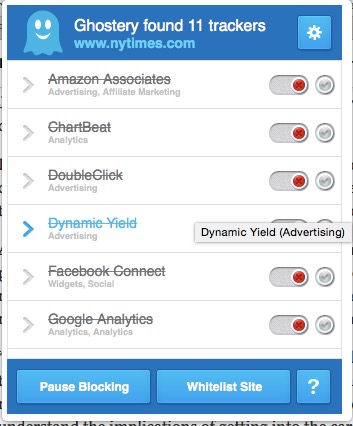
Then the other shoe dropped and I realized I had to install tracker blocking in Safari (I already use AdBlock to stop intrusive advertising) on my desktops and laptop, so I zipped over to Ghostery and downloaded and installed a conceptually similar app for OS X browsers. Marco Arment’s ‘Peace’ uses the same Ghostery back-end on iOS. Once installed, Ghostery places a small ghost icon to the left of your URL bar and when trackers are in effect a red numbered flag tells you how many you are blocking – this is what you see when you click the icon:


The liberals at the NYT aren’t past making a silent buck off your reading.

No surprise that Google Analytics and Facebook feature in just about every tracking err… tracking, and I’m not even a member of that great 21st century time sink for those with IQs in double digits and below known as Facebook users (they are more accurately described as ‘used’ than ‘users’).

So there are two benefits of using tracking blockers. First everything in your browser loads noticeably faster, meaning less time lost and less battery drain. Second, you get the smug satisfaction of thwarting those who Do Evil. Given that this is an existential threat to Google’s revenues, you can bet they have large teams working overtime on working around this. Until then, I have a smile as large as a Cheshire Cat on my mug.

Apple is to be congratulated on making tracker blocking available in iOS (you need recent versions of the iPhone or iPad for this to work – an excellent excuse to upgrade). And JL-G is to be congratulated on bringing this issue so eloquently to the fore.

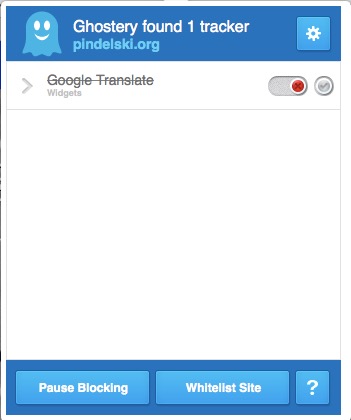
I checked this blog to see if some trackers had somehow insinuated themselves and found but one – Google Translate. If you use the translate option (scroll to the bottom of this page) Google will know all about it. If you read English, nothing about your coming here is known to anyone – except you. Google’s translation is mostly awful anyway, but there for those preferring not to use the Queen’s English.


The one tracker in effect – turned off here – on this site.


Update not 24 hours later:

I take everything I said about Arment back. This just sent to me by a Guardian reader:

“The maker of Peace, a bestselling ad blocker for iPhones, has pulled the app just days after its launch saying the app’s success “just doesn’t feel good”.

Marco Arment, co-founder of Tumblr and creator of the Instapaper reading app, launched Peace on 16 September. The $2.99 app became the bestselling app in Apple’s iTunes store almost overnight.

Peace takes advantage of iOS 9, Apple’s newly updated mobile software, to filter out mobile ads and tracking on other apps and websites. Mobile advertising is the fastest growing sector of the ad business and seen by most publishers as vital to their future finances.”

Well, I got mine ….

One of the basic facts of life is that those with bleeding hearts  generally have zero grasp of economics. Just buy someone else’s product because he has just helped them get rich.

Now the fellow has rebated the money rather than giving it to a good cause like education:

Update October 1, 2015:

Now that Apple has refunded me my $2.99 for Peace, why not just stick with it, free as it is? because there will be no updates fromn the fool who passes as developer.

Go to this excellent New York Times piece (talk of biting the hand which feeds you!) and download Purify from the App Store for $1.99. It works just like the article says and you should get support going forward.