Category Archives: Photography

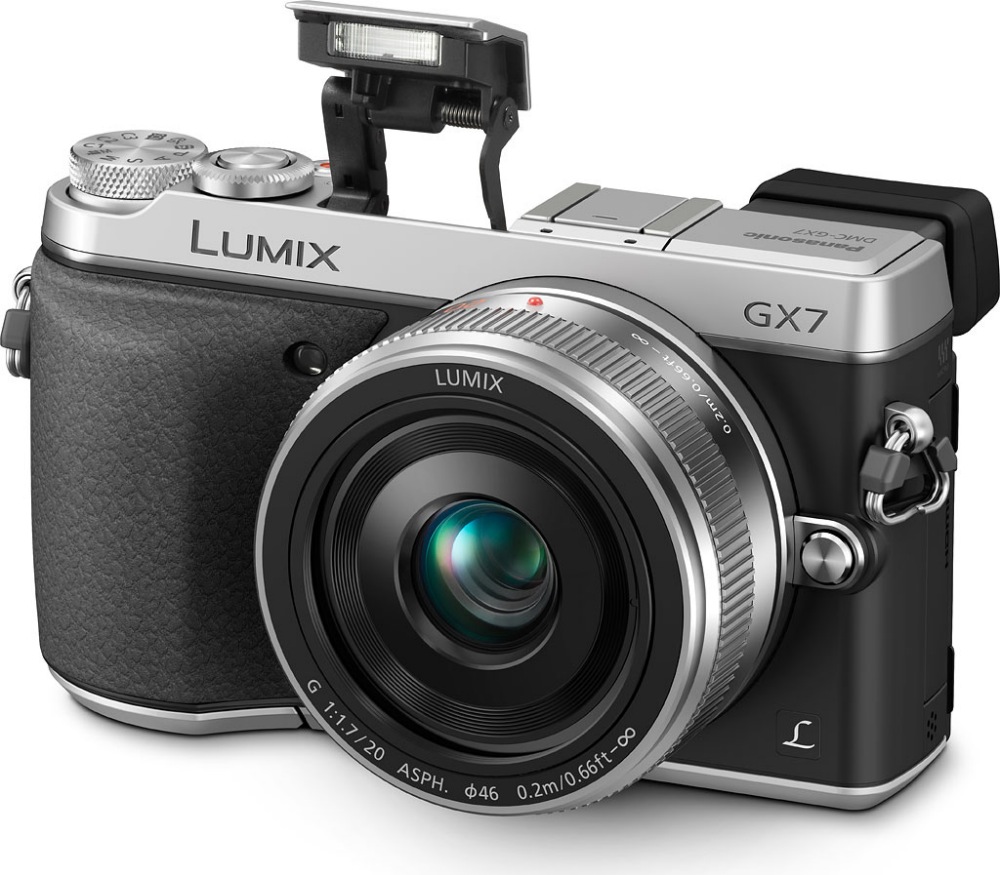
Panasonic Lumix GX7 – Part I

More improvements for the MFT format.

I continue to be a huge fan of the Micro Four-Thirds concept, and have just ordered a Panny GX7 body. This follows on from my G1 (July 2009) (the first ever MFT camera) and G3 (March 2011) (which had a better sensor but compromised ergonomics). Both the G1 and G3 designs adopted a faux pentaprism shape, the prism hump used for storage of the built-in flash. The GX7 does without that pretense, adopting a more classical Leica rangefinder form while retaining the pop-up flash in an ingenious cantilevered design which still allows the use of a flat top plate.

Before looking at the appealing technological enhancements in the GX7, it bears repeating that if you like large prints – the touchstone of quality image reproduction – then anything up to 18″ x 24″ with an MFT sensor is easily achieved. Only if you need the ability to selectively enlarge sections of the frame does full frame become a necessity. Given that few make prints so large that’s the same as saying that MFT works for most serious snappers. The one constraint is that the shorter focal length lenses used mean much more is in focus at a given aperture, so if background blur is insufficient, the snapper needs to resort to post processing to confer additional blur. Not too difficult with recent versions of Photoshop and the Magic Lasso tool. Click on ‘Instructional Videos’, at the base of this page, to see how to do this. And for light weight and portability, there’s no comparing an FF DSLR with an MFT body.

Here are some of the immediate benefits of the later technology in the GX7:

  • Better ergonomics
  • In-body anti-shake, means I can use my long Nikkors with antishake
  • Improved MF for long lenses
  • Electronic shutter option – silent
  • Improved sensor – G3 is already good enough for 18” x 24” prints
  • Much improved EVF – possibly the best in the business
  • WiFi – will be cool with the iPad Air and the Nexus 7 (the latter also supports NFC)
  • GPS – used with a tablet or smartphone app, not built-in (needs a free Panny app for iOS or Android)

The ones which really get my attention for street snaps include the silent electronic shutter and the internal IS for use with my Nikkors, with a simple lens mount adapter. As an EVF adjusts finder brightness automatically, a 500mm f/8 Refex Nikkor is every bit as bright as an f/2 prime.

The electronic shutter is a far from trivial enhancement. Using the movie mode’s technology and delivering full RAW quality, I expect that the electronic shutter will permit thousands of still images to be recorded on a battery charge, whereas the regular shutter is limited to some 300 with Panny’s small battery. Further, because the electronic shutter uses no mechanical parts, there is no wear and tear on the mechanism and 10 frames per second machine gun shooting is possible. Whether the latter is needed is an open question, but it suggest that the ‘decisive moment’ has just become a good deal more indecisive. HCB must be rolling in his grave ….

I bought the chrome version as anything which looks more amateur is taken less seriously on the street. And, yes, Lightroom 5 does support GX7 RAW file conversion.

You can download the 380 page (!) extended Instruction Manual here.

More in Part II.

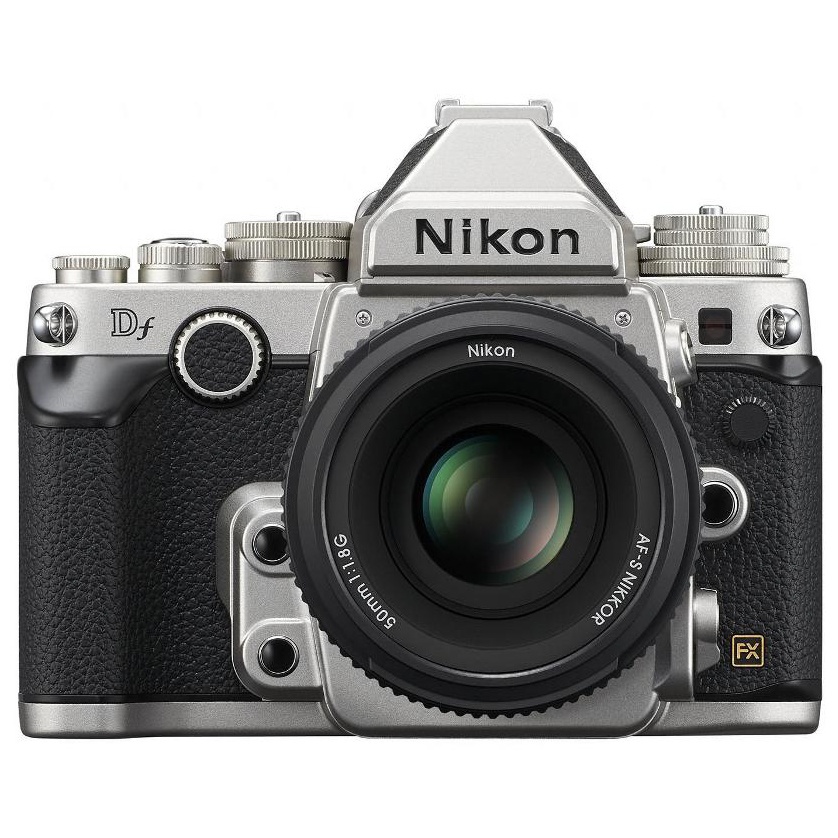
Nikon Df

What were they thinking?

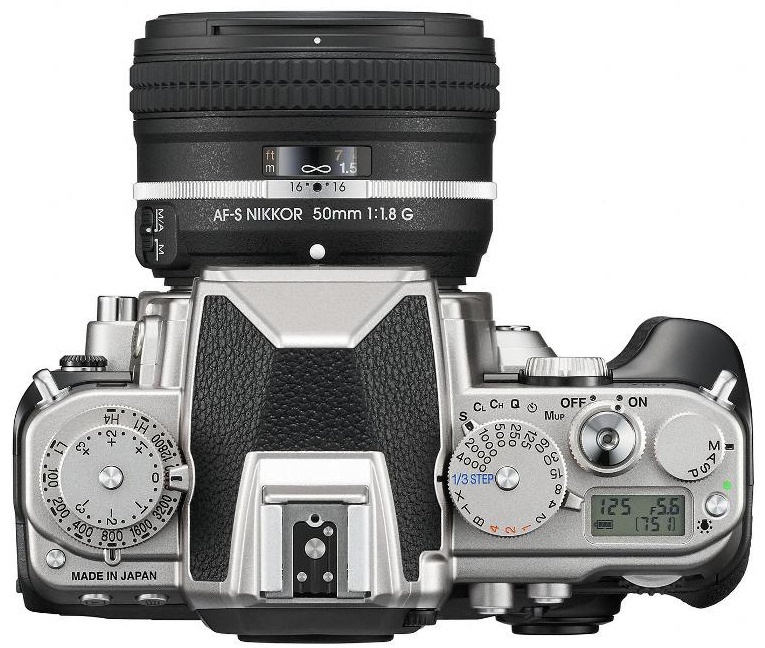
Retro looks in cameras are nothing new. Olympus replicated the looks of its (excellent) film era OM SLRs in the OM-D MFT models and Panasonic and Fuji have had a good go at the Leica M rangefinder in their GX7 and X100, respectively. These latter two models added better digital sensors and took away bulk, cost and weight, so there really was something new being said there.

But Nikon’s attempt, the Df, which seeks either to copy the film era F3 or the FM/FE/FA, depending on which you wax more poetic about, looks like an exercise in futility. And failure.

Here are the reasons why:

  • A ridiculous $2,750 asking price for the body only
  • Bigger than the FM/FE/FA by a substantial margin
  • The D4’s 16mp sensor at a D800 price. Heck, you can get the 24mp sensor in the D600/610 for a great deal less
  • A comically cluttered look from any angle – the sell being that this is a return to ‘pure photography’
  • Claims that pre-Ai lenses can be used – ummm, if you like metering stopped down, that is – oops, forgot to mention that ….
  • No movie mode. Duh!

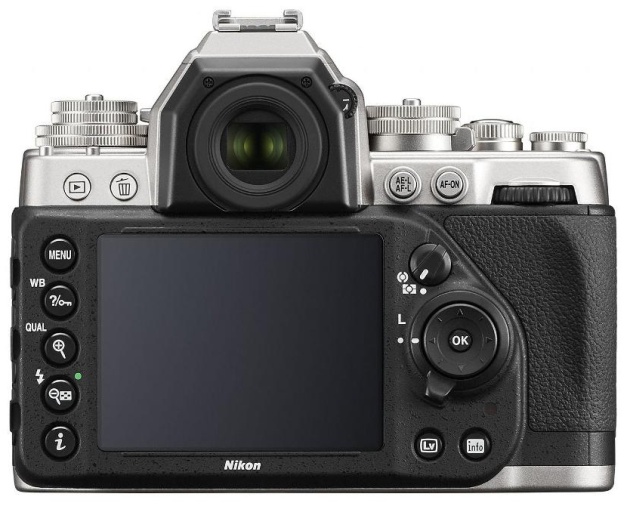
As for the ‘pure photography’ crap, I count 32 switches and dials on this comedy hour special. For comparison, I get to 26 on my D3x, hardly a ‘simple’ camera.


Clutter galore.


More clutter and complexity.

Ah, you say, but look at the technological sophistication.

Uh huh. Like:

  • A low sync speed metal focal plane shutter
  • A very noisy flapping mirror
  • A mid-20th century pentaprism glass hunk
  • A tired focusing device – one unsuited to MF ‘purity’
  • No interchangeable focusing screens
  • A rubber plug doubling as a (not so) built-in eyepiece shutter for those ‘purist’ night shots on a tripod
  • No ten pin accessory connector socket

A fool and his money may be easily parted, but I rather doubt Nikon will see too many of either when it comes to this abomination – fools or money. It used to be doctors and dentists who collected toys like this; now a few will sell to Silicon Valley geeks and their pictures will be every bit as good as those of the medical set which came before.

Stacks

A lovely environment.

If you want to get into any of the three Stacks restaurants – in SF’s Hayes Valley, in Palo Alto or my local, in Burlingame – get there as soon after 7:30am opening as possible. Much later and there is certain to be a long line outside and there’s a good reason for that.


Stacks this morning. iPhone5 snap.

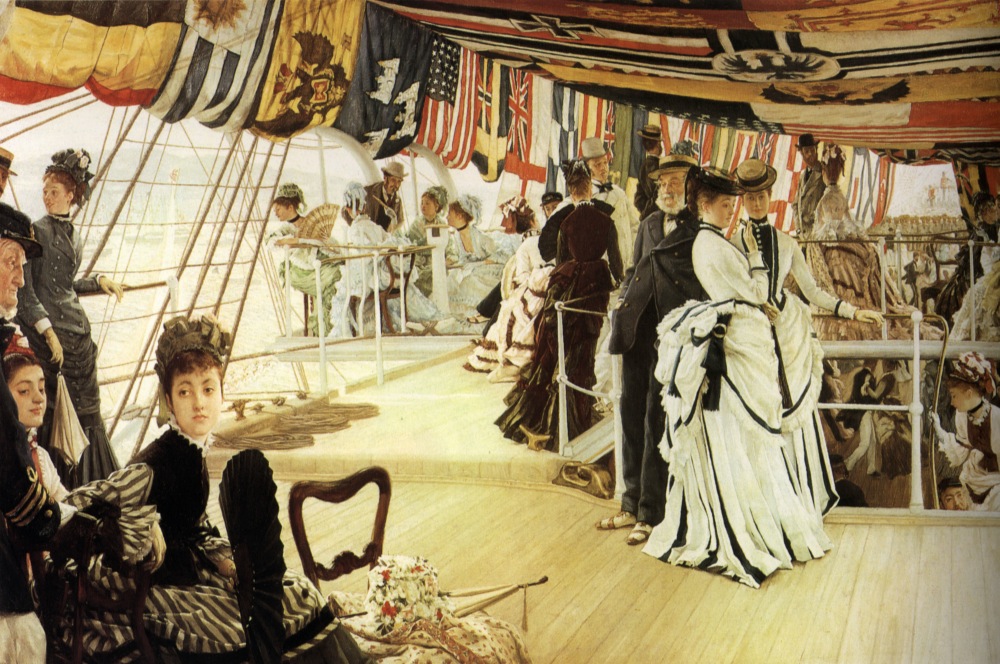
The service is world-class and the environment is reminiscent of nothing so much as a Tissot, although dress standards are not what they were in Victorian times:


James Tissot’s ‘Ball on Shipboard’ – 1874. Tate Gallery.

And while you can probably get similar food at the local greasy spoon for less, you will not get the atmosphere to be enjoyed here, at Stacks you will not be forced to converse with horny handed sons of toil at the bar. My son did serious damage to a couple of pancakes and I destroyed the all meat omelette. The pot of coffee provided, and left on our table, would have fueled a whole Arctic expedition. With tip our meal came to $30.

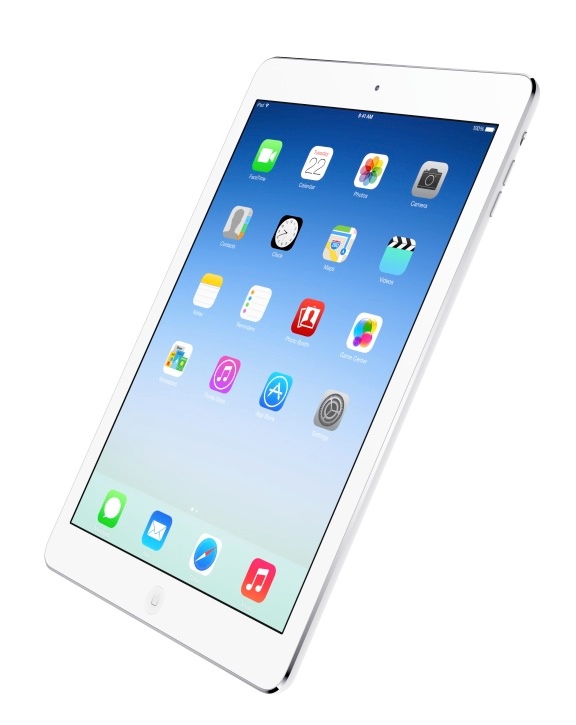
The iPad Air

Resetting the standard.
Background:

A while back I sold my first generation iPad Mini and replaced it with Google’s second generation Nexus7. That was a sound move. A far better display, faster operation and a robust Android 4.3 OS and a much handier 16:9 display format all make for a fine user experience. The openness of Android makes it easy to connect to other devices, not least additional storage of as much capacity as you want, making it unnecessary to pay up for more overpriced internal memory.

The new iPad Air offers no such option. The storage it comes with is what you get. Everything else must come from the Cloud, assuming you have a decent wi-fi connection. But, this minor complaint aside, the iPad Air resets the standard for what a tablet should be, starting at just $500.

The new iPad Mini with retina display:

By contrast, the latest iPad Mini now with an HD display, is hugely overpriced, starting at $400, just $100 less than the 16gB iPad Air which offers a larger display for little added weight. With the Nexus7 selling for just $229, it’s impossible to recommend the new iPad Mini, especially as accessing and syncing with the Apple ecosystem is so easy with Android. Refer to my series of Nexus7 articles here.

Pricing:

The pricing of the iPad Air remains unchanged from predecessors. $500 for the entry 16gB model with $100 extra for each doubling of storage up to 128gB, with an additional (and outrageous) $130 for cellular connectivity. I bought the 64gB model for $700, and use my iPhone5 when I need to get on wifi, via tethering.

First impressions of the iPad Air:

If the Nexus7 defines the pocket tablet genre, then the iPad Air does the same for the full size one. The immediate first impressions are, indeed, remarkable. Apple has managed to shave a significant amount of weight from the iPad Air, which comes in at just 16 ozs, a full 6 ounces less than its predecessor. It’s a reduction which is very noticeable. Further, the external dimensions have been reduced, owing to a smaller bezel, with the display remaining the same – and still too reflective. Despite the reduced thickness, the sound from the speakers has been noticeably improved (magic!) and the overall speed of operation – compared with my iPad 3 – is significantly better. Most importantly, iOS7 (awful fonts and all) now supports true multitasking. This advantage manifests itself best in the use of web based apps, such as the Financial Times which I read as part of my day job. The FT has sidestepped Apple’s AppStore monopoly, and the attendant punitive ‘take for the house’ of 30%, delivering its publication through a web app. With iOS6 and earlier, every re-entry to the app resulted in an agonizing wait as everything reloaded from scratch. Now it’s instantaneous. Very welcome.
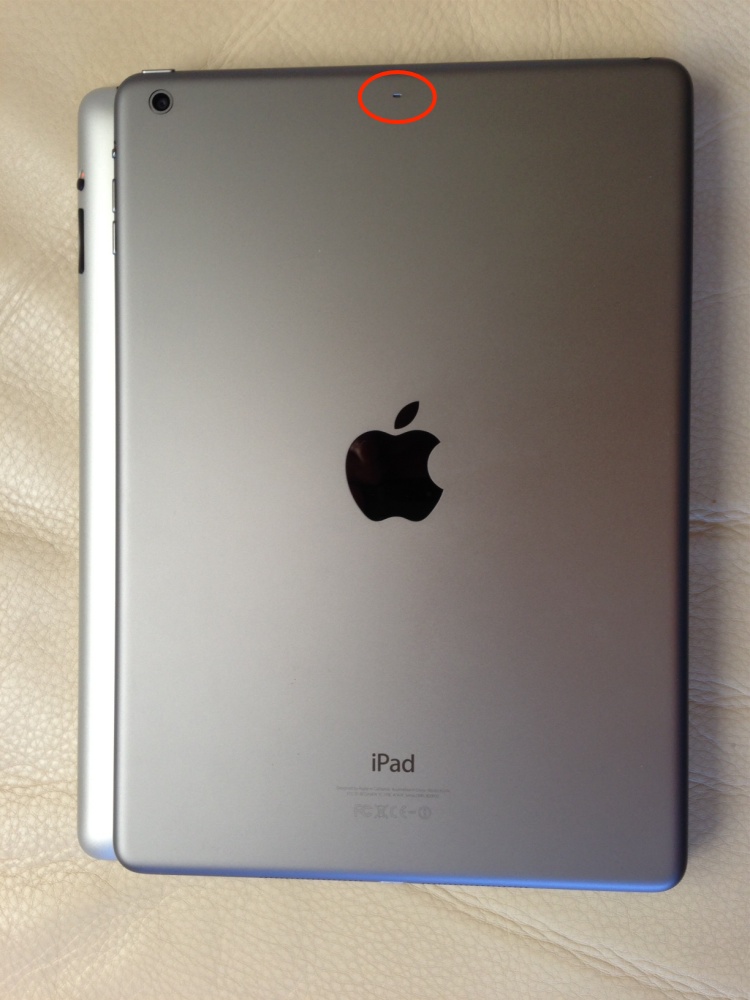

The iPad Air atop the iPad3 – the noise canceling microphone orifice is circled.

Wi-fi and the new 2013 Airport Extreme:

Wi-fi speed, owing to improved antennas, is the best I have yet measured, some 10% faster than with iPad3 and as fast as my desktop machine, though some of that may be due to my replacement of an ancient single band, 5 years old, Airport Extreme with the latest version of the device. Except for the packaging which is designed to ensure you drop the contents when the bottom (literally) falls out once the glassine is removed, the new Airport Extreme is recommended with no reservations. Setup is a breeze – try saying that about any other router on the market. It also supports 802.11ac, which is available on the 2013 MacBook Air and in new MacBook Pros just coming to market.
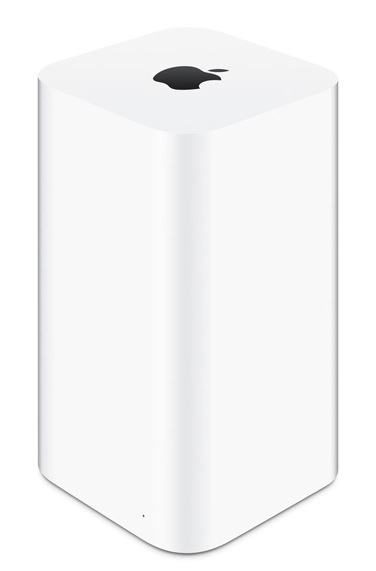

The new Airport Extreme – highly recommended.

With both my 2013 MacBook Air and the new iPad Air I get download speeds greater than the maximum my broadband supplier, AT&T, states is possible. I am using 802.11ac on the MBA and 802.11n on the iPad Air, which does not support 802.11ac. AT&T’s stated maximum is 18mbs for my service level, yet I consistently get well over that:


The 2013 MBA with the 2013 AEX router.
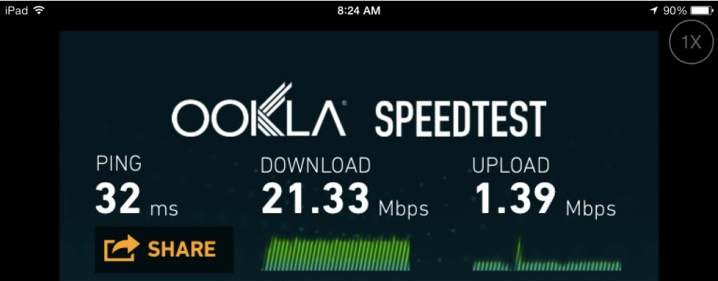

The iPad Air with the 2013 AEX router.

Interestingly, the older 802.11n protocol delivers almost the same speed on the MBA, suggesting the gains are coming from the router antennas rather than from any new protocol advantages.

Issues:

What’s not to like? One of my most used apps on the iPad is GoodReader. The wired – and fastest – way of moving content to or from the iPad was by using GoodReaderUSB, a small desktop app which added a drag and drop interface for file transfer to/from your source computer (desktop, laptop, etc.) Sadly, GoodReaderUSB does not work with the iPadAir, so I have to revert to wifi transfer – much slower – as described in the link. Further, mp4 video files currently play sound only, no image. I would expect this to be fixed soon as GoodReader has an excellent history of technical fixes and the maker has promised a comprehensive update soon. Other than as noted, GoodReader continues to function perfectly and is highly recommended.

The look and feel of iOS7 is a step backwards. The fonts are far less legible to my eyes and the loss of skeumorphism in app icons means that icons are flat and boring, and harder to find with a quick eye scan. For all the complaining from nerds about the awfulness of skeu, I much prefer the look and feel of iOS6. I suspect regular humans mostly feel the same.

Conclusions:

Other than that, operation is just like with any iOS device. Start-up is very fast, iCloud makes populating the new tablet with favorite apps trivial and Mail works perfectly, with some nice UI enhancements. Apple is making the iWork suite in its iOS variant available free (you have to download it, as it does not come pre-installed) and my only interest here is Numbers, the spreadsheet. A spreadsheet stored at Dropbox can be loaded and if it is then saved in iCloud Apple claims that it’s truly interactive, meaning that changes on one device will be automatically reflected on any other device where the spreadsheet is open. For other desk- or laptops that means you have to be using the iCloud.com version of Numbers, not the local standalone version in your Applications folder. Further, the Numbers spreadsheet in iCloud must not be password protected as it will not load if it is. A pretty confusing mess. Numbers can load Excel spreadsheets and can also save (Export to) to the Excel file format. Whether an experienced Excel user can adapt to the rather clunky Numbers interface is a different issue and Numbers is not about to obsolete the industrial power and breadth of use enjoyed by Excel in the real business world. Yes, Numbers can ‘make pretty’ with its many charts and templates, but pretty never improved earnings per share.

Minor grumbles aside, the new iPad Air is highly recommended. The far slower operation of the iPad2, which continues in the line for $100 less, is very much to be avoided, unless you do not value your time. And the weight reduction in the iPad Air means there’s simply no going back to older technology.

The iPad Air is now a mature device, with little obvious need for improvement. Size is constrained by the finite tools afforded us humans (aka fingers) and while batteries will get lighter and chips faster, there is no impatience with speed as regards the Air. I can easily see a 3-4 year life for this device before replacement/upgrade is called for, which makes for a nasty dilemma for Apple. After the large weight reduction in the Air, what is left to do to divorce credit cards from wallets? But Apple should be congratlated on its rigorous appication of Japanese kaizen preinciples of continuous improvement.

The best technical review out there is from AnandTech and can be found here. Be sure to check the two videos which demonstrate how well the added noise canceling microphone removes background noise from sound recordings. Remarkable.

The future with wi-fi equipped cameras:

With more cameras now sporting wi-fi circuitry, I’m looking forward to trying something like the new Panasonic MFT GX7 with the iPad Air to see how practical a combination this makes. The current gestation of the web blogging app WordPress works very well on the iPad so photography blogging using just a tablet and a wi-fi capable camera should be possible.
OS X Mavericks

Some issues.

I installed the latest OS X release, the awkwardly named ‘Mavericks’, which purports to honor a surfing spot that no one but surfers have ever heard of, on my Mac Pro. I suppose ‘Yosemite’ would actually have cost Apple money given their stated aim of naming new OS X releases after famous California spots. Then again, they can always use Death Valley down the road when tablets have completely taken over.

The download (my broadband speed is 16mb/s) took 50 minutes then another 35 for the installation to take place.

Some observations germane to still photographers using multiple displays follow. I use three displays and my main photo processing applications are Lightroom 5, Photoshop CS5 and Snapseed. The computer I use is a 2009 Mac Pro with upgraded W5590 3.33gHz CPUs, USB3 and a SATA III Samsung EVO 256gB SSD boot and application drive, running in an Apricorn PCIe card.

Sleep: Sleep works a little differently. Whereas hitting the Sleep button on my wired Kensington Mac keyboard displayed the Sleep/Restart/Power Off/Cancel options under Mountain Lion 10.8.5, with Mavericks hitting that button immediately puts the Mac Pro to sleep. To wake the computer moving the mouse no longer does anything – both wired and wireless. Rather, the left mouse button has to be clicked.

EyeOne Display One: This one is a deal breaker if it does not work. Used with the EyeOne Display One colorimeter it works perfectly, which is amazing given that Xrite has discontinued this popular colorimeter and has an awful history of upgrading the application for the latest version of OS X.

iWork Numbers ’13 and iWork: The file format is changed and not backwards compatible with the previous Numbers ’09. You can save in Numbers ’09 format if required, but once you save in Numbers ’13 there is no way that you can load the file in Numbers ’09. Numbers, Keynote and Pages all come as updates but updating is optional as the old versions continue to run fine. However, if you are sharing iWork files with others, or with other machines, once you upgrade all other machines must be upgraded also. The UI enhancements in Numbers ’13 are an improvement though the clunky Numbers app will never equal Excel in sheer utility and portability.

Multiple display use: Apple has historically done a really poor job of supporting multiple displays. Mavericks maintains that low reputation. They have finally added the display of the menu bar on all displays, where it formerly showed on only one. A workaround was to use SecondBar but that only supported two displays, not three. If you set the menu bar to be solid (translucent is very hard to use) then the active display (the one last clicked) shows the bar with the other two (in my case) being shaded but just visible. Nice. Further, the Dock is meant to appear (or hide) on all connected displays but the code is faulty. I can get it to show on two displays and it’s not even consistent on which two. My three displays are connected using DVI (2) and Display Port (1) with an aftermarket non-Mac Zotac nVidia GTX660 GPU. The same faulty result occurs if you do not set the Dock to ‘Hide’.

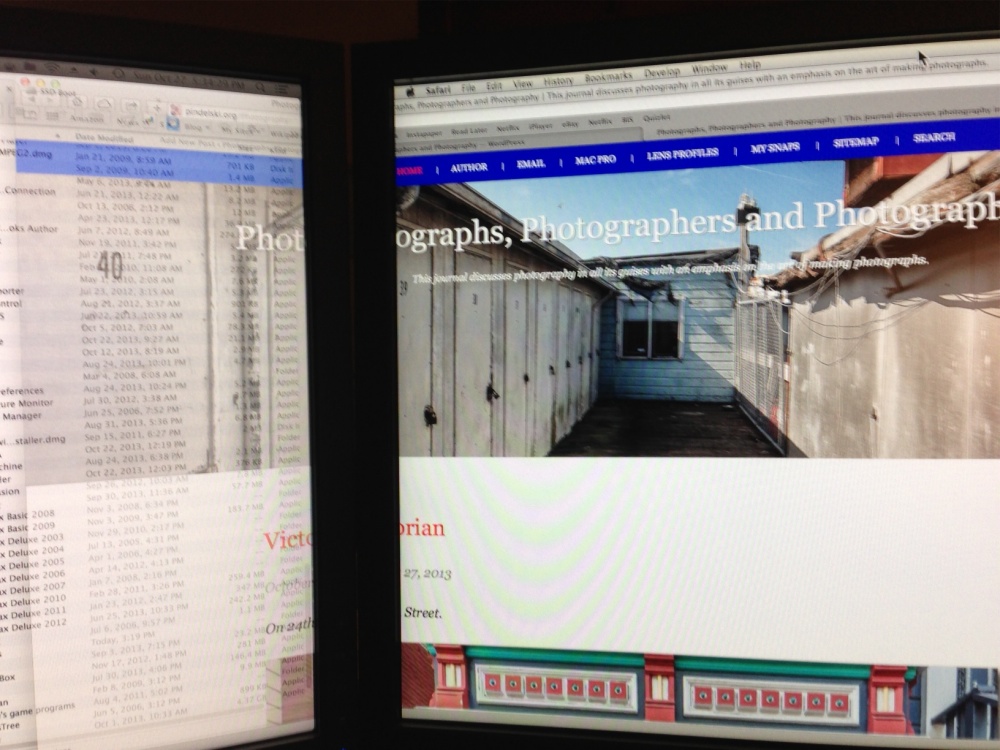
Continuity across screens when dragging files is a mess.


File partially dragged to left display.

First, you can no longer extend a file across multiple displays. So that means that extra broad spreadsheets can only be viewed on one display at a time. What on earth was Apple thinking of here? Second, as you drag a window from one display to another, the dragged part becomes translucent on the destination display until most of the window is dragged over, changing eventually to solid. This makes it impossible to make that simplest of tests for consistent display calibration by part dragging a file acrtoss two displays and comparing colors. Bad, bad, bad.

After all the time Apple has delayed in fixing multiple display support this is easily the worst ‘upgrade’ in Mavericks and seems like an excuse to show off fancy coding than respecting user needs.

PCI fan: After a cold start this would spool up to 2100rpm and stay there for anything between 15 minutes to a couple of hours, before settling back down to 800rpm. Now the Mac Pro starts the PCI fan at 800rpm and keeps it there until an increase is needed. Good.

Moom: This is a key application for multiple display users, arranging windows in any one of a number of preset layouts. You have to go to System Preferences->Accessibility->Security & Privacy->Privacy to enable Moom after which it works perfectly. I highly recommend this application.

Sound over HDMI: On my other Mac Pro which delivers sound over HDMI, I had to reinstall the patch described here to get back the HDMI option in System Preferences->Sound.

Finder: This is another application which Apple has been very slow to update, finally adding tabs in the Mavericks version. But it still does not support splitting the Finder window into two screens which is a great help when moving files. So I am sticking with Total Finder which continues to work perfectly and whose maker does an excellent job of timely updates.

The ML Finder allowed you to color file names with the complete row showing the color chosen. An easy way to highlight often used files. Now the Mavericks Finder instead shows a small colored dot by the file name. Basically, the dot is so small as to be useless, defeating the goal of easy file location.


Useless color coding in the Mavericks Finder.

Photoshop CS5: CS5 does not load when you click it or try to round trip from Lightroom 5. To restore proper function download and install the Java update found here. No speed changes noted.

Safari: Comes in a new Version 7 with Mavericks. Some pages seem to load sluggishly but I do not have enough objective data.

Firefox Version 24: No issues noted.

Lightroom 5: No issues found. The first entry to the Develop module continues to take 5 seconds as code loads but remains instantaneous thereafter. No speed changes noted.

Printing: No issues printing to the HP DesignJet 90. As with ML, I print wirelessly, with the printer connected using USB2 to my (ancient) Airport Extreme router, some 35 feet from the Mac Pro, using Lightroom 5. (See the Comment, below, regarding incompatibility with the Epson 3800).

Other commonly used apps: Carbon Copy Cloner (backup app – update required), AppCleaner (update required), Snapseed, Excel 2011, 1Password, Fingerprint (wireless printing app) and Vienna (RSS reader) all work fine with no need for updates. iTunes and Digital Camera RAW Compatibility both require (free) updates. Dropbox, MakeMKV and Mac BluRay Disc Player continue to work well.

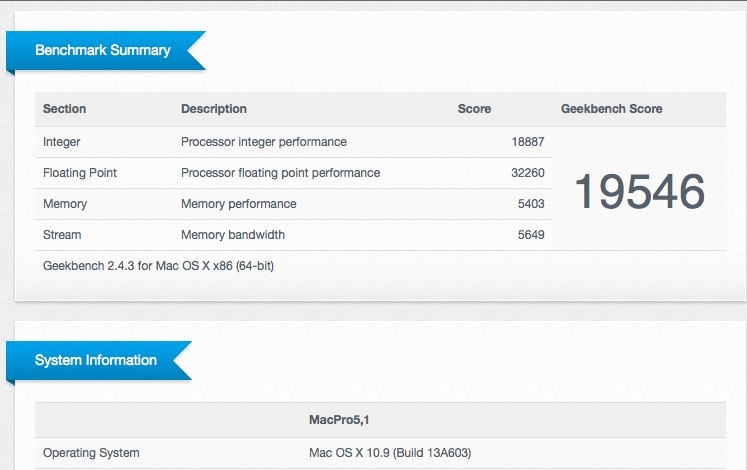
Geekbench: This app tests CPU and RAM speed. The best reading in ML was 19,700. This is my result in Mavericks – 0.8% slower. Historically this improves with subsequent OS releases during the life of a major release:

Operating temperatures: No material changes noted.

Should the still photographer upgrade? There are no tangible benefits from upgrading but you can bet that eventually Mavericks will obsolete some apps which run fine under Mountain Lion. So an upgrade is not a front burner item, but likely one which will have to be made eventually. Apple provides the upgrade from the last version of Snow Leopard 10.6.8, Lion and Mountain Lion to Mavericks at no cost.