Useful apps – in the Menu Bar

For OS X users.

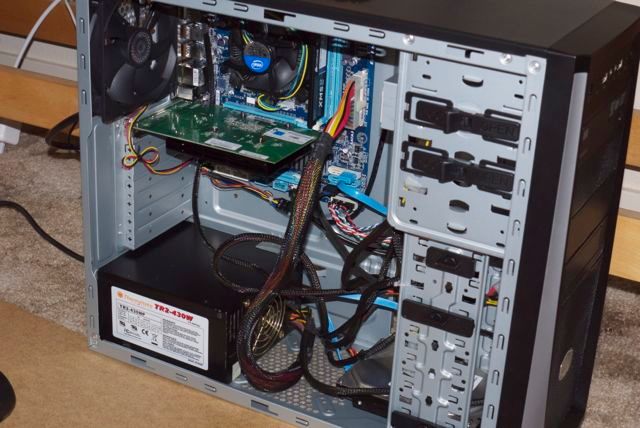
Setting up the economy Hackintosh which my buddy FU Steve built the other day made me realize just how many little applications I use which require installation on a new machine.

Several of these appear in the menu bar on my desktop and here are a few words about the ones which add greatest value.

Dropbox:

You can download Dropbox here. It provides 2gB of free cloud storage and is handy for exchanging large files with friends when Mail rejects them as attachments. Equally, it stores your 1 Password key chain allowing you to use 1 Password on any computer. MobileMe does not work properly with 1 Password, in case you were thinking of going there. Plus MM will soon be shuttered by Apple and who knows what their cloud offering will support? 1 Password availability is a tremendous time saver when setting up a new machine which invariably requires the input of many cryptic serial numbers for newly installed software.

Dropbox will install a folder in your Finder which makes it very easy to access and to move files as with any Finder folder.

Fingerprint:

When Apple added wireless printing to its iOS devices only selected printers from Hewlett Packard supported it. Given that the worst run US computer company, HP, is now getting out of the PC (and printer?) business (who knows with these jerks?), it’s not a great place to depend on for your printing needs but you can get iOS to work with any Bonjour printer using Fingerprint. Just remember to switch on Printer Sharing in System Preferences. More here.

Ralink:

If you use an aftermarket USB wireless dongle for broadband, Ralink provides updated drivers which work with Lion and allow wireless to work. This used to be an ugly dock icon but is now a discreet menu bar one. More here.

Moom:

Moom rocks! Not only can you finally get the green button in app windows to work properly – it’s still broken in Lion – you can save your favorite window arrangement in Moom and restore it at the click of a button. More here.

Air Display:

Air Display allows you to use your iPad as an additional display at a pinch. More here.

LogMeIn:

Need to access a file on your home or office machine when you only have the iPad or a notebook with you on the road? LogMeIn is the answer. It’s surpisingly fast to refresh screens and works perfectly with my three display setup, showing any one of the three or all three at once, though that’s a bit of an eye strain on an iPad display. More here.

SMARTReporter:

SMARTReporter tells you about the health of your drives – spinning disc or SSD. If a drive is failing the icon turns red. Why wouldn’t you install this? More here.

Temperature Monitor:

If you forced me to have just one menu bar icon, it would without a doubt be Temperature Monitor. This utility shows you temperatures at selected points in your machine and I have mine set to display CPU Core #1 for my Core2Quad and Core i3 CPUs. For whatever reason, core #1 in these multi core CPUs always seems to run warmest. Having lost any number of Apple’s poorly engineered iMacs and MacBooks to overheating, you can understand just how sensitive I am to proper temperature management. More here.

Airport status:

Wonder why I have this in the Menu Bar when I use a wireless dongle with Ralink software, above? Well, I also use a PCI-E TPLink internal wireless card set up to emulate Airport. In other words, I have two wireless systems working simultaneously, in case one goes down. Without wireless you are literally dead to the world, something I cannot afford in my day job. It’s like that old joke about Jaguar car owners. You always own two. One to drive, one with the mechanic. Of course, now that Jags are made in India, you only need one.

DVD ejection ‘button’:

Arrogant Apple doesn’t want you placing this in your Menu bar and makes no such option available in System Preferences. Simply follow these instructions and you can open your DVD drive regardless of the keyboard you are using.

Time Machine:

I use an external Time Machine versioned backup HDD and take it with me when traveling, in the event of fire or earthquake damage to my office location. You can invoke this icon from System Preferences->Time Machine. My backup philosophy is on display here.

MobileMe sync:

One thing MobileMe does well, when it’s not down that is, is to keep your Calendars, Address Book and Safari bookmarks sync’d across all your OS X and iOS devices. Essential to me and an incredible time saver when setting up a new machine.

Time and Date:

Not as obvious as you might think. It took Apple until Snow Leopard to finally provide a full Time and Date display. If you haven’t realized that, check System Preferences now.

That’s it for selected Menu Bar icons. The beauty of all these apps is they work on a Hackintosh. Why, they even work on your overheating iMac. In a follow-up piece I’ll address some of the other applications I find essential in my daily OS X use.
An economy Hackintosh – Part II

Cheap speed.

Mission style sofaback made by Yours Truly in best Canadian maple.

There are rumors circulating the San Francisco Bay peninsula that FU Steve has been seen wandering the street at night, head on chest, muttering various incantations.

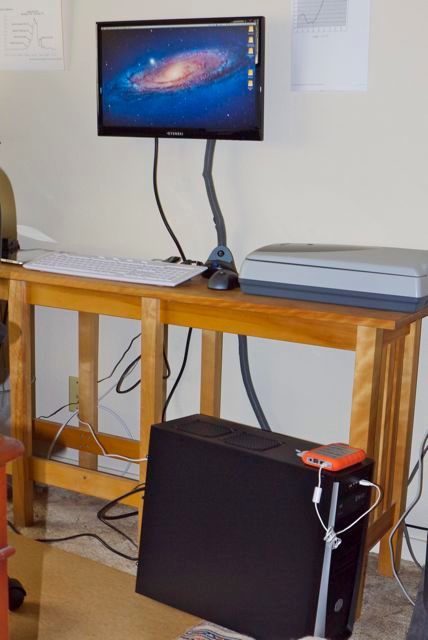
The way I hear it the builder of the economy HP10 Hackintosh, the backup Hackintosh to my nuclear powered HP1, my standby these past two years, had a singular ‘six sigma’ problem in getting HP10 to fire up. Scuttlebut has it that his wild eyed forays on the streets of the Bay area were fueled by his conviction that all was not well with the power supply makers of this world.

You see, FU went through not one, not two, not three but four power supplies before finding one that would engage with the rest of the hardware. And the fourth and final one, the one which actually worked, came from the local computer recycler for $10.

It’s all too sordid to relate and suffice it to say that HP10 with its Intel i3 2100 3.1gHz CPU and Nvidia GT 430 GPU is perking along just fine as I write, delivering ever falling stock quotes to this stock market maven who loves pain for a living.

Well, a disgusted FU left the hardware with me and I duly applied the relevant tests of interest to photographers.

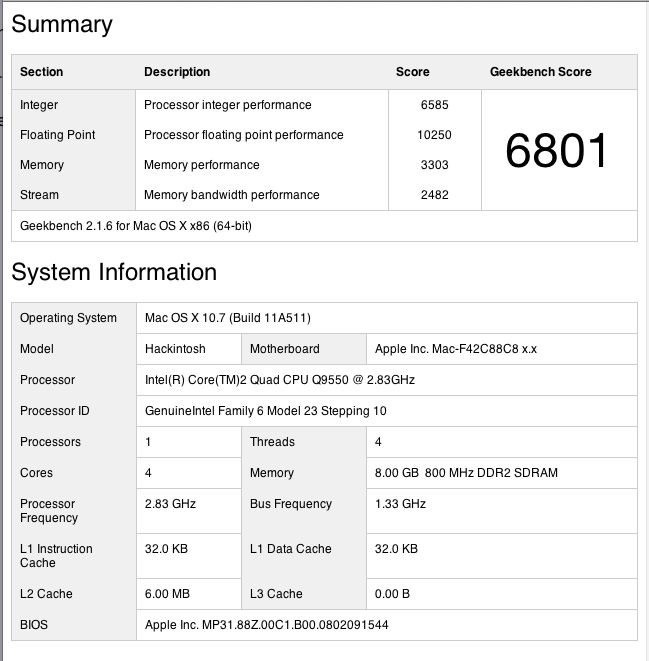
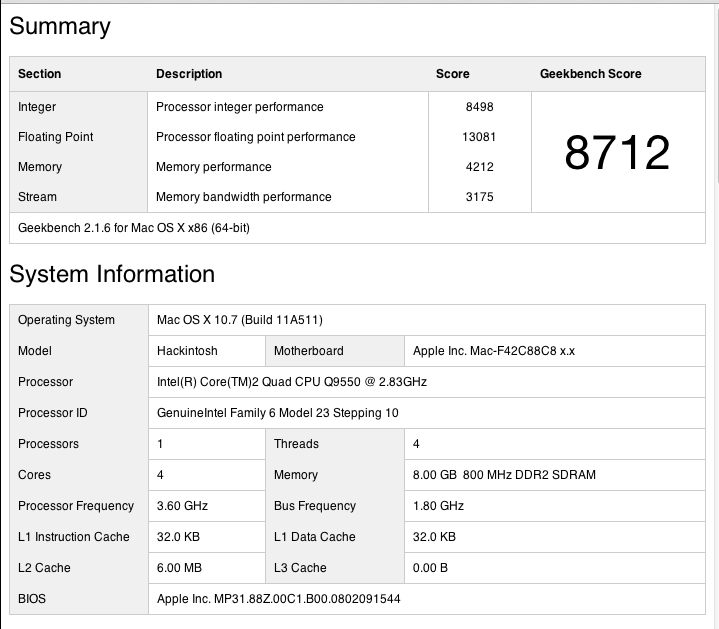
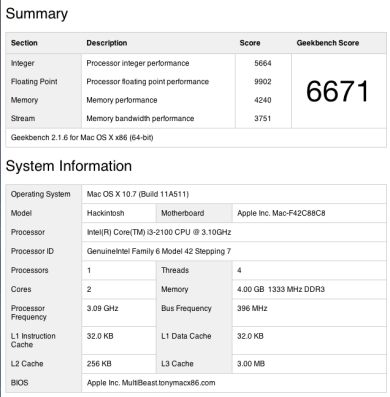
First the old standby, Geekbench (64 bit), a test of CPU performance.

The benchmark here is HP1, my Core2Quad Hackster with an Nvidia 9800GTX+ GPU, in both stock (2.83gHz) and overclocked (3.6gHz) modes, with 8gB of RAM. By comparison the HP10 uses an Nvidia GT430 GPU with just 4 gB of memory, albeit 1333mHz, compared to HP1’s 800 mHz speed.

Here are HP10, HP1 (stock) and HP1 overclocked:

HP10 stock, HP1 stock, HP1 overclocked.

So el cheapo HP10 with its bottom-of-the-line i3 Sandybridge CPU comes in at 98% of HP1’s base speed. What’s not to like?

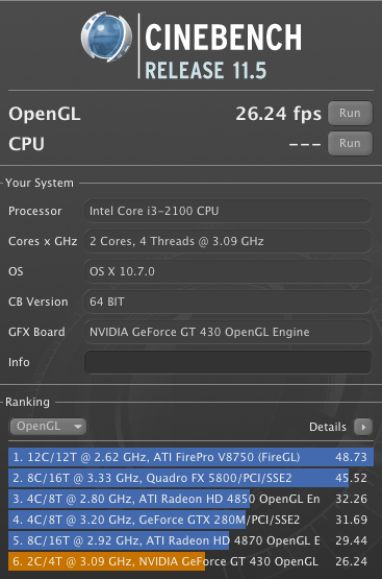
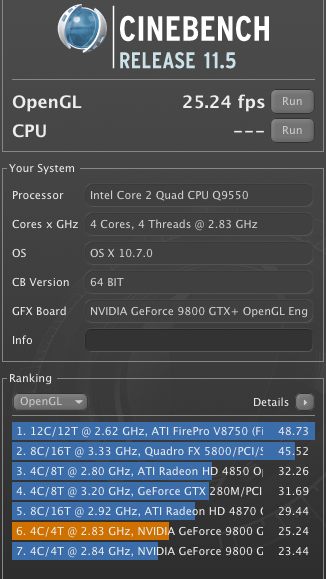
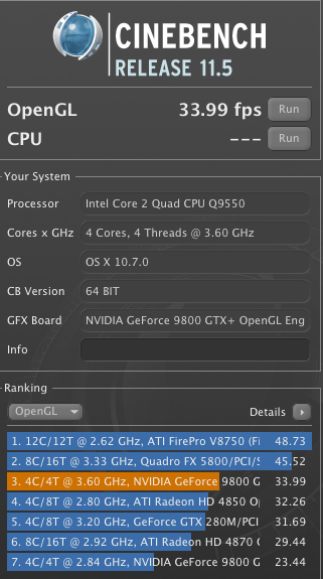
OK, how about GPU performance? Here are the Cinebench benchmarks:

HP10 stock, HP1 stock, HP1 overclocked.

So you are getting stock HP1 performance (Core2Quad – $290) for an i3 price (Core i3 2100 – $128). Your GPU at some $80 is half the price of the fancy one in the older machine. And it’s faster. As is the memory – Memory Performance is 32% faster in stock mode for the i3 machine, even though there’s only 4gB in HP10 compared with 8gB in HP1. The DDR3 memory in HP10 runs at 1333MHz, compared with 800MHz for the DDR2 in HP1. And you don’t need to worry about fancy cooling solutions as the new bits use a lot less power than their predecessors. Similarly equipped to HP1, HP10 will use 30% less power. Less power, contrary to popular belief, is a good thing – whether in computers or bankers.

Tests with LR3 and PS CS5 confirm the above results. HP10 flies in photo processing tasks.

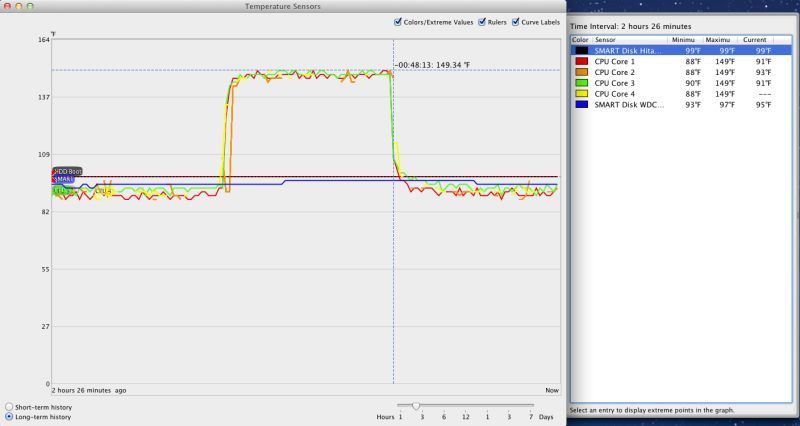
Do you need better cooling? Check out this chart using the poor stock Intel i3 cooler – the rise indicates the use of Handbrake to convert and compress a full size, full length DVD movie to M4v format for viewing on the iPad:

Stress test – stock Intel CPU fan.

The 149F maximum is well below the 176F service limit.

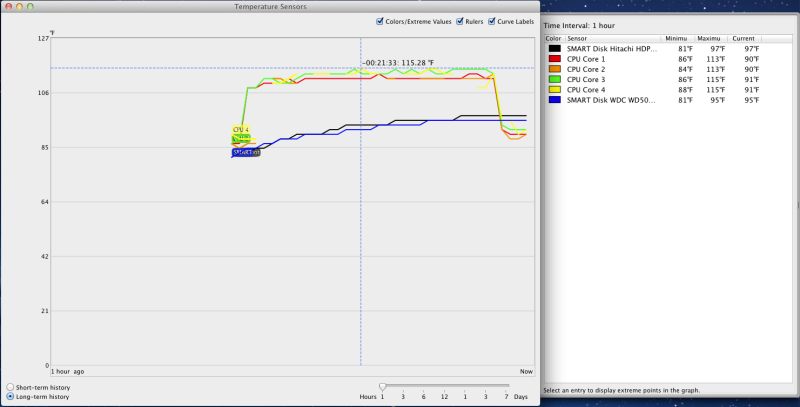
I hate heat in computers – it’s the great killer. So, a few days later, finding myself in Palo Alto, I blew $27 on an open box return Cooler Master 212 Plus at Fry’s Electronics, the same giant radiator and fan used in HP1, with the following result on the stress test:

Stress test – Cooler Master 212 Plus radiator and 120mm fan.

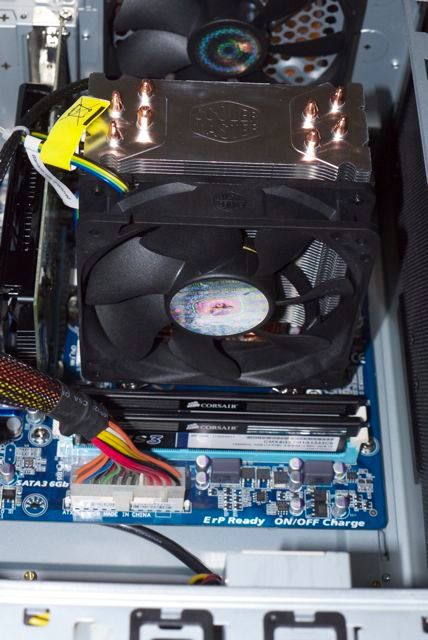
Here’s the Cooler Master installed in the case – this is a tall radiator so make sure it will fit your case if buying one.

Cooler Master 212 Plus installed.

As with HP1, the motherboard has to be removed when installing the Cooler Master as it requires installation of a retaining plate for the large radiator beneath the motherboard. It’s worth it – the temperature peaks at 115F under load compared with 149F with the stock fan. That is a startling improvement for very modest outlay and confers great peace of mind. As with the stock Intel fan, the Cooler Master uses a four pin connector for the fan (all included in the price) meaning that it’s energy efficient, speeding up only when needed. In practice I could only hear it speed up on restart.

What are you waiting for?

This is a dream photographer’s rig for a price much less than the bottom-of-the-line MacMini with its lower Geekbench score of 5700. And it comes with a DVD drive and proper cooling. The latest Mini (no DVD drive) runs its Core i5 CPU at only 2.3gHz versus 3.3gHz in the version sold by Intel. This is probably to keep heat down in the Mini’s cramped interior. The premium for upgrading the Mini to a Core i7 which runs at a pathetic 2.7gHz is $400, whereas the premium for dropping in a 3.4gHz i7 in HP10 is a mere $190, and you can bet it will blow the Mini away on performance measurements. And overclocking the i7 to 3.8gHz (i7-2600K version) takes about two minutes to do and is approved by Intel within its three year warranty term.

So you want more speed? The premium for an i5 CPU is $90 and for an i7 $190. Drop in plug-and-play replacements. Based on published data I would expect a stock Core i7 CPU to run at almost twice the speed of HP10 for that modest cost premium. Add a further 12% in speed for an overclocked i7. This sort of performance is way in excess of any photographer’s needs and HP10 proves that the modest i3-2100 Sandybridge CPU is a tremendous performer at an unbelievably low price, when properly installed and cooled in a large case.

By the way, there’s no shortage of expansion room in this rig and, yes, it will accommodate the super tall Coolermaster 212 CPU radiator used in HP1 if you want to run an overclocked i5 or i7 CPU. (The overclocking possible with the i3 is so low that’s it’s a waste of time).

HP10. Lots of room for growth.

Memory update – August 21, 2011:

Because memory is now so cheap, I went wild and ordered another 4gB stick of 1333mHz DDR3 memory ($30) and inserted it in the remaining RAM slot on the motherboard. No tools needed – two thumbscrews to remove the cover and that was it.

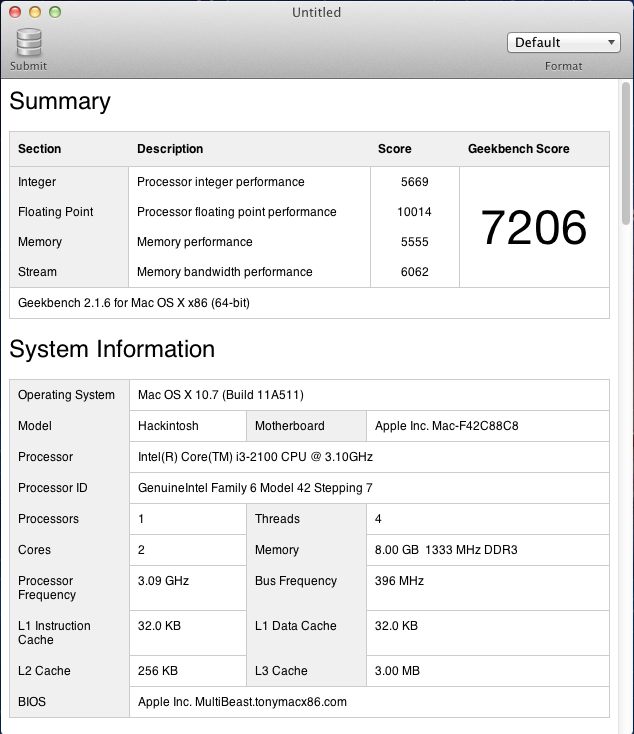
The result is that HP10 with its bottom-of-the-line i3 3.1gHz Sandybridge CPU is now 6% faster overall on Geekbench 64 than HP1 with its top-of-the-line Core2Quad CPU running at stock 2.83gHz speed.

HP10 with 8gB of memory – 6% faster than HP1 stock.

The loss of Processor integer performance is more than made up for by Memory performance which is far more important when moving files to/from LR3 or Photoshop.

Adding memory does not affect OpenGL Cinebench performance which remains unchanged at 26+ fps. That’s a function of the GPU’s RAM, not system RAM.

iCloud update – October, 2011:

OS 10.7.2 adds iCloud functionality. I ran Software Update and it works fine but to access the AppStore, Facetime and iCLoud (in System Preferences) you need a new bootloader named Chimera.

To get iCloud and AppStore working, you must install the latest Chimera boot loader; the old Chameleon one for 10.7.0/1 will not do, if that is what you used. If you used an older Chimera, you will have to update to the latest.

Go to www.tonymacx86.com, choose the downloads area and download MultiBeast. Run it and select Bootloaders->Chimera. Reboot after installing.

Charcuterie

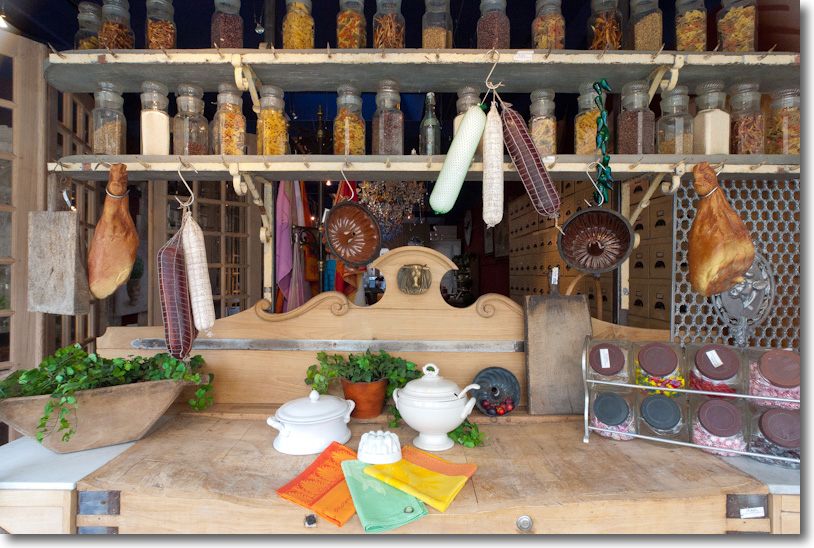
Yummy!

Carmel, CA. G1, Olympus 9-18mm MFT lens @ 9mm, 1/60, f/5.6, ISO 320

Lens pressed up against the glass to eliminate reflections and shake.

I used my home made lens correction profile to take out chromatic aberration (in this case green fringing at the edges, and quite easily seen in the uncorrected original) and distortion in Lightroom 3 – one click.

You can download my profiles for this great lens here or learn more about making your own at that link.

Microsoft Surface

MSFT drops the ball. Again.

Microsoft Surface has been around for, what? 5 years now?

Think of it as a large iPad on steroids, but with tremendously improved touch functionality.

Not surprisingly, MSFT’s web site on the product is simply awful. No dynamism. No excitement. A narrative as thrilling as the instruction book for repairing a washing machine. What is it with Microsoft? Even the ‘copy and paste’ link does not work!

If I was marketing this product I would make sure to give free versions to every major film studio, news channel, publishing house and famous photographer I could find, make it sell for $3,000 and watch it take off. I have seen it used twice – once on a TV news show and once in a James Bond movie, both times to jaw dropping effect. And if I was MSFT, I wouldn’t care about the profit or loss. They have already lost millions on it. What I would care about is the tremendous halo effect it would have on my other mass market products. It’s a simple variant of ‘win on Sunday, sell on Monday’ in the car world. Porsche wins Le Mans? You buy a new 911.

Microsoft Surface – click to view the boring video.

Steve Jobs’s was so right all those years ago when he said ‘Microsoft has no taste’. Even when they make ground breaking products like Surface and Kinect, their marketing, in a word, sucks.

Watch it from the man himself.

You can even get to enjoy the world’s worst CEO in this video – though he has strong competition from Howard Stringer at Sony. Here Ballmer extols Windows ’95 which most would agree was the worst OS ever. Or was that Windows ME?