Some thoughts on sizes, weights and so on.
[column width=45% padding=5%]
Comparisons in a digital world:
There are only a couple of meaningful comparisons for the Fuji X100 if the camera is intended for candid street photography. These include the Panasonic G1 (which I use) and the Leica M9 (which I will never use). While the Panny uses the much smaller MFT sensor, and the Leica a full frame 35mm one, all three share small size, fast response and great viewfinding systems.
Chrome finish:
Thank goodness. Black is for poseurs. Chrome looks amateur and no one will take you seriously on the street.
Interchangeable and zoom lenses:
First let’s get the interchangeable lens issue out of the way. You don’t need it. Street snaps are made, for the large part, with 35-50mm FFE lenses and the Fuji’s 23mm APS-C lens (=35mm FFE) is in that sweet spot. If you think you need an interchangeable lens on the Fuji you are looking at the wrong tool. I have been around the world with a Leica M2 and a 35mm Summicron lens and it met my street snapping needs 90% of the time. The other 10% did not justify lugging extra gear. I did not use it for landscapes, pictures of dangerous wild animals or macro close-ups. Both the Leica and the Fuji are useless for all three and useless for you if that’s your subject matter. Get a DSLR.
Oh! so you want a zoom lens? Never mind the added bulk, the smaller aperture and the greater weight; you can avoid all three as the X100 comes with a zoom built-in.
Here is the zoom device which comes with every Fuji X100, a bargain at under $300. It’s what is known in the trade as an ‘optional accessory’:
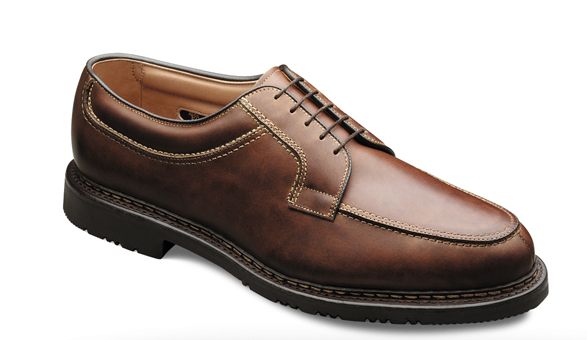
Fuji X100 zoom device by Allen Edmonds.
You wanna get closer? Walk!
The Fuji does not include OIS anti-shake technology, which is a shame (it never hurts to keep the camera steadier) but adding it would likely increase bulk and weight. Tough trade off, but I would rather have it included at the cost of an ounce and a millimeter or two.
Is the X100 for you?
Easy to answer. Go to your photo library and summarize your pictures by focal length. I have just shy of 10,000 snaps on the G1 and just over 22% or 2,258 of those have survived the cull. Of those some 1,500 or 70% of the total survivors were taken at 16-18mm, which is the same as a 35mm FFE lens, like the one on the X100. If you end up with similar data, the X100 is for you.
Shutter sound and responsiveness:
This video gives you an excellent idea of both shutter sound and responsiveness. It’s unclear whether there’s a focus delay here, and M9 users can add 2-3 seconds for that as the camera’s manual focus renders it largely unsuitable for modern, super fast response street work – people are much more hip to cameras than in Cartier-Bresson’s day. If focus delay is missing from the video then responsiveness will be slower than this shows:
Shutter sound – with electronic shutter sound off (refresh the page if the video is not visible):
That sounds like a very quiet between-the-lens shutter (think Rolleiflex TLR) which is almost too quiet for street work where you want to hear the shutter to know whether you have caught the moment. The Leica M2/3 were if anything too loud (the M9 is louder still) and it remains to be seen whether the X100 is too soft. You can switch on an electronic ‘beep’ but it’s so objectionable only a boor would consider doing that. You know, the sort of jerk who would think nothing of using his motor driven DSLR in a quiet church and whose wife hails from Texas and is named Mabel.
Size and weight:
Sizes are in millimeters (L x H x D) and include a 35mm f/2 Summicron on the M9 and the 20mm f/1.7 pancake on the G1. Weights exclude lens hoods, which are a total waste of space and function with modern optics – shade the lens with your hand in critical situations, which occur 2% of the time:
Fuji X100: 127 x 75 x 54. 15.6 ozs, best as I can tell.
Leica M9: 139 x 80 x 71.5. 28.8/31.8 ozs (heavier with chrome finish lens)
Panny G1: 124 x 84 x 70.5. 20.5 ozs.
So the Fuji is marginally smaller than the G1 and half the weight of the M9.
Size of the X100 looks about right. It’s no more pocketable than the M9 or G1, but just right for steady hand holding.
Camera strap and lugs:
What do you wanna bet that the X100 will come with one of those ghastly garish manufacturer straps emblazoned with the word FUJI multiple times in 96 point type and just waiting to slip off your shoulder? Like me you will be ordering an Upstrap and installing it on the side lugs, which look like they could have been moved around to the front a bit more for better balance. Hard to judge, but that 8 element f/2 lens will not be light and will make the body want to tip forward. Let’s hope these lugs do not self-detach as was the case with the first batch of Panny G1 bodies.
Battery:
The X100 uses an NP-95 Li-on rechargeable battery. This is a small unit (1800 mAh) and Fuji states it’s good for some 300 snaps. Mercifully, it’s used in other Fuji digital point-and-shoots and retails for some $20, so a spare or two will be called for, given that an 8gB SDHC card will hold some 600 images, good for an intense day’s street work.
Controls:
One of the most promising features of the X100, shared only with the M9 in the digital camera world, is the provision of manual, analog dials for shutter speed and aperture. The X100 also adds +/- 2 stop manual exposure override. The number of times I have messed about with the G1’s push-and-turn front dial to manually override exposure and completely erred because I forgot to reset the thing is legion. Face it. Humans are analog devices. We respond to dials, clicks and turns far better than to digital electronic displays, beeps, flashing lights and push buttons.
[/column]
[column width=45% padding=5%]
The X100 needs some sort of adapter to fit a clear 49mm protective filter to the lens (How dumb is that? What’s wrong with threading the lens?) so those who baby their gear will have to get one of those. Me? Like Rhett Butler I don’t give a damn. My hobby is making snaps not babying my gear for display in the china cabinet. If you have to baby it, you cannot afford it, be it a Leica, a Porsche or an X100.
Sensor sizes and pixels:
Sensor sizes are in millimeters, pixel count in megapixels:
Fuji X100: 25 x 17 (APS-C). 12.3.
Leica M9: 36 x 24. (FF). 18.0
Panasonic G1: 18 x 13.5. (MFT). 12.1.
If you use the G1 in classical Leica 3:2 aspect ratio, as I do, the pixel count drops to 10.8 owing to masking of part of the sensor area.
Do the math and the pixel density for the Fuji is approximately twice that of the M9 but 35% less than that of the G1 (in 3:2 mode). Time will tell if this is a good thing, though too many pixels tend to hurt resolving power. As the Fuji probably uses the same Sony sensor used in Nikon’s APS-C DSLRs, chances are that it will be fine, as the Nikons have a great reputation for definition.
Viewfinder:
The Leica M cameras have the best optical viewfinders I have ever used. While my M6 flared like crazy into the sun, making the RF patch unusable, the M2 and M3 were superb and I have read that the M9 is as good in terms of flare resistance. The M2 got it right for absence of clutter. You only saw one frame at a time – 35mm, 50mm or 90mm. The M3 showed the clunky 50mm frame at all times plus the 90mm or 135mm when those lenses were fitted, and needed bulky lens attachments for the 35mm lens. I used my M3 with a 35mm ‘bespectacled’ Summaron for aeons and now wonder how I managed to do that. And every other rangefinder M body cluttered the view with multiple frames, typically two per lens, plus the RF patch, of course.
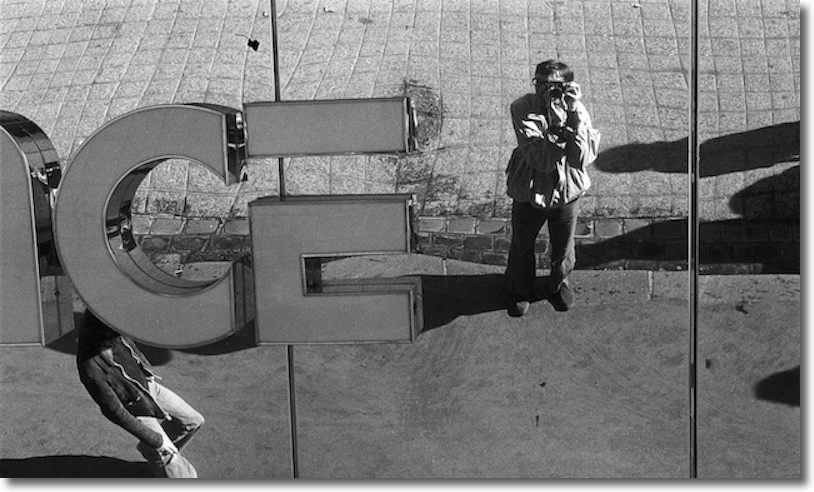
Paris 1976 with the Leica M3 and the clunky ‘bespectacled’ 35mm Summaron.
The Leica M has very neat parallax compensation in the finder system. As you focus closer the frames move diagonally toward the axis of the lens and viewfinding remains more than acceptably accurate down to the minimum focus distance of 39″.
How the X100 does this remains unclear. The camera has three finder systems. The traditional LCD screen on the back (useless for street snapping), an optical finder in the same relative position as the Leica M and an eye level EVF switchable with the optical. I would assume the latter relays the signal from the sensor and, indeed, when activated with the front panel switch, the optical finder’s front is blanked off, so I would guess the eye level EVF offers accurate framing, as does the LCD. Whether the frames viewed in the optical finder offer parallax compensation is presently unclear but likely not a big deal given that the typical street snap is framed at 7-15 feet from the subject, where parallax is negligible. The Panny G1 offers two finders – the LCD and the eye level EVF, the latter 100% accurate and excellent except with bright highlights where it burns out easily. In poor light the G1’s EVF blows the M’s optical finder out of the water, and absent some grain and delay at very low light levels is the best low light finder I have yet used. It leaves pure traditional optical/prism finders, like in the Canon 5D, in the dust.
The X100’s eye level EVF promises the same 1.4 megapixel resolution as the G1’s EVF, so things look promising here. How responsive and grainy it will be remains to be seen.
The X100 seems to offer an in-EVF finder DOF device of some sort. Frankly, if you are in the business of judging DOF while street snapping then you are in the wrong business. Learn your gear’s DOF, memorize it and forget about finder aids.
Focal length and DOF:
DOF is a function solely of focal length and aperture at a given subject distance. A 50mm lens at a stated aperture will have the same depth of field at the same subject distance whether you are using a fingernail-sized sensor in a point-and-shoot or a 4″ x 5″ sheet film camera. Sure, diaphragm shape can alter the look of out of focus detail, but it will not change depth of field. So it’s instructive to compare effective focal lengths and effective apertures at full aperture for the three cameras considered here, equating all to a 35mm f/2 FFE lens.
- The M9 obviously has an FFE of 35mm.
- The X100 will have the DOF of an f/2.8 35mm lens on an FFE body.
- The G1/17mm f/1.7 pair will have the DOF of an f/3.5 35mm lens on an FFE body.
So the M9 offers the shallowest DOF fully open and the G1 the deepest. Not a lot to choose but it remains to be seen whether the X100’s lens is good enough to be used fully open. For what it’s worth, I use the 14-45mm kit zoom on my G1 and at 18mm (35mm FFE) where I use it most it has an effective aperture of f/6.3 or so, leaving way too much sharp and detracting from the subject.
RAW:
I am uninterested in taking digital pictures in anything but RAW format. As a street snapper I have not the time for the niceties of exact exposure measurement, a subject providing one opportunity as often as not, and that a fleeting one. RAW comes into play as it offers far greater processing flexibility to fix the inevitable mistakes. The X100 will ship with SilkyPix RAW conversion software, just as the G1 does. Well, in a word, SilkyPix sucks. Only when Adobe came along with their RAW converter for Lightroom and Photoshop did the G1’s RAW images come into their own, and there will likely be some delay after the release of the X100 before Adobe has added X100 RAW to its application software. Think of it as the cost of early adoption.
Build quality:
Really not all that important. If it holds up for 10-30,000 exposures that’s all you need, as it will be obsolete by then and something better will be available for less. The days when you bought a camera to hand down passed with your father’s Chevrolet.
Speed:
When it comes to street snappers, you can’t have too little weight, bulk or too much speed.
[/column]
[end_columns]
Will the X100 be this fast?

The Pickpocket. Panasonic G1, kit lens.
Come March, 2011 all will be revealed.