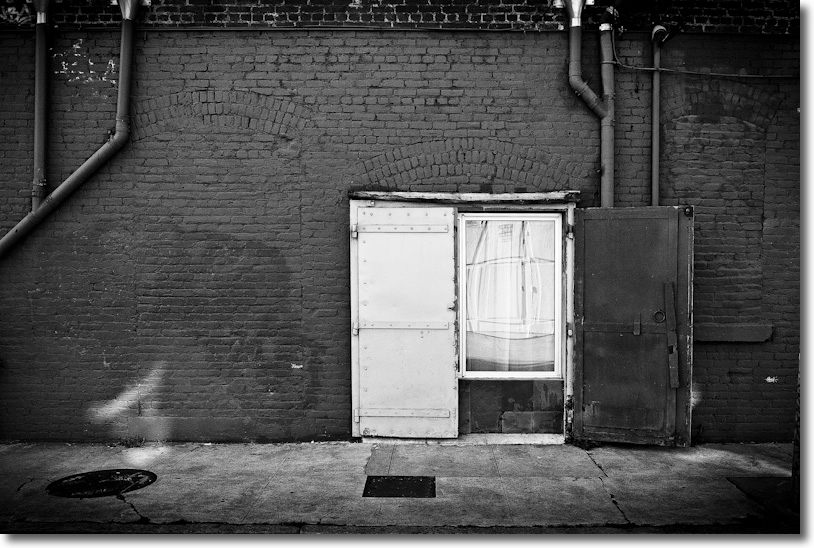
Ansel Adams, photographer?

Please ….

It’s no great secret to long time visitors here that I detest the landscape work of Ansel Adams. His picture postcard subjects, rendered in grossly over processed pretentious monochrome, leave me feeling physically ill. One of his most adulated snaps, ‘Moonrise Hernandez’ is a perfect example. Clearly taken in broad daylight (look at the shadows on the tombstones) it has been grotesquely processed to imitate moonlight. For all I know even the moon was pasted in from another image. As for his image of Half Dome, Yosemite …. well, better not to get me going.

Yet critically deprived Americans – eager for a claim to an ‘artist’ of their own – drool over his pictures and some even cough up serious coin to stick one of his monstrosities on the wall. The older and more yellowed, the more they pay. I know of what I speak, having had a close brush with death viewing the great man’s work myself. Yes, dear reader, I have held an original Adams print in my (cotton gloved) hands, which is more than 99.9% of his uncritical fans can say.

Well, if you thought his landscape work was pure garbage, be assured that his street photography makes it look good by comparison.

NPR has had the courage to reproduce twelve of his street snaps and it’s hard not to laugh once you have supressed the urge to cry at the thought that someone actually paid him for these. Just click the picture below, but maybe first get something cold, liquid and strong. You will need it.

Drink before you click.

The new AppleTV – Part III

Adding a DAC.

Part II appears here.

The new AppleTV lacks traditional coaxial analog connectors for sound output; it comes with an optical Toslink sound output socket only. So if you want to route the AppleTV’s sound output to external speakers via an analog external amplifier/receiver lacking a digital optical sound input, you need a Digital Analog Converter (DAC). Speakers (and amplifiers, for that matter) built into TV sets are generally poor quality so bypassing them and using external loudspeaker boxes connected to a receiver ensures better sound.

There are two versions of the DAC, depending whether your sound system is 2 speakers and an optional subwoofer (2.1) or four corner speakers, a center and a subwoofer (5.1).

My Sony receiver is not that old yet it lacks a Toslink connector for optical digital sound, meaning I had to interpose a DAC between the AppleTV and the Sony. Adding a new digital receiver makes no economic sense, so I bought a Gefen DAC. There are two models.

  • For 2.1 sound – use this one. $58 at the time of writing. This is the one I use.
  • For 5.1 sound – this one. $91.

I went with the Gefen – cheaper units are available – as research disclosed it was known to work with the AppleTV.

Red circle denotes removed rubber Toslink covers. Green arrows show Toslink cable connections.
Apple Remote included for scale. Gold connectors route two channel analog sound to the receiver. iPad backdrop.

As the specifications are silent I also purchased a short Toslink optical fiber cable only to find that Gefen includes one in the box with the DAC! So save $6 and don’t buy a separate cable. Then I ran into a serious snag. I had never so much as seen a Toslink cable before and, no matter how I tried, I could not get the flimsy connector to stay in either the Gefen or AppleTV sockets. After a spot of head scratching and Googling, it transpired that the optical ends of the connector are covered with translucent rubber caps, circled in the above picture. Removing these allowed the connectors to fit at both ends. Duh! I knew that engineering degree would come in handy one day ….

After that it was plain sailing. I switched off the TV’s speakers, connected the AppleTV to the Gefen and routed my two RCA coaxial cables from the Gefen DAC to the Sony receiver. The DAC comes with a small power supply so you will have to search out yet another adapter to make it fit your already overburdened power strip. The red LED on the DAC confirms it’s getting power but in practice you will hide it out of the way.

The sound is excellent, the Sony receiver’s volume control is set at half way through the scale so clearly the amplifier is being adequately driven by the DAC and, equally importantly, not overdriven. The TV remains connected using an HDMI cable (for video) and the orange cable you can see connected to the AppleTV is for wired internet. I use wired in preference to wireless as the AppleTV sits right next to my broadband modem and I always prefer wired to wireless, having grown up in a world where men were men, cars had carburettors and the word ‘digital’ was not in common use. The small cable routed to the front bezel of the AppleTV is the optical sender from my IR blaster.

Check the Comments to this article to learn how the HDMI and Toslink sound outputs interact.

I have to add that until now I have always thought the USB connector to be one of the worst designed on the planet, and just slightly better than the Firewire800 one. Well, it must now take the runner’s up place to the Toslink one which, though keyed, is so small that you have to look awfully hard for the keyways, for some reason only fits one way (nonsensical for an optical signal) and will leave you scratching your head because of those little rubber covers about which the instructions are silent.

We now enjoy premium quality video and sound from the new AppleTV and greatly enjoy watching our photo slideshows with the help of this handy little device, as well as listening to our music and watching Netflix and iTunes movies.

A bigger hard drive for the MacBook Air

Any day now!

At the conclusion of Part V of my MBA review I wrote:

“The ingenuity of man will ensure that higher capacity flash hard drives become available in no time for far less than Apple will charge you and ifixit already has a supply of five pointed Torx screwdrivers available, for all of $4.95, which will allow you to replace the fan yourself.”

For ‘fan’ you can also read ‘flash drive’, the same tool being required.

Well, that was yesterday. Today a larger, faster flash drive was announced, claimed to be 30% faster and, at 256gB twice as large as the largest base spec sold by Apple. (You can get 256gB but on the 13″ MBA only and that at a $300 premium to the 128gB base spec for the 13″ model; the maximum you can get on the 11.6″ MBA is 128gB, at a $200 premium to the 64gB base spec.)

Click the picture for more. The vendor makes the excellent point that the flash drive removed from the MBA can be used as back-up storage using the provided USB casing; the latter is required to plug in the new drive externally to first clone everything to it from the stock MBA drive installed by Apple. The installation, based on the ifixit pictures, should be a piece of cake. 10 Torxscrews using the special screwdriver are removed to free the base and an eleventh like screw, once removed, allows replacement of the plug-and-play flash drive.

While the largest flash drive sold by PhotoFast is currently 256gB, we will be seeing terabyte drives before you can say “Well, Mr. Jobs, that ploy with those silly five headed ‘unique’ screws didn’t last long now, did it?” Duh!

There’s something very appealing about this process. Apple is trying to screw its customers by charging egregious premia for additional flash storage and is, in turn, being screwed by its own suppliers with cheaper and better aftermarket alternatives. US pricing is unknown but I would hazard a guess of $200, which gets you four times the 64gB base spec on the 11.6″ where the maximum of 128gB commands a $200 premium. If I’m right that means twice the maximum Apple offers for the same price. Prices will only fall as solid state storage gradually obsoletes spinning disks.

Update Feb 2011: Apple threatened litigation/contract cancellation of other parts if PhotoFast did not cease and desist from marketing this SSD. Jerks. Anyway, MacSales offers a like upgrade, although without the external enclosure, and you can read about it here.

A matte screen MacBook Air

Yea!

I have refrained from yet more grumbling about the glossy screen on the MBA. I reckon readers have had enough of that. But when friend of the blog Gregg L. sent me this piece the only decent thing to do with it was to share.

Click the picture for details. If only they could do this for the iPad ….

Now I just need a friendly Market God to allow me to buy another MBA while mine is out for surgery ….

The MacBook Air – Part V

Controlling fans and heat.

In Part IV I concluded that the MacBook Air was a credible tool for light, mobile use with Lightroom3. But I remained troubled by the significant rise in the heat of components during the relatively stressful tests of importing and generating 1:1 preview files for 50 RAW files from my Panasonic G1.

In this article I examine how photographers can better manage heat in the MBA and quantify the tradeoffs in terms of battery life when stock fan speed profiles are changed.

Because I have little trust in Apple’s heat management, having suffered innumerable Mac failures from overheating, I thought it might make sense to take a hard look at cooling in the new MacBook Air. Mine is the bottom-of-the-line version, meaning 11.6″ display, 1.4gHz CPU, 2gB RAM and 64gB (meaning it’s about 45gB when you have all the necessary things installed) flash hard drive.

Now from a specifications standpoint, the MBA has some obviously good and obviously bad heat issues.

The good:

  • The low powered 1.4gHz Intel U9400 Core2Duo CPU runs cooler than something faster, though that is making a virtue out of economic necessity. It’s also a mature design so cheap in bulk.
  • The absence of a spinning hard disk drive cuts heat.
  • The new generation of graphics GPU, like the Nvidia 320M used in the MBA, runs cooler than its predecessors on a separate chip.
  • The close fitting alloy case should be a far superior conductor of heat – meaning it acts as a heat sink – than the plastic ones which act as heat retainers on my many blown iBooks and MacBooks which came before.

The bad:

  • The MBA is the slimmest laptop netbook ever made, so there’s less space for heat to exit.
  • The heat exhaust slots of the earlier MBA have been deleted and the only exit for hot air is the very narrow slot at the base of the display hinge.
  • There is but one poncy little fan to cool both the CPU and GPU inside the case, as illustrated below.

The sole fan in the MBA, circled top right.

I had already noted the significant rise in measured and observed heat (my lap got hot!) in my tests where I imported 50 RAW files into Lightroom3, creating 1:1 previews. That chart is repeated below:

Component temperatures during RAW file import and processing.

As you can see, the CPU’s temperature rises from 106F to 165F during the import process. You can assume the GPU’s temperature rises a like amount as the two processors are adjacent to one another.

Tools used to measure temperature changes:

  • I imported the same 50 RAW files from a plug-in USB hard drive and Transcend 8gB Class 6 SDHC card as used in my Panasonic G1.
  • For constant temperature display in the status bar I used smcFanControl, which discloses that the default fan speed setting is 2000 rpm (where it is silent) and the maximum is 6500 (where it all but roars). smcFanControl’s readout appears in the status bar at the top of the MBA’s display.
  • I used MacBookPro/Extended Fan Control, which installs as a preference pane in System Preferences.
  • All tests were done on battery power, replicating real world use. Battery percentage remaining was displayed in the status bar at the top of the MBA’s display by appropriately dialing in the System Preference settings. I was especially interested in seeing what additional battery consumption would result from cranking the fan up to keep the MBA cool.
  • I used Temperature Monitor, as before, to graph the results.

MacBookPro/Extended Fan Control suggests a temperature range for the CPU of 86F to 194F with default fan settings – their display is a little confused showing two fans and a 1200 minimum fan speed, when the reality is one fan and a 2000 rpm minimum. However, the actual fan speed reported is identical to that reported by smcFan Control, so it’s a useful tool, not least because, unlike smcFanControl, MacBookPro/Extended Fan Control can be set to dynamically chane the speed of the fan depending on the CPU’s temperature. As there is no way on God’s earth that I am going to allow my MBA to run up to 194F (likely a degree or two from the service limit), I set MacBookPro/Extended Fan Control to a limit of 149F, the lowest I could get. I don’t care how much anyone lectures me about Apple’s sophisticated CPU and GPU thermal throttling, there is simply no way I’m going to buy it. Let it get to 194F and how long do you think the thing is going to last? Exactly.

Here are the MacBookPro/Extended Fan Control settings:

The single fan was running at 3,295rpm as shown at the base of the screen shot. CPU/GPU at 113F (not 32F).

Results: The results could hardly be more instructive.

  • Compared with Apple’s stock fan control, where the fan is never audible, the MBP’s fan spooled up to a maximum of 5013rpm during the import/preview generation process at which speed it was audible if not obtrusive. This is still well below the 6500rpm limit.
  • Battery capacity was depleted by 5% compared to 4% stock.
  • The CPU/GPU maxed out at 138F (see chart below) compared to 165F stock.
  • Import/preview generation time was unchanged.
  • CPU temperature was back to 108F within 5 minutes of completion.
  • Fan speed was back down to 2800rpm within 5 minutes of completion.

So for the cost of 1% extra battery capacity use, maximum CPU/GPU temperature was reduced by 27F, all of this at an ambient temperature of 75F. If you don’t think that’s worth 1% of extra battery use then I have a great bridge for sale at a bargain price, just for you, located in Brooklyn, New York. I only have one, so hurry.

Conclusion: The heat conscious MBA user will install MacBookPro/Extended Fan Control and set it the way I have. There is no earthly reason to trust Apple’s heat management and default fan profile settings when you can do much better for a modest battery drain increase.

Here’s the revised temperature graph which, frankly, is a jaw dropper – the enclosure bottom temperature (the part your lap feels!) remains unchanged:

Key MBA component temperatures with MacBookPro/Extended Fan Control installed.

The five large fans and a monster CPU radiator in my HackPro do an even better job but the HackPro is not what you would call portable ….

What to do if you blow out the fan and have to replace it? Apple has sneakily used five pointed Torx screws to make it impossible for you to remove the base and access the fan. What I suspect they really do not want you doing is replacing the plug in flash drive with a larger one (it is not soldered in), and iFixit, when dismantling the MBA had to fashion their own screwdriver to access the innards. (By the way, the RAM is soldered in and cannot be user upgraded). Fear not. The ingenuity of man will ensure that higher capacity flash hard drives become available in no time for far less than Apple will charge you and ifixit already has a supply of five pointed Torx screwdrivers available, for all of $4.95, which will allow you to replace the fan yourself.

ifixit’s view of the 11.6″ MBA.

A note on use with 1Password: If you use 1Password to store all your passwords, be sure to uncheck the box shown below:

Failing to do this will mean that you have to re-input your master password every time you use 1Password after putting your MBA to sleep (meaning after you close and reopen the lid). I learned this thanks to 1Password’s superb support – a quick exchange of emails on a Sunday. That’s what it takes to succeed nowadays. An excellent product, superbly supported.