Olympus 9-18mm MFT lens – Part I

A new addition to my G1 kit.

I confess that when I first bought the Panasonic G1 a year ago it was with the sole intention of dedicating it to occasional street snapping forays. Small, inexpensive, light, fast and quiet with a killer kit lens, it offers everything a street maven requires. For ‘serious’ photography there was no question in my mind that my Canon 5D with its battery of lenses and accessories would continue to be the ‘go to’ hardware.

That scenario is increasingly being disproved, as I find that the 5D molders in its gargantuan kit bag while the petite G1 accompanies me everywhere. And the only good camera is the one you have with you.

A trio of discoveries has brought about this turn of events.

First, I added the compact Panasonic 45-200mm zoom. This immediately showed itself to be a superb performer at all focal lengths and apertures but, startlingly, offered the possibility of a pocketable 400mm (Full Frame Equivalent) monster lens without the weight and bulk of anything similar for a full frame body. Add built-in anti-shake technology and you have a compelling argument for the Micro Four-Thirds concept.

Second, I’m out of wall space for huge prints and I have done my big-print-one-man-show thing, so the need for pin sharp definition at big enlargement ratios is no more.

Third, the increasing affordability of big display canvases, also known as flat screen TVs, obsoletes the big, static print in much the same way that the iPod obsoleted the CD, and Netflix On Demand movie streaming is obsoleting space- and capital-wasting DVD collections. And given that the quality delivered by even a modest $150 point-and-shoot digital is more than adequate for display on a 40″ TV screen, the desire for the level of resolution that has made pixel peeping a favorite pastime – for those equipment fetishists incapable of taking a good photograph – makes no sense. And if you want an even better display medium than your TV, try the iPad’s 10″ screen. It’s the perfect venue for photo eBooks as my several recent examples here illustrate and is a whole lot nicer to ‘read’ than a computer screen.

This is a long winded way of saying that the 5D’s days are likely numbered chez Pindelski. Click on categories->photography->technique->ebooks in the right hand column above to see what I’m going on about, and do make sure to upload these files to your iPad. Most of these snaps were taken on the Panasonic G1. A few dozen snaps well displayed on a small screen beat one huge static print on the wall. And the latter not only takes huge amounts of time, cash and equipment to create, it also gets boring really fast. There are simply too many images I want to show to remain content with a static wall print.

So while I have been a huge fan of the big print for as long as I can remember, I do think its days are numbered. Times change. Change or die.

All of which brings me round to the topic of today’s column, the newest addition to my G1 kit.

Olympus 9-18mm MFT lens for the G1. Image from DPReview.

My hot little hands await in glee.

I expect to have this little wonder in my hands today, but if you want to read the geeky stuff about how it performs there’s no better place to do so than at DP Review which has done an excellent job of reducing the myriad tables and measurements which technical reviews generally present into a single, sophisticated, interactive chart. (You cannot see the chart on an iPad as it uses Flash, so use a laptop or whatever). Interestingly their charts show that in almost all respects, regardless of focal length, the lens performs better at large apertures. I suspect that, with the small physical size of the diaphragm, diffraction effects are hurting definition at smaller apertures.

I’m no great fan of lens test charts, goodness knows, but DPR’s work does at least offer the comforting assurance that my money hasn’t been blown on a dog.

Here’s what this little charmer ran me at B&H PhotoVideo – I splurged on a costly B+W filter because the same one works well on my two G1 lenses and on two day shipping as it was dirt cheap:

The only competition in the super-wide zoom category is Panny’s 7-14mm which, while optically outstanding by all accounts, costs almost twice as much, cannot accept a protective filter owing to its bulbous front element and is a tad bulkier. The filter thing is important to me as I refuse to use lens caps which are just one more impediment to getting a lens into action and because our eight year old is increasingly getting into photography but still has the uncanny ability of sticking his grubby fingers into a front lens element at a moment’s notice!

Of course, let’s not forget the collapsible part of the Oly’s design, and I do not mean that is a good thing. To make the lens usable you have to press a button and extend the barrel. This increases the bulk of the lens, though that’s not so bad a thing.

It can still be made much smaller for storage when collapsed as there is no rear protrusion, but it does mean one more thing to do to make the lens usable and suggests another thing to wear and go wrong in the long run. I have had more experience with collapsible lenses than most, having grown up with two Leica 50mm Elmars and one 50mm Leica Summicron in collapsible mounts for my Leica M bodies, but the collapsible feature of these was simply poor design. You see, when the lens was ‘collapsed’ what formerly stuck out in front now stuck out in back. The overall size of the lens barely changed! Leica’s design dicate was that, as long as you kept the lens on the body of the camera, things did in fact get smaller as the absence of a reflex mirror permitted retraction of the lens barrel into the camera’s innards. True. But, once you took the lens off, the design made no sense. And, by the way, if you forgot to extend the lens it was perfectly easy to take a bunch of out of focus blobs in lieu of pictures as there was no shutter interlock. A solution looking for a problem.

The poorly designed Elmar – as big collapsed as open.

The Oly avoids this issue as the above picture shows, the whole of the extensible optics portion being housed in the existing space of the focus unit.

The Oly lacks one other thing compared with the Panny 7-14 (neither has anti-shake). Width. Meaning the Olympus at its widest has a focal length of 18mm (FFE) whereas the Panny is considerably wider at 14mm. Flashing back to my Leica days again, I remember when all we impoverished Leica M users lusted after the seemingly impossibly wide 21mm Super Angulon, later the 21mm Elmarit. Lust was the emotion of the day as it comes into play any time you want something that’s more than you can afford. (Women, Ferraris, Leicas, you get the idea). When you did eventually get the coin together for the 21mm SA you also had to blow an additional egregious amount on a simply lousy clip on viewfinder as the Leica M’s built-in finder could at best go to 35mm or, later, 28mm at a stretch, and that was solely for those who did not wear glasses.

But 21mm was really wide and remains so for me to this day.

A simple test of how wide is wide is to question how often you find yourself cropping those ultra-wide snaps when processing. If it’s more often than not, then you do not need something that wide. However, I’m consoling myself here. 14mm is nicer to have than 18mm but the trade-offs in expense, bulk and weight allow me to rationalize in favor of the Olympus lens.

One final point. With three lenses in my G1 kit I have an FFE range of 18-400mm. And just look at the weight of these optics:

  • 9-18mm – 5.5 ounces
  • 14-45mm – 6.9 ounces
  • 45-200mm – 13.4 ounces

So a total of 1.6lbs. – the same as an iPad – for a focal length range one would have dreamt of a few years back. That’s what MFT is all about and you can bet on one thing. Sensor technology will continue to improve so that, before we know it, the MFT body of tomorrow will be equal in resolving power to the 5D of today. And the need (as opposed to desire) for anything greater is limited to 0.01% of the world’s working professionals.

In Part II I look at the ergonomic aspects of this interesting optic.

Smarter eBooks

More discoveries in LR3.

[column width=47% padding=3%]

After the first early experiments and successes documented here over the past few days, I have started digging deeper into the excellent Slideshow module in Lightroom 3.

Click on the ‘ABC’ panel at the base of the screen when in the Slideshow module then click on the arrows and this is what you see:

This means that you can click on any of these so called ‘EXIF’ data fields (stored by your digital camera and uploaded to Lightroom when you imported them) for inclusion on the slide itself or add your own custom text.

Further, Click the ‘Edit…’ option and you can create a custom field of your own design:

[/column]

[column width=45% padding=5%]

When you add these fields of information to your image, sizing and placement are easily controlled with the mouse, though the font appears to be fixed at this time.

I illustrate this technique in my Abstractions eBook, where I have included the Camera and Exposure data as well as sequential numbering, as examples. The snag with EXIF data is that film originals scanned into the Lightroom catalog will have none, so I’m looking into batch editors to determine effective ways of doing this.

This has long frustrated me as when someone asks for a particular picture (and I confess my keywording within the Lightroom catalog is less than spectacular) I often find that I associate an image with the gear I was using at the time. “Oh! yes, I recall taking that on the old Rollei 3.5F” sort of thing. So I want to search on Camera but naturally that only works on digital camera images.

Further, as you will see, some of the Camera data in Abstractions is missing the lens in Panny G1 images. Early G1 (and Canon 5D) firmware had a glitch which precluded upload of lens data, so even some of the digital camera images need work on the EXIF data.

So in a forthcoming piece I hope to have researched software which will allow batch additions of EXIF data to old film images, thus making the filter tool fully functional and speeding location of pictures within Lightroom. Something tells me this process will not be easy.

To view the result, click the cover of the eBook below.

[/column]
[end_columns]

You can see just what a mess my EXIF data are by looking at the EXIF summary of my Lightroom catalog – no, I was not around in 1903! And ‘Camera = F-12 Plus’ refers to a commercial Fuji film scanner used by a local photo lab. Go figure. The ‘Unknown Camera’ pictures are all from scanned film originals, as are the Perf2450 (my Epson flatbed scanner) and Nikon SUPER COOLSCAN (my slide scanner, now sold).

To read the whole series on eBook publishing, click on categories->photography->technique->ebooks in the right hand column above.

PDF file size and definition

What works best?

[column width=45% padding=5%]

Read the past few columns here and you will see that I have put into practice my enthusiasm for creating ePhotobooks for viewing on your monitor or, better, on the iPad.

The goal of today’s column is to determine the minimum PDF file size which will work well with the three most common display devices – an iPad, a computer monitor and a large screen TV.

[/column]

[column width=45% padding=5%]

One of the dictates for any data file which has to be downloaded is to make it as small as possible.

No one is going to sit around for ages waiting for downloads and this column is being written in America where time is money. Or is that debt? Residents of Club Med nations likely couldn’t care less, but they probably don’t have broadband in any case. Well, sunshine cures all ills.

When exporting a slideshow as a PDF from Lightroom 3, LR3 suggests a default file size, based on the setting of the Quality slider. For my At The Beach book in yesterday’s column that was a Quality of 63 on the slider:

[/column]

The default slider setting in Lightroom 3 for At The Beach.

[column width=45% padding=5%]

Optimal settings for the iPad:

I decided not to experiment with the output dimensions as 1024 x 768 is the native size of the iPad’s screen, so that seems optimal. Any more is overkill, anything less underutilizes the device’s capabilities.

[/column]

[column width=45% padding=5%]

To test things a little more objectively I exported four more PDFs in addition to the default one (63), using 12, 25, 50 and 75 settings on the Quality slider. Bear in mind that these are screenshots. The original is far sharper, effortlessly yielding pin sharp 24″ x 18″ prints. I know, because I made them on my HP DJ90 printer.

Here are the file sizes:

[/column]

PDF files sizes at five different Quality settings in LR3.

[column width=45% padding=5%]

Exporting all five to the iPad I could not tell any difference between image quality viewing all but the smallest (Quality=12) using GoodReader. Unpinching to magnify the image did show that the Quality=25 version broke up earlier than did the larger versions, but the three largest looked much the same at regular, unmagnified size. The Quality=12 version showed signs of pixelation in normal size and does not make best use of the iPad’s display definition, so it should be avoided.

This suggests that even at a low setting of Quality=25, a PDF intended for viewing on an iPad is more than sufficient in quality and does not compromise definition compared with higher settings and larger file sizes.

Optimal settings for a computer monitor:

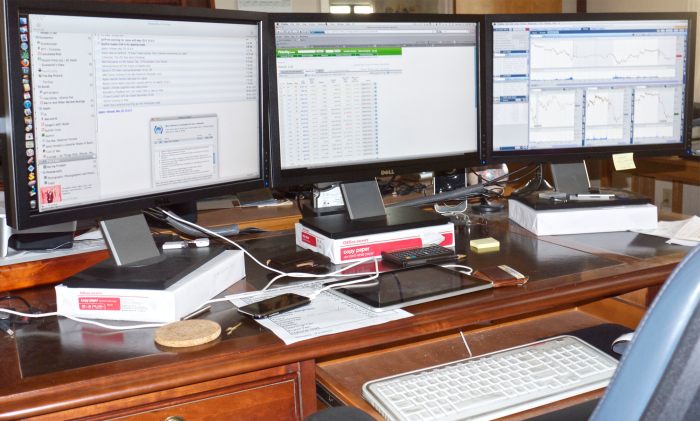
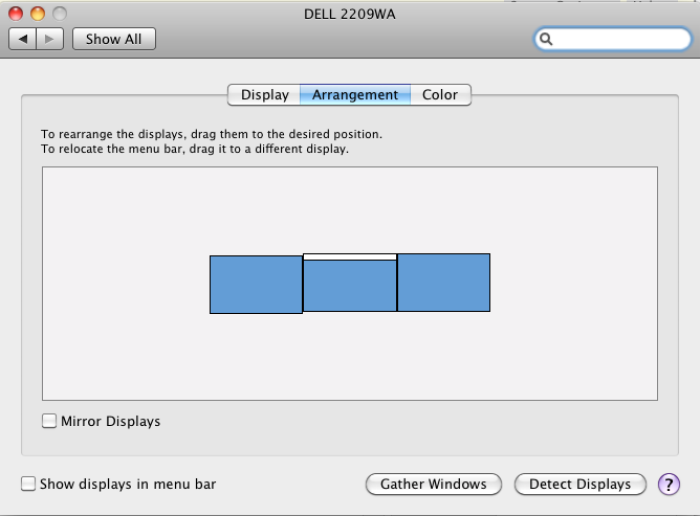
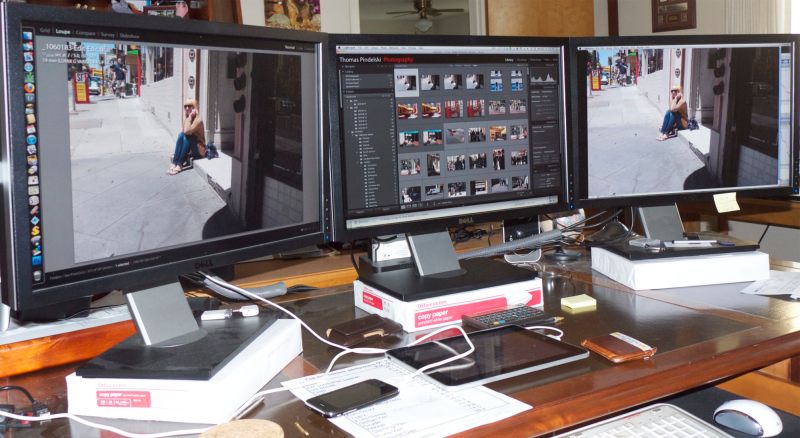
There are a lot of variables here. Computer monitors tend to be viewed from very short distances and come in a wide variety of definitions and screen sizes. My two Dell 2209WA IPS displays are 21.5″ diagonally and display 1680 x 1050 using an Nvidia 9800GTX+ card, the latter still unequalled by the latest MacPro, despite nomenclature changes to fool the uninformed.

[/column]

[column width=45% padding=5%]

I would describe that combination as upper-middle display quality and a state-of-the-art graphics card.

(When my ship comes in I want to be able to migrate upmarket to a better display without having to blow more coin on a better GPU!)

The best way of illustrating the differences is to do a ‘rollover’ demo, but to see this you must be using a modern Webkit browser, meaning Safari or Google Chrome. The original image used here was taken on a full frame Canon 5D using the 24-105mm ‘L’ zoom lens stopped down to f/8, its optimal aperture – a sharp combination. If the mouseover pictures do not appear in your webkit browser simply refresh the URL and all should be well.

I have placed two pictures in the rollover demo – the top one is from the Quality=25 file, the rollover one from the Quality=75 slide. In each case these are screenshots from Preview with the Zoom ‘+’ button clicked twice for an enlarged image. The full image is 12.7″ x 19″ and shows signs of breaking up regardless of Quality setting. However, the rollover illustrates the degree of breakup between the two:

[/column]

Quality=25. Rollover for Quality=75

The difference is extremely subtle. You can just see noise disappearing from the white area of the registration plate and from the spokes of the wheel when you roll over the image with your mouse cursor.

Now here is the same exercise but this time the top image is Quality=12, the rollover remains Quality=75.

Quality=12. Rollover for Quality=75

[column width=45% padding=5%]

On my monitor there’s a big jump in quality from 12 to 75.

Bottom line? For my purposes the Quality=25 version is more than adequate for my computer monitor as long as the image is not zoomed in and also happens to be optimal for the iPad.

For even higher computer monitor display quality, you should increase the export image size in Lightroom 3 to approximate that of your monitor. If you click on ‘Screen’ in the size drop down (see screenshot above) LR3 will automatically adjust the export size to match your screen dimensions. Doing this for my 1680 x 1050 Dell 2209WA monitor, the Quality=25 file size grew from 2.1mB to 2.8mB. However, the perceived image quality was indistinguishable, suggesting that the modestly larger file size confers no benefit on image quality.

Finally, with export Quality=100 and set for the 1680 x 1050 Dell display, file size balloons to 24.9mB with slightly smoother tone characteristics in large areas of plain color. Definitely not worth it when comparing a 2.1mB Q=25 S=iPad file with the 24.9mB Q=100 S=Dell whopper.

Optimal settings for a large screen TV:

Increasingly we are using the large screen TV as a viewing device in lieu of making large and costly wall prints. So I displayed the 12, 25, 63 and 75 quality PDF on my 42″ 720p Vizio LCD TV (4 years old it’s somewhat removed from the state-of-the-art, but works for me at a very reasonable price).

I used a MacMini, the just discontinued version MC238LL/A which uses an Nvidia 9400M GPU and can resolve up to 1920 x 1200. My TV is 1280 x 720, and thus is

[/column]

[column width=45% padding=5%]

the limiting factor in the equation.

The very best viewing experience was already reached at Quality=50, viewed from my usual 10 feet but the quality drop when viewing the Quality=25 version was so slight as to be almost unnoticeable. The lower quality of Quality=12 was just distinguishable, but far less so than on a computer monitor or iPad.

Bottom line:

The best compromise for one file size for use on an iPad, computer monitor or big screen TV is Quality=25 when exporting a Lightroom 3 slideshow. That results in a file less than half the size of the default Quality=63 setting in Lightroom 3, meaning it will download more than twice as fast from a server.

Another user’s experience:

UK pro Roy Hammans shares my interest in the techniques discussed above and was kind enough to forward some samples created at different quality levels. Roy uses both 24″ iMac (1920 x 1200) and 24″ HP LP2475w (1920×1200) displays, and used the highest quality equipment to make these pictures. The first four were made with the 18-200mm VR lens at 24mm on a Nikon D300 in DX mode, 400 ISO. The second four were taken with the Nikon 10.5mm fish-eye on his NIkon D700, at 200 ISO, (in DX mode), the equivalent focal length becoming 15mm. He used the LR3 built-in lens profile correction for the 10.5mm to remove barrel distortion inherent in the design of the lens.

His PDF images were also generated using the slideshow function of LR3 – click the picture to download his PDF file:

[/column]

[end_columns]

Click the picture to download

So between us we are at Q=50 (Roy – great eyesight) and Q=25 (me – lousy eyesight) for the best compromise setting at an export size of 1024 x 768, whether for iPad or computer monitor display. Those using large 30″ computer monitors (2560 x 1600) should probably adopt the Q=50 setting. In any case Q=50 yields a file size much smaller than Q=100 (4.5 times the size at 1024 x 768), which is overkill in any scenario I can imagine.

More on PDF book publishing

The dream is becoming a reality.

[column width=45% padding=5%]
Before the iPad even hit the shelves I was fantasizing in these pages about the value this tool would add for working photographers. It’s easy to generate PDF files of your work using the simplest tools (Lightroom, Pages and Preview is what I use) or, if you are a real publishing maven like UK photographer Roy Hammans, you can use sophisticated tools like Adobe’s InDesign to craft very professional looking eBooks. Take a look at Roy’s splendid collection of weathered boat hull abstractions which you can download from his site here. Do yourself a favor and move it to your iPad which displays them far better than a regular computer monitor, if my well calibrated Dell 2209WA is anything to go by. Also, I much prefer GoodReader on the iPad as a viewing app for PDFs to iBooks, which is clunky to load and slow to focus and sharpen each image.

I have asked the makers of GoodReader to provide enhanced slide-to-slide transitions (fades, dissolves) – let’s see if they come through. I would have asked the arrogant fruit company to do this for iBooks on the iPad but have you ever received a response from Apple on anything? After all, this is a company whose philosophy is increasingly “That’s how we like it. Take it or leave it, pal.”

I can generate a PDF of, say, 100 pictures from Lightroom (maybe Aperture has a like feature?) in a few minutes, add cover pages in a few more and have the whole thing on the iPad seconds later; imagine how this would work at any magazine with a lot of art directors, editors and photographic content. The photographer bangs away, the pictures are moved to Lightroom and thence to the iPad and the art director, minutes later each of the many team members is holding an iPad in his or her hands and making the decision what to cull and what to keep. Separately, a version is placed on the photographer’s server for downloading to the Big Cheese’s iPad in the sixtieth floor’s corner office. Eventually, the iPad app will have a Keep/Reject function for the editor to use, will be handed back to the photographer’s assistant, sync’d with Lightroom and, hey presto, off we go to press. Or rather, off we go to ePress.

[/column]
[column width=45% padding=5%]

Anyone looking at the nineteenth century paste-up technology used by Anna Wintour in making the September Issue of Vogue would be blind not to see the possibilities.

Now that I have done this a couple of times, I checked my timing when doing a 24 page eBook of beach pictures. These were all in Lightroom 3 and I simply copied them to a Collection, added the color wash in LR’s Slideshow module, exported to a PDF, opened the PDF in Preview and then dropped in the front and Colophon pages which I made in iWork Pages. Start to finish took me thirty minutes. Had there been 100 pictures the additional time would have been a couple of minutes or so, the most time consuming step being the creation of the front and Colophon pages. I have saved these as template files for future use to make things easier. Click the picture to download the PDF:


[/column]
[end_columns]