PTLens

The easy way to fix distortions.

PTLens was recommended to me by a fellow photographer and proves to be one of the easiest ways of fixing four common problems:

  • ‘De-fishing’ fisheye images
  • Correcting common lens distortions
  • Perspective correction (leaning verticals, etc.)
  • Correcting chromatic aberration (color fringing) and vignetting – not tested here

It comes in Mac and Windows versions; on the Mac it runs in native 64-bit mode if invoked from Lightroom and is a Universal application, meaning no need for the buggy Rosetta application (which causes spontaneous reboots in Snow Leopard) and supports full 16-bit color TIFF and PSD file formats. It’s a free download permitting 10 uses, whereafter the price is $25 – a very sensible policy.

Up to now I have been using ImageAlign for de-fishing snaps on the 5D taken with the Canon fisheye and Photoshop CS2 (a Rosetta application) and for correcting leaning verticals and barrel and pincushion distortion from Canon’s poor wide-angle lenses. ImageAlign does not work in PS CS3 or CS4. Perspective correction has been done in Photoshop CS2. As for chromatic aberration and vignetting, Lightroom version 2.0 and later does all I need, so I do not touch on that aspect of PTLens here.

I downloaded the PTLens application and installed the the programs (PTLens and PTLensEdit), making the latter the choice in Lightroom under Preferences->External Editing.

Many common lenses are programmed in though not, for some reason, fisheyes. No matter – correcting distortion in the latter is child’s play using the slider.

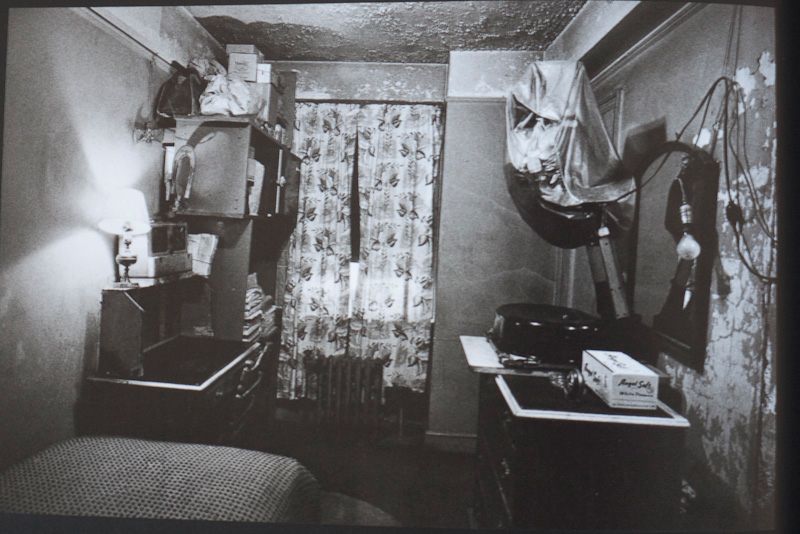
Here’s an original fisheye image of one of the bedrooms in Hearst Castle where I very much wanted to retain the ceiling in the final image:

Here is the same image ‘defished’ in both ImageAlign (left) and PTLens:

There is no practical difference, defishing rendering the field of view of a 12mm hyper-wide rectilinear lens. PTLens saves the processed file back into the image stack in Lightroom and is very fast, the preview reacting in real time as the sliders are worked. As ImageAlign has folded and the application/PS plugin are no longer available, PTLens is a viable and inexpensive modern alternative.

When it comes to correcting more regular lens distortions, PTLens is in its element, as it has a large database of lenses with all the settings stored for you, whereas Photoshop has none – you have to do everything manually. Here’s an example from the over-rated 24-105mm Canon L zoom which noticeable barrel distortion at 24mm as is clear in this picture:


Barrel time – 24-105mm Canon lens at 24mm.

Here are the before and after images, the latter processed in PTLens using the programmed settings from PTLens with no other adjustments:


Take a good look at the handicapped parking sign before and after correction.

Finally, perspective correction – here’s the picture I published the other day showing the correction of perspective using GIMP; in PTLens it’s even easier.

Before PTLens

After PTLens

A slam dunk purchase at $25 and you can even make it use all four cores of your CPU if it has that many. Highly recommended. PTLens has finally consigned Photoshop to the trash, where I have long wanted to place it. Lightroom and PTLens does all this working photographer needs and neither needs Apple’s compromised Rosetta PPC CPU emulator whose repair is doubtless a low priority in Cupertino, though they do admit its existence:

.

GIMP

Great price beats Photoshop.

Stupidly named, GIMP, or “The GNU Image Manipulation Program”, this Mac application does itself no justice with that dumb name. It’s a fine alternative to Photoshop for users who, like me, detest the user interface of that Adobe application and like the ridiculous price asked even less.

One of the reasons I still make do with Photoshop CS2 (an older version of the current CS4 which runs under the Rosetta PPC emulator in Snow Leopard) is that the upgrade price makes no sense for this photographer who gets most of the tools he needs in Lightroom and basically roundtrips to Photoshop from Lightroom to fix converging verticals and pincushion and barrel lens distortion. (Try Canon’s 24-105mm at 24mm to see real barrel distortion).

The problem is that Snow Leopard suffers from a huge problem in the Rosetta emulator, as widely reported on Apple’s Discussion Forum. Rosetta applications are prone to spontaneously reboot your Mac! This has happened to me on all three I run – Quicken 2005, Excel v.X and Photoshop CS2. It has never happened with any Universal/Intel applications. Maybe Apple will admit error and fix this. Who knows? More likely they will just tell users to upgrade to Universal versions of the affected applications (impossible with Quicken where none exists, by the way).

GIMP fixes all of that. It’s a Universal application so there are no Rosetta issues. Exporting to GIMP from Lightroom is merely a question of setting Lightroom’s Preferences->External Editing to use GIMP as the external image editor. Then hitting Photo->Edit In->Edit in GIMP in LR moves a TIFF copy of your image to GIMP for distortion or perspective correction. Correction is applied in Filters->Distorts->Lens Distortions (for lens distortions) or in Tools->Transform Tools->Perspective to fix leaning verticals. Unlike in CS2, there is no need to create a Background Layer when doing the latter – it’s much easier in GIMP. When you tell GIMP to save the processed picture it will save it right back into Lightroom alongside the original, in a stack. Just like CS2.

GIMP can only handle 8-bit files. I have experimented with it and compared output to the 16-bit ones from Photoshop and cannot tell the difference in 30″ x 40″ prints. You can read lots of technical articles explaining why 16-bit is better but not a one of those will be illustrated with the only thing that matters – real pictures. The Label Drinkers are at work again.

Here’s a ‘before’ and ‘after’ showing the use of perspective correction to get rid of extraneous detail on the right of the picture – I simply could not get into a better position from which to take this:

Original snap before applying perspective correction.

Here’s the ‘after’ image:

Morro Bay at sunset. 5D, 24-105mm @ 105mm. Perspective corrected in GIMP.

The price of GIMP? How about free?

You can download it here and it runs fine on Snow Leopard 10.6.1. If you need the Help file, that’s a separate download (strange) but it integrates nicely. Just use a keyword search to find what you need after invoking Help from within GIMP.

Friend of the blog Greg Littell has pointed me to a couple of useful links. To make GIMP feel more like Photoshop and to use your old Photoshop plug-ins, click here. For a complete directory of hundreds of GIMP plug-ins, click here.

Greyhound Bus

American history.

The rise and fall of The Greyhound Bus (can there ever have been a greater misnomer?) tells the story of America. At first offering cheap transportation to the poorest, it gradually fell into disfavor as affluence increased and with it car ownership. Now it’s probably the second worst way to travel, the first being on commercial air flights.

Greyhound Bus depot, Salinas, CA. G1, kit lens @ 18mm, f/8, 1/800, ISO 100.

This sad little scene in the center of California’s farm country, Salinas, typifies much of what Greyhound is about. The waiting yellow cab, the lonely passenger stumped for a fare and the tired depot, still proudly displaying the greyhound mascot, in the worst part of town.

The Oakland Bay Bridge – 2

Another view.

This one was snapped from inside the shopping area in the Embarcadero.

G1, kit lens @14mm, f/3.5, 1/1000, ISO 160

I processed this in the Beta version of Lightroom 3, a free download at this time. While some of the enhanced processing controls are nice to have, Loupe previews are simply impossibly slow to render after sharpening or correction of lens aberrations, making the application unusable. Doubtless Adobe will fix this as the Beta release progresses.