What the future holds
If I am right that Panasonic will be surprised about the number of pros and serious snappers buying their G1 as a second camera, then they are thinking very hard right now how to further poach on Canon’s and Nikon’s up-market turf.
Look at how they have got to where they are.
First, they link up with Leica to design lenses for their point-and-shoots. Instant credibility with rich old guys and journalists, though ‘credibility’ and ‘journalist’ probably make no sense used in one sentence. They download Leica’s intellectual property on traditional lens design, then move on. It’s no accident that the word ‘Leica’ is notable for its absence from the splendid kit lens on the G1. Leica is on record as saying that they disapprove of software correction of optical defects (these guys would be a shoo-in at the Pentagon with that sort of intellectual firepower) and Panny, of course, knows better. They simply fix what ails the very compact 14-45mm kit zoom at the back end. The result is a near total absence of the two bugaboos of the Leica lens on my LX-1 – barrel distortion at the wide end and chromatic aberration everywhere. It’s the Software, Stupid.
Second. they make a few trial runs at Electronic View Finders which are better forgotten – like the one in the Lumix L1 – using full size, clunky and heavy Leica lenses. They realize that their state-of-the-art technology in their professional movie cameras is the answer, so they invent micro four-thirds and incorporate that EVF technology into the next two designs, the G1 and the GH1 (a G1 with video added). Now they have a great finder system, no mirror and no prism required.
Third, they state that the G1 is positioned for the upgrade amateur market. Last I checked, the Japanese are not stupid, and I do not necessarily buy that spin. On reflection, it seems to me that the G1 is as much a Trojan Horse as the original two door Honda Insight with its small 3 cylinder engine was to the car business. The Insight, a rolling test bed sold at a loss and proved the viability of a hybrid battery/internal combustion power plant as much as the G1 will convert skeptical advanced photographers to EVFs.
Fourth …. what is fourth? I don’t think that needs much of a crystal ball, and I wouldn’t be at all surprised if Panny already had working prototypes. Remember how they said they were retaining the prism hump in the G1 to make users feel comfortable? After all, all the ‘prosumer’ DSLRs from the competition come with one and if you are Johnny Come Lately to the game, you might as well start out by looking like the competition before you change the world. Remember also how Panny said that they could have made the G1 significantly smaller but decided not to? Partly because, I suspect, big equals good for the American consumer and partly because you can only make the body so small before it becomes hard to handle. The G1 is at the cusp on that point. So they can make the G1 a little larger, drop that dumb pentaprism hump and make it with a full frame sensor. Add credit card sized, long life flat batteries along the lines of the ones used in the latest Apple notebook computers and convert all those dated Leica full frame lens designs to lighter, smaller, aberration loaded variants with software taking out the defects and you have a shot straight at the big Canons and Nikons. (I suppose I should add Sony, but they are not really a player in the pro leagues, innovation having seemingly deserted the company). Only Canon, Samsung and Sony have the capital to compete and both Canon and Sony have access to high quality EVFs in their professional video cameras used extensively by the news media. So, I suppose it really boils down to Canon being the target as I see Nikon pretty much dead on the vine for lack of capital. Camera design as it is played today dictates that capital is king.
Imagine that new camera. With one body, a 1,000 exposure battery and maybe two or three IS lenses – 14-28mm, 28-90mm and 90-400mm, the lot weighing maybe 4 lbs., with a 7 fps exposure rate and an even better, faster EVF than the one found in the G1. A world beater. And who cares if the lenses say Leica on the front or not? Based on my early experience with the kit lens in the G1, Panasonic have got modern lens design down cold.
I am getting greedy, it’s true. Greed, as always, has a price.
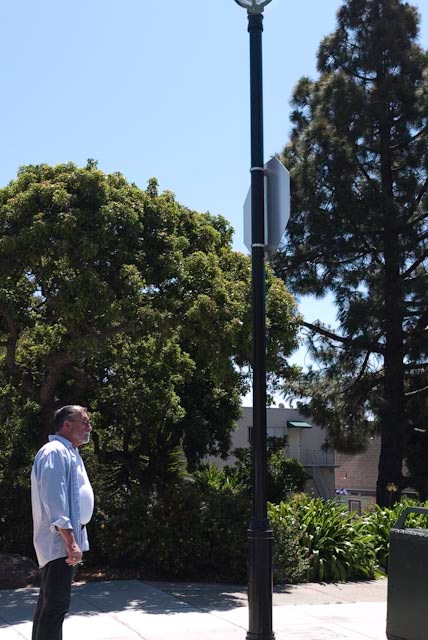
Burger king. G1, kit lens @ 14mm, 1/640, f/4.5, ISO 100
I’m hoping the X1 full frame Panny with an EVF will be a tad slimmer.
A note on the manufacturing location of the G1: As with many new products designed by the Japanese, early production is in Japan by local workers. Eventually this frequently changes to China, Taiwan or some other place with lower quality standards – just like with Hondas and Toyotas. Both the body and lens in my G1 kit say “Made in Japan” so I would encourage you to look for those labels if you are a buyer. After all, you no more want a Chinese made G1 than you want an American made Honda.