The 400mm close-up lens

Helicon to the rescue.

Go to Helicon’s web site and you will, understandably, see many examples of the use of this application in insect photography. That’s a natural given the miniscule depth of field for such small subjects in extreme close-up.

But how about at the other end of the spectrum, when used with really long lenses?

Well, it turns out Helicon Focus is every bit as capable.

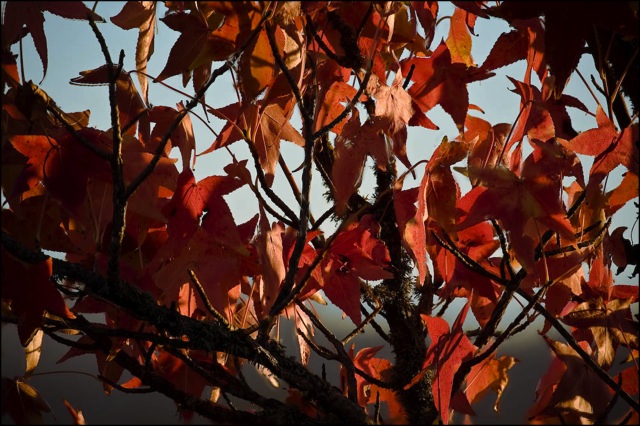
In the following example I was taking snaps of the maple tree, in full fall color, at a very close distance (maybe 15 feet) using the 400mm lens at maximum aperture. This renders the background as a complete blur, but also very much restricts depth of focus in the subject, as this picture discloses:


Maple leaves. 5D, 400mm ‘L’, 1/500, f/5.6, ISO 250

I took nine images with the lens on manual focus focusing through the depth of the subject. Helicon refused to combine these, so I took out the first and last (which, on closer examination, had nothing sharp anywhere) and tried again. Success.


Composite of seven images using Helicon Focus. Manual exposure setting.

Why not simply close down the aperture and take one snap? First, that would dictate a very slow shutter speed with the attendant risk of camera shake even though the camera was mounted on a solid tripod. Second, there’s no guarantee at these short distances that everything would, in fact, be sharp, as 400mm lenses have little depth of field at any aperture, and depth-of-field preview in SLRs is near useless at small apertures. The Helicon approach generates an image which simply pops from the background while in no way changing the blur. Formerly blurred twigs now no longer detract from the image and the result is dramatic and natural looking.

Snags? Well, your subject has to be stationary, you must use a tripod and on close examinaton you can see some ghosting here and there:


Detail of ‘ghosting’ in the combined image

But when you realize that this enlargement is consonant with a print size of 40″ x 30″ and the effect is not objectionable, it’s something I can easily live with when balanced against the advantages of the technique. And who knows? When Danylo Kozub and his fellow geniuses at Helicon release the much awaited updated Mac version maybe even this minor issue will be resolved?

So Helicon is not just for the macro and microscope photographers amongst us.

Lightroom 2 Upgrade

Painless, amazingly.

My extensive tests with the free trial version of Lightroom 2 confirmed that the product is stable and debugged and I now find I cannot live without the localized adjustment features LR2 added. Not to mention enhanced keywording and search functions. Hopefully Adobe will add keystone/perspective correction in the next version and I will be able to bid a not-so-fond farewell to Photoshop CS2 (and its many predecessors), that user interface nightmare of a product.

Having had nothing but trouble upgrading Adobe products in the past I approached the idea of an online upgrade of Lightroom 1.4.1 to Lightroom 2 ($99) with trepidation.

Mercifully all went well.

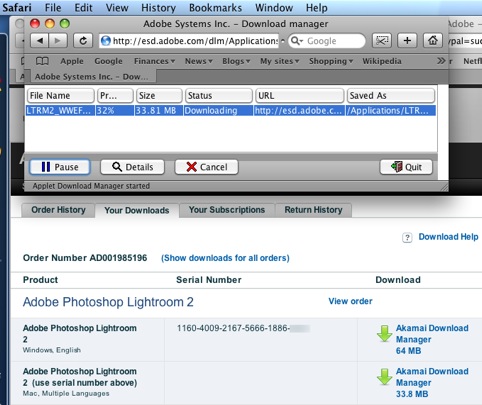
Pay your $99 – assuming you have a version of LR1 on your computer – and off you go:


Download in progress – you have to elect either the Mac or Winblows version.


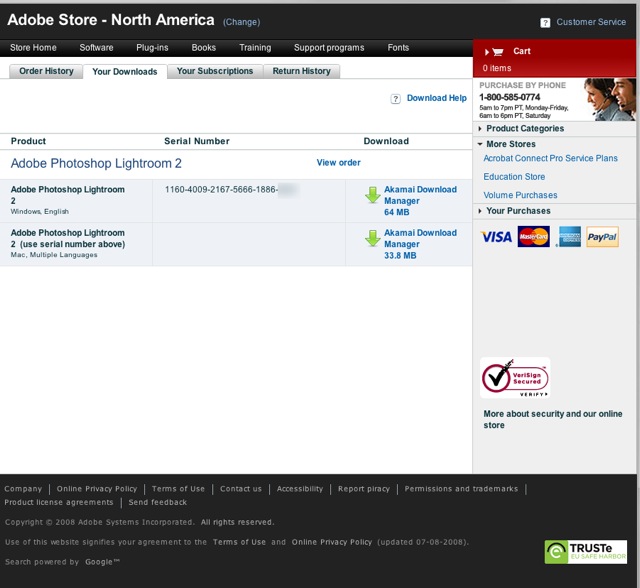
The new serial number is provided for input.


Old and new numbers input and she’s ready to go! I have blurred out the last four digits for security – you have twenty thousand guesses!

Even though I had the trial version already loaded, Adobe insisted on uploading the whole thing again – no big deal as it only took a minute or two.

My only complaint so far is that the auto-masking feature, when applied to large areas, is very sluggish. Now I must try the application on our old iMac G4 (PPC, 1.25gHz) and see how well it works on a relatively ancient machine.

If you do not have LR1 then LR2 will run you $299 – $100 more than Apple’s Aperture. Adobe has no earthly reason to drop the price to compete with Apple’s offering. If you elect the latter, be prepared to blow another $2-3,000 on a machine which might actually run it at something approaching reasonable speed. If you don’t believe me, stop by an Apple Store with your favorite RAW file and load it in Aperture on a MacBook. Then try the crop tool. Convinced?

Redrum

A memory of a tour de force.

I suspect many might agree that the scariest film ever made is Kubrick’s ‘The Shining’ with a manic Jack Nicholson generally waging mayhem in an off-season holiday hotel.

For fans of Diane Arbus’s work there’s an image of the two little girls side by side, just like in her photograph. Right before the room fills with blood, that is.

The opening scene, where the camera seems to go off a cliff while the car it’s following proceeds straight on, is one of the first uses of the Steadicam in motion pictures. Right at the beginning, it will have you gripping your seat for the next 2 hours. I saw ‘The Shining’ in 1980 when it came out and am still too scared to risk it again. But the many images in the movie have stuck in my unconscious, not least the child on the tricycle mouthing “Redrum, redrum”. Check it in the mirror ….

Well, I still have Redrum Moments of flashback to the movie and the latest happened the other day in late sun.

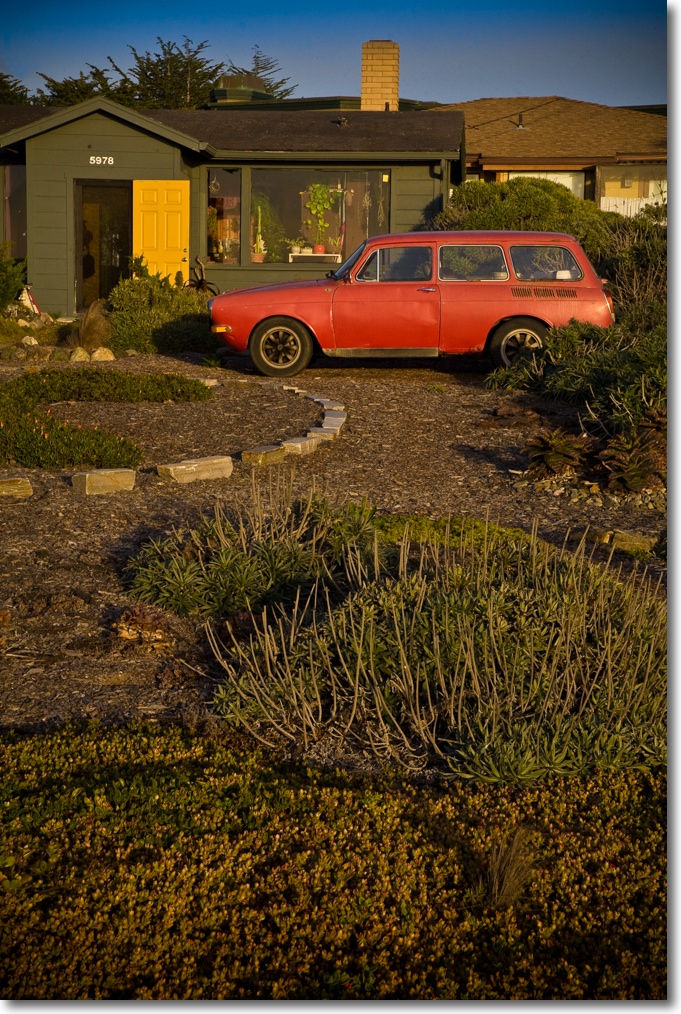
5D, 24-105mm at 73mm, 1/180, f/16, ISO 400

Quite what this bizarrely colored VeeDub was doing in someone’s garden beats me, but you cannot beat the scary contrast of colors, pretty much unretouched. And that open door does little to calm the tension.

Lightroom 2: Keywording

I have been putting this off for too long.

I have been putting off adding keywords to the pictures in my Lightroom database in much the same way as stock market investors prefer denial to fact. Open that statement in the mailbox and, yes, you too will be apprised of this year’s 40% drop in value. That’s the result of the foolish “stay fully invested” mantra of the past two bull decades which has been brainwashed into your psyche by amoral advisers seeking only to maximize their fees. This is by no stretch of the imagination a financial blog – though I do like to point out photography equipment bargains when I see them – but suffice it to say that after the 1929 crash the Dow index did not return to pre-1929 levels until …. 1954. So the ‘fully invested’ bunch, or what was left of it, had to wait out a war and 25 years later they had devalued dollars equal in amount to their 1929 investment.

But, like that reluctant letter opener, I have preferred to fool myself that my Lightroom cataloging system, which heretofore has avoided the use of keywords, would serve me well, added by a solid dose of good memory to help find things in a trice.

Wrong.

I am now finding that it’s getting increasingly difficult to locate a treasured snap in short order. Was that picture of my sweet little boy, Winston, under ‘Playground’ or ‘Winston’ or ‘Birthdays’?

Here’s how I have ordered my folders:
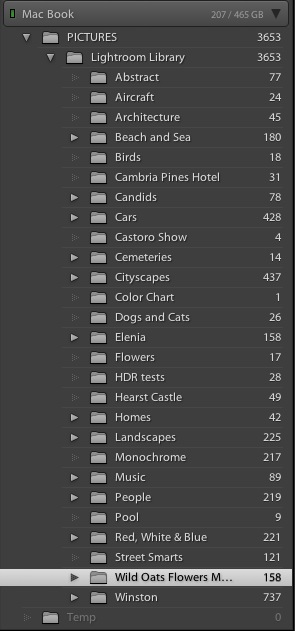

In LR2, the green light refers to the active drive. The numbers indicate that I have 207gB left on a 465gB drive

Click on, say, the ‘Beach and Sea’ containing folder and you get:

Well, you get the idea. As long as you remember that the snap you want is in ‘Beach and Sea’ the rest is plain sailing. Snag is, sometimes it’s simply not where you would logically place it today and memory tends to fade.

Now that Lightroom 2 has made key wording easier and faster, if no less tedious, I have resolved to add keywords to as many of my pictures as makes sense and I am disciplining myself to do a hundred or so a day. Rather than doing this one by one, I assemble those that need generic keywords – ‘monochrome’ or ‘grain effect’ for example – and do a batch add of the relevant words. In a final pass I will add image specific keywords where warranted, the goal being that a keyword search renders a handful of results.

A related motivating factor is that my catalog of images (the keepers, that is) is growing faster than in days past, owing to the higher success rate of digital technology and greater availability of time for my hobby compared with those days when I was putting in 60+ hour weeks on Wall Street.

Here are some of the keywords I have added – note that I have replicated the folder names in case I ever decide to scrap or revise the folder structure. I have then started adding new keywords like ‘Red’ which identify pictures with strong red content:
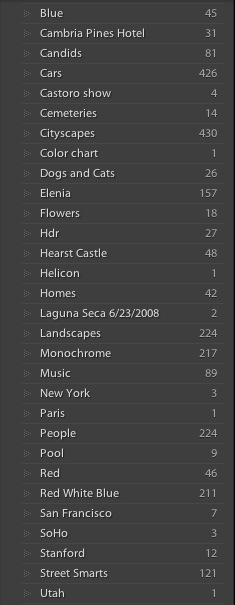
LR2 allows you to drag and drop keywords onto image(s) so the process is fairly fast. The tricky bit is coming up with image specific words that make sense. “How would I think of this image were I looking for it?” is the recurring question.

Now when I wish to locate all files matching a specific keyword, I go to the right hand panel of LR2, highlight the word and click the arrow to the right – here’s the result of clicking on ‘Cemeteries’:
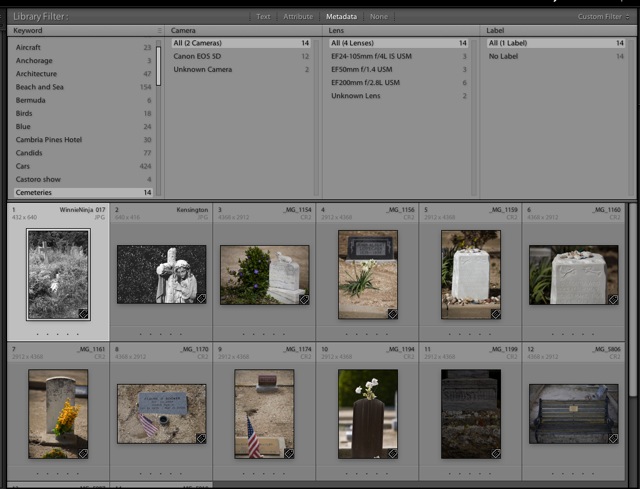
Keywords can be stacked for compound searches, though the technology in LR2 still trails Aperture’s where you can select a filter with boolean keyword input, using ‘if’, ‘and’ and ‘or’ logic. I have no doubt that this will eventually come to Lightroom.

So far I have encountered one snag. If you stack images of like kind (I stack composite HDR images for example as all go towards one result once merged) and leave the stack closed when keywording, only the top picture in the stack will be keyworded. If you subsequently change the top picture in the stack you will not be able to find the new one if you forgot to keyword it. To work around this I simply open all the stacks in the Library before keywording, so that all pictures in a stack have the keyword applied.

I have been banging away at LR2, moving files and folders, stacking, copying, processing, exporting and adding keywords for a while now and have had no lock-ups. The only time the application really bogged down was when I tried using the adjustment brush with auto-masking switched on to paint in a large, irregular sky area. I got the spinning beach ball while the overtaxed, modest GPU (Intel GMA 3100) in my MacBook did the data crunching. Mercifully, this is not something I expect to do often. At 4 megabytes of RAM it’s not like I’m hurting for CPU memory so I’m blaming the graphics processor for this one!

If I decide to upgrade to LR2 (I’m using the 30 day free trial which comes fully featured) I’ll give it a run on our old iMac G4 ‘screen on a stick’ which continues to soldier away as a great Internet browser. That will answer the question of how well LR2 runs on older PPC CPU Macs. I can confirm that LR 1.4.1 runs well on this computer if nowhere as fast as on the MacBook. It remains more than useable for those looking for a low entry price to the world of Lightroom processing. The latest version of Aperture does not run at acceptable speeds on older machines like this one, whose G4 CPU runs at 1.25gHz and has just one core compared to the Intel’s two. One of the most distinguishing features of LR 1.4.1 is its speed on these old but still useful machines. Let’s hope that has been retained in LR2.

By the way, for those readers into this sort of thing, here are some interesting statistics on LR vs Aperture users from the Adobe blog. Probably self-serving given that this is Adobe’s data, but interesting all the same. Sample sizes are not stated in this survey:
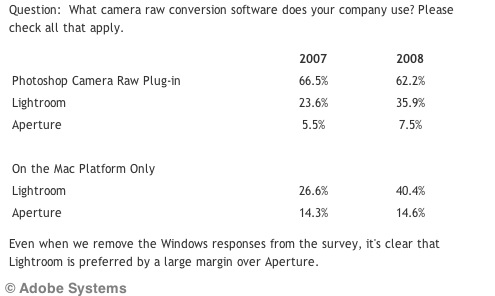
I have questioned Apple’s commitment to Aperture before (no critical mass, no significant profit) and have little reason to change that opinion. And as I can testify, the conversion process from Aperture to Lightroom is not pretty. So the sooner you switch, the better. Adobe does this for a living; to Apple it’s a rounding error.

Enough talk. Here’s a snap from the beach, a composite of four images combined using Helicon Focus:


Kelp. 5D, 100mm macro and ring flash, 1/100, f/22, ISO400. Composite of four images using Helicon Focus.

Sensor cleaning on the cheap

Don’t be ripped off.

It’s no great secret that the sensors in earlier DSLRs can get awfully dirty, the resulting blobs of black on your image testifying to the need for lots of retouching. Just like in the film days when you received your precious emulsion back from the processing place only to find that they had a party during which they stomped on your images with hobnailed boots.

So those of us not blessed with the latest in sensor dust removal technologies (meaning 5D Mark I and like vintage camera users) have to subject their camera to a nervy-dervy sensor cleaning to get the muck off and obviate the retouching. In the Canon 5D the sensior is protected by a sheet of quartz crystal – both hard and dust attracting. Now you can play into the hands of those marketers selling you Genuine Sensor Cleaning Kits for hundreds of dollars and what do you get?


A fool and his money are easily parted.

Why, a brush with some mumbo jumbo about how it’s grease free and assembled by Chinese virgins, and a bottle of isopropyl alcohol. Enough for ten cleanings.

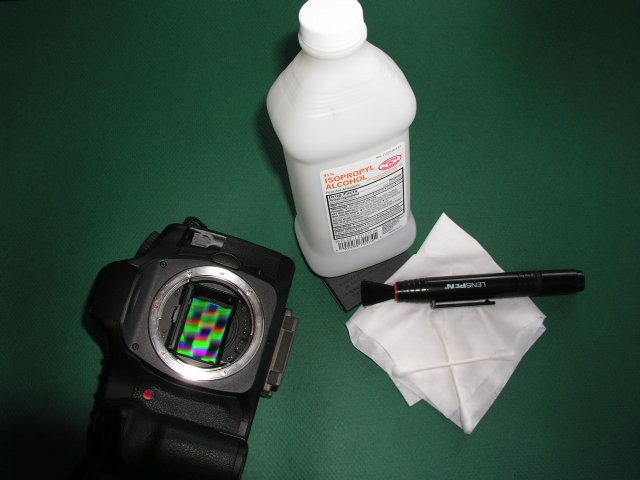
Well, let me introduce you to Dr.Pindelski’s $15 DIY Economy Sensor Cleaning Kit. Enough for 10,000 cleanings.


The Dr. Pindelski $15 Sensor Cleaning Kit. The moiré pattern on the sensor is caused by the point-and-shoot used to take this.

Start with a Pearstone brush for $10, add a bottle of 91% Isopropyl Alcohol (you want the most concentrated, to avoid water deposits) and some Q tips from the bathroom – the genuine soft ones, not the hard generics. Do not use Kodak Lens Cleaner – this is a very poorly thought out product and is guaranteed to leave water stains on your sensor and those will be clearly visible, and near impossible to retouch, in your images.

Go outside, take a snap of the sky at a small aperture (set the camera to manual focus if the shutter refuses to fire) and load your CF or SD card into Lightroom. Increase contrast to the maximum and all the dirt blobs and deposits will show up clearly. Remember that what you see at the top right of the picture indicates dust at the lower left of the sensor and so on, as the image on the sensor is flipped and reversed once it has passed through the lens.

Now moisten a Kleenex (use plain ones, not those infused with lotions) with the Isopropyl and dab a Q tip in the moist area of the tissue, so that the Q tip is just moist. Do not touch the cotton on the Q tip with your dirty, greasy fingers. Sensors don’t like grease – or maybe they love it too much. Set the camera to Sensor Cleaning, remove the lens and dab the area concerned based on the sky picture you just snapped.. Then, holding the camera upside down, sensor pointing to the floor, brush the sensor with a flicking action using the brush. Reinsert the card and lens and take another picture. Repeat until clean.

My last cleaning dictated no fewer than four passes, the sensor cover glass being simply filthy after a couple of days snapping at the beach.

How hard to press on that Q tip? Well, the cover glass on the sensor is very tough and it would take a Mack truck driver to damage it, but pressure is not the answer. Gentle application in the right area is the secret. You want to dab and flick, not scrub. What I studiously avoid is using a blower brush on the sensor. All that does is stir up any existing dust in the body cavity only to propel it at 100mph+ into your sensor. You don’t really want to do that, do you?

Now you can apply that $245 saved to that new lens you were dreaming about.

If all you do with your images from that wonderful DSLR is to place them on the web at some 640×480 pixels, well, you can dispense with sensor cleaning as the dust spots will not show. Your DSLR is just like the Ferrari of the guy who runs it to the supermarket to be seen and to get some milk. Feels nice. Waste of money. Probably can’t drive either.

Warning to Leica M8 users: Early versions of this faux pas of a camera came with an unprotected sensor, under the guise of superior image quality or some such rot. If you have one of those, enjoy paying Leica $500 for a sensor cleaning because I doubt I would try that on an unprotected sensor in a $6,000 body. Later M8s come with a protective glass (New! Improved! etc.) once the factory realized its error, so the above technique should be fine. You will have to do something because the chances of Leica coming out with a self-cleaning sensor are about as likely as a black man in the Oval Office. Hey, wait a minute ….