Category Archives: Technique

Linhof Twin Shank Pro tripod

Über Alles.

I have been a contented user of a Linhof S168 tripod for some four decades. A sturdy support it weighs 6lbs 5.3oz. and you can see the extension in that link.

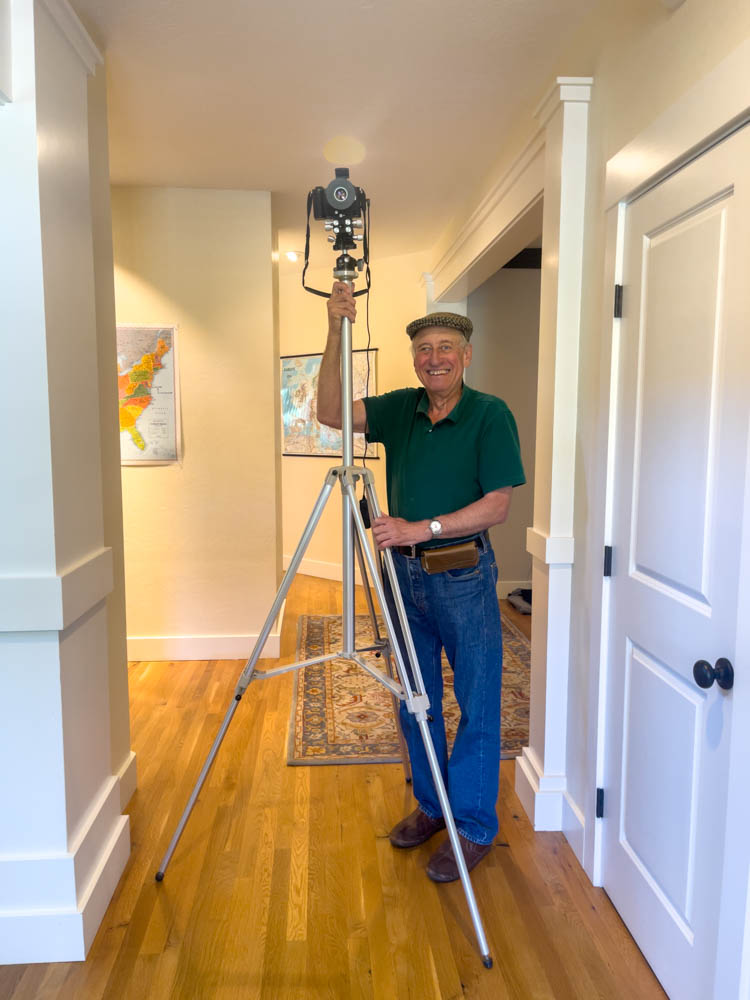
However, as I really need that tripod for display purposes in the home theater, when the opportunity came along to acquire a mint 1950s Linhof Twin Shank Pro for all of $125, I snapped it up. Weighting a light 7lb 2.0oz thanks to all alloy construction the dual shank cantilevered legs provide for just one extension and, with the center post extended that means a maximum of 73 3/4 inches from the low point of 29 1/2 inches. That’s good enough for basketballers, and while I used to be 6 feet tall age seems to be taking me down a bit. Anyway, it’s more than tall enough.


Tall enough.

All that was needed was a very thin swipe of silicone based Silglyde on the sliding parts to remove stiction. WD40 and related paraffin-based lubricants are probably not a good idea as they may rot the seals over time. Luckily the retractable rubber feet are in excellent shape, no cracks showing and a coat of rubber preservative on these is just what the doctor ordered.

The head has a 3/8″ thread and I use a heavy duty Artcise ball head atop. Despite the width of the Linhof’s mounting plate the controls on the head are easily accessed. The Linhof Twin-Shank Pro, without a head, retailed for $89.95 in 1957, which figures to $1,350 today and, indeed, Linhof still makes tripods which you and Elon Musk can find at B&H.

These Linhofs regularly turn up on the used market – they made a vast range – and if you can find one that has not been brutalized in a pro’s studio at a good price I say “Go for it”.

Epson ET-8550 – troubleshooting

A period of no use sees issues.

For an index of all articles about the Epson ET8550 printer, click here.

Having upgraded (meaning Adobe forced me to upgrade using a strategy of planned Mac hardware obsolescence) to the subscription version of Lightroom, I went to print a favorite image the other day and everything was wrong. The 13″ x 19″ print shot out in seconds and what little color there was in the printed image was completely wrong.

The problems were twofold.

First, Adobe managed to lose all my preferred printer settings on the upgrade to the latest version of Lightroom. In the print module LR switched to Print Job->Color Management->Managed by Printer. This is exactly wrong. What you want is for Lightroom to manage color, not the Epson printer. This permits use of the right paper profile for the printing paper used. It means you control – through Lightroom – color matching rather than having some unknown profile used by the Epson printer. Here’s what you want to see:


The color profile is the one for Canson Photogloss Premium RC paper.

You can check that LR is using this profile in the Print module by going to Printer->Printer Options->Color Matching, where you will see two options, neither selectable (both are greyed out) with ColorSync being the selected option, thus:


ColorSync is invoked by Lightroom.

Click ‘OK’ NOT ‘Cancel’ to make sure this setting remains undisturbed. Next, click on Print Settings and you should see:


Print Settings after dialing in the correct Paper Source, Media Type
and Print Quality. All three were incorrect.

Now in that same dialog box click on Advanced Color Settings. You should see:


Confirmation that the printer is NOT controlling color.

So now I had LR set up for the right paper, paper source and paper specific profile, but the print quality was still awful.

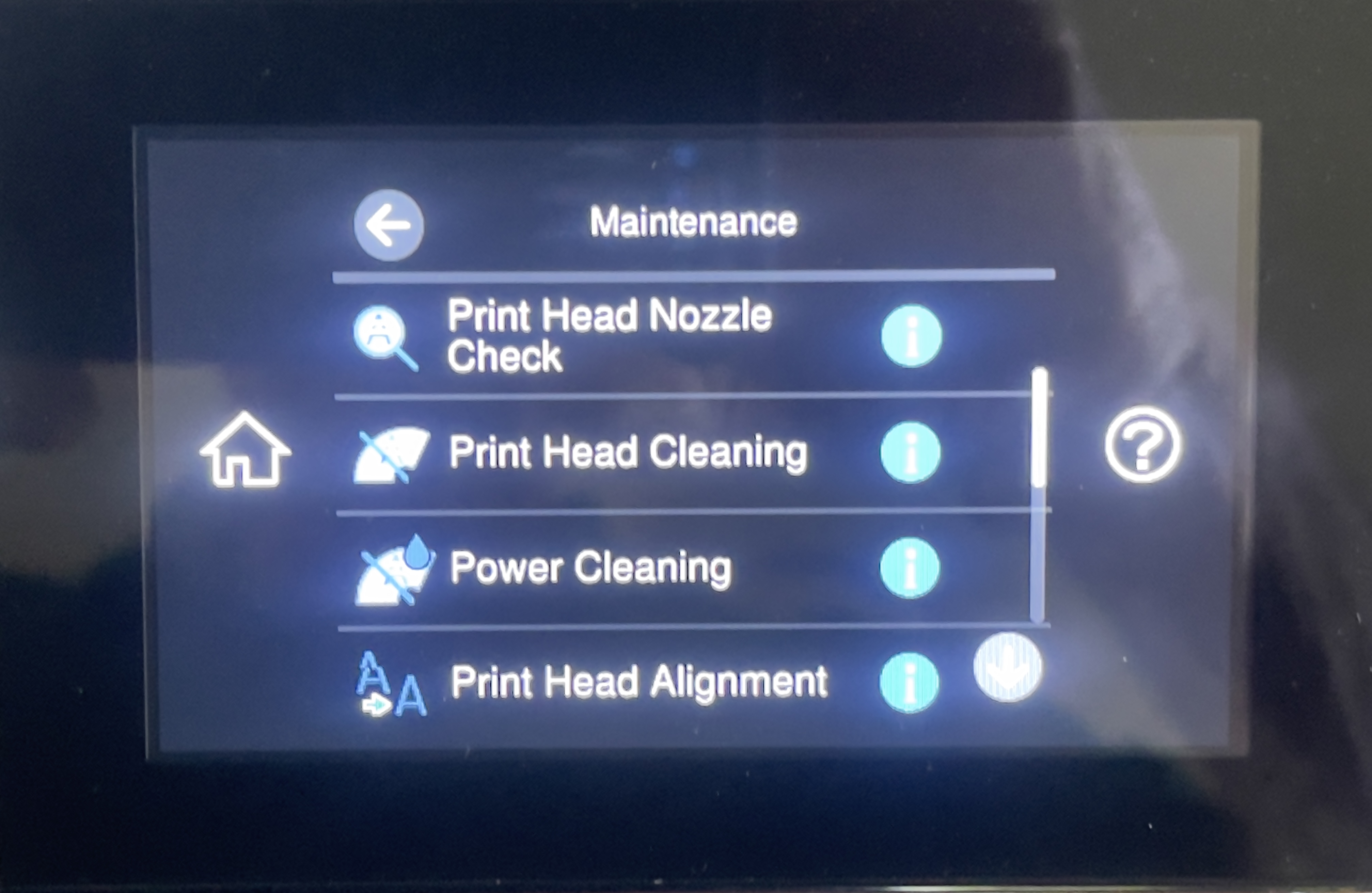
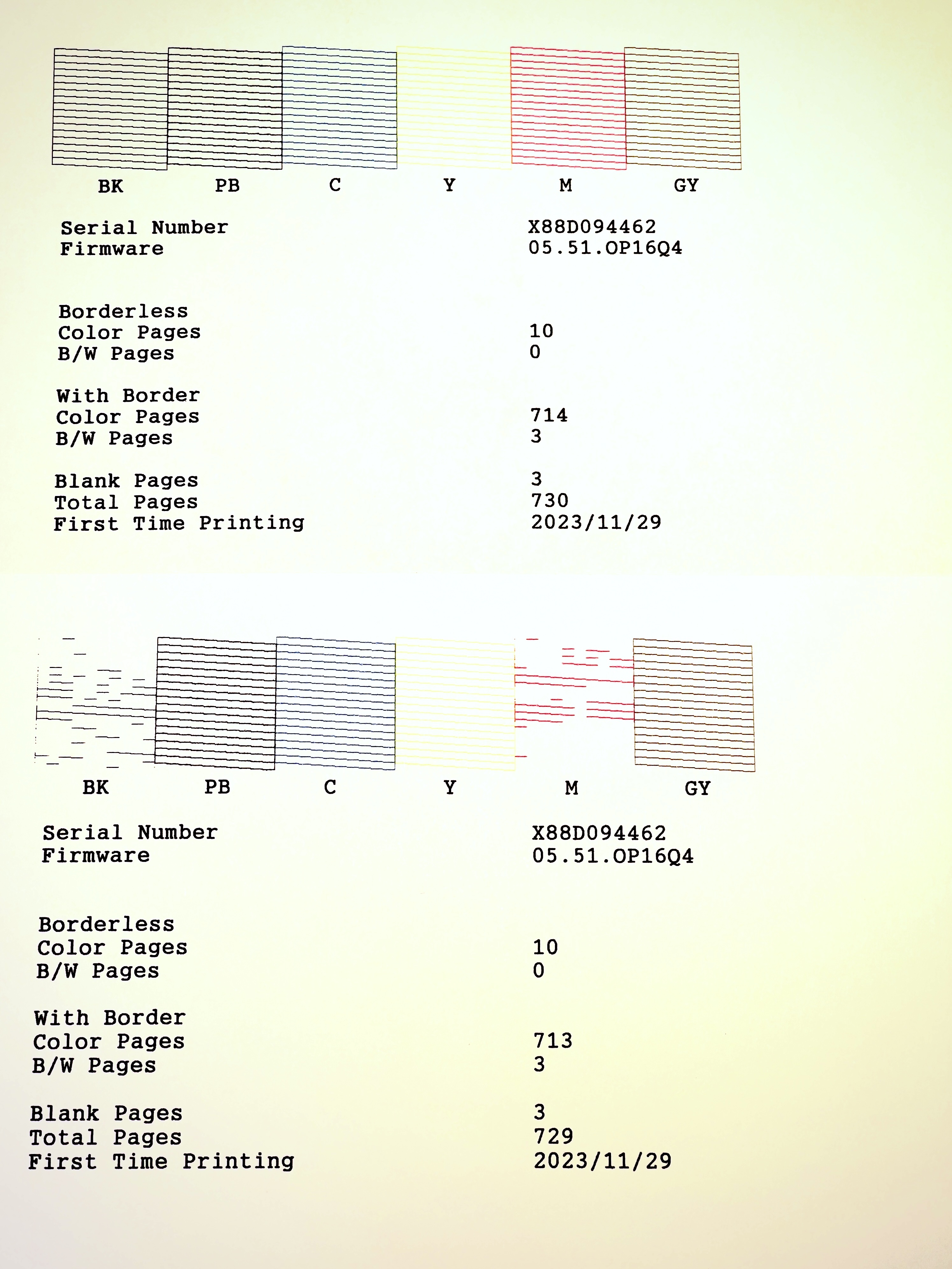
Going to the touch control panel of the Epson ET-8550 go to Maintenance->Print Head Nozzle check, load some 8.5″ x 11″ plain paper in the second tray, and run the check. Mine came out showing bad clogging of both the Magenta and Grey print heads, disclosed by jagged lines in the print out. After running the Maintenance->Print Head Cleaning process twice, again using the touch screen on the printer, I finally got continuous lines for all six heads, thus:


Six clean ink nozzles, designated by continuous lines in the print.

Finally I checked Settings->Printer Settings->Bidirectional and, sure enough, either dastardly Adobe or dastardly Epson had switched this setting to ‘Bidirectional->On’, which is sub-optimal for best print quality, if faster. I switched Bidirectional ‘Off’ and had at it with LR. A couple of minutes later a pristine 13″ x 19″ print was lying on my desk:


Perfect printing once more. Leica M10, 135mm f/4 Elmar at f/8 – as good as lenses get.

So a conspiracy of errors – Adobe’s poor ‘upgrade’ engineering and the printer’s recent lack of use resulting in clogged ink nozzles – is the sort of thing to expect in that most fragile of hardware devices, the ink jet printer. In conclusion, if your printer has not been used for a few months, run a nozzle check using plain paper before inserting costly photo paper.

Topaz Labs Image Unblur

It actually works.

I’m not much one for post processing. Maybe a touch on the Highlights and Shadows sliders and a correction of a leaning vertical or two, but that’s pretty much it. Mostly I’m of the set that believes you cannot make a silk purse out of a sow’s ear.

But this is an image I rather liked for the girl’s intensely watchful expression and it was a real grab shot. No time to think, just point and click. And the result was a blurred image owing to camera motion.

Here it is after processing in Topaz Labs Image Unblur:


The deblurred image.

In addition to passing the image through the web-based Topaz app (which has jumped on the ‘add AI to anything to make it sexier’ bandwagon) I added Sharpening=113 in LRc. The result, shown in this after and before 100% pixel peeping comparison in LRc is fairly remarkable, with artifacts at a minimum:


After and before.

Topaz gives you 20 freebies but for the life of me I cannot figure out the pricing thereafter. Still, 20 is likely to last me a few years …. even if encroaching age points to more blurred images!

Leica M10, 35mm Canon LTM.

Itoya large print albums – update

Two choices.

I continue building a collection of large print legacy albums containing some five decades of my best photographs.


A photographic legacy

I first wrote about these here and the other day when ordering more from B&H, which has the best prices, I found that the profiled album was out of stock. Digging around the splendid B&H site I discovered that there are actually two versions of the 13″x19″ Itoya large print album, at much the same price:


Two versions. Click the image for B&H.

The other version, at left, touts the high gloss ‘Poly Glass’ vinyl sheets but, for the life of me, they look identical to those in the version previously profiled. So I snapped up a couple and can confirm they are every bit as good as the original. Each of the 24 vinyl sheets comes with a black interleaver to prevent image bleed through to adjacent prints.

Monitor calibration

Apple’s Monitor Display Calibrator.

For an index of all articles about the Epson ET8550 printer, click here.

There are two major aspects of calibrating the color rendering of your system if you want to make prints that match what you see on the display. And while no print – a reflective medium – can hope to match the dynamic range of a transmission technology like an LED screen, you still want to get as close as possible.

The first is to use the right icc paper profile for your printer and paper, something I describe here. And you must not let the printer manage color. The only way to invoke and use that paper/printer profile is to set up your computer to manage color. Leave the printer color management turned off.

The second aspect is monitor calibration. While in OS 10.15 Sequoia it’s hidden away, Apple’s Monitor Display Calibrator is still around and has been for ages. It’s a cheap (free) alternative to calibration hardware which will set you back a minimum of $170. While my Benq monitor comes very well calibrated out of the box, the Apple tool can make things even better. As for my X-Rite Eye-One Display 2 colorimeter it is toast as the makers have refused to update it to work with Apple Silicon CPUs. A business with the integrity of Adobe.

The problem is that Apple seems not to want anyone using the Monitor Display Calibrator as it’s well and truly hidden. Here’s how to find and use it.

Go to ‘System Settings (Apple symbol)->Displays’:


System Settings->Displays

Click on ‘Color Profile->Customize’:


System Settings->Displays->Color Profile

See that little ‘+’ symbol at the lower left, below? Hold down the Option key on your keyboard and click it. This will get you into the Monitor Display Calibrator which looks like this – be sure to click on ‘Expert Mode’ in the right hand window:


System Settings->Displays->Color Profile-Customize

The application will walk you through a five step process to adjust your monitor. Be sure to do this in an ambient light setting as similar as possible to that in which you will display your prints, as ambient light color (‘temperature’ if you speak Geek) affects color rendering in a print. Save the result and then go back into ‘System Settings->Displays’ and make sure your new monitor profile is the one you have selected – see the first image above.

You are done.


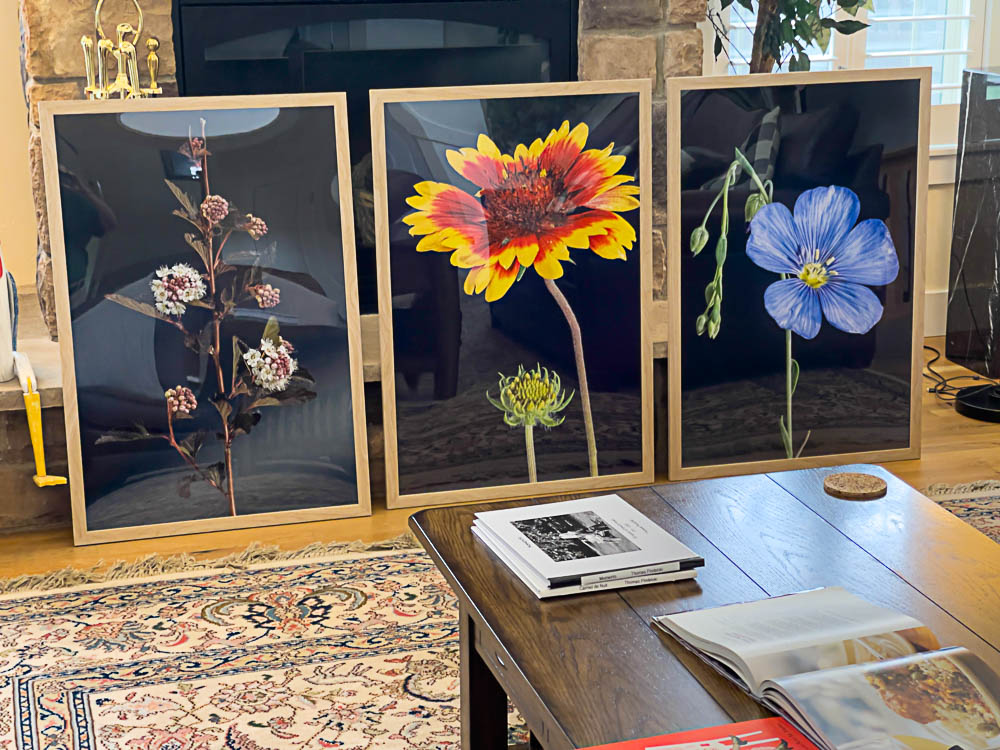
A nice print to display match.