Easy, but ….
Tethering means connecting your camera to a computer running Lightroom Classic. When the picture is taken the image pops up in LRc for editing, emailing, etc.
BUT, while a Nikon D800, say, will tether nicely with version 6 of old (non-subscription) Lightroom running on older Intel CPU Macs, the Leica SL2-S firmware dictates that the Mac must be running an Apple Silicon CPU (M1, M2, M4, etc.) and the Lightroom version must be 15.0 or later. Don’t bother trying with the pre-subscription versions. I have. No go. Also make sure you have the latest firmware installed in the SL2-S. These steps ensure that you need no external software kludges for everything to work. I use a 15 foot cable and have had no issues.
Connect the camera to the Mac using a USB-C to USB-C cable. Any cheap cable will do. Don’t fall for the costly orange ones at 6x the price.
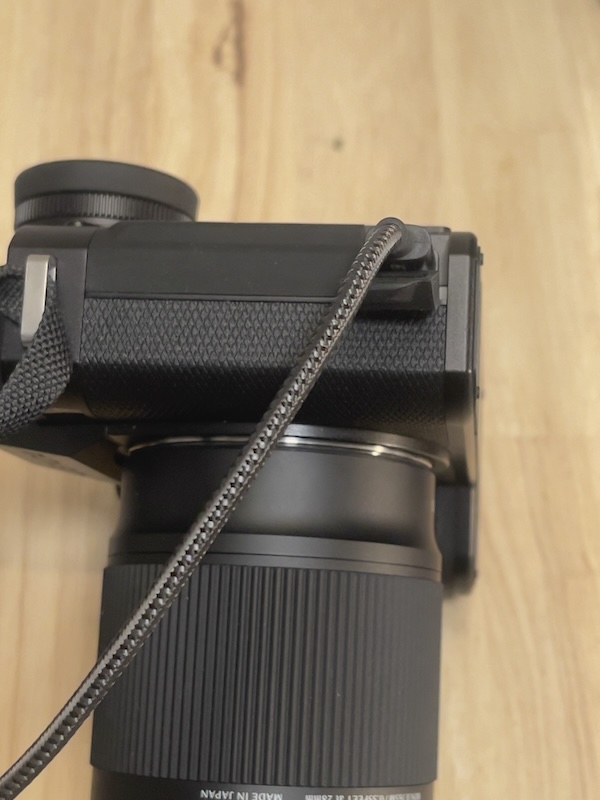
USB-C connection on the Leica SL2-S.
Open Lightroom, and go to File->Tethered Capture->Start Tethered Capture, thus:
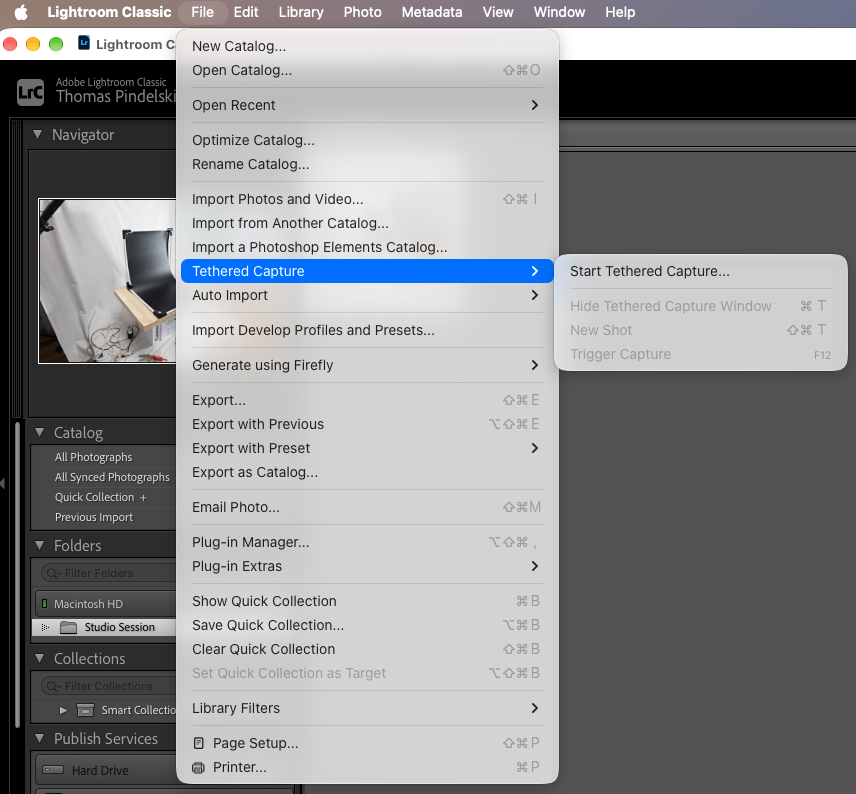
Starting tethered capture.
Hit Return and you are ready to start:
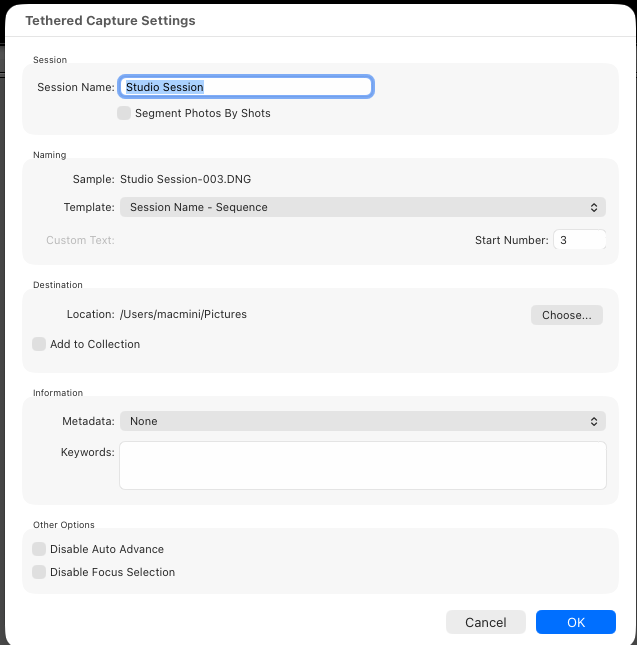
Tethered capture session started.
I use an inexpensive Mac Mini M1 bought used for half the price of the latest version with just 8gB of memory, and it works very well. RAW images pop up in LRc in 2 seconds allowing your client to view results and choose the preferred snap in real time. That Mac Mini is networked with the M4 Mini in my office, so after concluding a session, I export the LRc catalog across the network to the M4 for further processing, after import to the regular LRc catalog.
Note: The LRc license permits installation of the application on two computers. I have no issues running both simultaneously.