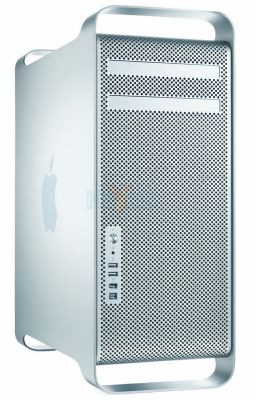
35% faster on graphics. Cost – zero.
Background:
This is going to sound like an ad for hair restorer, weight loss or one of Steve Jobs’s rollouts of Apple’s latest piece of hardware, but bear with me and read on.
One of the beauties of the CPU + motherboard in my Hackintosh is the ability to overclock the CPU with great control over dozens of settings – meaning to run it at a faster clock speed than the stock 2.83gHz. I have run mine stock until now, almost two years, and decided it was time to speed things up in light of the improvements in the latest CPUs and to counter the small 2-3% speed loss with the Lion upgrade in case that gets worse with newer versions of Lion.
To do this, I changed some settings in the BIOS on the motherboard after studying overclocker fora (!), and applied a modest overclock of 27% – thus increasing the stock CPU clock speed from 2.83gHz to 3.60gHz, or some 27% faster. This is conservative compared to what the hard core gamers on these fora with liquid cooled (!) CPUs do – they take it as high as 4.50 gHz or + 60% over stock.
The new settings can be saved as a separate set in the BIOS of the Gigabyte EP45-UD3P motherboard, so reverting to stock is a simple matter of recalling your stock settings when restarting. The Gigabyte’s superb dual BIOS (meaning there’s a backup if the main one blows) can store nine different sets of settings if you are that way inclined. On the handful or really warm days here (95F) I would simply restart the HackPro with the stock settings to keep things cool – we have no air conditioning. I simply take note of the Temperature Monitor reading for CPU1 in my menu bar – CPU1 always runs the hottest on the multi-core CPUs I have used.
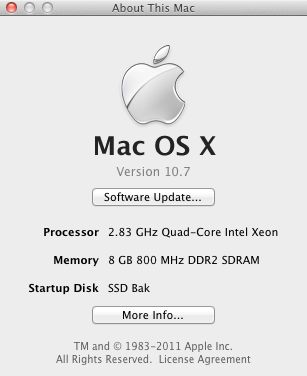
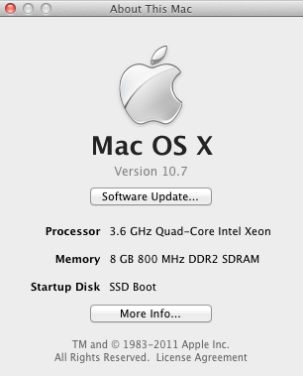
System Profiler before and after. The CPU is actually a Core2Quad, Q9550 Yorkfield.
Geekbench Before and After:
Geekbench is the objective way of testing CPU speed and is recognized as the standard by many geeks. The pictures below are using 10.7.0 Lion measured in Geekbench 64-bit mode.
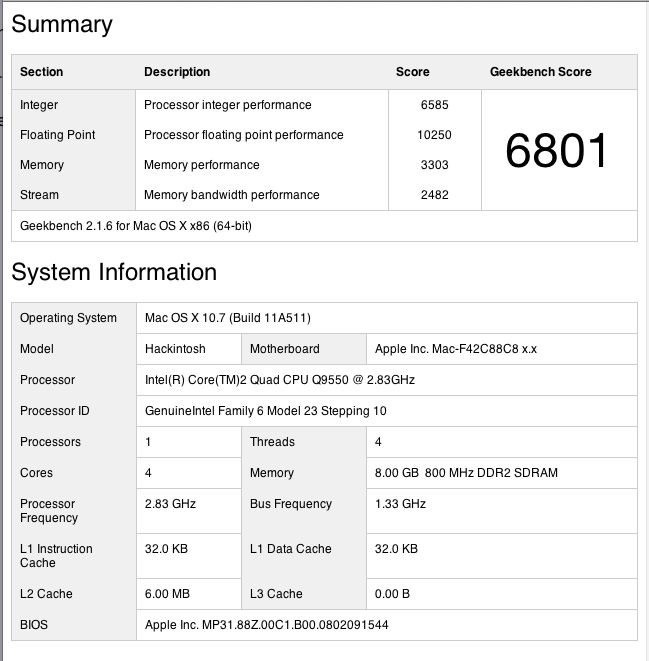
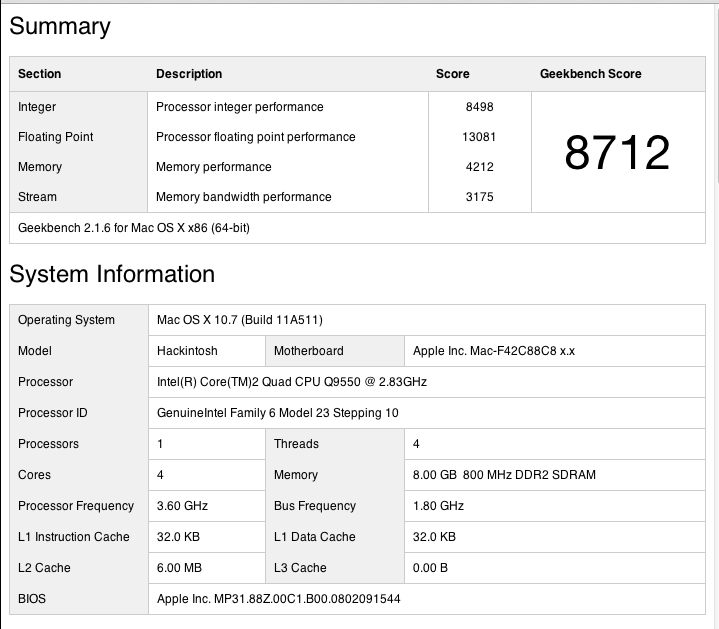
Core2Quad CPU at 2.83gHz and 3.60gHz, respectively.
That’s 28% faster compared to the theoretical 27% (3.60/2.83).
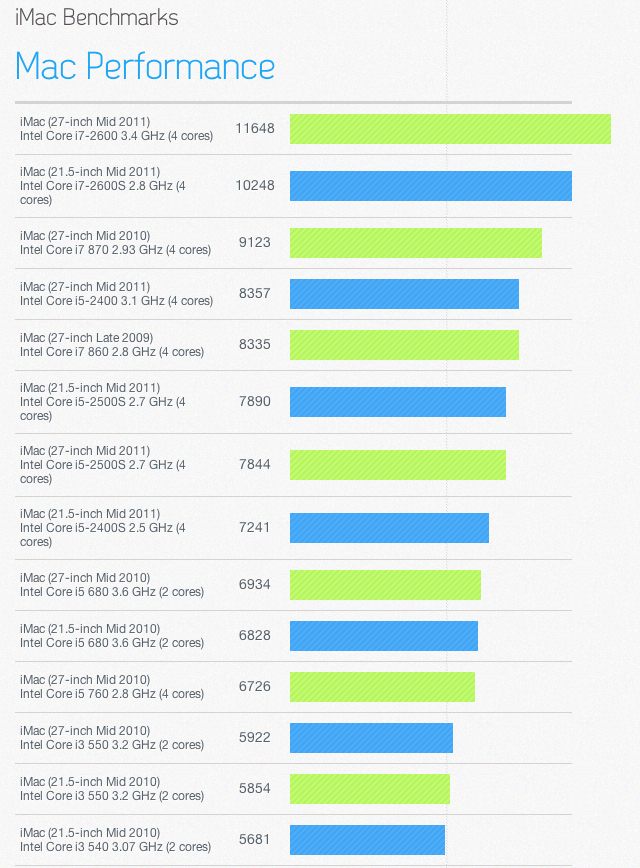
Comparison with latest iMacs with i5/i7 CPUs:
The above Geekbench score compares very favorably with the iMacs sold in the past year – HP1 has gone from bottom to top quartile:
Cinebench Before and After – GPU:
Cinebench is a commonly accepted GPU test for graphics rendering.
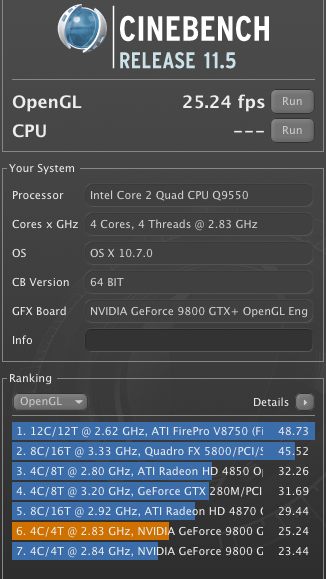
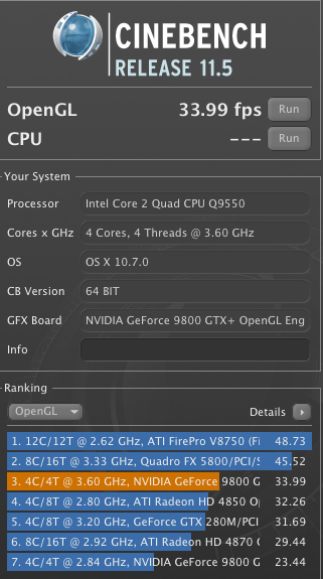
Cinebench reports a 35% increase in framing rate.
Both Geekbench and Cinebench tests were made using the 64-bit versions of the applications.
Subjective ‘feel’:
I hate subjective data. This is an engineering process, not an exercise in emotions. Subjective clap trap is about as reliable in the computer world as in the stock market. Just because you saw the Apple store full of people doesn’t mean the stock will take off. For all you know they were having a fire sale.
Still, in LR3, the sliders reflect changes even more immediately – almost a ‘real time’ experience. Enough with the subjective stuff.
Trade-offs:
What are the trade offs?
- Stability. The built in CPU/BIOS failsafes may kick in and switch your machine off. I have run this (modest) overclock hard with no issues.
- Heat. HP1 was running its CPU1 core at 115F. With this setup it jumps to 138F, still well below the 176F service limit for the Core2Quad. Still, that’s higher than I like so I opened up the case and …. lo and behold …. found that the cable for the CPU fan, attached to the Coolermaster radiator was detached! This must have occurred when I was installing the SSD drives. I reattached it and the ambient CPU1 temperature in overclock mode dropped immediately to 115F. So heat is not an issue if your CPU is properly cooled – my Hackintosh’s CPU has run in the 106-115F range for two years without one problem.
How hot can the Core2Quad be allowed to get?
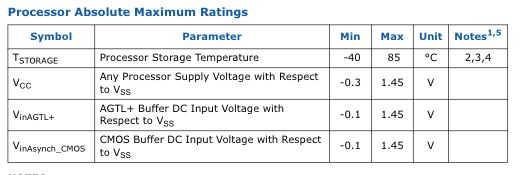
In my original Hackintosh piece I stated that Intel’s specs dictate a core temperature no higher than 160.5F. That translates to an external case temperature maximum of 185F, as evidenced by Intel’s static storage data:
How hot can the outside get?
Temperature Monitor reports the outside case temperature, so a reported 185F (85C) is the same as the 160F core limit. On heavy Handbrake video conversion I have seen an indicated 169F (CPU cooler fan disconnected!), which is still 16F below the service limit. Limits on Core2Duo CPUs are higher – you can find them on Intel’s web site.
And this is what I mean by properly cooled – not the wimpy, stock Intel fan but something that really works:
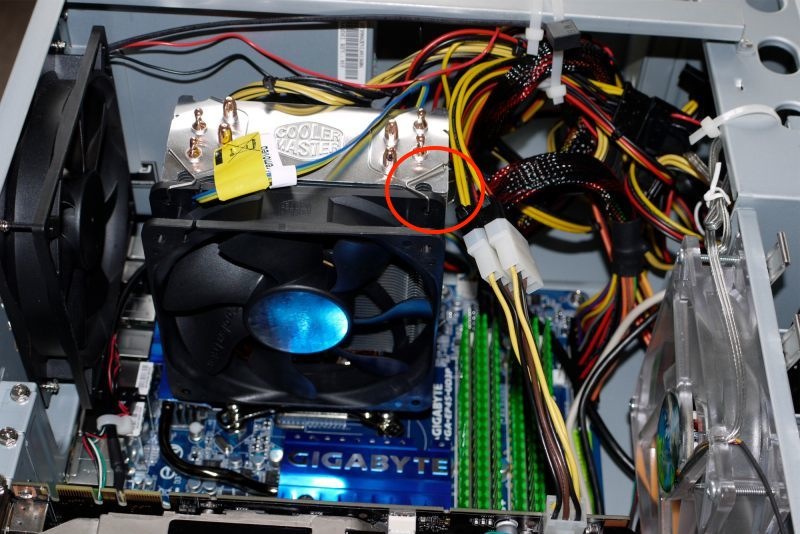
Coolermaster 120mm variable speed fan in place. The red circle denotes the proper installation point for the fan clips.
Case exhaust fan on the left, HDD fan on the right.
Given the low cost of these after market fans – $30 for this radiator and fan – there’s no excuse for not installing one. I would not risk overclocking if I was using Intel’s stock CPU fan. In the chart below, you can get a sense of CPU1 temperature when doing a common task – exporting an image from Lightroom3, after converting the 12 mB RAW original to TIFF, to Photoshop CS5, doing heavy manipulation of the image and then re-saving the 80mB TIFF file back to Lightroom3. The temperature rises to 136F and quickly drops back to the steady state 115F.
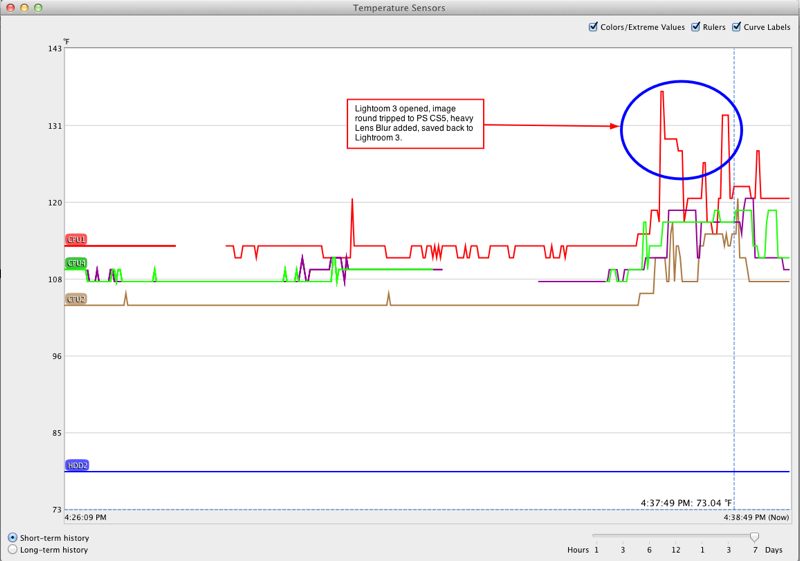
Temperature changes in LR3 and PS CS5.
Stress test:
To stress test the system I ripped a double layer 7.4gB movie DVD using RipIt!; this took a scant 12 minutes, for a maximum CPU temperature rise of just 2F. I then compressed that ripped movie down to a 1.26gB .m4v file, using Handbrake, another 40 minutes, for a temperature rise of 20F to 133F.

Rip = green box; compress = red box.
Nothing to be worried about here. By the way, the comparable times for this task on my MacMini (Core2Duo, 1.83 mHz, 320M GPU), were 30 and 75 minutes, respectively, albeit with the CPU temperature soaring to 169F.
BIOS settings:
You can see all the revised BIOS settings on the Gigabyte EP45-UD3P motherboard by clicking the picture below. The RAM is Patriot DDR2/800mHz. This board uses the 775 socket common to many Core2Duo and Core2Quad CPUs from Intel. The latest i3/i5/i7 CPUs use a different socket and require a different motherboard and upgraded memory. Changes from stock are marked with green arrows:
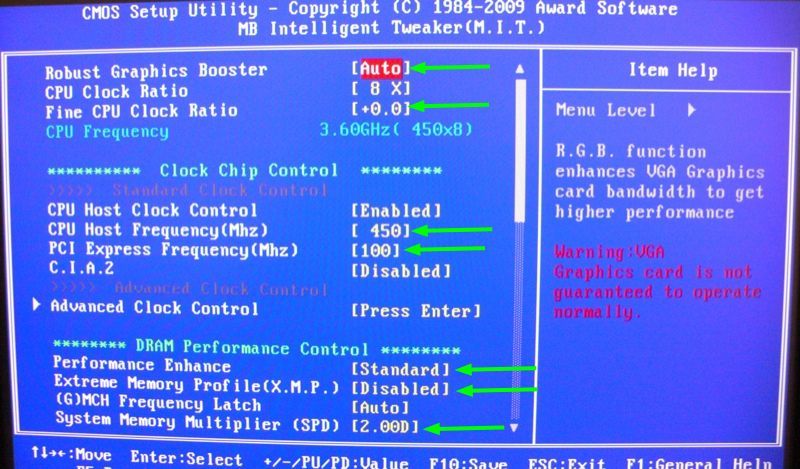
Click the image to see revised BIOS setting slides.
To make things easy, as your Hackintosh will be disabled while you are in the BIOS, follow the above pictorial on your iPad while making these changes.
Gigabyte EP45-UD3P motherboard:
When Adam Pash at Lifehacker conceived the design of the HackPro over two years ago, he choose the Gigabyte EP45-UD3P motherboard (775 spec CPU socket). A wise choice as this electronic hardware is a masterpiece of design and flexibility. While it’s no longer available new, there are many used ones on the market available for around $100, and you can download the related manual by clicking below.

Click to download the Gigabyte motherboard manual.
I would guess you could build the HackPro using its previous generation parts with two 1tB HDDs for $500 today with mostly used parts, before adding displays, and have performance as good as the latest iMacs, with far superior engineering design and longevity for heavy users. A good new Dell IPS display 1920 x 1080 widescreen, like the U2211H, will add $250 – it’s probably too great a risk to buy a used one.
Overclocking:
Intel has realized that the overclocking/gaming fraternity is a meaningful business segment to market to, so in their latest i5/i7 CPUs they sell ‘locked’ and ‘unlocked’ versions; the latter can be overclocked and are $10-20 more. Such distinctions were not available for the earlier CPUs like the Core2Quad and Core2Duo used in the HackPro, all of which could be overclocked, so it’s more than likely that the three year warranty on your CPU will be rendered invalid if you overclock. However, if you use a competent motherboard like the Gigabyte, above, your risk of damage should be greatly reduced owing to the many failsafes in the motherboard’s code, or BIOS. Just avoid getting greedy and don’t use voltages which are too high. My selected speed of 3.6gHz is a fine trade off between the last word in speed and long term reliability.