Supersize me.
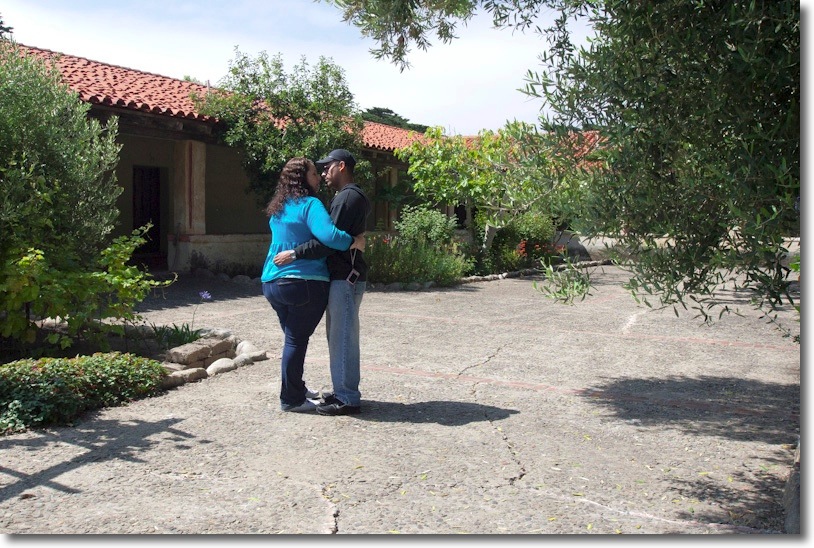
G1, kit lens.
There’s someone for everyone.
In Carmel, CA.

Supersize me.
G1, kit lens.
There’s someone for everyone.
In Carmel, CA.
Trigger happy.
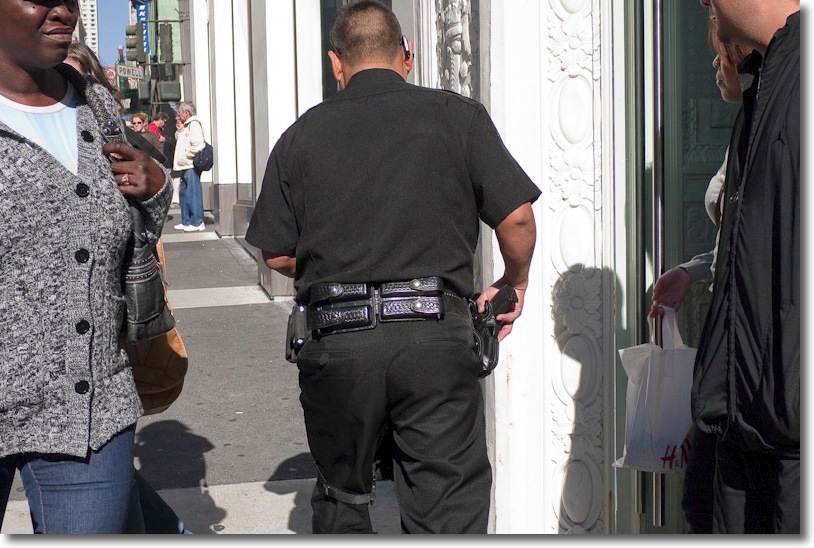
G1, kit lens.
There’s actually a significant slice of the US population which believes the Second Amendment to the Constitution allows this sort of thing, which says more about them than I can.
Watch you lookin’ at?

G1, kit lens, ISO 320.
In San Francisco.
End of Empire.

G1, kit kens @30mm, 1/640, f/13, ISO 320
It’s not that I search out obesity in my street snaps.
It’s that it is simply impossible to avoid it.
America’s gluttony is not restricted to oil. It also shows a serious addiction to fat and sugar.
I wouldn’t mind so much – hey, it’s your body and your premature death only helps the gene pool – but for the fact that fat ugly cows like the one above penalize me for my healthy life choices.
Every time I deny myself that extra sugared drink or hamburger, this lump of lard eats it for me. She uses more gas to eat it, more gas to have it delivered, more gas to move her enormous behind, and sure as hell, my health insurance premiums subsidize her miserable life replete with coronaries and diabetes. And you can bet she smokes, too.
I can only cry for the poor baby in the picture. What possible chance can it have in the Land of the Fat?
Snapped on Fisherman’s Wharf in San Francisco where most of the revolting food on sale is deep fried.
This cow’s sister is here.
Lots to like.
Click below to download the Fuji X100 manual:

Click to download the Fuji X100 manual
What follows is based on a reading of the X100 manual; only real-world picture taking will allow critical evaluation, but what follows is encouraging.
The best way to read the PDF manual, if you download it, is using GoodReader on an iPad or, for those with younger eyes, on an iPhone. Both devices provide a superior PDF reading experience to anything on a computer and have the added benefit that you can take the manual with you for those occasions on which you get stuck. Since I first reviewed it the very inexpensive GoodReader app has been enhanced multiple times and I recommend it unreservedly.
First and foremost, all praise and thanks to Fuji for a great English translation and a logical layout. All you never want to know about manuals can be found in Panny’s for the G1 which is by a considerable margin the worst manual I have ever read and still, on occasion, try to decipher.
In summary, a reading of the manual discloses that Fuji has not blown it; while many or maybe all of the programmability choices exist on competing cameras the point here is that Fuji has not omitted any I consider important. What follows is addressed to travelers and street snappers for whom the X100 is an optimal design. Thus I do not address macro or movie modes or LCD displays and the like.
Here’s what caught my eye. What follows builds on and corrects some of the statements in Fuji’s Brochure which I reviewed earlier.
The Command Control, p4:
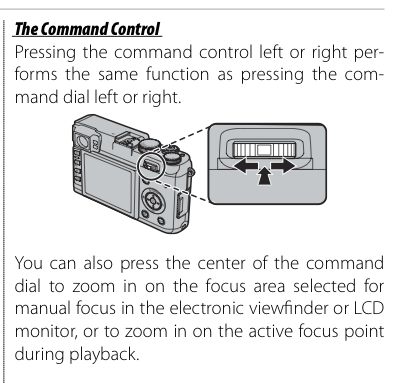
Longitudinal pressure on the Command Control toggle switches to magnified image view for precise manual focus. Akin to the G1 which will switch to this mode in the EVF when the focus ring is operated on Panny lenses.
OVF display options, p5:
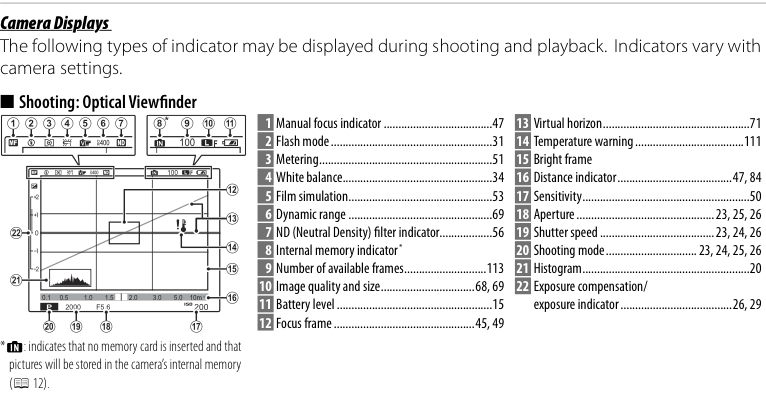
Much of this can be switched on and off (see below), meaning you can get it down to the essentials. It seems even the distance indicator scale is optional. Nice. All I want is shutter speed, aperture, ISO and exposure compensation, plus the focus area. Note the ‘temperature’ indicator. This caused me to flashback to all those overheated, blown Macs I have suffered ….
Strap fastening, p9:
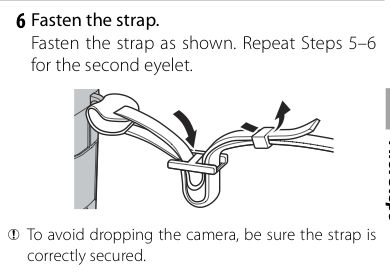
The instructions are incorrect. You want the loose end threaded such that it is between the two external strap lengths. Buy an Upstrap to see how it’s done. And buy an Upstrap anyway as it will absolutely not slip off your shoulder and, yes, you guessed it, the one from Fuji is emblazoned with the words ‘FUJI’ in bright white. This is so that your insecure American friends, who put stickers in their cars and on their clothing telling all and sundry they went to Texas Ballspond Road U or some similar degree mill, can share in your tasteless advertising display.
SDXC cards, p12:
The X100 takes SD, SDHC and SDXC cards.
The LCD display, p17:
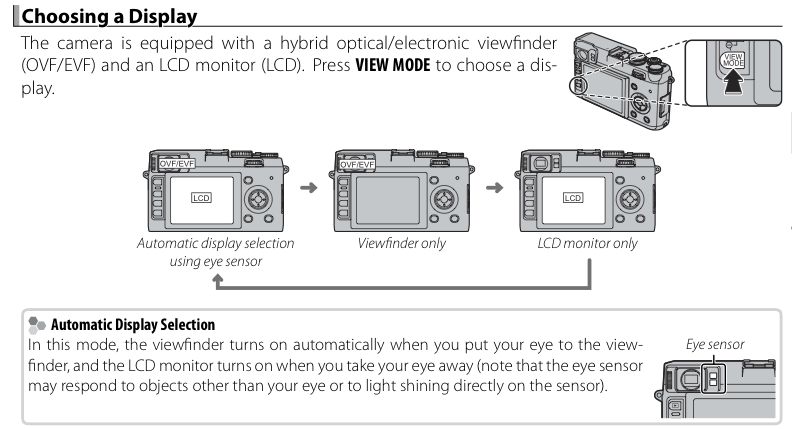
Mercifully, it can be turned off.
OVF display, p19:
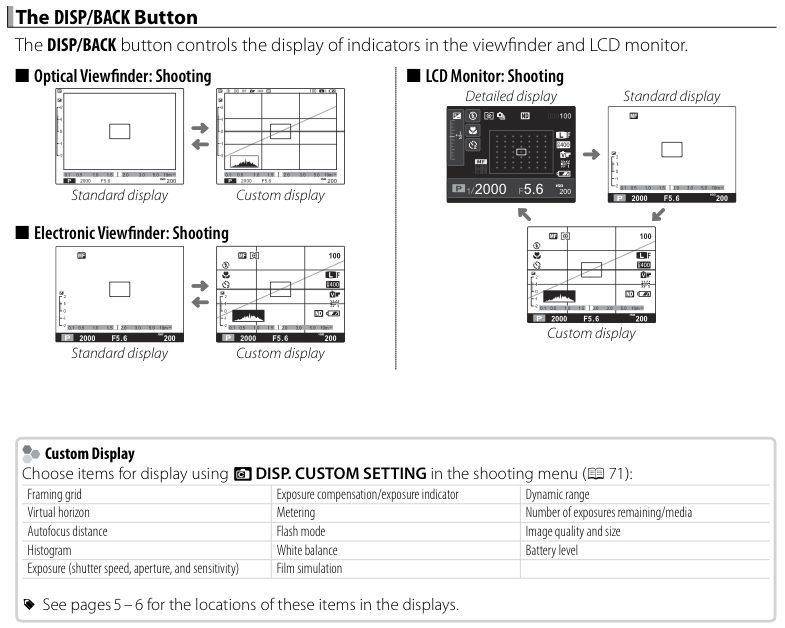
Here’s a better illustration of which display elements can be toggled on/off. The OVF is 0.5x life size. It’s unclear what the EVF is – I would guess 0.7x (no frame lines, image extends to edges) and very handy in poor light where OVFs do not cut it – and don’t let Leica M bigots tell you otherwise. For comparison, the Panny G1 is 0.7x at 50mm FFE, or 0.5x at 35mm FFE, so the viewed image in the X100’s OVF will be the same size at that of a G1 set to 35mm FFE. By contrast, the X100’s EVF image will be some 40% larger than the G1’s at 35mm FFE.
Shutter sounds, p 21:
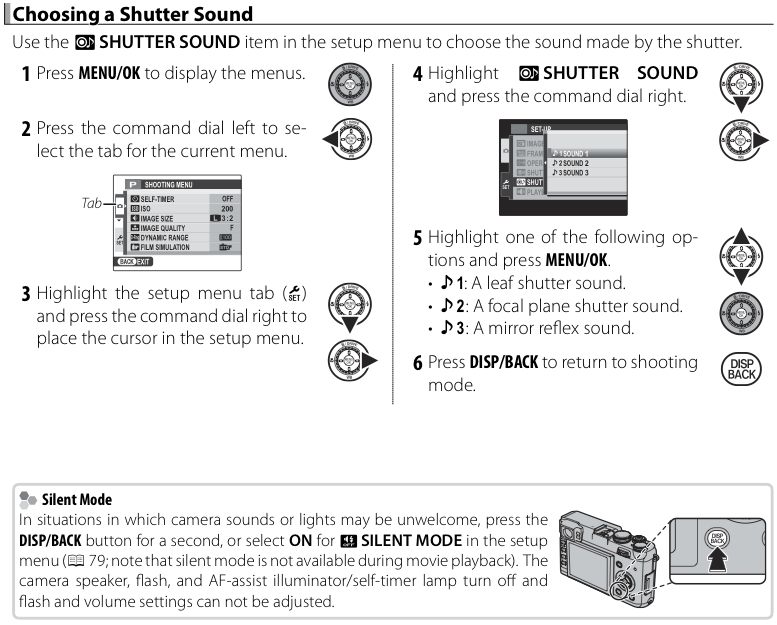
This is actually far from trivial. Sometimes you want audible confirmation of the shutter, and until we know about the mechanical feedback from the shutter release button, having these options makes sense. Also handy when doing panoramas, though I doubt I will be switching on the ‘mirror reflex’ sound.
OVF power saver mode, p22:
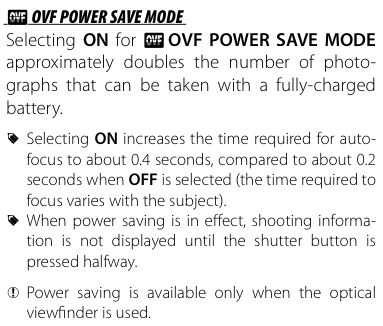
The fact that the power saver mode applies to the OVF is a tad disappointing, as it suggests the OVF displays use quite a bit of power. The problem is that in power saver mode autofocus is far slower. Evaluation of this compromise in the light of battery capacity will have to await real-world use.
Quick Start mode, p.22:
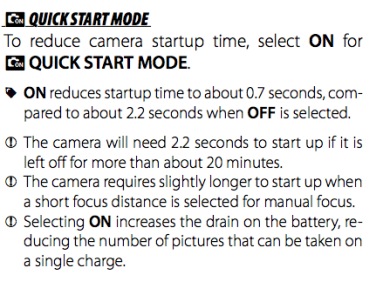
The normal ‘start from cold’ is 2.2 seconds which seems very slow. The Quick Start mode cuts that to 0.7 seconds at the expense of battery life. That’s fast enough (a quick first pressure on the shutter release when lifting the camera to the eye should do it) but the battery life impact remains to be determined.
Shutter speed combinations, p27:
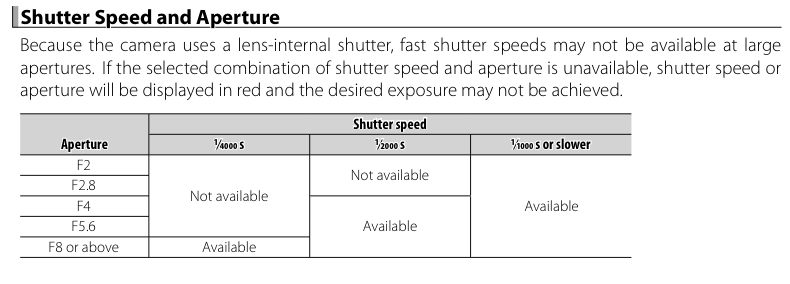
Not all shutter speeds are available at all apertures. The fastest at f2 and f/2.8 is 1/1000th, compared to the camera’s 1/4000th minimum. So if the light calls for 1/1000 @ f/5.6, you would set the lens at f/2 and switch in the 3x Neutral Density filter, getting f/2 depth of field but an effective working aperture of f/5.6. A bit of a pain but you can get there – meaning shallow depth of field in bright light. You can also assign the ND filter function to the Fn button for instant availability – see below. (The above assumes you are using Aperture Priority auto exposure, where you choose the aperture and the X100 figures the shutter speed).
Exposure compensation indicator, p29:
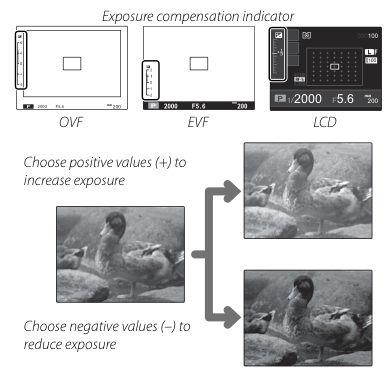
The indicator is available in all three viewfinders. It’s essential if you use the manual exposure compensation dial to remind you if you have set it at something other than ‘0’. Easily forgotten.
First pressure focus, p30, 45:
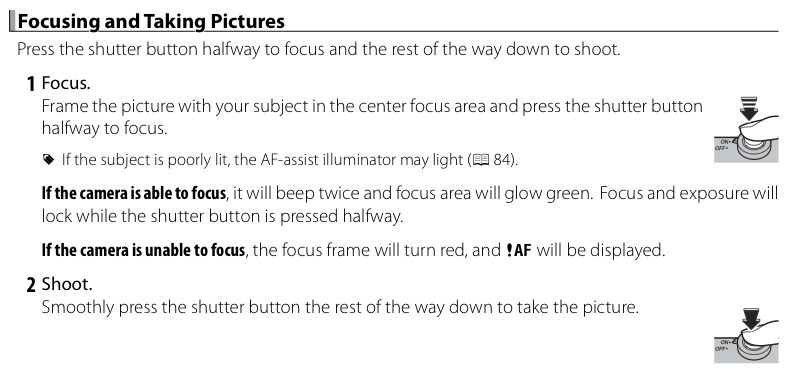
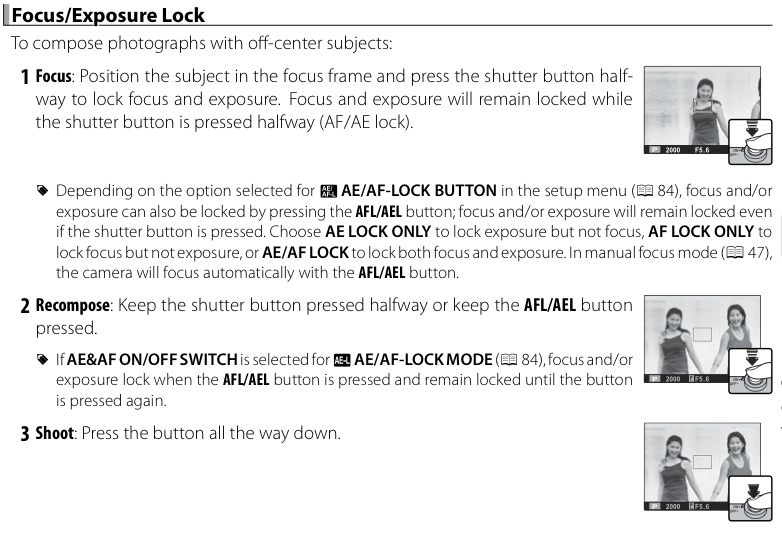
Phew! Confirmation at last that a first pressure on the shutter release button can be used to lock focus, exposure or both. Like most street snappers I will set this to lock focus and set the rear panel AEL/AFL button to lock exposure. Then I can focus-take first pressure-recompose-snap for those times when the main subject is not in the center of the frame. Let’s pray the focus confirmation double-beep can be silenced.
Burst mode, p36:
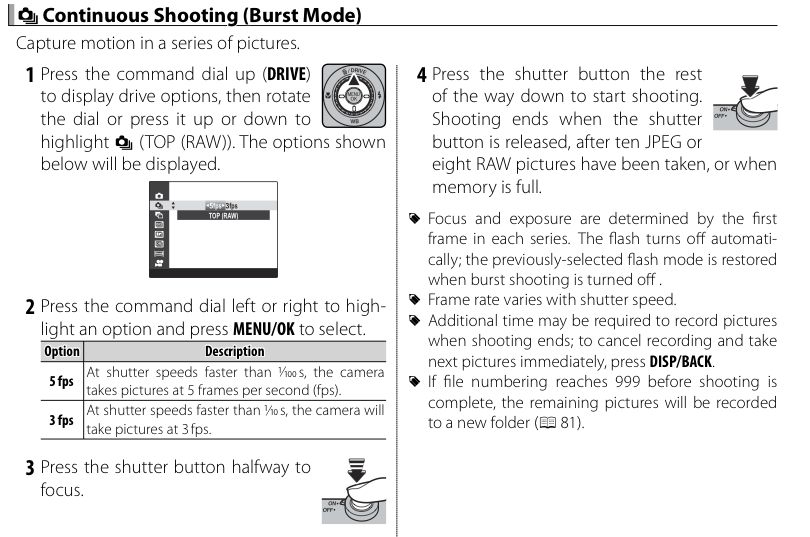
For serial shooters there are two burst bodes – 3 and 5fps. The camera’s buffer is 20mB in size (p113, below) which is small. Two to three buffered shots at best. No indication of how quickly the buffer flushes and it will be interesting to see whether faster SDHC/SDXC cards make a difference or whether the buffer’s native flushing speed is the slowest link in the chain.
Panoramas, p38, 39:
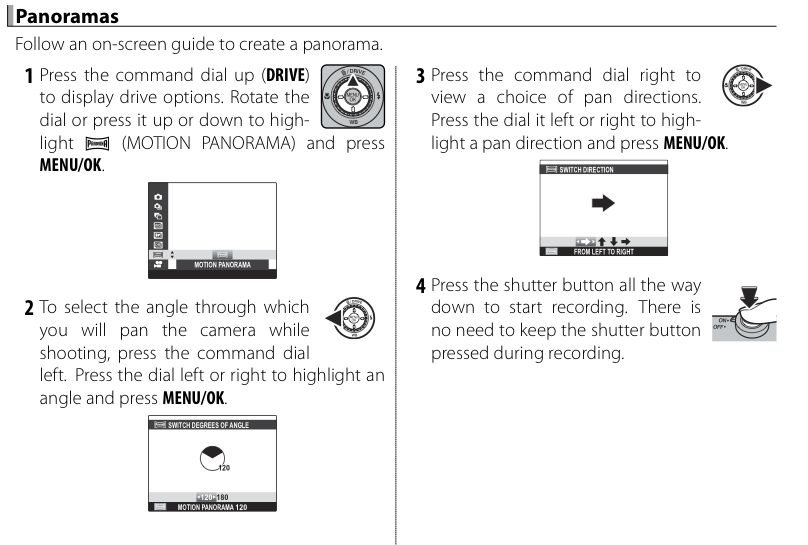
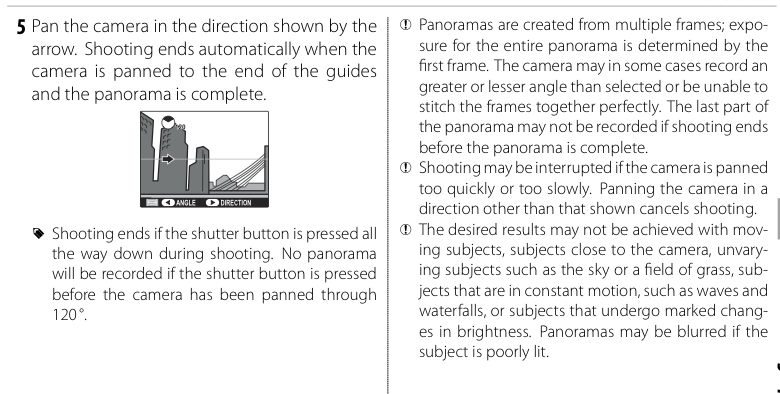
Panoramas for street snaps? Actually this is potentially very useful as it affords ultra-wide opportunities and, if I am reading the book right, the implementation is brilliant. After taking the first snap, you hose the camera around and it knows when to take the subsequent ones! And you can do horizontal or vertical panos which suggests some interesting opportunities. Panos can span 120 or 180 degrees. I’m hoping that exposure is locked based on the first frame, much as it is in Burst Mode, above. Otherwise stitching will show.
Auto-ISO, p50, 83:
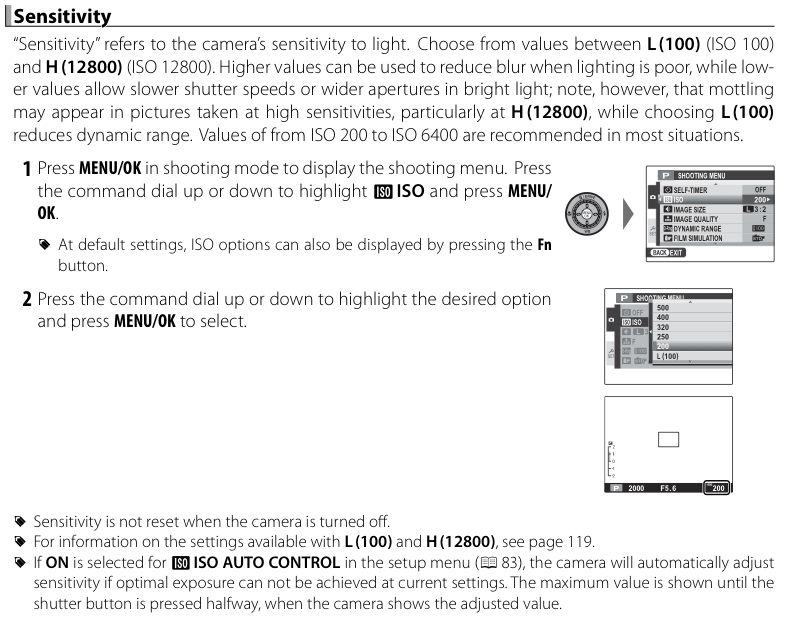
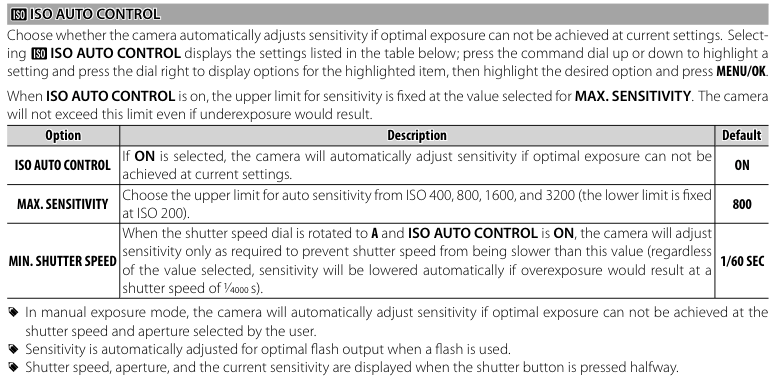
Note the reference to reduced dynamic range at ISO 100. Note also the reference to AutoISO kicking in if exposure cannot be accommodated otherwise. Nice, I use this constantly on the Panny G1. Note also the ability to limit upper ISO in the second page, above.
Exposure metering, p51:
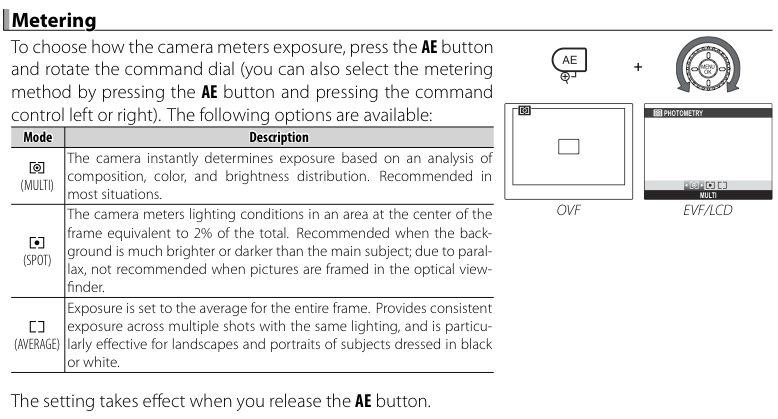
The street snapper will probably elect ‘Average’. There’s no time to mess with spot metering when taking candid snaps.
The Fn button, p52:
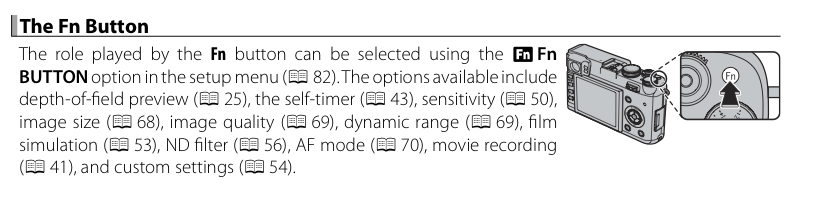
A nice selection here. Given that there’s a separate AFL/AEL button on the back to lock focus or exposure (I will use it for exposure), being able to assign the Fn button to another function is very useful. The ND filter, in view of the shutter speed limitations explained above, would appear particularly useful, instantly forcing a shutter speed 8x longer. I assume this is a ‘one press per picture’ control, but it’s unclear.
Th replacement of the Fn button on the top plate, rather than on the rear of the camera, is interesting. It’s next to the shutter release and should make for ease of use – one quick push and you have your change of choice.
Custom settings, p54:
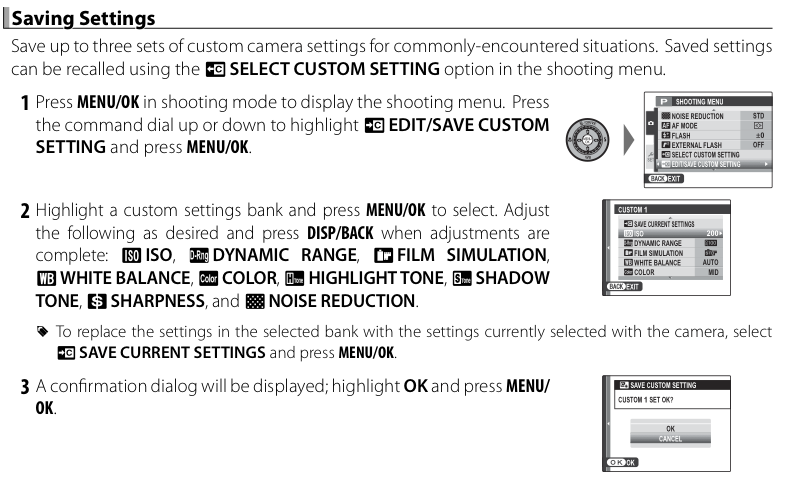
There are many. Hooray! They can also be recalled using the Fn button. Double Hooray! The very last thing I ever want to do on the street is hunt around for settings on an unreadable LCD screen. Unfortunately, it doesn’t seem that the ND filter can be assigned to a custom setting.
In camera RAW processing, p67:
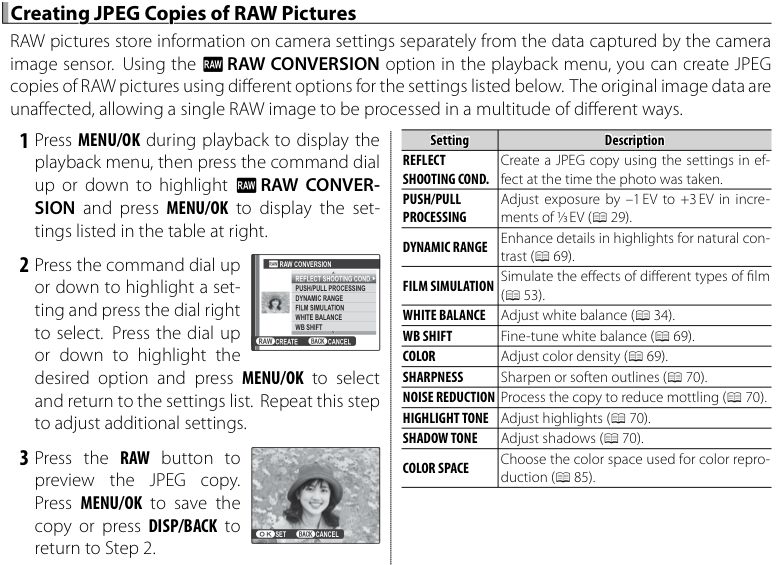
Nice to have until Adobe creates X100 RAW conversion for LR3 and Photoshop.
Aspect ratios, p68:
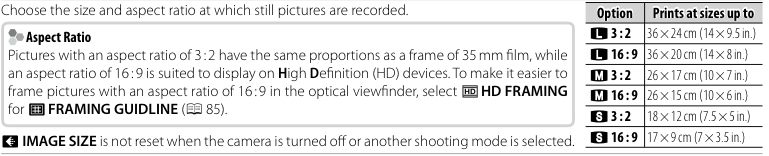
There are two. For someone with 35+ years of Leica M use coded in his genes there’s only one – 3:2.
SilkyPix with the Mac, p95:
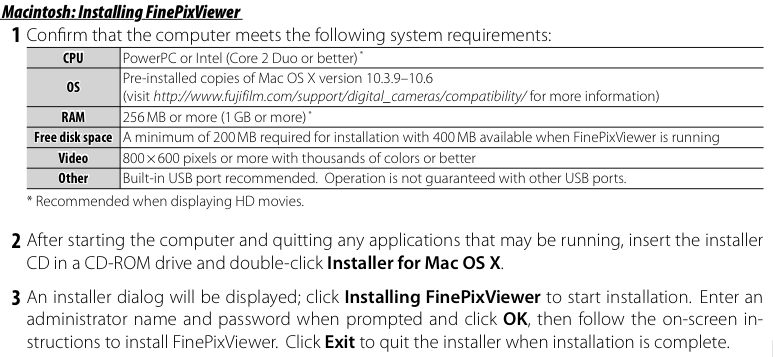
Contradicting the impression from the earlier brochure, SilkyPix will work with the Mac, both PPC and Intel variants. This is nice as it’s currently the only app which will process X100 RAW images, until Adobe gets up to speed. I suppose that’s a relief of sorts, though Silky Pix has a very poor UI and you will have to reimport all your RAW files to Lightroom, or whatever you use, later.
Card capacities, p113:

The chart is wrong. They mean ‘3:2’ where they write ‘4:3’.
That said, an 8gB SDHC card will store a claimed 420 RAW pictures, meaning 19mB a snap. If you opt for RAW + JPG storage with ‘Fine’ JPG, one combined snap will take 23.9mB, meaning 334 picture-pairs on an 8gB SDHC card. Note that a Class 4 card is recommended as a minimum for movies – higher Class numbers mean higher write speeds. The 8gB cards I use in the G1 are Class 6 so they should work fine.
Battery and charger:
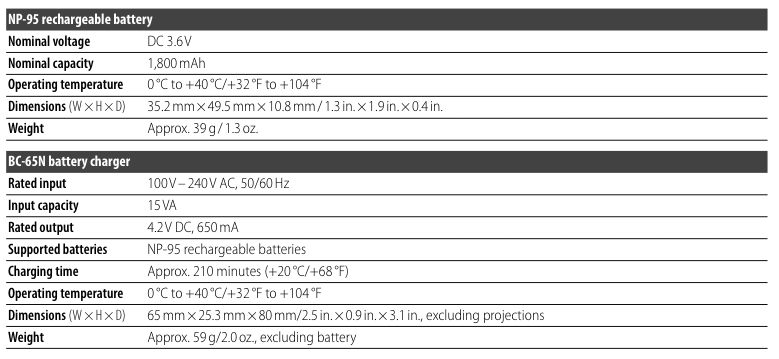
The battery is shipped flat and takes 2.5 hours to charge. Bummer!
The weight of the battery charger, above, seems incorrect – way too low.
Here’s my X100 kit so far:
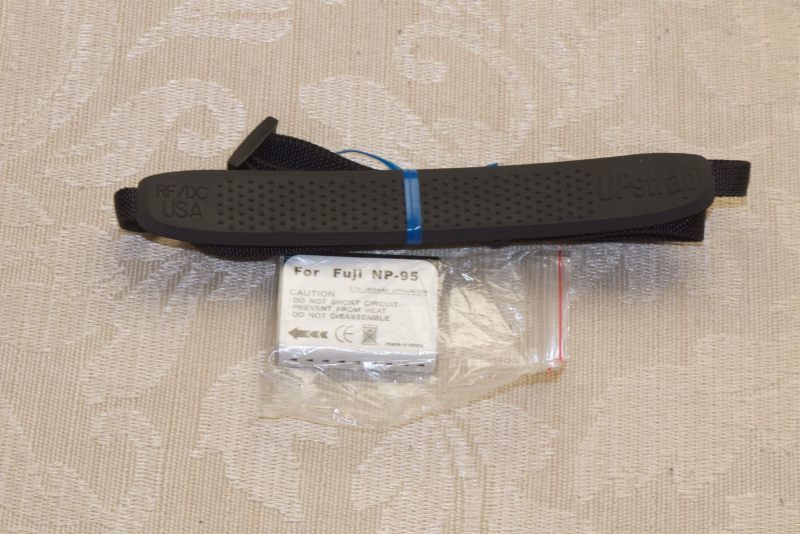
Upstrap and spare battery. Wanted: One X100!
Now all I need is the camera ….