Category Archives: Macintosh

The computer for the rest of us

The New Macs – 2012

A mixed bag.

Apple rolled out new MacBook Airs, MacBook Pros and Mac Pros the other day. There is good news and bad news.

Overall: Current MBA, MBP or MP users have little reason to upgrade. Apple is making retrograde steps with regard to user upgradeability and has again started price gouging for extra RAM, like they used to a few years back. As there are no aftermarket solutions they presumably think they can get away with this. What I see is falling profit margins with an attempt to offset these with disingenuous design practice, not to mention a fair leavening of arrogance in the assumption that Windows users will continue to switch, regardless of price. Wrong.

For users with just the one computer, the MBP makes sense, but at a very high price. The MBA is far cheaper, lighter, slower and in the 13″ size will do as a photo-processing tool at a pinch, but I would hate to have to use it exclusively for this purpose.

The MP is for those with access to Other People’s Money only. A high end Hackintosh is a far better machine at 67% off the asking price of the MP.

MacBook Air:

The best news is that all but the $999 11″ base model have dropped $100 in price. All support turbo boost of the CPU from 1.7/1.8gHz to 2.6/2.8gHz, best used when connected to the mains owing to the increased power draw. RAM can be doubled to 8gB for $100, a 300% premium to the aftermarket ($25) and not user replaceable; likewise the SSD is 64/128/256 at purchase and cannot be changed. So get it right when you buy your MBA. For the budget conscious photographer, the optimum price point is the 13″ MBA with the 128gB SSD and 8gB of RAM for $1,299. Use an external 2.5″ notebook HDD for external high volume storage, some $75 for 500gB and another $5-10 for an USB enclosure. RAM is speedy 1600mHz.

The integrated Intel HD 4000 GPU is an excellent choice for still photography editing, the glossy screen does you no favors, the machine has a 7 hour battery life and weighs a scant 3lbs. My 11″ MBA (Oct 2010) has had 18 months’ moderate use and is holding up fine, with no signs of failing. The latest MBA is some three times as fast on CPU throughput.

Finally, the SSDs in the MBA are SATA3 6gb/s variants. That is a good thing.

MacBook Pro:

The big hue and cry, replete with all the usual increasingly tiresome Apple hype, is the Retina Display option. Whoever writes this crap most certainly did not read his adjective-free Hemingway.
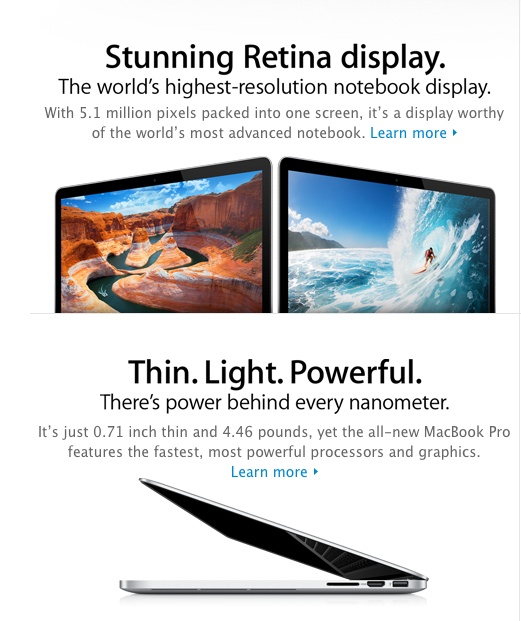
More hype than most religions.

The Retina Display comes at a substantial premium for its 2880 x 1800 pixels – $300 more compared to the similar regular MBP. The photographer who has no other display handy may find this economically feasible, though 15″ is a small screen for long editing sessions. However, the RD’s maximum definition is only supported by two photo editing apps at present – iPhoto and Aperture. If you are a Photoshop or Lightroom maven, then until Adobe updates their apps you will not get the RD’s best definition. Adobe has said PS will take several months to adapt, with no news on LR yet. RD type displays would have to reach broad acceptance for this to make economic sense for Adobe. As there’s no love lost between the two businesses, it looks like a low priority project. If you use Aperture fine. I have found Aperture to impose extreme demands on hardware and abandoned it long ago for the speedy and far more logically designed Lightroom which pokes along just fine even on my slow, 2010 MacBook Air.

The RD MBP gets very costly if you max it out and it’s the only MBP which permits the use of 16gB of RAM. The regular display version only goes to 8gB. If you frequently round-trip from LR to PS and keep multiple PS files opened, you will notice the difference. Further, as the memory and SSD are soldered in, there is no possibility for the user to upgrade, and Apple will rip you off for $200 to go from 8 to 16gB, when comparably priced RAM sells for $50 in the aftermarket. That’s the same 300% premium as in the 4->8gB MBA upgrade. The good news is that RAM is speedy 1600mHz.

While the previous MacBook Pro permitted installation of a second disk drive – HDD or SSD – if the optical drive was removed, the new one offers no such option. The chassis has been slimmed down with the removal of the DVD player so the space for a second drive is no longer available. You will need to use an external drive.

How much? The 16gB RAM model with 768gB of SSD storage will run you $3,750. That’s a huge sum for an elegant portable which screams ‘steal me’. It comes in one size, 15″.

The regular MBP continues with HDD and SSD options. Same limitation on user replacement of the RAM, though the HDD should be possible, if not especially easy. A 15″ with a 1tB HDD and 8gB of RAM costs $2,550. That still seems awfully expensive to me. It should be easy to hack a comparable Dell laptop to run OS X for much less with identical screen definition and operating speed.

Both MBPs offer integrated or discrete GPUs but, once again, the integrated HD4000 is now so good that the separate GPU is really only required for video editing, so if you are a stills-only photographer you are paying for something you do not need. It is not an option.

All MBPs and MBAs boast Thunderbolt connectivity. Judging by the very slow takeup of this technology by peripeherals manufacturers this technology is a bust and the high price of the peripherals – displays and disk drives – will accelerate its demise. Not a selling feature as there’s very little out there using it. Be prepared to buy an adapter for your external display.

Turbo boost on all the MBPs takes stock speeds of 2.5/2.9gHz up to 3.1/3.6, which can be really worthwhile when connected to the mains. Battery life on regular and RD displays is limited to 7 hours, and Apple appears to be building a smaller battery into the regular display version so as not to cannibalize the RD one. The RD is much more power-hungry.

I tried the MBP with the RD at the local Apple Store and was underwhelmed. (The software was incomplete and I could only try the machine on maximum definition – the definition selector was missing). It’s less of an obvious jump in definition than going from iPad1 to iPad3. Mercifully, Apple doubles font sizes to resemble the size of those on a regular screen or else nothing would be readable. The glossy screen remains sub-optimal (the one I tried in the Apple Store had the sunny street behind me and had to be relocated to be useable) and at this time there’s no indication of a matte option. Another blow for photographers. But it’s the only way of getting 16gB of RAM so if this is to be your only machine, the premium may make sense if you are a heavy LR + PS user.

Mac Pro:

The purported update to this Xeon CPU workhorse is an exercise in cynicism. The machine may have a very capable multi-threading CPU but the rest continues to underwhelm. Maximum memory speed is 1333mHz, or 20% slower than the MBP, and drive connectivity is still SATA2, meaning 3gb/s compared to SATA3 and 6gb/s in the MBP and MBA. For movie makers moving large data files that’s awful. What’s worse is that later Xeon CPUs and disk drive chips supporting these technologies are available, yet Apple chose not to use the newer Xeon. It rather looks like the Mac Pro is finished and at the price asked any half competent geek should be building an Ivy Bridge Hackintosh.

Apple’s CEO has promised an improved MP 18 months hence, by which time every current MP will be a dinosaur. I don’t know that I believe him. Face it, the money for Apple is in iOS.

Conclusion:

The MacBook Airs represent excellent value and performance for the money coupled with light weight. Speeds are now adequate to use the latest MBA at home to drive a large external monitor for heavy photo processing. Memory is limited to 8gB which is a shame.

Apple is getting ahead of itself and building premium priced machines in the MacBook Pro which are answering questions – especially with the Retina Display – with technology no one is asking for and few can afford. Simply stated, it’s more definition than you need or can use. Serious photography users will use a larger external display with a matte screen and one whose gamut is far wider than the MBP’s, further making the Retina Display option pointless. Sadly, this costly display option is the only way to get 16gB of memory.

I would expect the MBA to materially cannibalize sales of the costlier MBP. The cost of upgrade options for both – none are user installable – represents an unwelcome return to Apple’s days of predatory pricing.

The Mac Pro is a waste of money using three-year old CPU, RAM and disk drive technologies. Newer high-end PCs provide a better alternative for those into heavy movie processing. If you are a Final Cut Pro user, a high end Hackintosh is better in every regard. It is, after all, nothing but a PC running OS X, meaning cheap and reliable hardware and software. And the Hack is 67% cheaper than the premium priced and dated MacPro. By comparison, repair costs, if any, are trivial and the user gets bog reliable operation and overnight parts availability at a fraction of the MP’s cost.
The new iMacs – 2011

Still a poor choice for photographers.

From a reading of the specs of the latest iMacs, the reasons to upgrade are:

  • You do a lot of moving of large video files. The new Thunderbolt connector is 10x faster than USB but peripherals using it are rare and only just coming to market.
  • You need three displays. Existing iMacs can support two (iMac + 1 external). The new ones can support three (iMac + 2 external) using Thunderbolt. Once again, the only displays currently using Thunderbolt are the overpriced and glossy-only ones from Apple which simply cannot be properly calibrated for serious photography use. Once it becomes available, a good Dell matte display will be half the price of the add-on Apple one, the latter too garish/bright/contrasty, just like the display in every iMac since they went all glossy four years ago.

The modest CPU and GPU speed increases are not a compelling reason to upgrade.

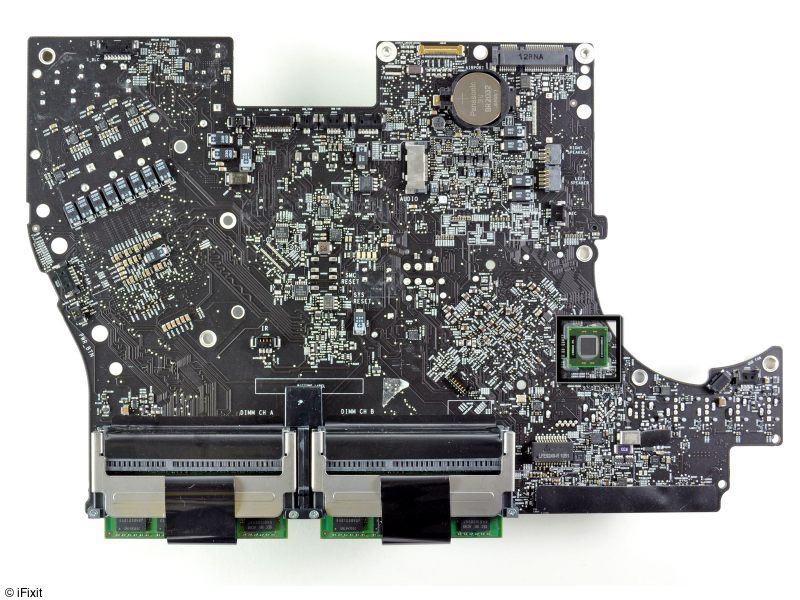
Further, AAPL still has issues with graphics cards overheating (which killed both our white non-glossy iMacs and made me build the Hackintosh – these were the last iMacs with a screen that could almost be properly profiled for photography use). Still? Well, yes. Why do you think the iFixit tear down shows that the graphics board in the latest iMacs is removable, rather than integrated on the motherboard? Because they expect to replace many, testament to the poor cooling of the part in the tight confines of the box. Form over substance design continues at Apple. Plus, as you need to remove the motherboard to access the removable GPU, you need to be very skilled or very lucky. And then where do you get the replacement? It simply does not solve.

Click the picture for the iFixit teardown of the latest iMac.

If you need a good photography machine and must have Thunderbolt, the best bet is to wait for the Mac Mini to add that connector and hook it up to a couple of proper displays from Dell. Or for higher speed, build a Hackintosh.

Save your money unless the above are compelling reasons for you.

The single best thing you can do to make your iMac significantly faster is to add a Solid State Drive for the OS and applications. It can sit externally – internal installation is sheer hell – and you tell System Preferences->Startup Disc to make the SSD the one to start from. Install OS and copy over apps and you are set. You continue to keep data on your existing internal HDD which is big and cheap. The SSD is small and costly but it dramatically increases start-up speed and application loading. I added an Intel SSD (only 128gB) to the Hackintosh and the difference is night and day. I use maybe 50% of it – OS + apps only. Far more real world performance increase than newer CPUs or GPUs. It cost me $225, and prices continue to fall. Once you have used an SSD there’s no going back. Also, an SSD has no moving parts – always a good thing.

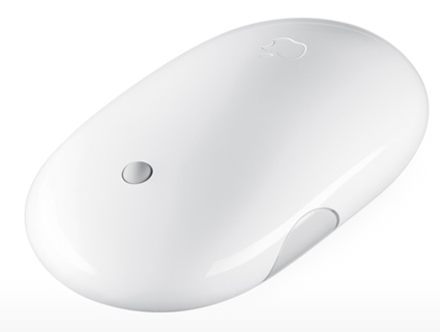
Apple Magic Mouse

A trouble-free device.

For a company which prides itself on design, past mouse offerings from Apple have been pretty poor.

In the last decade we have had the clear plastic case single-click wired mouse which came with iMacs through maybe 2005. Then along came the Mighty Mouse with that neat little scroll sphere in the top and finally supporting left and right clicks. That one came in wired and wireless designs and after three of each I finally threw up my hands and gave up on the Apple Mouse. You see, the Magic Mouse worked fine until the scroll sphere would fail owing to the ingress of dirt and grease. While you could vigorously run the little ball around a bit on a piece of paper with the mouse held upside down, after about two or three attempts at this the scrolling feature would fail completely, and given that the mouse was sealed – except for the space around the ball – there was no realistic way of dismantling it to clean the innards. I even tried blasting contact cleaner into the small space around the ball and the thing would fail soon afterwards, shortly after my eyesight recovered from the backwash of toxic spray.

The Apple Mighty Mouse with the poorly designed scroll wheel.

One really nice feature of the Mighty Mouse was that when you squeezed the sides you could get enhanced actions; I had mine set to display the desktop. You could also program a push on the scroll ball to perform other actions and mine was set to display Dashboard widgets. Still, I thought no more of all these mouse failures until a MacMini came along to drive the home TV; Apple, squeezing the margins as usual, did not ship a mouse with the MacMini so I though, what the heck, I’ll give the new Magic Mouse a shot.

Like the Mighty Mouse the Magic Mouse uses a sensor for tracking. I wasn’t too impressed with the specifications on paper as all that multi-touch technology seemed counterintuitive on a mouse, but came to like the Magic Mouse when used on the sofa with the MacMini.

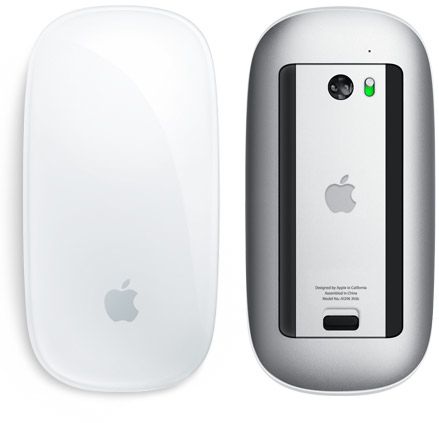
Apple Magic Mouse. No scroll wheel, no side buttons.

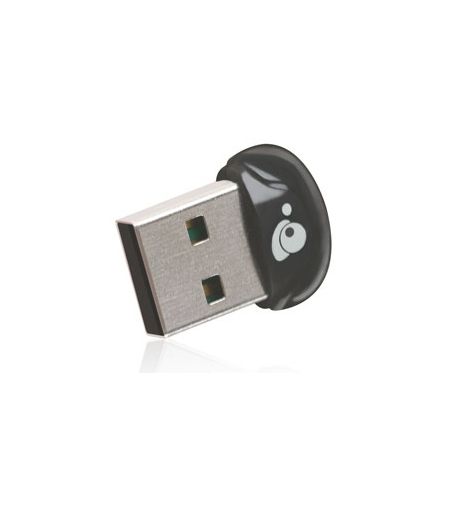
Scrolling with the MagicMouse is accomplished by dragging one finger vertically on the surface; side scrolling by swiping the same finger laterally. Only one finger is needed though Apple’s System Preferences ->Mouse pane shows two being used for sideways scrolling. When you are using a mouse to control a MacMini whose primary purpose is to play DVDs and Netflix, you don’t need to access features like the Desktop or the Dashboard with its widgets. On a desktop work computer these are very nice to have. Needless to add, curiosity got the better of me and I decided to try the Magic Mouse with my desktop HackPro – the desktop computer for the rest of us. At first, System Preferences->Mouse simply refused to recognize the Magic Mouse, even though System Profiler confirms that the minuscule IoGear Bluetooth adapter I have installed in one of the HackPro’s dozen USB ports enables Bluetooth. The HackPro runs OS Snow Leopard 10.6.6 and you need at least 10.6.4 for the Mighty Mouse.

IoGear Bluetooth adapter – smaller than a fingernail.

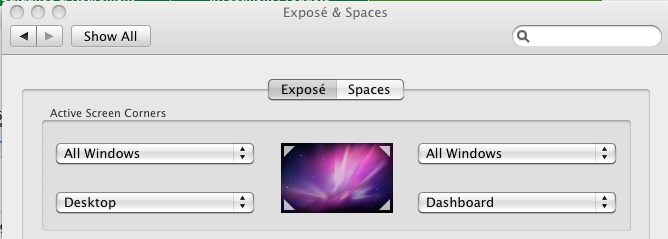
So I resorted to that repository of all that is Apple OS hacking, InsanelyMac, and one suggested solution was to install the SteerMouse utility; this I duly did, rebooted as instructed and, lo and behold, the MagicMouse was now recognized as a Bluetooth device, even though I did not even enable the SteerMouse utility, which appears in the Systems Preferences pane. So now I had a working MagicMouse but still no easy way of accessing the desktop or Dashboard using the mouse, as the side buttons of the old Mighty Mouse were no longer available to do this. Well, I had never used the ‘Active Screen Corners’ function of OS X, found in System Preferences->Exposé & Spaces->Exposé. It takes seconds to do and you get many choices for what each screen corner does.

Active screen corners in OS X

Now when I drag the mouse cursor over one of the screen corners the related action is invoked. Lower left gets me the Desktop and so on. I use a three display installation with the HackPro so ‘corner’ means the outside corners of the left- and right-handmost displays. It works well, but takes a bit of getting used to. I’m getting the hang of it.

Why use the MagicMouse in preference to the excellent RF Microsoft Mouse I have been using for well over a year now? (Yes, I know, ‘excellent’ as an adjective for a Microsoft product is not something you see that often). Mostly because the cursor action is smoother and because you don’t get the occasional bout of wild behavior which has the cursor become very jerky. This seems to occur when Time Machine is running one of its incremental backups, suggesting some sort of interference with CPU or GPU cycles. The MagicMouse does not display this erratic behavior.

The MagicMouse comes with new iMacs and only you can decide whether its shape and workings are right for your hands. One thing you can be sure of – there’s no scroll wheel to go wrong.

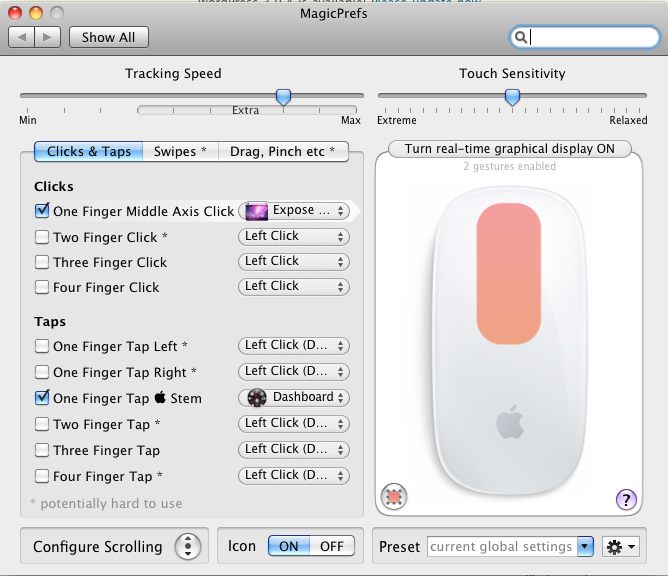
MagicPrefs: If you want a whole order of magnitude more programmability for your MagicMouse, download and install MagicPrefs. This utility installs in the System Preferences pane and gives you more options than you can shake a stick at. How is this possible? Well, the MagicMouse is really a touchpad, like the one on your laptop. It senses touch electrostatically, meaning that every square millimeter of its surface has an ‘address’ whose actions can be tailored. Using MagicPrefs, first you can crank up the cursor speed beyond the poky maximum Apple give you. If you use two or more displays, it’s worth it. Second, you can program gestures to access functions. For example, I have the middle click (where the scroll ball used to be) set to show the desktop and a single tap just above the Apple logo to display the Dashboard. The programmability is vast and there’s something for everyone. Do it right and you will no longer miss the side buttons of the older Mighty Mouse.

MagicPrefs at work.

In other MagicPrefs panes you can even define the location of scroll zones, meaning that left handed users can program scroll and touch zones to suit their dominant hand, as well as reversing left and right clicks. There is also a host of Drag, Pinch and Swipe motions. Extraordinary and free.

Disclosure: Long AAPL call options.

Remote with an iTunes music server

A work in progress.

Download Apple’s free Remote app to your iDevice and you get a handy interface for managing your remote music server. I explained how I set up one of these in yesterday’s column.

Start the app on, say, the iPad and this is what you see:

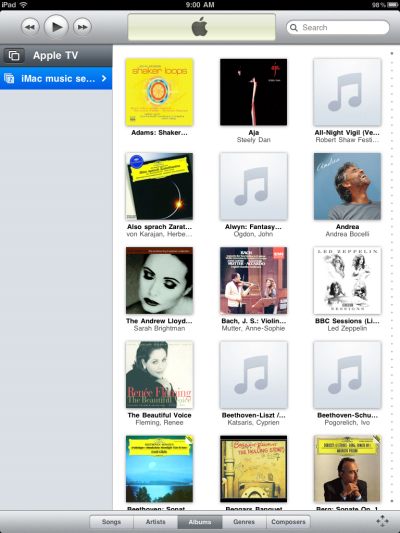
The list of sources appears in the left hand column and the contents in the right. This is the ‘Artists’ view – chosen from the tabs at the base of the screen.

Switch to Albums and you get this – as you can see I still have some work to do to get cover art for all my albums:

And so on. Touching the four arrows at lower right switches you to a blank screen which acts as a touch pad, permitting remote control of menu selections for the AppleTV on the screen of your television. Nice, and a lot more reliable than using a mouse on the sofa cushion!

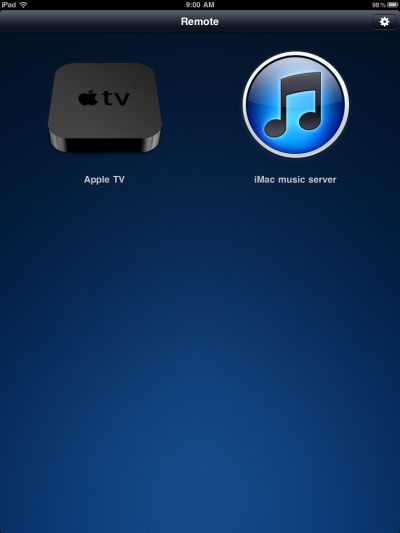
Touch the ‘AppleTV’ bar in the left hand column and you see your sources on one screen:

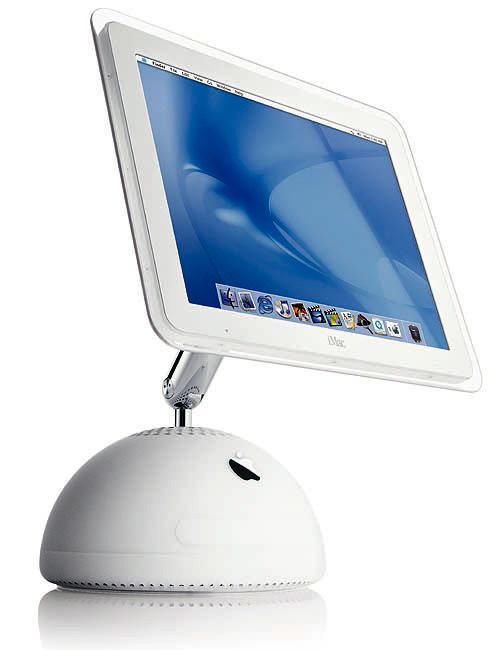
The ‘iMac music server’ is the old G4 iMac I set up yesterday to act as a source for all our recorded music.

What is missing, and why I captioned this piece ‘a work in progress’ is AirPlay functionality. You cannot select where to output sound, so when I want to do so, I have go to the iMac music server and do so in the iTunes application there, as I illustrated yesterday. Not a big deal and maybe a constraint placed on Apple by the modest processing power and RAM of the current iPad. Given that each of my three speaker options has its own volume control – TV, Office and Dining Room – I can change or mute any of these when needed. Still, it would be nice to be able to do this from the iPad whose control is limited to pause/fast forward/rewind and play.

The Remote app is nicely engineered, the price is right (as in ‘free’!) and you can download it from the AppStore.

AirPlay with multiple speakers

Full house sound, wirelessly.

This piece gets a bit technical so hold on to your hat; however, it may be helpful for those experimenting with AirPlay routed to multiple speakers simultaneously.

Following up on yesterday’s column on using AirPlay with TuneIn radio on an iDevice, I rooted around and found another set of Logitech powered speakers languishing in the place the black beetles call home in the garage. These are the estimable Logitech Z4i with a powered bass and two satellites, making for excellent sound. Back when I used an iMac G5 and later the ill fated 24″ iMac which fried its GPU thanks to Apple’s crappy design, the satellites velcro’d nicely to the sides of the iMac’s monitor with the bass out of sight under the workspace. I had put them away in favor of smaller desktop speakers when I built the HackPro and had quite forgotten about them.

Well, as the shared Brother printer in the office is attached to an Airport Express (AEX) as a Bonjour printer, naturally I could not leave well enough alone, realizing that I could connect these powered Logitech speakers to the AEX for yet another sound output from any iDevice. A few moments of plugging things in and TuneIn Radio sound on my iPad was coming from these Logitechs.

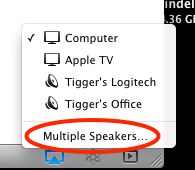
Now how about full house sound? Well, I can’t see any place where AirPlay on an iDevice permits selection of multiple speakers, though I would bet dollars to doughnuts that this is only a matter of time. Maybe the iPad needs to be upgraded to the multi-core ARM A9 CPU before this becomes possible. However, firing up iTunes on the HackPro, where my extensive music library resides, I clicked on the AirPlay logo and this is what I saw:

AirPlay on iTunes and the HackPro.

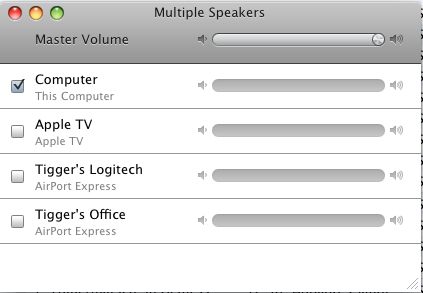
Clicking on ‘Multiple Speakers’ I got this selection panel:

The multiple output panel in iTunes.

I checked off all the speakers and adjusted the volume but …. the sound keeps cutting out. Selecting just the HackPro’s speakers (“Computer”) all is fine, but select any other destination alone or in addition and the sound cuts out.

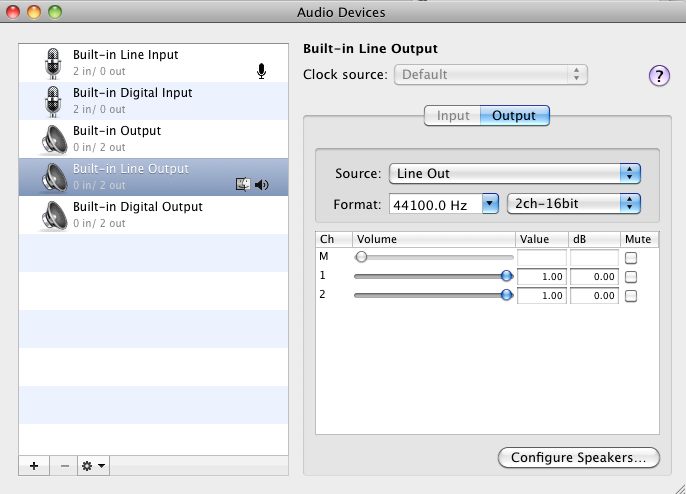
Going to Utilities->Audio MIDI Setup I adjusted the output settings to the least demanding, thus (2ch-24bit is the default):

Audio MIDI settings.

This reduced the cutting out but did not eliminate it, so I’m guessing there’s some glitch either in my wifi system (the HackPro where iTunes runs uses 2.4gHz 802-11n wifi as I cannot use pure 802-11n at 5gHz as I need the 802-11g mode for compatibility with my iPhone, and do not own the latest dual band Airport Extreme). All my sound files are in uncompressed format, meaning they are large, for maximum quality. MP3 is a poor, over-compressed format for sound fidelity. The file size doubtless is not helping matters.

For further diagnosis I went to the MacBook Air which uses 802-11n wireless, started iTunes and tried playing a track stored locally in iTunes on the MBA. Perfect. I could enable all remote speakers and all played fine with individual volume control available for each, suggesting that the lower speed of the 2.4gHz 802-11n on the HackPro may be a limiting factor. There are a lot of variables here so it could well be something else, but I expect I’ll get there through a process of elimination.

Getting ambitious, I next loaded the remote library on the MacBook Air from the HackPro, where iTunes->Advanced->Turn On Home Sharing is set to ‘On’. Well, the stuttering, while greatly reduced, was still there so clearly there is a bandwidth or speed issue with the HackPro which looks like it needs 802-11n. Meanwhile, I’ll just move my favorite tunes from the iTunes library on the HackPro to the one on the MacBook Air for those occasions when whole house sound is called for.

An encouraging experiment.

Update: A solution to the stuttering problem:

I put on the old thinking cap and took the resident Border Terrier for a walk. Always clears the mind, I find. I had never paid any attention to the sound technology in the HackPro where my iTunes library resides. All I need it to do is drive pokey desktop speakers for the usual mail sounds, etc. I do not listen to music through its speakers. Its 802.11g should be more than adequate for routing sound files, even if uncompressed. So could it be the Digital to Analog Converter in the HackPro that was choking? Well, I fired up that ancient old iMac with the 1.25 gHz IBM G4 CPU and a scant 1 gB of RAM which we have owned some ten years now. It’s mostly used for web surfing and is by far the most reliable Mac I have ever owned.

I reckoned that I would simply update iTunes on the iMac (which runs Leopard, the last version of OS X supported on the G3/4/5 CPUs) and then point iTunes to the library of music on the HackPro. While the iMac uses 802-11n it would still be no faster than 802-11g as the slowest component in the equation is the HackPro and it’s 802-11g. But, and here’s the key, I would be using the iMac’s DAC to convert the digital stream to analog sound and my bet was that even the ancient DAC in the iMac would be pretty good, given Apple’s focus on sound reproduction.

And this proved to be the case! I told the iMac to send sound to three speaker sets (Apple TV, Office and Dining Room) and it is playing perfectly for the past hour. If it does start to stutter, I’ll simply move the library of music to its internal hard drive, taking the HackPro’s poky wifi out of the equation, but so far it’s working fine. I suppose I could also place the iTunes files on an external hard drive connected to the iMac but Apple has said that it does not support external HDDs for use with AirPlay, so I’m not pushing that angle. It may work. It may not. What is tremendous is that not only does this ancient hardware support AirPlay with the latest iTunes download (congratulations, Apple!) but sports a decent DAC which is better than the PC-grade one in the HackPro.

This analysis seems to make sense. The old iMac is receiving a digital file and locally converting it to analog. The original approach had the HackPro sending out an analog file to the speakers and, I’m guessing, that’s larger than the pre-DAC-processed digital file. The speakers attached to the HackPro worked fine with no stuttering as they are hard wired, whereas the remote ones stuttered owing to their use of wifi for reception. So it’s either a slow DAC in the HackPro or the lack of 802-11n in that machine.

Another alternative is to retrofit the HackPro with a better DAC but, frankly, I can’t be bothered and so far my total investment in this project is one AEX for $88. That’s enough!

Bottom line? If you have an old G3/4/5 Mac in the home, consider making it a music server for use with AirPlay.

Meet my new old music server.

Second update:

After two hours of music play I would still get the occasional stutter. So I moved my iTunes library to the internal drive of the G4 iMac and loaded the library from there. After two further hours of listening there was no more stuttering.