Category Archives: Macintosh

The computer for the rest of us

Paranoia ….

…. when it comes to backing up.

A while back a fellow photographer mentioned to me that he used Apple’s Time Machine utility and found it a blessing when trying to recover previous layered images in Photoshop, after accidentally flattening the current version and losing all layers of the photograph on his working hard drive. Unlike regular backups which overwrite a file with the latest version, Time Machine maintains an intact catalog of all the versions of a file as it changes. So if you need to recover from destructive edits, it’s just the ticket.

I confess I pooh-poohed the idea as I don’t believe in any back-up that you cannot boot from, and while Time Machine back-ups can restore to drives which are bootable, you cannot boot from the Time Machine back-up itself.

But as this bit of wisdom came from a person whose views I respect, I slept on it and concluded there was a place for Time Machine in my back-up strategy which, troublingly, does not include an off site back-up. My MacPro has a 1tB boot drive and a like internal clone, to which an incremental bootable back-up is made every night using a scheduled task in Carbon Copy Cloner. But both boot and back-up drives reside in the same location inside the same Mac Pro. Catastrophe at that location would wipe me out. And cloud computing storage for large photo files is still a thing of the future, as broadband speeds in the US are simply too slow to upload and download large files.

So I messed about a bit with Time Machine and while I care little for all the glitz and fireworks of the interface, the application is easy to use and after the first backup (very slow – 4 hours to backup 400gB – with some performance drag on the Mac) incremental back-ups are fast. Because the volume of data being backed up incrementally is small, there’s no noticeable performance penalty. Time Machine saves hourly backups for the past 24 hours, daily backups for the past month, and weekly backups for everything older than a month until the HDD is full. After that, it’s first-in-first-erased.

But I did not want to relocate a drive enclosure daily. I required something small and easily carried – the easier the better and the more likely I would actually behave and take it home! Backup strategies dictate paranoia and discipline. Discipline is sloth’s foe and we are all, by inclination, slothful.

The cheapest solution I could find was this:
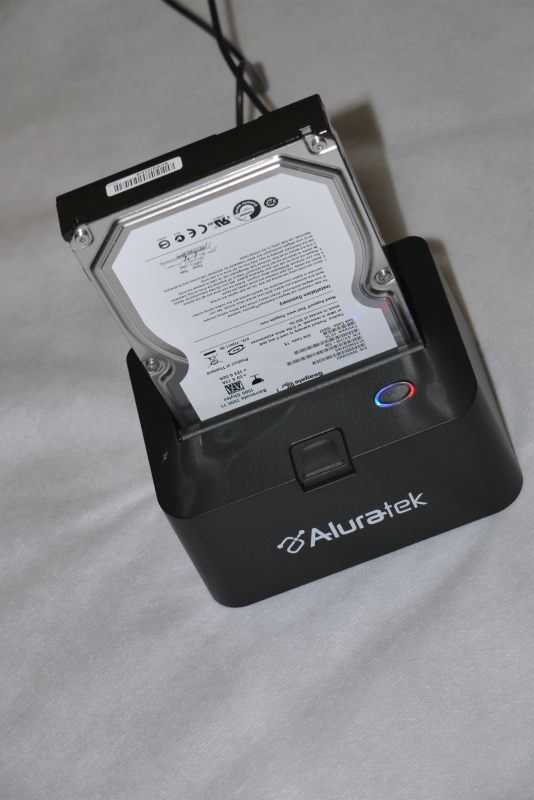
The Aluratek plug-in backup cradle. Blue means on, red means working.

For the grand sum of $24.95 from B&H, one of these Aluratek cradles was delivered, postage paid, and plugged into a USB port. Your naked drive of choice – it can be any 2.5″ or 3.5″ SATA drive – plugs into the top and is released by pressing the button, like on a toaster. While there’s no fan, the device sits in the open, so is reasonably ventilated and, given its light duty cycle after the first core backup, heat is not an issue. “Warm to the touch” describes it.

Opinions of the required size of Time Machine HDDs are all over the lot. Obviously, as a minimum the Time Machine HDD should be as large as the volume of data on your source HDD plus some space for historical back-ups of changed files. The more generations of data you want to store the larger the required TM HDD. On the other hand, I can’t see wanting to go back too far in time. This assumes I realize I have messed up before too much time passes, so that the last good version of whatever I messed up is still available. Further, as my internal HDD is relatively mature, meaning the rate of change of bytes in percentage terms is low, I tend to think too much excess capacity is a waste.

However, as my boot disk is 1.0tB I plugged in a 1.5tB 3.5″ SATA HDD into the Aluratek and let Time Machine do its thing. With only 400gB on the internal drive, 0.5tB – 0.75tB would have done fine, but the incremental cost of the larger drive, at some $30-50 more, is so low as to make no material difference in exchange for the peace of mind. The sledgehammer solution and almost certainly overkill.

Now I simply unplug the naked drive after ejecting it from the Desktop (right click on the mouse) and pop it in my shoulder bag before going home for the day. On reconnection, Time Machine recognizes it within 30 seconds and confers the appropriate green icon on the drive which appears on the Desktop.

I really suppose I should use a grounding strap when removing the HDD from the Aluratek cradle and an antistatic bag to transport it, but I am bothering with neither and all is well after a month of use. We’ll just see how it goes. With the internal redundant backup HDD in the MacPro I simply have iCal send me a monthly reminder to check that I can boot from the backup drive. But Time Machine backups are not bootable. So how do you check them? Well, there’s a clever Time Machine Buddy widget which tells you if everything ran smoothly – worth checking now and again. Typically, I’m finding incremental Time Machine runs are reported as no more than a minute or two in length by Time Machine Buddy, which provides a useful log of what was done by the application.

If the minimum 1 hour backup frequency of Time Machine is too frequent, you can use a free application named Time Machine Editor to extend it.

Another interesting point of discovery is determining how many remove/replace cycles the HDD and the Aluratek can handle. The HDD depends on contact strips and the Aluratek on wipers, both of which wear with use. If they survive a couple of years I will feel fine about my investment.

More paranoia:

I’m beginning to sound like Andy Grove of Intel fame (“Only the Paranoid Survive”) but my pictures are precious to me. So what if a large surge or electromagnetic wave takes out my two internal drives and the Time Machine drive simultaneously while the Time Machine drive is connected? I’m sunk. So I suppose I really should rotate two Time Machine HDDs with one always in the remote location.

Of course, the minute I adopt that strategy, some nut (or divine providence) will drop a Big One on Silicon Valley and then all my redundant drives are toast. But so am I. So in that case I do not care. On the other hand, if an earthquake takes out the Bay Area and I survive, maybe one of the two HDD locations gets lucky. Oh! boy, guess I need another 1.5tB HDD!

One note of caution. Time Machine software is also available packaged with an HDD in a white plastic box from Apple, named Time Capsule. This adds a hard disk to the software and, as is common with Apple products, places looks above longevity. Not only is the plastic case a very poor conductor of heat (in fact it acts as an insulator, trapping heat inside) the box has no fan, meaning it overheats. Further, it uses wireless for the data stream. You are going to trust your precious backup to flaky wireless? No wonder, then, that the web is replete with complaints of Time Capsules having high failure rates. Save your money. Buy your own properly ventilated, hard wired, external drive enclosure and have something that lasts longer than the warranty period, while saving money in the process.

The online backup alternative:

Why not just use an online backup service. In a word, because it’s useless for large files. Here’s why.

My upload speed on DSL is 0.64 megabits/second. At best. 1 megabyte=8 megabits, so that translates to 0.08 megabytes/second.

My Lightroom catalog is 87.66 gB, so it would take 87.66 x 1000/0.08/60/60/24 = 12.7 days to upload it for storage.

Now, apart from the fact that this would completely clog up my DSL, what do you think the chances are of an uninterrupted 12+ day period for this upload?

Then add another 53.2 gB for my iTunes library, and 28.4 gB for my iPhoto library and all the other things and …. well, you get the picture.

On line storage is simply not a practical answer with our slow broadband speeds. The cost is also high – $50-$100 a year and good luck getting more than a gigabyte or two in space. By contrast, the 1.5 terabyte hard drive I am using cost $140 and has a 5 year warranty, so the maximum cost is $28/year – and that’s for 1,500 gigabytes. Not to mention nearly instantaneous retrieval in the event of catastrophe. And by the way, what makes you so sure that the online service, operating in a competitive environment with razor thin margins, will be around tomorrow? Or that their backups are safe? Or what if some crook at their end steals your personal data? Sorry, this approach fails risk analysis on so many issues it is simply a non-starter for me.

* * * * *

On a related note, there’s something awe inspiring about having one or two terabytes in a jacket pocket. Doubtless, 2.5″ drives will have these capacities soon. They max out at 750gB currently, have very small 8mB buffers, are slow at 5400 rpm and expensive. Soon I expect that SDHC cards will take over. A terabyte in a stamp sized card. I still never cease to be amazed at what engineers and materials scientists have done with storage capacities. Imagine, your life’s achievements in exquisite detail on a postage stamp. Truly, modern storage technology is the hoarder’s dream come true.

Apple announces toaster

Get ready to fry.

Earlier this week Apple announced the new iMacs in 21.5″ and 27″ screen sizes. The usual Cupertino Hype tells us there’s lots to like – bigger screens, slimmer, faster, etc. So it has an unusable high gloss mirror for a screen. A minor inconvenience for jewelry buyers.

But a moment’s review of the internal design gives one pause – and I’m speaking from expertise gleaned from having lost one iMac (a 20″) and almost lost another (24″) to bad thermal engineering.

Here’s how the new iMacs look under the skin:


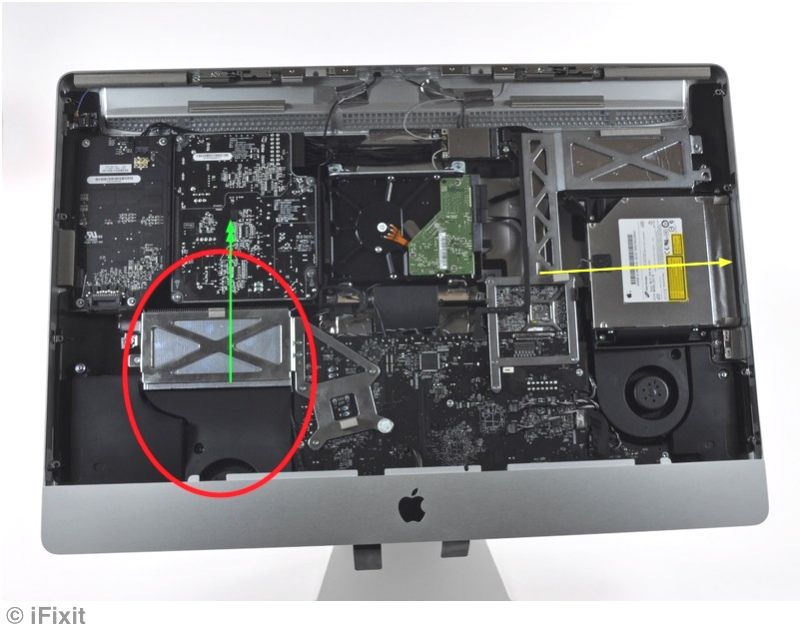
The new 27″ iMac’s guts

Even those of you reading this without an honors degree in Mechanical Engineering (yes, I have one of those) who did not graduate at the top of your class (I did that too, around the time I took yesterday’s snap) can see the obvious design error in the older iMacs has been carried over to the latest iteration. The hot running CPU (because it is from a laptop, not built for desktop use) and the fan below are circled in red. The direction of the blast of superheated air emanating from this assembly is indicated by the green arrow. That hot air toasts the motherboard which is a seriously cramped and compromised design lifted from a laptop to ensure everything fits with Mr. Jobs’s thinness obsession.

I don’t think I need say more, even to readers who don’t know Farenheit from Celsius.

But wait, you exclaim. You said something about a toaster?

Why, yes. The bread goes in the right hand side, denoted by the yellow arrow. It has to be super slim, of course.

iMac engineers on Labor Day

What goes around ….

A friend with an iMac like mine, the easy-fry 24″ late-2006 model doomed to early death owing to poor heat management, sent me this top secret photo of iMac engineers driving to their Labor Day barbecue and I felt I simply had to breach the strict oath of privacy to which I was sworn and share it with similarly afflicted readers.


iMac engineers on the way to the barbecue

I am reliably informed that the driver of the pretty red Alfa is none other than Steve Jobs.

The Mac Mini upgraded – 2009

More memory and a bigger disk.

Given that it seems my life is doomed to cracking open seemingly impenetrable Macs, I opened up my new Mini to add memory and a larger hard disk. The base configuration ($580 mail order) includes but 1gB of RAM and a poncy 120gB HDD.

Quite why anyone would pay Apple $50 for another 1gB of RAM when I paid $12, or $100 for a 250gB HD when I paid $63, beats me but I can recommend MacSales as a reliable vendor of compatible parts, which is where I got mine. These are industry standard parts, just as used by every PC manufacturer, so don’t pay the Apple premium.

MacSales has a raft of installation videos showing how to upgrade your Mac and I strongly suggest anyone upgrading the Mini watch the relevant ones. The job is easy once you crack the case. Cracking the case is tricky. It is now quite clear to me that a whole department at Apple is devoted to making these machines as difficult to dismantle as possible and they were certainly on the ball when it comes to the Mini.

I have one substantial disagreement with the case opening video from MacSales. They show the use of a putty knife to separate the cover from the innards and the extremely fine seam on our Mini simply makes it impossible to insert such a tool without scarring or otherwise damaging the case. Instead, I used an unsheathed Stanley knife blade, sharp end inserted along its full length into the seam underneath – maybe to a 3/8″ total depth – and then levered outwards, using a handkerchief for protection, to start opening the case. Then I inserted a $2 plastic spreader (for glue and the like) in the crack thus revealed and proceeded to work around the periphery, popping the latches. A flat Stanley knife blade is both fine enough and strong enough to permit this approach, which will leave your Mini’s case undamaged. Apple specifically states that user mods to increase RAM and HDD size do not invalidate the warranty – a rare human weakness in a greedy corporation.

Once you have the cover off, the MacSales video is fine. The process of replacing the HDD with a nice new 250gB Toshiba and adding 1gB of RAM took me 20 minutes. Given the saving of $125 that values my time at $375/hour. I can live with that.

Now all I had to do was boot the Mini from the external (GUID formatted) Firewire drive back-up (USB would work also) and use Carbon Copy Cloner to make a complete back-up from the external drive to the internal one after first ‘initializing’ the internal one. Initialization is done using Disk Utility on your back-up drive, a process that takes 20 seconds. I opted for one partition only on the internal drive. While the backup executed, some 70gB of data, I made dinner!

I did consider installing a faster 7200 rpm drive for all of $6 more (the one I used is 5400) but as I am so sensitive about heat management in Macs I decided against it, reasoning that the 7200 must run warmer. Maybe that makes sense? Better safe than sorry.

After restarting, here is what the Mini reported:


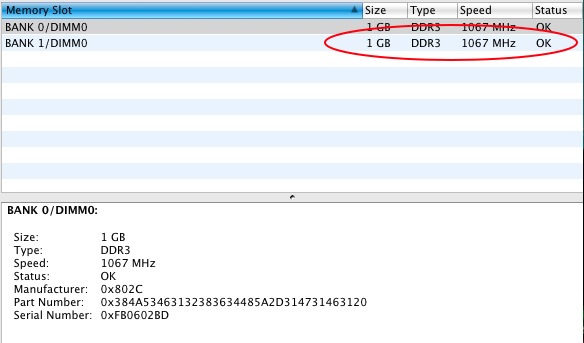
Additional memory


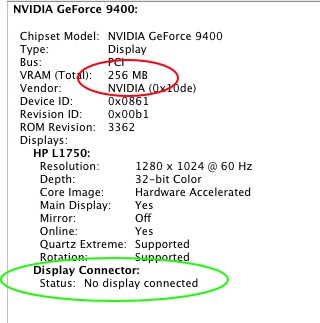
Additional video memory


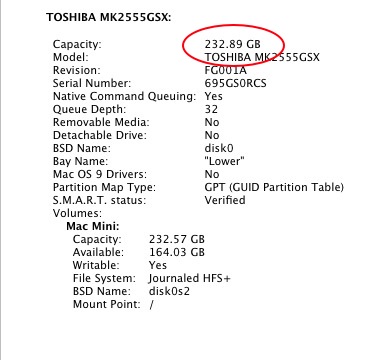
Additional storage

A couple of interesting points.

In the first picture the stock configuration is one 1gB RAM stick, so one slot is left open where you can add 1gB or 2gB. A total of 2gB is fine for my purposes. Forget about ‘matched pair’ memory and save your money. Just buy a 1gB stick, making sure it’s DDR3 and 1067mHz.

Note in the second picture that video RAM is reported at 256mB compared to the base 128mB with only 1gB of CPU RAM. The nVidia 9400M GPU ‘borrows’ video memory from CPU RAM and once you have 2gB or more of the latter (the limit is 4gB) the video RAM is maxed out at 256mB. That is the same as the amount on the nVidia 7600 GPU newly installed in my 24″ late-2006 imac – see yesterday’s column. Note also that the ‘Display Connector’ port reports no display is connected. The Mini is connected to a 17″ HP display (as shown) but the DisplayPort connector on the Mini is unused. The magic of this port is that, for the first time, the Mini can drive a 30″ dual-DVI display (like the Apple Cinema Display or HP 30″ screen) using a special cable from Apple ($100!). Until now that was a property limited to MacPros and the latest iMacs. It’s intriguing to speculate how well the 9400M card would drive a 30″ display. I would think it should be fine as the 9400M GPU is identical to that used in all but the costliest iMacs.

The third picture confirms that the 250gB Toshiba drive is correctly installed and working.

Intriguingly, the widely used performance measurement application, Geekbench, reports a score of 2781 for the Mini (2.0gHz C2D), thus equipped. My late-2006 24″ iMac (2.16gHz C2D) reports 2856, almost identical. While Geekbench is more CPU than GPU focused, this is encouraging and opens the possibility that the new Mini might make a fine photo processing platform. As a quick metric, Lightroom 2.4 pops up in 3-4 seconds (second and subsequent loads, the first takes 8 seconds), performance identical to that on my older iMac. Both Macs are using OS X Leopard 10.5.6.

As for cooling, the Mini is doing fine, even on GPU-intensive tasks. Maybe divorcing the LCD screen from the box really does help with cooling? That and cranking Fan Control up no sooner than the new Mini was removed from its shipping carton.

Timings and temperature readings:

Here are some timings using Lightroom 2.4, comparing the iMac with the Mini.

The machines are spec’d as follows:

iMac: Late-2006, 2.16gHz C2D, 7200rpm HDD, nVidia 7600 with 256mB GPU RAM, 3gB RAM.

Mac Mini: Early-2009, 2.0gHz C2D, 5400rpm HDD, nVidia 9400M with 256mB GPU RAM, 2gB RAM.

In each case 61 RAW files from the Panasonic G1 on a 2gB Class 4 Panasonic SD card (a pretty modest card) were first imported, 1:1 previews were generated with standard G1 Import Preset parameters conferred (sharpening, etc.) and then the same files were exported in JPG format (800 pixel maximum dimension) to the hard disk drive.

I used a Transcend SD/SDHC card reader (it came free with an SDHC card I bought a while back) which plugs directly into a USB slot on the computer – there are many faster readers on the market.

iMac 24″:

Import 61 RAW files and generate 1:1 previews: 719 seconds
Export: 271 seconds

Mac Mini:

Import 61 RAW files and generate 1:1 previews: 430 seconds
Export: 341 seconds or 288* seconds)

All in all a promising start – not that much to choose between the two.

The significantly better timing on importing with the Mini probably reflects the greater processing power of the 9400M GPU compared to the older 7600GT in the iMac (I ran the test twice to check my data).

* The Mini’s slower export time is attributable to its slower 5400rpm hard disk. Doing the same export to an external Firewire 400 7200rpm drive resulted in a time of 288 seconds, near-identical to that with the iMac’s 7200rpm internal hard drive. I would guess this could be further improved by using an external Firewire 800 drive. I did not bother testing this with a USB2 drive as USB2 is horribly slow. Let’s just be thankful Apple has seen the error of its ways and retained Firewire in the Mac Mini after trying to drop it from some of its notebooks.

I would counsel against paying the $150 premium Apple asks for the optional 10% faster 2.26gHz CPU available in the current Mini, if photo processing is your goal. I would also advise against buying the previous generation Mini which comes with the much slower Intel GMA950 GPU with a scant 64mB of video RAM. GPU performance is far more important in this sphere and you can only get the current Mini with one GPU, the nVidia 9400M. Save your money for a better lens for your camera.

As regards heat management, I’m focusing on those sensors which report the highest readings, and those are not the same sensors in the two machines being addressed here. Reporting readings from all the sensors confuses information with useless data.

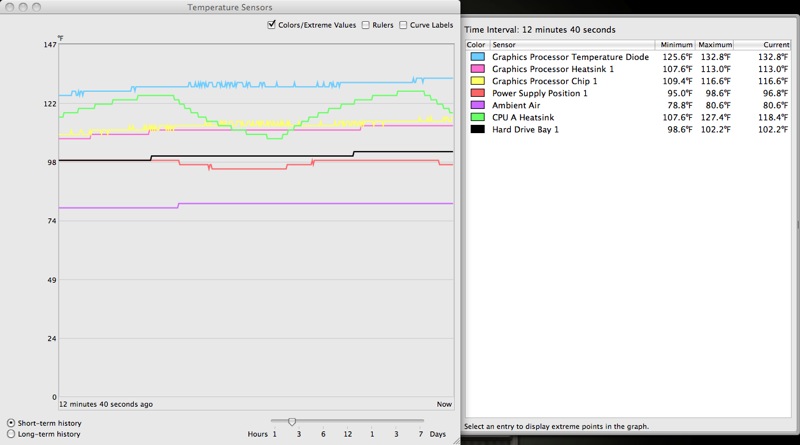
Here are the related temperature readings – the CPU (green) rise reflects both the import and export phases:

iMac temperatures (internal fan at 1000 rpm fixed, two external cooling fans):


iMac temperature graph for import/export of 61 RAW files

Mac Mini (internal fan at 2200 rpm minimum, no external cooling):


Mac Mini temperature graph for import/export of 61 RAW files

No surprise that the iMac’s temperatures are well controlled, as it has massive external cooling, though it remains an object of frustration when one sees just how warm the GPU Diode gets despite all my additional cooling. The modest 6-9F temperature rise in the Mini (the fan spools up significantly, especially when exporting) indicates a well controlled thermal environment. This is very encouraging for not only is the temperature rise modest, the maximum temperature reached is still no higher than in the much modified iMac. I cannot find an ambient temperature sensor in the Mini but the room temperatures were similar for the two tests.

If the good thermal behavior of the Mini holds up in heavy use it may be a serious – and inexpensive – candidate to replace the iMac 24″ when it fails. Of course, I will have to find a good 24″ screen to go with it and it just kills me to think that the wonderful screen in the iMac will go to waste. Such is life.

One final note. Previous Minis have been poorly equipped compared to to costlier Macs. This is not the case with the current model which is the first to come with 802.11n high speed wireless and with a proper DVD/CD reader/burner, comically named ‘Superdrive’ by Apple when it’s the same $25 part to be found in every PC. So the machine is, at last, fully equipped once you add memory and a larger hard disk.

The military iMac

Cool at last.

I call my transformed iMac the Military Mac because it is so ugly that only the military could love it.

Simply stated, after replacing the nVidia 7300 graphics card with the 7600 I was no longer able to control the speed of the key fan of the three inside. The CPU fan. If you really feel the need to ask me if I connected it, please go elsewhere. That one cools the CPU, the GPU and GPU diode and the power supply. I tried a second card from ApplePalace.com with the same result, so there must be some deep seated incompatibility between the 7600 card and my 2.16gHz late-2006 C2D Intel iMac which came with the stock nVidia 7300 card. You know, the one Apple refuses to admit fries as soon as you look at it.

As earlier described here, I drilled 87 holes in the back of the iMac while it was gutted, covering them with wire mesh on the inside. These coincide with the placement of the GPU/GPU Diode radiators, the HDD and the power supply.

When I realized that I could not get the internal fan above the base speed of 1,000 rpm I placed a floor fan facing the holes and temperatures, as reported by Temperature Monitor, plummeted.

So I had two choices. Run a variable low voltage DC power supply to the internal fan which had lost variable speed control – a royal pain – or simply slap a couple of large fans on the rear to ventilate the radiators and power supply.

As dismantling the iMac was getting old, I decided on the latter, at least for now. $40 and four cable ties later, I had two small utility fans, running very quietly off the mains, pumping large volumes of ambient temperature air through the ventilation holes with fairly dramatic results.

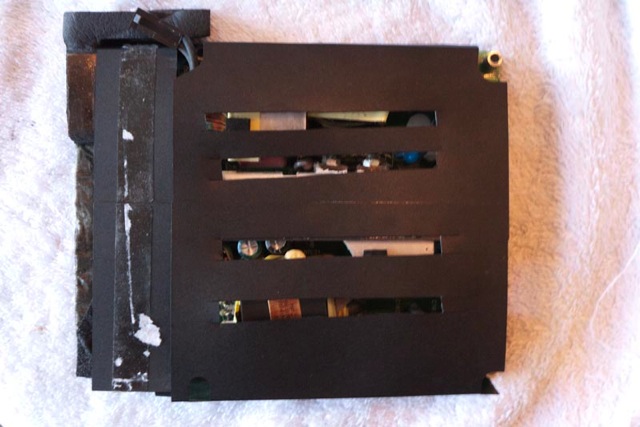
While I had the case open I also added cooling slots to the power supply plastic sleeve, after first detaching it from the power supply, thus:


Slots in power supply sleeve.


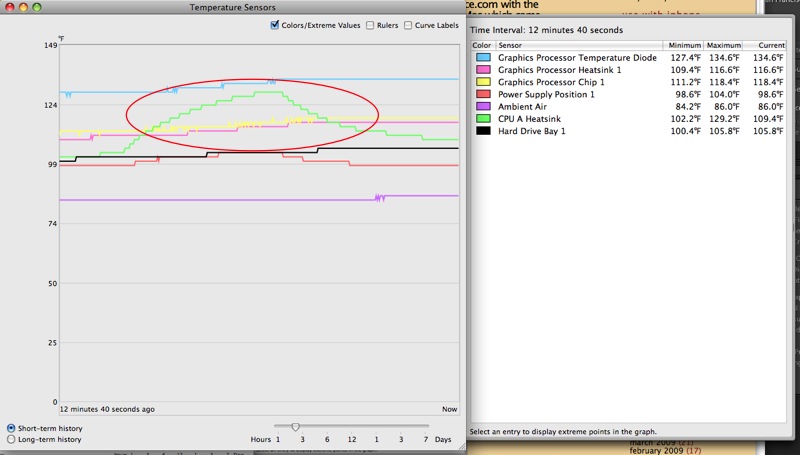
The Military Mac reports key temperatures.
Circled area denotes export of 80 RAW files from LR2 to JPGs on the Desktop.

Easily the most demanding task I have found, as cooling goes, is the export of RAW originals to JPGs out of Lightroom. That works the CPU, GPU and especially the power supply mightily. Look at the stepped rise of the green CPU line circled on the graph – that coincides with the export of 80 RAW files to the Desktop. The rise is easily within spec. That green line falls once the export job is completed. Note also that the other temperatures are largely unaffected, especially the power supply and GPU-related ones. That is indicative of the success of my approach.

By the way, the HDD fan, which I can still control with Fan Control, is set at 2200 rpm and cools a 1tB Samsung 7200 rpm 3.5″ SATA drive, which replaces the bottom-of-the-line Western Digital 250gB one these machines were shipped with. Hey, Apple has to keep up those profit margins. The Sammy retails for around $100 – a great bargain. As you can see, it runs very cool.

Why do I go to all this trouble?

Well, first, I do not like to be cheated, and Apple Inc. has cheated me by selling a faulty machine whose design faults they deny. Back in my old school, when a boy behaved like that, we stuck his head down the toilet, after first making sure no monks were in sight, and flushed. The designer of these deserves no less. I was quoted almost $1,000 to (maybe) repair a 30 month old computer with a short warranty, only to have it fail again? That makes no sense and is a dishonest and a dishonorable business practice. The replacement card cost me $260 delivered to my home in California.

Second, the 24″ S-IPS LCD screen in the iMac is quite superb for photo processing, and I would like to keep using it for a while longer. And it is matte.

Third, based on the hundreds of these refurbished graphics cards ApplePalace.com told me they are selling there must be many other users of these machines who might benefit from reading this. ApplePalace.com told me there is no such thing as a new card – they came clean on that and stated these are all refurbished by Apple, despite their web site stating parts are ‘new’. Hard to know what to believe here.

I had to use two external fans as I could not find one large enough to cover all the ventilation holes. If I cooled only the GPU-related holes the power supply would go into thermal runaway, quickly reaching 160F regardless of room temperature. So I went wild, blew another $18 and added a second fan.

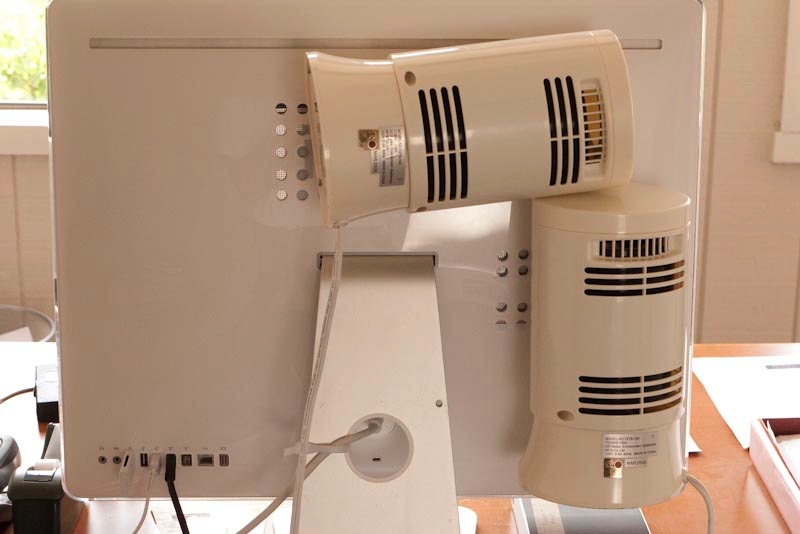
How does it look? From the front the modifications are invisible and the fans barely audible. From the rear? Ugh!


Military Mac, ready for desert duty.

Will it last? I see no reason why not. Do I want to do this again? Please. I have no doubt that I will eventually simply rewire the internal fan to a variable power source I can control and get rid of those ridiculous excrescences, but right now I am in the land of function over form.

Now do you mind? I would like to finally get down to processing some photographs as I joyfully anticipate a world with a fail safe OS and hardware to match, regardless of who actually makes the latter. One things for sure – there will not be a fruit on the front.