Category Archives: Hardware

Stuff

Microsoft Surface

MSFT drops the ball. Again.

Microsoft Surface has been around for, what? 5 years now?

Think of it as a large iPad on steroids, but with tremendously improved touch functionality.

Not surprisingly, MSFT’s web site on the product is simply awful. No dynamism. No excitement. A narrative as thrilling as the instruction book for repairing a washing machine. What is it with Microsoft? Even the ‘copy and paste’ link does not work!

If I was marketing this product I would make sure to give free versions to every major film studio, news channel, publishing house and famous photographer I could find, make it sell for $3,000 and watch it take off. I have seen it used twice – once on a TV news show and once in a James Bond movie, both times to jaw dropping effect. And if I was MSFT, I wouldn’t care about the profit or loss. They have already lost millions on it. What I would care about is the tremendous halo effect it would have on my other mass market products. It’s a simple variant of ‘win on Sunday, sell on Monday’ in the car world. Porsche wins Le Mans? You buy a new 911.

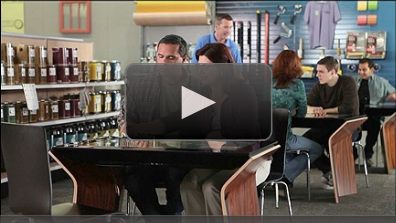
Microsoft Surface – click to view the boring video.

Steve Jobs’s was so right all those years ago when he said ‘Microsoft has no taste’. Even when they make ground breaking products like Surface and Kinect, their marketing, in a word, sucks.

Watch it from the man himself.

You can even get to enjoy the world’s worst CEO in this video – though he has strong competition from Howard Stringer at Sony. Here Ballmer extols Windows ’95 which most would agree was the worst OS ever. Or was that Windows ME?

An economy Hackintosh – Part I

Equalling the original at half the price.

Expert computer builder FU Steve set out the current state-of-the-art in Hackintosh building for photographers and video artists in his piece here. At a cost of $1,347, which included one Dell 21.5″ IPS display it’s some 20% faster on most tasks than my Core2Quad machine which is overclocked to run at 3.60gHz versus 2.83gHz stock.

Truth be told, that latest build, using the Intel i5 Sandybridge CPU is overkill for most, so I asked FU to spec out a lower cost machine whose goal was to equal the performance of my Core2Quad Hackster at half the price. In contrast to the paper specs of the i5 machine, this one would be put to work as a stock quote and Excel machine in my office, so there is no room for any cost cutting which threatens reliability.

I’ll hand it over to FU Steve. Having built the HP1, my daily user, he now embarks on the HP10.

* * * * *

Thank you Thomas.

This build is going to use the Intel i3 3.1gHz CPU and a low power drain motherboard and graphics card. That will save on cooling without compromising reliability. On the other hand, the power supply will be over-spec’d to allow for the addition of more drives and monitors down the road with a possible upgrade to an i5 or i7 CPU which is a drop in replacement for the i3. The stock Intel cooler will be used; it’s a poor cooler but should be adequate for the demands here.

CPU:

Intel Core i3-2100, 3.1gHz – $124
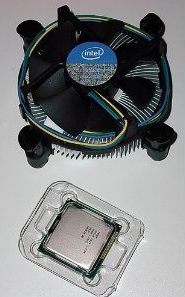
This is a superb bargain. It can only accept very modest overclocking, which is a waste of time, but uses little power and is easily cooled.

CPU cooler:

I am using the stock Intel cooler which comes with the CPU, with Arctic Silver thermal paste in lieu of the stock paste supplied by Intel.

Motherboard:

Gigabyte Intel H67M-D2-B3 – $100

I’m sticking with Gigabyte as it’s a known and reliable maker. This board is a Micro-ATX board, though we are using a full sized ATX case. It supports the new 6gB/s SATA data transfer rate, twice as fast as the older 3gB/s. It will only accept two memory sticks, but we will only be using one, for 4gB.

Memory:

Corsair XMS3 4 GB 1333MHz PC3-10666 240-pin DDR3 Memory Kit for Intel Core i3 i5 i7 = $30

Another can be added if needed later on.

Graphics and video:

EVGA GeForce GT430 1024 MB DDR3 PCI-Express 2.0 Graphics Card Video Card 01G-P3-1431-KR – $64
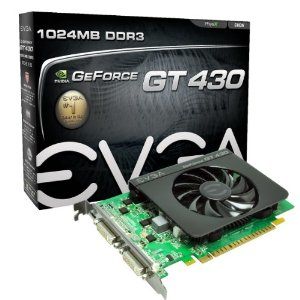
There are faster and far costlier GPUs than this one but this is a tremendous price for an advanced card which will support two DVI-D displays. You can start with one display and then add a second later. I’m sticking with EVGA and the Nvidia chip as Thomas has had such excellent performance from his EVGA Nvidia 9800GTX+ card, which is marginally slower than this card, but cost twice as much. The card comes with its own cooling fan, which is as it should be. This is a low power consumption card and does not require plug in power, deriving what it needs from the motherboard.

In addition to the two DVI-D sockets for computer displays (a rarity on a card which is so inexpensive), the card also has an HDMI socket for use with modern LCD TV sets, making this machine ideal as a home theater PC, though I would use a smaller case and a notebook HDD for such purposes. There is no VGA socket – if that’s required, look at other cards. Gigabyte alone makes so many it’s mind blowing.

Computer case:

Cooler Master Elite 371 Mid Tower ATX Case – $40
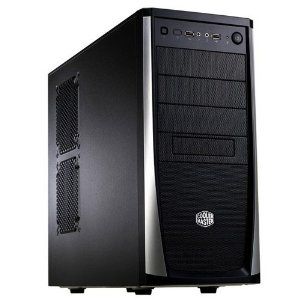
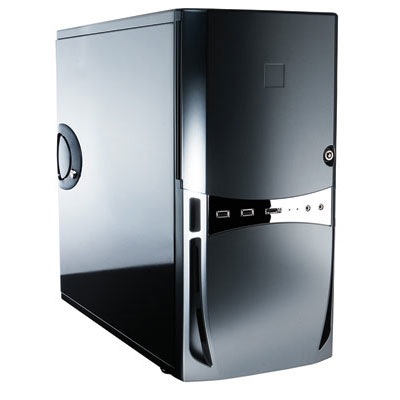
Not as massive as the Antec Sonata III Thomas uses in his Core2Quad machine, but adequate for our purposes. It has especially easy installation for disk drives and peripherals and lots of space for cooling and expansion. There is no reason to go with a small case for this application.

Power supply:

Thermaltake W0070RUC TR2 Series 430W Power Supply with 2 Fans – $41
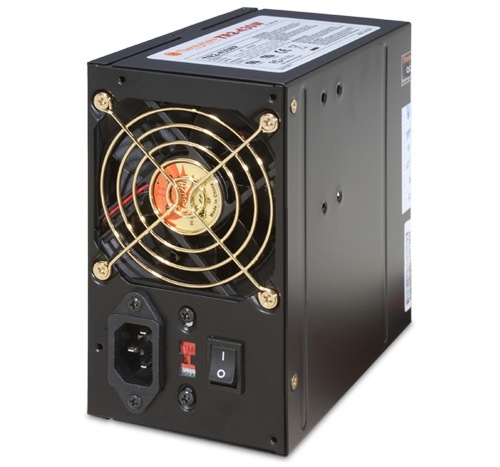
It’s easy to be cheap here, but an under-spec’d power supply will die on you, maybe taking the motherboard with it. Plus it limits upgrade potential. The power supply used here has shielded cables, lots of connectors, a twin fan and a great reputation. It includes a 115/230 volt switch.

You can use the table here to properly determine the power supply wattage needed. This rig demands 234 watts, so with a 430 watt power supply there’s no stress. Add a second HDD, two SSDs, more USB devices, more fans and an i7 CPU overclocked, and the power needed rises to 295 watts. (By contrast the Core2Quad Thomas uses needs 404 watts at full power, which gives you some sense of how power needs have fallen with the latest components).

Keyboard:

Kensington K64366 wired slimline USB for Mac – $38 (not at Amazon).
Forget wireless – simply not reliable enough. This keyboard uses mechanical scissor-type key springs and is superior in every way to the execrable ergonomics of the overpriced ones made by Apple. You use a keyboard all the time – why not the best? Get a cover while you are at it – $20 – and keep it clean and long lived.

Disk drives:

Seagate Momentus XT 500 GB 7200RPM SATA 3Gb/s 32 MB Cache 3.5 Inch Solid State Hybrid Drive ST95005620AS-Bare Drive = $100
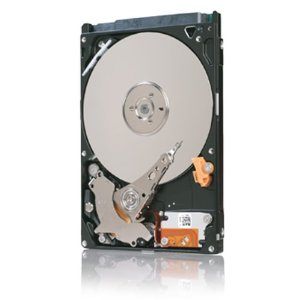
You can get awfully used to the fast boot of an SSD but it comes at a price. As you can leave your HackPro on 24/7 there’s no need for a fast booting costly SSD, so use a good compromise, a hybrid HDD. This uses some internal memory to cache frequent uses (open PS, open LR, etc.) but traditional spinning disks for storage. The price is right. 500gB is plenty; if you need more buy larger traditional drives and consider using a small SSD drive for booting the OS and for loading apps. If the budget is tight, you can get a 500gB 6gB/s Seagate 7200rpm drive for as little as $40.

DVD readers:

DVD: Sony 24X SATA Internal DVD+/-RW Drive AD-7260S-0B – $20
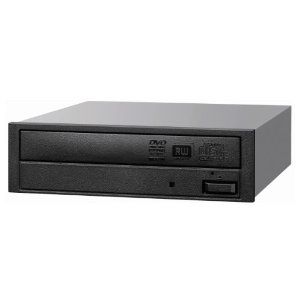
Steve Jobs may be junking the DVD drive but you don’t have to at the price Sony is asking. Forget slimline or slot loading drives – made to fail.

If you need an SDXC card reader, external USB types can be had for $20.

Mouse:

Microsoft Wireless Mobile Mouse 6000 – White – $23
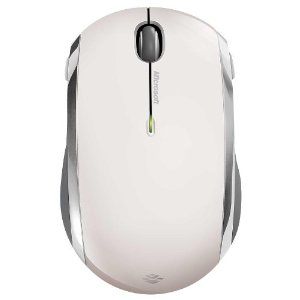
Bluetooth mice – Apple’s and many others – are plagued with interference problems. Like Thomas once did, I use the Microsoft Mobile Mouse because it’s cheap, comfortable, runs for three months on one AA battery and uses RF not BT. A small dongle is inserted in any available USB port and there’s no pairing or disconnection issues. Instant on, never off. Best of all, the white one has a semi-gloss surface which does not show fingerprints and is $4 less than the shiny black one. Go figure. Download MSFT’s Intellimouse software and you can tailor the two side buttons and the scroll wheel. The latter supports both vertical and horizontal (tilt the wheel) scrolling. A superb product, even if it does say ‘Microsoft’ on the box. The scroll wheel is freewheeling – if that does not work for you look at RF mice from Logitech.

By all means try Apple’s Magic Mouse. I suspect you will conclude, as I did, that the ergonomics suck, leaving you $70 poorer.

Bluetooth:

IOGEAR USB 2.1 Bluetooth Micro Adapter GBU421 – $12
If you need BT, plug this in to any USB port. The mouse used does not need it.

Speakers:

Logitech LS11 2.0 Stereo Speaker System – $18
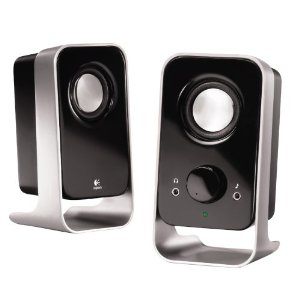
These will give you sound about a billion times better than the ones in an iMac for very little outlay. They are wired – forget wireless toys. This model has been around for ever, with just cause.

Display:

ASUS VH222H-P 21.5-Inch Widescreen LCD Monitor – $138 + $5 for a DVI-D cable.
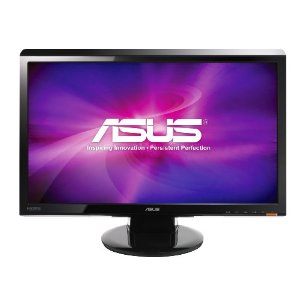
With 1920 x 1080 definition this is a nice modern display. Not top of the line but adequate for all but the most critical users. Comes with DVI-D cable included. There’s a small built in speaker (poor) but will suffice if you do not need big sound.

Wireless 802-11n:

Newer Technology USB dongle from MacSales – $30
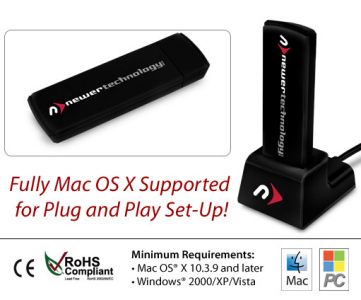
The latest driver works perfectly with OS Lion.

If you prefer wired Ethernet, be sure to install the RealtekRTL81xx.kext file (available free from kexts.com) using KextBeast (available free from the Downloads area of Tonymacx86.com). Simply place the kext file on your desktop and run KextBeast, then restart the computer.

Software:

OS X Lion – $30

The most overrated ‘upgrade’ to an OS ever, but robust, stable and easily made to behave like its awesome predecessor, Snow Leopard. Thomas has written about it a lot on his blog, and it is priced right. I used the TonyMac installation which is clearly documented here. The site has a host of DSDT files – these are specific to your hardware to make Lion run. Installation is simply a question of placing the file on your Desktop and running MultiBeast.

Sound is a little tricky. The motherboard uses the Realtek ALC888b codec. To avoid nasty crackling sounds run System and AppleHDARollback from Multibeast. Then go to Kexts.com and download GigabyteALC888b.kext and HDAEnabler.kext, place both on the Desktop, run KextBeast, reboot and you are done.

The installation here is a ‘clean’ Lion one, with no need for a pre-existing Snow Leopard installation.

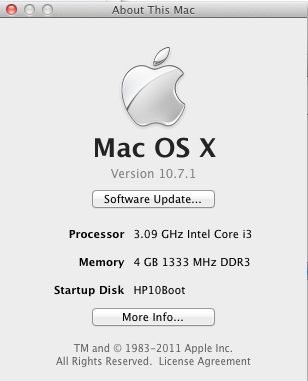
You can update Lion 10.7.0 to 10.7.1 using Software Update in OS X; mine installed flawlessly.
Time to assemble the hardware and tools required:

Study the pictorial at the end of this piece first, then run it on your iPad as you do the work. I believe that even a first time computer builder could assemble this in a very leisurely ninety minutes, two hours with a pause to walk the dog. Tools needed are a medium Phillips screwdriver, a flat bladed screwdriver, a pair of snips to remove blanking plates (though you can just wiggle them until they break off), a 5mm nut driver to tighten the motherboard stand-off posts (though you could butcher these just as easily with a pair of pliers if you have no pride in your work), a thin piece of stout plastic to spread the thermal paste on the CPU and heatsink in the fan base, and a bent paper clip to test the power supply before installation.

Software hacking for Lion OS X:

There are a large number of web fora addressing OS X hacking. Some of the most useful are:

  • InsanelyMac – a lot of noise on this forum, but the chances are high that your issue will have been encountered by someone else and, if not, posting a question comes with a good chance of a reply.
  • TonyMacX86 – this aims for a much ‘cleaner’ presentation and comes with a host of free hacking tools and files.
  • Lifehacker – Hackintosh – the source for the original Adam Pash build of Thomas’s HP1 Core2Quad Hackintosh, much enhanced since original construction. Lots of great tips on upgrading to Lion from Snow Leopard.

In both cases there is a strong sense of community and helpfulness, so if you derive value from these be sure to try and help others if you can.

Economic risk:

No component costs over $140 here, so if one part blows, your replacement cost exposure is low.

Expandability:

The beauty of using a generously sized computer case is not only that it makes cooling easy (you can get three more case fans in there and a large CPU fan) but also that the computer can be greatly expanded as needs dictate and the budget permits. Some examples:

  • Add three more case fans
  • Upgrade the Intel Core i3 CPU to an i5 or i7 – drop-in replacement, no software changes. The Core i3 used has excellent resale value.
  • Use an i5 or i7 in the overclock version and you can further significantly increase processing speed
  • Add more RAM – one more 4gB stick for 8gB total or two 8gB sticks for 16gB
  • Add SSDs, HDDs, card readers, etc. until you are blue in the face
  • Replace the Micro-ATX motherboard with a full sized ATX one if your needs are extreme
  • Migrate to an exotic graphics card for the most demanding video processing needs
  • Add a second monitor without the need to add a second graphics card

Further, by not chintzing on the power supply at this stage, there is more than enough current and connectors available to cope with increased power demands.

Total cost:

$814.

$724 if using wired internet and a regular 500gB disk drive.

Add as much as you want to spend for a costlier monitor. Or two.

In Thomas’s case, he had many of the peripherals and OS Lion, needing only the CPU, RAM, motherboard, graphics card and power supply, for a total outlay of $400.

For that price you get performance comparable to a mid-range iMac at half the price and with far better cooling, meaning far greater reliability.

* * * * *

Thanks, FU. FU is building the machine right now and I will run Part II with performance measurements on Photoshop CS5 and Lightroom 3 once it’s up and running.

Click the picture below for a slideshow of how FU assembled the HP10 computer:
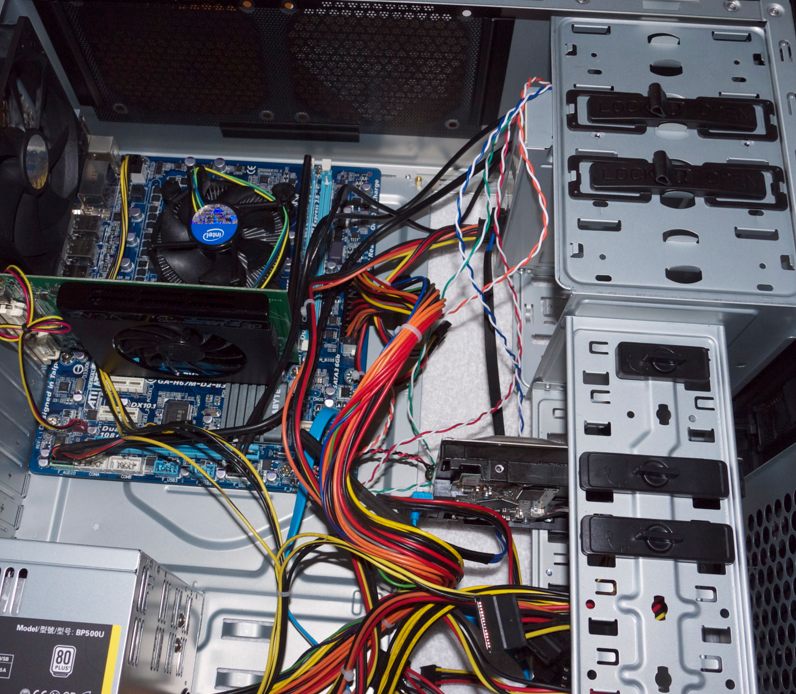
Click the picture for the HP10 assembly pictorial. © FU Steve.

Part II on the economy Hackintosh appears here.
Today’s Hackintosh

The optimal photographer’s build.

The stock market just laid another egg, your investments are down 20% YTD, but you still need a new computer? Build a Hackintosh.

While my Hackintosh continues to deliver high performance and reliability, competitive with all but the most exotic current computers, its components are dated. Today’s Hackintosh builder could no longer buy the same motherboard new nor would he want to, as cheaper alternatives which accommodate newer CPUs and faster RAM are available.

With that thought in mind, and knowing that many readers here would like to screw up their courage and dump Apple’s flaky iMacs for good while not wanting to be hosed down for a new MacPro, I asked expert computer builder FU Steve (the builder of my HackPro) to put together a components list for a Hackintosh best suited to the needs of a photographer who might also want to do video processing. Video needs far more processing power than still pictures.

The design dictates were much the same as for my Hackintosh, meaning:

  • Outstanding heat management
  • Bullet proof reliability
  • Uses standard PC industry parts
  • Motherboard must be easily adapted to run OS Lion
  • 80/20 performance – 80% of the best there is at 20% of the price
  • Easily hacked to run Lion with a minimum of technical expertise
  • Expandable
  • Five year life expectancy

Here’s what FU came up with.

* * * * *

Thanks, Thomas.

I list the components below with today’s pricing at Amazon US, together with some words on each.

CPU:

Intel Core i5-2500K, 3.3gHz – $220

This is by no means Intel’s fastest CPU. It’s the mid-range model of their latest Sandybridge line with the ‘K’ denoting it’s unlocked, meaning it can be overclocked. Overclocking by 15% to 3.80 gHz is safe and will compete on speed with the $100 costlier i7 in non-overclocked mode. Thomas’s HackPro with its overclocked Core2Quad delivers a Geekbench score of 8,700 – that’s a CPU speed test. You can expect the i5 to deliver that in stock mode, rising to 10,000 once overclocked. The i7 supports 8 simultaneous threads compared to 4 for the i5, but for use with Photoshop and Lightroom/Aperture that adds no value. These CPUs use Intel’s latest 1155 socket fitting, so if you ever need to upgrade to an i7 it’s a plug-and-play replacement.

CPU cooler:

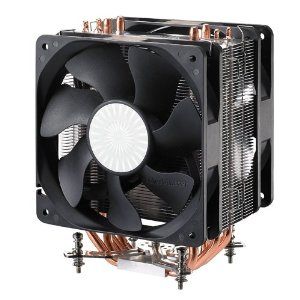
Cooler Master Hyper 212 Plus 120mm Sleeve CPU Cooler, RR-B10-212P-G1 – $27

Intel sold the Core2Quad with one of the worst fan coolers ever. The i5 comes with an equally crappy fan. Don’t mess with success – use the tall Coolermaster 212 with its large array of fins in the radiator and a dedicated fan to keep things cool. This is the same one used in Thomas’s HackPro and fits the 1155 Intel socket CPU fine. Use Arctic Silver paste between the cooler and CPU – $5 – the tube will do more computers than you can.

Motherboard:

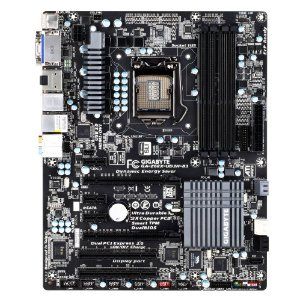
Gigabyte Intel Z68 ATX DDR3 2133 LGA 1155 Motherboards GA-Z68X-UD3H-B3​ – $160

This one’s a slam dunk. The Gigabyte board chosen is easily adapted to Mac OS duties, fits the Intel 1155 socket Sandybridge CPU and has four RAM slots, each capable of holding 8gB for a 32gB total. It’s a full size ATX board making assembly easy and will pose no issues with the large Coolermaster CPU cooler which can be a squeeze on smaller boards. Unlike smaller boards which typically come with only one fan connector, this Gigabyte sports four – CPU, two System and one Power supply. There are also more USB and SATA and other connectors on this board than you will likely ever need.

Memory:

Corsair XMS3 4 GB 1333MHz PC3-10666 240-pin DDR3 Memory Kit for Intel Core i3 i5 i7 – 2 off = $60

If you ever see the need to go to 32gB buy one 8gB memory stick to make addition easy, but those are premium priced and it’s hard to imagine even a heavy video processor needing more than 16gB. As 8gB is more than adequate in Thomas’s HackPro I’m using two 4gB sticks here, leaving two slots open. You can add 4gB or 8gB sticks to these when you talk yourself into believing you need them. Why not faster 1600mHz RAM? Because the price-performance equation breaks down. 1333 is the price/performance sweet spot.

Graphics and video:

EVGA GeForce GT430 1024 MB DDR3 PCI-Express 2.0 Graphics Card Video Card 01G-P3-1431-KR – $64

There are faster and far costlier GPUs than this one but this is a tremendous price for an advanced card which will support two DVI-D displays. You can start with one display and then add a second later. If you need more than two do as Thomas does and use an USB-DVI adapter. I’m sticking with EVGA and the Nvidia chip as Thomas has had such tremendous performance from his EVGA Nvidia 9800GTX+ card, which is marginally slower than this card, but cost twice as much. The card comes with its own cooling fan, which is as it should be. On Cinebench, a graphics frame rate test, Thomas’s dated HackPro delivers 35 fps. Expect up to 50 fps from this build. Either is way beyond the needs of any but the hardest core gamers. For video processing these are more than you need.

Computer case:

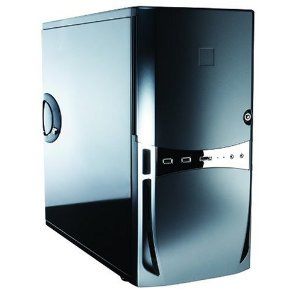
Antec Sonata III 500 Quiet Super Mid Tower ATX Case – $130

A case, is a case, is a case …. not! This one has stood the test of time in many computers I have built. It’s sturdy, well ventilated, well made and the price includes a 500 watt power supply, more than adequate for a photographer’s needs. There are USB, SATA, and sound ports on the front and room for four internal and five front-mounted drive bays. It’s modestly sized but roomy enough to make assembly easy and comes with two fans – power supply and case. With the GPU having its own fan and the Coolermaster CPU fan this rig will run cool as can be, overclocked or not.

Keyboard:

Kensington K64366 wired slimline USB for Mac – $38 (not at Amazon).

Forget wireless – simply not reliable enough. This keyboard uses mechanical scissor-type key springs and is superior in every way to the execrable ergonomics of the overpriced ones made by Apple. You use a keyboard all the time – why not the best? Get a cover while you are at it – $20 – and keep it clean and long lived.

Disk drives:

Seagate Momentus XT 500 GB 7200RPM SATA 3Gb/s 32 MB Cache 2.5 Inch Solid State Hybrid Drive ST95005620AS-Bare Drive – 2 off = $200

You can get awfully used to the fast boot of an SSD but it comes at a price. As you can leave your HackPro on 24/7 there’s no need for a fast booting costly SSD, so use a good compromise, a hybrid HDD. This uses some internal memory to cache frequent uses (open PS, open LR, etc.) but traditional spinning disks for storage. The price is right. 500gB is plenty; if you need more buy larger traditional drives and consider using a small SSD drive for booting the OS and for loading apps. I’m buying two of these – boot and backup.

DVD and SDXC readers:

DVD: Sony 24X SATA Internal DVD+/-RW Drive AD-7260S-0B – $20
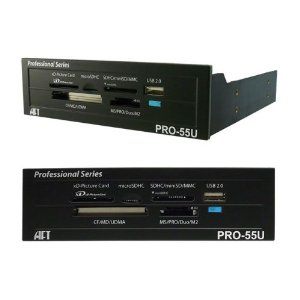
SDXC: Atech FlashPro-55U Internal Flash Memory Card Reader w/ Front USB 2.0 Port for 5.25 Inch Drive Bay – $58

Steve Jobs may be junking the DVD drive but you don’t have to at the price Sony is asking. Forget slimline or slot loading drives – made to fail.

The SDXC card reader is expensive but makes for an elegant fit in the front panel of the Antec case. External USB types can be had for $20.

Mouse:

Microsoft Wireless Mobile Mouse 6000 – White – $23

Bluetooth mice – Apple’s and many others – are plagued with interference problems. Like Thomas once did, I use the Microsoft Mobile Mouse because it’s cheap, comfortable, runs for three months on one AA battery and uses RF not BT. A small dongle is inserted in any available USB port and there’s no pairing or disconnection issues. Instant on, never off. Best of all, the white one has a semi-gloss surface which does not show fingerprints and is $4 less than the shiny black one. Go figure. Download MSFT’s Intellimouse software and you can tailor the two side buttons and the scroll wheel. The latter supports both vertical and horizontal (tilt the wheel) scrolling. A superb product, even if it does say ‘Microsoft’ on the box. The scroll wheel is freewheeling – if that does not work for you look at RF mice from Logitech.

By all means try Apple’s Magic Mouse. I suspect you will conclude, as I did, that the ergonomics suck, leaving you $70 poorer.

Bluetooth:

IOGEAR USB 2.1 Bluetooth Micro Adapter GBU421 – $12

If you need BT, plug this in to any USB port. The mouse used does not need it.

Speakers:

Logitech LS11 2.0 Stereo Speaker System – $18

These will give you sound about a billion times better than the ones in an iMac for very little outlay. They are wired – forget wireless toys. This model has been around for ever, with just cause.

Display:

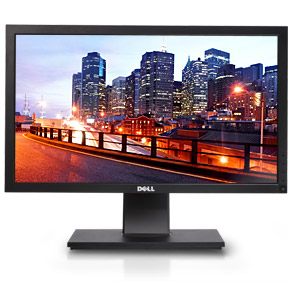
UltraSharp U2211H 21.5″ 1920 x 1080 1000:1 Widescreen LCD Monitor – $248

With 1920 x 1080 definition this is a photographer’s dream display owing to its IPS panel – a worthy successor to the three 2209WAs Thomas uses (and which are only 1680 x 1050) and at a fantastic price. Comes with DVI-D cable included.

Wireless 802-11n:

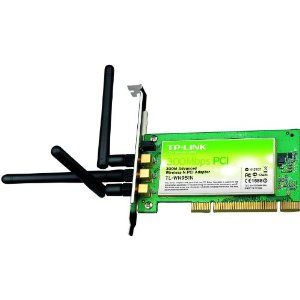
TP-Link TL-WN951N 300Mbps Wireless N PCI Adapter – $34
Newer Technology USB dongle from MacSales – $30

Plug and play as it uses the Atheros chip. An alternative and faster solution is the like-priced Newer Technology USB dongle from MacSales for $30. The latest driver works perfectly with OS Lion.

Software:

OS X Lion – $30

The most overrated ‘upgrade’ to an OS ever, but robust, stable and easily made to behave like its awesome predecessor, Snow Leopard. Thomas has written about it a lot on his blog, and it is priced right. Kakewalk will allow you to do a fresh install – no need to have Snow Leopard installed first. Download Lion to your crappy old iMac and, before restarting, copy the installation files to an 8gB flash drive or SDHC card. Once you restart the iMac the required installer files for your Hackintosh will be erased.

Hacking:

Kakewalk – free, but make a $30 donation. Don’t be cheap.

It has never been easier. All the components above are supported by Kakewalk software, the same I used to install Lion on Thomas’s HackPro.

Assembly:

When I built Thomas’s HackPro I made a slide show showing assembly. As the same Antec case is used here and the motherboard is similar in layout, just refer to those original pictures to see how easy assembly is. Those assembly pictures also illustrate how to set up the BIOS (motherboard software) and the setup here is the same. That pictorial shows installation of the stock Intel CPU cooler; as I recommend the larger Coolermaster 212, above, be sure to fit the retainer plate underneath the motherboard before you install the motherboard in the case. Unlike the stock cooler which clips in from above, the Coolermaster is much larger and needs the retaining plate installed underneath the motherboard.

You can see the Coolermaster installed in Thomas’s HackPro here. The clips holding the fan to the radiator have been (mercifully) redesigned and now make attachment of the fan very easy.

Time value:

You will have an up front investment of your time. The times below are for complete novices who have never built or hacked a computer before.

Assembly time – it’s all plug and play. Needs one screwdriver. All components are keyed so you cannot install them incorrectly. 4 hours.
Hacking time – Kakewalk is so easy it’s hard to go wrong. 2 hours includes screwing up a couple of times.
Repair time – When something blows, you don’t have to lug your iMac down to the condescending ‘geniuses’ making minimum wage at the Apple Store. Order the replacement part for modest cost shipped overnight and you are up and running again in 24 hours.

What’s your time worth?

Cost:

Total outlay: $1,347.

As importantly, the single costliest part is the CPU at $220, so you will be out very little money if a component needs replacement.

Mac comparison:

Forget the MacMini – bush league.

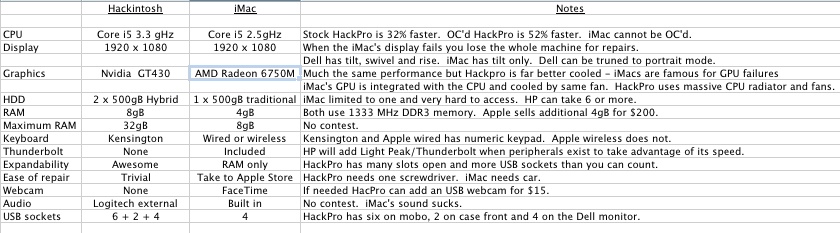
Which iMac does that amount of money buy you? The base spec 21.5″ iMac for $1,199 is the nearest comparison. All of the Hackintosh’s components come with 3 year warranties, the iMac with just one year, so add $169 for AppleCare to make it three years, for a total of $1,368. How does it compare?

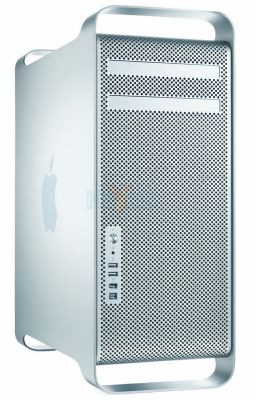
A fairer comparison may be with the MacPro. Even the lowest spec MacPro uses the Intel Xeon CPU which retails at $1,000 and up, so comparisons are difficult. You can expect the MacPro to outperform on multi-threading benchmarks but for photographic use there is no advantage. Spares are costly ‘Apple only’ even though the parts are stock PC ones, gussied up to rip you off. You can do the math but expect to pay a minimum of $3,600 for a machine with the HackPro’s performance.

* * * * *

Thanks, FU – a timely update.

So readers, what on earth are you waiting for? This is a killer photographer’s computer.

Scared that OS updates will brick your Hackster? Nah! Just keep reading this blog.

Arctic Sound P311 headphones

A wireless solution.

Headphones? What’s that doing here? Well, show me someone not interested in music and the movies and I’ll show you one who cannot take a photograph.

One of the cheapest – yet most vital – components of my HackPro desktop is the extremely thin layer of conducting Arctic Silver thermal paste between the case of the Core2Quad CPU and the Coolermaster radiator which keeps the CPU cool as a cucumber. The maker of that paste, beloved of all computer builders, also makes headphones.

For a long while now I have been using a pair of Sennheiser PX100 corded headphones for listening to music and watching movies on the iPhone and iPad. They are over the ear, comfortable and the sound is fine. They cost $60-70. Folding them into the provided clamshell case requires a degree in astrophysics, but once you get the hang of it there’s lots of innocent fun to be had and money to be made betting friends they can’t get them into the case! Indeed, I just had the satisfaction the other week of taking $2 off our nine year old who quit in frustration. One back for the old man!

But that bet cost me, as somehow the cord got frayed and is now literally hanging by a thread. So I searched around for a wireless alternative which might better survive our boy’s ministrations, and settled on the Arctic Sound P311 at $30, a Bluetooth headphone which requires no wired connection.

The manufacturer claims a 20 hour life per charge, and charging is through the provided USB cable from any computer, so there’s no additional charger to carry. All you need is the mini-USB cable and your laptop or desktop. The iPad’s battery life on streamed Netflix movies is a consistent 11 hours, so as long as the headphones’ battery lasts 11 hours or more things are fine. Charge the iPad, charge the ‘phones. My ‘phones shipped partially charged, needing just 90 minute to full charge, indicated by the red charging LED being extinguished. The maker says a full charge takes 2 hours. The bottom line is that a 2 hour charge to get 20 hours of use is far faster and longer than recharging an iPad will get you, so the iPad remains your limiting factor in practical use as far as recharging goes.

Charging light on. This changes to alternating red/blue when pairing – see below.

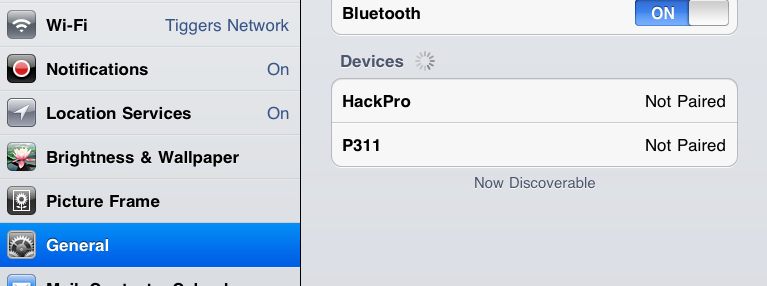
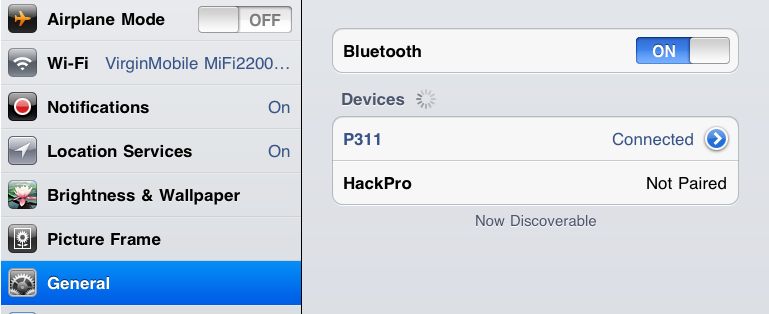
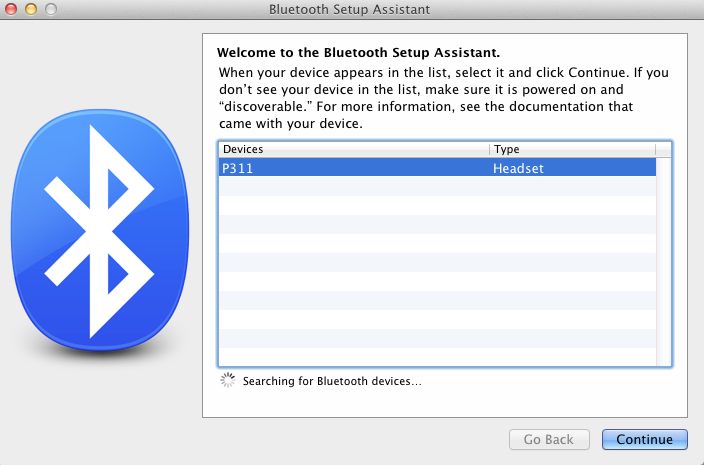
My primary use is for iPad movies, but the ‘phones work fine with my rather dated iPhone 3G, my HackPro (which uses an iOGear BT dongle), the MacBook Air and the MacMini used as a home theater computer. The latter is handy as you can listen to movies on your big screen TV using these Bluetooth headphones, and disturb no one during a spot of late night viewing. On the iDevices pairing is simply a question of holding down the button on the right headset for a few seconds until you get alternating red and blue LEDs, then going to Settings->General->Bluetooth. On desktops and laptops you go to System Preferences-> and have at it. In all cases, disconnect the existing Bluetooth connection or things get hairy and be sure you are not charging the ‘phones while you do this – I had no luck pairing while charging.

Here are some screenshots of the pairing process.

Pairing on an iDevice:

Step 1

Step 2

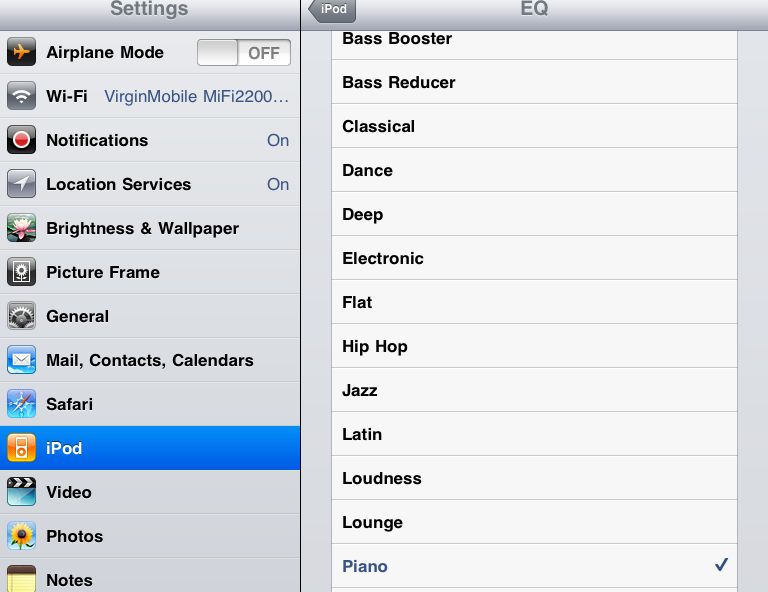
Select the Eq which suits your ears best – forget what it’s called, go with your ears:

Step 3

Pairing on a laptop or desktop:

Step 1 – System Preferences

Step 2 – Paired.

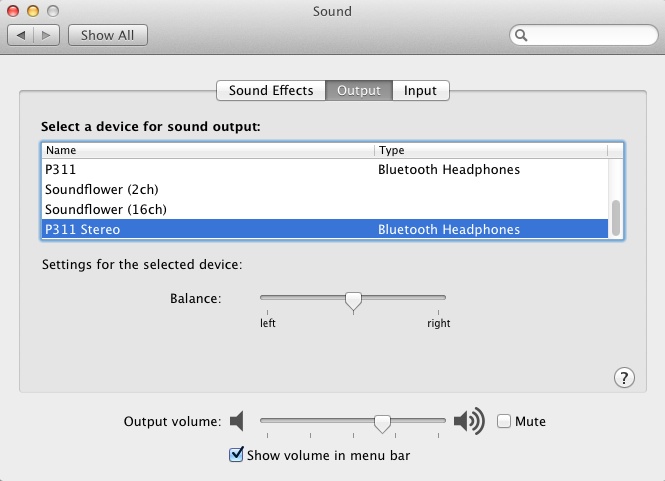
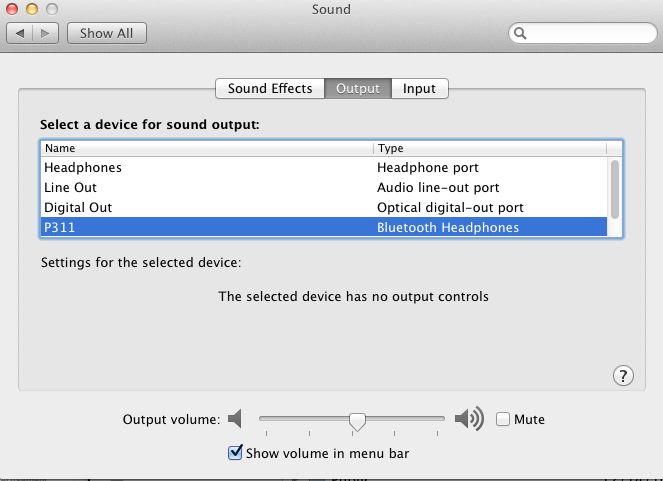
Step 3. System Preferences->Sound. Redirect the output to the headphones.

Use with AppleTV2:

As TUAW confirms, ATV2 includes a Bluetooth chip but it is not accessible in the device as shipped. Frustrating. You can hack your ATV2 to make BT work but it’s likely that future software updates will reverse the hack, so I’m leaving it alone for now. Hopefully Apple will add a Bluetooth switch in its ATV2 software. Meanwhile, rumors suggest that the next ATV OS update will add Bluetooth functionality to ATV2. That will be great if it happens.

These ‘phones fit over the ear (Van Gogh need not apply), like the Sennheisers, but rather than using a sprung steel band across the top of your head to provide grip, they hook over each ear instead with the connecting band serving no mechanical purpose other than connecting the two speakers and providing a route for the wire buried within, to get sound to both ears.

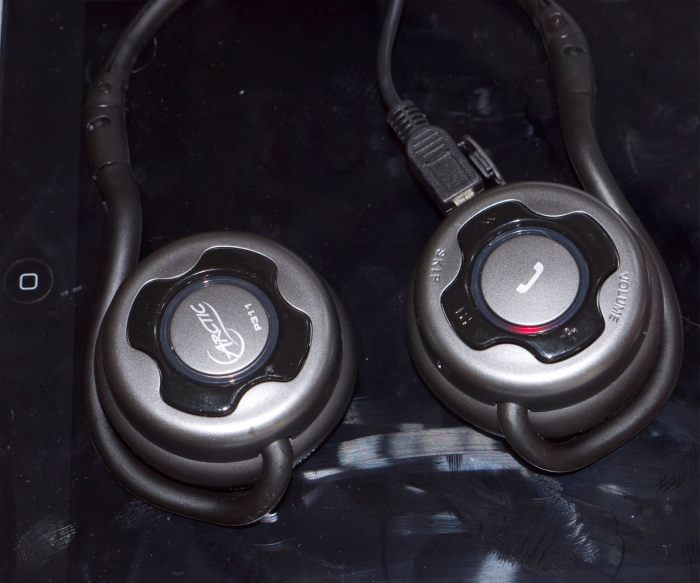
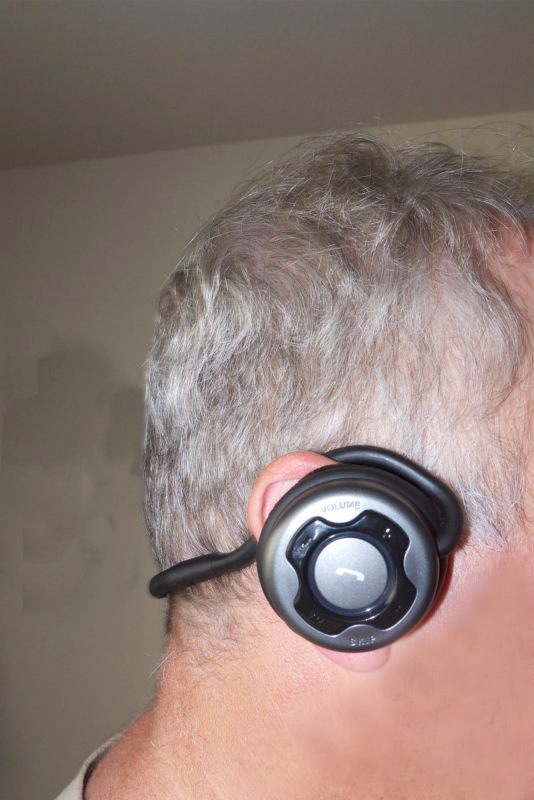
The P311 headphones over the ear, showing the controls.
No problem when wearing glasses, either.

The volume control buttons are visible above; the other two black buttons are for fast forward and reverse (next/previous track) and the center button is on/off/pause/answering phone calls. All controls worked perfectly with the iPod app on my iPhone and iPad.

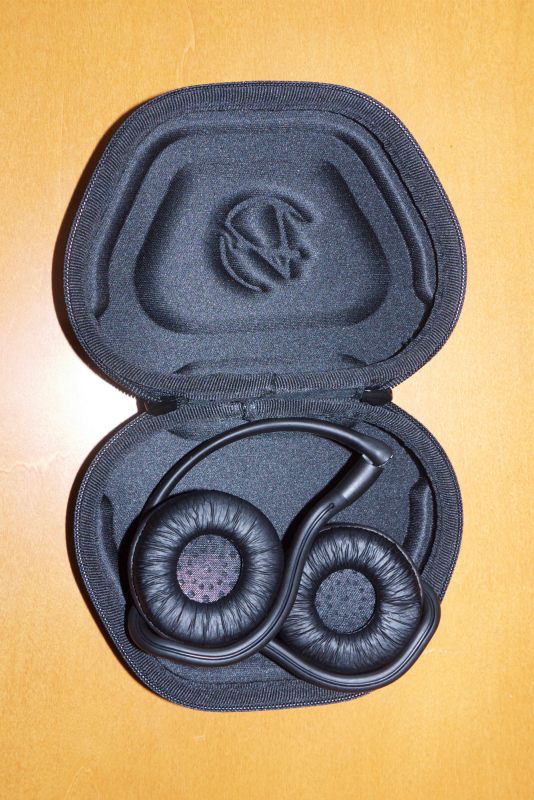
The P311s comes with a nice, semi hard case. The earspeakers are folded in eyeglasses-style, and the astrophysics degree you just got to put away your Sennheisers is now useless:

Sound: I tested the ‘phones on classical piano and on Ken Russell’s extraordinary movie ‘Mahler‘. The sound is excellent. You won’t get earth shaking bass from speakers this small (especially given their low level of sealing to the ear) but experimenting with the EQ settings in an iDevice (see above) gets you the best sound, based on your hearing. Both the iDevice and P311 volume controls remain functional so you can mute from either. Pausing using the big, central button on the right speaker also pauses the movie or iPod on your iDevice.

Despite fitting lightly over the ears, these provide a fair amount of sound isolation. You are not sealed from the outside world but there is a significant amount of noise reduction. Best as I can tell there is no electronic noise cancellation technology in the P311s.

Comfort: If you tilt your head back the crossbar will strike the base of your neck and try to displace the ‘phones. Whether that’s an issue only you can decide. In practice it suggests these ‘phones may be sub-optimal for aggressive work out routines. The picture of the acrobat on Arctic’s web site strikes me as ludicrous.That’s not what I use them for so I cannot comment.

Microphone: There’s a built-in mic for use with the iPhone. I have not tested it.

Range: Extraordinary. There is no loss of signal until you are over 40 feet from either iPad or iPod, despite intervening walls and a staircase. This translates, in practice, into ‘walk-about’ functionality in the average home without having to take your sound source with you

* * * * *

A fine set of phones at a great price and a worthy replacement for my damaged Sennheisers. There’s the inconvenience of having to recharge these, but as their battery life exceeds that of the related iPad I use them with, it’s hardly an issue, as I simply recharge both simultaneously. BT pairing on the five devices I tested – iPhone 3G, iPad, HackPro, MacMini and MacBook Air was flawless. Let’s hope pairing with the AppleTV2 arrives with the next ATV OS update. Recommended, but try them first to see if they are comfortable for you.

Most importantly, cordless ‘phones transform an iPad from “I’m not going to lug that around” to a functional music source, whether from stored music, your Home Sharing or, soon the iCloud.

The future of the desktop computer

The end of the desktop era.

The latest changes to my Hackintosh, which now see it once more delivering performance comparable to the best top-of-the-line Macs at no additional cost, raise the question of what the future holds.

The original design brief for the Hackintosh, which FU Steve built for me, was reliability, with a primary focus on proper cooling of components. Secondary requirements were speed and expandability. At the time of construction, two years ago, I anticipated the HackPro might enjoy a five year useful life. I am now inclined to think that was an underestimate.

If you compare the specs of Intel’s current i3/i5/i7 CPUs, which succeeded the Core2Duo and Core2Quad design (still made and still popular in PCs) the main difference is not in speed but in power consumption. The latest graphics cards barely improve on the Nvidia 9800GTX+. Intel is bowing to the trend which favors mobile computing, meaning laptops, where battery power use is important. Low power consumption CPUs with integrated GPUs add more value than greater speed. And adding more cores is futile. Absent some exotic statistical math applications, plus super speed weather/military computers and the like, multi-core CPUs are wasted on what we photographers use daily. For that matter, four cores are largely wasted, poor application programming failing to make effective use of the available parallel processing potential. Don’t believe me – run Lightroom on a 2 core then a 4 core CPU. Notice any difference?

Since the HackPro was built, iOS and Android, cell and tablet operating systems, have taken the world by storm. While nowhere near as fast as desktop/laptop OSs, they add a whole range of capabilities – fast AppStore downloads, huge app selections, touch interfaces, great UIs – which are quickly migrating the desktop and laptop to the category of mature technologies. The return on incremental investment in these latter technologies falls daily, as Mobile is where the money is. Four years ago Apple introduced the iPhone. Today the iPhone and iPad account for three quarters of the company’s sales! The consequences of this trend are that desktop development will slow to a crawl and prices will cease falling as sales volumes fall. Sure, there will always be demand from artists, scientists, cinematographers and photographers for heavy duty iron but that population is minuscule.

Desptop/laptop OSs have also peaked. Windows 7 (I have not used it so this is apocryphal) is reported to be reliable (a twenty year miracle in the making) and speedy, and OS Lion may well be the last major version of OS X, though after using Lion for a while it’s clear that the changes are very minor ones in UI cosmetics and add little benefit for the working stiff. You aren’t going to make your machine any faster by installing Lion, that much is certain, though users ought to be grateful for an absence of code bloat and forced hardware updates, for the most part.

Desktop applications are likewise mature. Adobe isn’t about to fix the execrable UI of Photoshop when it has a static audience which will dutifully upgrade every 18 months for minor improvements at the margin, using corporate money. And they can’t add too many of PS’s features to the far friendlier Lightroom for fear of cannibalizing their cash cow. But I am happy to wager that they are working like stink on mobile versions of their apps. Sure, some apps like Pixelmator will capture amateur users who (rightly) balk at CS5’s ridiculous price, but the design pro has zero incentive to save his employer money or to risk his career on an unknown quantity, no matter how good.

Dinosaurs. The HackPro and its patrician brother.

The biggest benefits to desktop users in recent years have come from flash storage Solid State Drives and improving broadband, both technologies being pushed to improve by burgeoning demand for mobile devices. Intel’s Light Peak data transfer technology (Apple calls it Thunderbolt) will increase wired data transfer rates ten fold while cutting the number of connecting cables. LCD monitor technology has reached price-quality equilibrium. Who needs higher definition or larger screens than what those already afforded at reasonable cost today? What the world needs is faster broadband and better batteries, not faster CPUs or better displays.

I look at our 9 year old son. I would far rather he learned the iPad, maybe with the eventual addition of a keyboard, than an iMac. If he wants a big screen display it’s there at the touch of an icon, no wires needed. Wikipedia has obsoleted space gobbling encyclopedias and access is instantaneous. His music is accessible anywhere, he can print anywhere (if he even cares what a printer actually is) and even he can lug around the modest weight of a tablet all day. He has access to millions of books and thousands of newspapers at no weight or storage cost and his tools for learning math and spelling are all there at a touch. If he gets serious about taking pictures, all the processing power he will ever need will be on his tablet in a year or two and the camera will likely be a part of that tablet too. And I will be making sure that one of the developed world’s worst educational systems – it’s called US schooling – will not stand in his way.

So why force him to learn yesterday’s technology?

Those magnificent dinosaurs, the desktop computers of our time, will soldier on in dwindling numbers for a generation yet, after which time they will be so much landfill.