Category Archives: Hardware

Stuff

Two bargain classics

From the Big Two.

Now that digital bodies seem to arrive almost quarterly from the big manufacturers – and seemingly weekly from the tedious ‘instant obsolescence’ Sony which still gets very little right – it’s interesting to look back on the early days of full frame DSLRs. I was lucky to own both of the models mentioned below and would unhesitatingly buy used ones today.

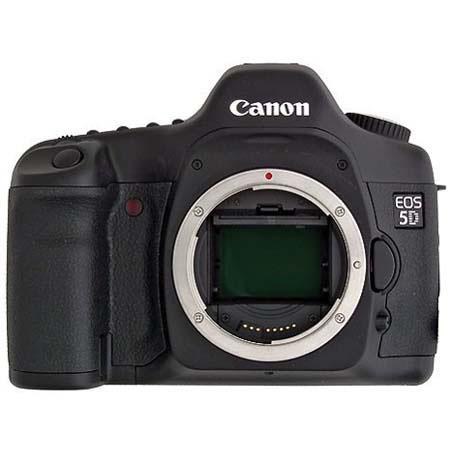
My first serious DSLR was the Canon 5D and lightly used bodies now sell for under $500. Though the modest sized 12.8mp sensor is small by modern standards it’s hard to beat the color rendering and unless you need video or truly enormous prints (of course you don’t – face it, you put your stuff out on the web) the 5D cannot be beaten when it comes to price:performance today.


The outstanding original Canon 5D.


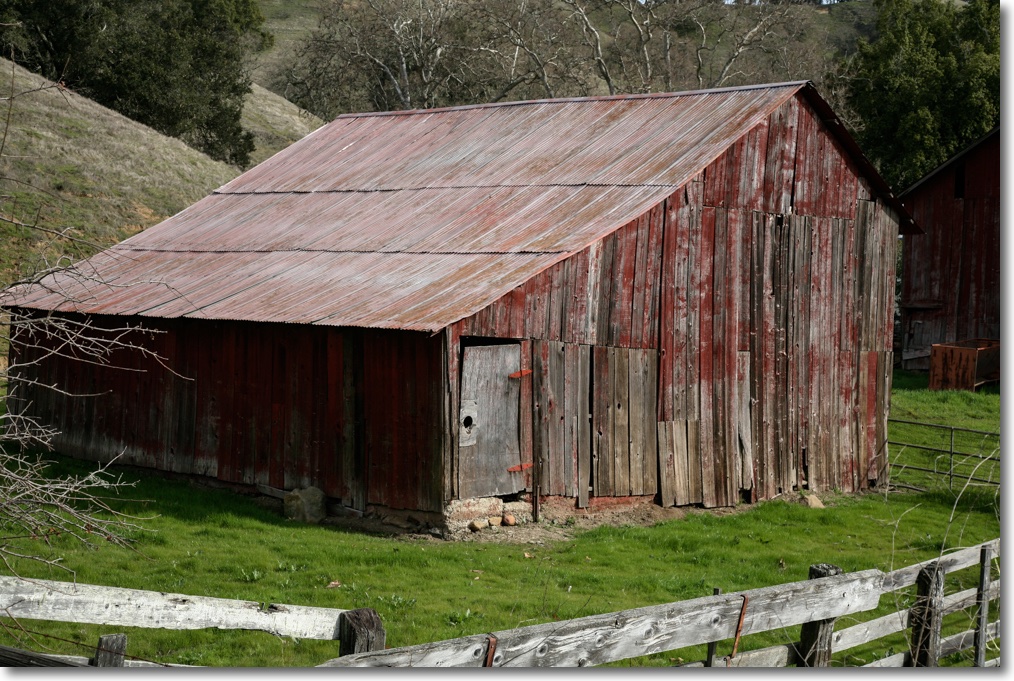
Barn. Templeton, CA. Canon 5D, 24-105mm f/4 Canon L.

Nearly every Canon lens is excellent and of the fixed focus ones the 35mm, 50mm and outstanding 85mm f/1.8 are recommended and very inexpensive new or used.

Nikon was slow to the FF game and its first affordable body was the D700. It came with a 12.1mp Sony sensor which was exceptional in most regards but especially when it came to low noise at higher ISOs. Those large pixels helped with that and, as with the 5D, low noise prints up to 18″ x 24″ were par for the course. $800 gets you a good one but insist on a Nikon USA model (distinguishable by the small ‘USA’ sticker on the inside of the body when the battery is pulled) because that’s the only kind Nikon USA will service in the USA. Alternatively, if you have a good aftermarket Nikon service shop available, provenance is of no consequence. There is a truly vast array of Nikon lenses from 1960 on available, MF, AF, fixed focus, zoom, you name it, any price point. The superb 50mm MF f/2 Nikkor-H can be found in mint condition all day long for $60 or less and you can take it from there.


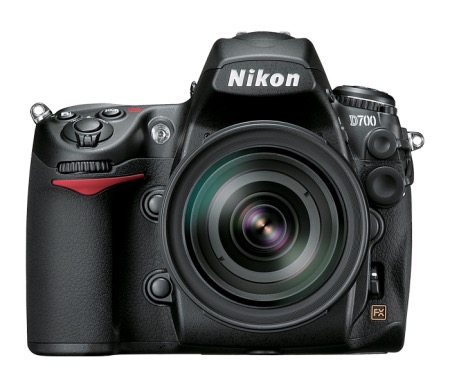
The immensely capable Nikon D700.


Baby carrier. Nikon D700, 180mm f/2.8 AFD Nikkor.

The D700 is usually reckoned to have a shutter life of 150,000 – and replacements are cheap – with lightly exercised bodies a dime a dozen. Again, as with the 5D there’s no video, and the build quality is excellent.

No one needs more than 12mp in a DSLR as no one prints any more (well, I do and 12mp is just fine; heck the iPhone6 is good for 18″ x 24″) and both these cameras’ sensors boast excellent dynamic range, low noise and outstanding color rendering.

Windows on the Mac Pro

Hold your nose.

For an index of all my Mac Pro articles, click here.

I have long used a single CPU 2009 Mac Pro – upgraded by me to a 3.46GHz Xeon 6-core CPU for speed – as a machine for delivering streaming quotes and financial news. It uses Mavericks, OS 10.9 and is reliable as a hammer. However, my application of choice is poorly supported on the OS X side and after many frustrations I decided to install Windows under Bootcamp to allow the better supported Windows variant of the software to be installed and used.

I opted for the 64-bit version of Windows 64 Professional Service Pack 1 as it’s well regarded and stable. Win XP is 32-bit, ancient and buggy, Win Vista is a disaster of epic proportions (can you say El Capitan?) as is Win 8/8.1. Win 10 is too new to trust and appears to add useless interface gloss on a Windows 7 base much as the asinine LaunchPad does nothing for OS X.

I paid all of $58 at Amazon for a plain wrapper version which comes with this dire warning:
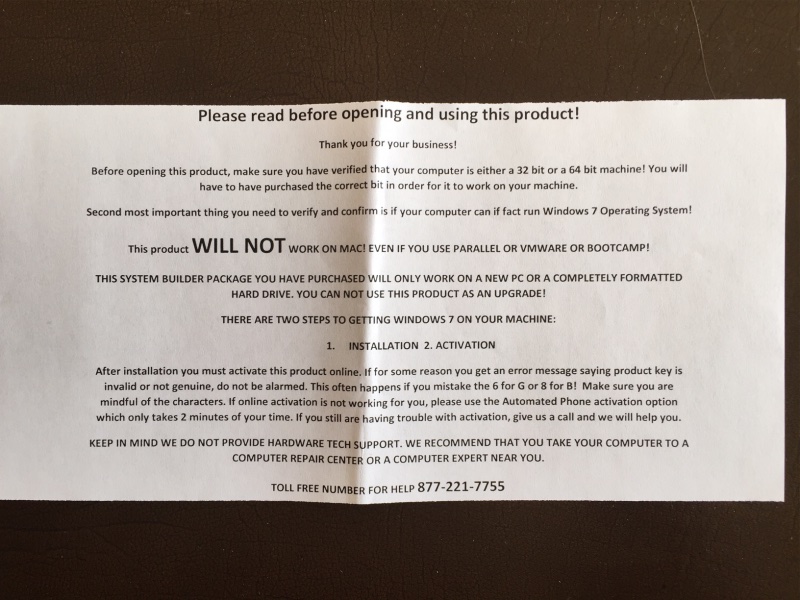
Follow my instructions below and you can disregard the above, saving $50-100 over the fancy box version, and there are no issues with activation, provided you enter the 25 digit activation code correctly.

Users of the new Mac Pro (‘trash can’) cannot install Windows 7 using Bootcamp as Apple dropped support for anything earlier than Windows 8. Yet another reason to stick with a well upgraded classic Mac Pro.

I opted for a Bootcamp installation as that allows the OS to run at maximum speed. Bootcamp does not use OS X, addressing Windows 7 natively, much as a PC does. I have no need of the added expense or performance hits from virtualization technology (Parallels, VMWare or VirtualBox). But it’s important to use the right version of BootCamp and this advisory from Apple will allow you to download the right drivers for your Mac which will enable your keyboard, USB devices, wifi, display (if you are lucky), you name it.

You will need either a 16GB USB flash drive or an external USB SSD/HDD. These must be formatted as FAT32 drives using OS X’s Disk Utility; the drivers are copied by Bootcamp to this drive for subsequent installation to your Windows partition on your OS X drive.

Installation:

  • Start up Bootcamp (in the Applications->Utilities folder in OS X) with your USB drive connected to the Mac Pro.
  • Insert the Win7 disk in the Superdrive.
  • Check the Custom Installation (not Win7 Upgrade) box in Bootcamp and tell it to assign 60GB to the Bootcamp/Windows partition.
  • If the installation fails, click the small ‘Format’ icon with the Bootcamp partition highlighted in the scrolling list of drives/partitions. This reformats the selected partition from FAT32 to NTFS (you cannot use OS X’s Disk Utility to do this), which is what Windows needs to permit installation. It takes a second or two to execute.
  • Let the installation proceed – it takes for ever to get off the 0% reading and there is no progress report other than a few blinking dots. Microsoft at its best.

Now here’s the secret sauce.
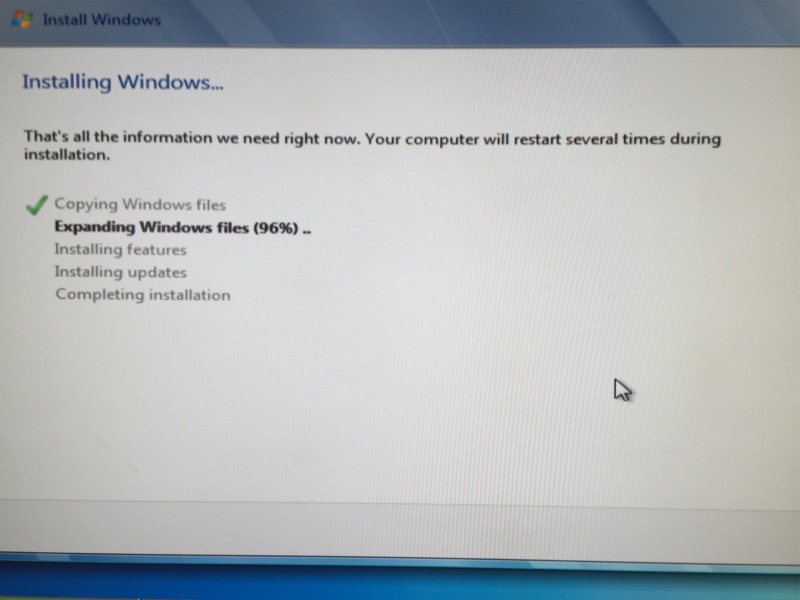
As each step completes a green check mark will appear to its left. When the last row is checked, pump the Eject button on your keyboard and prepare to grab the Win7 disc from the DVD drive before the drawer shuts again. Fail to do this and the automatic restart will leave your machine with a black screen and a blinking white cursor.

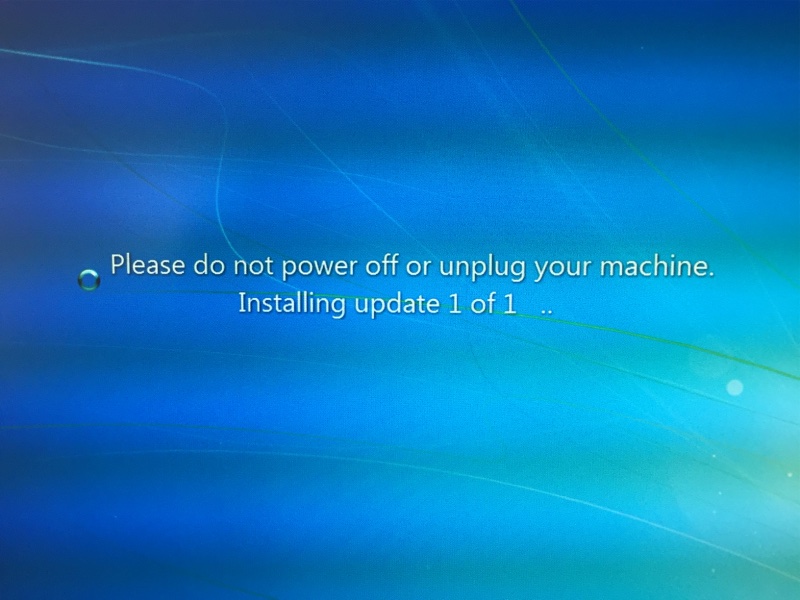
Installation will now proceed and you will see lots of these:
When you are done you will be asked to activate Win7; I had to use a magnifying glass to make out the tiny serial number on the product label. Then it’s likely you may still need to install the proper display driver. The generic one in Win7 was useless for my 30″ Apple Cinema Display so I downloaded the right driver for my EVGA Nvidia GTX680 GPU here. The installation took at least a couple of hours – just leave your machine alone and do something else. There is very little indication of any progress in the Nvidia installer’s progress bar for much of the time.

To enable the numeric keypad on extended keyboards, hit the NumLock key. It works obverse to the way in OS X.

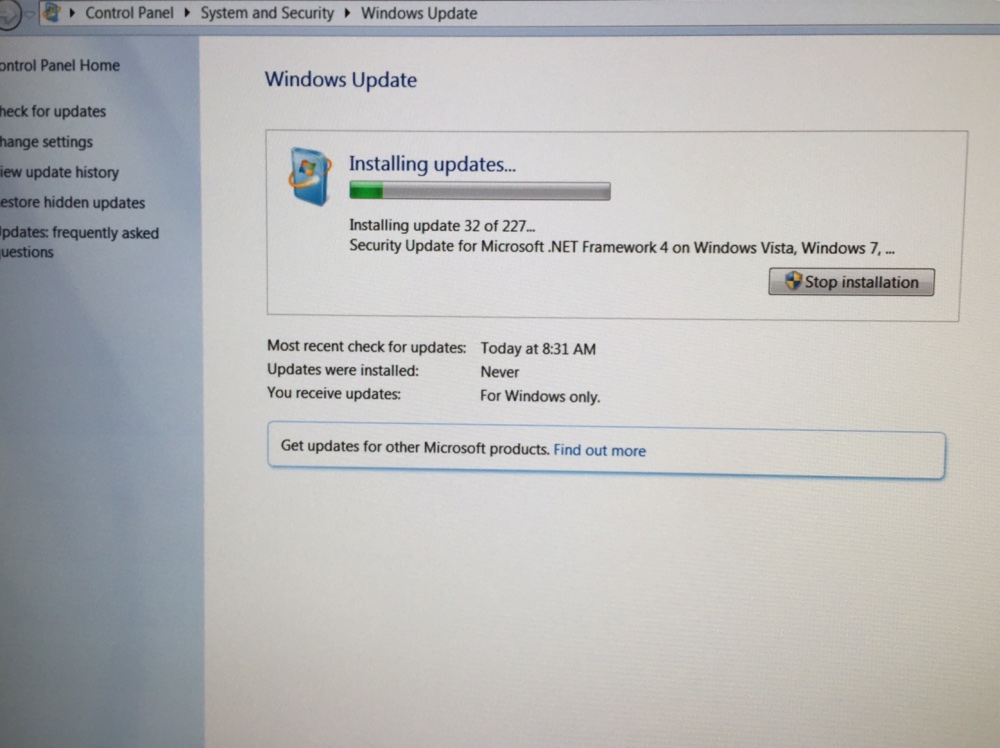
Now install the endless Win7 updates (definitely an overnight task) – as you can see there are many:
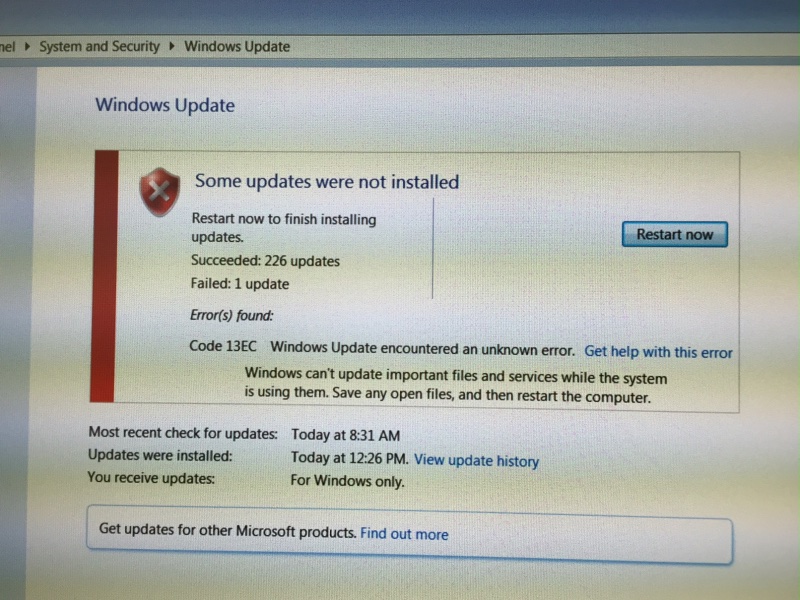
This is Microsoft so some will not take on the first try – try again:
Finally, be sure to install the free Avast virus/security software, the same you are already using on your Mac, right?

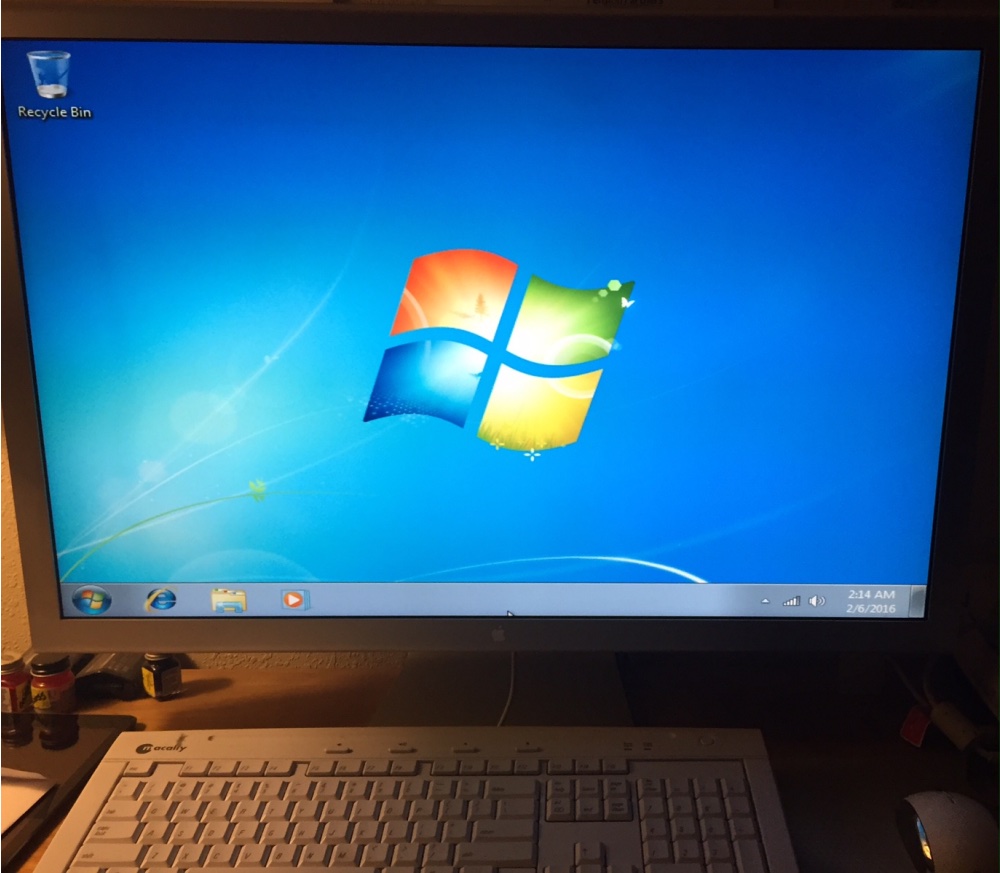
Now you should be happily (?) starting up in Windows – OS X restarts from the last partition it started from; if you want to revert to OS X hold the Option key through the chime and you will be able to elect the startup disk of choice.
Before installing my investment apps I noted that only 2GB of the 60GB I had set aside in the Bootcamp partition remained available. After downloading the free WinDirStat the app disclosed that two huge files existed on the Windows partition – hiberfil.sys and pagefile.sys at 20+GB each. Pagefile.sys is virtual memory swapping which is unnecessary unless you have less than 4GB of RAM, so I turned down the 16GB default to 6GB – right click on Computer in the Start menu->Properties->Advanced system settings->Advanced->Performance Settings->Advanced->Virtual Memory Change->5000-6000MB. Phew! That recovered over 10GB. The other file stores the Sleep image and is best left alone – it means that any mouse movement after sleep returns you to your previous place.
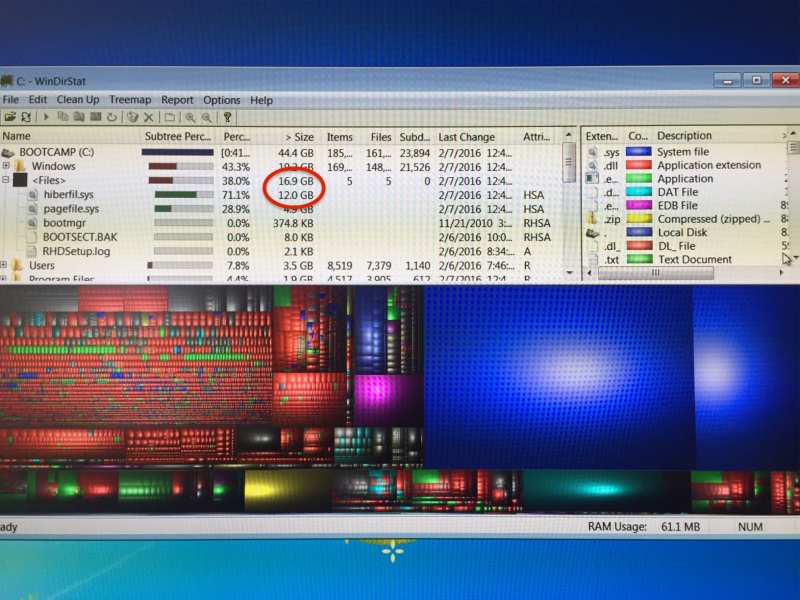

WinDirStat shows a tamed pagefile.sys, freeing up disk space.

Now I could install my investment app, and all looks well:
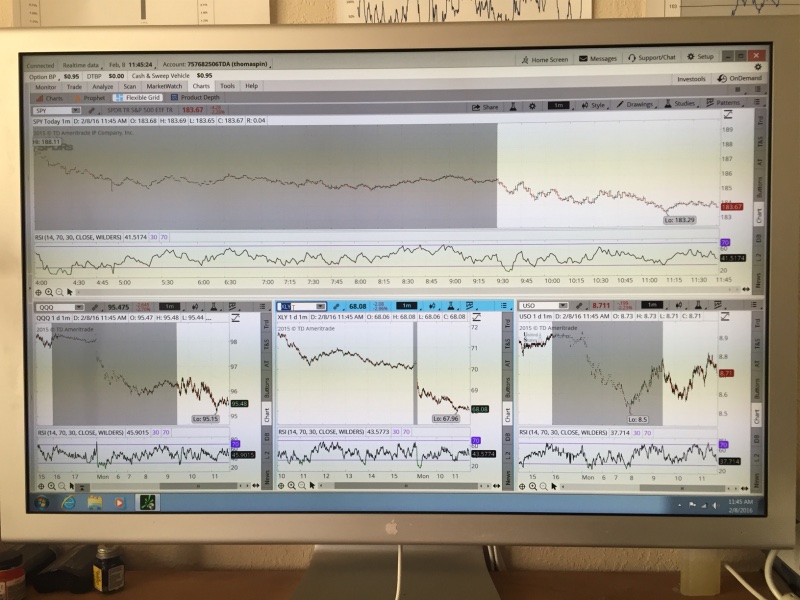
Time to do all of this? Maybe 2 hours at the keyboard and 5-6 hours of the Mac Pro grinding away while files were downloaded.

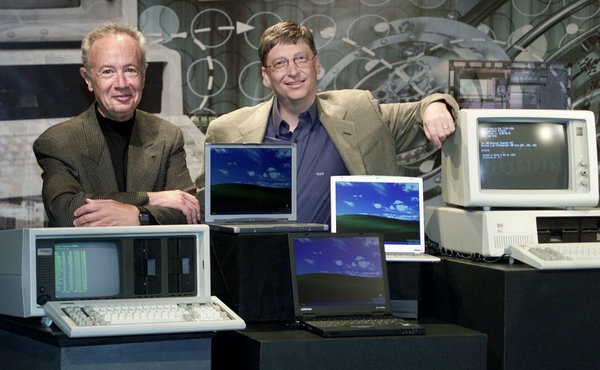
As for the user interface, everything Steve said here about MSFT 20 years ago remains true. A tasteless product for a tasteless consumer. “Microsoft is McDonalds”. Too bad I had to install it.
The Light L16 camera

Thinking outside the (DSLR) box.

The last time a seriously funky camera concept came around I wrote excitedly about it, promptly doing a 180 a few months later describing the device as a solution looking for a problem. I was right second time and the Lytro company making this ‘after the event focus’ camera has been through multiple management changes and recapitalizations since, as it heads for bankruptcy. Its technically appealing technology had little popular appeal.

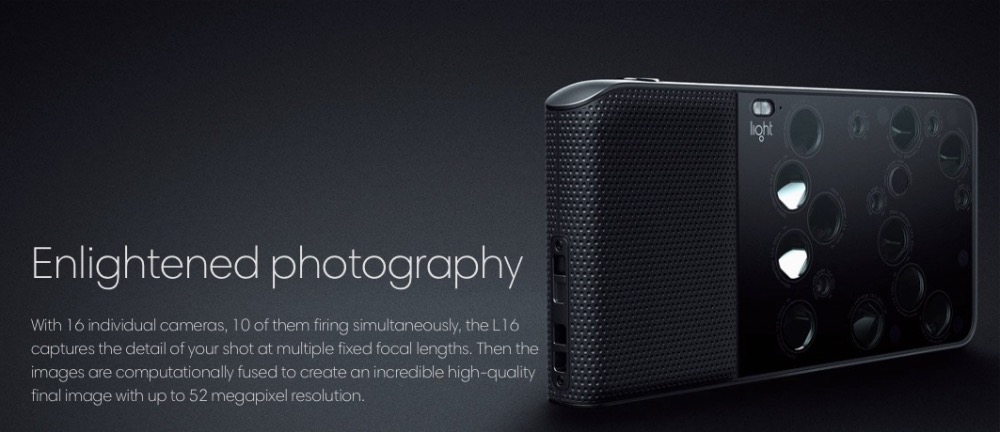
Now something perhaps even funkier has come along, the Light L16 which by using 16 lenses seeks to emulate FF DSLR quality with a 52mp image in a breast pocket-sized package. It will retail for some $1700, if it is ever made, that is. The makers claim that, like the Lytro, after the event depth of field adjustment is permitted (Lytro, to be exact, permits retrospective focus point selection, but the results are conceptually similar).


The Light L16.

My attention to the L16 was drawn by A friend of the blog who read my revisit to Ed Hebert in the preceding column here, where I mentioned that Ed had just earned his Masters in Information Technology, with a concentration in Digital Media Arts and Web Technologies. He writes:

” Of personal interest to me was the fact that Harvard now offers a degree of “Masters in Information Technology, with a concentration in Digital Media Arts and Web Technologies”. When I went there the first time, I was laughed at for suggesting a course in photography. When I returned 20 years later on a fellowship, there was a single course in photography that limited admission to 18 students (over 300 applied).”

The MIT Technology Review has an interesting piece on the Light L16 here.

Recent Nvidia cards in the Mac Pro

Catch 22 lives.

For an index of all my Mac Pro articles, click here.

To apply for a job, you need to have a few years of experience. But in order to gain experience, you need to get a job first.

Like logic applies to the dilemma of installing the latest Nvidia GPU drivers in your Mac Pro.

Here’s the background. The GTX680 GPU came from EVGA and was made for the PC, along with like GPUs from many makers including Nvidia, Zotac, PNY, Gigabyte – they all worked well. Typical port configuration was one DVI-D, one DVI-I, (both DVI ports limited to 2560 x 1200), one DisplayPort (4k and down) and one HDMI 1.2 (limited to 1080p).

The last Nvidia card sold as ‘Mac compatible’ was the EVGA special version of the GTX680. That one showed the full Apple boot screen on cold start.

Thus you had three choices when buying a GTX680:

  • Buy the EVGA Apple certified one and pay through the nose
  • Buy a PC version, save $150, and get no splash screen during a cold start
  • Flash the card’s ROM or have it done for you to restore the boot screen

Who needs a boot screen? Only those poor unfortunates who insist on running Windows under BootCamp. You install OS X on one volume of a drive, Windows on another then when cold starting, hold the Option key on the keyboard and the spinning cog (through OS Mountain Lion) or progress bar (Mavericks and later) changes to a display of all bootable drives. You elect the BootCamp drive and proceed in your misery. Want to revert to sanity? Reboot holding the Option key and select an OS X volume as the one to start from.

Users who merely need to choose between different OS X boot volumes or drives can do so in System Preferences->Startup Drive. Rebooting will make the volume or drive chosen the new boot drive.

The snag is that if you boot into the Windows volume, you must have a working boot screen to see other volumes if wanting to revert to OS X (or Linux or Ubuntu or whatever). If you can’t see the boot screen because your GTX680 is an unflashed PC variant you cannot get back into the OS X volume.

Things get worse. After the GTX680 was discontinued Apple ceased marketing ‘Apple certified’ Nvidia cards as they stopped making the classic Mac Pro at the same time, so there was no need in their cynical eyes to allow classic Mac Pro users to stay current with the rapidly evolving field of ever faster and more capable GPUs.

With the Nvidia GTX7xx generation you could still use the native drivers which came with OS X but you could not get a boot screen unless the card was flashed.

Then, with the current, and exceptionally capable GTX9xx generation of GPUs, not only did you lose the boot screen, you also needed to use Nvidia’s own drivers to make the card work as the GTX6xx/7xx ones were no longer compatible. To get there, while still using an older card, you would download the Nvidia drivers, which install as a preference pane, and then go into System Preferences->Nvidia and choose the Nvidia driver in preference to the OS X one. Reboot and your old card would continue working fine. Now power down, swap to the latest and greatest GTX960/970/980 and all was well.

Here’s where the Catch 22 comes in. Apple decides to release an ‘improved’ OS X – minor or major release. Chances are it breaks the driver so after a few days, Nvidia releases the upgraded driver. They are very good about this as it means continued sales of their latest cards to the Mac Pro set. But you cannot wait or, worse, have set your Mac Pro for automatic updates of software. You come in in the morning , OS X El Crapitan has been installed unknown to you overnight and you are welcomed with a black screen, as the OS is no longer compatible with the previous generation Nvidia driver on your boot drive.

There are several ways to exit this dilemma:

  • Keep an old Nvidia GT120 card installed if you can spare a PCIe slot – any slot. They can be found for $50-75, typically come with one DVI and one mDP port, include a boot screen and 512MB of vRAM, and will even drive the excellent 30″, 2560 x 1200 Apple Cinema Display. Mine does. Not much use for video but it fixes the problem. It’s single width, needs no auxiliary power cable and uses very little power. It’s also dead silent. You transplant your DVI or mDP monitor cable to the GT120, the display comes to life, you update to the latest Nvidia driver, switch the data cable once more and all is well.
  • Unplug your GTX9xx card and replace it with an older card which delivers a boot screen and allows you to update drivers. A real pain but it gets you there if you kept that old card handy.
  • Boot from a backup drive which has the older working OS on it, update drivers and clone over to the regular boot drive. This will leave you on the older OS but at least you will be functional.
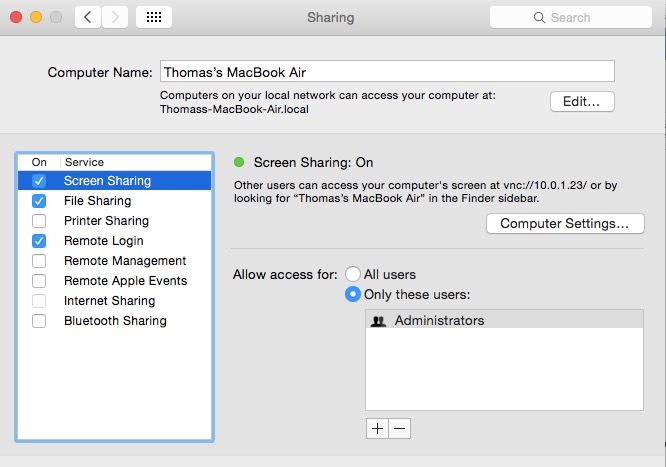
  • Do it the smart way. Get hold of a Mac laptop, and set up your Mac Pro for Screen Sharing in System Preferences->Screen sharing thus:


    This is how you want your Mac Pro – not your laptop – to look.

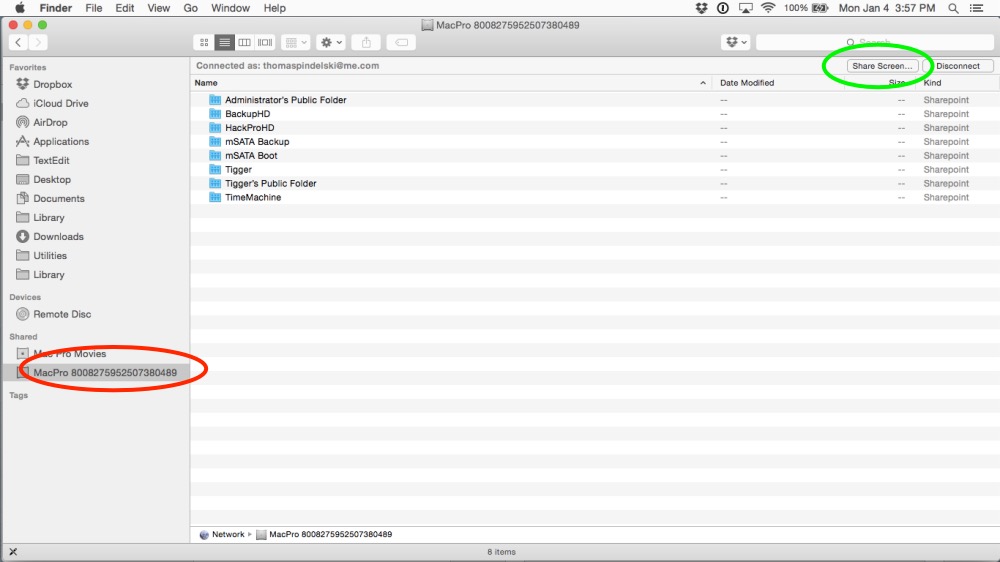
  • Now go into your Mac laptop’s Finder and you will see your Mac Pro listed in the left hand column – red oval (don’t ask me why it has that cryptic description):

  • Click on ‘Share Screen’ – green oval. You will have to login using your Mac Pro’s username and password. Now you can see the Mac Pro’s display feed regardless of whether the Mac Pro’s screen is black or working properly. Download the latest Nvidia driver, install it, turn off Screen Sharing on the laptop, reboot the Mac Pro and you are up and running again.