Category Archives: Hardware

Stuff

Mediasonic HF2-SU3S2 4 bay drive enclosure

Recommended, with reservations.
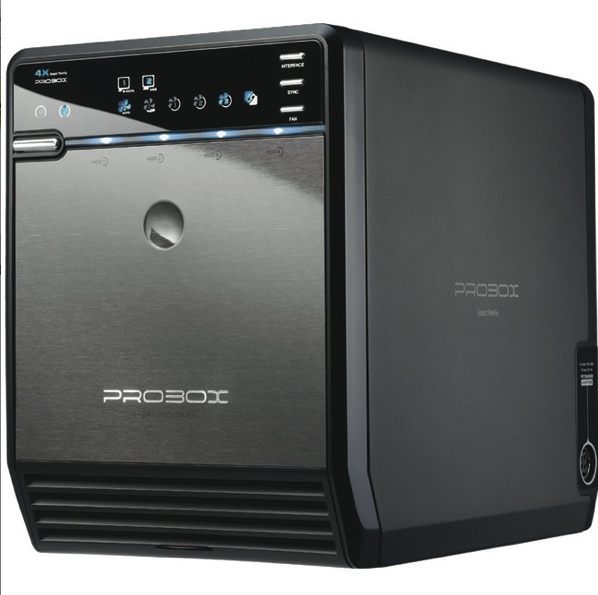
I wrote of my intention to move all my movies from half a dozen external enclosures to one in yesterday’s piece, opting for the Mediasonic HF2-SU3S2 (Amazon – $130). What follows is as relevant to storing photo files as it is to video. Having taken delivery and transferred my movies to 3Tb drives in the enclosure, here are some observations.

  • Very well made and well packed for transit.
  • Near useless ‘Chinglish’ instructions.
  • Front flap opens easily and door can be removed.
  • More flashing LEDs than you can shake a stick at.
  • Auto power-up must be switched off (two presses on top right front panel ‘Sync’ button) or the case shuts down with OS 10.7.4 Lion. This is purportedly a function which works with Windows, something I will never explore.
  • Once the front door is removed a two catchpress retaining plate is removed to gain drive access
  • Drives slide in and need a bit of wiggling to locate the power and SATA connectors. No big deal but side rails would have made this easier.
  • Attachable drive handles are provided to make it easier to remove drives; these attach with screws and a screwdriver is provided. I have found you do not have to use these. If you do not use them, drive installation needs no tools.
  • The box is compact, some 9″ deep x 6″ tall x 5″ wide.
  • The three position fan switch has Auto, Low and High settings. The latter roars, the Auto, which is thermostatically controlled, remains very quiet in practice. Inaudible at 6 feet.
  • The power cable socket is at the side which makes it impossible to abut these enclosures next to one another if you have more than one. Inept design.
  • As shipped it’s set to USB; to switch to eSATA a front panel button must be held for 4 seconds. For eSATA connectivity, see the Update at the end of this piece (Hackintosh only; eSata is not available on Macs).
  • When copying files to a drive the bar aligned with the front power switch dances crazily with an LED show. Bizarre, but irrelevant in practice, unless it’s in line of sight.
  • Rubber feet provide noise and vibration isolation.

To add USB3 capability to my HackMini I installed a two port Western Digital USB3 card in one of the short slots.
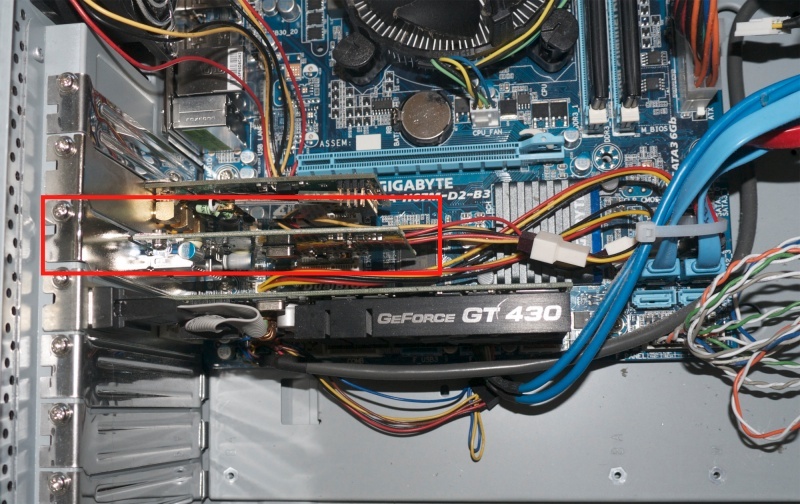
The Mini uses a modest Core i3 Sandy Bridge CPU and an equally modest Gigabyte H67M-D2-B3 motherboard. That’s all that is needed for movie playback, and the motherboard used has no USB3 sockets, hence the add-on card.

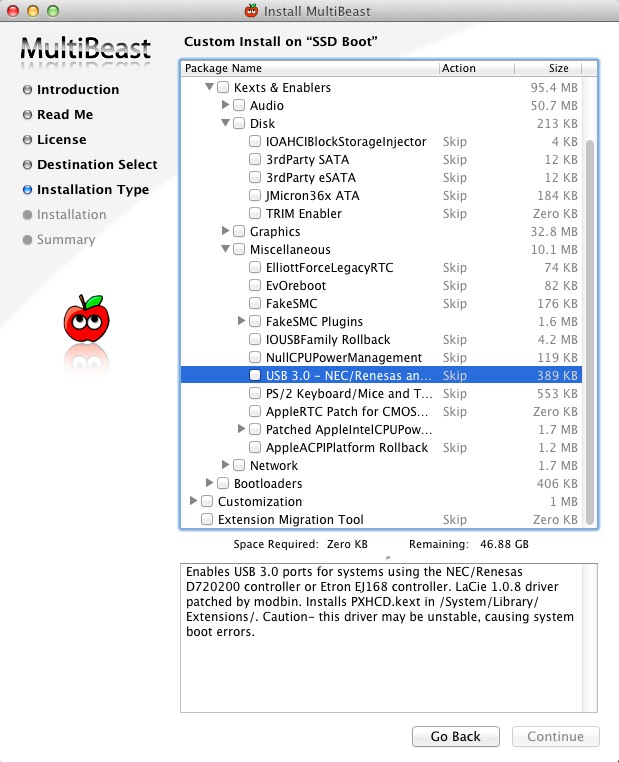
I then installed the NEC/Renesas driver using TonyMac’s Multibeast application and verified that my USB3 card reader was recognized as a USB3 device when connected with a USB3 cable. All was well.

However, neither my HP100 Hackintosh, the 2012 MacBook Air or the HackMini would recognize the enclosure when connected with a USB3 cable. Research disclosed that the maker is aware of this and claims to be working on it but as the issue has persisted since at least the introduction of Lion a year ago, don’t hold your breath. So if you are doing processing of pictures or video and need the high speed connection offered by USB3, this enclosure is not for you – yet. (See the Update at the end of this piece where Hackintosh users can activate the faster eSATA connection).

Using a USB2 cable there were no issues. After disabling the auto-power feature the enclosure and drives were immediately recognized and everything was ready to go. I popped successive 1Tb drives into the enclosure copying the movies from these to the 3Tb drives inside. The enclosure can be used with software RAID (included in OS X’s Disk Utility) but for my purposes the regular setting as JBOD (Just a Bunch Of separate Drives) is fine.

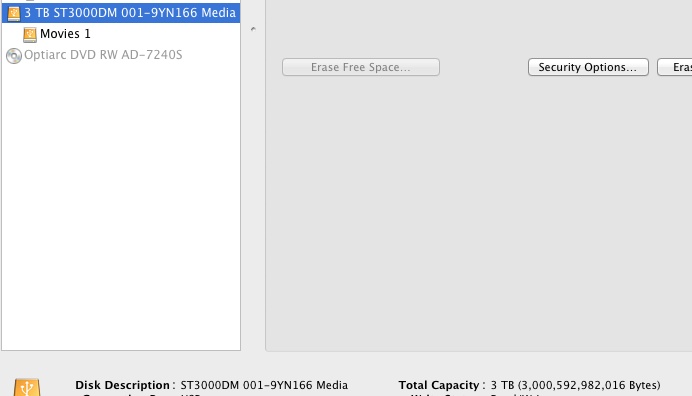
When I tried to format my first 3Tb drive using a USB2 cradle attached to HP100 Disk Utility could only format 801Gb of space. However, once the drive was inserted in the enclosure, the full 3Tb was recognized and formatted, suggesting that the enclosure drive controller is a lot more current than the ancient one in my drive cradle.
Recommended, with the reservations stated above.

Note also that as hard disk drive manufacturers have consolidated, quality control appears to have fallen judging from buyers comments at Newegg and Amazon. Accordingly, to spread the risk I bought two Seagate and two Western Digital Drives. We will see, though my exerience with these machines is similar to that for all machines – they fail when very young and very old. If you can get through the first few months, chances are pretty good that years of troublefree service will follow.

Updating links in a DVDpedia catalog:

Here’s the code provided by Conor at DVDpedia for v5 of the Bruji app; he shows links to six old drives (‘MyOldMovieDriveTB1-1 through 6’) to two new drives (‘MyNewMovieDriveTB3-1 through 2’). Simply cut and paste this into Terminal replacing the names with the names of your drive(s). I have tested this and it works perfectly. Thank you, Conor!

/usr/bin/sqlite3 ~/Library/Application\ Support/DVDpedia/Database.dvdpd

update ZLINK Set ZURL = replace(ZURL, ‘file:///Volumes/MyOldMovieDriveTB1-1’, ‘file:///Volumes/MyNewMovieDriveTB3-1’);
update ZLINK Set ZURL = replace(ZURL, ‘file:///Volumes/MyOldMovieDriveTB1-2’, ‘file:///Volumes/MyNewMovieDriveTB3-1’);
update ZLINK Set ZURL = replace(ZURL, ‘file:///Volumes/MyOldMovieDriveTB1-3’, ‘file:///Volumes/MyNewMovieDriveTB3-1’);

update ZLINK Set ZURL = replace(ZURL, ‘file:///Volumes/MyOldMovieDriveTB1-4’, ‘file:///Volumes/MyNewMovieDriveTB3-2’);
update ZLINK Set ZURL = replace(ZURL, ‘file:///Volumes/MyOldMovieDriveTB1-5’, ‘file:///Volumes/MyNewMovieDriveTB3-2’);
update ZLINK Set ZURL = replace(ZURL, ‘file:///Volumes/MyOldMovieDriveTB1-6’, ‘file:///Volumes/MyNewMovieDriveTB3-2’);

.exit

This updates yesterday’s link to the Bruji chat board where the link shown to sqlite3 is now outdated.

Update – use with eSATA:

Macs do not support eSATA connections but Hackintoshes can be readily adapted. If your motherboard comes with eSATA all you need do is install this driver from Tonymac:
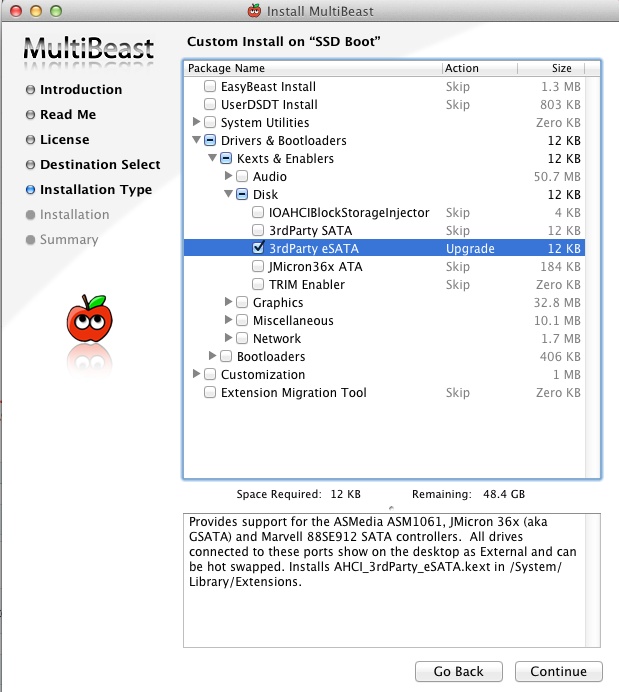
Multibeast eSATA driver.

Once installed and rebooted, System Profiler will show the eSATA ports thus:
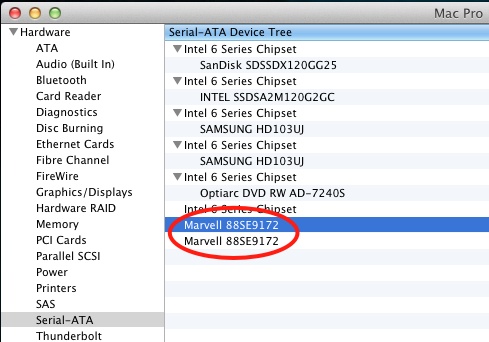
eSATA ports on the Hackintosh.

My system shows two ports as there’s one on the card and one on the front of the Antec case I use, connected to a header on the motherboard. However, the Z68X motherboard I use does not support port multiplication, so only the first of the four drives in the enclosure is reported in Finder when using eSATA. Read on for the fix.

If your motherboard does not have eSATA, you can add an inexpensive PCIe card which must have ‘port multiplication’. Absent this feature only the first of your drives will mount. This $23 card is known to work.

You will also need an eSATA cable. Happily the enclosure comes with both USB3.0 and eSATA cables, though neither is very long.

I switched the enclosure to eSATA by holding the top right button (‘Interface’) down for 4 seconds, then connected the enclosure to my Hackintosh.

System Profiler now reports the drive:
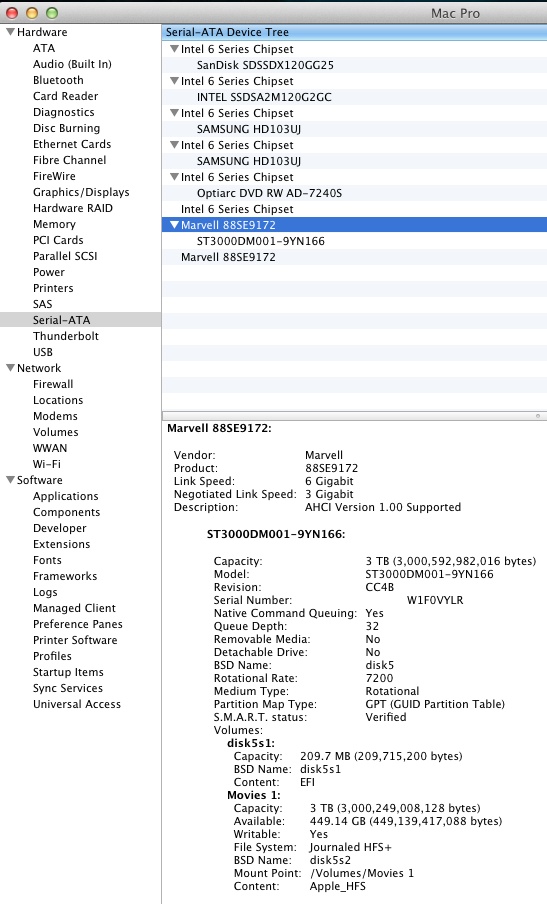
The Mediasonic connected using eSATA.

I then ran Xbench tests, comparing USB2 with eSATA.

First USB2:
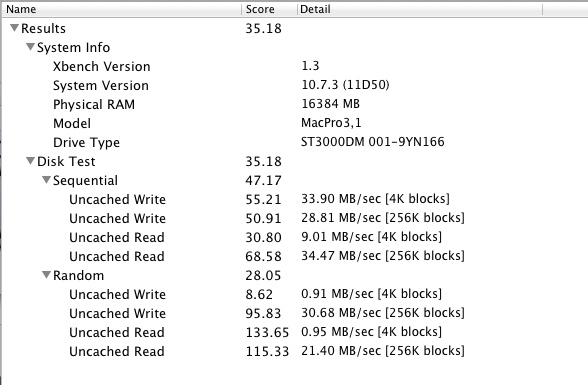
Using USB2 with the SATA3 3TB Seagate drive.

Then eSATA:
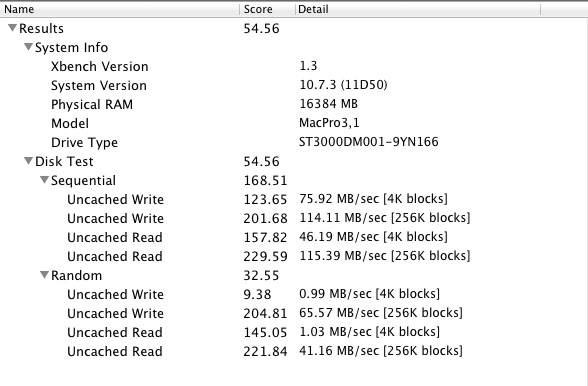
Using eSATA.

So the overall speed increase is 55%. Not stellar but handy when copying large files. Further, the larger the data blocks the greater is the gain, with 256k blocks averaging 3-4x as fast. That’s worthwhile.

Update 9/20/2012 – use with MacBook Air 2012 and USB3:

I dropped Mediasonic an email explaining that the enclosure would not be recognized by the MBA when connected with a USB3 cable. I received a courteous reply stating that they would send me an updated circuit board, and asking I return the original. They followed up with instructions for replacement (these were almost right) which requires that six screws retaining the rear of the unit are removed, the fan is disconnected from the circuit board (you must use two pairs of fine nosed pliers to do this or you will wreck the fragile socket or plug) and the six retaining screws for the board and the connecting ribbon cable (a PATA plug, lots of pins on the board – Ugh!) be removed. You also have to pull your drives which connnect directly to the board. Simply yanking the latter out is a prescription for catastrophe. The whole thing took me twenty minutes – one Philips screwdriver and two pairs of fine nosed pliers. And yes, my Border Terrier was in attendance.

The enclosure was immediately recognized by the MBA, but the speeds, measured with Xbench were disappointing, slightly slower than USB2:
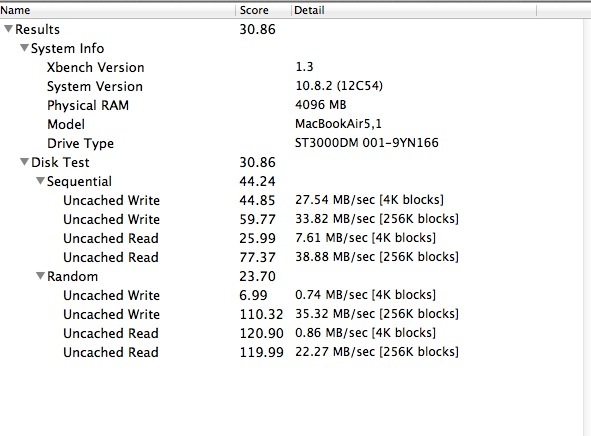
Speeds with USB3 and 2012 MacBook Air.

So, a Phyrric victory. It works, but is slower. Still, no complaints about Mediasonic’s customer service. To revert to USB2 simply use a USB2 cable. USB3 cables are blue with blue connector inserts. USB2 cables are all colors with white connector inserts.

Second Update – March, 2013:

I added a second one of these boxes with 2 x 3TB drives. I’ll add two more when needed, as prices keep falling. The price of the box is now down to $120 and one each WD and Seagate drive (Main and Backup) ran $140 each. No issues in setup, and the box, connected with the supplied USB3 cable to a USB3-capable OS X machine was immediately recognized as a USB3 device, suggesting that Mediasonic is fitting the revised board referred to above to new inventory. Nice. Once again, this is not a hardware RAID device for sophisticated backup strategies. It’s simply for use as a simple and effective Main+Backup two HDD (in two pairs if needed) device for mass storage. Ideal for video. If your computer has USB2 only, that will work too, using the supplied cable which is backward-compatible.

Third update – July, 2012:

One year of 24/7 use later and no issues. The box works fine using an Orico USB43 card in my Mac Pro. No fan noise, no HDD failures, no issues.
Six into One does go

Storage changes.

Over half a decade ago I decided it made no sense to own DVDs. Hard to house, ugly to look at and even harder to access. Let me see, is that filed under Actor, Director or Title? Which movies was Bogart in? You get the idea. If ever a product was suited to random access, database storage, it is your movie library.

And movie libraries still make a lot of sense. The much vaunted Netflix, with its 140,000 snail mail offerings, manages to offer only 10,000 of these streamed over broadband and they are some of the worst movies ever made. Even when you find something really good streamed it is as likely as not to have disappeared from your Wish List when you return to watch it later. The Amazon Prime library is near useless and the Apple iTunes one is devoid of classics with content here one day and gone the next.

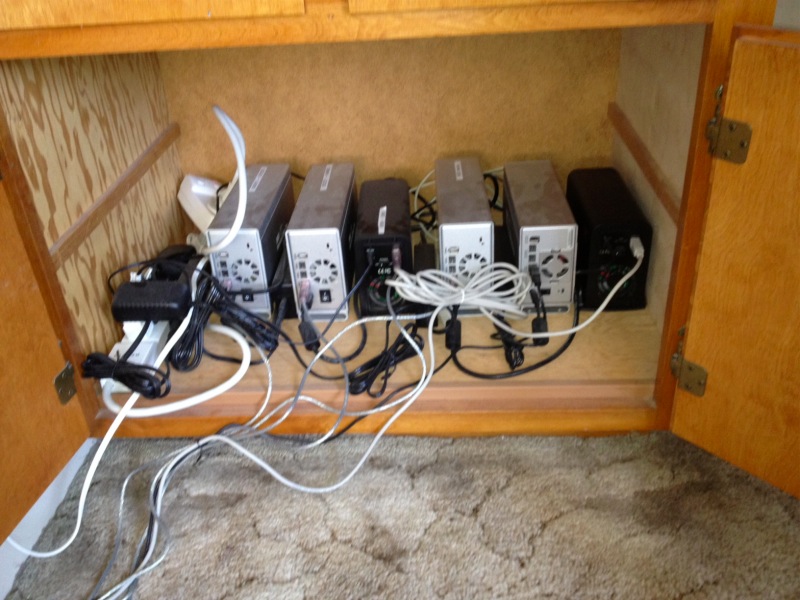
So I started in a modest way many years ago and ripped my 200 DVDs to a 1tb disk drive housed in a two-drive enclosure with an identical backup clone. As the next 200 came along so did another enclosure and pair of drives, until you get to the mess I have today:

Storage for 1200 movies.

First, you will see that the drive boxes vary. No sooner does a solid box come along than it is discontinued and you are forced to use something else. Second, I do not trust fragile USB hubs so six USB cables make their way to the HackMini which is equipped with no fewer than 8 USB sockets. Third, every box adds a fan and noise is part of the equation. These are still distant enough from the viewing location that noise is not an issue, but you can definitely hear the fans.

So, something has to give. A couple of years ago 3tb drives started coming to market. That means 600 uncompressed movies per drive. But they were costly. Then, to make matters worse, the Thailand floods struck and half of global drive production disappeared. Prices doubled.

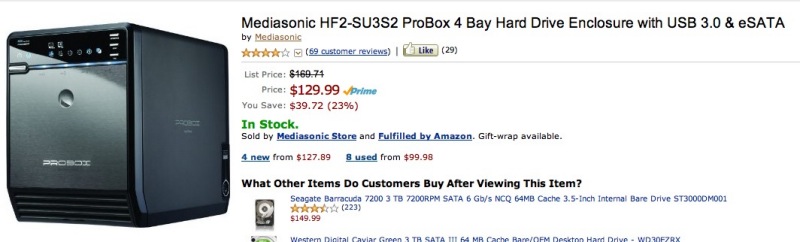
Now, drive prices have returned to sanity and there are more good enclosures to choose from at attractive prices. I did the math and concluded the idea of moving what was in six enclosures and twelve drives to one enclosure with four drives made sense, so I plonked down my cash for one of these:

Mediasonic four drive enclosure.

For photographers and cinematographers, there’s a lot that appeals here; it’s not just for movie buffs. While this enclosure does not offer RAID redundant storage, I do not want something I do not remotely understand. A simple clone allows me to switch to the backup if the main drive fails, as it has once during the life of my six separate enclosures. Simple, effective, no nuclear physics involved. CarbonCopyCloner runs incremental scheduled back-ups while I sleep.

The appeal of a modern enclosure like the Mediasonic includes the provision of both USB3.0 and eSata connectors, as well as the ability to take up to four 3tb drives with SATA3 supported. Disk drive buffers are now up to 64mb from 16mb a few years ago and 7200rpm is standard compared with the 5400rpm of yore. If you are moving large volumes of data then USB3.0 and SATA3 are night and day compared to their predecessors. If your purpose is simply data storage and occasional retrieval, as with movies, these technologies add little, but as their incremental cost is near zero, why not have them?

After running the numbers I quickly realized that the $730 spent on the new enclosure and drives (the latter are $150 for 3tb) is less than the $1000 or so the old drives and enclosures command on eBay. A more than ‘free’ upgrade, though I prefer not to think what this hardware ran me over the years. However, in addition to being free, the lower noise, lower heat and power consumption (8 fewer drives means 50 watts less power) and lower space demands make this upgrade a no brainer. Thank you, Moore’s Law. The major potential fly in the ointment here is the relatively unexplored reliability of 3tb drives. Still, with each backed-up, it’s a risk I can accept. I make a living doing other things so that I can watch movies, and do not depend on the movies to make my living. You can read a recent technical review of the 3tb Seagate Barracuda drives I will be using here. The warranty on the (non-XT) drives I will be using is only one year, but drives tend to fail when new or very old. Fingers crossed.

One immediate snag is that DVDpedia, the excellent Mac-only cataloging utility I use for movies, which provides ‘click-to-play’ links to six movie volumes, will now have to have its database rejiggered to point to the two new volumes. Mercifully, DVDpedia enjoys excellent support and the SQL commands which allow an instantaneous batch change of Volume names appears here. (See the following post for updated code). The alternative of manually changing file paths for 1,200 movies is not a realistic one.

The current version of DVDpedia, a mere $18, allows syncing of your home theater Mac catalog with any iDevice so that you can peruse your collection at leisure. You cannot initate play from the iPad or whatever, but it’s a handy feature. Another useful one is the ability to export your collection to the web, which I do monthly, and which you can see by going to the Links at the bottom of this page.

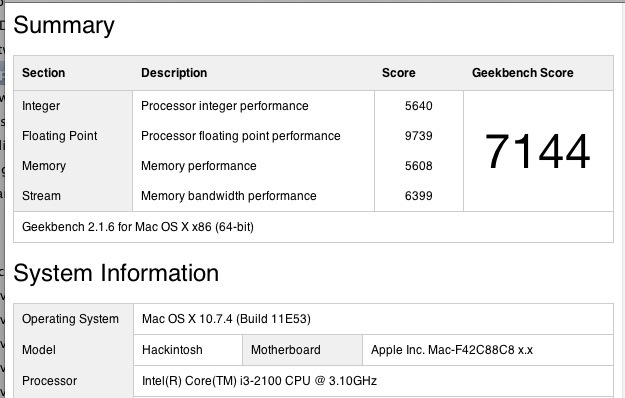
More details when I have converted everything. Here are the current drive performance data for the HackMini which runs a modest Core-i3 CPU and 8Gb of 1333mHz RAM; I also include the Geekbench CPU performance so that you can compare it with your machine:

Xbench disk performance for an external, USB2, SATA2, 1tb Samsung 7200rpm disk drive.

Geekbench CPU performance for the HackMini.

One word of advice. Avoid the Drobo solution. Overpriced with a poor reliability record. Making a capable high volume storage, high speed solution using component parts yourself is every bit as easy and likely to be far more reliable. And it will cost less. Much less.

Photoshop on the 2012 MacBook Air

A few hurdles first!

Adobe allows installation of Photoshop on two computers, and requires that if it is to be used on a third that one of the other two be deactivated. Fair enough. It’s premium priced software and shareholders of ADBE should rejoice at any and all attempts to control theft.

I’m on CS5, having started with CS2 ages ago and progressed through CS3 and CS4. CS5 is a fine product, it’s fast and I have never had it lock up on the Hackintosh it calls home. It is blisteringly fast on that machine, with its overclocked Sandy Bridge i7 CPU.

Given the very speedy technology in the latest 2012 MacBook Air, I determined to add CS5 to that laptop which already runs Lightroom 4.1 very capably. But how to get it on the MBA’s SSD?

Good luck finding CS5 for Mac at Adobe.com. There’s a Windows version but for the life of me I could not locate the Mac option, and all current Mac downloads point you to CS6, which I have not yet purchased. I found my original CS5 disc and cloned it to a flash drive using CarbonCopyCloner on the Hackintosh, some 1.2Gb. Inserting the USB flash drive in the MBA and starting the installation process failed. I was asked to insert the installation disk. So I copied over the installation files to the MBA and launched the installer from the MBA’s SSD. After inputting my bazillion digit serial number all ran smoothly.

But, firing up CS5 I got the ‘Activation limit exceeded – you have already installed this application on two computers. Deactivate one’ message. Well, the snag is that the other installation was on the predecessor MBA 2010 which I had wiped before sale, so there’s no way I could ‘deactivate it’. I called Adobe (866 772 3623, hit ‘3’) fearing the worst and got an exceptionally competent person to whom I explained that they needed to wipe one activation count off their registration database. After ten minutes on hold I was informed that one activation was erased and that I could proceed. I did so and all was sweetness and light! Thank you, Adobe.

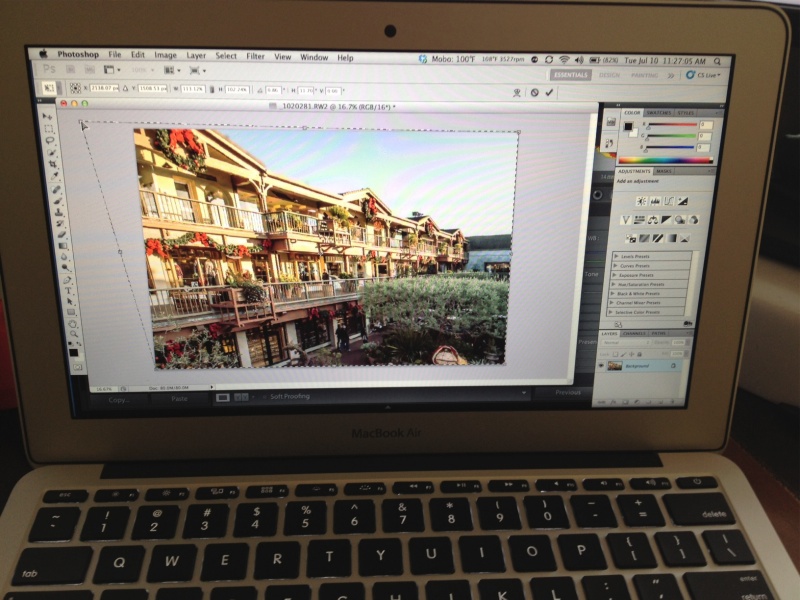
Photoshop CS5.1 running happily on the 2012 MBA.

Some usage notes on the 2012 MBA – mine has 4Gb RAM, twice that of the 2010 predecessor.

Start up takes a mere 3 seconds. Opening a RAW file (Panny G3) from Lightroom 4.1 in CS5.1 takes 9 seconds. Selective Lens Blur preview takes 2 seconds, applying the blur another 10. This is a processor intensive activity. It’s faster on the MBA than on my Core i7 Hackintosh. Applying routine distortions to correct verticals and the like is near instantaneous. The 8Gb RAM MBA would probably be even faster.

Bottom line? No excuses need be made for the 2012 MacBook Air as a Photoshop machine. It is perfectly capable of keeping up with the best.

Disclosure: Long AAPL January 2013 call options.

HP100 adds USB3

Not without a struggle.

Intel’s LightPeak is currently the fastest way of moving data to or from external storage, claiming 10 gigabits/sec, or 1.25Gbytes/s in regular English. This compares with a theoretical limit of 0.06Gbytes/s for USB2, so twenty times as fast on paper. LightPeak was rolled out in several Macs where it continues to enjoy near-zero market share, owing to a dearth of peripherals using the connector and insanely expensive connecting cables.

Meanwhile we have USB3 which claims 0.63Gbytes/s, is backward compatible with USB2 and USB1.1, and is available on most current Macs. The 2012 MacBook Air supports both USB3 and LightPeak (‘Thunderbolt’ in Apple Hypespeak).

For Hackintosh owners there are two ways of adding USB3. For those with older motherboards (LGA775, LGA 1156 typically) a PCIe internal card has to be added at a cost of $20-40. For more recent builds (LGA1155 and LGA1366 sockets) most come with USB3 connectors built into the motherboard. For Sandy Bridge and Ivy Bridge machines (LGA1155) current Gigabyte boards include USB3, so when ace computer builder FU Steve upgraded HP1 (LGA775 Core2Quad) to LGA1155 (Sandy Bridge i7-2600K) by fitting a Z68 Gigabyte motherboard, it came with two blue USB3 sockets on the back and a 19 pin USB3 connector inside.

And my HP100 has done nothing to use those USB3 sockets since the upgrade, as I have no USB3 peripherals. Until now. As we are getting into hardware, definitely not my forte, I’ll hand it over to ace Hackintosh builder FU Steve for what follows.

* * * * *

Thanks, Thomas.

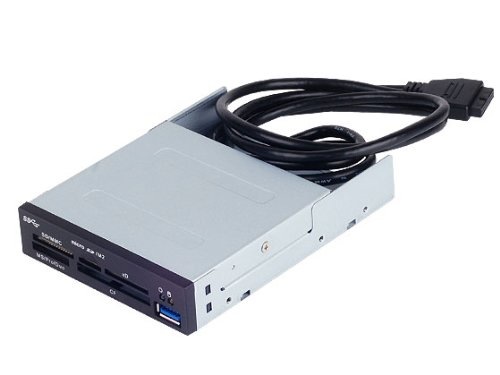
When I upgraded Thomas’s HP1 to HP100 I intentionally chose the Z68X-UD3H-B3 motherboard from Gigabyte because it’s easily hacked, comes with two USB3 sockets (and many USB2), and has the 19 pin USB3 connector on the board itself. I envisaged upgrading the USB2 internal, front panel USB2 card reader to USB3 and had Thomas plonk down $33 for a Silverstone FP37B 3.5″ internal card reader. This was easily swapped with the older Sony 3.5″ reader, plugging into the 19 pin mobo socket.

And here the story gets complicated. After installing the appropriate USB3 driver (kext file) using TonyMac’s MultiBeast app, the two rear panel blue USB3 sockets were recognized:

Installing the USB3 driver – check the box and restart after running this.
The Gigayte Z68X mobo uses an Etron EJ168 controller. No instability issues noted.

However, no matter how many different drivers I tried the card reader was MIA. Nada. Zilch. Back she goes to Amazon.

Failure. Not recognized by the Hackintosh.

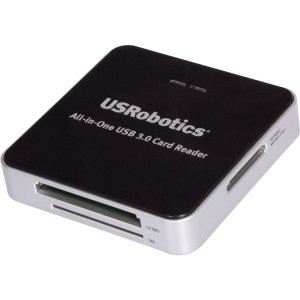
Plan 2. I had Thomas buy an external USB3 card reader, confident it would be recognized once plugged into one of the rear sockets. $35 and nowhere near as elegant a solution, but having the advantage that it could also be used with Thomas’s 2012 MacBook Air, which has no built-in card reader.

US Robotics USB3 card reader.

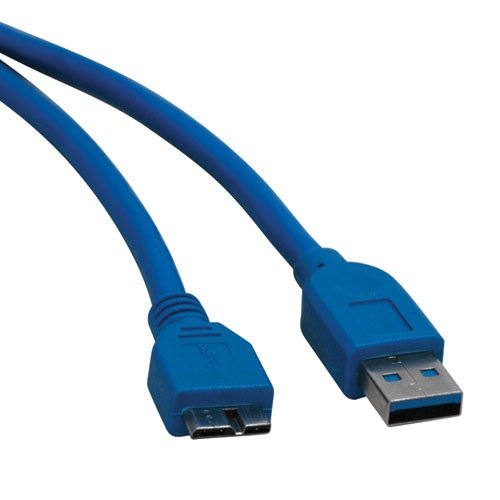
This comes with a ridiculous 6″ (yes, inch) USB3->micro-USB3 cable, so another $7 saw a 6′ extension cable arrive which is actually usable on the HP100. Having Thomas cuss me out because he cannot get at the card reader is more than life is worth. The stock, short cable is fine for use with the MBA. The reader is USB-powered, so no power brick is required.

Micro-USB3 extension cable.

Don’t bother with that old male-female USB2 extension cable in the brown cardboard box under the stairs. It will fit but you will only get USB2 speed. A USB3 cable has more wires and contacts. There is no free lunch here.

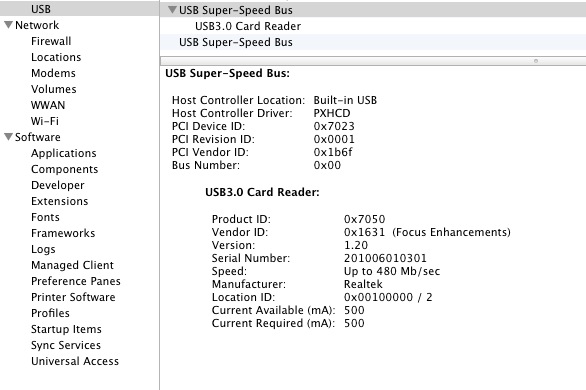
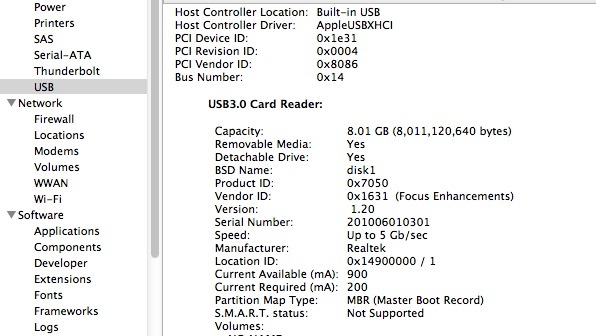
The card reader was immediately recognized, and though System Profiler reports the maximum speed is the 480Mbits/s of USB2, rather than the 5000Mbits/s of USB3, the full USB speed is available. Here’s how it’s seen in System Profiler:

USB3 card reader with a Class 10 SDHC card inserted.

USB3 is reported as ‘USB Super-Speed Bus’, and you can see both sockets are recognized.

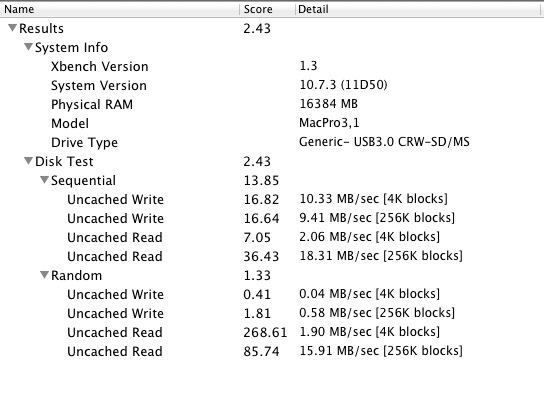
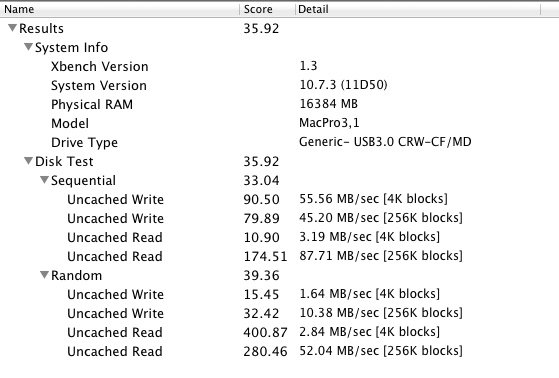
Confirmation of the transfer speed was easily done by running the Xbench disk test. Here’s USB2, which takes 10 minutes (!) to run:

Xbench – USB2 (extension cable) with SDHC Class 10 card.

And here’s USB3 which takes a 75 seconds:

Xbench – USB3 cable with UDMA CF 400x card.

Like, whoa!

So USB3 is working properly on the HP100. I ran the same tests with the card reader connected to the 2012 MacBook Air, with identical results, except that the MBA reports the card reader’s speed correctly:

USB3 card reader as reported by the 2012 MacBook Air.

How about some real world tests?

Import and processing of 20 Panny G3 RAW files from the SDHC Class 10 card (not especially speedy as cards go) using USB3 compares with USB2 as follows, using Lightroom 4.1:

  • Import 20 files: 20/20 seconds. No difference.
  • Generate 20 1:1 previews and apply lens correction profiles: 43/48

Hmmm. Not very impressive. Why is USB3 no faster?

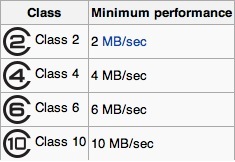
The limiting factor here is the slow SDHC Class 10 card. Here are the speed specs for the various SDHC card classes:

As you can see both USB2 and USB3 are working at maximum efficiency in HP100 – meaning one second per file, with files being around 10Mbytes in size. SDHC simply cannot go any faster, and is not helped by USB3 at all. More recent high-speed CF and SDXC cards however should benefit, as they support data transfer rates of 32Mbytes/s or more and here USB3 should realize the benefits. Thomas’s Panny G3 does support SDXC cards, his earlier G1 does not. He needs a faster card to realize the benefits of USB3 with the Panny G3.

Now repeating the same test using the Lexar 400x CF UDMA card from the Nikon D700:

  • Import 20 files: 3/20 seconds. Seven times as fast
  • Generate 20 1:1 previews and apply lens correction profiles: 46/48. No material difference.

* * * * *

Thanks, FU. So USB3 in the HP100 will work great with external USB3 drives, and with SD and CF cards. If the card is fast, USB3 is 7x as fast importing files with a 400x UDMA CF cards (and probably similar with recent SDXC cards), and all at a fraction of the cost of LightPeak/Thunderbolt. Processing time remains unchanged as that’s a function of the CPU and GPU, having nothing to do with the card. For users of the latest DSLRs like the Nikon D800 which generate 75Mb files USB3 is a cheap – and highly recommended – fix for fast import – the time will fall from 6 seconds a file to under 1 second.

And, of course, any USB3 external disk drives will be much faster, especially if SATA3 drives are used in preference to the older SATA2 designs.

As for the processing speed when importing to LR, that’s hardly a limitation. Once the files are imported, you can let LR grind through processing while you simultaneously start developing your picture. Processing occurs in background mode and only a faster CPU and GPU can speed that up.

So if you want the best transfer speed per dollar, USB3 is the way to go at very modest increased cost – $35 for the card reader plus $7 for an extension cable.

Update January 27, 2013:

I managed to bend two of the pins in the US Robotics USB3 card reader when inserting a CF card from my Nikon D3x. The pictures on the card were corrupted, but were easily recovered with the wonderful DiskDrill application. Mercifully, I have retained the original internal USB2 Sony card reader in my Hackintosh, so download could proceed. I dismantled the US Robotics device (you have to pull off the four rubber feet hiding the screws) and managed to straighten the bent pins and all is well again.

Moral: Be very careful to insert the card straight into this device. The guide channel is short – misalign your card and the suspect engineering design of the CF card which requires perfect alignment will trip you up, much as it did me. SD/SDHC/SDXC cards are a far more robust design, using broad contacts on the card, addressed by wipers – not pins – in the reader. Yes, you hear of CF cameras with bent pins too, but Nikons are fairly well made in this regard as they use a very long channel to ensure proper alignment of the card in the slot.

MacBook Air 2012 – Part II

A meaningful improvement over 2010.

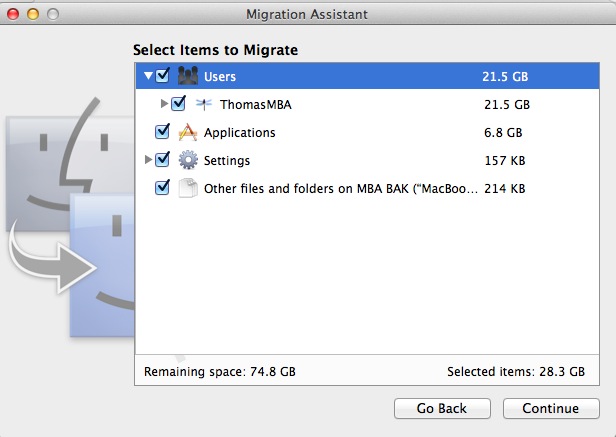
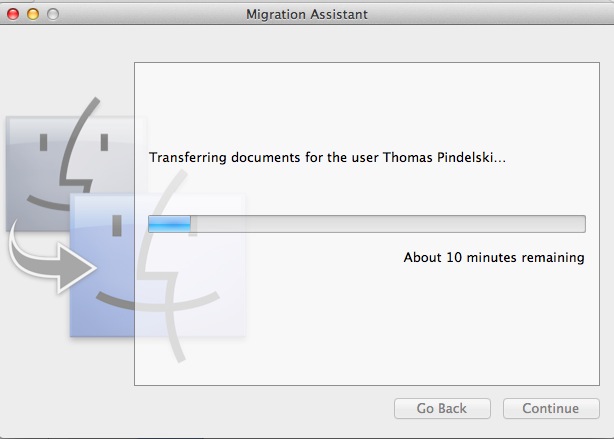
My 2012 MBA arrived yesterday and here are test results. It’s the i5/4Gb/128Gb version, for $1,100. Last year’s model ran $1,200 with the 128Gb SSD and only 2Gb of RAM. The battery was 86% charged on receipt. From unboxing to ‘ready to import’ status took 5 minutes. Migration Assistant allowed recovery of all my user settings and applications from the backup for the predecessor 2010 MBA in 12 minutes more while I got on with something else. iCloud now makes setup of mail, calendars and contacts trivial and it’s this robust ecosystem which makes the premium paid, if any, for an OS X or iOS machine worth every penny and more. ‘Ecosystem’ remains a word none in Windows land know to spell and it’s what drives OS X sales to constant quarterly increases, small as they are.

Migration Assistant at work.

The focus of this piece is on performance with Lightroom 4.1.

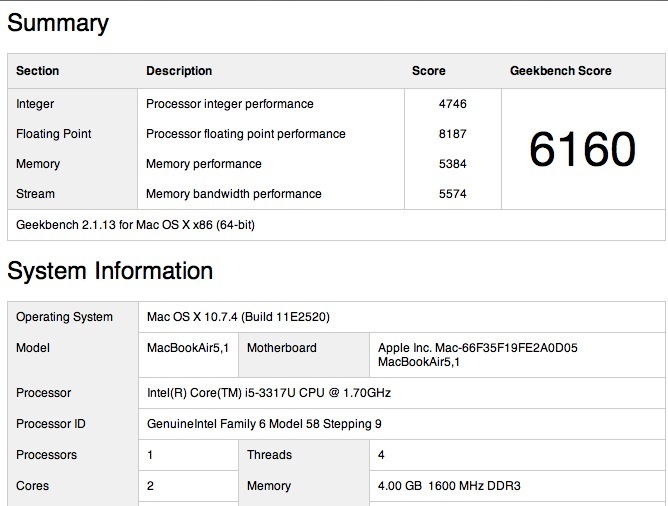
Here’s Geekbench, 64-bit:

MBA 2012.

The 2010 model was 2205, making the 2012 almost three times as fast. If you get the 8gB model then you can expect a score of 7,000, meaning 16% faster for another $100.

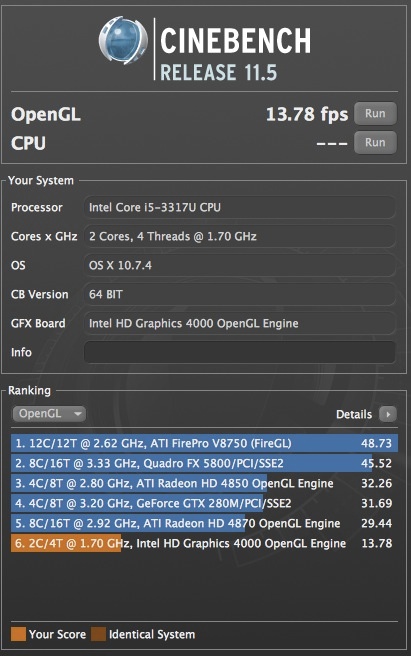
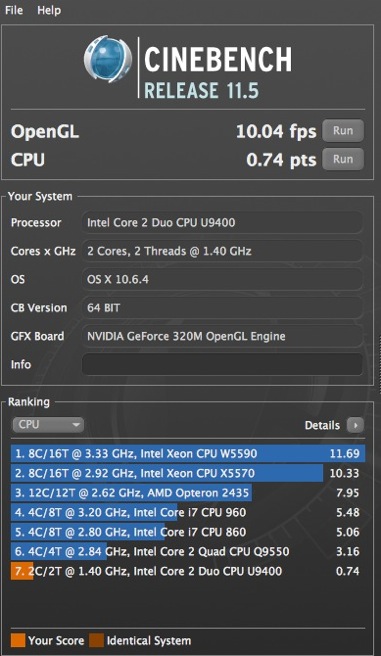
And here’s Cinebench 64-bit:

MBA 2012 and 2010.

The performance is where it’s needed for a Lightroom or Photoshop user, as those applications are far more demanding on CPU (Geekbench) than GPU (Cinebench) performance. And while the Cinebench frame rate is nothing to write home about, the integrated HD4000 GPU in the IvyBridge i5 CPU does not disgrace itself, pausing just once briefly at the start of the movie stress test.

It bears pausing a moment to reflect on that Geekbench score. When my builder FU Steve built the original HP1 Hackintosh three years ago it used a Core2Quad CPU in a large case and delivered a Geekbench score of 6,200, barely faster than the 2.3lb. 2012 MBA. Startling. Add the fact that this is the first MBA with USB3 and Thunderbolt connectors and you are looking at a very capable machine indeed.

Unlike with the 2010 model, no USB thumb drive is included with the 2012. That drive included OS Snow Leopard and allowed recovery if the internal SSD became corrupted. Now you can simply download a new version of the OS (now OS Lion) over wifi. You start the MBA with the corrupted SSD, are asked for your wifi and Apple Store credentials, and can download the OS over the air. I tried it when prepping my 2010 for sale and it took 100 minutes, and worked perfectly. Elegant.

On importing to Lightroom 4.1, this is how the MBA 2012 compares to my nuclear powered HP100 Hackintosh desktop, both using a USB2 SDHC card reader in a USB socket; timings are in seconds for import of 20 Nikon D700 files to the MBA and HP100, respectively:

  • Import 20 files: 20/22 (yes, the MBA is a bit faster!)
  • Generate 20 1:1 previews and apply lens correction profiles: 135/48

In the 1:1 preview generation – very useful for effective fast processing – the superior RAM of the HP100, all 16gB, blows away the 4gB in the MBA. But still these are, overall, very impressive statistics, with the CPU speed increase a standout.

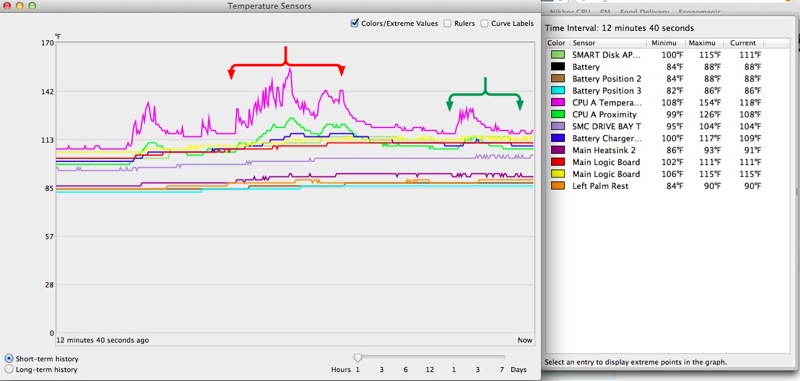
How about real use? It’s an absolute pleasure using Lightroom 4.1. With the exception of the Noise Reduction Luminance slider, all other sliders respond in real-time. The NR one has a 1-2 second lag. The selective editing brush is immediate. No excuses are needed for the integrated GPU and while the machine can run up the CPU to 160F with stock settings, as always I use the SMC Fan Control utility and set the fan (the one, pathetic, poncy, pusillanimous, microscopic, homunculus of a fan) to a minimum of 4,000rpm, as it’s more than this engineer’s mind can stand to see CPU temperatures that high. Set at 4,000rpm, where it is just audible, the machine gets slightly warm on the lap, nothing more. Left at stock it gets noticeably warm.

Here are the temperatures. Why so many sensors? Because Apple is rightfully terrified that if something fails then a meltdown will result if the problem is not sensed immediately.

Fan minimum set to 4,000rpm.

I turn down SMC Fan Control to 3,500 when not photo-processing, at which speed the 2012 MBA CPU core idles at 120F in a 75F room.

On the MBA, LR4.1 loads in 5 seconds compared to 3 seconds on the HP100. The red brace denotes the area where LR 4.1 was being imported from Adobe. The green brace indicates the import of the 20 RAW files tested above, and their subsequent processing. As you can see, processing causes little heat rise. The mauve uppermost temperature trace is for the i5 CPU core, whose service limit is 192F according to Intel.

What’s not to like? Well, Apple has made a silly retrograde step in reverting to an inline MagSafe power adapter plug, the original design which was the subject of a recall. The 2010 and 2011 MBAs used the superior, sleek right-angled plug which, when oriented with the cable to the rear, allowed easy insertion of any SDHC card in the left USB socket. The new (old) version does not allow that, so you either have to pull the plug or use the right hand USB socket. Doubtless they have reinforced the cable junction which used to fray, but it’s not an improvement.

The other caution would be for users of DSLRs which create very large files, like the Nikon D800. If you are using LR4, generating 1:1 previews is not a good idea. It takes 7 seconds per 12Mb D700 RAW file. The D800 generates 75Mb RAW files. You can do the math. Smaller previews are no big problem on the 11.6″ display but if you are driving a large, external display you will need 1:1 previews, and will have to wait as each is prepared. That will make for a slower workflow.

Tests with Photoshop CS5 appear here.

So the 2012 MBA is a credible and fully usable Lightroom/Photoshop machine where the 2010 was sluggish. If you try the 2012 and are using the 2010, you will want to upgrade. The improvement over the 2011 will be less noticeable. For those just seeking a speedy web and email laptop, the 2010 MBA at $650 used is a great deal.

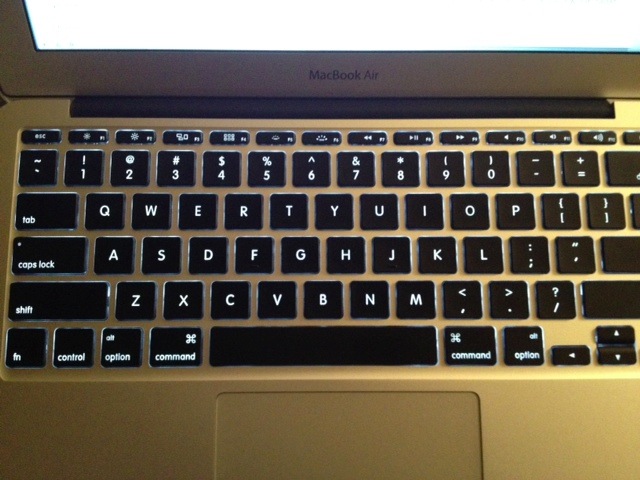
For other comments, refer to my five-part review of the 2010 MBA which starts here. The ergonomics of the 2010/2011/2012 machines are identical, with one strange exception. The lid/display on the 2010 swivels back some 5 degrees more. The 2012 is not an improvement in that regard. However, by way of atonement, here’s a bit of magic the 2010 does not offer:

Backlit keyboard.

A friend writes: “Dimly lit venues are now fair game for inspiration.” Indeed. Thank you, Gregg.

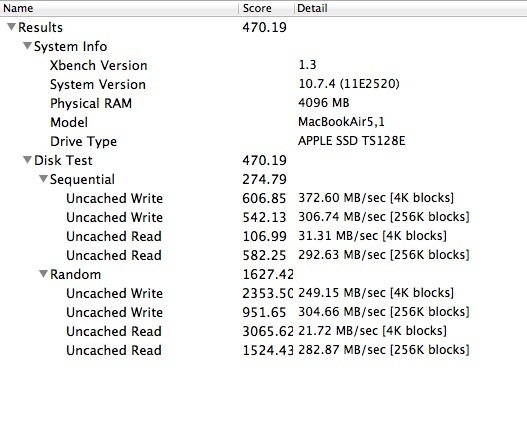
Finally, disk speed. Here’s Xbench:

That compares to a score of 522 for the SATA3 SSD in the HP100, both representing a 60% speed increase over SATA2 drives like those used in the 2010 and 2011 MBAs. My 2012 MBA uses a Toshiba SSD (denoted by the ‘TS’ in the Xbench screen above), which some have said is slower than the Samsung used in others of the same model.

In conclusion the 2012 MacBook Air is an outstanding laptop, reasonably priced, and one which increasingly asks the question as to why you should pay more for a MacBook Pro. A free upgrade to Mountain Lion will be available in a few days when the latest version of OS X is released.

MBA as your only computer?

For those on a budget, the 2012 MBA can be used as your only computer for photography and all other general tasks. As all MBAs now come with at least 4Gb of memory, the cheapest point of entry is the base 11″ model with a 64Gb SSD ($1,000), a SATA3 500gB external notebook drive ($65), a USB3 enclosure for the drive ($25) and a cheap external 21″ monitor for home processing of snaps ($140) with the required cable ($14). The total of $1,244 gets you a capable Lightroom and Photoshop powerhouse with a large external display for home use. The OS and apps will start very fast owing to the MBA’s SSD. Not at all bad, and with lots of storage not affordable in SSDs at present.

* * * * *

Now I have to go for a hamburger and apple pie, seeing as it’s the anniversary of the greatest day in modern history!

Photoshop CS5 use is addressed here.

Disclosure: Long AAPL January 2013 call options.