Category Archives: Hardware

Stuff

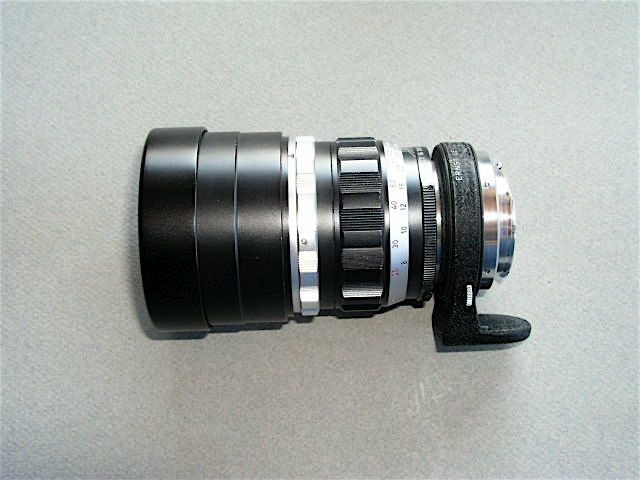
Out and about with the 20mm Nikkor

Just a delight to use.

I rambled on about the old MF Nikkor 20mm f/3.5 lens I picked up the other day here. Autofocus is really not missed at this focal length and such vignetting and distortion as there is can be easily corrected using the tailored lens profiles I provide here.

So the other day when a break in our unusually rainy weather opened up, I shot off to the city with the 20mm bolted on to the D700 (‘bolted on’ seems in keeping with that body’s macho ethos) and I thought it might also be fun to try out that little GPS logger and receiver mentioned yesterday, while I was at it.

I set off boldly heading west on foot along Harrison Street to the Hall of Justice, surrounded (in order of decreasing morality) by mendicants, zonkers, auto bodyshops, cops, whores, pimps, bail bondsmen and criminal lawyers. Firing up the GPS, here’s my out and back route as shown in Lightroom 4’s map module. I headed back after a sandwich at Caffe Roma at Seventh Street, taking Bryant Street:

As seen in LR4. Flags are numbered when the photo count exceeds one.

Hover over a flag in LR4 and you see the snap:

Cursor hovers to disclose picture in LR4.

Until I figure out some way to add a map when the cursor is hovered over an image, you will have to take my word for it that these were snapped on the route shown. And while the area may not be the greatest, there are probably more cops per square mile here than anywhere else in the city. They are needed to protect the shyster lawyers from their abused clients. Thus, it’s actually pretty safe.

The GPS performed very well. There was one small blind spot, maybe half a block long, where no coordinates were recorded (the GPS flag in the D700’s LCD display was extinguished), probably caused by a skyscraper obscuring the satellite, but the data were easily interpolated using LR4’s ‘drop-on-map-to-record’ option. Built up cities with high rises are the severest test. Open countryside is no problem.

The lens acquitted itself well. Fine detail is there in abundance across the frame and a click in LR4 applies the lens profile in cases where the distortion is objectionable. More a fetish than a requirement much of the time, to be honest. Where you see vignetting it has been added by me, not by the lens.

The Endup. Grunge added in Snapseed.

The wave.

Bail bondsmen. My favorite shingle is ‘Ballestrasse’. What could be more appropriate?
Looks like a business divided along ethnic lines – these presumably service Jews, Germans and Italians, respectively.

SOMA Artists Studio. Arrow points the wrong way ….

Green door and wall on Bryant Street.

Plant on Bryant Street.

Yup, that little 20mm is a keeper and is ideal for subjects where sidewalks are narrow and you have no choice but to be close. What I think of as an ‘environmental lens’ and a favorite focal length. And GPS works fine – a couple of dead spots where there was no reception, with coordinates easily backfilled in LR4. The unit is completely unobtrusive and I paid it no attention on this little sojourn. It delivered in (accurate) spades. It nails locations within a couple of yards.

The Nikon D700 and geotagging – Part II

Simplicity itself.

Update 2/22/23: A superior geotagging technique using Lightroom, a plug-in from Jeffrey Friedl and your cell phone is addressed here.

I detailed the components for adding geotagging to a late Nikon or Fuji DSLR in Part I. The idea was to avoid wires, and not to use any GPS power hungry device which would derive power from the camera’s battery. And the whole megillah had to be small, unobtrusive and attention free. The solution was a remote GPS data logger which has its own battery and communicates with a small wireless bluetooth receiver attached to the camera’s ten pin socket.

I had done a lot of research in determining the right hardware and had dismissed both the poorly designed and costly Nikon GPS receiver and Rube Goldberg solutions using remote GPS loggers in combination with software. These demand additional labor to match the GPS data with the picture files from the camera, using the camera’s inaccurate time clock as the lookup field. From my perspective, it either works with minimal post-processing labor or I’m not interested, as I much prefer to spend time taking pictures than playing at code monkey. Add the fact that many Nikon DSLR bodies have GPS connectivity built-in makes my solution a no brainer.

Accordingly, the solution proposed here is elegant, requires a minimum of user intervention and is inexpensive.

The total investment of $106 proves to have been money well spent; you can find the hardware sources in Part I. With the camera receiver finally arriving after a 17 day wait for the mail from Hong Kong, I plugged it into the ten pin socket on the Nikon D700, enabled GPS in the camera’s Setup menu, switched on the data logger and a few seconds later the ‘GPS’ icon illuminated on the LCD screen and the camera was ready to receive and save GPS data. 30 seconds is the manufacturer’s claim for initial acquisition of GPS coordinates; I have generally found that to be correct, although sometimes it takes a mere 10 seconds from powering up the logger for the camera to recognize GPS coordinates. Go figure. I told the camera to use the GPS time clock, not the poor one in the camera itself, renowned for drift. The D700 can adjust for Daylight Savings time, true, but if your camera cannot, you have been warned. The chances are high that you will forget and any solution which depends on memory in our data-fevered world is not robust.

If you cannot wait the 2-3 weeks the camera receiver takes to ship from the Far East, you can get hosed down at B&H for some $190 more for the aptly named Foolography Unleashed unit and have it in a few days. Or you can pay Amazon $120, which is $60 more than I paid. A fool and his money are easily parted ….

The AK-4N bluetooth receiver, circled in red, plugged into the D700.
The green arrow denotes the 2.5mm pass through port for a wireless remote.
The wireless i-Blue MobileMate 886 Mini GPS data logger is on the right.

Mercifully, unlike Nikon’s wired unit, the receiver on the camera is completely devoid of any controls or flashing lights.

How well does it work?

To quote from ‘My Cousin Vinny‘, where the tool in question was an automotive torque wrench:

Lisa: “Dead-on balls accurate.”
Vinny: “Dead-on balls accurate?”
Lisa: “It’s an industry term.”

The addition of enhanced mapping in Lightroom 4 makes the retrieval and presentation of GPS locations trivial. Here’s my first effort

GPS at home – loft, bedroom, office.

As you can see, even movements of the GPS unit of a few feet are distinguishable on the LR4 display. I have blurred out part of the GPS coordinates as doubtless there’s at least one psycho with an Uzi reading this intent on wreaking revenge for all those Anselites in denial of my bad experiences with the man, and I would rather not make his job any easier. As for the white car in the driveway, it’s a loaner. My Ferrari Enzo was in the shop when this was taken. Nothing serious – regular oil change, $5,000.

Power draw? The logger runs 10 hours on a charge and comes with both USB and car adapter charging cables. The camera receiver’s data sheet states that its power consumption is 10mA – a local Bluetooth connection only. The D700’s standard battery stores 1500mAH, so if you kept the receiver on for 10 hours straight you would use almost 8% of the battery’s capacity. In practice, the receiver only comes on when the camera’s LCD is lit by a first pressure on the shutter button, meaning that GPS is available to the camera within 1 to 1.5 seconds of touching the release button. The D700 also has an option to keep the receiver powered all the time, but I have not found it necessary to use this. When the camera is turned off, the receiver does not draw any current from the camera’s battery, contrary to what the data sheet states. The logger, which takes 30 seconds to first acquire a signal, is on all the time, thus avoiding any delay in use. It refreshes data from the GPS sateliite(s) every few seconds.

So the camera receiver is a set-and-forget device. Small and unobtrusive, you will forget it is there and, unlike with the Nikon unit which mounts on the accessory shoe, you do not lose the use of the built-in flash and need no connecting cables. With a 30 foot range, the data logger can be kept in a pocket or in the camera bag.

The small 2.5mm pass through coaxial socket on the side of the receiver accepts a short coaxial cable to connect with the wireless remote whose stock cable can no longer access the ten pin socket. The silly Nikon socket plugs can be removed as they only get in the way and are frightfully badly designed. I pulled mine off – a process which took far longer, what with all the futzing with the strap and D-rings, than getting GPS to work. The receiver does not interfere with the camera’s handling in any way and is a very tight fit, so the absence of a locking ring is not an issue. It’s not about to be knocked off. It does block the coaxial flash socket, so use a hot shoe adapter if you use wired flash or, better still, a radio trigger for studio strobes.

Short 2.5mm male-to-male coaxial cables are hard to find for those needing the wireless remote to work. I bought mine from Summit Source for some $4.95 shipped, and it’s 18″ long. Neither Radio Schlock or Amazon stock what is needed.

The receiver’s data sheet states that it works with the following camera bodies: Nikon D200, D300, D300s, D700, D2X, D2Xs, D3, D3X and Fuji S5Pro. The new D4 and forthcoming D800 and D800E appear to use the same ten pin socket and none has built-in GPS, so I would guess this device would work equally well on those bodies, but I have not tried that.

Here is the data sheet for the receiver:

AK-4N data sheet.

There is still one dependency on memory – you have to remember to turn the data logger on at the start of the shooting session! The camera’s GPS flag on the LCD is small, so I have added a white paint reminder to the accessory shoe protector:

Aide memoire and camera’s GPS flag.

I hope I remember what that means ….

I’ll publish real world results tomorrow.

GPS receiver – October 2012: A reader has advised that the receiver I refer to above has been discontinued and recommends this one.

Update October 2012: Having just added a Nikon D2X to my hardware collection I purchased another Aoka camera receiver to permanently install on that body – the 10 pin fitting is identical to that used on the D700 and the existing Aoka works perfectly with the D2X.

Try as I might, I can only get one camera to record GPS data using the one GPS data logger. If I turn on both the D2X and the D700 simultaneously, the D2X grabs the signal first, displays the ‘GPS’ flag and prevents the D700 from getting it. If I turn the D700 on first, then the D2X, the D2X cannot see the data logger. By the way, the much older D2X ‘sees’ the data logger far faster once turned on than the D700 – a second or two – I can only think the larger D2X body has room for a superior antenna. So much for progress.

So it seems the logger ‘locks on’ to one camera receiver and is incapable of driving two at the same time.

Oh well.

I suppose if you are using both cameras together, you can always look up the GPS data on a picture taken from the other at about the same time. Not ideal. Or get a second GPS data logger.

Nikkor 105mm f/4 Micro-Nikkor Ai-S macro lens

As sharp as it gets.

Nikon has long made some of the best macro lenses on the planet, and mine, the 105mm f/4 is a design dating from 1970, this specimen having been made in 1982. Production ceased in 1983. I bought the Ai-S version as I want to add a CPU and that works best with Ai-S variants. The lens came in non-Ai, Ai and Ai-S models, all optically the same. It was replaced by an f/2.8 version in Ai-S, then AF D then G mounts, all differing optically from one another and from the f/4.The current G model runs $900, hood extra. Mine cost me $235 with front and rear caps in mint condition, from the nice people at KEH.com. This lens, and the many variants of the 55mm Micro-Nikkor, is abundantly available on the used market.

The 105mm f/4 Micro-Nikkor Ai-S macro lens.

The hood is built in and if you contemplate carrying the lens in a bag with no front cap, as I do, use a filter. With the hood retracted, the front element is very exposed. It’s manual focusing but AF is hardly missed with macro subjects. The lens focuses down to half life size and will go closer with extension tubes.

Focus throw is very long, almost full circle, as befits a lens where fine focusing is critical. The 105mm length is easier to use than a 50mm macro as it allows the camera to be further away from the subject to permit better lighting.

Definition and contrast are stellar. There is no noticeable distortion at any setting and if there is the most minor vignetting at f/4 it’s easily removed using the custom lens profile I append below. Diffraction sets in at f/22, denoted by a minor drop off in fine detail, but it’s not a deal breaker. Construction is like they used to make them – engraved alloys, no plastic in sight other than on the focus grip. There’s a focus lock screw underneath, just visible above, but I have not found any need for it – the lens stays where focused. This lock is on the Ai-S version only. At the closest focus distance with the hood extended it’s 7.5″ long. Reproduction ratios are clearly marked on the barrel.

Lens correction profile:

You can download the ACR lens profile by clicking here. There is very minor vignetting at full aperture which this profile corrects. The lens has negligible distortion.

This profile works well with FF sensors. APS-C sensors do not need it.

Installation and use of the profile are addressed here.

I’ll post some results soon. This lens is recommended without reservation for cheapskates who want macro focusing and will not miss AF.

Adding a CPU to the 105mmm f/4 Micro-Nikkor Ai-S:

The rear baffle on this lens is 1.621″ in external diameter. That is too large to permit a simple glue-on installation of a CPU. The internal baffle diameter is 1.400″ which is what is required, meaning an arc of the baffle’s alloy must be completely removed for CPU installation.

The baffle is retained with three radial countersunk Philips screws. First, place the CPU with the fourth pin from the right aligned as shown in the second picture below and mark its extremities with a scribe on the baffle. Make another scribed mark around the periphery where the baffle abuts the bayonet chrome mounting flange. Remove the three screws but leave the fourth – a slotted protruding one – untouched. With the three screws removed the baffle can be extracted.

The circumferential scribed mark is critical. Remove material below this and you will destroy one of the three retaining threads for one of the retaining screws.

The baffle removed. Red arrows denote limit marks for longitudinal cuts,
green arrow shows scribe to denote depth of cuts required.

Remove the arc of alloy delineated by the scribed marks. I use a Dremel tool fitted with a cut-off wheel. Professionals will use a mill. I make the arc slightly wider than required to give me ‘wiggle room’ when glueing the CPU in place. Any gaps are filled in with epoxy for a robust finished product.

Red oval shows the CPU in place. Its top surface is plane with the rear of the baffle.
Green line denotes alignment of the CPU – the fourth pin from the right is aligned with the flange screw.
The position of the aperture ‘claw’ is irrelevant.

CPU programming instructions appear here.

ACR lens profiles

Fixing what ails fine optics.

Adobe has long provided a free utility named Adobe Lens Profile Creator which permits any user to generate lens profiles which will correct the three most common causes of image degradation – vignetting, chromatic aberration and distortion. These profiles work with Lightroom 3 or later and with Photoshop CS4 or later.

The instructions are generally good, and the learning curve is steep, whereafter the process is easy and fast. A provided checkered target is snapped nine times – four at each corner of the frame, four at the center of each side and one in the center. The nine files are then input to the application and a profile is created. Multiple profiles for a lens, created at different focal lengths (for zooms) and apertures can be consolidated in one profile file, with PS or LR automatically choosing the profile nearest to the lens settings used. To create a file for RAW originals you need to use DNG files for the application – good luck finding that clear statement in the instructions. The key to all this is that the illumination on the target must be perfectly even. Any shadows will be interpreted by the application as vignetting and erroneous correction will result in the profile thus created.

Once you get the hang of it you can produce an accurate tailored profile, from taking the snaps to dropping the profile file in the right directory, in 10-15 minutes. The first one takes ages, of course.

Many profiles for modern lenses, created by Adobe, are included with Lightroom and Photoshop, mostly for the G and a few late D lenses, but aficionados of the older manual focus Nikkors and many AF D lenses are out of luck. Users of PS CS5 can access user created profiles, but I suggest you read the caution at the end of this piece before jumping in.

I set to making profiles for the two lenses in my collection most in need of them – the 20mm f/3.5 Ai-S (same optics as the Ai version) and the 35-70mm AF D f/2.8 zoom (same optics as the earlier ‘non-D’ variant). Longer lenses seldom need much in the way of correction. Profiles seem to benefit wide angles and wide zooms most. No surprise there as that’s where it’s hardest to fight the laws of physics – distortion and vignetting being much in the picture, if you get my drift.

The profiles below only work with RAW and DNG files. If you use TIFF or JPG they will not appear in LR or PS. They work equally well with full frame and APS-C sensors, as both LR and PS compensate appropriately. They are most effective in full frame Nikons, where the peripheries of the lens’s image circle are most used.

20mm f/3.5 profile:

For the 20mm I created profiles at f/3.5 and f/8. f/8 is very much the sweet spot for this fine optic and use with a tailored profile really makes the results sing.

Click to download the profiles for the 20mm f/3.5.

Even though the 20mm f/3.5 Ai-S lens has no CPU, as long as you remember to dial in the 20mm ‘non-CPU’ lens setting on the camera, the profile will be automatically recognized from the related EXIF data. This should apply to any lens which does not post EXIF focal length data to the file. LR and PS depend on this information to look up the right lens automatically, though you can always override the applications’ choice.

35-70mm f/2.8 profile:

For the 35-70mm zoom I made profiles at f/2.8 and f/5.6 at each of 35mm, 52mm and 70mm. This lens trends, like many zooms, from barrel distortion at the wide end to pincushion distortion at the long end. Vignetting at f/2.8 is largely gone by f/5.6.

Click to download the profiles for the 35-70mm AFD zoom.

Once downloaded, place these files in this directory:

Replace ‘ThomasMBA’ with your user name. In Lion, hold the Alt key in Finder->Go to see your user Library.

When you restart Lightroom 4 (or 3) you will see this in the Develop module once you check the ‘Enable Profile Corrections’ box for a RAW snap taken on the 35-70mm AF D zoom, as an example:


The profiles for the 35-70mm in Lightroom.

Even though I have created six profiles for the 35-70mm AF D zoom, at 35, 52 and 70mm and at f/2.8 and f/5.6, you only see a choice of one file. Lightroom will automatically choose the profile closest to the focal length and aperture you used – no need to select from multiple profiles.

Here’s the 35-70mm profile at work at 70mm and f/2.8.

Before:

No profile applied.

After:

With profile applied. Vignetting is gone as is the slight pincushion distortion.
In this image, the centers of the long and short sides have been bowed out
and the corner vignetting has been removed by the lens profile.

The changes with the 20mm f/3.5 Ai/Ai-S lens are much more noticeable, with fairly strong vignetting at f/3.5 removed and the ‘Cupid’s Bow’ wave like distortion of straight lines parallel to the edges of the image corrected. The latter cannot be properly corrected by normal manual distortion correction controls in LR or PS – only a tailored lens profile like the one above can do that. An already good wide angle lens is made great with this technique. The reason I have included two profiles in the file is that at f/3.5 vignetting is more severe than at f/8, whereas distortion remains unchanged. Lightroom will automatically choose the profile closest to the focal length and aperture you used – no need to select from multiple profiles, though the profile file actually contains two profiles.

Both profiles included in the downloadable file fail to correct very minor chromatic aberration (color fringing) but a click on the ‘Remove Chromatic Aberration’ box in LR4 corrects that perfectly, looking at 30x screen enlargements of ultra high contrast subjects. The one click approach compared to the sliders in LR3 sounds simplistic but in practice works superbly.

Before:

20mm f/3.5 Nikkor at f/3.5. No profile applied.

After:

20mm f/3.5 Nikkor at f/3.5. With profile. Note the dramatic reduction in vignetting.

Well done, Adobe. And thank you Nikon for a real corker of a lens, fully usable at f/3.5 and outstanding at f/8. I look forward to publishing some snaps from this lens soon.

Enjoy!

A caution about Adobe’s lens profile database:

Go to PS CS5, load a RAW file and invoke Filters->Lens Correction. You will see a host of lens profiles, none authored by Adobe – they do not come with LR4 which contains all Adobe’s profiles as well as those submitted by lens makers like Sigma. (For reasons known only to the people at ADBE, you cannot download other lens’ profiles using LR4). Nikon and Canon do not submit profiles as that would cannibalize their RAW processing apps for the three people on earth who actually use them.

The problem is that these profiles, which appear to have been submitted by photographers, seem totally uncurated. As an example there are no fewer than 6 profiles for the Nikon 35-70 f/2.8 lens and each yields markedly different results. The descriptions all say “Nikon 35-70mm f/2.8 (raw)”. There is no indication of which aperture or focal length they apply to, making them completely useless. One Nikon profile is even listed as 0.0mm f/0.0, indicating the author failed to read the instructions. Why this is even in the database mystifies me.

My profiles are carefully made and accurate. It’s your choice.

Another Adobe cock-up:

LR4 comes with Adobe Camera Raw 7.0. On the PS side you can only get that with CS6 Beta. The latest version for CS5 is ACR 6.7 but the download will not install, has no instructions on installation, and the current 6.6.x will not convert LR4’s Process 2012 RAW files. I have read that 6.7 does not either, but obviously I cannot test that as the installer is faulty.

The workaround is to use LR4 as your first point of entry and RAW converter even if you propose sticking with CS5 for processing.This works for all but devotees of CS5’s ACR.

Simply round trip the file from LR4 to CS5/ACR whatever version (you will not be using CS’s ACR), using a lossless TIFF or PSD file format. This way, when Adobe tries to extort money from you when CS6 comes out at $600 or more, you can tell them where to stick it. You can bet they will be forced to keep the RAW converter database in LR4 current, or risk the wrath of a huge installed user base which does not want to spend $600+ on CS6 for occasional use. Hoist by their own petard.

I see no difference in the rendering of Process 2012 RAW files comparing a RAW in LR4 with a TIFF in CS5. The only difference is that the latter is four to five times the size, but $600 buys you a lot of storage ….

More profiles:

To see all the profiles I have created, click here.

New balls for the iPad

Strange but (mostly) effective.

I intensely dislike using a case with the iPad. It argues with the functionality of the device and can double the weight. You might as well carry a laptop.

However, I continue to insist on dropping my iPad whenever the occasion presents itself and my iPad 1 is off for a replacement back right now, all four corners badly bruised. One is so bad that the glass is sticking out and the rubber gasket is beginning to pull out. Concrete and iPads are not the best of friends.

The alternative is some sort of corner protection, as the iPad will insist on landing on a corner much as a piece of bread with marmalade will always land sticky side down, and statistical analysis be damned. We are talking Murphy’s Law here, not statistics. So I hunted around for stick-on corner rubber protectors and drew a blank.

The closest I could come is the unfortunately named iBallz, which place a hard rubber ball at each corner, held together with an ugly and dysfunctional looking elastic cord.

Bert with iBallz installed. On the iPad, that is.

Let’s get to the drawbacks first (an * indicates a fix or workaround exists):

  • The whole becomes bulkier.
  • The string and related lock are butt ugly and uncomfortable regardless of how placed.*
  • The on-off switch at top right can only be worked with a fingernail on the left hand.*
  • The rear facing camera is partly obscured.*
  • The power cable port is a litttle trickier to access owing to the intrusive presence of the elastic cord.*
  • Some 30% of the speaker grille at the lower left rear is obscured.*
  • The headphone socket at top left is completely obscured.*
  • The SIM card slot at the right (on iPads with 3G or 4G) is blocked.

Stated differently, the makers need to get off their rear ends and redesign these things to address the above issues, a trivial process. Don’t hold your breath, though – these problems apply equally to iPad 2 and iPad 1, though the latter has no camera to be obscured. It’s not like they haven’t had eons to fix the design errors. The complacency of the manufacturer is not a prescription for its survival.

Just about everything that is wrong with iBallz, here on iPad 3.
Arrow denotes almost buried on-off switch. Also note the partly obscured camera lens.

The redeeming qualities are significant, however. The balls – some sort of hard, matte plastic – are very light. They fit the corners on my iPad 3 tightly. And, most importantly, they provide real protection. I have not had the courage to drop test this on the driveway; be patient, Mother Nature will doubtless provide the data sooner rather than later. Place the iPad down on a flat surface and neither glass or back will touch anything. Further, the balls provide a surprisingly comfortable hold when using the iPad on your lap, meaningfully superior to using it without the balls. In fact, I would miss them were they to be removed. The elastic cord can be pulled pretty tight and lifting the iPad by it causes no concerns, but it remains ugly and out of keeping with the iPad’s design. With the balls fitted it is much easier to lift the iPad from a flat surface with one hand owing to the stand-off, otherwise a risk-fraught exercise made more so by the bevelled edges on iPad 2 and 3. iPad 1 is far superior in this regard. Even with the cord removed, picking up the iPad with just one hand is night-and-day better.

Solutions to the bad stuff: I have cut off the elastic cord, as it’s an awful kluge. They should have dispensed with the sliding lock and simply have spec’d the length of an endless cord correctly, redesigning the balls to bring the cord far closer to the edges of the iPad. I placed a dab of glue on each corner on the back of the iPad to install the balls, using a glue whose residue is easily removed when the date of sale comes.

I have also relieved the top right ball with a Dremel tool to restore the camera function, and to make the on-off switch more accessible. This one has to be glued very carefully as you do not want glue on the camera lens (unless you like Holga-quality images) or on the on-off switch.

The relatively large relief for the camera’s lens is dictated by its wide angle of view.
The on-off switch no longer needs a fingerail to operate. Fit remains tight.

Though the top left ball obscures the headphone socket, I’ll leave that alone as I use wireless, Bluetooth headphones. I’ll leave the lower left ball, the one which obscures the iPad’s speaker grille, unchanged, as that speaker is poor in any case. Headphones are the way to go for quality sound. The obstruction of the SIM card slot is a non issue for me as I do not change SIM cards.

Too bad the balls aren’t even smaller, but it’s a start. The maker claims these fit all three iPad generations. So far I have only tried them on iPad 3. The profile of the slot is clearly intended for the squarer iPad 1, another indicator of the maker’s sloth in not redesigning this for iPad 2 and 3 with their tapered edges. Mine ran $25 from Amazon and alternative colors are available, including pink for the girlie set.

Insurance: This is another alternative, and a costly one. Reckon on $100 for two years of drop, failure and theft coverage. There are two more drawbacks, over and above the cost. One is that the iPad is gone when out for repair – that’s an awful thought. The other is that insurers get rich by not paying claims, so good luck in recovering. The integrity of that business makes the people at the Vampire Squid seem short-listed for canonization, by comparison.

Conclusion: A poorly thought out, poorly engineered, sloppy product which needs a bit of work to make it decent looking and practical. Way overpriced at $25, shipped, but I can’t find an alternative for the $5 this is worth.

A disgusted Bert models the final thing. The Mickey Mouse iPad.

As for screen protectors, save your money. After two years of brutalizing iPad 1 with no case or screen protector, often as not tossed in a bag, the screen remains perfect and with not a scratch in sight. A screen protector, like the Zagg is not only a complete waste of money, the wonderful definition of the iPad 3’s screen will not benefit and chances are you will get bubbles when you install it. Like running a Ferrari on diesel.