Category Archives: Photography

Panasonic 45-200 mm lens for the G1 – Part I

A little bit of magic.

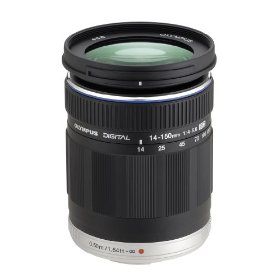
Santa came through again this year, this time in the guise of a Panasonic 45-200mm zoom for my G1. I had noodled on the idea of getting the 20mm f/1.7 but that lens’s lack of OIS meant that its f/1.7 was no faster than the f/3.5 of the 14-45mm kit zoom from a steadiness perspective. Further the saving in bulk was not that great – the camera is not pocketable with either. So while f/1.7 is appealing from the perspective of limited depth of field, the overlap with the range of the kit lens left me uninterested.

The miniscule 45-200mm mounted on a G1

When I was buying the G1 I wrote of the myriad adapters available for the body, but I have since realized that these offer far less than you might think. Unless you have some special bit of legacy glass that you absolutely must use, adapted lenses fail on many fronts. You have no aperture or focus automation, manual focus with the enlarged EVF image needs buttons to be pressed, taking away the G1’s immediacy of reponse, you lose OIS and you have no possibility of taking advantage of the wonderful distortion and color correction afforded by Lightroom when processing your RAW originals. Which is another way of saying that I sold all my costly Leica M rangefinder optics ages ago and I’m simply not going to go back in time. The operating speed of the G1 is a factor of major importance to the way I work and that would be lost with these kludgy adapters which are doubtless just fine for static work. Not my thing.

So what are the first reactions? Really much the same as with the G1 itself.

  • The lens is incredibly small and light when you realize it’s equivalent to a 90-400mm on a full frame body
  • OIS is built in
  • The zoom ring is smoother than on the kit lens but tightens up a bit at 160-200mm – no effect on use
  • Mine has those three magic words on the barrel – ‘Made in Japan’. Sorry Beijing!
  • The lens hood is huge – I didn’t even unpack it. No use to me.
  • The balance on the body is perfect
  • Focus is fast but not Canon 5D fast
  • Manual focusing brings up the magnified EVF image and is very accurate – surely this is the most perfect manual focusing system yet?
  • Minimum focus at 200mm is a mere 3.3 feet – like a 50mm lens on full frame at 5 inches!
  • The barrel extends maybe 3″ at 200mm and has very little side-to-side play.
  • Apertures are reasonable – f/4 at the short end falling to f/5.6 fully extended and perfectly usable at maximum aperture.

While there are several digital point-and-shoot cameras available with fixed ‘mega zoom’ lenses, I suspect this is the smallest and lightest interchangeable DSLR lens which reaches out to 400mm (35mm equivalent). Panny’s own FZ35 spans no less than 27-486mm with apertures of f/2.8-4.4. Canon has the SX20 (28-560mm, f/2.8-5.7). Nikon the Coolpix P90 (26-624mm, f/2.8-5.0). All breathtaking stats. And while these may be compromised with lousy EVFs and very small and relatively noisy sensors, it’s very much where design is going. Before long we will likely have APS-C sensor fixed zoom DSLRs with comparable zoom ranges and low bulk.

This Panny zoom weighs in at just 13 ounces making it, from my perspective, the first lens with 400mm capability that you take with you without another thought.

Putting matters in perspective, the G1/45-200mm combination is no substitute for a Canon 5D equipped with Canon’s non-IS 400mm f/5.6, which I wrote about here or similar ‘pro’ equivalents from Nikon, Pentax, Sony and others. While the non-IS Canon lens is the bottom of their 400mm line, which sports no fewer than four models, the other three are all faster with IS; even so, the Canon f/5.6 I own is simply in a different league optically and mechanically from any 400mm lens I have owned. Even after a couple of years’ use it still takes my breath away with its autofocus speed and accuracy and its ability to capture micro-contrast and detail at full aperture. You can see some results here. This speed and quality come at a price, of course, meaning enormous bulk and weight. You do not just casually drop the Canon in your bag when making off to take pictures. It’s a considered decision because you are not going to be switching merrily from ultra-wides to 400mm unless you want to carry a lot of gear. Further, chances are you will be taking a monopod or tripod when using it.

A significant point is that the Canon will run you over $1,200 whereas the Panny comes in at just $300. Maybe not a fair comparison as the Canon covers a full 24 x 36mm frame and is in a different class build-wise, but money is money and few need the big print capability of the superior Canon optic.

The working style with the Panny optic could hardly differ more. First the lens has no tripod bush, so you tend to think about hand holding it. Second, IS adds two to three shutter speeds making handholding even more tempting. And third, it’s so light and small that …. heck, you end up hand holding it! A nice added feature is that the filter size, at 52mm, is identical to that of the 14-45mm kit lens – nice for me as I forgot to order a UV filter when I bought the lens!

The first thing I did on receiving the lens was to go to Panasonic’s site and download upgrades for the lens’s firmware. Yes, modern lenses are packed with code and Panny’s 14-45mm and 45-200mm lenses are now on version 1.2. Both mine were on 1.0, so I updated each – the downloaded installable files differ between the two. I neither much know or care what these downloads change but I prefer to be current. The G1 itself is now on body firmware version 1.4.

The next step was to bang away and try a few snaps at 1/125th or so at full extension. The claimed 3 shutter speed benefit of OIS seems largely realized as I was finding that two out of every three snaps were shake free and good enough for 13″ x 19″ prints. Further, these were taken at full aperture, which is f/4 at 45mm, dropping to f/5.6 at 200mm. I simply set the lens to f/4 at the wide end and that leaves it at maximum aperture throughout the zoom range. Having got into the habit of using the 14-45mm at full aperture and finding the results to be excellent, I went the same way with the 45-200mm and was not disappointed.

I processed the RAW images in Lightroom 2, because that’s what I ordinarily use and because Adobe has built in distortion and chromatic aberration specific to these lenses which is applied automatically. As a result, the pictures appear distortion free and I cannot see any significant color fringing anywhere in the zoom range. Quite why Adobe is not broadcasting this wonderful bit of application programming from the rooftops beats me, as independent reviews confirm that the native output of the lens exhibits significant distortion and chromatic aberration problems, whereas the Lightroom user sees none of these.

In Part II I will look more at practical use and results but can already say that this is an exciting addition to a very small camera outfit which, with two light and compact zooms, offers excellent image quality all the way from 28mm to 400mm (35mm full frame equivalents) in a camera which uses a reasonably sized, low noise sensor. Now if only Panny could be convinced to make a 10mm pancake, equivalent to an ultra-wide 20mm on full frame, this user would have everything needed in a superbly compact outfit with very light weight.

Computer of the Year

It’s the one you always have with you.

Forget Apple’s overpriced offerings, high heat output and poor reliability. Get a netbook for a fraction of the price and enjoy the matte screen with which it comes standard.

The netbook is my Computer of the Year for photographers and anyone whose life is data intensive. Mine is the MSI WInd but any netbook pretty much does the trick.

The MSI Wind U100

Your $330 gets you a 10″ screen, a 5 hour 6-cell battery, three USB2 and one Ethernet port, a webcam and microphone, wi-fi, VGA out, external speaker and headphone sockets and an SDHC card reader, together with a carrying case and weighing all of 2.8 lbs. It’s almost light enough to take anywhere. Doubtless next year’s model will be even lighter. And the hard plastic case absorbs knocks far better than a metal one, does not dent and wears exceptionally well. And you get a choice of colors. Mine is pearl white.

‘Experts’ – who never seem to use the devices they pontificate about – will tell you its garbage, falls apart in no time, has a lousy screen, is slow, etc. Let me correct all of that. I have 53 weeks of extremely hard use on mine as of the time of writing and, except that the logos above the status lights on the lower right of the palm rest have worn off, it works as perfectly as when it was new. The screen is simply outstanding, the near-full size keyboard almost as good, it runs very cool and the reliability has been faultless.

How abut the OS problem? The Wind, like most netbooks, comes with Windows XP, though you can get it with Ubuntu if Unix is your thing. If you must run OS X the Wind can be hacked with some effort. (How? It’s called Google.) If you want to make things even easier get a Dell Mini 10v and hack that – much simpler (I am assured by people far smarter than I in these things) and even cheaper at $279, postage paid from Dell. The Dell will even run wifi using Airport, without any need to change the wifi card. New netbooks are now sporting Windows 7 which has garnered good reviews – who knows, maybe Microsoft finally got it right?

What is the purpose of such a device? It’s quicker to say what it is not good for. Long Photoshop or Lightroom sessions or movie editing which dictate processing power and a properly profiled screen are not its forte. But as a truly portable device which will store any number of photos from your digital camera on the road and allow proper preview and culling of bad snaps it excels, using the built-in SDHC card reader. For CF cards from my 5D I use a small adapter which ran me a few dollars.

There is little justification in buying one of those small screen downloaders cum hard disk devices when you can have the 10″ widescreen a netbook offers. Best of all, its half the weight of a notebook computer and its low power consumption Intel Atom CPU puts out very little heat, meaning your lap does not fry after 10 minutes of use. With the Wind you can crank up the 1.6gHz Atom CPU to run at 2.0gHz at the touch of a button when connected to the mains. That’s a feature supported by Intel and does not void the warranty. And you can swap out the battery in a few seconds for a fresh one.

I use mine mostly for following news and stocks on the road and have lost track of the number of trades I have placed using this fine tool. And at $330 if you lose it who cares, as long as you use password protection for your accounts and data? By default it comes with a 160gB HDD but I swapped mine for a 500gB one from my MacBook and upped the standard memory from 1gB to 1.5gB – it will handle 2gB. Lightroom 2 runs fine if not super fast and I have even used CS2 on occasion. The speed of both applications is comparable to what I remember enjoying on my G5 iMac a few years ago.

MSI Wind running Lightroom 2 quite happily.

There are lots of choices in the netbook market at around the same price, and I have no axe to grind for MSI’s version (of which there seem to be many) other than to say that it works well, and that I sold my MacBook within one month of getting my Wind. Make of that what you will. I do not believe it makes sense to buy a costlier device as something better will come along in a year and you will have lost more than you should. Give it to your kids and buy the latest model in a year. The only aftermarket accessory I added to mine, after the HDD and RAM, was an international power brick which will work with non-US sockets – a few dollars on eBay.

Netbooks have no optical disk drive so if you must view movies on the road simply rip them to the HDD using your desktop computer. Place them on an 8gB $20 SDHC card which will hold several. Mine will play two full length uncompressed movies on a charge and delivers excellent sound quality using earphones. The screen is 1024×600 pixels which is identical in aspect ratio to the widescreen format adopted by most movies today. The on board speakers are worthless if good sound is required. An add-on drive is too power hungry and too bulky, defeating the point of a netbook – instant computing anywhere.

The built in camera won’t make you look like a supermodel but works fine for video chats.

The netbook computer has destroyed profit margins in the small computer business – the reason Apple refuses to make one – and I recommend it without reservation if you value utility over fashion and believe, as I do, that real computing is done at home using a big screen, not a laptop.

Note: This site is optimized – as best as possible – for viewing on a 1024 x 600 notebook screen. That’s a bit of a squeeze as my preferred picture size is 800 pixels on the long side – meaning I can just about get it all in with landscape snaps – but dictates some scrolling with portraits. If you turn off the status (bottom) and bookmark (top) bars in your browser it’s even better. Laptops are generally 1280 x 800 or so, and should pose no issues.

Software of the Year

For anyone suffering from data overload.

There’s that old saw which has it that two workers turn up at your house to build a new wooden staircase. One is from the old world, makes a big pitch about how he only uses hand tools and the crafts he learned from his grandfather and probably has a missing digit to prove it. The other asks where he can plug in his saw bench. Which do you hire?

The investment world’s version of this tale is the old line manager who consults the paper copy of the Wall Street Journal, gets the Financial Times delivered for world news and reminds you that’s how they used to do it on Wall Street when he was learning the trade from his dad. The new kid refuses to meet with you, stating his time is too precious, and sets up a videoconference instead, during which he constantly consults one of a half dozen monitors to see how things are going in the markets.

Well, the answer is the same in both cases. The old guy loses the job. Time is money and he will end up costing you too much of both. And the young guy’s work will not only be faster and much more accurate, he can correct three mistakes while the old boy is still sharpening his hand tools.

This preamble is perfectly in context of this year’s Software of the Year award which is for NetNewsWire.

NetNewsWire

No matter what your interest, NetNewsWire will leverage your time just as effectively as the electric saw leverages the carpenter’s.

A case in point is the increasing frequency with which camera and lens software is updated by manufacturers. New features are added and existing problems fixed. If you have NetNewsWire tuned in to any of the many web sites addressing these things, using an RSS feed you can be assured of not missing these important updates. For example, Panasonic and Canon – whose products I use – have released several camera and lens software updates this year alone. I may not need them all but it’s nice to know they are installed if I do. On a related topic, keen photographers read many web sites and can avoid wasting time checking for new articles through the simple process of using NetNewsWire and a site’s RSS feed. If the site lacks an RSS feed, why bother with it? Clearly, the author cares little whether you read it or not as he cannot be bothered to draw your attention to new content.

This year NetNewsWIre started using Google Reader as its feed engine and has, as a result, become much more reliable. In particular its syncing of feeds between multiple devices is greatly improved. Thus, when I read an article on, say, my netbook, I am assured that its ‘read’ status is updated on my desktop and iPhone. That’s worth a lot to me.

After a while you quickly filter your feeds, separating gold from dross. And if, like me, you manage money for a living, you are in seventh heaven, because that’s a business where dross is dominant.

NetNewsWire is a free download and is this photographer’s Software of the Year. It only runs on Macs but there are doubtless like products for users of other operating systems. Whether you are a photographer or a data fiend who values his time, this application deserves to be on your computer(s).

Once you have loaded NetNewsWire on your Mac, just click the RSS logo in the toolbar of your browser and the feed will be automatically added.

Paranoia ….

…. when it comes to backing up.

A while back a fellow photographer mentioned to me that he used Apple’s Time Machine utility and found it a blessing when trying to recover previous layered images in Photoshop, after accidentally flattening the current version and losing all layers of the photograph on his working hard drive. Unlike regular backups which overwrite a file with the latest version, Time Machine maintains an intact catalog of all the versions of a file as it changes. So if you need to recover from destructive edits, it’s just the ticket.

I confess I pooh-poohed the idea as I don’t believe in any back-up that you cannot boot from, and while Time Machine back-ups can restore to drives which are bootable, you cannot boot from the Time Machine back-up itself.

But as this bit of wisdom came from a person whose views I respect, I slept on it and concluded there was a place for Time Machine in my back-up strategy which, troublingly, does not include an off site back-up. My MacPro has a 1tB boot drive and a like internal clone, to which an incremental bootable back-up is made every night using a scheduled task in Carbon Copy Cloner. But both boot and back-up drives reside in the same location inside the same Mac Pro. Catastrophe at that location would wipe me out. And cloud computing storage for large photo files is still a thing of the future, as broadband speeds in the US are simply too slow to upload and download large files.

So I messed about a bit with Time Machine and while I care little for all the glitz and fireworks of the interface, the application is easy to use and after the first backup (very slow – 4 hours to backup 400gB – with some performance drag on the Mac) incremental back-ups are fast. Because the volume of data being backed up incrementally is small, there’s no noticeable performance penalty. Time Machine saves hourly backups for the past 24 hours, daily backups for the past month, and weekly backups for everything older than a month until the HDD is full. After that, it’s first-in-first-erased.

But I did not want to relocate a drive enclosure daily. I required something small and easily carried – the easier the better and the more likely I would actually behave and take it home! Backup strategies dictate paranoia and discipline. Discipline is sloth’s foe and we are all, by inclination, slothful.

The cheapest solution I could find was this:

The Aluratek plug-in backup cradle. Blue means on, red means working.

For the grand sum of $24.95 from B&H, one of these Aluratek cradles was delivered, postage paid, and plugged into a USB port. Your naked drive of choice – it can be any 2.5″ or 3.5″ SATA drive – plugs into the top and is released by pressing the button, like on a toaster. While there’s no fan, the device sits in the open, so is reasonably ventilated and, given its light duty cycle after the first core backup, heat is not an issue. “Warm to the touch” describes it.

Opinions of the required size of Time Machine HDDs are all over the lot. Obviously, as a minimum the Time Machine HDD should be as large as the volume of data on your source HDD plus some space for historical back-ups of changed files. The more generations of data you want to store the larger the required TM HDD. On the other hand, I can’t see wanting to go back too far in time. This assumes I realize I have messed up before too much time passes, so that the last good version of whatever I messed up is still available. Further, as my internal HDD is relatively mature, meaning the rate of change of bytes in percentage terms is low, I tend to think too much excess capacity is a waste.

However, as my boot disk is 1.0tB I plugged in a 1.5tB 3.5″ SATA HDD into the Aluratek and let Time Machine do its thing. With only 400gB on the internal drive, 0.5tB – 0.75tB would have done fine, but the incremental cost of the larger drive, at some $30-50 more, is so low as to make no material difference in exchange for the peace of mind. The sledgehammer solution and almost certainly overkill.

Now I simply unplug the naked drive after ejecting it from the Desktop (right click on the mouse) and pop it in my shoulder bag before going home for the day. On reconnection, Time Machine recognizes it within 30 seconds and confers the appropriate green icon on the drive which appears on the Desktop.

I really suppose I should use a grounding strap when removing the HDD from the Aluratek cradle and an antistatic bag to transport it, but I am bothering with neither and all is well after a month of use. We’ll just see how it goes. With the internal redundant backup HDD in the MacPro I simply have iCal send me a monthly reminder to check that I can boot from the backup drive. But Time Machine backups are not bootable. So how do you check them? Well, there’s a clever Time Machine Buddy widget which tells you if everything ran smoothly – worth checking now and again. Typically, I’m finding incremental Time Machine runs are reported as no more than a minute or two in length by Time Machine Buddy, which provides a useful log of what was done by the application.

If the minimum 1 hour backup frequency of Time Machine is too frequent, you can use a free application named Time Machine Editor to extend it.

Another interesting point of discovery is determining how many remove/replace cycles the HDD and the Aluratek can handle. The HDD depends on contact strips and the Aluratek on wipers, both of which wear with use. If they survive a couple of years I will feel fine about my investment.

More paranoia:

I’m beginning to sound like Andy Grove of Intel fame (“Only the Paranoid Survive”) but my pictures are precious to me. So what if a large surge or electromagnetic wave takes out my two internal drives and the Time Machine drive simultaneously while the Time Machine drive is connected? I’m sunk. So I suppose I really should rotate two Time Machine HDDs with one always in the remote location.

Of course, the minute I adopt that strategy, some nut (or divine providence) will drop a Big One on Silicon Valley and then all my redundant drives are toast. But so am I. So in that case I do not care. On the other hand, if an earthquake takes out the Bay Area and I survive, maybe one of the two HDD locations gets lucky. Oh! boy, guess I need another 1.5tB HDD!

One note of caution. Time Machine software is also available packaged with an HDD in a white plastic box from Apple, named Time Capsule. This adds a hard disk to the software and, as is common with Apple products, places looks above longevity. Not only is the plastic case a very poor conductor of heat (in fact it acts as an insulator, trapping heat inside) the box has no fan, meaning it overheats. Further, it uses wireless for the data stream. You are going to trust your precious backup to flaky wireless? No wonder, then, that the web is replete with complaints of Time Capsules having high failure rates. Save your money. Buy your own properly ventilated, hard wired, external drive enclosure and have something that lasts longer than the warranty period, while saving money in the process.

The online backup alternative:

Why not just use an online backup service. In a word, because it’s useless for large files. Here’s why.

My upload speed on DSL is 0.64 megabits/second. At best. 1 megabyte=8 megabits, so that translates to 0.08 megabytes/second.

My Lightroom catalog is 87.66 gB, so it would take 87.66 x 1000/0.08/60/60/24 = 12.7 days to upload it for storage.

Now, apart from the fact that this would completely clog up my DSL, what do you think the chances are of an uninterrupted 12+ day period for this upload?

Then add another 53.2 gB for my iTunes library, and 28.4 gB for my iPhoto library and all the other things and …. well, you get the picture.

On line storage is simply not a practical answer with our slow broadband speeds. The cost is also high – $50-$100 a year and good luck getting more than a gigabyte or two in space. By contrast, the 1.5 terabyte hard drive I am using cost $140 and has a 5 year warranty, so the maximum cost is $28/year – and that’s for 1,500 gigabytes. Not to mention nearly instantaneous retrieval in the event of catastrophe. And by the way, what makes you so sure that the online service, operating in a competitive environment with razor thin margins, will be around tomorrow? Or that their backups are safe? Or what if some crook at their end steals your personal data? Sorry, this approach fails risk analysis on so many issues it is simply a non-starter for me.

* * * * *

On a related note, there’s something awe inspiring about having one or two terabytes in a jacket pocket. Doubtless, 2.5″ drives will have these capacities soon. They max out at 750gB currently, have very small 8mB buffers, are slow at 5400 rpm and expensive. Soon I expect that SDHC cards will take over. A terabyte in a stamp sized card. I still never cease to be amazed at what engineers and materials scientists have done with storage capacities. Imagine, your life’s achievements in exquisite detail on a postage stamp. Truly, modern storage technology is the hoarder’s dream come true.

Eye-One Display 2 colorimeter update

A fresh calibration.

It’s been a month since I first calibrated my two Dell 2209WA displays using the X-Rite Eye-One Display Two colorimeter and the Eye One software just reminded me to redo the calibration. I had set it to remind me in one month.

As usual I do this by near-noon daylight in my brightly lit office with no incandescent or fluorescent light sources. Time taken was 15 minutes per monitor.

Interestingly, both monitors were new when first profiled and have shown considerable drift. As before I am profiling for a screen brightness of 140 cd/m2 , a bit brighter than the recommended 120 cd/m2. That works for me in a bright ambient light setting.

Here are the original and revised settings – brightness had shifted little:

Monitor settings a month earlier and now.

The Blue drift in the right hand monitor is especially noticeable.

I’ll check back in a month to see if things have settled down. The only change from the initial calibration is that I have migrated to version 10.6.2 of Snow Leopard from 10.6.1.