Category Archives: Photography

Leica SL2-S multi-shot super resolution

Pixel shift technology.

For an index of all Leica-related articles click here.
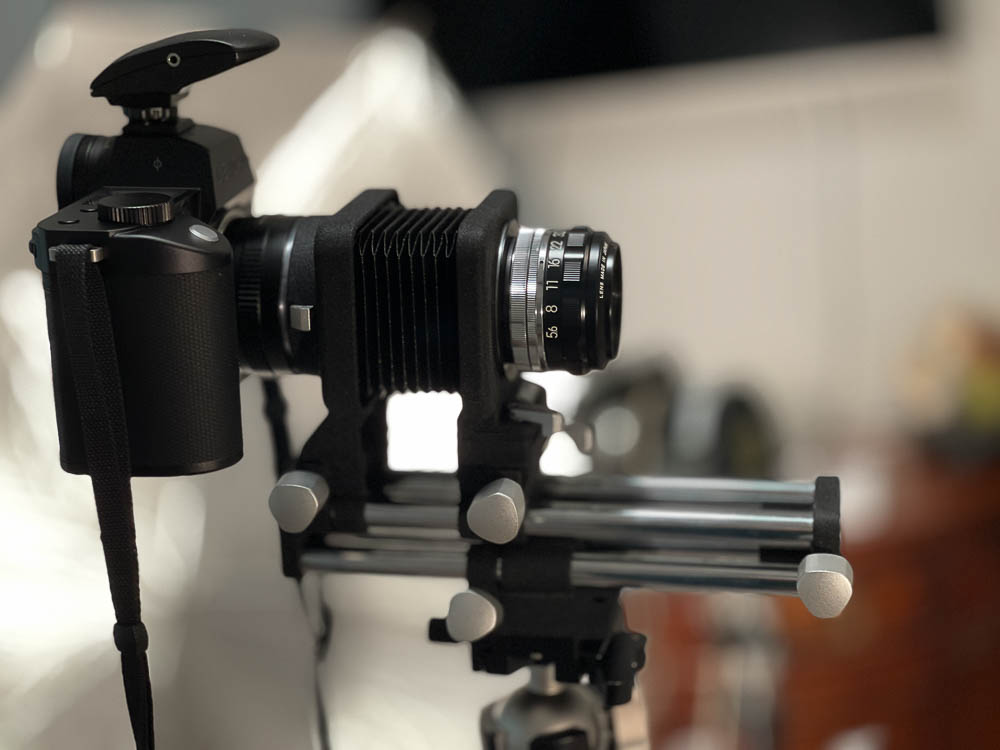
If memory serves it was Hasselblad, a few years ago, who came up with the idea of pixel shift technology to make multiple exposures at very high resolutions, combining the images each of which is shifted 1 pixel by the IBIS sensor. Much loved by curators of oil paintings. Lots of higher end mirrorless cameras with IBIS now offer this, of course, as does my (now discontinued) SL2-S, so as it’s raining I decided to give it a try inside. You need a stationary subject anyway.

The super resolution mode is found at Menu->Page 1->Drive Mode->Multi-Shot.

Here’s the bookshelf scene – the red box highlights the enlarged versions below:


The target.

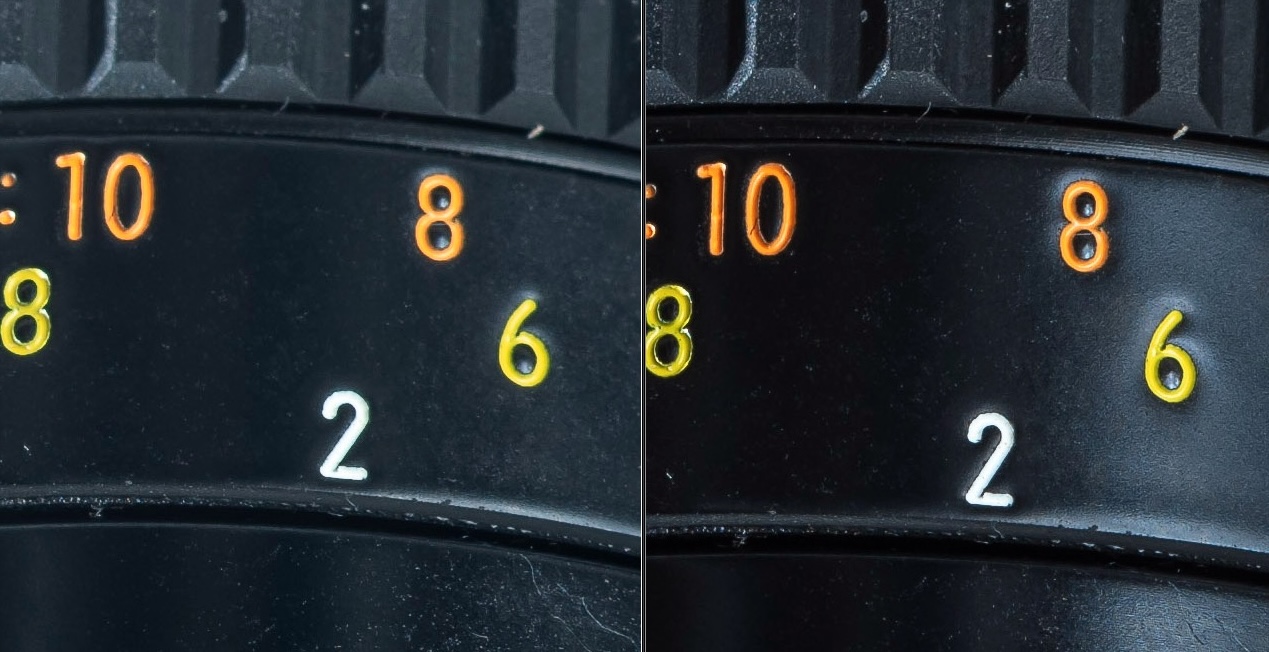
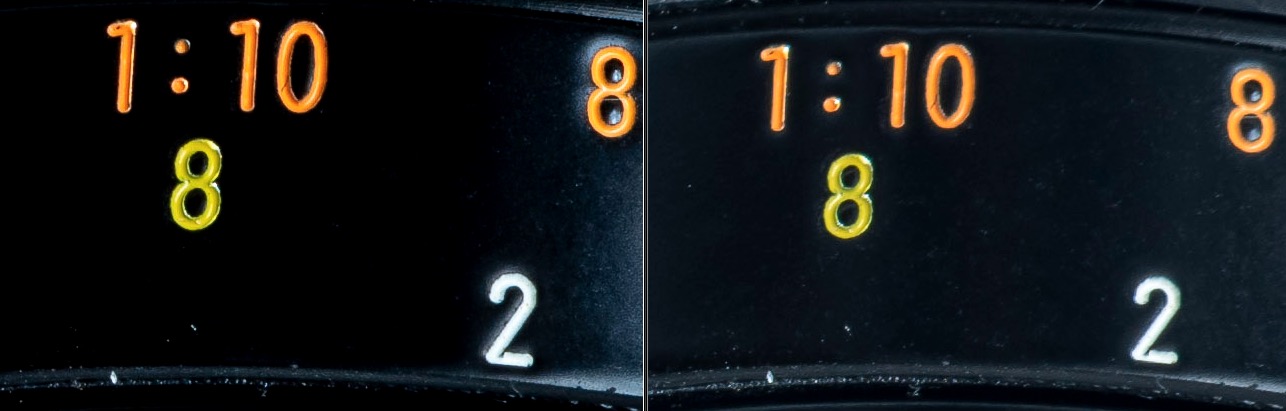
Camera on a tripod, the Leica gives you the option of 2s or 12s delays between snaps to let the vibes die down. I went with 12s. I probably should have used the electronic shutter for even fewer vibrations, but made do with the mechanical shutter. As Auto-ISO selected ISO3200 I also applied the LRC Denoise algorithm to both images which are shown at 300% magnification below. That figures to a 120” x 80” print. Critical manual focus using the EVF magnification feature was very easy. The multi-shot image is at left:


Super resolution at left, regular on the right.

Fun bit of technology. The multi-shot file came in at >170mB, though the resolution is reported at 96mB, four times the stock 24mB. I used the 75mm Voigtländer Ultron as it’s probably the highest resolving power optic I own. Actual aperture was f/8 – the SL2-S does a poor job of guesstimating the aperture, reported above. The camera warns you if your support is wobbly.

The multishot image looks perfect at 300% at a 24” viewing distance. I believe that in the current SL3-S (up to 60mp from 24mp) Leica has enhanced the technology to allows multiple images to be snapped hand held!

Leica SL2-S – fixing the strap

A temporary fix.

For an index of all Leica-related articles click here.

The only strap that I have found to be truly safe for over-the-shoulder carrying of a camera is the Upstrap and the reasons are simple. First it has deep nubbins on both sides of the rubber shoulder pad and for over-the-shoulder carrying that’s essential as the strap will always twist in practice. And every other strap out there appears to have a rubberized side and a slick side. Once the slick side is in contact with your shoulder the whole ensemble is nothing more than an accident waiting to happen. Second the embossed maker’s name on the Upstrap is invisible.


The nubbins on the Upstrap are on both
sides of the shoulder pad and are very ‘sticky’.

The stock strap for the Leica fails in three respects. It has only one rubberized side and they spared the rubber. The other side is as slick as it gets. Duh! And there’s objectionable and loud “LEICA” stitching which helps your neighborhood thief make a beeline for you.

I keep searching for a second Upstrap on eBay but so far without luck. Sadly, the company is no longer in business. My M10 sports the slimmer version (shown above) for lighter cameras and it works superbly.

So while I wait for one to crop up I have enhanced the design of the stock SL2-S strap and made it far less slippery using some leather patch and non-slip rug pad gripper.


The nubbins are more pronounced on one side.
These should be placed to the outside of the strap.


A two inch wide strip is cut.


A six inch long and two inch wide strip of leather patch is cut.


The anti-slip material is wound around the strap and the leather patch
applied either end to secure it, avoid damage to the original strap.

Pretty? No. Effective? Yes.

Leica SL2-S and FOTOS

Problem resolved?

For an index of all Leica-related articles click here.

In Part III I made mention of the poor experience I had with FOTOS. I don’t care to download images from the camera to my iPhone but I do want GPS data for search and retrieval in Lightroom Classic. FOTOS did not work properly, recording incorrect times and constantly disconnecting from the camera.

Overnight Apple applied yet another of its endless iOS ‘upgrades’, meaning yet another fix for one of the most porous operating systems yet devised. I’m now on 26.3.1. And you thought Windows was bad? I think that makes four upgrades this year. It’s time critics ceased praising Apple for its apparent diligence and started damning it for making a lousy OS in the first place.

Anyway, with the new OS in the iPhone and the FOTOS app updated with the latest version in the App Store I restarted the connection with the camera and took phone and camera for a walk. The iPhone is set to 5gHz wi-fi.

In the setting screen below (Page 5 in the screen system) I had the Wi-Fi Sleep Mode set to ‘Never’ thinking that sleep might mean yet another 30 second wait when the camera was again operated. The result was that the battery was completely depleted in 80 minutes! However, there were no unprompted disconnections, the rectangular LED at the lower left corner of the LCD display blinking a bright blue throughout. (It’s so bright it washes out in the picture below):


FOTOS up and running, switched to ‘After 5 minutes’.

So I switched the Wi-Fi timeout to ‘5 minutes’ to determine the effect on battery life. In the event, after a 5 minute pause, the blue LED continues blinking and placing an eye to the EVF sees the camera wake instantly. So the ‘5 minute’ setting makes sense when the goal is to preserve battery life. After a further 80 minutes with a fresh battery the battery was just 25% depleted. Now this is not quite a fair comparison as I was not taking pictures during that period, but I would estimate that a battery life of 2-3 hours using a 5 minute wi-fi timeout is a reasonable expectation. Nonetheless this cheap and capable backup is recommended, and you will need to re-pair the camera and FOTOS after changing batteries. It’s hard to understand what benefit the ‘Never’ setting confers and the Instruction Manual sheds no light on the issue.

It does not matter whether the iPhone is on or off. FOTOS continues to run in background mode, as long as the camera is left On. I noticed a slight increase in the temperature of the camera body – I measure a maximum increase on the baseplate at 19F after 80 minutes when the ambient temperature was 73F.. No big deal, but clearly something in there – presumably the wi-fi chip – is working hard.

So – for now – it appears that FOTOS is working correctly, until the next iOS change, I suppose. The SL2-S is on the latest OS, version 6.2.0 released in early 2025. Whether the issue was attributable to a dated FOTOS app or to a dated iOS I have no idea as I updated both without interim testing. Not great diagnostic practice, I admit, but I was dreaming of ‘It Just Works’. Remember that Apple slogan?


Correct location mapping in LRC’s Map module.

Update 3/10/26:

After one happy day with a stable connection I cannot reestablish that desirable state of affairs. Simply stated FOTO’s pairing with the iPhone is a disaster. Huge time sink. I’m moving on, forgetting this ‘feature’.

A second update 3/10/26:

I refuse to let this thing beat me, and may have come up with a fix. In an effort to defeat the constant disconnection issue I went to Menu->Page 6->Camera Settings->Power Saving->Auto Power Off and changed the default of ‘2 min’ to ‘5 min’. So far I have been up and running with the blue diode flashing merrily away for 60 minutes, which has to be a record …. The FOTOS app persists in telling me “Camera is not connected” despite what appears to be a good connection. What a mess. More as I experiment with this.

Well, that does not work. While the blue diode continues flashing snd the top display indicates wi-fi is on, all the GPS data are frozen at one location. The time stamp is good, though, as I have told the SL2-S not to use time data from the iPhone. Small progress. The next step will be to revert to Menu->Page 5->Leica FOOS->Wi-Fi Sleep Mode->Never. I still have Menu->Page 6->Camera Settings->Power Saving->Auto Power Off set at the factory default of “2 min”.

Leica SL2-S with Leica M lenses – Part III

Field experience and some snaps.

For an index of all Leica-related articles click here.


The SL2-S with the M-to-L adapter fitted.

Having spent quite a bit of time tuning the SL2-S to my way of working in Part II, meaning simplifying things to the point that it is more like a Leica M10 to operate with all extraneous noise/buttons/settings eliminated, I set about taking the camera for a spin. I brought with me the Voigtländer 21mm Aspherical Color-Skopar and 75mm Ultron, along with the Light Lens Lab 35mm 8 element Summicron clone. For the two lenses stashed in my pockets each is attached to a Leica Lens Coupling ring for safe interchange. All three are properly 6-bit coded for correct focal length recognition in the SL2-S.

The Good:

  • Beautiful color rendering SOOC using DNG/RAW.
  • Exceptional ability to recover burned out highlights.
  • Intuitive handling. The great mass of the beast is somewhat mitigated by the small and light M lenses and the absence of dozens of buttons and controls makes for easy use, even with gloves. In this regard the body is close to the best ‘glove handling’ body ever, the Leicaflex SL.
  • Drop dead phenomenal manual focus when using the magnifier feature. I took over 5 dozen images mostly at or near full aperture and each was critically sharp where I focused. The best MF experience ever, especially with longer focal lengths at large apertures where the focus point is truly binary. Either right or wrong. Accordingly, I did not bother with focus bracketing.
  • Exceptional EVF – once tailored for color and brightness it’s fast and responsive. I completely declutter the view so that only the shutter speed and exposure compensation are disclosed in very small font size when the first pressure on the shutter release is applied.
  • Lovely quiet shutter sound. Just a joy to perceive.
  • Effective IBIS.
  • The inexpensive aftermarket battery – $39 not the $240 Leica asks – works fine.
  • Framing is perfect. What you see is what you get. Not something that can be said of the M10.
  • I made maybe 15 lens changes on this outing and found the process safe, easy and speedy using the Leica M to L adapter. Just like using an M10 in this regard with a large, easily accessed lens lock release button.
  • Flattery. When using the M10 on the street I get the question from passersby “Is that a film camera?” surprisingly often, to which I lie, replying insouciantly “But of course. I would never use anything else”. Today, with the ugly hulk of the SL2-S slung around my neck, I got “Nice camera”!

The Bad:

  • Though it’s shown correctly on the camera files, in Lightroom Classic EXIF data display a time stamp 2 hours ahead of what is correct. This may be a Leica FOTOS anomaly. I will research it more.
  • Exposure (using Multi Field) is constantly 1/4 stop over in all lighting conditions. I simply amended my Lightroom Classic import preset to adjust for this.
  • The level horizon indicator is poor, often being incorrect. I have removed it from the EVF display.
  • Battery life is mediocre. I chewed through 25% in one hour, albeit with the awful Geotagging link to FOTOS on my iPhone running (or not) all the time which probably did not help. See below. I never turned the camera off, but did have the EVF set to sleep after 2 minutes of inactivity. No LCD chimping.
  • The Leica camera strap will have to go. The fact that it is rubberized on one side but slippery on the other does not encourage confidence and I dislike the loud LEICA letters emblazoned on it. It does do a good job of spreading the load, though.

The Ugly:

  • The camera constantly drops the link to FOTOS running on my iPhone 12 Pro Max. It tells you the link has been lost and subsequent images retain the last known good GPS data, which are incorrect. Further the date stamp remains frozen from the time applicable when FOTOS was first invoked. I will revert to using this technique for proper GPS recording. If I find a fix I will report on it.

Update March 9, 2026:

I resolved the issue with FOTOS disconnecting and report on that and on battery life issues when the app is running here.

Some snaps – a few treated in Silver Efex or Color Efex from the NIK collection:


Snaps from a first outing.

Leica SL2-S with Leica M lenses – Part II

Setting up for field use.

For an index of all Leica-related articles click here.

The Leica SL2-S is more like a computer with a lens attached than it is a camera, with all the complexities that implies. As with any computer, tailoring the user interface and excluding the host of unused or unwanted options offers a solid return on the time invested. After all the tailoring the setting elected can be stored as a User Profile should another favored setting catalog be chosen at a later date. This makes for easy reversion to preferred settings. If useless or erroneous button presses remain available you risk finding yourself in some bizarre operating mode which can only be solved by reference to the manual. You know, the one at home. My preferred settings are highlighted in red. As you will see, there are many.

What is below applies to the current latest firmware version which is 6.2.0.

As mentioned in Part I the SL2-S body has five assignable buttons and one assignable joystick. This elegant design sees to it that there is no clutter (by contrast I count 27 buttons and levers on the Nikon D800 DSLR, and I probably missed some) making for an elegant design. And remembering the functions assigned to these six controls is no big deal, even at an age where recalling my home address needs some thought.

Here’s how I have assigned them. To assign a function to a button or to the joystick hold either down for a few seconds, whereupon the selection menu will appear on the LCD. My needs are solely for still photography as I do not make videos:

  • Front lower – Exposure metering mode (Spot, Multi-Field, etc.). I favor Multi-Field.
  • Front upper – Shutter type (Mechanical, Hybrid, Electronic). I use Hybrid, liking the soft sound of the shutter.
  • Top plate Right – ISO. I use AutoISO most of the time, but limit the maximum ISO to 12,500. (Menu->Page 2->Auto ISO Settings-Maximum ISO->12,500->Push the thumbwheel to store). North of that even Lightroom Classic’s excellent Denoise algorithm, which does a fine job of removing noise without sacrificing detail, struggles. And, hey, 12,500 is still 5 shutter speeds faster than that film speed demon of old, Kodak’s TriX! Truly, today’s photographer is ridiculously spoiled by modern digital sensors.
  • Top plate Left – Exposure compensation. This is adjusted with the thumbwheel and the relatively hard to reach button is well placed to avoid accidental use. The factory assigns this button to switch between Stills and Video, touting the hybrid nature of the body, and that’s the last thing I want or need.
  • Rear plate Joystick – EVF magnification. The joystick falls naturally under the right thumb and a press switches the EVF to magnified view, and also permits the magnified area’s location to be moved around. (Menu->Page 4->Customize Control->Joystick->MF Mode->Magnification->Press joystick to confirm). I have it centered. I have focus peaking turned off, finding it adds useless noise to the EVF image and little else. (Menu->Page 6->Camera Settings->Capture Assistants->Setting->Select a Profile->Focus Peaking->Off).
  • Rear plate button – Left. I have this disclose the FOTOS bluetooth page where a single press on the joystick turns Bluetooth on for pairing with my (now ancient) iPhone 12 Pro Max. I like to store GPS data with my images which FOTOS does seamlessly. There’s that word again – seamless. So much of the control interface, especially the use with M lenses, is indeed seamless.

Focal length recognition with 6-bit coded M lenses: As for proper focal length recognition, as explained in Part I all my M lenses are 6-bit coded for use with the Leica branded M-to-L adapter, meaning that they are recognized when mounted. When any of these lenses is mounted in the adapter a message like this appears on the rear LCD or in the EVF:


Message seen after mounting a 6-bit coded M lens.

A touch on the shutter release button removes the message. The sole anomaly here is that when I mount the 35mm LLL Summicron 8 element clone, the display gives me the option of choosing either the 35 f/1.4 Summilux (11869/11870/11860) or the 35mm f/2 Summicron (11310/11311). The latter is the pre-APO ASPH model of the lens and is not listed in the 6-bit code table. This 6-bit code table states that the 35mm f/2 pre-APO ASPH Summicron is, indeed, coded ‘000110’, the same code used for the 35mm f/1.4 Summilux, which explains why there is a choice of two lenses when the 35mm Summicron clone is inserted. So that means don’t bother choosing, just touch the shutter button after mounting the lens. Further, I see no difference in images when selecting either, confirming that the 6-bit code is the same for the two lenses.

SDXC cards and insertion and removal: The SL2-S can accommodate two SDXC/SDHC/SD cards which can be used sequentially, or one as a back up, or one for DNG (Adobe RAW) and one for JPG files. I use only one San Disk Extreme 64gB card which the SL2-S reports can store a whopping 985 images, more than I will ever need in one day’s photography. The average DNG file size computes to 65gB which seems incorrect. Most come in at 42gB or so which figures to 1,523 images, identical to that reported on the M10. I only use DNG.

For a camera with such superior ergonomics card insertion and removal is surprisingly poorly engineered. The right hand door does not open far enough making card insertion and removal more difficult than it should be, and the alternative of connecting the camera with the card installed to the Mac is even worse, as you have to find the cable and then fiddle with the rubber door cover on the left side.

Viewfinder display: The only EVF indicator I use is the horizontal alignment axis. (Menu->Page 6->Camera Settings->Capture Assistants->Setting->Select a Profile->Level Gauge->On).

I have set the EVF to show none of the dozens of icons disclosed by the default factory setting, preferring an uncluttered view (Menu->Page 6->Camera Settings->Capture Assistants->Setting->Select a Profile->Info Bars->Off).

Viewfinder color and brightness:. As with import into Lightroom Classic, below, the viewfinder stock color is too magenta. I adjusted it using Menu->Page 5->Display Settings->EVF Color Adjustment->Look through EVF->Use joystick to change color rendering->Depress the thumbwheel to save the setting. The Instruction Manual rather uselessly says “Confirm selection” for this step and it took me a while to figure out that depressing the thumbwheel stores the preferred setting.

A related setting under Display Settings permits the adjustment of viewfinder brightness. I find the central default setting is fine.

Turning off the LCD: Before the selected power saving time out kicks in and turns off the EVF and the LCD, removing your eye from the EVF turns on the rear LCD display, which I can only assume is a major power hog. As I never use the rear LCD when taking pictures I turn it off permanently. (Menu->Page 5->Display Settings->EVF-LCD->EVF Extended->Depress joystick to save). The ‘Extended’ option is clever, keeping the LCD off unless the ‘Play’ button to the left of the LCD is depressed, allowing chimping of stored images. The ‘Extended’ option still allows the use of the ‘Menu’ button to enter the menu system, though that should be rarely required one the body is set up to your liking. You really do not want to mess with Menu settings on the LCD display when out and about taking pictures.

Enabling the FN button: The Function (‘FN’) button is the middle of the three to the left of the LCD. To enable it go to Menu->Page 6->Camera Settings->Capture Assistants->Info Profile 1 (or 2, 3 or 4) and set each Info Profile for the preferred display. I have Info Profile 1 set to show the Level Gauge and Info Profile 2 set to show the Level Gauge and the Histogram. I leave all the variables in Info Profiles 3 and 4 Off. Then when the FN button is depressed the EVF display (or the LCD display if chimping an image) will cycle the Histogram on and off to permit assessment for burned out highlights. The SL2-S sensor is reputed to have excellent highlight recovery but it’s occasionally nice to check things while taking pictures.

Saving the settings: Once satisfied with all the tailored settings I save them to a user profile which is easily recalled should something accidentally be changed or if a different profile is used. (Menu->Page 4->User Profile->Manage Profiles->Save as Profile->Depress joystick->Depress thumbwheel->Yes->Depress joystick). It takes quite a while to determine preferred settings so this step is highly recommended should something go awry down the road.

Import into Lightroom Classic: Compared with the neutral rendering of the M10, images from the SL2-S have a pronounced magenta cast. Accordingly I made an Import Preset with the following settings:


The LRC Import Preset to remove the magenta cast.

Elect this Preset when importing SL2-S images and all is well.

In Part III I will publish some snaps taken with the Leica SL3-S.