No such thing as a standard.
One of the challenges of controlling the Hack Mini from ten feet away is finding a wireless mouse which actually works. The challenge was identical with the MacMini predecessor, and while there are many variations on the theme, I’ll share my experiences below in the hope that they prove useful to others using a Mac or Hack as a home theater computer. I would guess this applies equally to PCs.
I’m not going to focus on Apple wireless mice here, because Apple seems genetically incapable of making a proper mouse. The original BT mouse had but two buttons, the next had that ridiculous little scroll ball which would eventually cause the device’s demise owing to ingress of dirt and grease, and the current Magic Mouse belongs in the MOMA design section, not causing you carpal tunnel at your workstation. I have used all three extensively. If the tech world offered gaol sentences for bad ergonomic design, the designer of the Magic Mouse would be a lifer. I got rid of both mine after a few months of desperately trying to get them to work properly, with all sorts of aftermarket drivers to enable broader functionality, but there’s simply no way to improve the frightful low profile design or handgrip, both inspired by Torquemada’s torture chambers. Other than design fetishists, the only people who like this mouse are surgeons in the carpal tunnel business. The only thing the MagicMouse does well is super smooth scrolling, making them much like many beautful women I have known. Strictly one purpose devices.
There are three kinds of wireless mice.
Bluetooth:
Probably the oldest technology, Bluetooth receivers are built in to many desktops, laptops, and nearly all modern cell phones and tablets. They use a 2.4gHz frequency and claims for reliable operation over ranges up to 30 feet are pure rot, in my experience. With several bluetooth adapters tested, I have found that unless the mouse is no more than 2-3 feet from the bluetooth receiver, or ‘dongle’, erratic operation results. Place metal between mouse and receiver and things get worse quickly. It’s not predictable nor is it clear to me why erratic operation comes and goes, but once I moved my bluetooth dongles from the rear of computer cases to the front or to the keyboard (if equipped with a USB socket) the erratic behavior ceased. This has been the case with any number of computers I have used. I doubt it’s interference from other 2.4gHz devices (like cordless phones) as we have none in the house and the neighbors are too far away.
‘Pairing’ of the mouse with a computer using BT is notoriously unreliable and generational differences abound. Try pairing an early white Apple bluetooth keyboard with current computers. I could never get it to work, and Apple even admits that the older keyboards will not work. That’s a shame because the early white keyboards were head and shoulders superior ergonomically to the atrocious current ‘chiclet’ key offerings from Apple.
Battery life of BT mice is poor. You will see claims of up to 3 months but that is also pure rot. Reckon on 1-2 months with alkaline AA batteries, 30% less with rechargeables. The AAA variants are worse still. Most also suffer from very poor vertical scrolling, owing to the coarsely stepped design of the teeth driven by the scroll wheel.
On my two HackPros I use ancient Logitech MX900 BT mice, recommended by a reader. Long discontinued, these use two AA rechargeable batteries which last 4-5 days at most. There is no on-off switch. But the superior ergonomics (right handed only) make that minor inconvenience worthwhile. So much so that I prefer these for outlining tasks in Photoshop to a Wacom tablet. Junk the charger and use rechargeable AA cells, which take seconds to swap. This mouse is large, heavy and has a plethora of programmable buttons which, once you get used to them, you will miss in other designs. They crop up on eBay regulary. Don’t pay more than $20.
RF:
Increasingly the thing in wireless mice. Indeed, I have read that Windows 7 no longer includes BT drivers so BT mice may not work with Win 7 unless you download and install these. Microsoft actually makes an outstanding range of mice, most ergonomically solid, and uses this technology in its wireless offerings. I have a couple of their Wireless Mobile Mouse 6000 models, one black, the other white, and each comes with a paired, minuscule dongle, unique to the mouse in question, so interference is not an issue if you use more than one in proximity. They have additional programmable side buttons, very useful, and include a sideways tilt function on the scroll wheel for lateral scrolling. The BlueTrack technology does what it claims and this mouse will track on just about anything, most importantly on the sofa whence the HackMini is controlled. This design also uses the 2.4gHz frequency but, unlike a BT mouse, is ‘instant on’, with no pairing required. I have never known either of mine not to be instantly recognized with any number of Macs or Hacks.
Battery life is stellar, even though only a single AA battery is used. Not the 8 months claimed but easily 3-4 if left on, and if you use the on-off switch it’s far greater.
But the mouse suffers from the same defect found in the BT designs I have used. Unless the mouse and receiver are no more than 2-3 feet apart, response becomes erratic and random, with sufficient cursor jerkiness guaranteed to have you check in to the local looney bin. As with BT mice I have used, scrolling is coarse for the reason stated above.
Wifi:
This seems like the ideal solution. Pretty much all computers have wifi receivers. These offer huge range, with low power consumption, but the wifi mice I know of work only with special drivers and current Windows operating systems. There are alternatives such as the MobileMouse app for iPhones and iPads, which make these into wireless touchpads, but it’s far easier to select things on a TV screen using a mouse than a touch pad. Cost of entry is very low if you already own an iDevice.
Receivers:
Both BT and RF mice require a receiver in the computer. Macs have BT receivers built-in but Hacks need to add them. You can either use remaindered parts from a Mac and install internally (use a 3.3 volts power supply. 5 volts will fry the receiver), or use any one of the many dongles on the market, ranging in price from $2-60. The dongles have the advantage that the receiver is external, and is not shielded by the computer’s case. I have traditionally used the IOGear one. It’s small, cheap and works well at short distances though mouse movement will not wake a sleeping Hack; a touch on the keyboard is needed for that. With the HackMini I simply had no luck, getting erratic behavior using this BT dongle or the RF one for the MSFT wireless mouse at my 10 foot range.

Targus ACB10US BT dongle in the Hack Mini. The Mini is usually used with this aluminum flap closed, which does not help with BT reception.
A spot of checking on chat boards disclosed that many were having better luck with the Targus ACB10US dongle. I procured one and still had occasional cursor jerkiness at a 10 foot range using the Logitech MX900. Then I thought I would try a different BT mouse and opted for the Verbatim BT wireless notebook mouse. This has looks only a mother could love, but has several offsetting advantages. The ergonomics are good, it’s symmetrical so my left-handed son can use it easily, it uses two AA batteries, the top rear switch chooses between three cursor speeds, it tracks on just about anything and it has an on-off switch. Now the latter fills me with dread as you would think regaining pairing would be fraught with problems, yet I have found pairing is reliably restored when switching on in just 3 seconds. That’s not the instantaneous ‘on’ you get with RF mice, but it’s pretty solid and, with a mouse on the sofa, you really want an on-off switch as movement on the sofa will bring the cursor to life and interfere with the movie watching experience. My 9 year old, who is the main operator of the HackMini, has made this abundantly clear to me! Movement of the mouse when used with the Targus dongle will wake a sleeping screen, which is just as well as the Hack Mini has no keyboard!
But, best of all, the connectivity and stability are superb. I have the Targus BT dongle behind the closed aluminum flap on the front of the Silverlake enclosure used for the Hack Mini, and the mouse has no issues communicating with the dongle over ten feet and an intervening cocktail table. The batteries are AA (avoid short lived AAA at all costs) and add nice heft. There is a paucity of buttons – just left and right click, scroll, lateral scroll, scroll press and the sequential three speed one mentioned before. The latter glows red when the batteries are dying. This lack of buttons is not an issue for use with a TV screen. Unlike other non-Apple BT mice, the scroll wheel moves the screen in small increments, not as smoothly as the Apple designs, but it will do. The color is a ghastly metallic powder blue. Mine cost $27.
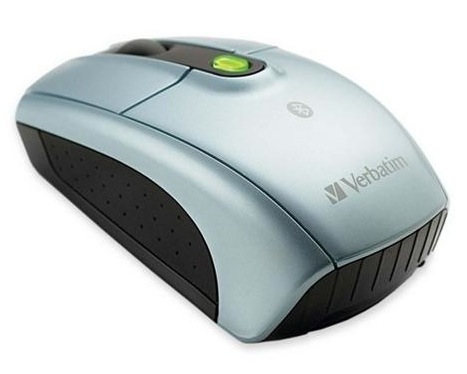
Verbatim Bluetooth mouse. Function trumps looks and finish.
Driver software:
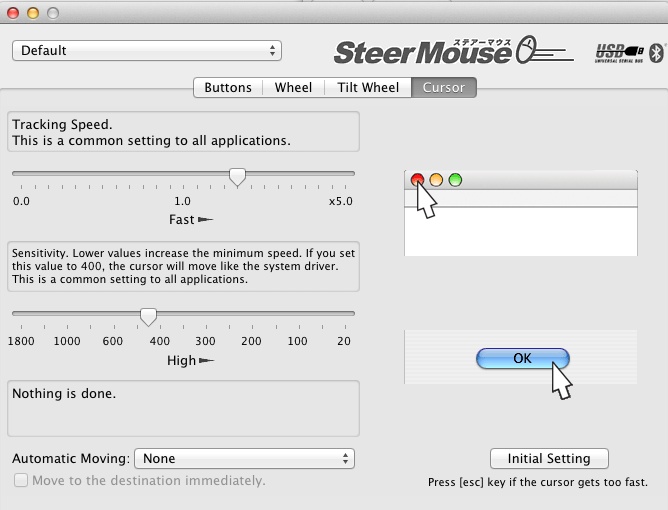
With all my mice, whether RF, BT or wired, I use the SteerMouse app which installs as a preference pane and permits saving of multiple profiles. I make sure all mouse drivers in the preference pane, other than the stock Apple one, are disabled, and find that tuning the cursor ‘speed’ and ‘sensitivity’ settings is a vital part of the goal, which is to deliver smooth cursor movement. One key advantage of SteerMouse is that you can use it to enable all the buttons on older mice whose makers never provided Apple drivers, like the excellent Logitech MX900. Those on my two MX900s are all enabled, and most useful. One payment covers all the Macs in your home, so it’s not like it costs a lot.
These are my cursor settings for the old Logitech MX900. For the Verbatim BT mouse I use 0.7/600. If the sensitivity is too high (and the speed too low), jerkiness results.
In closing, the Verbatim mouse is the polar opposite of Apple’s MagicMouse. It’s ugly and comfortable, where the MagicMouse is beautiful but useless. And one final note on the Targus ACB10US BT dongle. It does not support the Advanced Audio Distribution Profile (A2DP), meaning that BT headphones like the excellent Arctic Sound P311 ‘phones will not work. By contrast the IOGear dongle does support A2DP. So much for standards.