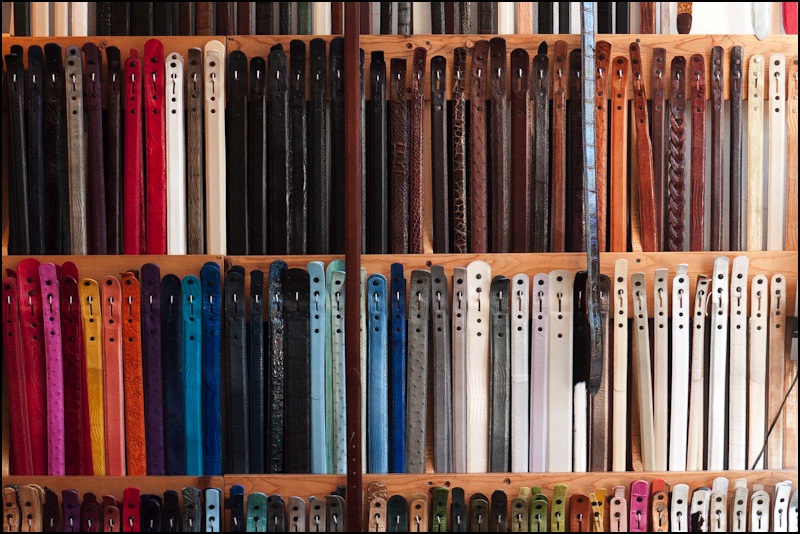
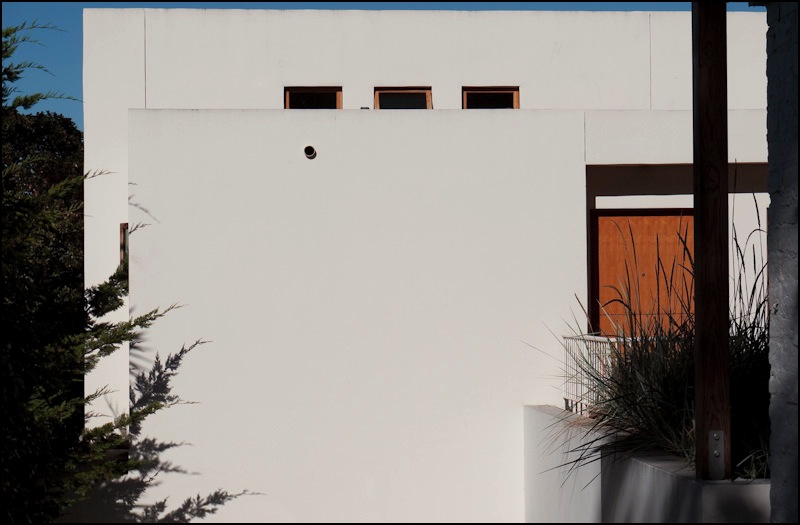
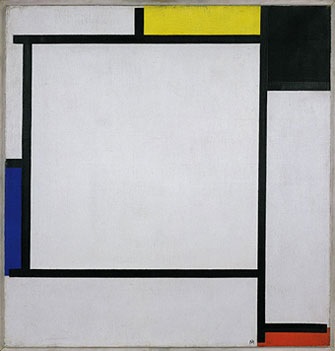
Curves

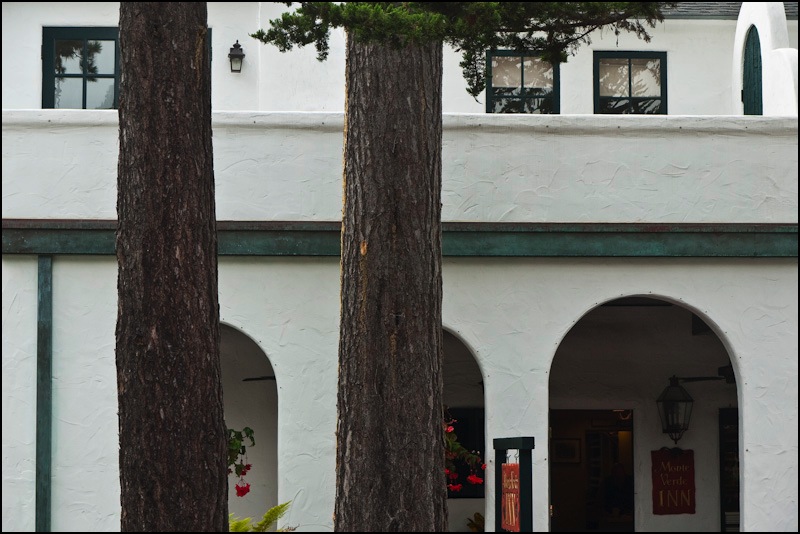
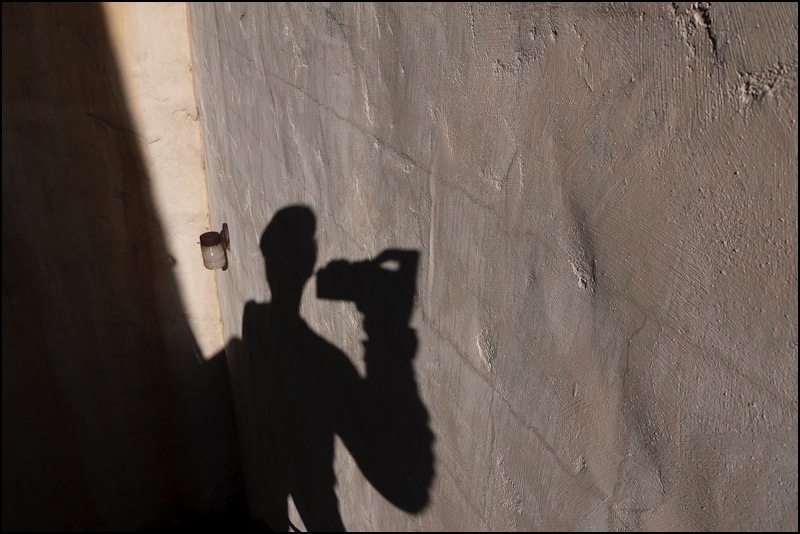
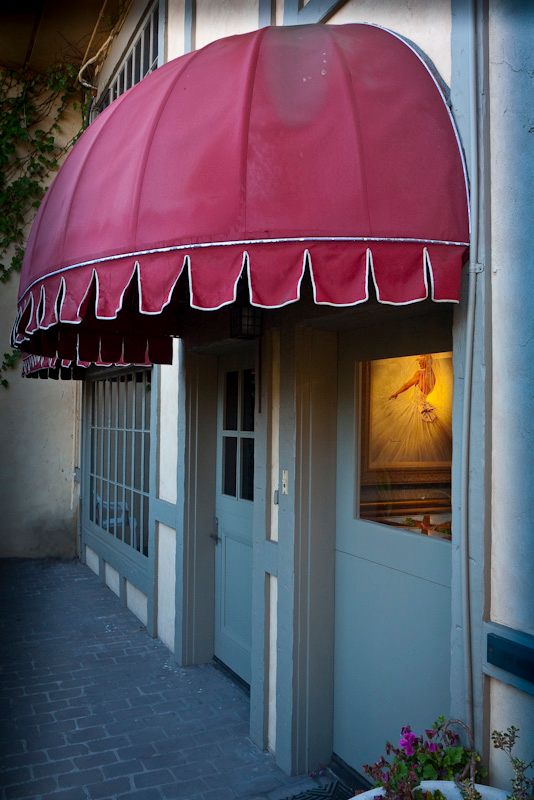
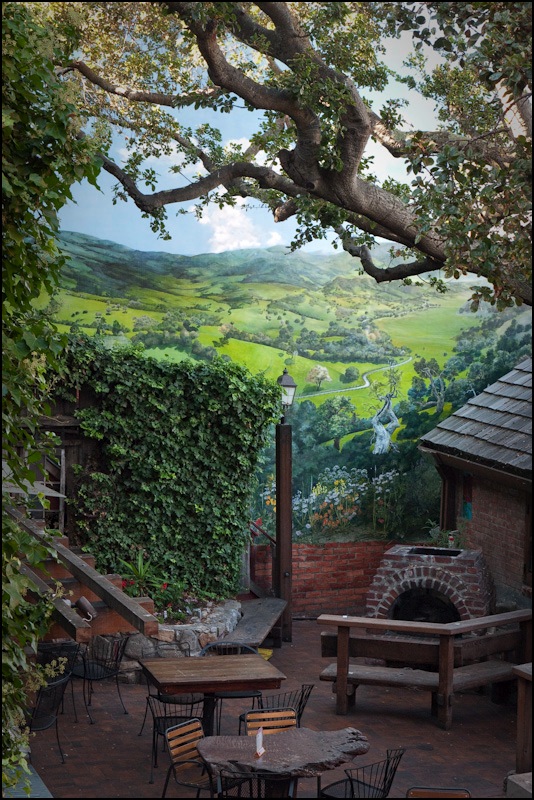
Not always where you expect to find then.

Mostly I have found that sensuous curves predominate in women, often beautifully clad in couture designs.

Sometimes, however, steel and chrome come close.


5D, 100mm macro at f/5.6, ISO250, ring flash, Helicon Focus

iMac surgery – Part IV

The 24″ comes to life

Here are the ‘after’ and ‘before’ System Profiler screen shots reflecting the change to the new GPU card:

So while they appear almost identical physically (see yesterday’s piece), there’s no denying the doubled video RAM in the new card.

Diagnostic comments will have to await an extended test period, but the spinning beachballs are gone, for now, and performance in Lightroom 2.4 is exemplary. For example, in full screen mode, holding the right arrow key on the keyboard depressed has 150 images zip by the screen (these are 1:1 previews) in 5 seconds. Faster than the eye can make sense of. A promising start.

And yes, a lot of heat can be felt pouring out of all those holes I drilled. No surprise there.

Further, this is confirmation that owners of 24″ iMacs with the Nvidia 7300 GPU can upgrade to the improved Nvidia 7600 variant without any system issues. The 7600 was available in Apple’s premium machine as a Built To Order model (meaning Apple’s costs went up 50 cents and yours went up $500) which, at least in the US, seems to have included a faster CPU as well, the Intel 2.33gHz Core2Duo. As I have discussed before, for photographers CPU speed is not a major consideration. It’s the graphics, stupid.

What I did not realize when I wrote that earlier piece is just how heat challenged Apple’s poor engineering is. Those of you who like to waste your time and make schmuck class action lawyers rich can start a suit to recover your $4 in damages from Apple two years hence. Me? I’ll be taking pictures and, hopefully, still processing them on my 24″ white iMac. You know, the last one with a matte screen.

True cost of doing this:

“Ah!, Thomas”, I hear you lament,” you are a moron when it comes to economics. You are clearly clueless about opportunity cost – what your time and trouble cost because you could have been doing other things rather than messing with your iMac to make it run”.

Well, let’s look at the alternatives.

1 – Buy a new iMac. Let’s put aside the fact that you can’t get one with a matte screen. Base 24″ iMac with 2.66ghz C2D and (overheating) Nvidia 9400 GPU – $1,500. Scrap value of your old iMac – $400. Net cost – $1100. Time to order, unpack and install, including moving all your data over – 4 hours at, say, $100. Satisfaction quotient – “This is the last Mac I will ever buy; after that it’s back to crappy PCs and the horrors of Windows.” Total cost – $1,500.

2 – Send your old iMac for repair to Apple. Repair $950. Shipping + materials $100. Time to pack and unpack – 1 hour. Satisfaction quotient – Disgusted. Plus what do you do during the month your iMac is out for repair and it still runs too hot when you get it back, if it runs, that is? Total cost – $1,150.

3 – Repair it yourself. New GPU $260. Tools – $50. Time to gut and reassemble – 3 hours. Time to drill holes and install mesh – 3 hours. Time to read manual and prepare – 1 hour. Given that you can hire a laborer to work in your garden at $20/hr rather than doing it yourself while you repair the iMac, you just saved $560 (7 x $(100-20)) in time value. Time to read my blog – sheer joy and free; you are going to do that anyway so it’s not an opportunity cost. Satisfaction quotient – enormous. Total cost – $450.

Hey, seems that I do get it after all. Why, maybe I’ll buy that blown one from you for $400 and fix it up as a back-up? Drop me a line if it’s for sale.

iMac surgery – Part III

Addressing the 24″ iMac.

While the logic board from a 20″ late-2006 iMac is out for repair (update here, I received the Nvidia 7600 graphics card – purportedly new – from ApplePalace.com – $263 with tax and shipping to my CA address. This is for my late-2006 24″ iMac. The graphics in both machines are shot. The vendor had assured me when I called that the part was new and came with a 60 day warranty; the invoice states 30 days. Either way, that’s enough to install and test it.

So, using the Apple Manual for this model, found here, I dismantled the computer and took a look around. First, the machine is quite a bit easier to take apart than the 20″ model. No secret catches for the bezel, no black tape everywhere and no need to remove the optical drive to extract the mother board.

Whereas the GPU in the 20″ and 17″ models is soldered to the logic board, in the 24″ model it’s plugged in and retained with three screws. Apple offered the machine with a 2.16gHz C2D/Nvidia 7300 combination or with a 2.33gHz C2D/Nvidia 7600 pairing. I bought the latter card as the replacement, as it has twice the video ram at 256mB, so I will end up with a 2.16gHz/Nvidia 7600 iMac. GPU speed/memory is far more important for graphics intensive activities like photo processing, so this seems to make sense. With CA tax, the premium for the 7600 model is $50, both new.

As with the 20″ iMac, simply replacing the part makes no sense. The problem – inadequate cooling – will not go away and you will likely be doing the same thing all over again and, like a bad mechanic, simply throwing money at the problem. Better cooling is required.

As my 24″ iMac is worked very hard for both business and pleasure, I decided to go the whole hog and drill cooling holes for the GPU radiator, the power supply and the hard disk drive. (I only addressed the first two on the 20″ model as it has a far easier life and the HDD is the least troubling of the three when it comes to heat issues.) Those are the three greatest heat generators, in that order. As there’s much more space in the 24″ iMac’s body, the design of the GPU cooling splits the cooling between the GPU and the GPU Diodes with separate radiators, mounted above one another. As in the 20″, a fan blows air across the fins to confer cooling and copper pipes are again used to conduct heat from the GPU and diodes. The snag is that the hot air emanating from the GPU and diodes blows directly on the power supply above! (In the 20″ the power supply is off to the side.) No wonder the latter gets hot – it has no cooling fan of its own.

When I purchased the iMac (used – documented in this blog in detail) I immediately installed a 1 terabyte Samsung hard disk drive. The HDD is cooled by its own fan but also runs hot, so I decided to provide cooling holes for the HDD also. I have no comparative data as to whether a 1 tB drive runs warmer than the 250 gB Western Digital junk Apple installed in these models, but the additional labor to cool the HDD is, in any case, minor.

The layout of the components in the 24″ model differs from that in the 20″ model, so the following self-explanatory pictures will help you to determine where to drill holes. As before, the grid is 3/4″ and the holes 3/8″.

The whole logic board still has to be removed to get at the exchangeable GPU, which is screwed to the back (three screws) and very firmly clipped in to the connector on the logic board. There’s no way you can get replacement wrong as the two screws on the circuit end of the assembly will not fit if a proper connection has not been made between the GPU and logic board. Mine needed a firm push and engaged with a ‘click’,


Overall layout


Hard Disk Drive


Power Supply


GPU and GPU Diode radiators – the plate on the left is for wall mounting


Grid for the Power Supply


Grid for the HDD


Grids for the GPU and GPU diodes


Inside view showing silver paper cut away


Old GPU on logic board, new above


Rear of GPUs – new on left distinguished by ‘256’ label

The rest of the procedure is much as for the 20″ model described in Part II. That is, once drilled, the holes are de-burred and high temperature Loctite adhesive is used to retain aluminum mesh on the inside to act as a dust shield.


The wire mesh glued in place


The final result – Sharpie markings have been removed with Isopropyl alcohol

I wore out two more Forstner bits doing this in addition to the one worn out on the 20″ iMac. Seems they are good for 40-45 holes each before giving up the ghost.

If you want to install a larger HDD in your iMac, now would be a good time.

My one fear is that the diodes for the GPU, are also fried. Those are soldered to the logic board so if the problem does not go away (slow downs, beachballs, etc.) then the mother board itself will have to be sent in for repair. Even so, I will end up with a machine with, hopefully, significantly enhanced graphics performance – and proper cooling.

A few words on thermal paste:

There is no magic to thermal (or heat) paste. Its purpose is to enhance contact between two surfaces – one a heat generator, the other a heat sink. It simply fills the microscopic imperfections in the surfaces with its conductive medium and, when the two are squeezed together, optimizes transfer of heat from generator to sink.

The 20″ and 24″ iMacs use two radiators – one for the GPU, the other for the GPU diodes. Both terminate in copper plates (heat sinks) which are in intimate contact with the GPU and GPU Diode, respectively. And between each is a thin layer of thermal paste.

In the 20″ both surfaces must be cleaned and new thermal paste applied. In the 24″, if you are just changing the Nvidia GPU, the replacement GPU comes with thermal paste installed and need only be plugged in and screwed down. However, there’s no harm in renewing the thermal paste for the GPU diode whose radiator/heat sink is fastened to the mother board with four T8 screws through the heat sink (a copper plate) and one through the side of the radiator. Remove these five screws and follow the next three pictures, after disconnecting the small cable attached to the heat sink circuitry.


Old thermal paste – note the squeeze out. Note the detached cable also.


Surfaces cleaned with Isopropyl alcohol and a Q tip


New thermal paste applied – I removed some as this is a bit too much!

Don’t forget to reconnect the cable or your graphics will be well and truly dead!

‘Experts’ will regale you with the right amount to put on but that’s all nonsense. Just make sure you have enough to cover both contact surfaces so that the base material does not show through (OK, a little less than I used above!) and then tighten down the heat sink. The design is optimized to ensure just the right amount of pressure between diode and heat sink using those nicely engineered sprung posts, and any excess will simply squeeze out. How do you think the squeeze out in the first of the above three pictures happened in the first place? Just don’t mess with the adjustment of the sprung posts.

* * * * *

Once I have everything together I will post a piece on performance for both the 20″ and 24″ machines.

Monterey Historics – 2009

A splendid day!

The height of any gear head’s year has to be the paddock for the Historic car races at Laguna Seca in mid-August.

This year I went with my technique perfected and confidence high. I had my backdrop rolled up on a long PVC pipe and was thoroughly comfortable with the use of Helicon Focus to confer massive depth of field where there otherwise is none. Gear was my standard close-up outfit. Canon 5D, Canon 100mm EF Macro, a ring flash and a monopod. While a tripod is best when stitching of multiple images is called for, I already had enough to carry, so made do with just a monopod and a QR plate on the ball and socket head. It seems to have worked out well. Willing – if somewhat surprised – bystanders were put to work holding the backdrop, where needed, and all in all it was a ton of fun. Aperture was f/5.6 throughout, the Macro’s sweet spot, with ISO set at 250 – grainless with the 5D’s outstanding full frame sensor.


1911 10.5 litre Cottin – Des Gouttes – composite of 4 images


1927 6.5 litre Bentley – 3 images


1935 4.2 litre Railton – 6 images


1958 1.6 litre Porsche Speedster – 6 images


1958 Ferrari 4.1 litre 335 Sport – 3 images

Clearing out last year’s snaps from the garage a few months back, a friend asked for the one of the MG bonnet as he knew the owner. Imagine then my surprise, as I was making my way through the paddock, to see my picture next to the car portrayed – Jim Weissenborn’s 1959 Byers-Special MGA – one of the prettiest cars there.


Fame at last – Jim displays my snap from the 2008 meet

Here’s the original:


MG special. 5D, 100mm macro, ringflash.

iMac surgery – Part II

More drilling.

Here are the measurements you need to drill your 20″ iMac case for better ventilation. Use the ‘iMac’ logo as an additional guide. I will provide data for the 24″ iMac in a subsequent piece.


Drilling specs for iMac 20″ – 2006 models

These are for use with a 3/8″ Forstner drill bit, as explained yesterday. The second set of holes to the right is to enhance cooling of the power supply, the other major heat generator in the tight confines of the iMac enclosure. The grid spacing is 3/4″ – use a Sharpie ultra fine market then remove the markings with Isopropyl alcohol when finished.

Here’s how the power supply holes look from the inside – the aluminum sheet has been cut away:


Power supply cooling

Here’s a like picture for the GPU cooling unit:


iMac GPU cooling holes

Before gluing in wire mesh to restore conductivity to the static shield and to help reduce dust intake, the holes are de-burred on both sides with a conical abrasive bit:


De-burring the holes

I use Loctite Repair Extreme for gluing the mesh in place, as it is rated for high temperatures and adheres well to the aluminum mesh and the iMac’s plastic casing. The specs on the package state that the glue will function in a temperature range of -58F to 248F (5C to 40C); their web site states -50F to 400F. Either is more than adequate. If your GPU or related capacitors get up to 200F you have bigger things to worry about than melting glue! The Loctite product code is 01-06821-02.

This adhesive has a five minute work time before it starts to set, which means there’s no need to rush to get the mesh positioned just so. Just make sure it’s flat before you install it, then you can simply tamp it down on the adhesive beads with a stick or whatever. It takes 24 hours to fully cure.


Glue lines

Here’s the mesh in place for the GPU cooler. The power supply mesh has already been installed and the power supply – lower right – has been refastened to the case:


GPU wire mesh

And here’s the final view from the rear after removing the Sharpie marks using Isopropyl alcohol. The mesh is visible through the holes. As you can see, with a bit of planning and care the result can look reasonably professional:


The final result

I wore out two more new Forstner bits doing this. Seems they pretty much give up the ghost after 40-45 holes have been drilled.

Now I have to wait for the logic board to come back from the repair shop.

I will start work on the 24″ iMac once the Nvidia 7600 GPU arrives – it’s in the mail right now. The Forstner bit is completely shot so I have blown another $8 on a new one for the 24″ iMac. The last thing you want to do is force a blunt drill bit though the iMac’s plastic casing, robust as it is. You only get one chance to do this.

For those proposing to do this surgery on their late-2006/early-2007 24″ iMac, you can download Apple’s Technical Service Manual here. It makes a seemingly complex task easy.

Manuals for many other more recent models are listed here.

In Part III I will address the correct application of fresh thermal paste between the heat sinks and the ATI GPU and related diodes, respectively. This is a key step before reassembly, which is currently awaiting the return of the repaired logic board.