Those were the days.
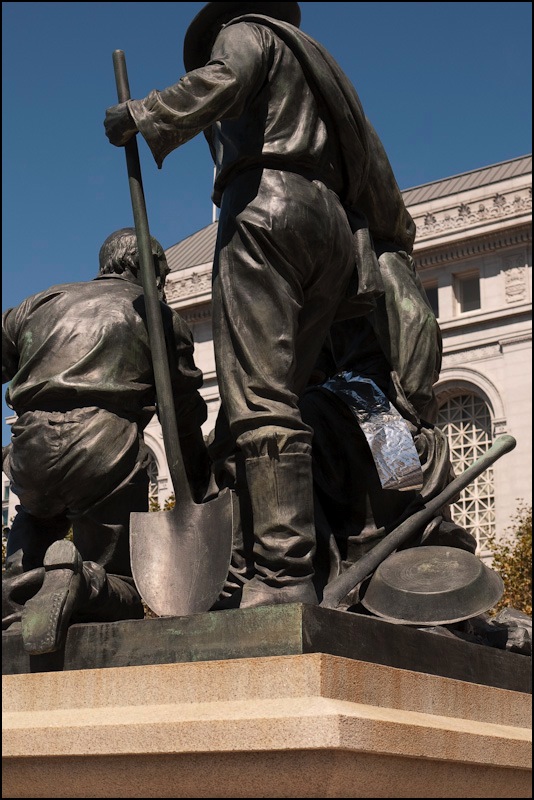
G1, 33mm, f/5.4, 1/800, ISO 100
Back in the days when men were men, and women were men. At the UN building in San Francisco.
Those were the days.
Back in the days when men were men, and women were men. At the UN building in San Francisco.
Some people never grow up.
I suspect this is the sort of thing you can only see on the West Coast, where you can still occasionally find hippies driving around in VW Microbuses.
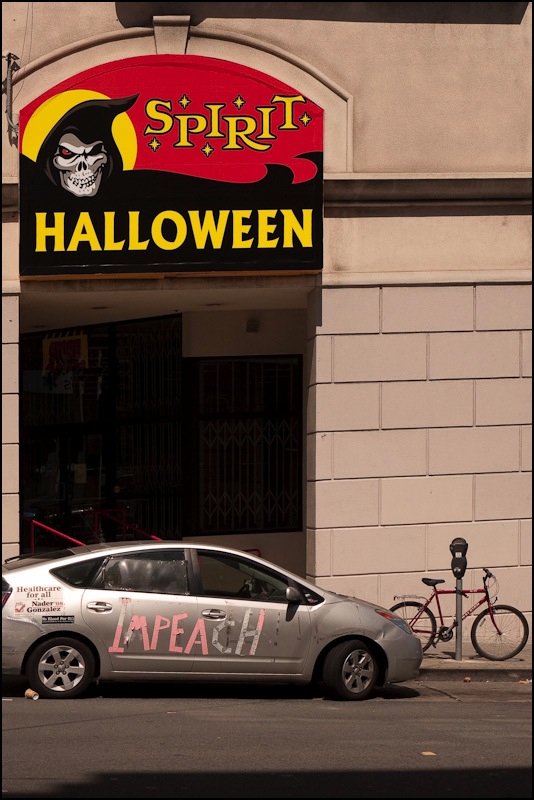
Someone really should tell these folks the Sixties ended a while back, valid as their sentiment may be.
Spotted, where else?, in San Francisco.
Forget the degree.
I have always thought of a degree in photography as being about as worthwhile a concept as a doctorate in professional wrestling. Either can teach you technique but neither has significant bearing on your chances of success.
A friend’s commitment to the school of hard knocks when it comes to making your way in photography got me thinking. Are not most of our great commercial and fashion photographers graduates of the same school, having started as grips and photographers’ assistants?
Look at the curriculum for any photography education culminating in a degree and chances are that :
The first point is obvious. Those who can, do. Those who can’t, teach.
The second is the primary reason why you should run, not walk, from such a course of study, and is a requirement imposed by the dated and unsuccessful on their modern charges. It’s not too far to go to say that this is a crime, because it will significantly hurt the student’s chances of success.

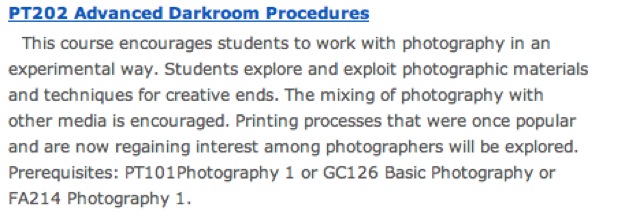
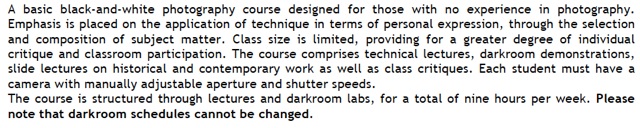
Current curricula extracts.
The high fallutin’ reasons put forward for this ‘darkroom experience’ idiocy is that the student will learn to understand the photographic process from first principles. Or some such rot.
Given that the only thing you can hope to learn in a classroom is technique, then the rational approach in the modern, fast paced and hyper competitive world is one which focuses on the best and fastest tools out there. No student messing about with chemicals and safety lights can hope to learn a fraction of that which the one with a decent DSLR and a computer running Lightroom or Photoshop will. While the first is still worrying about putting up the blinds and locking the door, the second has looked at fifty images in twelve variations each and learned mightily from the iterative process. At the end of just one day’s work Student Number One has maybe produced one image which he is still waiting on to dry. Number Two has some six hundred to choose from. Which is going to learn more?
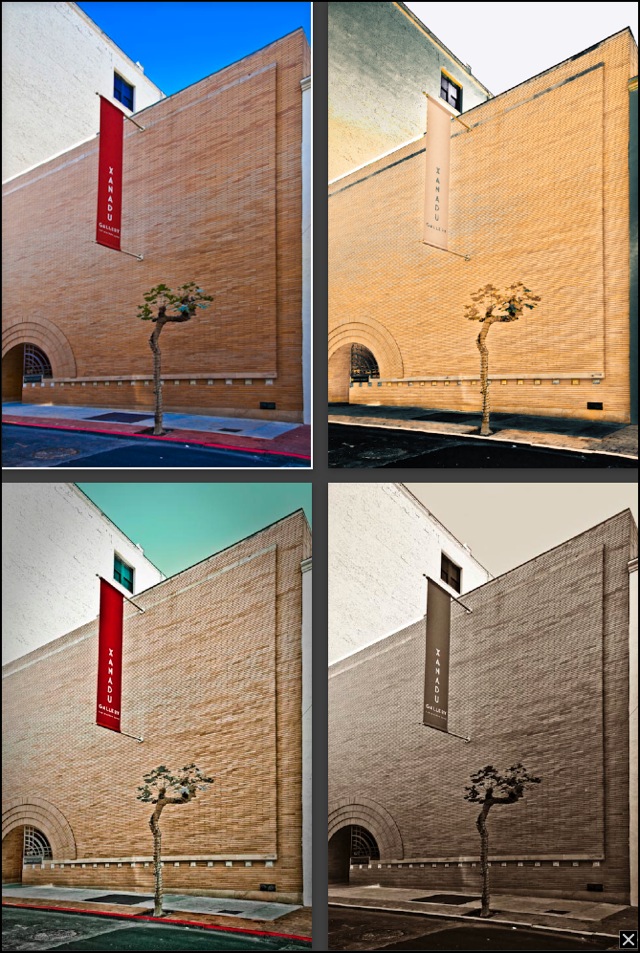
So go to class and learn technique but if that involves ‘traditional darkroom work’ or ‘traditional media’ run like hell. And if you believe that traditional darkroom work will make you a better photographer then I can only ask why you didn’t try a horse and buggy before learning to drive?
As for learning to see, no classroom will ever teach you that.
Phew!
Long time readers will know that I use a Hewlett Packard DesignJet 90 to make large prints using my iMac. I suggested it made little sense to rush into the OS 10.6 upgrade (Snow Leopard) until many of the incompatibility issues were resolved. Indeed, Snow Leopard has already had one upgrade to address security issues since I wrote that piece.
Well, some good news. HP has released new printer drivers for the DJ 30/90/130 series (respectively 13″, 18″ and 24″ wide) as stated in this Apple Support document. This is great news for those of us using what may be one of the best ink dye printers made. While recently discontinued, I confess prints made with it today look every bit as good as they ever did! My only grumbles have been the occasional blocked printer head, easily replaced. Click ‘Printing‘ on the right for more about this outstanding piece of hardware for serious sized printing.
Update 1/2016:
There is one more benefit to keeping a Snow Leopard boot drive handy. SL was the last version of OS X to include Rosetta, the emulation software which allows Intel Macs to run PPC (IBM G3/4/5 CPU) apps. This is important if you want to run the HP online System Maintenance Utility which is coded to work with PPC CPUs only. And you really want to be able to run that utility as it is the only definitive way of identifying printhead issue, allowing you to hone in on the faulty head – see Page 3-10 in that linked PDF. See here for details.
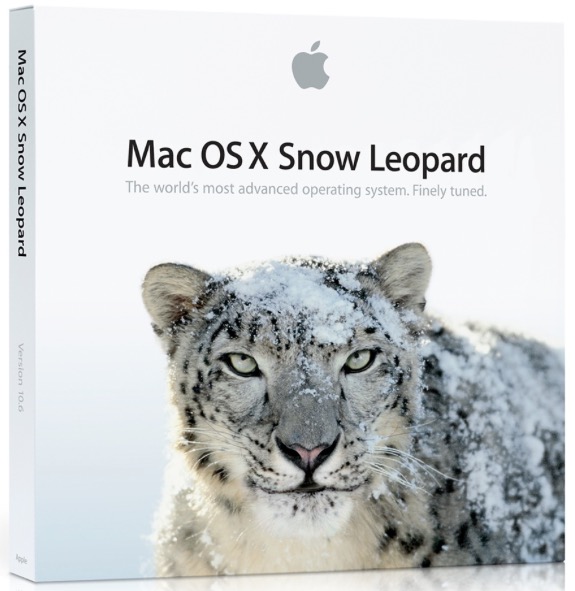
You can still buy Snow Leopard from Apple for $20. This is not altruism or nostalgia on Apple’s part. Rather, SL (10.6) was the first version of OS X (from 10.6.4) to permit access to the AppStore wherefrom all subsequent OS X upgrades are made over the air, Apple no longer shipping OS X on DVDs. So without SL you cannot access the AppStore.
I actually use an old PPC iMac G4 to access HP’s utility but you can do just as well using SL for less trouble.
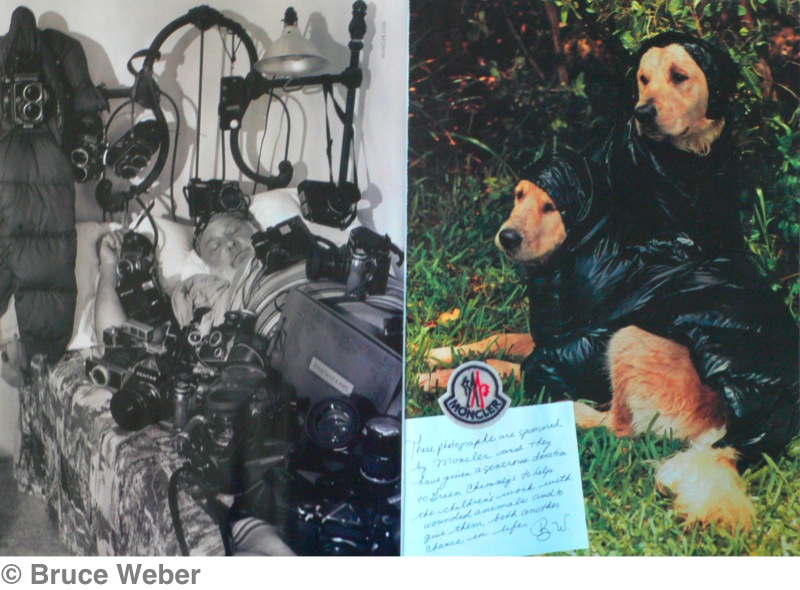
Fellow dog lover.
It’s not hard to recognize ace fashion photographer Bruce Weber. The bandanna and his ever present dogs are a giveaway.
Given that I have hardly ever met a dog I did not like, it’s easy to enjoy this spread from the current Vanity Fair where Weber has photographed himself in a sea of old film cameras, juxtaposed with his dogs as part of a fund raising effort.