All posts by Thomas Pindelski

Work and play

Good times.

The competence and performance of the desktop Mac – or Hackintosh in my case – has never been better. The price, it seems to me, cannot go much lower, with even Macs being more than price competitive with comparably equipped PCs.

My two year old Hackster, HP1, marches on unperturbed regardless of what I throw at it.

Play. HP1 with three Dell 2209W 1680 x 1050 IPS displays shows our son in LR3 and PS CS5.
The red phone is a hot line to the gutless wonder at 1600 Pennsylvania Avenue, Washington, DC.
Garish Dell logos on monitor bezels blacked out with a marking pen.

If there’s a grumble it’s that Dell – or anyone else for that matter – is clueless about making display stands tall enough for the preferred operating height, which means the display top should be more or less at eye level. iMacs are quite the worst in this regard. Hence the three reams of paper in the picture. HP1’s technology may be dated – Core2Quad overclocked, Nvidia 9800GTX+ 512mB graphics – but I can asssure you it lacks nothing in performance or reliability.

FU Steve’s latest ‘build’ for me is the HP10, using the latest i3 Sandybridge Intel CPU and a tremendous EVGA GT430 dual DVI-D graphics card with 1024mB of memory. No sooner was FU’s back turned than I clandestinely opened the case, dropped in another 4gB of RAM in the one open memory slot and saw Geekbench performance soar 6% past that of HP1! Never one to miss an opportunity to tinker, I invested another $130 in a cheap Acer display and $15 for a wall mount, and before you could say ‘iMacs suck’ the GT430 HP10 was happily driving two displays.

If there’s anything remarkable about HP10, other than the blistering performance, it is the incredibly low cost. Cheap displays are used here as color fidelity is not exactly paramount in the money management business, as long as you can distinguish red from green!

Work. HP10 with cheap Hyundai and Acer 1920 x 1080 displays,
which show the crooked game that is America’s capital markets.

Either rig is a photographer’s dream machine, and you really do not need more performance. Only heavy duty gamers need faster CPUs or more GPU performance.

A note on DVI single ink and dual link display connectors:

A single link DVI connector supports a resolution up to 1920×1200, and a dual link can support up to 2560×1600. The latter is generally found on 27″ and 30″ computer displays.

A reader Comment to FU Steve’s recent piece on the state-of-the-art in today’s Hackintosh suggests a few words are in order regarding connectors for modern LCD computer displays.

When FU spec’d the machine, he purposefully chose the EVGA GT430 display card which comes with two DVI dual link and one mini-HDMI socket. DVI dual link is the standard used by large 27″ and 30″ monitors to drive their huge pixel counts. It does not mean that you need two connectors on your graphics card. It does mean you need a DVI dual link graphics card and cable, not a DVI single link version of either. Most modern graphics cards support DVI dual link and you can immediately see the difference in the pin pattern on the connectors:

Single and dual link DVI connectors compared.

In practice, you may as well buy dual link DVI cables for all your connector needs as they can be used down the road if you get a 27″ or 30″ display. The premium over single link is negligible. A dual link DVI cable will fit either a single or dual link DVI graphics card or DVI monitor. For example, in the case of HP10 which uses two inexpensive 21.5″ 1920 x 1080 widescreen single link DVI monitors, one is connected to the GT430 card using a DVI dual link cable (which I had to buy) and the other is connected with a DVI single link cable because it came included with the monitor. The first cable will work fine with a 27″ or 30″ display, whereas the second is useless and would have to be replaced.

So, bottom line, the GT430 used in FU’s state-of-the-art Hackintosh (and in HP10) can support two 27″ or 30″ displays so long as a dual link DVI connecting cable is used for each. One cable per monitor, one socket on the GT430 per monitor. Two 30″ displays …. Hmmm!

Why wait?

A last note from a genius.

This is Geroge Eastman’s suicide note.

This towering technological genius who made modern photography possible may well be spinning in his grave as he watches his once great company destroyed by fools. Kodak will not exist in a decade, its last assets of value – its patents – on the block right now. As for looking to the consumer printer business to save their sorry behinds, well, how silly is that? No one prints any more.

Culled from the great site Letters of Note which I recommend unreservedly.

AirDrop

With some Hackintosh hints.

AirDrop is a new feature in OS Lion which allows easy ‘drag and drop’ transfer of files between Macs (not iPads or iPhones) separated no more than 20 feet or so. What it lacks in range it more than makes up for in ease of use.

The ability to network Macs has been there for years – use MobileMe, switch on Back to my Mac in SystemPreferences->MobileMe and Finder will display all other Macs on your network configured in a like manner. I use this often for transferring files but it’s not especially fast, owing to lousy American broadband speeds. A big file – like a movie – is stll best moved using SneakerNet. Put it on a USB flash drive and walk it over.

So AirDrop caught my attention and I duly tried it out between one of my Hacksters (the HP10 with the i3 CPU) and my MacBook Air after HP10’s creator, FU Steve, had worked his magic (more below). A 13mB G1 RAW picture file took 25 seconds to make it across and was placed in the ‘Downloads’ folder. Using traditional networking (which is not as range limited the way AirDrop is, requiring only a shared wifi connection) it went over in 40 seconds, so AirDrop is faster if your Macs are in range. The main appeal is how easy it is to use. You do not have to login to the other Mac or remember its username and passwords and you save a few seconds required for the traditional login to ‘take’.

If Airdrop is available on your Mac it will appear in Finder thus:

Here it is on the MacBook Air:

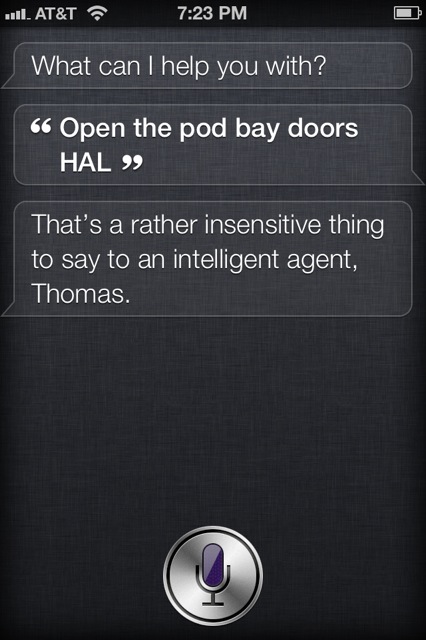
Here’s the HP10 Hackintosh asking if I want to send files to the MBA, having drag-and-dropped them onto the MBA’s icon (the HAL9000 from ‘2001 A Space Odyssey’!) in HP10’s Finder:

The MBA meanwhile flashes a similar screen asking for approval of receipt.

It’s simple, intuitive and fast, and very handy for sending snaps around to anyone’s Mac within range. Unlike the networking alternative, there is no need for the recipient to be on your network. Very clever.

Use with a Hackintosh and with older Macs:

The Hackintosh fora are abuzz with AirDrop not working on various Hacksters. They do not, however, have access to ace Hackintosh builder FU Steve, who writes the remainder of this piece.

* * * * *

When Apple introuduced AirDrop it did owners of older (not much older) Macs a disservice. This handy tool will not work with Macs more than a couple of generations old. The reason is that the technology is very hardware specific, depending on the use of the latest Broadcom or Atheros wireless cards in the Macs if AirDrop is to work. These only exist in recent Macs, so it’s not just the Hackintosh community which is missing AirDrop.

While Thomas’s MacBookAir (late-2010) supports AirDrop, neither of his HackPros supports it. Nor does his MacMini (mid-2010). His HP1 uses an internal PCI-e TPLink 802-11n 2.4gHz wifi card with an older Atheros chip and the AtherosFix kext to make OS X recognize the card as an Airport one, and display it in the menu bar (fan display) in the usual way. The other machine, the brand new HP10 uses an aftermarket USB 802-11n 2.4gHz external wireless dongle and Ralink software to access broadband wirelessly. The wireless technology in both these machines is too old to support Airdrop.

So for the Hackintoshes there were two alternatives. One was to buy a used current Apple Airport mini-PCIe card and install it in the machines using a PCI-e to MiniPCI-e adapter card in an available PCI-e internal slot. The problem is that current Airport cards sell on eTheft/eBay for $100. Ridiculous.

The second approach was to figure out the model of the chip used in the current Airport card and buy the MiniPCI-e card with the orignal manufacturer’s imprint, thus avoiding the Apple premium. Sure enough, one that works is the Broadcom BCM94322MC Mini PCI-e Card 487330-001 which you can search out on the web or on eBay. Be very specific about getting exactly this card, right down to the numerical suffix in the previous sentence. $20 shipped. Many older Macs use the Broadcom BCM94321MC card (the designation is clearly visible on the card) which does not work – I know because I tested mine.

The older Broadcom BCM94321MC card – AirDrop will not work with this card installed.

The right Broadcom card for AirDrop use.

Mac users with older MacBooks, iMacs or MacBook Pros can open them up (check ifixit.com for instructions) and replace their Apple branded card with the above Broadcom model to get AirDrop working. Here are the Mac owners who are SOL:

Then buy the PCI-e to MiniPCI-e adapter from Amazon (or pay the same and wait one month for it to arrive from the Far East) – another $20:

MiniPCI-e to PCI-e adapter.

Attach the two outside antennae to the card using fine nose pliers to snap the catches on, then insert the card in the adapter. The center antenna is not used. The assembly is installed in the Hackintosh (or Mac Pro for that matter) in any available short slot, the provided antennae are screwed on from outside the computer’s case and you have plug-and-play AirDrop functionality for $40. No drivers or hacking required. As I wrote years ago here, a Mac is nothing more than an assembly of PC parts, invariably overpriced and under-designed.

A related advantage of this card is that it supports the 5gHz spectrum for wi-fi as well as 2.4gHz. In some environments the latter is interference prone (lots of cordless phones and baby monitors use 2.4gHz). Try both with your Airport Exreme router, checking speeds using Speedtest.net.

Here’s System Profiler in Thomas’s HP10 showing the card installed and working:

The Broadcom card installed in HP10.

Here’s the fan display showing use with the 5gHz spectrum – to get this display hold the Option key then click the fan in the Meu Bar:

The antennae on the rear of the PCI-e wifi adapter card protrude from the rear of the computer case and can be rotated in all directions. Don’t just wiggle them and hope for the best. Use the Wi-Fi Diagnostics tool included with Lion, which you can find in System->Library->Core Service->WiFi Diagnostics. While watching the signal and noise traces, adjust the antennae until the space between them is at its greatest – here’s a trace:

AirDrop on wired and older Intel iMacs:

For the older MacMini, the card is not easily changed as it integrates Bluetooth with broadband. However, this tip from MacOSXDaily works fine and has been successfully implemented on Thomas’s MacMini. It should work on any older Intel Mac whether wired or wireless, as long as the machines concerned are on the same network. It does not work on older PPC G3/4/5 iMacs – at least not on my old G4.

* * * * *

FU Steve comes through again. Thanks FU!

The DropCopy alternative:

If you have an early MBA (where the ‘wireless card’ is too integrated to permit replacement, or simply do not want to dismantle your Mac to replace the card, you can use DropCopy, the snag being that every Mac has to be running the app for file transfer to work. Still, what it lacks in elegance it gains in function on older machines. Why, DropCopy will even run on older G3/4/5 PPC Macs which Apple has now completely abandoned.

Useful apps – Dock and Desktop

More for OS X users.

Following on from yesterday’s article about Menu Bar apps, here are some others I simply cannot live without on my Macs and Hacks.

Mouse Locator:

This installs as a System Preference pane and flashes a cursor circle to help you find your mouse cursor. Incredibly useful with multiple displays where the mouse cursor is easily lost. If instructors making software teaching videos used this their work would actually be possibly to follow. As it is, everytime I watch some video on LR3 or Photoshop I end up frustrated trying to see exactly what the mouse is being clicked on. I run this on all my machines. More here.

Total Finder:

Apple’s OS X Finder stinks. In Lion it positively reeks. Total Finder takes out some of the reekage with enhanced features like split screens and is highly recommended. Total Finder integrates tightly into OS X and version updates after new OS X releases are timely.

More here.

Spam Sieve:

By broad acclaim, SpamSieve is the best spam filter in the universe for Apple Mail. The one in Apple Mail works about as well as Finder, meaning hold your nose. Michael Tsai, the author, does a superb job of keeping it updated for new OS X releases. SpamSieve integrates tightly into Apple Mail, the latter much improved with the ‘Conversations’ feature in Lion. It’s the best $30 you will ever spend, from the change left after junking your iMac and building a reliable Hackintosh. More here. I have been using this app since OS Panther.

NetNewsWire:

This journal’s choice as the best software of 2009, NetNewsWire puts the lie to the saying that ‘information is power’. Properly filtered and delivered information is power, the fire hose of the internet browser being for losers whose time is worth little, prefering aimless surfing to focused content delivery. Thank goodness these nitwits exist – who else would we sell all that Chinese crap and American TV sitcoms to?

For the iPad I recommend Reeder which does a far better job of using the touch interface.

Second Bar:

Another huge failing of Apple’s Finder is its inability to display the menu bar on more than one monitor. SecondBar, still in beta for what seems ages now, has just been updated for Lion and is now pretty stable. It replicates your menu bar on additional displays and stops a lot of mousing about. It used to work on my third display which is attached using a USB-to-DVI adapter (the two DVI ports on the video card being used) but no longer does so. Shame. More here. Quite why on earth this is free beats me.

SteerMouse:

I use an old Logitech bluetooth mouse which never came with Mac drivers. SteerMouse not only does the trick, allowing extensive programming of additional buttons, it also allows me to use a proper mouse with OS X in contrast to the execrable offerings from Cupertino. Over these many years, despite its focus on the UI, Apple has never got the mouse remotely right. The closest it came was the MightyMouse with its scroll ball, but the latter would clog and fail after use, and could not be repaired unless you took a hacksaw to the little bugger. I have tried many mouse utilities and this one is the best. A close second is Microsoft’s Intellimouse software (free download) which works well with their RF wireless mouse. Both install as System Preference panes.

EyeOne:

Many photographers use the EyeOne colorimeter to profile their displays. My rant about EyeOne back in February remains exactly on point. As I write the nematode worms at xRite have yet to release an Intel Lion version of their app, meaning your colorimeter remains a paperweight unless you have a Snow Leopard or earlier version of Mac OS available, which allows the related software to do its thing. Scandalous incompetence for a company which has a virtual monopoly in the colorimeter business. Like the jerks at Intuit, xRite has blithely disregarded millions of its users. Unlike the jerks at Intuit, they actually make a great product. What is it with these people?

ImageWell:

I make it a principle to rarely run pieces here without at least one image. Pictures are worth a thousand words. So no article of this kind can go without mention of ImageWell which makes the sizing and uploading of images to my hosting provider trivial. $20. I have used it for the 5+ years this blog has been around and it ‘just works’. When you see images here with circles or arrows to distinguish information, that’s ImageWell at work. It’s on all my Macs and Hacksters.

Transmit:

Transmit is another one of those utilities which has been around for ever, is constantly updated by its makers and one I cannot live without. It allows seamless upload of files to your hosting service. When I create a new slide show for display on my static photography blog, Transmit is the tool I turn to. Cabel Sasser, the author, is a genuine code genius.

Instapaper:

I do not know Marco Arment, the man behind Instapaper, but it’s probably a reasonable assumption that he does not have Apple’s cash pile of $76 billion. If he did, he would be suing their rear off right now for stealing Instapaper from him and adding it to Safari as a Reading List feature. Instapaper is so much better it doesn’t really matter. Whenever you see an article from your feed reader which deserves more time later, or one on your iPad which has Flash content which will not play, one click or two touches and off the URL goes to Instapaper for retrieval at your convenience. Brilliant, simple, effective and a massive efficiency enhancer.

Macaroni:

Remember that old saw that when something goes awry with your OS X installation that you need to go to Disk Utility and run ‘Repair permissions’? Fughedaboutit. Blow $10 on Macaroni and have it do this tedious task invisibly in the background.

Hard to think of a better way to spend $10. I have been using Macaroni for at least the last four OS X versions and I never have to run ‘Repair Permissions’. Never.

1Password:

To say that Agile Systems has committed the software cock-up of the year with its formerly great password utility 1Password is sort of like saying that Hitler marching on Russia was not so smart. A great product is currently ruined needing constant password input where before there was none. Wait a minute! Isn’t this app meant to cut down on password input? In Safari it’s now crap and in Firefox 6 (just released and no bloody different from Firefox 5) it does not work at all as we await an update from these dopes. Let’s hope they get on it. Finding anything on their web site is an experience solely for masochists and they are doing an excellent job of disregarding the outpouring of derision and anger for the mess they have made of a great product, which still works well (still – until they screw it up, I suppose) on the iPad and iPhone. 1Pissword, as I now think of it, keeps your password file on Dropbox in the cloud, accessible from any device, and tightly integrated into Safari and Firefox desktop browsers. Currently it makes Microsoft Vista look good.

iBank:

Giving Microsoft an excellent run for the “Couldn’t design software if you paid them” award are the stinkers at Intuit. OS X in its Intel version has been out, what, 5 years now? But forget about Inutit making Quicken run on Intel Macs. The current offering (cynically named ‘Quicken Essentials’ which always reminds me of soiled underwear) does indeed resemble toilet paper and the last ‘good one’ (relative term given its suckage) was Quicken 2007. If you update your Mac OS to Lion, tough, it won’t run. So after much scratching about I moved to iBank which did a decent job of converting the Quicken data file with 20 years of my life in it. The app is not so good at investment transactions, meaning I have to depend more on the crooks at Fidelity who have good database access when they are not screwing me on bid-asked spreads, but what are you going to do? A curse on Intuit and their kind. iBank’s forum makes lots of promises for improvements but they never happen, in my experience.

There’s a fortune waiting for someone who can make a cross platform, competent asset and money management app.

Bing:

Long time readers here know I detest Microsoft’s OS. In fact meeting a Windows user my first reaction tends to be one of caution, much as, say, meeting a fat person who is too friendly. Both have lots to say about their standards, or lack thereof. I prefer neither in my home or office. So when I tell you that I abandoned Google for Microsoft’s Bing on all my hardware over a year ago, you may raise an eyebrow. It’s a case of the lesser evil. Microsoft is an incompetent but successful monopolist and I have nothing but tremendous regard for Bill Gates. He’s right up there with J D Rockefeller in my book and like the oil baron is doing great things for the world (having also first tried to destroy it) with his capital.

But the main reason I prefer not to use Google is that I deeply resent a business model which is based on theft and whose creators perpetrate the sham that what they ‘give’ you is free. Google steals your ideas, your photographs, your financial data and your very identity, then sells it to others for gain. And you are going to store your data in their ‘cloud’ using their ‘free’ office apps? Get a life.

While I rarely do free form web searches (mostly a waste of time with paid results topping the list) when I do it’s using Bing which also shows me a stunning photograph daily on its home page.

VirtualBox:

Last, and most certainly least, sometimes even Mac users have to run Winblows. You can pay money to VMWare or Parallels for their products and continue the frequent lock-up experience which comes built in to every copy of Windows through at least XP SP3, or download nice Mr. Ellison’s VirtualBox free from Oracle and install Windows within this little prison, whence it cannot escape to pollute your pristine OS X workspace. VirtualBox rocks, has industrial grade support from Oracle (who bought it along with Sun a while back and have continued to move the product to strength) and you can run any number of other OSs within it. A great product, despite the company it keeps.

Why, for those who still don’t get it, ‘it’ being the fact that the OS has more to do with efficient computing than hardware, and who are still running on a non-hacked Windows box, you can even load OS X into VB on your Windows machine as in the following snap where OS X is running on a Win 7 computer:

Enough already. Get a Mac or make your own, and get your life back.

Useful apps – in the Menu Bar

For OS X users.

Setting up the economy Hackintosh which my buddy FU Steve built the other day made me realize just how many little applications I use which require installation on a new machine.

Several of these appear in the menu bar on my desktop and here are a few words about the ones which add greatest value.

Dropbox:

You can download Dropbox here. It provides 2gB of free cloud storage and is handy for exchanging large files with friends when Mail rejects them as attachments. Equally, it stores your 1 Password key chain allowing you to use 1 Password on any computer. MobileMe does not work properly with 1 Password, in case you were thinking of going there. Plus MM will soon be shuttered by Apple and who knows what their cloud offering will support? 1 Password availability is a tremendous time saver when setting up a new machine which invariably requires the input of many cryptic serial numbers for newly installed software.

Dropbox will install a folder in your Finder which makes it very easy to access and to move files as with any Finder folder.

Fingerprint:

When Apple added wireless printing to its iOS devices only selected printers from Hewlett Packard supported it. Given that the worst run US computer company, HP, is now getting out of the PC (and printer?) business (who knows with these jerks?), it’s not a great place to depend on for your printing needs but you can get iOS to work with any Bonjour printer using Fingerprint. Just remember to switch on Printer Sharing in System Preferences. More here.

Ralink:

If you use an aftermarket USB wireless dongle for broadband, Ralink provides updated drivers which work with Lion and allow wireless to work. This used to be an ugly dock icon but is now a discreet menu bar one. More here.

Moom:

Moom rocks! Not only can you finally get the green button in app windows to work properly – it’s still broken in Lion – you can save your favorite window arrangement in Moom and restore it at the click of a button. More here.

Air Display:

Air Display allows you to use your iPad as an additional display at a pinch. More here.

LogMeIn:

Need to access a file on your home or office machine when you only have the iPad or a notebook with you on the road? LogMeIn is the answer. It’s surpisingly fast to refresh screens and works perfectly with my three display setup, showing any one of the three or all three at once, though that’s a bit of an eye strain on an iPad display. More here.

SMARTReporter:

SMARTReporter tells you about the health of your drives – spinning disc or SSD. If a drive is failing the icon turns red. Why wouldn’t you install this? More here.

Temperature Monitor:

If you forced me to have just one menu bar icon, it would without a doubt be Temperature Monitor. This utility shows you temperatures at selected points in your machine and I have mine set to display CPU Core #1 for my Core2Quad and Core i3 CPUs. For whatever reason, core #1 in these multi core CPUs always seems to run warmest. Having lost any number of Apple’s poorly engineered iMacs and MacBooks to overheating, you can understand just how sensitive I am to proper temperature management. More here.

Airport status:

Wonder why I have this in the Menu Bar when I use a wireless dongle with Ralink software, above? Well, I also use a PCI-E TPLink internal wireless card set up to emulate Airport. In other words, I have two wireless systems working simultaneously, in case one goes down. Without wireless you are literally dead to the world, something I cannot afford in my day job. It’s like that old joke about Jaguar car owners. You always own two. One to drive, one with the mechanic. Of course, now that Jags are made in India, you only need one.

DVD ejection ‘button’:

Arrogant Apple doesn’t want you placing this in your Menu bar and makes no such option available in System Preferences. Simply follow these instructions and you can open your DVD drive regardless of the keyboard you are using.

Time Machine:

I use an external Time Machine versioned backup HDD and take it with me when traveling, in the event of fire or earthquake damage to my office location. You can invoke this icon from System Preferences->Time Machine. My backup philosophy is on display here.

MobileMe sync:

One thing MobileMe does well, when it’s not down that is, is to keep your Calendars, Address Book and Safari bookmarks sync’d across all your OS X and iOS devices. Essential to me and an incredible time saver when setting up a new machine.

Time and Date:

Not as obvious as you might think. It took Apple until Snow Leopard to finally provide a full Time and Date display. If you haven’t realized that, check System Preferences now.

That’s it for selected Menu Bar icons. The beauty of all these apps is they work on a Hackintosh. Why, they even work on your overheating iMac. In a follow-up piece I’ll address some of the other applications I find essential in my daily OS X use.