Category Archives: Hardware

Stuff

Cameras in 2010

Can you say ‘Blah’?

When it comes to changes in cameras my primary area of interest is the advanced amateur/semi-pro gear. It’s what I use and fits nicely as regards features and cost between the mind-numbing array of point-and-shoots and the heavy duty and very costly pro gear.

For the advanced amateur user 2010 was a disappointing year for hardware, with by far the greatest let down being the Panasonic GF2. Where the world was expecting Panny’s design genius to deliver a camera with a proper offset optical or electronic viewfinder, what we got instead was a warmed over GF1.
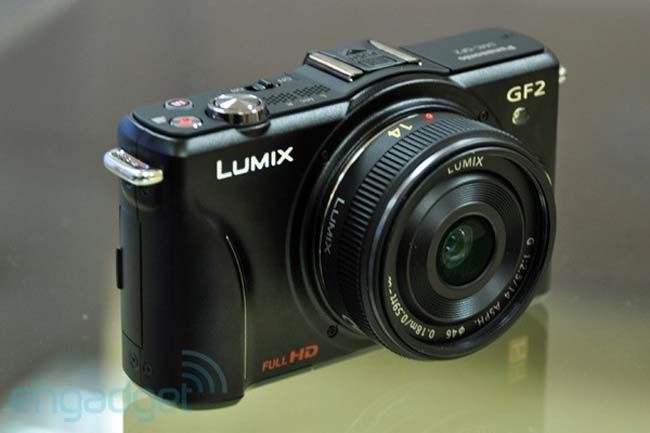
Still sporting the useless LCD finder, with a clip on low definition/high noise EVF option (you might as well get the G1/2 as the size is much the same with one of these clunkers and the G1/2 EVF is a whole lot better), the camera addds little to the GF1 for the serious user.

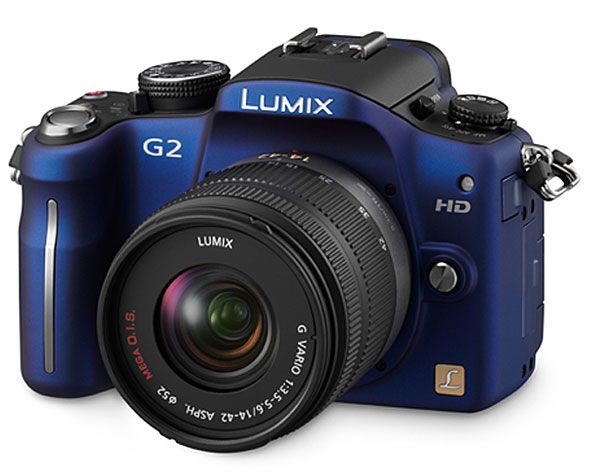
No less disappointing was Panny’s G2. Adding a touch screen to the immensely capable G1, which I use and love, is not my idea of progress. Excuse me, you are going to ponce about touching the hard-to-see screen to do stuff while taking pictures? I don’t think so.
At the upper end of the spectrum for the truly insecure nouveau riche came the Hasselblad Ferrari. Or is that Ferrari Hasselblad? I like both marques as well as anyone but, please, you need to tell the whole world that your ship just came in?
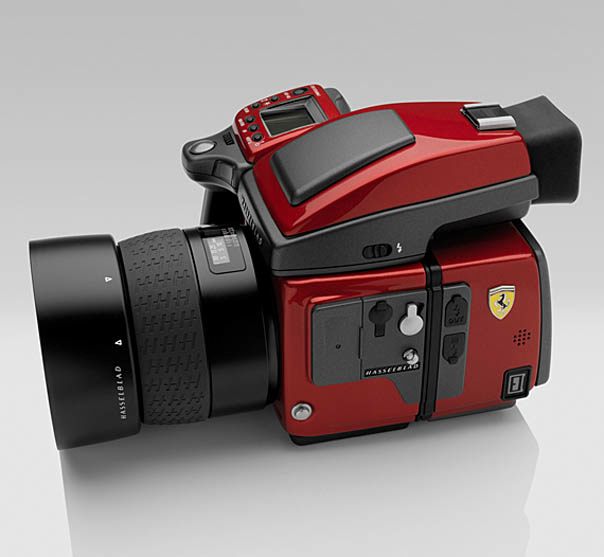
Hair piece and gold chains not included.

No, by far the most exciting camera of 2010 is one which will not be available until 2011 – the Leica for the rest of us, the Fuji FX100.
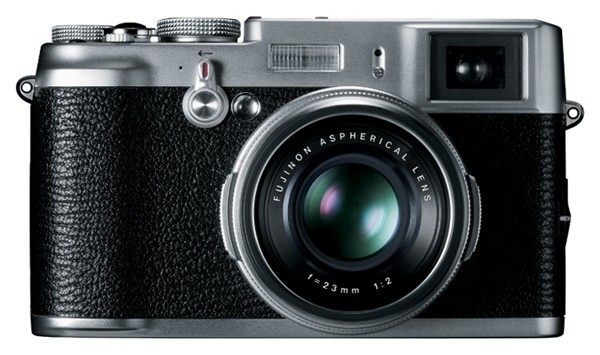
Promising a dual optical/electronic finder, a fast six element wide angle fixed lens, an APS-sized sensor and looks that are just right, this is an exciting machine. Aperture priority, shutter priority or full exposure automation come standard. Let’s just hope it lives up to its promise. Why, even the textured body covering reminds me of my film rangefinder Leicas.

As for 2010, it was strictly a year of blah.

Hardware of the Year

Good and bad.

The Olympus 9-18mm MFT lens for my Panasonic G1 is a joy to use, small, light and sharp. Add in my custom distortion correction profiles and you have a cracker of an ultra-wide zoom at a very reasonable price.

After a poor start with the original AppleTV (another Apple Toaster design, running dangerously hot) the second generation AppleTV gets it right and is a tremendous tool for showing your photographs on any big screen TV you connect it to. At $99, with included remote, it’s a bargain.

And finally, if you crave screen area as much as I do, try the Newer Technology USB to DVI adapter which allows you to add up to four displays to your OS X computer. It doesn’t support Quartz rendering (meaning some of the latest screen savers default to black) and does not permit screenshots, but other than that it’s proving to be a powerful addition to my desktop HackPro, which now sports no fewer than three displays.

But it would be disingenuous to write a piece like this without mentioning two genuine stinkers.

One is, by a considerable margin, the worst piece of hardware I have used in a decade, the Kindle. Poorly made, designed by a committee seemingly totally ignorant of the word ‘ergonomics’ and faulty in just about every way imaginable. It simply defies understanding why this piece of garbage sells at all. Sure, you save a few dollars compared to an iPad but then you could save more by not buying rubbish in the first place.

And finally, let’s not forget the Fruit Company which has made some of the least reliable hardware in the history of computing. Yes, that would be Apple. My most heavily used OS X machine is my HackPro simply because I cannot risk making my living on an Apple desktop. My MacBook Air is too new to permit any quality judgements, though the iPad with its cool running A4 CPU augurs well. But I have such an awful history with Apple’s awful hardware that I’m not about to say anything good about the reliability of the company’s computers; I use Macs rather than PCs primarily because of the robust OS and applications they run. Check back here one year hence to see if the iPad and MBA finally start bringing me around on the issue of reliability and heat management.


The best reason to use Apple’s awful hardware.

Computer of the year – 2010

No surprises here.

A year ago – it seems like a million years ago – I named the MSI Wind netbook the Computer of the Year.

Further, a few days later I wrote of the yet to be announced ‘iSlate’:

Such was my confidence in the iPad, finally released three months later in early April, 2010, that I bought a couple on the opening day and have since given away another half dozen to friends as gifts.

By this time next year another 50 million or so users will get the message but we early adopters have benefitted mightily from the unfair advantage this gadget confers.

So in nine brief months the iPad has obsoleted the netbook and created a whole new way of creating and consuming information, opening up sales to a demographic which would never touch a ‘computer’. Part of the device’s magic is that it really does not bear much resemblance to what we think a computer should look like. And you can take it with you, it weighs little and all you need is an internet – or maybe cell – connection to access the world.

So in a year which was decidedly blah for new gadgets, the iPad reigns supreme, easily being this consumer’s Computer of the Year for lack of any credible competition.

Computer of the year – 2010.

Four displays

When you are desperate for screen space.

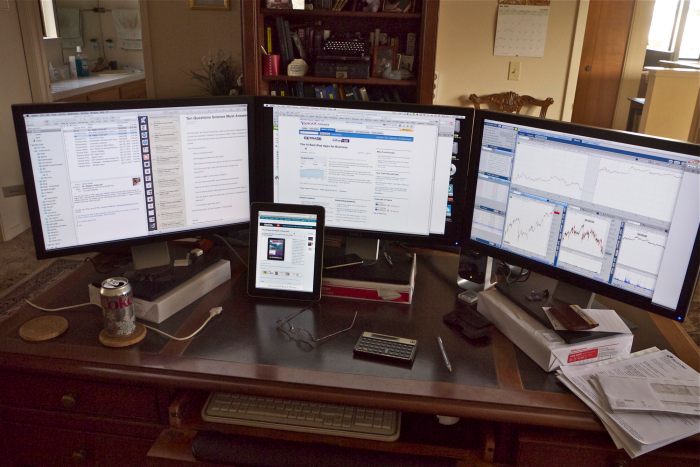
A while back I wrote about using the Air Display Mac application which permits use of the iPad as an external display. After adding my third Dell 2209WA monitor to my desktop rig, I revisited Air Display to see if it still functions, this time as a fourth monitor.

It does!

The iPad is being used as a fourth monitor.

Sure, cursor response on the iPad is a tad jerky as the cursor’s data stream is being sent over the air, but it’s more than acceptable as a peripheral for displaying a screen which rarely needs mouse action, like a live stock price chart, for example.

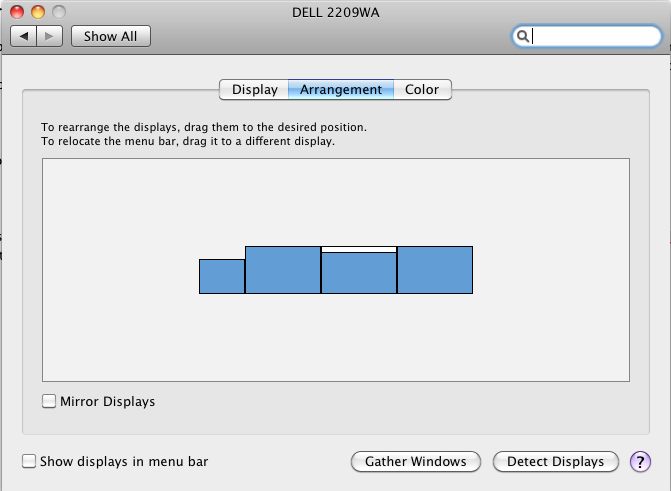
Here’s how I have System Preferences->Displays->Arrangement set up:

The rarely accessed screen is pushed out to the left.

Note that the blue screen area with the white menu bar is aligned at the base, not at the top – this makes sure straight lines remain straight, rather than stepped, as you mouse across. Also, by relegating the iPad display to the left or right you avoid having to access the jerky iPad screen’s base if that’s where you keep your application icons. I have mine set to hide except in the case of a mouseover, which is why they are not visible in the photograph above.

Remote with an iTunes music server

A work in progress.

Download Apple’s free Remote app to your iDevice and you get a handy interface for managing your remote music server. I explained how I set up one of these in yesterday’s column.

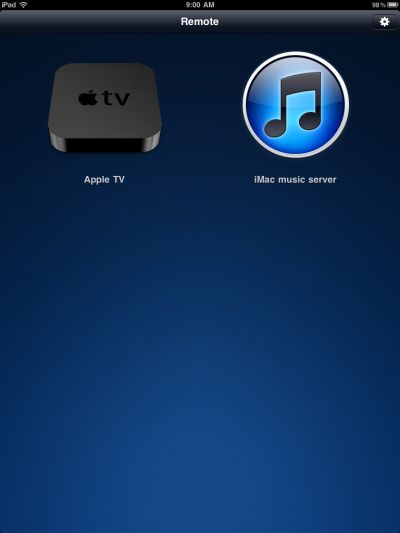
Start the app on, say, the iPad and this is what you see:

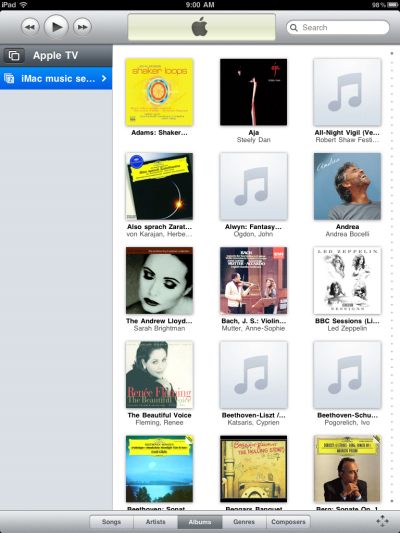
The list of sources appears in the left hand column and the contents in the right. This is the ‘Artists’ view – chosen from the tabs at the base of the screen.

Switch to Albums and you get this – as you can see I still have some work to do to get cover art for all my albums:

And so on. Touching the four arrows at lower right switches you to a blank screen which acts as a touch pad, permitting remote control of menu selections for the AppleTV on the screen of your television. Nice, and a lot more reliable than using a mouse on the sofa cushion!

Touch the ‘AppleTV’ bar in the left hand column and you see your sources on one screen:

The ‘iMac music server’ is the old G4 iMac I set up yesterday to act as a source for all our recorded music.

What is missing, and why I captioned this piece ‘a work in progress’ is AirPlay functionality. You cannot select where to output sound, so when I want to do so, I have go to the iMac music server and do so in the iTunes application there, as I illustrated yesterday. Not a big deal and maybe a constraint placed on Apple by the modest processing power and RAM of the current iPad. Given that each of my three speaker options has its own volume control – TV, Office and Dining Room – I can change or mute any of these when needed. Still, it would be nice to be able to do this from the iPad whose control is limited to pause/fast forward/rewind and play.

The Remote app is nicely engineered, the price is right (as in ‘free’!) and you can download it from the AppStore.