Some thoughts on ergonomics.
In Part I I looked at some of the design aspects of the Olympus 9-18mm MFT lens for the Panasonic G1. My Olympus 9-18mm MFT lens duly arrived on schedule, Bert the Border Terrier viciously attacked the UPS person (always a fun time) – and I have had a chance to try it on the G1. My first impressions relating to fit, finish and ergonomics follow.
Size and weight:
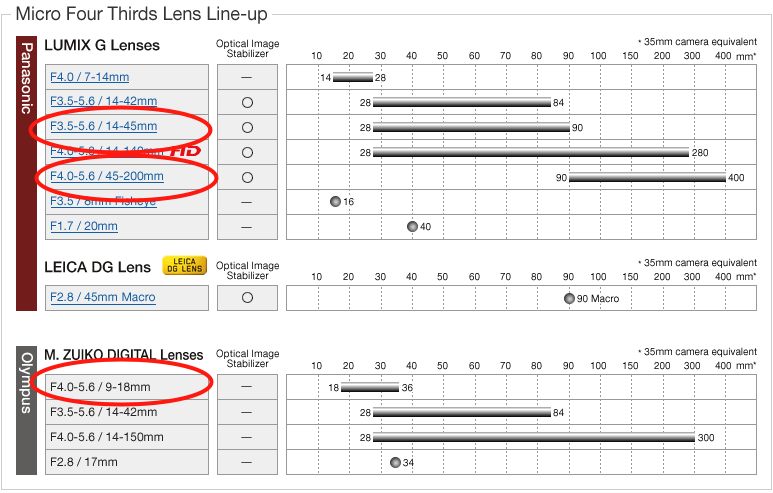
Collapsed the lens is smaller and lighter than the excellent 14-45mm kit lens. (Note: For Full Frame Equivalent focal lengths simply double what you see here, making the kit lens 28-90mm, etc.) The first thing I did was to attach a good quality B+W F-Pro UV-Haze filter for protection, identical to the one used on my 14-45 and 45-200 Panny lenses. I can confirm that there is no trace of corner vignetting even with the 9-18mm at its widest setting of 9mm.
Shutter interlock:
I rambled on about collapsible lenses in Part I and the bottom line is I do not like them. The Olympus is a collapsible lens. However, the maker has done a fine job of designing the collapsing feature. Attach the collapsed 9-18mm to a switched on G1 (no need to turn it off) and you get the “Please check that the lens is attached correctly” message. Press the shutter release and nothing happens. Now turn the zoom ring, which is very smooth (unlike the stinker on the 14-45mm) counterclockwise (anti-clockwise to our former oppressors in the UK) and you will feel a gentle click and the viewfinder of the G1 comes to life. There’s no need to depress the release catch on the barrel – just turn the zoom ring. For that matter, when extending the barrel you can simply pull it out by hand and give the zoom ring a slight tweak to lock it. The only time you do have to slide the release button forward is when you wish to collapse the lens for storage, which requires that you turn the zoom ring clockwise all the way – clockwise as viewed from the rear of the camera or by simply pushing the barrel in with the catch depressed.
Zooming:
Zooming is the opposite to that adopted by my two other Panny lenses (14-45mm and 45-200mm), meaning wide is clockwise and telephoto is counterclockwise. That will take some getting used to! Of the three lenses, the Olympus has the smoothest zoom action – you can operate the zoom ring easily with one finger, useful for street snapping. No way you do this with the gritty zoom ring of the 14-45mm and the 45-200mm is best held from below when zooming. The latter’s zoom ring is very smooth though it tightens up noticeably at 160-200mm. The Olympus is longest at 9mm and shortest around 15mm, extending a little from 15-18mm. The wonders of modern optics seem to have turned everything on its head.
Lens caps:
I hate lens caps and never use front ones, replacing them with a UV filter for protection. The rear is a matter of lens design. The 45-200mm needs no rear cap as the glass is always well recessed at any focal length. The 14-45mm does need a rear cap for while the glass is well recessed at 45mm you will likely put it away at 14mm and the rear elements are very exposed. The 9-18mm is a mixed bag. If you are prepared to store it extended the rear element is most exposed at 9mm but not especially so. At 18mm it is well recessed. No rear cap needed. However, once collapsed the rear element is every bit as exposed as that of the 14-45mm at 14mm and a rear cap makes sense. My inclination is to carry the 9-18mm non-collapsed for that reason and for the reason that all that collapsing and extending just results in wear. In that configuration a three lens outfit needs just one rear lens cap – for the 14-45mm. when it’s not on the camera. I like that. In no case does any of the three have a rear element which protrudes beyond the lens flange, so standing any of these lenses on a flat surface will not damage the rear glass.
Size in practice:
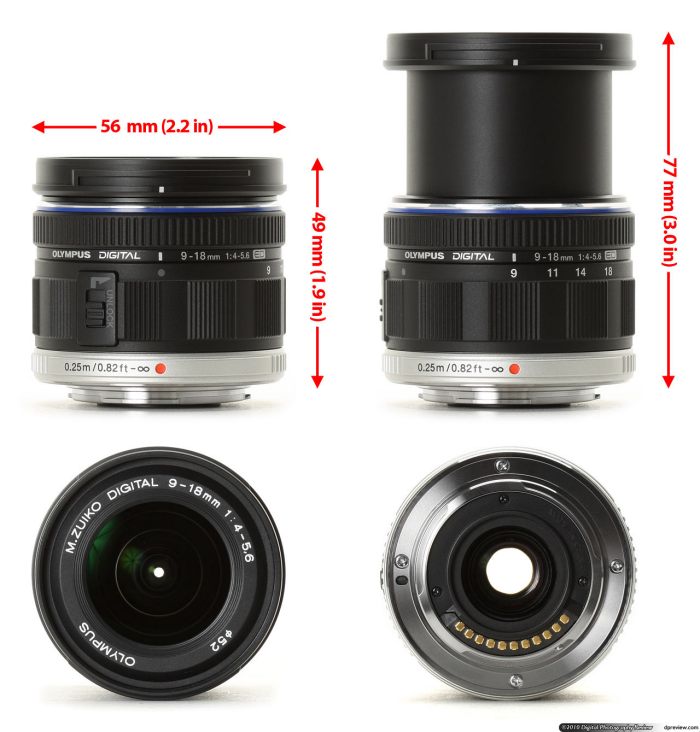
Why would you keep the 9-18mm extended at all times? Take a look – there’s little difference in size when it’s at 18mm from the 14-45mm and a little more at 9mm.
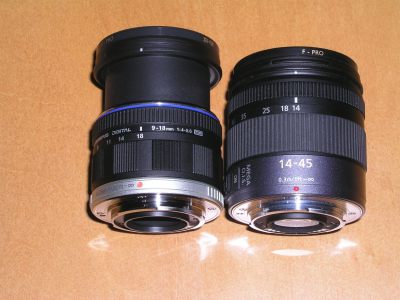
The Olympus lens at 18mm.
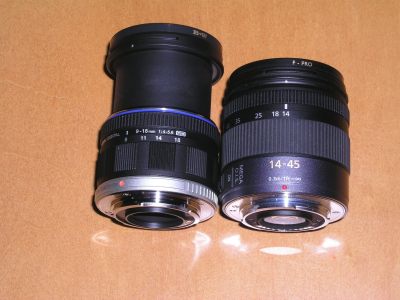
The Olympus lens at 9mm – its largest physical size.
Clearly it’s a practical answer to simply keep the Olympus in your bag set to 18mm and forget all the collapsing/extending nonsense.
Auto focusing:
Like the other two, the lens is near dead silent when autofocusing. Rather oddly it seems to ‘bounce’ beyond the focus point then comes back a bit and while that’s unnerving at first it’s also very fast and after a few frames you forget about it. Subjectively it’s marginally slower to lock on than the 14-45mm but the difference is minimal in practice. The 45-200mm is slower than both and has that disconcerting habit (which it shares with the Canon 100mm EF Macro at close focus distances) of going the wrong way through the focus range now and then before locking on. But I’m prepared to forgive that wonder lens this occasional quirk in exchange for a pocketable 400mm FFE optic. Thanks to the magic of the EVF it doesn’t matter what the lens aperture is or how poorly lit the subject. The EVF will make the subject equally bright under all conditions, even with the lens stopped down to check depth of field. Magic. So the modest f/4-f/5.6 (at the long end) aperture of the Olympus lens is simply not an issue. Sure, there’s no anti-shake technology unlike on the two Panny lenses, but this is a really wide lens – it’s hard to get camera blur at these wide angles. Use this lens on an Olympus MFT body and you benefit from the in-body anti-shake technology, if that’s important to you.
Indexing:
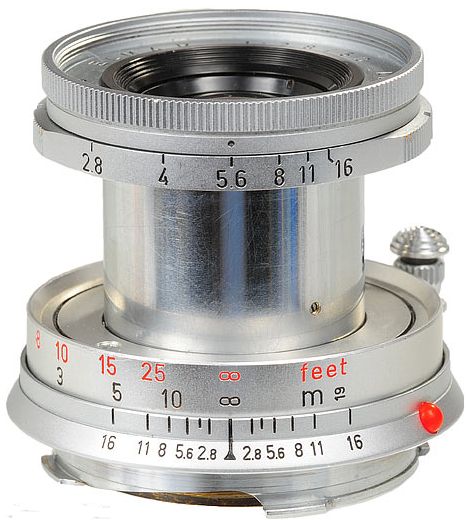
Only two manufacturers have ever got indexing of lenses right, in my opinion. Leica and Pentax. Both adopted a really large hemisphere of plastic (red on Leica lenses, white on Pentax’s) which you could feel even with gloved hands. Knowing from memory where the related dot was on the bayonet flange on the body of the camera, changing lenses by feel was a dream. You did not have to look. No way you are going to do this with the G1. Sure Panny thoughtfully provided indexing plastic blobs on its lenses but they are so small and hidden behind a flange on the rear of the lens as to be useless. Olympus’s approach is even worse and consistent with their earlier designs. They use a recessed red paint-filled index marker and the only way you are going to use that is by looking hard for it when mounting the lens on the body. Shame. A one cent piece of glued-on plastic could fix this so easily. It’s just lousy design thinking. You can clearly see the issue in the above pictures.
Fit and finish:
(i) Focus ring: The only time you need touch the focus ring is when focusing manually. Like with the two Pannys, the focus ring has no stops and is dead smooth. Set the G1 up right and apply a first pressure to the shutter release and you have what is easily the best high precision manual focusing system on the planet. Even with the camera on autofocus, as soon as the focus ring is turned the image in the EVF is greatly magnified and the lens switches to manual focus. And it’s really, really critical manual focus, owing to the magnification. Let go of the shutter release and the picture returns to normal size.
Now you really do not need this with a lens as wide as the 9-18mm which is very tolerant of focusing errors, but with, say, a macro, it’s a killer feature.
The Olympus uses a scalloped alloy zoom ring whereas the Panasonic lenses use rubberized grips. There’s no difference in practice but 35 years with Leicas make me a huge fan of the elegant scalloped design compared to the utilitarian rubber version. Sadly, Leica dropped that design when the accountants took over but Oly is sticking with it. Nice.
(ii) Feel: The lens is exceptionally light but nothing about it feels cheap.Some have accused it of feeling ‘plasticky’ which is meaningless to me. It feels fine. What did you expect? Stainless steel and brass in a 5.5 ounce ultra-compact optic? These people probably expect a Porsche 911 Turbo to deliver 100mpg too.
(iii) Wobble: All lenses with extensible mounts, be they zoom or collapsible, exhibit wobble. Grasp the front of the lens and you can feel it move from side to side as you work it. That was true of my Leica collapsible lenses, is true of the 24-105mm L zoom for the Canon 5D and is true of all three lenses for my G1. So here are my subjective ‘wobble’ evaluations, with each lens set to its longest dimensions:
- 45-200: – very, very slight. No impact on definition.
- 14-45: – very slight. No impact on definition.
- 9-18: – same as for the 14-45.
(iv) Does the Olympus lens coexist with a Panasonic body?
I have encountered no issues with the use of the Olympus lens on my Panasonic G1 body. Except for the zoom ring turning the other way all camera functions are unchanged. Actually, I did have rather a funny thing happen when first looking through the EVF (I never use the LCD screen, considering it one of man’s worst inventions). Every time I focused by taking a first pressure on the shutter release the image would continue to wobble. Wait a minute, I said to the resident Border Terrier. What gives? I haven’t been close to the hard stuff in weeks and it’s only early afternoon. Even at my age I don’t wobble that early in the day. So I tried the two Panny lenses and there it was again. Everything wobbled after focus was achieved. Well, a quick check disclosed that I had accidentally moved the top left dial on the G1 from AFS (single point focus) to AFC (continuous focus) and what I was seeing was the lens hunting in modest internal light as it oscillated about the optimal focus point. Phew! Switching the dial back to AFS (Panny really needs to make the clicks stronger) all was well again.
None of the lenses discloses any discernible fit issues at the lens flange end.
Firmware:
My G1 is on firmware v1.5 (current version) and the Olympus is 1.0. At this time there are no firmware updates for the Olympus lens – the one out there is for the non-MFT similar spec lens.
So that’s about it for the ergonomics.
In Part III I show some pictures taken with the Olympus lens and comment on the optical performance in real life. If you want test charts, go elsewhere. I use my camera to take pictures, not test charts.
One final thought. Here’s my global travel outfit – total weight 4 lbs. Isn’t technology wonderful?
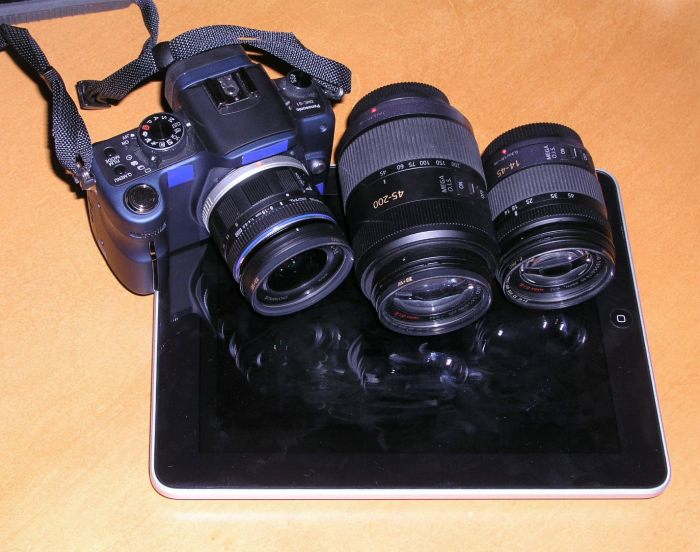
G1 kit and friends.
The current range of Micro Four-Thirds lenses appears below, with the ones I own circled in red. Using regular Four Thirds or even larger APS-C or full frame DSLR lenses denies the concept of the MFT system and makes no sense to me, generally sacrificing automation and adding bulk. If you need them, use them on the bodies they were designed for.