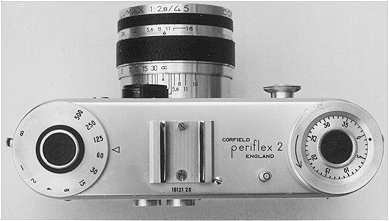
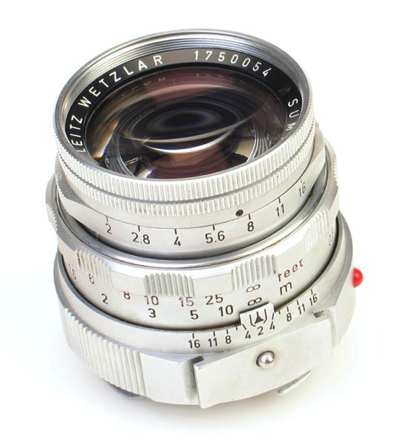
Not your father’s macro lens.
For a preamble on macro lenses, please click here.
Over the past five years anytime I wanted to get really close to something meant using my Olympus C5050Z five megapixel digital. Quality is decent, it focuses postage stamp close and framing using the built-in LCD screen is dead accurate. Rack the lens out to maximum zoom and you also get reasonable subject-to-lens clearance for illumination purposes.
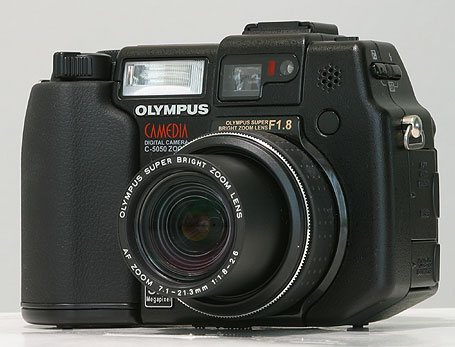
If nothing else, it has been used to list any number of film cameras and lenses on various auction sites, so it has paid for itself many times. Most digital cameras, especially the point-and-shoots, focus easily into what we think of as the macro range, so the Olympus is nothing special in this regard. Handy, though, and easy to use, with auto everything – focus, flash, exposure.
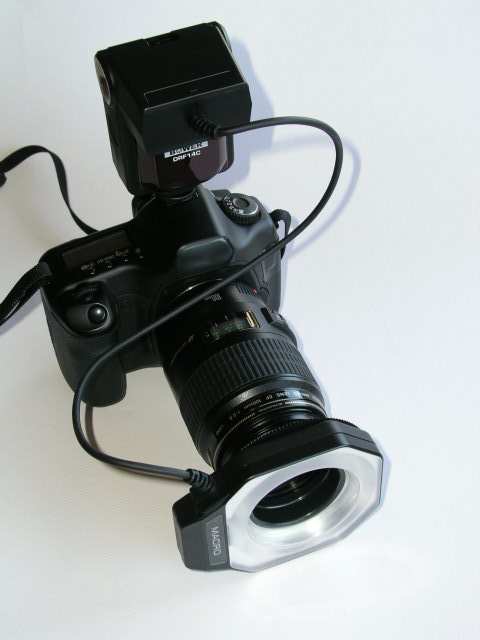
By contrast, here’s my latest Canon lens addition – macro with a vengeance.
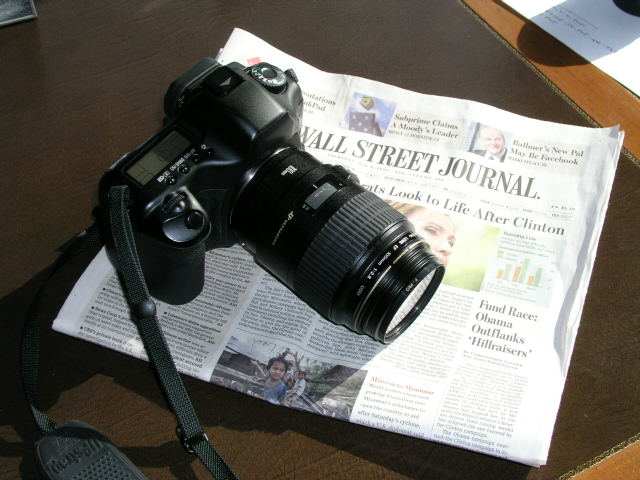
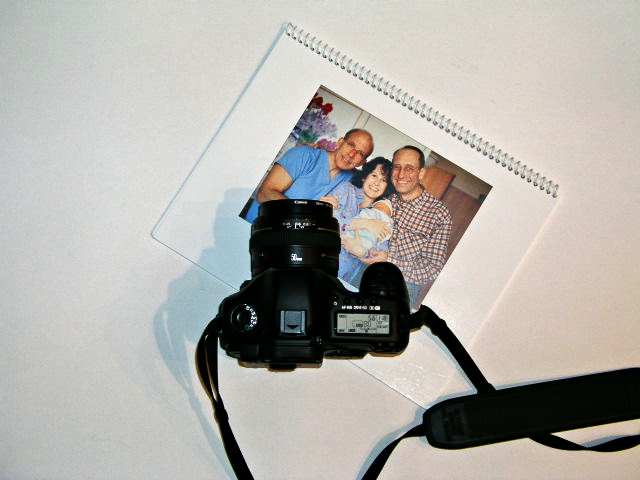
Canon 5D and 100mm f/2.8 USM macro lens, with funding source
With modern multi-coated glasses, charging extra for a lens hood must be as big a scam as ethanol, and I never use one on any of my Canon lenses except on the fish-eye and the 400mm, where they are non-removable. Why? Because they add bulk and make no earthly difference to the picture. And if you have seen the hood for this Canon, you will not want to buy it either. But I do use an UV filter on everything and have recently convinced myself that the German B+W ones are better made than their Japanese counterparts, so I paid up a few dollars more for the real thing. Seems I’m still a sucker for that ‘Made in Germany’ thing. The main reason I use a filter is that I think any decent photographer should throw out all his lens caps.
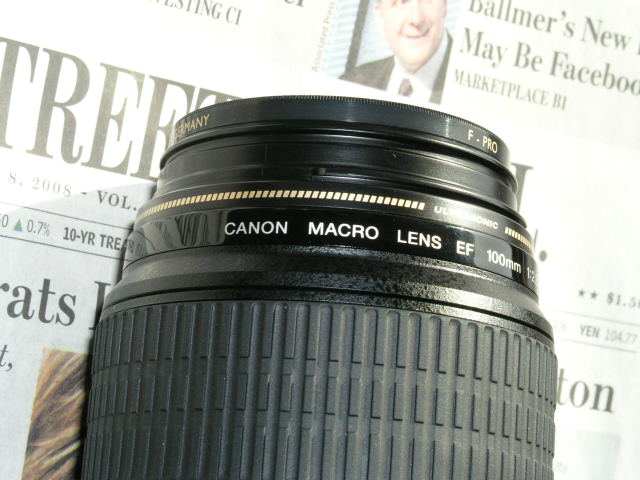
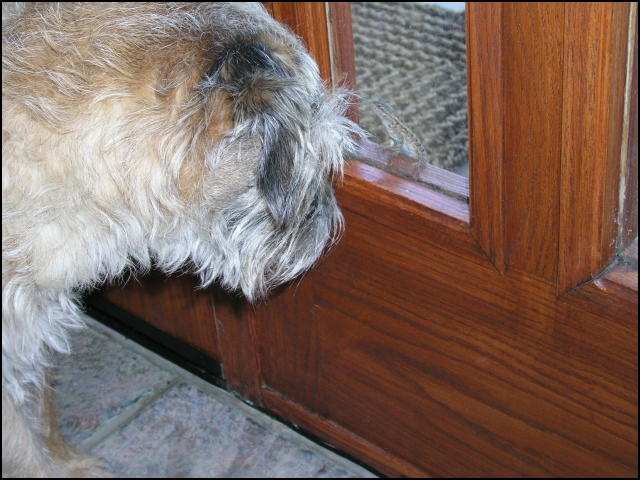
Not a Japanese filter…. As you can see, that Olympus has no issues with getting in close.
Now no one could accuse the Canon Macro of being pretty to look at – not like in Leica Summicron or Contarex Planar pretty – but its inverted cone design speaks of the Bauhaus, function and funky form. Construction is typical Canon prime – meaning good if not ‘L’ quality and a whole lot better than their crappy kit zooms. Best of all, at under $500, if you drop it you are upset but not destroyed. Try saying that about your Leica lenses….
Everything about the ergonomics of this lens is right. The 100mm focal length means you get a nice long subject distance to simplify lighting. You are twice as far away as with a 50mm macro, at the cost of depth of field. The short (about 135 degree) focus throw from infinity to 1:1 (the lens goes down to life size on a full frame camera) is very smooth and full time manual focusing is included if you use autofocus – very handy for a macro lens where small focus adjustments are the order of the day. The bulk and weight of the lens make for perfect balance on the 5D, meaning hand holding is easy.
Best of all, unlike all those macro lenses I illustrated yesterday, the length of this one does not change as it is racked out – meaning that no new obstacle to proper lighting presents itself. And auto exposure means no more figuring of light loss as 1:1 reproduction is approached – a loss of two stops in brightness owing to the extension of the lens from the sensor. That holds whether the lens is made by Canon or Ballspond Roadski optics.
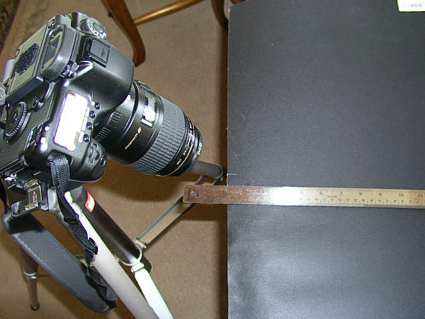
How accurately does the lens focus on the 5D? I am using the center rectangle here which is the most sensitive focus point in the camera’s design. Placing the camera and lens on a tripod on the high tech Pindelski test bench with the camera at 45 degrees to the tape measure, here is the result with the lens autofocused on the line just above the numeral 3 with the lens at full aperture of f/2.8, set at its closest focus distance:

That looks pretty spot on to me.
Not convinced? Here it is much larger:
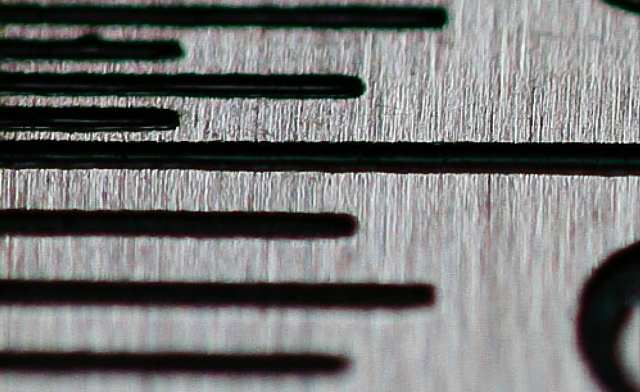
Far better than I could do with manual focus.
Now I am an empiricist by nature, not a test bench nerd, but with a lens whose primary use is for the very close-up subject, a few seconds doing this determines whether the lens is a keeper or not. Clearly, this one is a keeper. Thank you, B&H and thank you, Canon!
The Dr. Pindelski optical test bench? High tech at its best:
Because of the internal space needed to allow those elements to be racked out when focusing close, the 100mm Macro is necessarily quite a bit longer than that greatest portrait lens I have ever used, the 85mm:
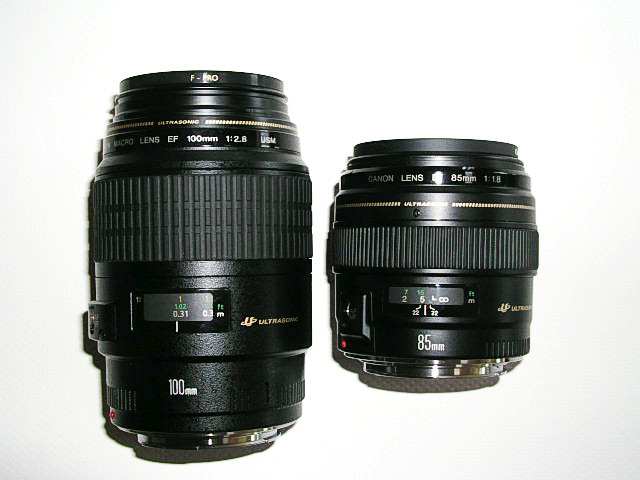
Comparable in weight, the 100mm Macro is much longer than the 85mm. Lens hoods NOT included!
So ergonomics, autofocus accuracy and sharpness are not going to be an issue with the Canon 100mm USM Macro lens.
Focus speed? Simply startling, with little noise. The only time I could trip it up is by focusing at the closest distance then recomposing on a subject at infinity with poorly defined details. The lens would hunt back and forth before locking in. For non-macro use Canon thoughtfully provides a focus limiter switch to prevent this kind of silliness. In practice, I have found that setting the 5D to servo-focus is ideal when this lens is used in the close-up range. This setting makes the lens focus continuously even after the first pressure is taken up on the shutter release button and you can hear the stepper motor working away to maintain the subject in focus. As I said at the beginning of this article, this is not your father’s macro lens.
As I already own the fast 85mm non-macro, I have little interest in using the 100mm Macro lens for any but macro subjects. To do otherwise would be like using an f/1 lens at f/4 – a waste of money. If, on the other hand, this is your only portrait-length lens, then use in the studio should be just fine.
The challenge now is to see whether I can take any snaps remotely up to the technical standards of this optic. Subsequent articles will determine that.
Click here for Part II.