Adobe Flash on the iPad

Tough luck, Steve.

Following up on my April Fools’ Day prediction, yesterday’s news brought the not unexpected fact that Apple’s market capitalization now exceeds that of its old nemesis Microsoft. Given that the fruit company has a great CEO and the other one has a clown in the corner office, that’s not all that surprising. What is amazing is that Microsoft’s shareholders have stood idly by for over a decade of this buffoon’s rule, a period which has seen Microsoft’s market capitalization more than halve from a peak well in excess of $500 billion.

Ten years of Ballmer and Jobs

Certainly, innovation never darkened Microsoft’s doors, and its insistence on purportedly open systems (open to what? phishing? viruses? security holes?) has much to do with its demise, clown CEO apart.

So it’s intriguing to watch the public spat between Apple and another poorly run company, Adobe, over the use of Adobe’s Flash (which Adobe claims is ‘open’) on Apple’s mobile devices. That, per El Jobso, is strictly verboten. Now Apple’s claims that Flash is slow and full of security holes and chews up battery life may well be true. But it’s also not lost on me that Apple’s ban of Flash allows it to maintain strict control over its mobile devices and, last I checked, the profit motive is alive and well at 1 Infinite Loop in Cupertino.

So make of it what you will but don’t expect to see Flash sites on your iPad.

Until now.

Check yesterday’s journal and you will see that I am now running the LogMeIn remote desktop on my iPad and it allows me to view Flash sites just fine via my desktop HackPro. As an example, here’s what you get if you dial in the estimable Jill Greenberg‘s site on the iPad’s Mobile Safari:

Flash No Go from El Jobso on the iPad

Now dial up the site using LogMeIn and all is sweetness and light:

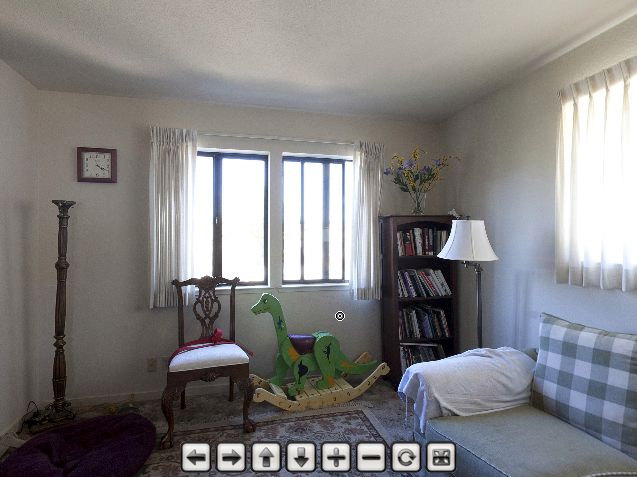
Flash on the iPad

And you get the best of both worlds. The remote Flash site cannot infect your iPad and you can see it just fine.

By the way, the stock chart, above, from Yahoo Interactive charts, is rendered using Flash. So yet more power to this iPad toting investor.

A note on desktop settings for LogMeIn:

Here’s how I have Energy Saver set on my Hackpro desktop:

This switches off the displays after a period of no use, but never allows the computer to sleep, thus allowing remote access at any time from anywhere.

Running Lightroom on the iPad

Prepare to have your mind blown.

Yes.

You read that right.

I am using my iPad as a remote viewing and control device for Lightroom, which is running on my desktop HackPro under OS X Snow Leopard.

The iPad app I am using is named LogMeIn Ignition and costs $29.99 for the iPad. You think that’s a lot? To allow you to run any of the apps on your desktop from your iPad wherever there is wifi? Gimme a break.

After installing LogMeIn Ignition on the iPad, download the free LogMeIn application for every computer you wish to control remotely and start it up on that computer. So far I have just set up the HackPro in the office and here is how my account at LogMeIn looks, viewed in Safari on the HackPro:

Moments after invoking LogMeIn on the HackPro desktop, I started up LogMeIn Ignition on the iPad, made contact with the HackPro, touched the mouse symbol on the iPad and …. loaded Lightroom 2 remotely from the iPad. This is what the iPad’s screen displayed:

Lightroom 2 on the iPad

You can just make out the LogMeIn app on the HackPro’s screen – it’s the small circle to the left of the CPU sign in the status bar at the top.

Clicking/touching on the iPad’s screen moved me from grid view to full screen view thus:

Timings?

  • Two seconds to start the app on the iPad
  • Eight seconds to select the HackPro and login
  • Ten seconds to load Lightroom icon on the iPad’s screen and see what Lightroom is showing on the HackPro. I can alternate between the two views – full screen and grid in Lightroom by simply shaking the iPad. This is the equivalent of the two disparate monitor views on the desktop. Add four seconds.

The possibilities here are so huge I’ll stop for now while I begin to digest what can be done remotely, but here’s how the view changes from one to the other monitor attached to the desktop, by simply shaking the iPad:

Shaken and stirred – the full screen view in Lightroom, viewed on the iPad

Screen refresh on the iPad takes about a second, compared to instantaneous on the HackPro – you are sending a lot of data over wifi, after all. I see no reason why this would not work over 3G with the 3G iPad, though I expect screen refresh would be a good deal slower.

What’s that you say? You want to run ancient Rosetta apps from your desktop on the iPad, like Photoshop CS2? No problemo!

Photoshop CS2 on the iPad

What was all that about the iPad being suited solely to reading and games?

GoodReader – a solid file system for the iPad

A big jump in functionality.

GoodReader on the iPad

While GoodReader for the iPhone has been around a long time I never bothered with it. There’s only so much I want to do on so small a screen. But the iPad version adds a quantum leap in productivity to that already stellar device for the princely sum of $0.99.

GoodReader for the iPad adds a file system to the iPad where there is none. Using this tool you can transfer files to and from the iPad using wifi. Further, you can easily access files on any number of cloud storage devices, be it Mobile Me, DropBox or on servers at your hosting provider.

To invoke wifi file transfer to the iPad from your Mac, you load GoodReader on the iPad and touch the wifi icon. Once you have set up the iPad in your Mac’s Finder as a server (Finder->Go->Connect to Server) you will see the iPad in Finder as another folder or drive and can drag and drop files into that folder using your Mac’s Finder. It couldn’t be easier. During file transfer you cannot touch the iPad – once multitasking is added in the revised OS4 this fall, this limitation should go away.

The iPad’s address is automatically provided by your Mac

You can store this address in the lower panel (‘Favorite Servers’), above, by hitting the ‘+’ sign; I prefer to personalize mine (as 10.0.1.7 means nothing to me) and you can get a personalized address from the GoodReader wifi screen on your iPad which you then enter as shown below – ‘Tiggers iPad’ means something to me when I have many servers connected to my desktop HackPro:

Personalizing the device name

‘Tigger’s iPad’ is what I named my iPad when first syncing it with the desktop. If you give yours a unique name then that’s what you will be using, above. Handy if, like us, you have more than one iPad in the home.

If your iPad is password protected (you did do that, no?) then you will be asked for the iPad’s password first time you try to connect, which password you can store in your desktop’s keychain to avoid subsequent reentry.

During wifi transfer from your desktop to the iPad, the iPad’s screen will display the following message, and flash a red warning sign telling you not to disconnect it:

Wifi transfer of files to the iPad in progress

In the first screenshot, above, you can see, in the left panel, where I have transferred a folder containing no fewer than 291 pictures, to the iPad and I can view these using GoodReader in flick-to-change or slideshow formats at will. Further, I have transferred a chunky PDF containing stock research to the iPad and can read that large file wherever I have the iPad, regardless of the presence of wifi, as the file resides on the iPad. Here you can see that PDF on the iPad’s screen. The reader includes bookmarking capabilities, which are essential for long, complex documents of this kind.

PDF file on the iPad viewed from within GoodReader – the original is much sharper

As I manage money for a living and read many research reports, this sort of thing is a blessing, and avoids the use of slow mobile connections when I need to access something.

The picture transfer completely sidesteps the clunky iTunes/Sync process and simply transfers the files directly to GoodReader on your iPad. The 43mB folder took some 5 minutes to upload to my iPad using a 10mb/s down/1.4mb/s up wifi connection. The viewer on the iPad is excellent and supports touch turning between pages. Zooming in is also supported. You can also password protect files, and I have done so as an example, with the Photos folder, as the padlock denotes.

Now refer back to the first illustration and look at the right hand panel. You will see that I have set up no fewer than five remote servers. The first (‘thomaspindelski’) is my account at MobileMe where I can store files needed on multiple devices. (I strongly counsel against using Google’s cloud storage as that corporation seems to impugn privacy rights daily. If they are going to clandestinely monitor your web use, as they have just admitted to doing, why on earth would you trust them with your data?)

The second (‘th****@*******ki.com‘) is my cloud account at DropBox – a handy, more limited version of MobileMe, and free if you don’t need a lot of storage. The third (‘BlueHost’) is the hosting provider in Utah where this blog and my other photoblogs and web sites reside. ‘Readyhosting’ is another hosting service which I use as a backup. Finally, ‘HackPro’ is my office computer. It’s not functional at present as I have not yet figured out how to see its files on the iPad. All of these connections require wifi to access.

Update May 26, 2010: Dr. P., famous for never giving up, has found a solution to remotely accessing any computer using the iPad and you can read all about it here.

Finally, you can upload files in other formats, including MP3 and Excel and Word, bypassing iTunes. Note, however, that files which have been password protected in their native application cannot be opened by Goodreader. Until multitasking comes to the iPad later this year, listening to MP3 files requires that you remain in the app – unlike with the iPod on the iPad. Expect that limitation to go away this fall when OS 4.0 is released. Note also that GoodReader does not support transfer of files from the iPad to other locations – it’s a one way device.

So, for the grand sum of $0.99, you get a file system for the iPad which vastly expands its capabilities. If, like me, you are data hungry, that represents a quantum leap in value added.

Update: For a tremendous value added use for your iPad and camera, click here.

Update July 12, 2010: If your iPad is connected by USB cable to your computer you can make lightning file transfers to GoodReader using the free GoodReaderUSB using drag-and-drop. It gets better. You can also transfer files form GoodReader on the iPad to your computer. Much the preferred approach with big PDFs where wi-fi is pokey by comparison.

Sony NEX-5

Strange.

There’s an old Wall Street mantra of which I have long been a fan.

The subject is Loyalty and it goes like this:

“If you want Loyalty, get a dog.”

So when a new way of thinking in camera design comes along, I am more than interested. And I have no loyalty.

In this regard, I am worse than the common whore. If it works for me, I’ll go for it and dump yesterday’s infatuation.

What’s that, you say? You were with Leicas for over thirty years? Yes. Guilty as charged. They worked for me, for what I wanted to do, which was to take street snaps.

But then along came fast, small and automatic, with better image quality to boot, and like the street scrubber of old, I crossed the road to the better lit lamppost.

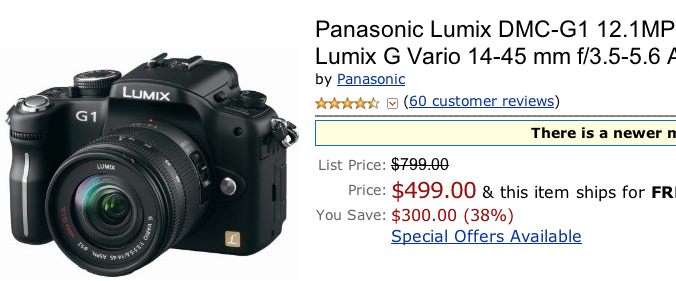
That lamppost was the Panasonic G1 for me. You can choose your own poison. Suffice it to say that there is no way I am going back to manual-anything. No, siree. I just want to press the button and get the instant gratification that we street denizens crave. A sharp moment of time.

So when Sony announces the NEX-5, I pay attention.

The Sony NEX-5 – APS-C in a very small box.

It’s an interesting piece. No viewfinder, of course. And an APS-C sensor. Though they still don’t get it – to make the lenses small you have to make the software fix the defects, not the gargantuan hardware they have opted for. But it is thinking outside the box as regards the body. Well done!

Sony may have lost its way in the last few years as their core competencies have become mass marketed and readily available. “It’s a Sony” now largely means “It’s overpriced”.

I rather doubt whether this ugly duckling will catch on, but I laud Sony for trying.

Google’s culture revisited

Big Brother IS watching you

When I wrote about Google’s Culture of Theft just a few days ago, little did I realize how soon my suspicions would be confirmed.

From MacWorld.com

Dear reader, you do not collect this data by accident. It’s a switch in the system. You either decide to collect it or you do not. No accidents involved.

So when you next see your private data right next to your photographs in the public domain, you know where to go.

You like the ‘cloud’? Sure. So do I. Just go elsewhere than Google Docs. ‘Free’ ain’t everything you think it is.