All posts by Thomas Pindelski

Street hype

There’s one born every minute.

I came across a ridiculous piece of advertising the other day. It claims to teach class participants how to take street photographs. For the best part of two grand you get to meet a self-proclaimed ‘famous photographer’ who then pats you on the ass, sends you out to record your theme of the day in a big city and then graciously spends 30 minutes of his precious time with you ‘critiquing’ your snaps. Well, at $2000+ per hour, which is what his rate for a medium sized class comes to, I would be spending my even more valuable time with you too, and my trashing of your work – guaranteeing that you would have to sign up for a refresher course – would be at no extra charge.

I will never understand the concept of tuition which purports to teach you to see. Seeing is like musical or business talent. It’s a right brain function. You either have it or you do not. Technique, like any left brain function, can be learned, seeing cannot. You may, perhaps, sharpen your visual sense by using it more, but it’s still binary. It’s either there or it’s missing. It cannot be bought.

Thankfully for the world’s gear makers, the total disconnect between gear and vision allows them to sell tons of equipment to people most of whom really should be taking up other hobbies more suited to their skills. Like Morris Dancing or crochet. Just check any of the more popular chat boards to see what I’m talking about. The average participant there changes gear more frequently than a politician changes his mind yet cannot take a picture to save his life.

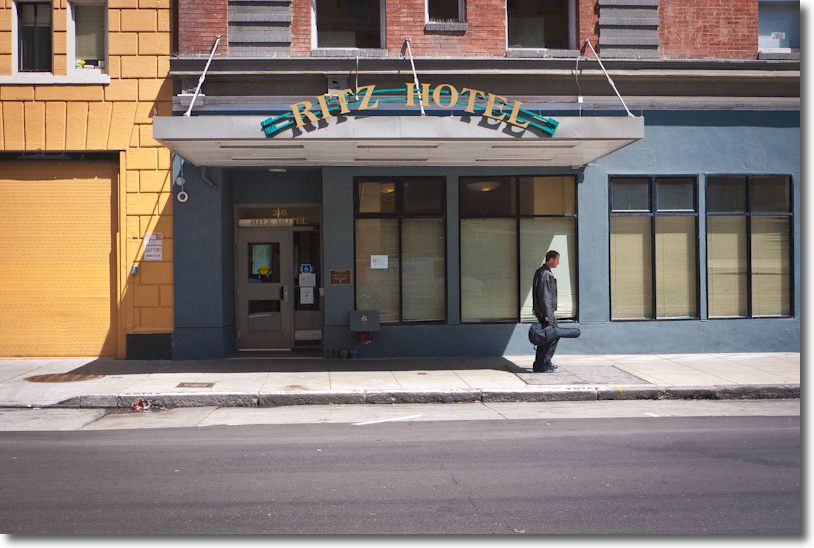
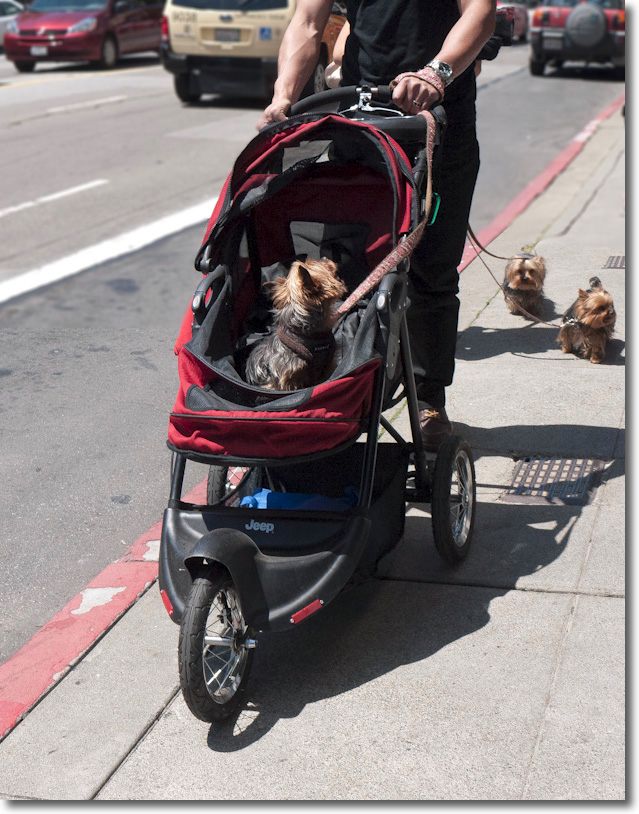
Anyway, here are a few recent street snaps and, whether you like them or not, this most ephemeral of art forms most certainly did not cost me the big bucks demanded by that ‘famous photographer’. Actually, my cost was a train ticket and a sandwich for lunch, plus some shoe leather.

Click the picture for the PDF download.

All snapped on the Panny G1 with the kit lens, the first in Monterey, the remainder in San Francisco.

Now please excuse me while I rattle up some business at $2,000+ per hour. There truly is one born every minute, and he really needs to have his wallet lightened.

Intel improves its SSD

Change continues at a hectic pace.

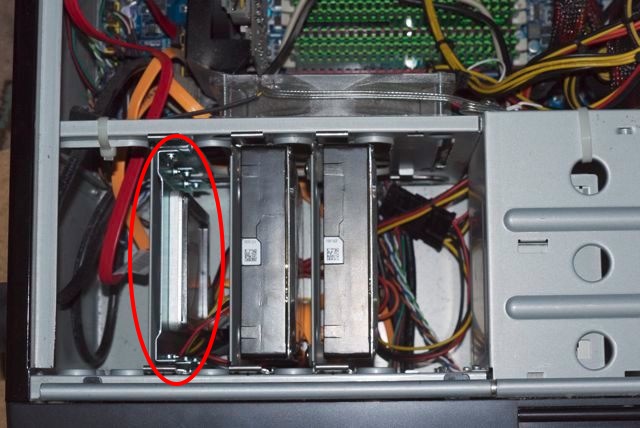
No sooner do I install a 120gB solid state boot/app Intel X25-M drive (SSD) in the HackPro than Intel announces many improvements and a price reduction. This message will likely be repeated often over the next few quarters and Intel is to be commended.

Intel SSD in the HackPro. Two 1 tB Samsung HDDs to the right.

Here’s what I got from Macworld’s lengthy piece on Intel’s latest:

  • 30% price drop
  • Sequential write speed more than doubled – holy moly!
  • Redundant chips included in case any of the main ones fail
  • Capacitors added so the write operation can be concluded if the power fails – wow!
  • Capacities up to 600gB – but at a price – $1,069
  • Despite the lowest industry failure rate of 1.4% in the current model, the new one aims to improve on that statistic, which is already far lower than for conventional HDDs.
  • Intel is putting its mouth where its money is and using these in its servers.

My advice? Wait for these to hit Amazon and rush out and get one. There’s simply no going back once you have used one, be it in your laptop or desktop computer. The new model is the ‘320M’. HDDs are to storage what film was to photography 10 years ago.

The iPad as drawing tablet

Move over, Wacom.

Photographers who do much outlining work with the Lasso tool in Photoshop often end up using a Wacom tablet. This is an electrostatic tablet with a pen; the pen is dragged along the surface and activates the on-screen pointer in Photoshop.

I never found much use for my small wired Wacom and gave it away a few years back. As I find I’m using the Lasso tool now and then to blur backgrounds, I find I have a hankering for a pen tablet again.

iPad to the rescue! A combination of the Pogo Stylus and Mobile Mouse is all you need. And the iPad is wireless. Mostly I use my finger for outlining, controlling the Lasso tool in PS from my iPad, but if more accuracy is called for the Pogo Stylus can be useful. With the enhanced outlining in Photoshop CS5 I find my finger suffices nearly every time. If you already have an iPad, Mobile Mouse is about the lowest incremental cost of entry to to a tablet outlining tool there is and outlining with an iPad is far smoother than with a mouse.

Rollover the image (use Safari or Chrome to render – does not work on an iPad):

Cyclists after and before using the Lasso tool in PS CS2 and Mobile Mouse.

I also livened up the processed image, as a rollover discloses. Take a careful look at the hair of the beauty on the right ….

Auto Blur updated

CS5 meets Auto Blur.

Auto Blur is my moniker for making sharp backgrounds out of focus, an occasional dictate when using small sensor digital cameras, which tend to render everything sharp. You can read about the technique here.

One of the enhanced features in Photoshop CS5 is the outlining abilities of the Lasso tool.

First you do a rough and ready outline thus:

A first rough outline with the Lasso tool.

I use a mouse but if you are serious about doing lots of this sort of thing then a pen tablet would likely be a better tool. Then you click on Refine Edge and in the first box click on Smart Radius, moving the cursor to the right until the outline is just so:

Refined Edges.

The red circle indicates the tool which is selected after Refine Edge is applied; it’s dragged around the areas of extremely fine detail – like the girl’s hair – to make them perfectly defined against the background and reduce the edge halo effect.

The small error at the lower right is easily corrected in the Lasso tool and you are done. Mess some with the other controls if needed. The enhanced outlining is noticeable, not least for the incredible speed of operation – there’s minimal need to make small, time consuming adjustments. Then I simply clicked on Select->Inverse to select everything except the outlined figure, and applied Filter->Blur->Gaussian Blur.

This is a typical G1 image with the kit lens at 18mm fully open at f/3.9. Everything is sharp. Rollover the image to see what I’m talking about (renders fine in Chrome and Safari on my Mac) – this took all of 30 seconds to do; refresh your browser if the picture is not visible:

Thumbsucker before and (mouseover) after AutoBlurâ„¢ with CS5’s Refine Edge tool (left) and CS2 (right).
Note the absence of halos at the edge of the outline in the CS5 version compared to the CS2 one.

The CS2 version took far longer to do.

The outlining in the CS5 version is not only better, it took a fraction of the time to accomplish. This is the sort of real world value added which continues to see me as a great fan of Adobe products. I’m adding CS5 to my toolkit, even if I only know 5% of its power. Heck, a few Auto Blur later and it will have paid for itself!

Photoshop CS5 and CAF

Uncle Joe would be proud.

I have been ticking along for many years with Photoshop CS2 and been quite happy with it for my modest needs. I’m no Photoshop expert, goodness knows, my primary use being for round tripping images from Lightroom to fix leaning verticals, where PS does a better job (Edit->Transform->Distort) than the rudimentary controls in Lightroom 3. A related, occasional use is to remove overhead cables and the like using the clone tool where, once again, the LR tool does not cut it.

A while back I tried CS4, a loaner from a friend, and noticed a couple of things. First, it’s an Intel app in the Mac version, meaning it runs far faster than the older PPC CS2, which has to run through the Rosetta emulator. One simple example is that even on my fast HackPro desktop, CS2 takes 20+ seconds to load whereas CS4 takes 3, using an SSD drive. Everything else is faster too.

Now that speed increase alone is not enough to make me shell out for CS5, the current version but, as luck would have it, I was riding the Caltrain from the South Bay to San Francisco the other day, merrily reading my iPad, when the chap next to me started up a conversation. Turns out he’s an engineer at Adobe which makes its home on Townsend Street, a few hundred yards form the SF Caltrain terminus, our destination. When I told him I was still on CS2 he gently reprimanded me after picking his jaw up off the floor. Consider me reprimanded! “Dude”, quoth he, “You just have to try CS5. Content Aware Fill will blow your mind. And you gotta try the new outlining tool”.

This was both flattering (being a ‘Dude’ just shy of 60 years of age feels pretty good) and intriguing, based on his explanation of Content Aware Fill, which can do a smart job of replacing pixels in an image based on the surrounding details. And the enhanced outliner would be nice for those times I want to use Auto Blur when the ‘everything sharp at all times’ curse of the small sensor on the Panny G1 dictates manual blurring of a distracting background.

A little bit of digging made things more intriguing. CS5 is the first version of Photoshop which runs in 64-bit mode on the Mac. Further, Adobe offers a $199 (at Amazon) upgrade which will work all the way back to CS2! (Trying to upgrade from within CS5 is a waste of time, returning page errors. Adobe- wake up!) No way I was going to pay the $700 asked for CS5, especially as I own CS2, long registered at Adobe, which started life as CS1 on my G5 iMac a few centuries ago. Finally, as the next version of the Mac OS, Lion, will no longer support Rosetta/PPC apps, I have to do something as I’m not about to get left behind by sticking with Snow Leopard when that cat’s time has passed, and while I do not love PS, I do need it now and then. The icing on the cake is that Adobe offers a 30 day free trial of CS5, so before you could say ‘dial-up’ I had the software downloaded and installed. Well, you actually need broadband because downloading this 700mB whopper would take longer than life is worth with dial-up. It would be cheaper to buy the disc! And I’m not talking CS5 Extended – just the basic CS5-only version.

Let me pause and jump to some recent history before writing further of Content Aware Fill. When the British and Americans gave away Eastern Europe at Yalta in early-1945 to a grasping Stalin, the Cold War commenced. For reasons never quite clear to me, FDR and Churchill, the donors of countries they did not own, referred to Stalin as Uncle Joe; it’s tough to ascribe avuncular qualities to the greatest psychotic mass killer in history, but FDR was gaga by then and WSC was down to his uppers (and about to lose a General Election to an ungrateful nation), having just barely saved Englishmen from having to learn German. So I suppose while Eastern Europeans would disagree, those two Western leaders might be excused for their poor judgment. Heck, I still named our son Winston. Great men have great faults.

The point of this historical flashback is that Uncle Joe would have loved (I almost wrote ‘killed for’) Content Aware Fill (CAF). You see, in those days before Photoshop, when he would whack the occasional cabinet member just to keep the other boys on the Politburo in line, photo retouchers would have to set to and start editing out the whackee from all know official pictures. Then, after hundreds of hours of careful retouching to eliminate all trace of Comrade Whackee, the history books would be republished – pity the poor proof reader who missed a name – and schoolchildren indoctrinated afresh in whoever the new leaders were. People would literally be ‘disappeared’ from photographs, which took a good deal longer than two shots in the back of the head. Suffice it to say that Content Aware Fill is so good that Uncle J would have been at the front of the line at Adobe on Townsend Street, San Francisco, credit card in hand, long before the ink was dry on the first glowing reviews a year ago. Mercifully, UJ has long been six feet under, thus saving the lives of many soon-to-be-whacked photo retouchers, as their work could now be done in minutes instead of months.

The best way to illustrate CAF is with a ‘before and after’.

After and Before applying CAF

The overhead wires, a bugaboo of architectural and city photographers everywhere, took all of a minute to replace. I simply dragged the Healing Brush tool along them, regardless of background, hit Enter and after a few seconds of the spinning gear wheel here is what I got. It’s not perfect once enlarged, but a little local fixing wth the regular Clone tool and it’s done. Doing something like this in areas with complex detail would have taken ages using the Stamp and Clone tool.

Here’s another far more extreme example, which took 15 minutes to do:

CAF at the max. Streetcar lines be gone!

Where fine detail is involved I have found that using the Healing Brush to confer CAF is more effective than the alternative method. That method has you using the lasso tool to select a large area to be replaced, then clicking Shift-F5->Content Aware. The latter method takes a larger, cruder surrounding data sample in doing its thing, and tends to be best on a subject against a uniform background.

A handy related use of CAF is when you use the Edit->Transform->Distort tool in PS to correct leaning verticals. If the nature of your stretching of the original image leaves white areas within the picture, you can use CAF to fill those in.

CAF is not perfect. It likes a fair amount of surrounding area to sample and if that area includes other image elements, it will unnecessarily place them in the fill, but after a bit of use you get the hang of it and learn how much has to be sampled around the object to be replaced. It’s pretty remarkable technology and Uncle Joe would be proud as must be his many latter day descendants across the world. Judging by the fact that even the HackPro spins its gear wheel when doing CAF you really need a powerful CPU and GPU in your Mac unless you place little value on your time. There is some very complex processing going on here.

I fancy Adobe and Amazon will be finding themselves $199 better off when my 30-day Photoshop CS5 trial is up. Meanwhile, my hat is off to Adobe for a superb idea, well executed. Version two will likely be able to remove whole armies without a shot fired.

Here’s how UJ did it – before/after whacking Comrade Yezhov:

Now you see him, now you don’t.

You can read about Uncle Joe and Comrade Yezhov here.

As for the enhanced outlining tool mentioned by my new found friend from Adobe on the train, more of that later.