All posts by Thomas Pindelski

HP DesignJet printhead diagnosis

Finding faulty heads.

For the HP DesignJet six head dye ink 30/90/130 printers and their four head predecessors (10, 70, 120, etc.) HP recommends running its Image Quality Diagnostics Page using the System Management Utility when you experience print quality issue; the Utility can only be run for Mac users using OS Leopard or earlier. That’s a shame as HP has committed to stocking repair parts, heads, inks etc. for 10 years after the printer is discontinued, and as they still sell the DJ130 on their site that means through 2021 at least. Too bad their Mac software is obsolete, requiring an earlier Mac OS or a Windows PC.

When the DesignJet has a faulty printhead the front panel indicator for the head is meant to flash. The problem is that it does not always do so.

Here’s a print I was making the other day; all was proceeding swimmingly until the last few inches on the right of the 13″ x 19″ original, where the color suddenly goes awry. The image below is a low quality photograph of the 13″ x 19″ print as my scanner does not go beyond 8 1/2″ x 11″!

Prining problem with the DesignJet.

This problem is not unknown to DesignJet users and generally indicates a clogged or faulty head. However, there was no indication on the printer’s front panel of any problem and the first Image Quality Diagnostics Page report I ran showed all the color squares at the top to be solid and full.

However, because sometimes a head can temporarily recover from a clog, I simply ran the report again and the problem was now disclosed clearly, as follows:


Faulty head disclosed.

Consulting this chart from HP ….

…. I immediately concluded that the Cyan head was at fault. Rather than try and clean it, I simply ordered a replacement as the original was over 1,100 days old. Further I have found cleaning to be a quixotic exercise which rarely fixes a printhead problem for long. While HP states that the smaller color squares are merely for warm-up before printing the head alignment grids to their right, the total absence of Cyan in the related small square confirmed my conclusion, suggesting that the little color squares have some value after all.

Also, note that HP’s statement that “All patches associated with a given color must have banding, for the corresponding printhead do be determined at fault” is incorrect in my experience. As you can see, Cyan affects squares A2, A3 and B3, yet only A3 and B3 disclose banding, above. After many print head replacements, I have never seen three banded patches and five of the six cartridges – all except Black (K) – affect three patches each. I have had all five of Y, C, LC, M and LM fail and in each case the report only disclosed two banded patches.

The LC, LM and Y ink cartridges are much larger than the K, C and M ones, meaning that on average HP expects prints to use more LC, LM and Y ink. Yet with all my non-black heads failing it seems that volume of ink use is not the driving factor. Mine were all over 1,100 days old so age may be the deciding issue for light users. Whether age of the ink is relevant I have yet to determine. Some of my ink cartridges are past their expiration date.

After changing the Cyan printhead I placed three sheets of plain letter sized paper in the DJ; the DJ automatically runs a head alignment when a head is replaced and will do so up to three times. A check mark on my first and only page confirmed all was well, and printing was restarted.

The Ink Consumable Usage report section:

But wait a moment, you say. I just checked the Ink Consumable Report on the two page Information Report I ran from my DesignJet. It says that all is well as my head has only used up a fraction of its life.

Oh yeah?

The unhelpful Ink Consumed Printhead data for the old LC head.

Well, right after I replaced the Cyan head, above, and made one print, the Light Cyan head blew! Yet the report, above, says the LC head was only 18% through its life (green oval). That statistic is useless, it seems, for old heads. Read further down and you will see that the LC head is no less than 1,117 days old! Now I have only the ancient K (Black) head left to blow. The K head is a model 84, all the others are 85, so I’m running it until it drops, hoping that any design difference will help. As a minimum it will be an interesting discovery process. And it’s still cheaper to waste a sheet of paper than buy a new head. Moral of this story? Old heads are likely to fail even if modestly used. Keep spares.

Am I complaining? Not really. After four years of sitting there, mostly inactive, I can hardly grumble about a $35 head failure.

All is once again well. Now I have to make a lot more prints to bring down my average cost per print – logic akin to that of the US Government spending more money on its war machine to keep down the cost of oil.

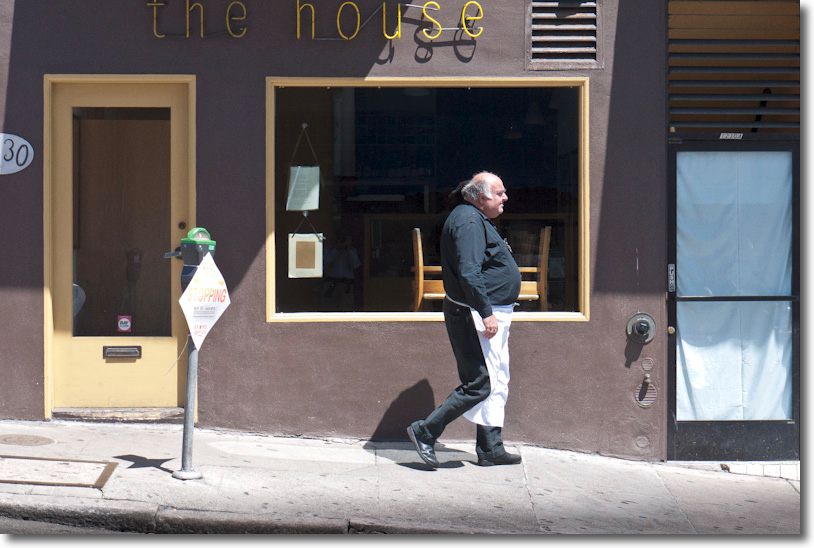
Flagmakers, San Francisco. G1, kit lens @ 29mm, 1/500, f/5,2, ISO320.

Note on the picture: The original was taken in a dark alley with insufficient room for square composition and is surpassingly bland. A few seconds in Lightroom and a round trip to Photoshop to fix leaning verticals, and the power of RAW is writ large in allowing me to restore some color to the original.

The original of Flagmakers.

Collections and Slideshows

Useful Lightroom tools.

Two powerful tools in Lightroom which perhaps don’t get the recognition they deserve are Collections and Slideshows.

Collections allow you to group selected images in one place, suitably named. No catalog bloat results, as a Collection is simply a set of pointers to existing pictures in your Lightroom catalog.

Collections in Lightroom.

The other day a relative asked for a selection of recent snaps so that she might choose one or two for display in large print format. I simply placed four dozen into a Collection, based on her taste for the simple and uncluttered, then went into the Slideshow module of Lightroom, choosing that Collection for the slideshow.

The Lightroom Slideshow module.

I saved the whole thing in low quality, to keep the files size down, exported it to DropBox and, minutes after receiving the request my relative had a file of proofs for review. The only things I did in the Slideshow module were to add a face page, which you can see below, and numbering, so that she need only report back the identifying numbers of the images she wants printed. The slideshow was saved as a PDF file in 1024 x 768 page size, formatted for her iPad. (The images break up if viewed larger than that).

If you like you can even embed a sound file to accompany the slideshow and can also save the slideshow as a video in a wide variety of sizes and formats. Adobe is totally on the ball here. Be warned that video creation really stresses your CPU and owners of iMacs should think twice before doing this, owing to the atrocious cooling design of those machines. Even the extraordinarily well cooled HackPro I use showed its quad core CPU temperature rising from the usual 115F to 165F when processing the related RAW files into a video, with the process taking 10 minutes. To put that upper temperature in perspective, I have the overheating warning buzzer in the HackPro’s BIOS set at 175F, near the CPU’s service limit, so that’s getting up there. The video, whose delay between slides can be set in the Slideshow module, came in at a whopping 88mB in 720P format.

Don’t try this on an iMac. Dramatic CPU temperature rise when
creating a video in the LR Slideshow module – all four cores shown.

The PDF file is a modest 4mB in size, by comparison, and you can download it by clicking the picture below.

Click to download. Best viewed in GoodReader on the iPad or in Preview on a Mac.

Soft proofing with Lightroom

Using Snow Leopard.

Why soft proof?

I have mentioned this before but it bears repeating. Soft proofing – meaning previewing on your display what a print will look like with the paper profile of your choice – is easy with Snow Leopard and Lightroom. If you want to get an accurate preview of how your print will look without wasting printing paper and time, you need to soft proof. (Click here for the earlier OS Tiger version of this piece.)

Even outstanding technical writers like Martin Evening (in his LR3 book) say that you cannot soft proof when using Lightroom! Others would have you generate a print file and then open it in Photoshop for soft proofing. Yet others want to sell you a Lightroom plugin for soft proofing.

Well, read on for Dr. P’s free version.

Monitor profiling:

What follows presumes you have a well profiled display in the first place. I recommend the Eye One colorimeter, but be warned the software with which it currently ships will not run with Mac OS X Lion, shortly to replace Snow Leopard. If your display is not profiled you are wasting your time. I profile my three displays monthly – they all drift over time and as most display screens are made by LG, Sony or Samsung, chances are your display drifts too regardless of the label on its case. I address a workaround to allow you to continue using xrite’s dated software once OS Lion comes along here.

You want to profile your display in much the same ambient light as you will be viewing your print, and colorimeters like the Eye One allow you to measure ambient light. The reason is simple. If you profile your display in daylight then view the print in incandescent light, your viewing light temperature (much yellower) is dramatically different from your profiling light temperature (much bluer). You are not comparing like with like.

Don’t believe me.

Take a print and walk around your home with it – from a bright room illuminated by daylight to one illuminated by incandescent light. The changes in perceived color are anything but subtle. The light you profile by is especially important for the accurate rendition of skin tones of loved ones, where visual memory is most acute. (Sort of like judging a sound system – listen to opera or lieder, because we know how the voice sounds). If your portrait is to be viewed by incandescent light then your display should be profiled in like lighting if soft proofing is going to make any sense. Professional proofing stations recognize this by providing a temperature controlled light source.

The GTI EVS-1SP – 29 x 52″ – Graphiclite D5000 Viewing System
– for when your ship comes in. $6,000 from your friendly dealer.

Very large devices like this will house two monitors and your print!

Using Lightroom:

In the Print module of Lightroom (I’m using Lightroom 3 in what follows), make sure that in the Print Job->Color Management pane, Lightroom is NOT set to ‘Managed by Printer’. You want Lightroom to take care of color management, meaning it will pass the print job through your paper profile of choice before you spool the job out to your printer.

To confirm you have done this right, click ‘Print’ in Lightroom’s print module, then click Color Options in the lower drop down menu and you should see the following:

Color Options in Lightroom.

Select the appropriate paper profile in Lightroom:

Lightroom is set to take care of color management duties.
The profile for the paper of choice has been selected, above.

Using Apple’s Preview:

After selecting the paper profile for your paper of choice as shown above, click on ‘Preview’:

Printer and quality selected in red circled boxes.
Preview button clicked next in the green circled box.

After clicking on ‘Preview’, your Mac will open the Preview application, displaying your print file.

Click on ‘View->Soft Proof with Profile’ and then mouse or arrow down to your paper profile – the one you chose in LR3 will be highlighted. Click on it and you are seeing a preview of your print with the profile of choice applied.

Paper profile selected in Preview.

Apple mentions this Preview capability in passing on its web site.

From Apple’s web site.

If you do not like the colors, go back into Lightroom, reprocess and try again. Otherwise click ‘Print’ and you are done.

The effect of paper profiles:

In the following screen snap I have illustrated how paper profiles clearly affect Print Preview – the left is with HP Premium Plus Satin, the right with Arches Infinity which is far ‘warmer’; the difference is clearly visible on my Dell 2209WA display:

The effect of different paper profiles in Preview.

Orange umbrella. G1, kit lens.
By using soft proofing I was able to get the the colors I wanted
in the print without wasting printing time and paper.

Hopefully, one day Adobe will add the soft proofing capability to Lightroom so that soft proofs can be viewed from within Lightroom, but it’s not like it’s a big deal to do this using Preview.

Note for HP DesignJet 30/90/130 users:

The HP DJ 30/90/130 printers have an internal colorimeter which will generate a profile for any paper of your choice, storing that profile in the printer’s ROM. While many of the DJ’s functions can be activated with front panel pushbutton sequences, color profile generation cannot. You must run the HP DesignJet Maintenance Utility which, for reasons only know to some twit at HP, resides on HP’s servers and cannot be run locally from your computer. To make matters worse, you cannot run this Utility using OS Snow Leopard or Lion. To generate the profile you must insert a letter sized piece of the paper of your choice, run OS Leopard or prior, make sure you have an internet connection, pray that HP’s servers are not down, load their System Maintenance Utility, and the profile will be generated and stored by the printer. You can confirm generation of the paper profile by running the Information Pages from the printer and looking for this:

HP Satin paper profile generated on March 4, 2011.

The pidgin English reference to ‘The greater PQ’ means the profile you will be using when you select ‘Best’ in this drop down box; ‘Best’ forces the DJ into one directional printing for highest quality, but is slower than ‘Normal’ which uses bi-directional printing. I always use ‘Best’:

I have saved these settings in an LR Preset named ‘HP Satin Best’, as shown above.

If you adopt this paper profiling approach, then to use the profile generated by the DesignJet’s colorimeter you would elect ‘Color managed by Printer’ in the Lightroom Print pane – see the second screenshot in this piece, above. In practice I find no significant difference in colors on the print whether printed using the DJ’s ROM profile or the ‘icc’ profile which resides on my HackPro’s disk drive. However, as the use of icc profiles is not limited to just six papers (which is all the DJ’s ROM has room for) and because you cannot rename the ROM profiles to something other than the names provided by HP, using an on disk profile gives you far more paper choices and makes those easy to select – the names are obvious. Finally, letting the printer manage color takes away the ability to soft proof the image on your display before hitting ‘Print’.

Later HP wide format printers – the ‘Z’ series – are much smarter; they also cost three times as much as a DesignJet. The Z3100, as an example, has an Eye One colorimeter built in! The Z series uses pigment inks as opposed to the dyes use in the 30/90/130 DesignJet. The six printheads used for the twelve inks each cost $70, twice as much as those in the 30/90/130 DesignJets. The Z3100’s colorimeter creates an icc profile for any paper of your choice then stores it on your computer’s hard drive. Neat.

B&H still lists the DesignJet 130R (presumably the ‘R’ indicates inclusion of the roll feed attachment) for a stunning bargain price – there is no cheaper way to get into top quality large printing:

I discuss use of non-HP papers and profiles here and here.

The HackPro gains an SSD

Speed, speed, speed!

You can’t be too rich, too thin or too fast. And while adding a Solid State Drive to your work computer doesn’t demand great riches, it is thin and, my goodness, is it fast.

My first hard disk drive was bought in 1982, It was the size of a shoe box, made loud clicking sounds when accessed, stored 10 megabytes and cost $1,200. Today our home has no less than 12 terabytes of storage, or more than one million times what that shoebox stored, the whole thing is the size of that same shoebox and the replacement cost is …. $1,200. The spinning disk drives making up that storage may represent a technology in the last quarter of its life, but that technology is a triumph of function over form, and represents the peak of American engineering and materials science genius.

Sharp eyed readers will have noticed that Western Digital, a large HDD maker, just bought Hitachi’s HDD business last week. Well, there’s an old saying in investment banking of which WD is blissfully ignorant: “If you tie two rocks together, they still sink”. It’s a bit like getting into LP manufacture based on some nut’s claim that “the sound is so much better”. Uh huh.

Within a generation all that spinning disc storage will have been replaced by flash memory, which is already the only storage found in every iPad ever made and in most iPods. It’s no surprise to learn that Apple purchases 60% of the world’s flash memory chips. Laptops increasingly use it and if you want to give your G3/4/5 PPC Mac a last lease of life, flash storage in the guise of an SSD is the single best thing you can do for it.

Out with the old, in with the new.

What clued me in to the idea of adding an SSD to the HackPro, my daily workhorse, was the outstanding operating speed of my MacBook Air, which despite using a very small SSD and a poky 1.4gHz, dated, Intel CPU mated with a modest 2gB of RAM, spanks the HackPro for overall speed, despite the latter’s 4 core Intel CPU which runs at 2.83gHz with 8gB of RAM.

And because I’m constantly in and out of Lightroom, Photoshop, iWork Numbers, Safari, Firefox, iCal, Mail, NetNewsWire, Excel and Word, as well as several stock market systems for my day job, the difference in operating speed of the HackPro compared with the MBA was beginning to irritate me.

So when the HackPro’s builder, the pseudonymous FU Steve, was in the vicinity the other day, he offered to pop my newly acquired Intel SSD into the Hackster. FU did the work, I snapped the pictures and screen shots.

SSDs are still expensive. I bought a 120gB Intel SATA model from Amazon to place the OS and applications on it. I opted for Intel as it has the lowest failure rates and the most capital supporting it. It has a three year warranty and cost $230. By contrast, a 500gB spinning disc notebook drive can be had for well under $100. Is the SSD worth it? Read on.

In time, SSDs will become as cheap as traditional drives are today, a related appeal being the SSD’s lower power consumption. A typical notebook drive uses 1-2 watts compared with 0.15 watts claimed by Intel for its latest 35nm technology second generation (G2) SSD with no moving parts. If you are interested how Mac OS X handles TRIM for an SSD (garbage management), click here. I am unaware of the absence of TRIM yet being a problem in Macs.

Here’s the size of the relevant directories on my HDD which will have to be moved to an SSD for the OS and applications to work:

FU Steve says you can chuck the CD which comes with the Intel SSD if you use a Mac. It seems that those afflicted with Windows need it – an OS at the same point in its life cycle as the spinning HDD. Before installing the SSD, FU formatted it in my Aluratek USB cradle which ordinarily plays host to my TimeMachine HDD, using Disk Utility (Mac OS, GUID, journaled). That took all of 30 seconds.

Using the external cradle allowed FU to test everything. He copied the above directories to the SSD, adding in Users but excluding my user data files (pictures, movies, music, etc.) and 95 minutes later we had this, using Carbon Copy Cloner.

By purging old, unused applications,
I now have almost 60gB of free space.

There’s still a lot of space left on the SSD for new apps and OS upgrades. If you want to add that nifty SSD drive icon which FU used, surf the web looking for ‘Mac ICNS files’, download the icon of choice, then do a ‘right-click, Get Info’ on the SSD and drag and drop the ICNS file on the small top left picture, above.

One of the best ways to see what is taking up space on your disk, and hence determine what can be erased, is to use a product like OmniDiskSweeper, which will show space use by directory and size. Of the 60gB or so used on my 120gB SSD, no less than 10gB is for WinXP + VirtualBox. I would dearly love to get rid of XP but it’s still essential for the occasional business application where no OS X version exists. If you erase apps, use something like AppCleaner which will erase not just the app but also any related files which may be lurking in other directories.

Before going further FU Steve made sure to install the boot loader from the HDD to the SSD to make the drive self booting. It does not get copied over otherwise and your SSD will not be bootable. If you don’t know what he’s doing here, click on ‘Hackintosh’ in the right hand column and read the build articles. The boot loader is a small piece of code which fools the OS into thinking it’s looking at a regular Mac. FU booted from the cradle-mounted SSD and all was well.

Next came installation. Here’s what’s needed from the box, plus the Antec case mounting plate from the Hackpro:

Adapter plate top left, Antec Sonata HDD plate top right, data and power cables, Intel SSD

There’s no need to buy an adapter plate to fit the notebook-sized SSD in the regular HDD drive bay. Intel thoughtfully provides it. The SSD is screwed to the adapter plate using the small screws provided. If you use the excellent Antec Sonata III case which FU used in the HackPro, the other set of screws is too short to mount the SSD on the silicone shock resistant bumpers which Antec provides for its hard drive mounting plate. Use the long collar screws provided by Antec.

Here’s the SSD mounted with the (locking) cables in place:

Installation in the HackPro was trivial for FU – he simply connected the power and data cables and slid in the assembly, connecting the data cable to an open SATA II socket on the motherboard. The Antec case has so many redundant power supply cables that finding a free one for the SATA power connector was not an issue. The whole mechanical part of the installation took FU Steve maybe 30 minutes, much of it spent undoing his neat tie wraps of all the unused cables so as to fish out an additional power cable for the SSD. His snipping off of the old tie wraps had me looking away, I confess. As usual, FU made sure all the loose cables in the HackPro were anchored with new tie wraps before replacing the cover.

Intel SSD in the HackPro. Two 1 tB Samsung HDDs to the right.

Finally, a quick change in the BIOS (hit ‘Delete’ at boot) to make the new SSD the boot drive:

Heat:

Temperature Monitor reports that the Intel SSD runs at room temperature. There is no temperature rise. The two Samsung 1tB HDDs show no rise either and all three drives have a large fan almost in contact with them to draw away any heat. You will not get this sort of heat management in your Mac, where looks trump function.

CPU:

My HackPro uses an Intel Core 2 Quad Q9550 CPU; I have read that the later i5/i7 CPUs, like those found in the latest Macs, require a firmware update for the Intel SSD to work. That means you have to download the firmware from the Intel site while running on your existing HDD, load it to the SSD then proceed. You should do your research first if you are using an i5/i7 Mac. The Intel link is here.

Other applications:

Some precautions/changes are called for when you first boot from the SSD.

Photo processing

You have to tell Lightroom, Photoshop, Aperture and iPhoto where to look for data files. Likewise most other apps which use databases are clueless until pointed appropriately. Be sure your Carbon Copy Cloner settings for overnight backups are correct.

To redirect iTunes, which is now booting from the SSD, hold down the Option key while starting iTunes then point it to the library on your HDD data drive.

Make sure Lightroom Preferences use the SSD for the Cache – cache files are created by LR when you roundtrip RAW files to Photoshop:

Lightroom3 directory created on SSD Boot->Users->Tigger (me!)

Next, make sure Photoshop is using the SSD as the scratch disk for temporary processing files – PS can get pretty disk intensive with complex photo processing:

Photoshop Preferences for the scratch disk.

Finally, if you use TimeMachine, check that it’s backing up from the right data drive to the TimeMachine drive. I left the OS on the HDD I previously used to boot from, in case the SSD blows, so there’s no need to backup the SSD.

1Password:

If you use the excellent 1Password app to keep your passwords and software licenses securely sync’d on all devices using Dropbox, delete the 1Password.agilekeychain in your cloud Dropbox folder, and send the new file from the SSD to your cloud Dropbox folder, using 1Password->Preferences->General->Data File->Move to Dropbox.

The data file shown is on the SSD, NOT on your old HDD.

If you fail to do this your local changes on the SSD’s 1Password will disappear at the next automatic sync and will leave you scratching your head!

Speed?

Time is money. Any statement to the effect that SSDs are too costly in $ per gigabyte is trying to solve an equation with a missing, key variable – the value of time.

Boot and related times for common apps are 2-4 times faster. Here are some examples (current application versions unless indicated otherwise):

Lightroom: 3-4 seconds
Lightroom – create TIFF file from RAW and open it in PS CS4: 5 seconds if PS is open, 8 seconds if PS needs to be loaded
Lightroom – Create a 240dpi print file from a RAW original and open it in Preview for soft profiling: 8 seconds
Photoshop CS4: 3 seconds
Aperture 2.5 : 3 seconds (I gave up on Aperture after this version)
iPhoto (8.1.2): <3 seconds iCal: <1 second Apple Mail: <1 second NetNewsWire (RSS reader, 50 feeds): 2 seconds MS Word (2008): 3-4 seconds MS Excel (2008): 3 seconds iWork Numbers: <1 second (startlingly fast) iWork Pages: <1 second (even faster than Numbers) iTunes: 2 seconds Bento (database): 4 seconds Win XP SP3 (under VirtualBox): 25 seconds (no comment!) Cold boot: Not measured. My HackPro runs 7 by 24 and is never switched off, so cold boot time is irrelevant to me. That said, it's probably twice as fast - MacSales has some videos which make all sorts of comparisons. MacBook Air, 11" 1.4gHz Intel i5 CPU: This speedy machine takes one-and-a-half to twice as long to load all of the applications listed above, except for Aperture and Win XP, which I have not tested. I will not be testing those, having better thing to do with my time. Here are the xBench HD scores. Higher is faster. These data bear out the '2-4 times faster' claim I made above. First the 7,200 rpm 1tB Samsung HDD:

Then the Intel SSD:

Once you have an SSD, there’s no going back.

Current drive topology:

Here are the drives in and around the HackPro:

Drives in and around the HackPro, with thanks to FU Steve.

Here’s the thinking:

  • If the SSD blows I can boot from either internal HDD as each has a full bootable OS on it.
  • If the SSD and one of the internal HDDs blow, I can boot from the other internal HDD.
  • If the HackPro gets incinerated, I can restore from the external TimeMachine back-up.
  • If the HackPro and the full TimeMachine back-up get incinerated, I can at least restore my Pictures from the notebook HDD in my car, though the OS and apps are lost..
  • If the Big One hits locally I’m SOL.
  • No back-up in the ‘cloud’. Just don’t trust it or its custodians.
  • And I would rather lose the lot than entrust anything to some schmuck bankster’s safe.

There are four additional remote drive enclosures, each containing two 1 terabyte mirrored Samsung drives, for movies. Those are not shown here, and will soon be obsoleted by the growing ‘cloud’ storage of movies.

Doing this on a real Mac:

You can buy SSD options in new MacBook Pros, iMacs and MacPros. Cost premia are little more than buying your own. If you want to install an SSD later, it’s plug-and-play in MacBook Pros and MacPros, and a real pain in iMacs (where the glass cover has to be removed with suction cups) and MacMini’s (which are hard to dismantle). In MBPs your warranty is not invalidated; I don’t know about the others. For the MBP user, there’s an attractive option to remove the DVD drive and install an SSD in its place, if you do not play DVDs. This allows you to retain the HDD which came with the machine. MacSales and other vendors have the kits.

Use the drive in an external enclosure or cradle:

If internal installation is too hard, you can always have your Mac boot from an external SSD. (System Preferences->Startup Disc or hold the Option key when starting your Mac). When FU Steve was setting mine up using the external cradle, he tried booting from it and overall speed was comparable to when he eventually installed it inside the HackPro. That’s surprising as it compares a relatively slow USB connection (cradle) with a SATA II one (internal). A viable solution when you cannot open the computer’s box or do not want to and ideal for older G4 and earlier iMacs which are hell to open up.

What’s next?

Unless you are doing heavy video editing, the ever increasing clock speeds and number of cores in CPUs and GPUs are of little practical use. Few applications take advantage of multiple CPU cores and your rig is only as fast as its slowest part. As an example, my HackPro is little faster with 8gB of RAM than with 4gB and overclocking the CPU adds stress to the hardware with little effective speed gain.

A speedier graphics card with more video memory is an excellent investment if you process pictures or video (or play games), if your motherboard will support it. It will do more for your productivity than faster CPUs and RAM. The HackPro uses an EVGA Nvidia 9800GTX+ with 512mB of RAM; there are faster cards but for photo processing the 9800 is probably more than you need already.

In practice, for users accessing the web or the ‘cloud’, that slowest part, by far, is their broadband connection. The US is cursed with very poor broadband speeds compared with Europe and Asia, so until those improve, loading up with faster CPUs and RAM accomplishes little. Optical fiber, like Verizon’s FIOS, is slowly being rolled out and promises speeds far higher than the modest 5-10 megabits/second common with regular broadband. But it’s costly to install, so don’t hold your breath.

Then, when you finally get through to your web site of choice, you are beholden to the speed of its servers, which can be frustratingly slow, especially at peak use times.

So while an SSD would not be the first item on my list when in search of overall operating speed, it was the next logical step, as I already had a very competent CPU and GPU and cannot do anything about AT&T’s poor broadband speed. (I use Uverse which, unlike FIOS, still uses copper wires for the ‘last mile’ to the home and when they tried to ramp me up from 10 to 15 mb/s my speeds actually dropped!)

* * * * *

Thank you, FU Steve, for once more moving the HackPro to the front of the line.