Category Archives: Hardware

Stuff

Using mSATA drives in the Mac Pro – Part XXVIII

The classic Mac Pro again challenges the new Mac Pro.

For an index of all my Mac Pro articles, click here.

We did not have to wait too long for the overpriced new Mac Pro to be shown a clean pair of heels by the ‘obsolete’ classic Mac Pro. You know, the machine built to withstand nuclear catastrophe with unbeaten upgradeability. SSD storage, GPUs, CPUs, RAM – you name it.

The nMP’s graphics, limited to the D700 ATI GPUs in the top end (and extremely costly) model use firmware embedded on the chips themselves for Apple. This means that faster aftermarket GPUs cannot be installed to replace the Apple modified ones, and the latest GPUs for the cMP are already faster than the D700s. Rather than go on about it I have installed one of those – a flashed Nvidia Gigabyte GTX980 (with dual DVI ports for my twin 30″ Apple Cinema Displays – no adapters needed this way). Findings, issues and data are here.

My CPU upgrade service – click the logo above – already provides Intel CPU upgrades for the cMP which easily match the performance of the costliest CPU available for the nMP.

Maximum RAM in the nMP is 64GB. Many of my cMP upgrade customers are happily running 128GB in their 12-core Mac Pros.

Now it’s time for the nMP to be shown the ropes in the SSD storage arena. The most SSD storage you can order in your $9,000 top-of-the-line nMP is 1TB of flash storage. Thereafter it’s external Thunderbolt drives and costly enclosures for nMP owners. Until now I have been recommending the Apricorn Duo PCIe card with two 2.5″ SSDs installed (so up to 2TB of storage) in the cMP. Set up using Disk Utility in RAID0 this installation provides near Thunderbolt speeds at an attractive price – $150 for the Apricorn Duo plus SSDs of choice. The card uses regular SSDs. mSATA SSDs make regular SSDs look positively huge.

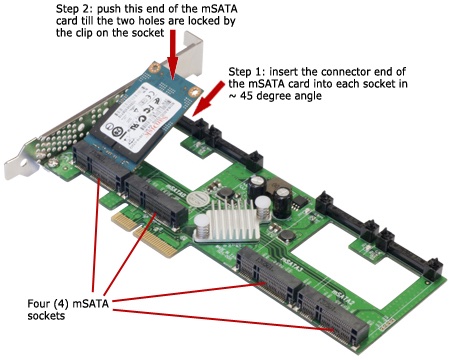
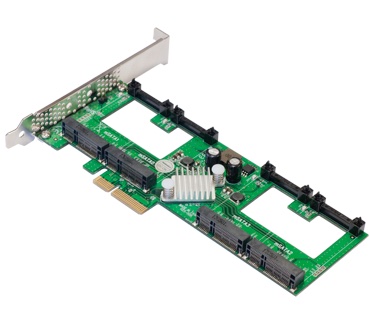
However, Addonics has announced a four bay PCIe card which will accommodate up to 4 mSATA SSDs using just one PCIe slot and here’s the best bit: it costs just $55! mSATA mini-PCIe SSDs cost 10% more than the regular SSDs used in the Apricorn but given that two Apricorn Duos would cost $300, the net cost for like capacity is a good deal less using the Addonics card. (The even faster Samsung/Apple long ‘blade’ type SSDs deliver a reported 1400 mb/s, but cost $700+ for a 1TB stick and are limited to one stick per PCIe slot – those are not addressed here).


The Addonics Quad mSATA PCIe card.

I have ordered one card ($66.41 shipped to CA) and four of these from Amazon at a cost of $423.80. My total cost for the card and four mSATA SSDs was $490.21:


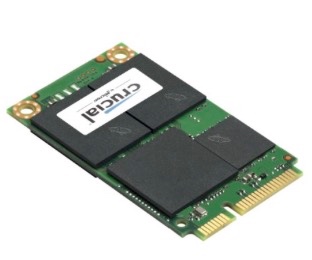
Crucial 256GB mSATA blade SSD.

For those interested, the flash chips in Crucial’s mSATA cards are made by Micron.

Here’s an mSATA drive being installed:

The flexibility is great here, and note that 4 x 250GB in RAID0 will be faster than 1 x 1TB unRAIDed.

The beauty of this approach is also that the Addonics card will only take up one PCIe slot and as cMP users know, PCIe slots are rare as hens’ teeth in these great machines. Slot #1, the double width one, is dedicated to the GPU, leaving just three slots. One of those is used by an USB3 card, so things are getting a bit slim, especially is you use sound processing cards.

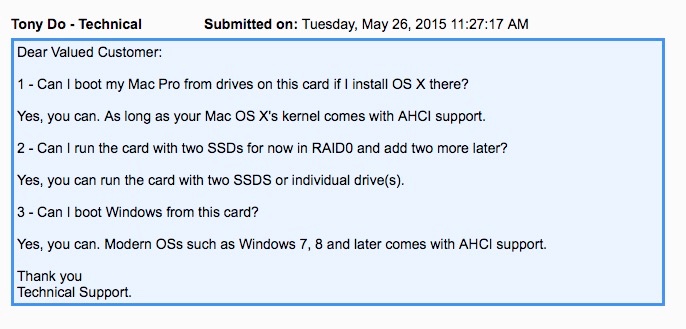
Before committing to purchase I took the precaution of asking Addonics some questions – those, with their techie’s response, appear below:

For the benefit of those who do not speak geek, ‘AHCI support’ is geek for ‘any version of OS X or any Windows Vista or later’. So that’s great. You can use the Addonics with just one drive, adding more later and you can boot OS X from it. What you do with Windows on it is of zero interest to this writer.

Installation:

Installation of the mSATA SSDs in the Addonics card is, literally, a snap. After inserting the card in the connector, it is snapped down onto two retaining posts. The miniscule retaining screws provided are mercifully unnecessary. (Update: Addonics has gone backwards in it’s latest variation of this card – the one now linked – and requires the use of the miniscule screws provided to retain the mSata card. Use a magnetized screwdriver if you want to retain your sanity).


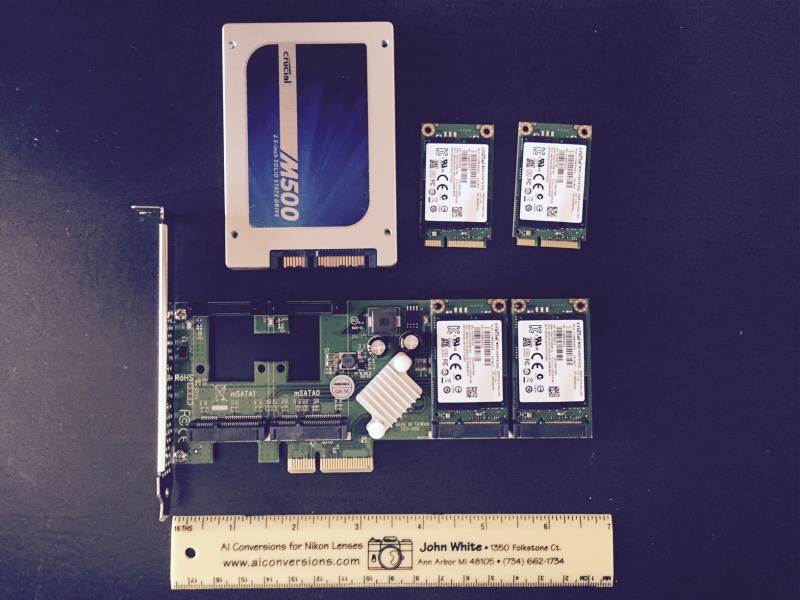
Traditional 2.5″ SSD for comparison – 2 of the mSATA drives are installed here.

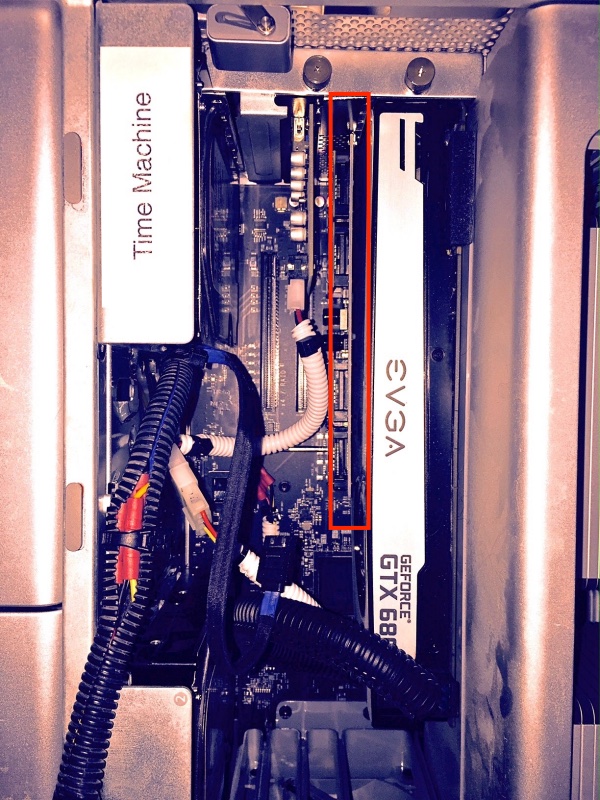
Inside the Mac Pro the Addonics card is notable for its slim profile, which helps in keeping the airflow to the graphics card on the right optimized:


The Addonics is in the red rectangle. The card is short and does not interfere with the PCIe fan.

RAID0:

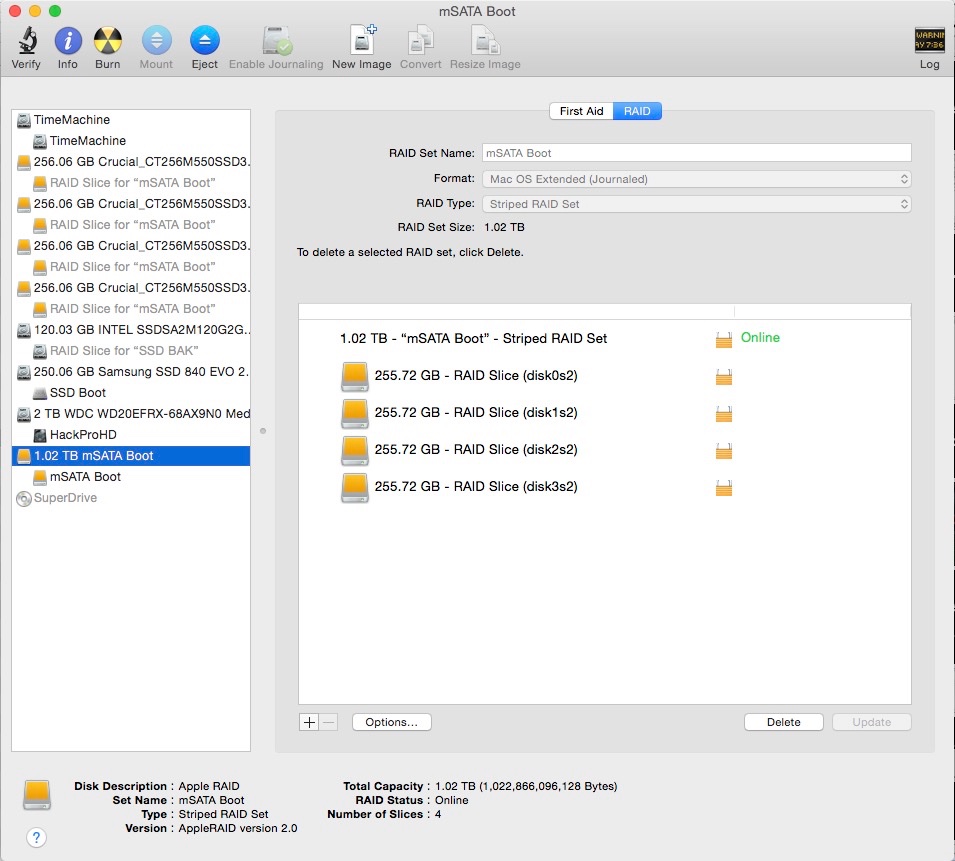
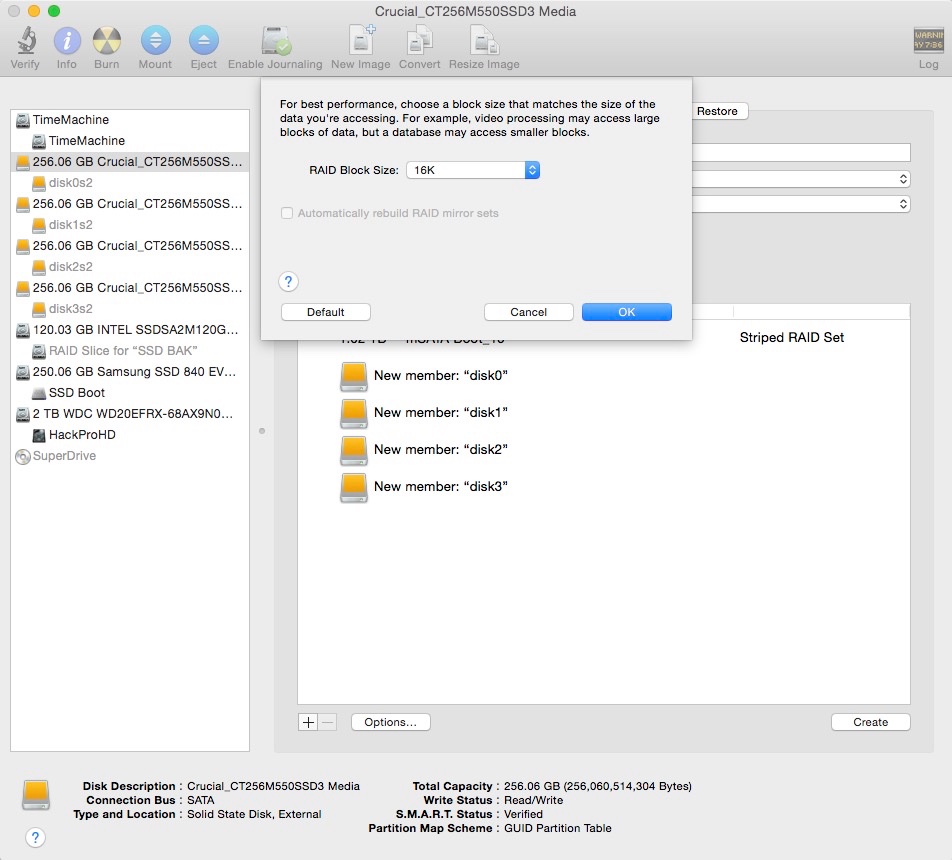
Disk Utility is used to set up the striped RAID0 sets:


2 striped disks seen as one 512GB drive.


4 striped disks seen as one 1TB drive.


How to vary stripe sizes – the narrative is clear.

Should I use TRIM?

These SSDs do not support TRIM as shipped but tools like TrimEnabler can add it. I used to install TE on my 2.5″ SSDs without much thought, which is wrong.

TRIM, which performs garbage management, is slavishly adopted by many to cure what ails SSDs, though finding analytical writing on the benefits of TRIM is much harder than just jumping to the conclusion that it’s required.

One interesting site frequented by industrial users and database administrators suggests there are more problems with TRIM than there are benefits so I have opted to not install TRIM for these mSATA SSDs. Much more hard data is needed here.

Further, in a year or two I expect that 2 and 4TB SSDs will be selling for what 0.5TB and 1TB ones are today, and I very much doubt I will have stressed the disks’ garbage sectors when it comes time to upgrade.

Boot speed:

My Mac Pro variously has 48 or 64GB of memory installed (6 or 8 sticks). That is germane to boot times as all that RAM has to be checked by the OS as part of the start-up cycle – the more memory, the more time. My machine takes maybe 20 seconds from power-on to the start-up chime and another 15-20 seconds (dual 3.06GHz CPUS) from the chime to the login screen. If yours is taking much longer, I recommend doing both SMC and PRAM resets.

Test data:

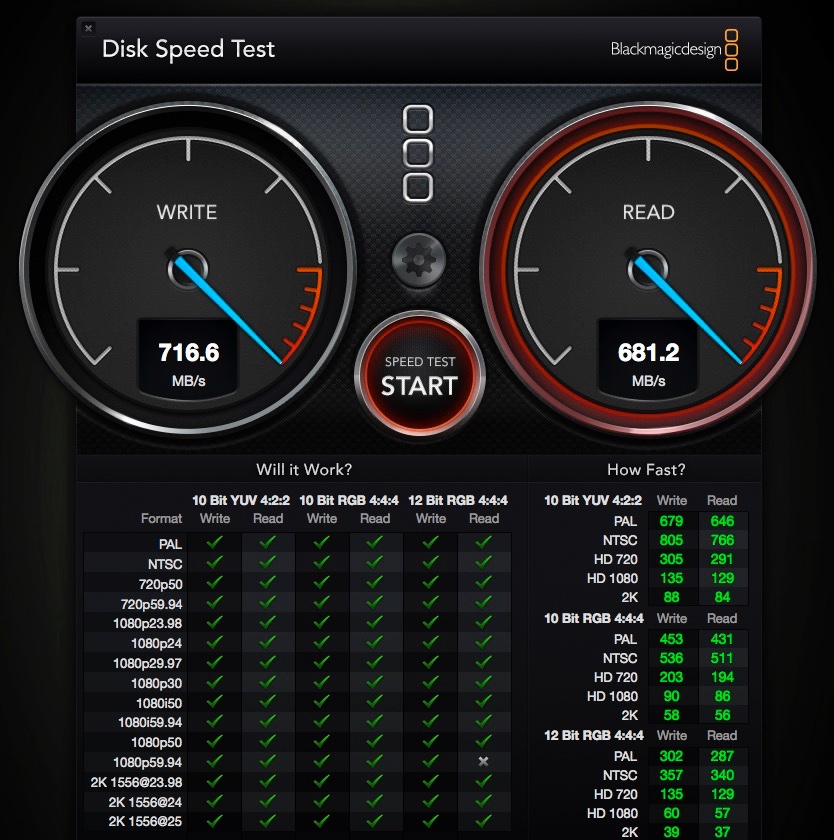
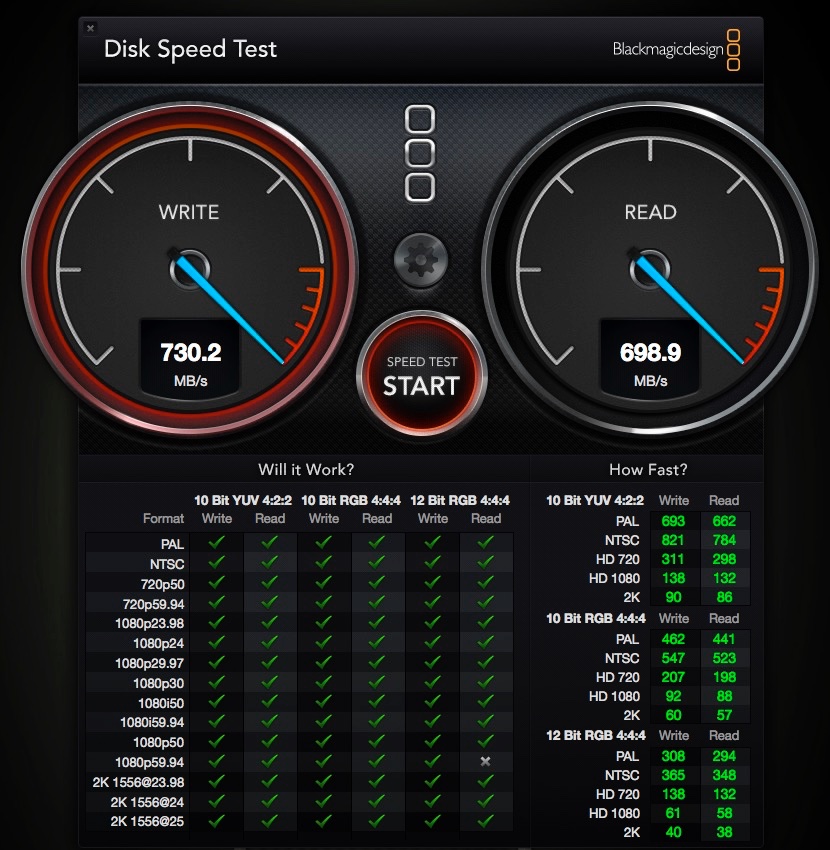
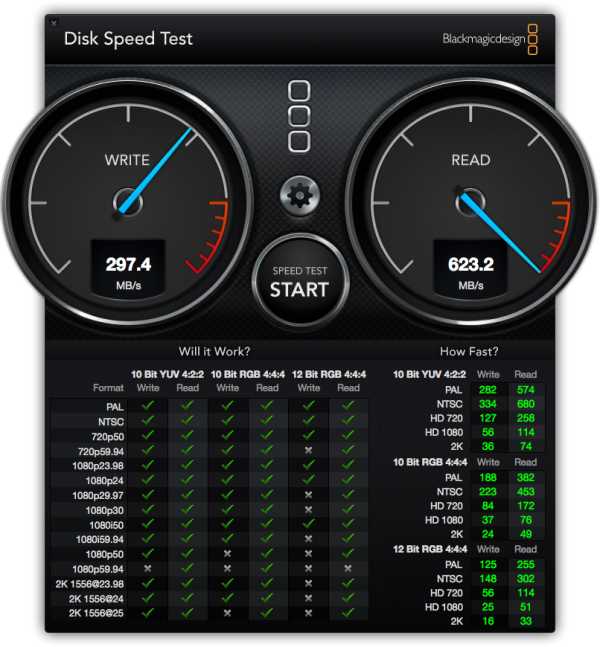
In practice, DiskSpeedTest speeds are very high and the other advantages of the Addonics – slim factor promoting ventilation, only one PCIe slot used for two RAID0 drives, ease of installation – are icing on the cake; further, I have increased the space available for scratch disks, after duly repointing Photoshop to the new mSATA RAID0 striped pair, as well as freeing up drive slots elsewhere inside the Mac Pro’s chassis:


Two drives in striped RAID0 with Stripe=32


Four drives in striped RAID0 with Stripe=16.


Four drives in RAID0 with Stripe=16

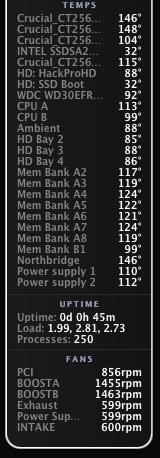
The temperatures below were measured during a clone of the OS and apps from my former boot drive. The first two hot mSATA drives are the ones being written to by CarbonCopyCloner, the other two are dormant. The latter will become a RAID0 striped pair to backup to OS and apps. All these readings are very conservative


mSATA drive temperatures.

Technical note:

The Addonics Quad mSATA PCIe card uses the Marvell 88SE9230 chipset which is limited to PCIe two lane speeds and thus maxes out at a 700mb/s transfer speed. One day maybe someone will make a four lane cards and we should see closer to 1400 mb/s.

Booting and partial slot use:

I confirm that Addonics’ responses, above, are correct. Once I had used CCC to clone over my OS and apps, I set the new mSATA RAID0 drive up as the Start-up Disk in System Preferences, and the Mac Pro restarted from it first time. After now many dozens of boots (July, 2015) I have never experienced a refusal to boot.

I also confirm that not all the four slots on the Addonics card have to be populated. The card was happily recognized by OS X Yosemite 10.10.3 with either two or four mSATA drives installed. I did not test with one or three, but as Disk Utility discloses four individual drives, that should not be a problem.

Smart Reporter:

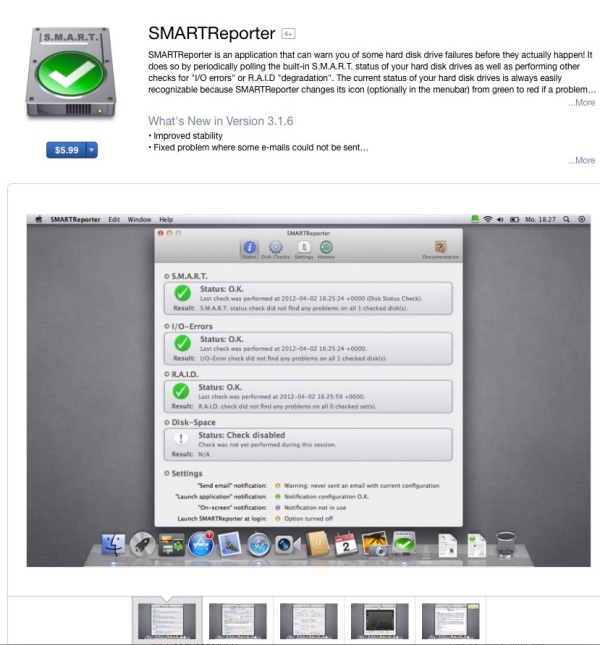
This useful utility, which keeps an eye on the health of your disk drives, needs updating at the AppStore, for all of $6, to monitor the health of your mSata drives:


Version 3.6.1 of DiskReporter.

After the Addonics upgrade:

Here’s my desktop now – two mSATA SSDs (comprised of two paired RAID0 SSDs each), a large HDD data drive (the legacy name dates from my Hackintosh days!) with a like backup and a TimeMachine versioned HDD:

If you change drive names, be sure to change your settings in CarbonCopyCloner and/or CrashPlan or your backups will fail.

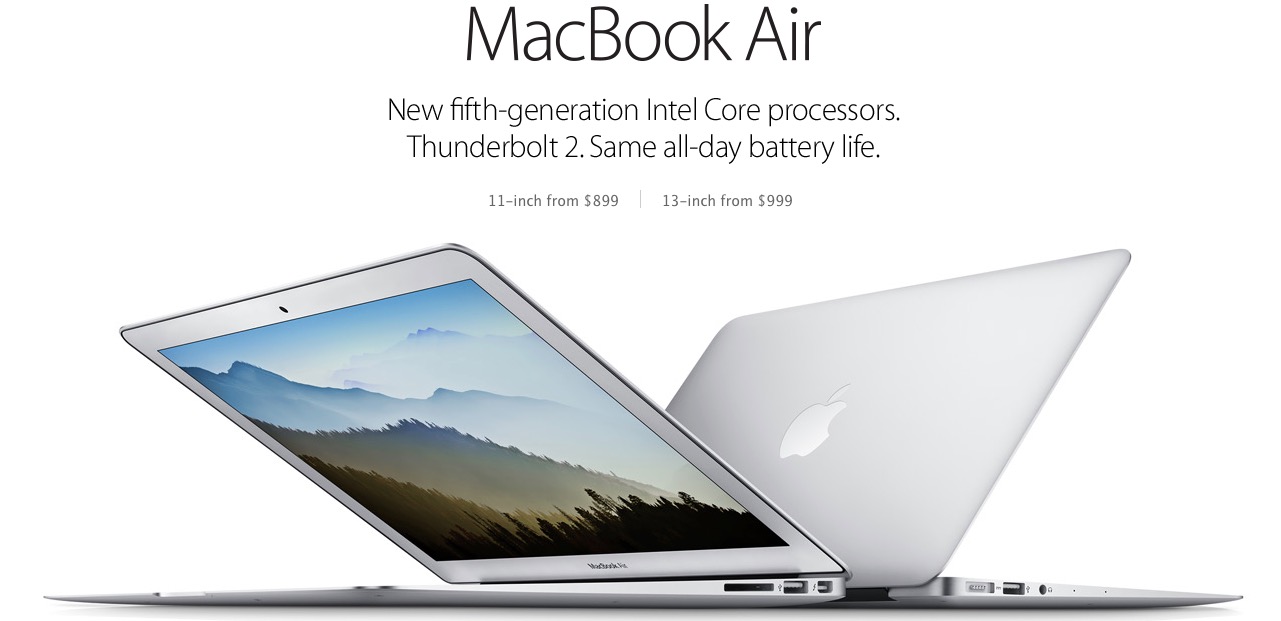
MacBook Air 2015

An upgrade which adds nothing to the 2014 model.

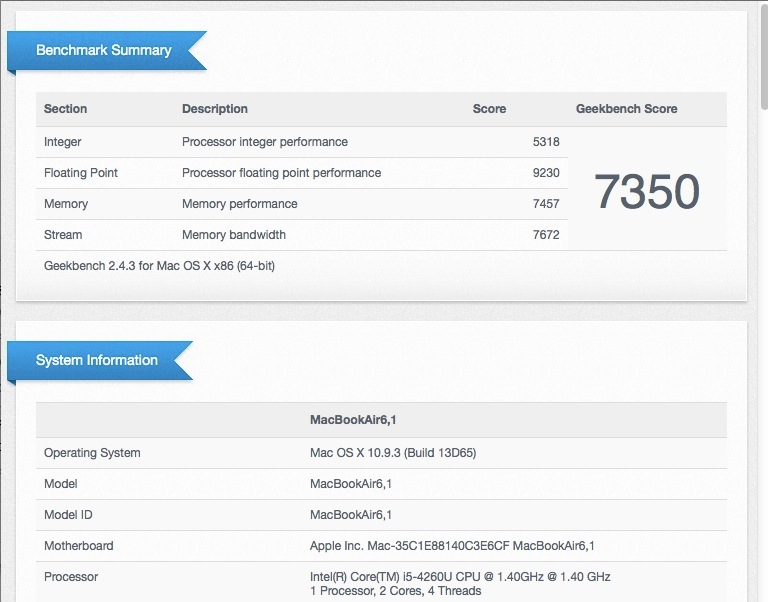
I just upgraded my 2014 MacBook Air to the 2015 model, an annual process for me, and question the value. The CPU speed bump this year is from 1.4GHz to 1.6GHz, a 14% increase yet Geekbench reports only a 4.1% speed gain. I paid $830 at B&H for the base model, with free shipping. If you have a 2014 I would pass on this ‘upgrade’, especially when you realize the usual time wasting data migration frustrations you must endure. Keep the 2014 and spare yourself the smell of old socks emanating from the new one for the first couple of weeks of use, a ‘feature’ of almost every Apple device I have bought in the past many years.

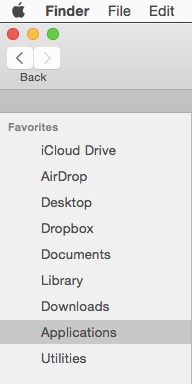
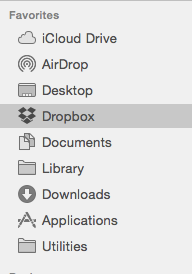
Finder icons? Something Apple has persistently ‘lost’ for the last few versions of OS X – they seem to come and go as they please:


Finder icons gone missing.

I much prefer TotalFinder which does it right:


Finder icons in TotalFinder.

CPU speed comparisons – Geekbench:

2015 compared with 2014 – a 4.1% CPU speed gain

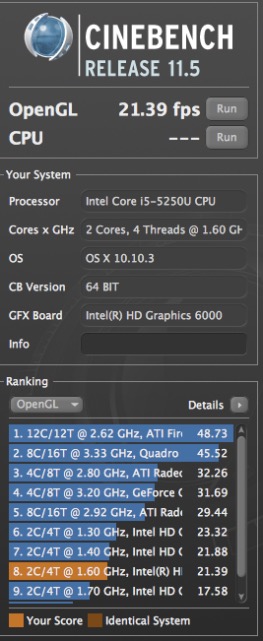
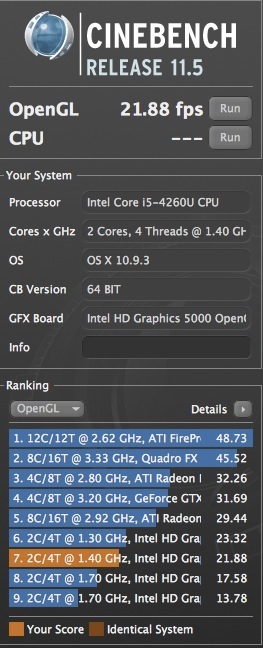
GPU speed? Despite the ‘upgrade’ from the Intel 5000 to the 6000 integrated GPU nothing has changed:


Cinebench GPU comparisons – 2015 vs. 2014 – no change.

Just more Apple hype. For reference, my 2009 Mac Pro which runs upgraded dual X5690 3.46GHz Xeon Wetstmere CPUs, chips which are now some 4 years old, clocks in around 32,000 on CPU performance and is twice as fast on GPU throughput.   Laptops still have an Everest to climb when it comes to CPU performance though the GPU in the MBA is excellent given the space limitations. 

However, if you are new to the laptop/notebook category, it has to be said that the MacBook Air remains the best value laptop for road use, is well made, weighs 50lbs less than a real Mac Pro and runs PS CS6 and LR6 just fine if not as fast as the behemoth. Depreciation is low and resale easy. For road trips it’s all you need. The absence of a disk drive is a welcome feature (the drive adds bulk and confers no functionality in an online world) and the speedy flash storage is a great feature. While the base model includes only 128GB that is more than enough for the machine’s intended purposes. The trackpad is perfect in every way and the quality of engineering, fit and finish are all unimpeachable.


Disk speed test – MBA 2015.

But, please, do not buy this nonsense:


“Repeat a lie often enough and the people accept it” – Goebbels

Thunderbolt? Of little use and a dying technology, but the Thunderbolt socket will accept a Mini DisplayPort cable and if you use the Apple Dual Link DVI->MDP adapter, you can happily power your 30″ Apple Cinema Display from the MBA at full 2560 x 1600 definition. The MBA’s GPU is exceptionally competent for an integrated design.

Other issues? The MagSafe magnetic power plug, in the current design, adopted four years ago, remains too weakly magnetized and falls out at the slightest provocation. The previous cylindrical design, replaced by the ugly cube one in use today, was superior in every way. But it’s not like you have a choice.

As for ‘all day battery life’ I have a bridge in Brooklyn I can get you a great price on, featuring ‘all day traffic’.

The MacBook Air commands an 80% of cost resale value after 12 months, which is outstanding, justifying annual upgrades – a new machine for $100 or so. I know, as I just sold my 2014. Try those economics with your garbage Windows laptop playing in a crowded field along with its atrocious OS and crapware.

For comparative data on the 2014 MacBook Air click here.

Recommended with the conditions noted.

Comparison with the new MacBook:

I have not tried the new MacBook – you know the one that dumps the ‘insanely great’ Thunderbolt port and MagSafe power connection, in favor of yet another connector, USB-C, so now when you trip over the cable your laptop goes crashing to the floor like the MacBook of old, that oldie with the white plastic body. But Marco Arment, a reputable Apple writer has, and his review sums up the general trend in Apple’s hardware (new Mac Pro anyone?) well. He writes:

“Now, Apple’s priorities have changed. Rather than make really great products that are mostly thin, they now make really thin products that are mostly great.


This concerns me more than you probably think it should. Not only does it represent compromised standards in areas I believe are important, but it suggests that they don’t have many better ideas to advance the products beyond making them thinner, and they’re willing to sacrifice anything to keep that going.”

And it seems like the CPU is a bit of a basset hound in the speed stakes and the GPU is one generation behind the one used in the 2015 MBA review above.

To address Arment’s issues with the new MacBook, the 2015 MBA like its predecessors has an outstanding keyboard with excellent feedback, and the ‘force touch’ track pad is notable for its (welcome) omission. In other words, the MacBook’s failings are absent from the MBA.

Guess I’ll be sticking with the MBA for a while yet. I do not think the premium $450 for a bad keyboard and worse trackpad quite works. That’s a shame as the 12″ MacBook is lighter that the 11″ MBA, but it seems that Jony Ive’s thinness obsession has gone too far yet again. Did the lad not get three squares a day when designing toilets in his youth?

Apple Cinema Display – Part XXVII

30 diagonal inches of goodness.

For an index of all my Mac Pro articles, click here.

December 2019 update: My beautiful, hard working Apple Cinema Display expired after a hard life of over 10 years. It has been replaced by a BenQ PD3200Q 32″ which delivers similar quality at a $400 cost. I cannot recommend purchase of a used ACD. These are now very old and parts are no longer available. They did look beautiful though, unlike the ugly, industrial-looking replacement.
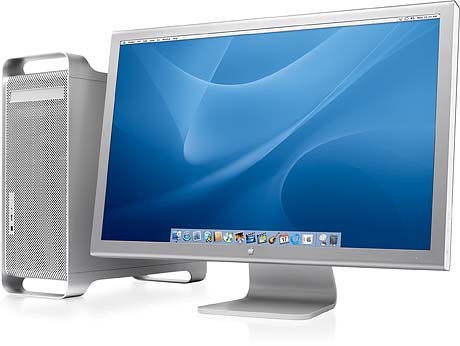

The magnificent Apple 30″ Cinema Display, next to a G5 Mac Pro.

For the last 5 years I have been happily using three Dell 2209WA 20.5″ 1680×1050 matte displays. Not the last word in definition and size, certainly, but workhorses which have proved tremendously reliable, with no dead pixels or fading. There’s a handy dead pixel set of test screens here.

Today I replaced the center one of the Dells with a 30″ Apple Cinema Display (2560 x 1600, it’s actually 29.5″ diagonally, not the claimed 30″) and it’s better in every way. With twice the display area and better definition, it’s a dream solution for demanding photo and video editing, and it was the latter which attracted me. iMovie is pretty tough to use on a 20.5″ screen and pretty much impossible on a laptop display.

The weight and dimensions are: 27.5 lbs., 21.3″ H x 27.2″ W x 8.46″ D. The panel itself is 1.80″ thick.

Two versions:

Apple sold two versions of the 30″ ACD. Through March 27, 2006 the maximum brightness was 270 cd/m² and the contrast ratio was a maximum of 270:1. Thereafter these were increased to 400 cd/m² and 400:1, respectively. You can check the age of the display by inputting the serial number, found on the base of the support foot, into any number of online services which give the age of an Apple device based on the serial number. In practice the enhancements in the second version are of no use – you will never want to run the display with brightness anywhere near 270 cd/m², let alone 400. 120 cd/m² is what is needed for photo processing. And contrast (found in System Preferences->Accessibility) is set well below the limit unless you are vision impaired.

Later Apple displays:

Apple’s display philosophy has been all downhill since the ACD was discontinued in July, 2010. On desktop displays they migrated to the ghastly, glossy screen 27″ LED display, with its poor ability to turn down brightness (always too bright) and there’s nothing good about the glossy screen. A like display is found on current iMacs and it’s every bit as unsuited to photo editing. The discontinued 30″ ACD came with a matte screen IPS display only and has a large adjustment range for display brightness. Dell makes a 30″ display for $1100 or so, but there are many reports of poor quality control, a Dell specialty. Let’s be honest here – they are ugly.

Procurement:

I live in the Bay area, adjacent to Silicon Valley, and there are many of these for sale locally, which is how you want to buy to avoid the risks of shipping and the even greater risks from lying sellers. Mine came boxed and mint from the original owner, an amateur user, and has had an easy life. A quick check confirmed the absence of any fading or dead pixels and, at $400 on Craigslist, was priced at the low end of what these go for, complete with original box. Nice. These originally sold new for $3,300, and some $1,800 when discontinued, confirming that pot smokers abound as much in Cupertino as they do in Apple’s customer base. The most likely failure point is the separate power brick and new ones can still be had for some $185. Jump to the end for other parts sources and repair instructions.

Ergonomics:

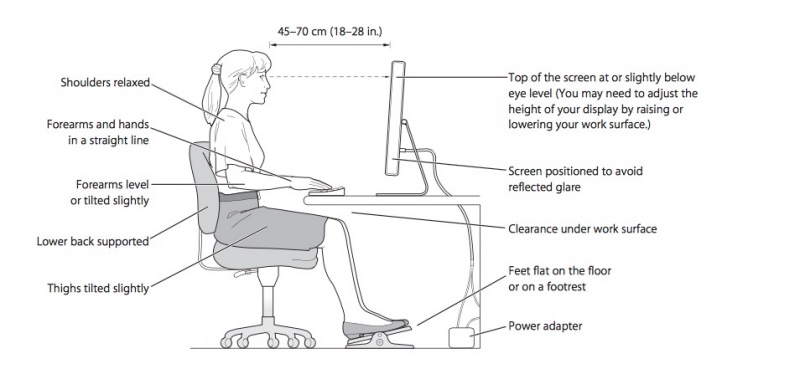
With a display this large, ergonomics become important. Apple’s instructions do an excellent job:
How to get 2560 x 1600 definition:

My first ACD came with both a DVI (dual link) cable and a MiniDisplayPort adapter – the latter is generally missing. I dispensed with the MDP adapter (sold for $50) and connected the ACD directly to the dual link DVI socket (one plug goes in that socket, despite the name – it’s the DVI connector with no pins missing) on my Nvidia EVGA GTX680 graphics card. A separate but integrated USB cable attaches to your Mac Pro to provide power for the two USB2 sockets on the rear of the ACD – useful for powering a colorimeter or microphone, say. Use the included MDP adapter in your Thunderbolt socket on a MacBook or MacBook Air, and it works fine. The current Air uses the excellent integrated Intel HD 6000 GPU and drives the ACD fine. There are also two Firewire 400 sockets on the rear of the display, yet another connection technology sponsored, then abandoned, by Apple. They are useless – USB3 is faster in every way. Note that the USB sockets on the rear of the display will only support USB2, even if the cable at the computer end is connected to a USB3 card.

To enjoy the maximum 2560 x 1600 pixel definition of the 30″ ACD you must use either a dual-link DVI cable (DVI-I or DVI-P) or the Apple dual-link DVI to MDP adapter. If you use single-link DVI to MDP adapter you will be limited to 1920 x 1200 when used with an MDP or Thunderbolt socket. If you are lucky, that is. 1280 max on the long side is not unknown. The premium for a dual-link DVI cable over a single link one is pennies. However, for MDP users the premium for the proper dual-link DVI adapter is substantial.

Here’s what the DVI variants look like:
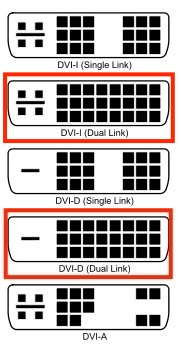

The ones in the red rectangles are what you need – either works.

Issues with the MiniDisplay Port adapter:

The dual-link DVI adapter must be used with computers or graphics cards where either a Mini DisplayPort or Thunderbolt socket is the only connection available on the computer. Typically such an adapter is required with the MacBook, MacBook Pro or MacBook Air. Thunderbolt is a superset of MDP, meaning that MDP works fine when inserted in a Thunderbolt socket but a TB plug will not work in an MDP-only socket.

Here’s the Apple Dual-link DVI to MDP adapter:
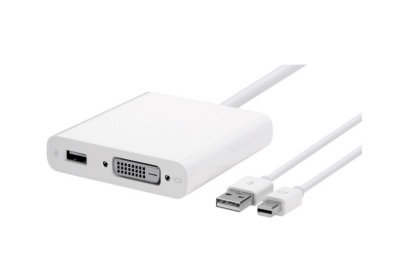
There were four versions of firmware installed in this adapter and you need the last – Version 1.03 – if you have a flickering image or ‘wake from sleep’ issues. You can check your firmware version here:
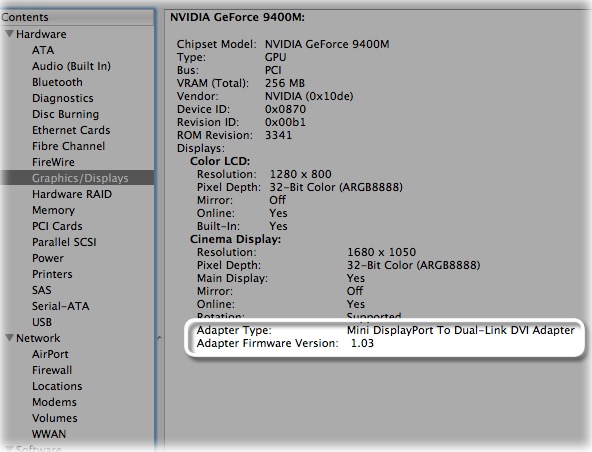
Click the image for Apple’s site.

I do not know of any method of burning the latest firmware into an older adapter. It looks like replacement is in order if yours is below firmware version 1.03 and you have issues.

Early reviews suggest these adapters were suspect, seemingly fixed in later production – likely related to the firmware upgrade. Not cheap at $99. Mine works fine with 2013/2014/2015 MacBook Air laptops – the adapter’s plug fits in the Thunderbolt port on the MacBook Air (and on the like port on the MacBook Pro). The USB cable shown in the image above is a pass through to allow function of the USB2 sockets on the rear of the ACD.

Profiling:

Amazingly, my EyeOne Display colorimeter’s software, last released when OS Lion (OS 10.7.x – Yosemite is 10.10.x) was current, still works in Yosemite 10.10.3 (XRite’s latest download for Mavericks does not work with Yosemite on my Mac Pro) and it was a matter of moments to calibrate the ACD.
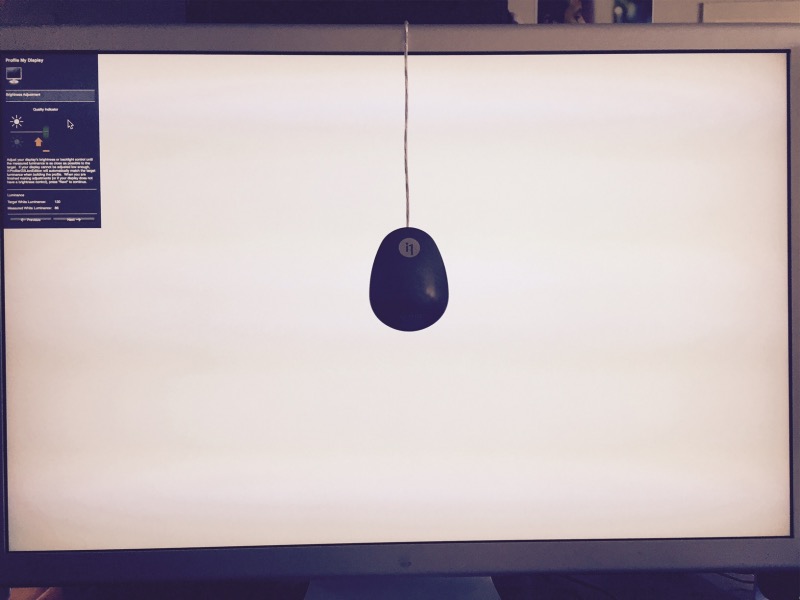

Calibrating the ACD takes a few minutes.

The display brightness is easily turned down to 120 cd/m² using the beautifully engineered electrostatic touch buttons on the side:
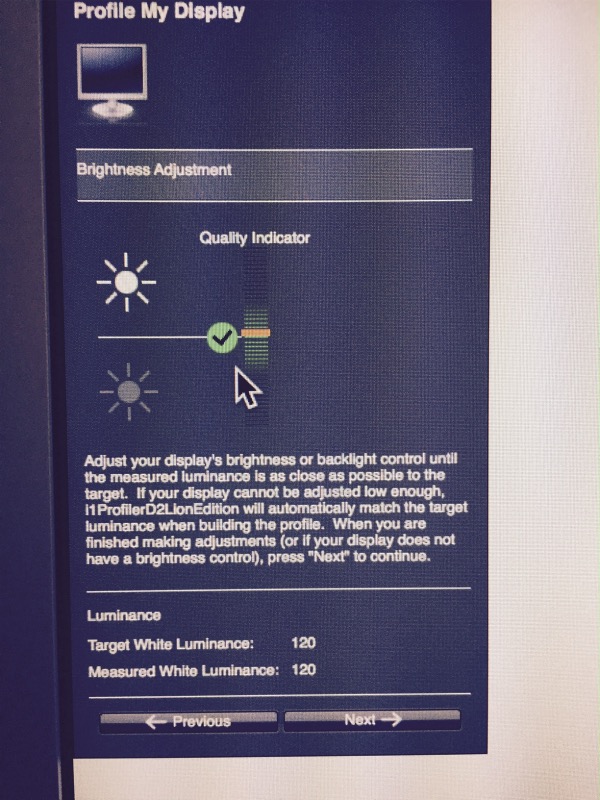

120 cd/m² is all you need. Every modern Apple display is too bright at its minimum setting.

If your touch buttons are faulty – they have been known to fail with age – you can adjust brightness in System Preferences->Displays and the display can be put to sleep using OS X (Apple Menu->Sleep or hit Option-Command-Eject). Contrast is adjusted in System Preferences->Accessibility->Displays, of all places.

The maximum brightness of the ACD is no less than 400 cd/m² (270 cd/m² on earlier models), which is ridiculous. A veritable blitzkrieg of energy of use only in a brightly lit showroom, also known as The Apple Store, and a capability happily emulated by a cynical Apple in later, less competent designs.

Performance and quality:

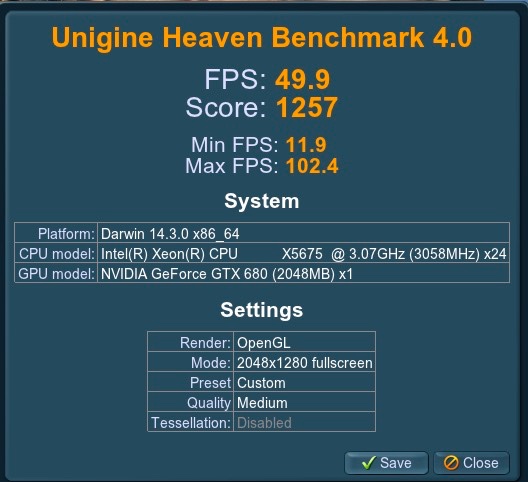
Performance with the GTX680 and Unigine Heaven at 2048 x 1280 is as follows:
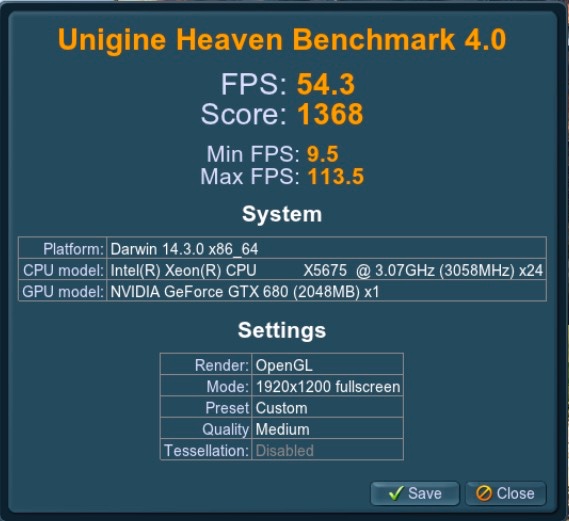
At 1920 x 1200 it is:
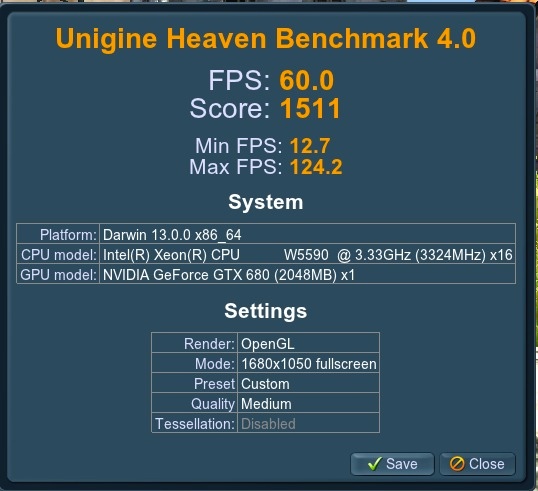
Here are the like data for the Dell 2209WA – the ACD has 2.3x the number of pixels..
If higher framing rates are required, a near doubling of throughput can be accomplished by upgrading the GTX680 to the later GTX980, which runs some $550.

Quality of construction, fit and finish are in a different league from anything Dell makes – think Lexus, not Chevy. The display is tall and I dispensed with the stands used with the Dells:
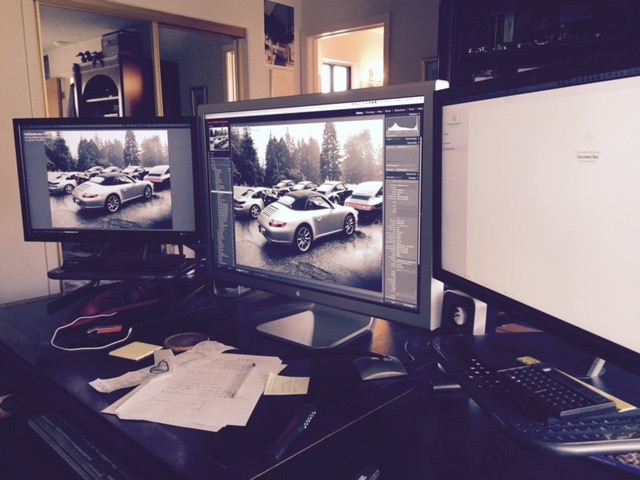

No stand needed. Running LR6 here.

Font sizes and resolution can be easily adjusted. I find the font size at 2560 x 1600 a tad too small for comfort and prefer 2048 x 1280, which can be dialed in using the System Preferences->Displays panel thus:
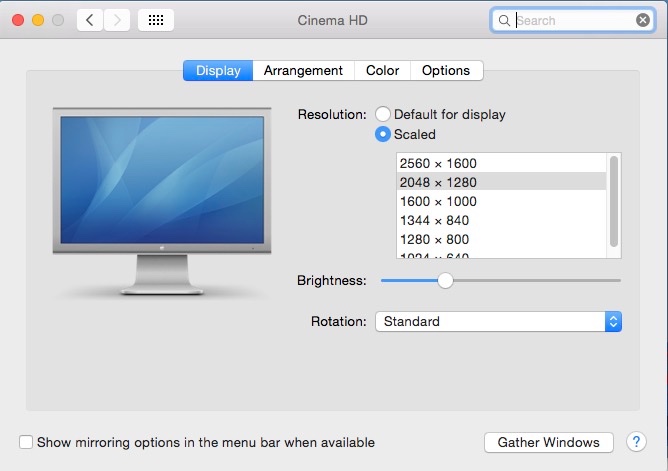

Adjusting resolution and font sizes.

The gain in font size is a worthwhile trade off against the slightly lower resolution in my case.

Go into System Preferences->Displays->Options and you can control the behavior of the three right side electrostatic buttons – two for brightness, one for power. I have the former enabled but the latter disabled, as I only ever put my system to sleep, never turning it off (why would anyone want to do turn off their Mac Pro?):
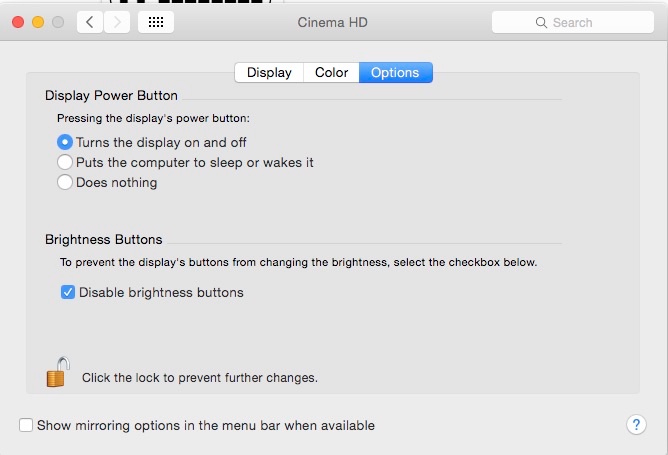
The gain in screen real estate is compelling, the quality excellent. The aspect ratio is the same 16:10 of the Dells, far preferable to the 16:9 in most current displays, allowing placement of the ‘pop-up on cursor hover’ app icons at the base of the screen. For wall mounting the stock foot is easily removed with a 3mm Allen hex wrench, and replaced with a VESA adapter with 100mm (3
.94″) spacing for four screws to attach to your wall mount. The original Apple part number is M9649G/A and you can pay $300 for a used one. Don’t be stupid – get a knock-off.

Famous users!

And if you migrate to the 30″ ACD, you will be in the good company of a distinguished AAPL board member:
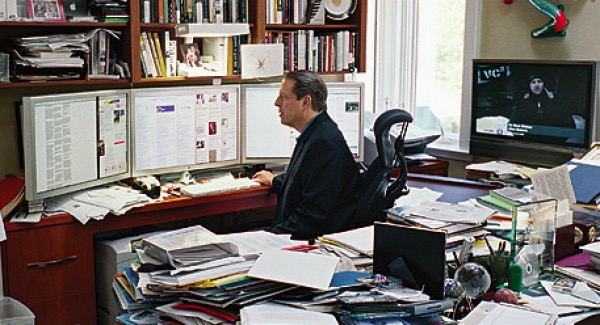

Al Gore with his three ACDs. Looks like some filing is in order here!

4K?

4K, you say? Fughedaboutit. Not ready for prime time – wait for standards to settle and for silly-high prices to drop. How can a 4K computer display cost four times as much as a like-sized 4K TV set?

UHD 3440 x 1440 displays?

Use with multiple UHD displays is addressed here. These are a cost effective solution when lots of screen real estate is required.

Use with the Nvidia GTX980 GPU:

I’m using my two displays with an Nvidia GTX680 card and both will run simultaneously at 2560 x 1600, the highest resolution available. Each is connected directly to one of the two DVI sockets in the GTX680 using the stock Apple cable – one to the DVI-I socket, the other to the DVI-D. No adapters required.

The state-of-the art in Mac Pro GPUs is the later GTX980 card which aftermarket vendors can flash for you so that the boot screen is visible. The card will run at PCIe 2.0, which is the Mac Pro’s limit, whether flashed or not. The Mac Pro does not support PCIe 3.0 which the GTX980 includes. The GTX980 is 50-100% faster than the GTX680.

The snag with the GTX980 (I have examined Asus, EVGA, Gigabyte, MSI, PNY and Zotac variants) is that all but the following come with just one DVI socket, three DP sockets and one HDMI. These are the exceptions which come with two DVI sockets:

All the versions linked above have two DVI, one DP (or more) and one HDMI which is the best solution for HD dual display users. The performance differences are minor (I illustrate the two EVGA cards, below; the Gigabytes’ differences are comparably small) so I would buy the cheapest you can find:
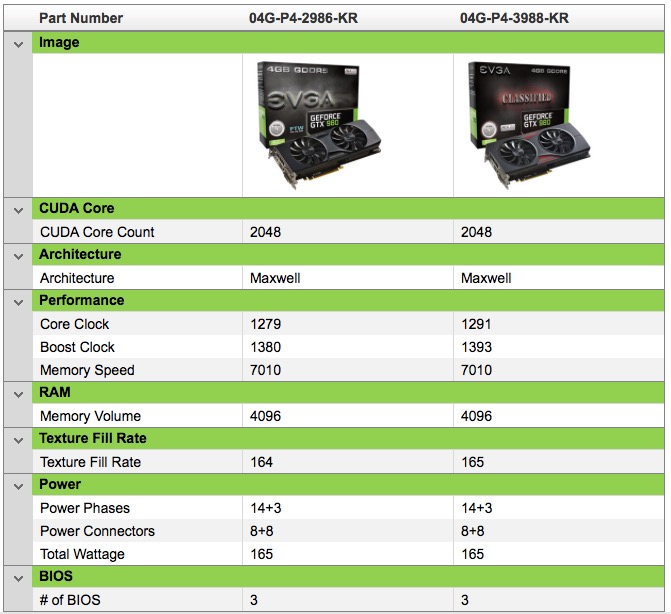

Performance comparison of the two EVGA dual-DVI GTX980 GPUs.

The two EVGA cards with dual DVI sockets both have 8-pin auxiliary power sockets, whereas the Mac Pro uses 6-pin plugs. Thus you will need to use two 6-to-8 pin adapters to power the card.

If you propose using any but one of the GTX980 versions above with two ACD 30″ displays you will need to adapt one of the ACD’s sockets to DVI using an adapter like this Dell active adapter. A passive adapter maxes out at 1920 x 1200; the active adapter adds a USB cable which provides the necessary additional 5 volt source to deliver the full 2560 x 1920. As Amazon reviews disclose, the reliability of these adapters is all over the place so if you need GTX980 performance with dual 30″ ACDs, I recommend you search out one of the GPUs with dual DVI sockets above and avoid the use of any adapters. Have the card flashed if you really need the boot screen. Further the triple DP cards use a mix of auxiliary power sockets – some have dual 6-pin (no adapters needed), others have a 6-pin and an 8-pin (one adapter needed). Be sure you have the right adapters and power cables.

Moom:

It bears repeating that Moom, which will place all your windows just so on those acres of display space, is a recommended app. You set up your windows then tell Moom to save the settings. Thereafter recreating the set up is a couple of mouse clicks away. More here.

Update – a second 30″ ACD:

I added a second 30″ ACD, this one running me just $300 and another local purchase, nearby. In mint condition, the geeky seller even threw in a spare wiring loom/chassis (sold for $50), though the installed one is just fine. It’s good to buy from geeks – they tend to care for their hardware. A touch of superglue fixed a small crack in one of the power plugs and she’s as good as new. My PC GTX680 GPU which has been flashed to show the boot screen (though flashing does not affect the functioning of the card as regards dual displays) happily drives both displays using the DVI-D and DVI-I sockets on the card. Both DVI sockets are dual link (no pins missing); all the DVI-I one adds is the ability to also drive ancient analog displays – both sockets drive digital displays like the ACD just fine.
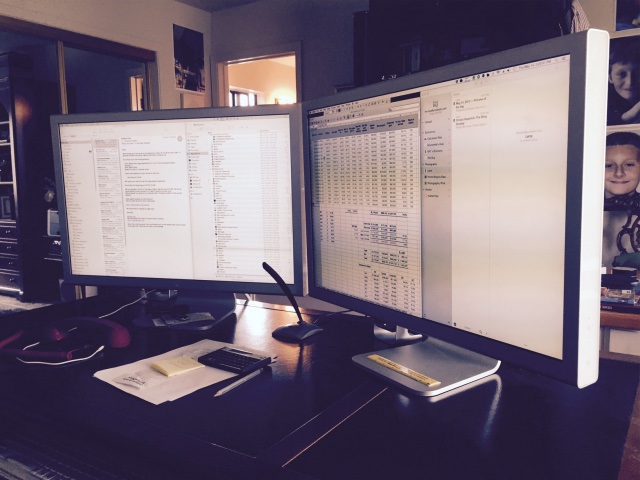

If one is good, two are better!

Apple’s mindless OS X ‘upgrades’:

Mavericks (OS 10.9) finally added a long wanted feature for multiple monitor users on OS X. Multiple monitor support for the menu bar. Trust me, with two 30″ displays you want a menu bar on each. OS X had always supported multiple monitors but you could get the menu bar on one monitor or the other – not both. If you used three then only one could show the menu bar until Mavericks came along. It was well engineered. The menu bar appeared bright at the top of the active display, slightly dimmed on the other(s). If you use a disappearing dock, the dock would appear when cursored-over on the active monitor. Drag an app window to span both monitors and all was well, as they were displayed across the two – and a great, quick visual check on the accuracy of your profiling with instant disclosure of profiling differences.

But it wouldn’t do to leave well enough alone now, would it? So Yosemite adopts a ‘phantom’ partial app window – drag a window across and whichever display has the greater area shows that fractional window in normal form, the other shows it ‘ghosted’. Release the mouse pointer at this point and you only see the fractional window on the dominant display. Useless.

But you can revert to the old proper split display functionality by going into System Preferences->Mission Control and unchecking the box below:
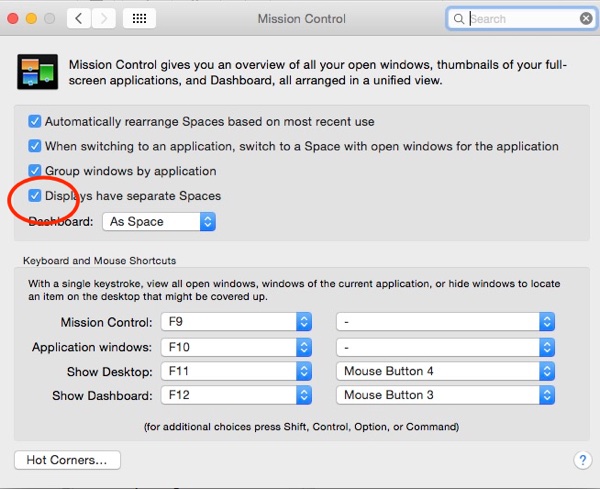

Permitting split screen app window display – uncheck the box.

But …. you now lose the menu bar from the second (and third) displays. Ugh! It’s a mess. How hard can it be to call a working pro, asking what he wants, and fixing one line of code? Another indication of Apple no longer caring about the professional marketplace.

To reduce the irritating default translucency of the menu bar (what idiot thought of that – a 12 year old? The jerk doesn’t even know the difference between transparency and translucency. Move him to watch band design ASAP, says I) check the box below in System Preferences->Accessibility (a location which takes the ‘illogical placement of the year’ award – what’s wrong with putting it in General or Displays?):
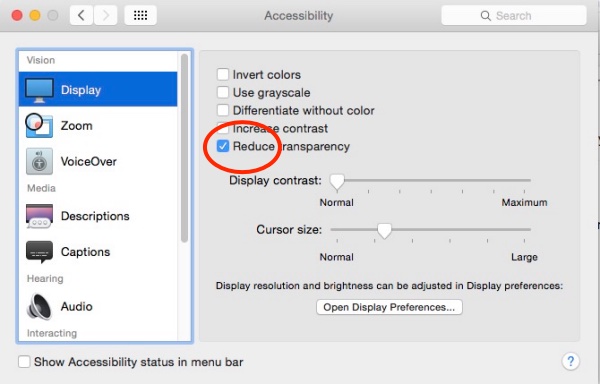

Reducing the silly default menu bar translucency

Repairs:

We live in a throwaway society. American labor is so costly that fixing things rarely makes economic sense, and Apple sure as heck will not fix your obsolete 30″ ACD. But as the alternatives are ugly Dells or costly 4K monitors, assuming you do not want Apple’s glossy Thunderbolt display, I contend that fixing these makes sense and the economics solve if you are DIY-minded.

Thus here are some links which will prove of use as these 5-10 years displays start displaying problems:

  • Disassembly: The ACD’s lovely alloy shell is ‘cracked’ and the innards extracted after pulling off the white plastic side panels and releasing some catches. Be careful, as the right side panel has an electrical connector which must be removed and will be damaged if you simply rip the panel off. Click here for instructions – those are for the 23″ ACD, but will work fine for the 30″ ACD as well.
  • Failed backlight: If the backlight fails, replacements can be found here. Generic LCD backlight replacement instructions are here.
  • Failed voltage regulator: Long-short-long flashes from the white diode on the front panel of the ACD and a dead screen denote a failed voltage regulator. The fix appears here. A replacement voltage regulator can be found here and costs pennies. The issue is more common with the 23″ ACD than with the 30″ version. An alternative fix is to use the beefier 150 watt power brick from the 30″ ACD with the faulty 23″ ACD, which ordinarily uses a 90 watt power supply, but as power bricks run some $150, I would rather replace the voltage regulator for 48 cents!
  • eBay regularly has auctions for ACDs with trashed screens. These can be had inexpensively and will likely serve as an inexpensive parts source.

Moniserv is an oft quoted repair place which should have new backlights.

With parts being so inexpensive, and given that the LCD screen itself rarely fails, it seems ridiculous to throw out a superb display when for a few pennies and some sweat equity it can be restored to perfect working condition. And after sale of my old Dells, my 30″ ACDs ran me just $125 each …. what’s not to like?

Replacement power supplies:

The 150 watt PSU runs $150 used and is known to fail. You can use this link to build your own for $20 or so. Another alternative appears appears here.
Wake up call

To Canon and Nikon.

Canon and Nikon, in their adherence to their DSLR flapping mirror upper-end camera bodies, are comparable to Kodak during its last decade.

Kodak, let us recall, invented consumer digital imaging but put it on the back burner as there would always be film. It had made them, all of Rochester NY and their many shareholders rich for a century. Why change now? The comparison with the head-in-the-sand behavior of Canon & Nikon with regard to upper end cameras is apt. Canon & Nikon know how to make mirrorless cameras but refuse to permit the technology to permeate to their top end offerings. Much more of this and their DSLRs will be to their future what film was to Kodak’s.

Now let us turn our attention to Apple. Miserable as some of their software efforts are – Photos (see yesterday’s column) or the incessant dumbing down of OS X with useless bells and whistles – no such accusations can be leveled at their hardware efforts. The MacBook is the best laptop on the planet, the Mac Pro is a high end workhorse and the iPhone is the touchstone for quality and performance in the cell phone world. And the iPhone’s camera is simply spectacular, improving significantly with every new iPhone.

Unlike Canon and Nikon and the Kodak of yore, Apple refuses to rest on its laurels. Recall a while back that Olympus emulated Hasselblad’s earlier efforts in multi-image digital photography, with the sensor shifted a pixel or two between images which are then superimposed for better quality. The Olympus camera, as my review here disclosed, the EM5 Mark II, is an ergonomic disaster and I returned mine 24 hours after receipt. But that in no way invalidates the concept.


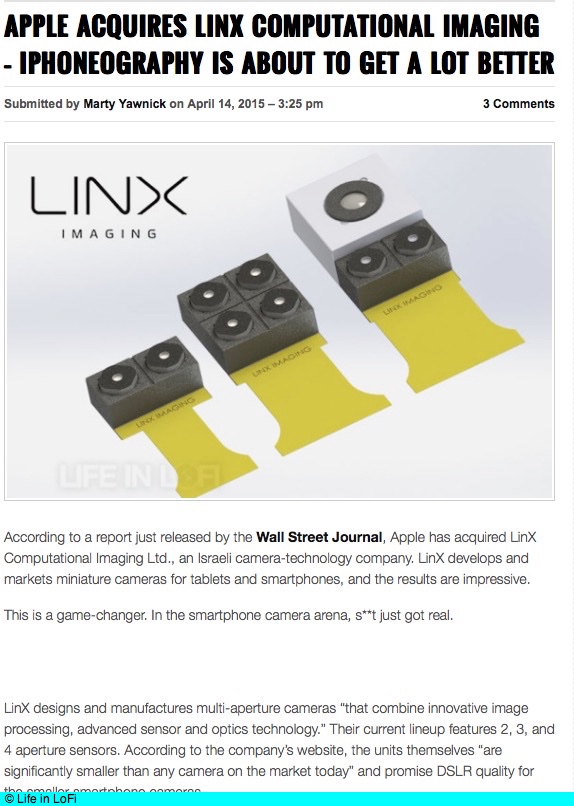
Click the image for the article.

Well, Apple has gone one better and acquired an Israeli company named LinX which adopts a like concept but takes advantage of the very small sensor size required by the iPhone and instead of using one sensor and multiple shots with pixel shifting uses multiple sensors with but one snap. Immediately the disabling aspect of the Hasselblad and Olympus designs goes away, namely that neither maker’s camera is suitable for photographing moving subjects, be it sports, people in motion or those swaying branches in the trillionth imitation of Ansel’s birches in Yosemite. Once the images are simultaneously recorded on the multiple sensors, they can be combined in software later. Brilliant and kudos to Apple for thinking well down the road and investing shareholders’ capital accordingly. Add folded zoom lenses, which use a mirror to avoid the depth demands of moving lens elements, and you have the death knell for the tired offerings of yesteryear from Canon and Nikon.

Will the annuitants wake up in time and change their ways? I think it’s already too late. The lead time and capital required to catch up with hardware leaders like Apple are too great. It’s all over bar the writing. Behemoths take a long time to die …. but in the digital world that is far less time than ever before. Just ask around in Rochester.

The Apple Watch

Ooops!

Google famously continues to waste its shareholders’ funds on quixotic efforts like YouTube and Google Glass. The last takes some beating. Maybe its key supporter, Mr. Brin, spent too much time in Russia as a youth, but a moment’s thought might have convinced him that the Average Joe did not want to walk around with a camera stuck to his glasses, looking like nothing so much as Homo sapiens cyborg. At least not in the free West. The wearer of Glass made the paparazzo with his 1,000mm spy lens look a positive model of integrity by comparison.

And speaking of homo, Apple has decided to mirror Google’s failure with one of its own, the Apple Watch.


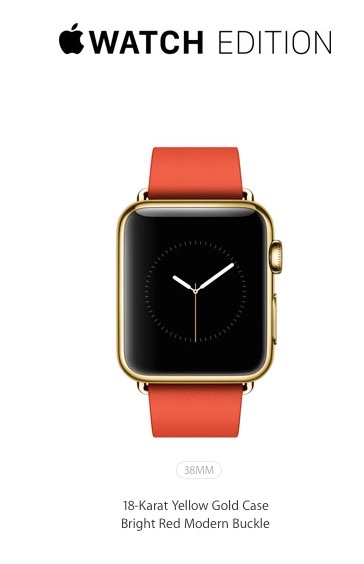
The $10,000 version.

While none other than Tim Cook has pointed out the failures of Glass, he has failed to realize that like accusations are equally valid when it comes to the Apple Watch (no, I will not drop the preposition – the Queen’s English is spoken here). The very idea of speaking into your wrist suggests the speaker is connected with some nefarious organization, be it CIA, FBI, NSA, Secret Service or private dick. All that’s missing is one of those silly coiled cords from ear to shirt collar to complete the picture.

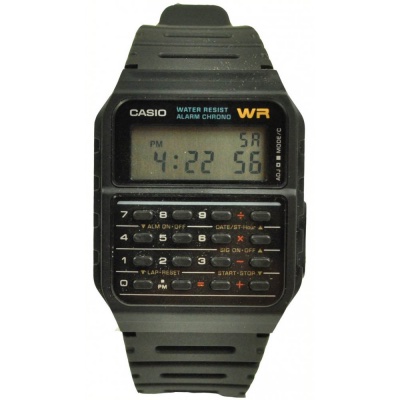
But, OK, you say, I’m not going to talk into my watch. I want fast access to things on my iPhone. Well, let me assure you, access will not be fast. There is no pinch-to-zoom function on the watch so you resort to the crown and buttons. The screen is tiny, and navigation will be slow. And the functionality Apple displayed at its recent hypefest? Why hailing Uber cabs and tracking your heart beat. These are things only nerds do, and the Apple Watch reminds me of nothing so much as this:


Nerd Special – the Casio Calculator watch.

Apple has managed to upgrade the Nerd Special to the touch screen age. I mean, have you ever seen a person using one of those Casios? Trust me, it’s not pretty.

But there are tons of other reasons the Apple Watch will fail. This is not the iPod (“A thousand tunes in your pocket” – Jobs’s genius at its best) or the iPhone (“An iPod, a Phone and an Internet Commmunicator” in the great man’s words). Simply stated, it’s a solution looking for a problem. Let me list the reasons it will fail:

  • A minimum of $350 for a gadget which will be obsolete one year hence.
  • You want Mickey Mouse you can get a Timex for $20, every bit as accurate (What was Cook thinking of boasting of the watch’s accuracy? Doesn’t everyone – other than a Patek Philippe owner – assume that to be the case for the last half century?)
  • You already carry your iPhone with you at all times. Is it that much harder to remove it from your pocket than to glance at your wrist, only to have to futz with small buttons and a knob?
  • You want to talk into your Apple Watch and look like a jerk, or do you want to talk into your iPhone and pass unnoticed?
  • One more gadget to recharge daily with minimal value added. No way on earth that this thing will run 10 hours with any serious use. On the road? Oops, too bad you left the charger at home.
  • Needs lots of iPhone programming to make operation as simple as in the hypefest.
  • Remote garage door opening because the little one has lost her key and you are in Namibia at the time? Fughedaboutit. Your home will be hacked and burglarized by your local Russkie before you know it and Namibian wifi will be down in any case. No need for an Apple Watch to help with that.
  • Oh, but it’s such a great fashion accessory! Rot. It’s thick and ugly. Get a Patek if you are into fashion, or a Rolex if you want to emulate Apple’s poor taste in watches. (“Rolex. The watch for fat people” has a certain ring to it).
  • The $10,000 option in Real Gold? So now a company which has famously eschewed elitism – an iPhone is an iPhone is an iPhone – has decided to sell the same innards for $9,650 more than you paid? Eh? Come again?
  • Cheap or gold version, it’s so gauche.
  • An on and on.

One sign of Apple’s desperation was the inclusion of a famous model – Christy Turlington – in this week’s roll out. (“See, even a woman can use it”). Putting aside how much she was paid to hug Cook not once but twice, it remains unclear what her use of the watch in her recent half marathon in some African hell hole actually did for her. This was not disclosed. She did look great, though.

Apple is a one product company if your focus is the bottom line – it’s called the iPhone. The concentration of profit from this one device has gone up steeply under Cook’s leadership and while I have no issue with them milking it for all it’s worth, sooner or later they will stub their toe and come out with a stinker. Or some Chinese fellow will make something as good for 90% less. The Apple Watch is not the diversification savior they are searching for and Cook is a stranger to innovation.

The Apple Watch will sell a few million to more breathless hype from Apple (“Our biggest new product launch ever. Even Putin the Impaler has one!”) but once every nerd has one sales will cease and the product will be quietly removed from the product line.

Want a watch? Get something to aspire to that makes you feel good every time you check the time. And that’s all you can or should check on your wrist. OK, that and the date.


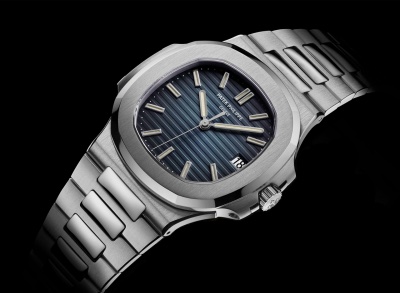
Neither ugly or nerdy.
So what if it’s off a minute or two?