Category Archives: Photography

The netbook Apple will not make

$300 and ideal for the traveler.

A friend, fellow photographer and frequent reader of this journal contacted me the other day asking whether I would be interested in sharing his experiences running OS X on an inexpensive netbook computer. He has, of course, paid Apple for the software but as neither of us are lawyers (we prefer to make money in more moral professions) he was a tad concerned that his anonymity be preserved before the $30bn+ cash hoard at Apple Inc. came crashing down on his head in the guise of a life sentence for breaking some inequitable agreement or other. As he added, somewhat acidly, there is no reciprocity here – users have no redress when Apple denies generally know faults like graphics issues caused by overheating in late-2006 iMacs. Heads they win, tails their customers lose. Like me, he uses Apple hardware exclusively for photography, though unlike me he does this for a living, and has many Macs at home and work.

“No problemo”, quoth I, “there’s a little thing called the First Amendment to the US Constitution which protects journalistic sources. So why not write your piece pseudonymously and I will be pleased to publish it?”

So we we though long and hard about a suitable nom de plume and came up with F.U. Steve. My buddy is named Steve and the initials are those of one Francis Urquhart of the BBC’s splendid ‘House of Cards’, a gripping TV series about a crooked British Prime Minister who will do anything for power and fame.

I thought it might be best to present this piece as a Q&A to show the decision process and technical challenges involved in making a $300 netbook behave like an Apple laptop. Or better.

TP: Why bother hacking a cheap netbook to run OS X? Jobs has said that Apple will not make such garbage and certainly not for that price.

FU: It’s a simple question of fitness for purpose. As you know, I refuse to use Windows – life is too short. I needed a really light travel computer for web and email use and did not need the bulk and weight of a MacBook at $1,000+, not to mention the very poor heat management which would fry your lap. Then there’s the non-user replaceable battery. Of course there was always the MacBook Air but the price asked for that is ridiculous. The once nice thing about the Air is shared with most netbooks out there, though, and that’s the lack of an optical drive. I don’t need that for my intended uses.

TP: What about the hacking bit? Isn’t that difficult?

FU: Well, there’s a large hacker community out there with many sites dedicated to specific computer models. After a bit of research I decided on the MSI Wind U100, model 279US. There were several reasons. It is well supported for running OS X, comes in white or black and needs a minimum of hardware changes to make it truly usable with OS Leopard. I bought mine a year ago from Amazon for $429 with the six cell battery which gives you 5 working hours. At 2.8 lbs it’s lighter than the MacBook Air (3.0 lbs – ed) and comes in at 3.3 lbs with the charger. A vinyl travel case is included in the price as is Windows XP which I immediately erased. Today, you can find new ones on the web for under $300. For hacking I used Msiwind.net which is a wonderful resource, though you have to wade through a fair bit of dross to get to the gold.

TP: What was the toughest hacking aspect?

FU: Once you have located and downloaded the key files you have to instal the kernel extensions (“kexts”) required to make the Wind run – kexts are Apple’s equivalent of device drivers in Windoze. Most importantly you need one for the Intel GMA950 GPU screen driver to enjoy the Wind’s full 1024 x 600 screen definition – the screen is widescreen format, 16:9, and ideal for watching movies. Search about a bit at Msiwind.net and it’s all there.

TP: How about hardware changes?

FU: Simple. First you pry off and swap the ‘Windoze’ (=Command) and Alt keys to replicate their positioning on a Mac keyboard, to the left of the space bar.

Then you remove the rear cover (8 Philips screws) and replace the Realtek wi-fi card with a used Apple Airport card bought on eBay for $20 or so. While the Realtek works OK with an add on application, it’s bog slow starting up and you don’t get the Airport ‘fan’ indicator in the menu bar which I am so used to. Further, the included card is poor at detecting favored networks. Just search for “Apple Airport Extreme Card MA688Z/B” on eBay – the card is actually made by Broadcom. Apple doesn’t ‘make’ anything, as you know. You need to pop out the HDD (one screw) to release the old card (another screw) and remove the two antennae – it takes seconds to do.

The stock HDD is 160gB which is more than enough for the intended uses for this netbook, but I replaced it with a 500gB Hitachi because …. well, because I felt like it!

Finally, stock RAM (667mHz DDR2) is 1gB but you can load her up with up to 2gB. I had a 500mB stick lying around so inserted that in the one open slot, for a total of 1.5gB.

International travelers may like to buy an aftermarket power supply with exchangeable tips, as I did. Another $30 or so to eBay.

TP: So what’s it like to use? I mean, there must be a lot of compromises at that price?

FU: To cut a long story short, I sold my MacBook after 6 months with the Wind. It’s that good. The screen is as good or better, it’s matte not glossy, the stock Intel Atom CPU runs far cooler than the C2D in the NutBooks and the Intel GMA950 GPU will easily drive a 1680×1050 external monitor using the included VGA out port. The only shame about the latter is that there are no screw receptacles to hold the clunky VGA cord in place, but you can easily drive a 24″ LCD computer screen or a big screen TV if that’s your thing. The GPU in the Wind (which is identical to that in earlier MacBooks) outputs much more definition than your LCD TV can provide, so you are not limiting yourself.

The keyboard is perfect for touch typing and I added a cheap protector to keep it clean. I only wish it was backlit, but you can’t have everything, I suppose.

The built in webcam works fine with Skype but not with iChat – you can get a picture but the Wind community is still struggling with sound using the built in microphone. To use iChat I use a Bluetooth earphone/mic in a USB socket (the Wind has three) and it works fine, bypassing the internal microphone.

As there is no optical drive (as with the MacBook Air) I rip movies to an SD card (not available on the Air) and simply insert the SD card in the Wind’s reader, using the free VLC application to watch the movie. 8gB cards will hold a lot of information for a few dollars. Plus, with a 500gB HDD, I can put lots of movies on the hard drive for watching on those coast-to-coast flights. The 6 cell battery is good for two full length movies with earphones in use, provided you don’t crank the screen up to maximum brightness. Because the Wind’s speakers are simply horrible (like the NutBook’s), I plug in my headphone of choice and use one of the scripts on the MSIWind.net forum to toggle them on. The sound is excellent, used in this way. You can use your iPhone/iPod earbuds at a pinch, but I prefer a pair of Sennheiser over-the-ear headphones for the best sound.

The stock speed of the Atom CPU is 1.6gHz but, if you are running connected to the mains, a quick touch of Fn-F10 will overclock the chip to 2.0gHz for a speed increase of 25%. MSI provides for this in its BIOS and it’s safe and causes no heat rise. The other day I was using the Wind overclocked in a 92F room and the internal temperature never rose over 117F. Try saying that about your NutBook!

TP: Any other mods?

FU: Well, just one. A nice skin from iSkin to my own design gives me the netbook Jobs refuses to make because he simply cannot sell it for a huge mark-up against the very competent competition from MSI, Toshiba, Dell, HP , etc. It’s not that he’s a greedy jerk – we all know that – it’s the way he excuses it (“we don’t know how to make a $500 computer”) that gets me mad. Anyway, the skin has been tons of fun. I constantly get asked about it in cafeterias and airport lounges and adopt a cool attitude of “I’m sorry, but I really cannot talk about it”. One jerk deserves another, I reckon. I’ll start wearing a black polo and sneakers next – not!
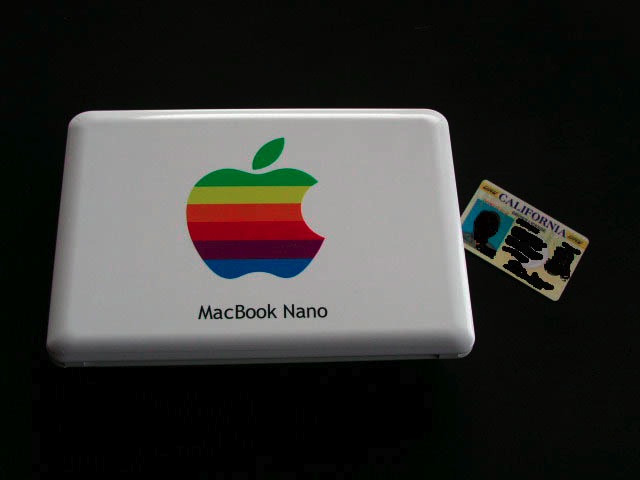

FU’s iSkin in place on the MSI Wind. CA DL for reference

TP: What applications are you running on your MacBook Nano?
FU: First I’m running OS Leopard 10.5.6 – updates make no sense (and are tricky on this hacked machine) and 10.5.6 is rock stable. There were no meaningful improvements in later versions and Snow Leopard only creates new incompatibilities. In addition to all the usual apps – Mail, iCal, NetNewsWire for news feeds, Safari, Address Book, MobileMe (great for synching calendars, mail and address books with my other Macs), Preview, iTunes and iPhoto, I also run the current version of Lightroom. No kidding. Here’s a screen shot – as you can see it’s perfectly usable on the 10″ widescreen:
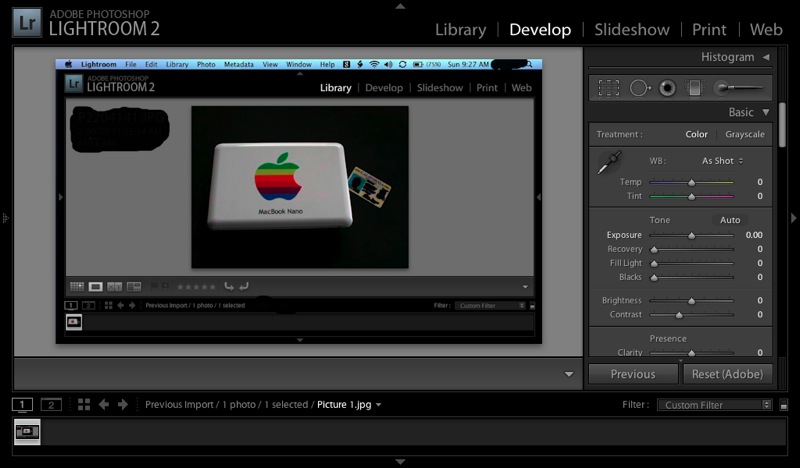

Lightroom 2 on the MacBook Nano

I wouldn’t want to run it all day, but for a quick preview and back-up of my pictures on a field trip and some light processing, the built in SD/SDHC card reader is perfect for this sort of thing. In my business I use several Pentax DSLRs which all use SD or SDHC cards; if your camera uses CF cards, you will need a plug in USB card reader for those.

TP: Fascinating, FU. Any final thoughts?

FU: Mr. Jobs says Apple does not know how to make a sub-$500 computer. Seems that MSI has been making them for a couple of years now at a quality level equal or superior to anything from Apple. Tell that to the Apple zealots who have never tried one yet decry all netbooks as ‘garbage’. Nice to have such stupidly loyal customers, huh? Maybe Apple could learn something from MSI? And you know what? When my MSI fails (it shows no signs of doing so after a year of heavy use and no respect – so much for the Apple premium) I’ll go out and buy another for $300. Or maybe four. That’s still less than one MacBook Air and I won’t have to worry about anyone stealing it. I hope!

TP: Thanks, FU. What’s next?

FU: Well, as you have discovered yourself, Macs are nothing more than industry standard hardware packed in a pretty box with lousy internal design and very poor life expectancy, at least for the newer machines. The electronic part that invariably fails is the only one designed by Apple and made by Foxconn (how appropriate!) in China – the logic- or mother board. Like you, I am struggling mightily to keep my late-2006 24″ iMacs – I have three – running (the one where Apple denies there are any problems) and two are showing the same signs of incipient graphics failure that recently forced you to change out the graphics card in your machine. I’ll likely have to do the same soon but the whole thing has me thinking. As you can see, I have a big investment in Apple hardware.

As Apple makes a great OS that can be made to run easily on industry standard hardware in a well ventilated box, and given that I have shoveled in excess of $20,000 down Apple’s greedy maw in frequent replacements of their poorly made hardware over the past few years, I fancy a desktop Hackintosh is in my future. At least I can write these losses off in my business unlike most regular users. Performance of the new machine would be well in advance of anything offered by the MacPro at one third of the price, with superior reliability and all components cheaply replaced or upgradable. Reliability is my primary dictate – these are working tools, not fashion accessories. And, like you, Thomas, I have paid for the software. Many, many times.

TP: Thanks, FU Steve. I’m sure my readers are eager to learn more. Please share that project with us when it is under way.

FU: Glad to, and thanks for the space.

Update: Check the first Comment to this piece for a very simple installation on a Dell Mini 9. The Dell has a smaller screen (9″ vs. 10″) but that may be more than offset by the ease of installation for many less technical users.
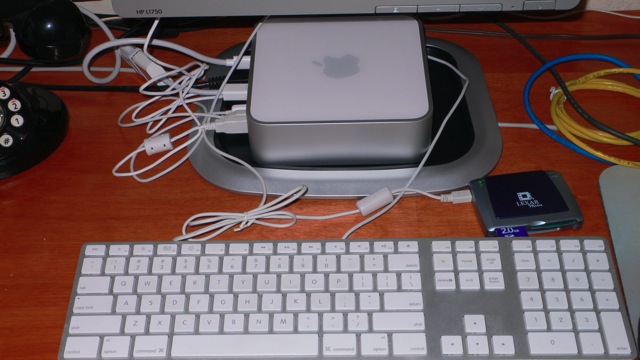
The Mac Mini – 2009

The last Mac we are buying for now.

The base spec Mini (1 year warranty) with an HP L1750 17″ monitor (3 year warranty) ran $800 delivered, including a Firewire 400 to 800 cable to allow restoration of all data and applications from the Firewire backup drive always connected to the machine. The latest Mini only has an FW 800 port, in addition to 5 USB sockets.


The Mac Fry

We have named this machine the Mac Fry as the previous one fried, I own McDonald’s stock (they make great fries) and we fully expect this one to fry in due course.

The Mini removes one significant heat source from the box – the LCD display – but then appears to compound heat management issues by cramming what’s left into an impossibly small cuboid. Still, you get the choice of a reasonably priced matte LCD of your choice, something unavailable from Apple whose LCDs are either overpriced (both 24″ and 30″ models) or come in glossy only (24″).

Because our FW back-up is fully bootable, you simply connect it to the Mini with the FW cable and it thinks it’s seeing another Mac, meaning you can use Migration Assistant to move data, applications and settings over fairly seamlessly. MA will promptly tell you that there is just one minute remaining for your migration to finish, which it will continue to do for the next hour. This error has been there as long as I can remember. I mean, how difficult is it to program the fifth grade arithmetic that has it that you divide bytes/minute by bytes of data to get time remaining and reflect the result in the progress bar? Bottom line is that this computer is barely out of its box and I’m already wondering what other basic errors have been made in its engineering. Well, there are plenty, if you read on. 

The base spec of the Mini is positively cheap. Only 1mB of RAM and a small 120gB HDD. I have a 160 gB notebook 2.5″ SATA HDD lying around (yes, from a dumpster MacBook we recycled a while back) and will swap for that as, at 90+ gB, the Mini is a little too full for comfort. First I have to order another 1 gB of RAM (all of $10 though Apple will charge you many times that) and the Mini will hold up to 4 gB (2 x 2). A total of 2 gB is fine for just about anything, including Lightroom. The other specs are fine – the machine has Firewire and a Core2Duo 2 gHz CPU and the allegedly better nVidia 9400M GPU.

The Mini sports that awful mini-DVI video port with a non captive plug, and comes with a Mini-DVI to DVI adapter, which is just what the HP display requires. Just don’t move the Mini about too much because this adapter is just waiting to fall off. There’s Mr. Jobs’s ‘form over function’ obsession again – in a rear panel connector, for heaven’s sake. Did someone beat this guy for untidiness when he was a kid or something?

So let’s get to the big issue – heat.

Heat killed the 20″ late-2006 iMac and took my late-2006 24″ iMac to death’s door, whence I just saved it.

Bottom line is that the GPUs in these, once cooked, start to deteriorate slowly thereafter, with growth of screen artifacts and more frequent beachballs, until the whole thing gives up the ghost.

Well, at least the Mini is separate from the screen but everything is crammed into the tightest imaginable space and, as the saying goes, “Trust, once lost, is seldom regained”. And Apple hardware, simply stated, has lost my trust.

So after Migration Assistant had done its thing, and after I refused to upgrade Leopard to 10.5.8 (better the devil you know – 10.5.6), I immediately checked iStat, Temperature Monitor and Fan Control to see what the heat story was.

Well, as Pete Townshend once put it, “Meet the New Boss, Same as the Old Boss”.

It runs too hot.

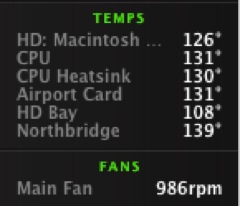
Here are the readings after the Migration Assistant process – one which is mostly CPU- and HDD-intensive. Meaning no GPU labor was involved.

Now while this Mini has yet to fry, these readings are higher than those at which the 20″ iMac would show artifacts – although it had probably fried by then. As you can see, Apple continues to insist on running the (single) cooling fan in the box at ~1,000rpm, despite these elevated temperatures. Now I’m beginning to think like a conspiracy theorist ….

A second with Fan Control and the minimum fan speed was increased to 2,200 rpm (it remains inaudible) and a few minutes later here were the readings:

By running the fan up before frying I’m hoping to nip the issue in the bud this time. Most devotees of Fan Control, like me, come to it after the patient has already passed the point of no return. Anyway, for an additional 15-20F cooling, I would rather buy a new fan in a year at $50 than a new Mac for $600 and, I can assure you, the latter is not an option.

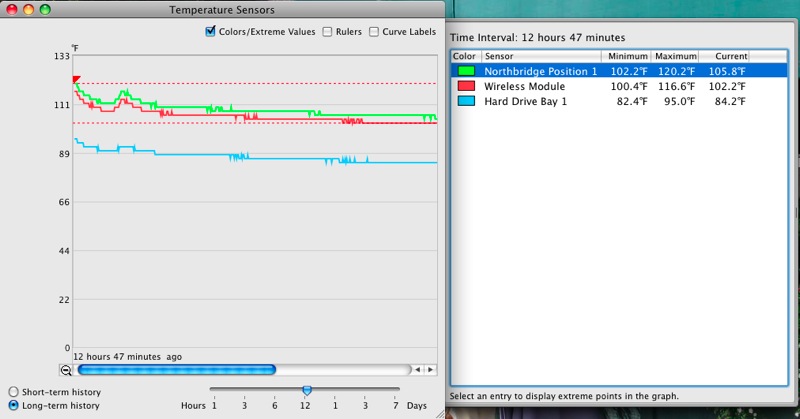
Here’s a heat trend graph for the three hottest sensors (there are several others) – the immediate drop at the start reflecting the increase in fan speed from 1,000 to 2,200 rpm:

The blip after the early drop reflects the use of iPhoto to download and process holiday snaps, so you can see that GPU use immediately raises CPU (Northbridge) and Airport card (Wireless) temperatures; the Airport card must be close to the CPU in the box as, obviously, no wireless effort was required to process pictures downloaded using a wired card reader. Another piece of down right execrable engineering by Apple. Having a fragile wireless card act as a de facto heat sink will not put the designer in the pantheon of great engineers.

I am reminded of the multiple Airport card failures my ante-pre-penultimate (for you lawyer schmucks reading this who despise clear English – ‘third from last’ for those of you with a spine and morals) MacBook suffered. Now I’m beginning to understand why, thanks to Temperature Monitor.

Temperature Monitor does not report a separate GPU heat sensor so, if that is right, I assume that the GPU and CPU are integrated (much in the same way as the older Intel GMA950/3100 was integrated with the Core2Duo in earlier MacBooks). So GPU heat is a proxy for CPU heat and vice versa. To cut to the chase, you can treat the ‘Northbridge’ temperature as being identical to the GPU temperature.

Any comments that I am running components at sub-optimal temperatures will be treated with the respect accorded all trash. Save your time and forget it. Cooler is always better.

Now I have the exciting prospect of cracking the Mini’s case to look forward to, so that I can install the additional RAM and bigger HDD. Oh! joy. You can read all about that here where, in addition to adding RAM and installing a larger hard drive, I also present the results of real world import and export timings and temperatures using RAW files from my Panasonic G1 and Lightroom 2.

And I have a jumble of cables to hide while I’m at it.

A nerdy note on video RAM:

The nVidia 9400M GPU used in the Mini does not have video RAM of its own. Rather, it ‘borrows’ RAM from the CPU’s RAM, probably explaining the occasional slowness I have noted with just 1 gB of CPU RAM installed. By the time OS X and the 9400m have taken their chunks, not a lot is left for applications.

The default ‘borrow’ is limited to 128mB. I have read that the 9400m can ‘borrow’ up to to 256mB of video RAM which it can do if the Mini is maxed out to 4gB of CPU RAM. Wikipedia says that once you have 2gB or more of system RAM, the GPU RAM increases from the base 128mB to 256mB. Nice! The relevance of this is that more video RAM generally means faster image rendering in applications like Lightroom. Either way, increasing minimum system RAM from the stock 1gB makes sense. The 1gB in our Mini is reported as occupying one of the two RAM slots by System Profiler, so adding another 1gB ($12) or 2gB ($45!) is sensible. You need a putty knife to crack the case and thereafter adding the RAM is trivial. The whole thing can be done in 20 minutes.

Adding a bigger HDD is harder. I address that and provide some performance and temperature measurements here.

There are fine videos on the web illustrating both tasks.

An excellent Lightroom book

Evening writes good English.

It’s now coming on for two years since I made the painful switch from Aperture to Lightroom and scarcely a day passes when I do not rejoice in that decision.

From the resource intensive Aperture (sells more ‘newer, faster’ Macs, I suppose), illogical and buggy application to one that is logical, has yet to lock-up on me and is blisteringly fast on my middle-of-the road iMac, Lightroom (I’m on version 2.4) is a joy to use. I visit some of the Lightroom blogs now and then and find I am always picking up new tips, no thanks to the lack of a proper instruction book from Adobe, as none is bundled with the software.

Indeed, to my own surprise, I actually find that after 50 years of processing pictures, I’m beginning to enjoy what is ordinarily a drudge. Anyway, a while back I decided to get a good book on the product as it was increasingly irritating to find out more or or less by accident about features that really helped the processing step along.

In selecting my book of choice, the first dictate was that it had to be written by a photographer who can actually take good pictures. Why on earth would you want to learn any skill from an academic, clueless in real life application of his expertise? That dictate promptly excluded most of the many books out there – some of these people really have no right to be preaching about Lightroom when they cannot take a well composed, decent photograph.

The second driver was that the author has outstanding communication skills.

Having watched some of his instructional videos on the web the book to choose was easy – Martin Evening’s The Adobe Photoshop Lightroom 2 Book: The Complete Guide for Photographers. (Disclosure: The link is to Amazon – I get no ‘click through’ payment if you click on it. I have no position in AMZN at the time of writing.)

My main reason for buying a good reference manual, dictated by the poor quality of the materials included with the software and the generally poor Help files within LR – was that I wanted to be absolutely sure how best to integrate two catalogs of pictures. I wanted to add the one from my laptop to the master on my desktop computer. While I have daily back-ups of everything, I would rather get this right first thing than scramble to recover from mistakes by resorting to the back-up.

Evening’s book not only walked me through this in accurate detail, I found that it added value in many other areas where the apparently simple user interface of LR hides many special functions, often invoked through the use of the Alt key on the keyboard. Areas where I find real value was added include:

  • Importing and creation of import profiles specific to a camera or lens
  • Using filters to find images
  • White balance corrections
  • Sharpening – a whole chapter, much of it addressing magic simply invisible to the normal user
  • Custom profile printing

The book, at 600 pages, seems long, until you realize that much of that is the result of copious illustrations which make it much easier to follow along. I still think of it more as a dictionary – something you look up to learn from – than a tutorial, but I find I keep it at hand when processing and frequently dip in to learn a new trick or two.

It’s published by Adobe Press (I only learned this after buying it – it was most certainly not a reason for purchase) which simply begs the question why it isn’t included with the software in the first place.

Quibbles? On p. 582 Evening states “The graphics card does not play such a vital role in Lightroom’s overall performance.” This contrasts with my experience which shows that screen rendering of previously generated previews when flicking between images is considerably faster with the new nVidia 7600 GPU (256 mB RAM) in my iMac 24″, compared with that using the nVidia 7300 GPU (128 mB) it replaced. But I have no objective measurements to bear this out and it may just be the placebo effect at work as I try to justify all the time I have had to waste in repairing my faulty Apple computer.

Overall, it’s a fine manual by a real, working photographer who has had the benefit of a proper education in the use of the English language. Highly recommended.

WSJ puffery

Don’t expect objective reporting here.

Under its new ownership, the Wall Street Journal is redefining yellow journalism, seemingly perfected by W R Hearst in the ’30s.

Meaning, write what suits you politically and economically, and the heck with objective reporting of the facts. It makes the New York Times look like an arbiter of truth, which is saying something.

Today’s edition has a puff piece on the new Apple Tablet and how El Jobso is back and driving everyone to distraction with his attention to slim perfection at the expense of all else.

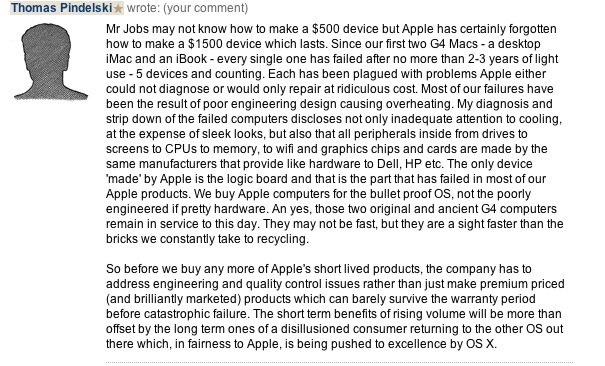
Well, I simply could not resist adding to the Comments section (link is probably available to subscribers only), with my own 2 cents worth – OK, $7,500 worth looking at the volume of Apple junk we have bricked. My opening sentence references Jobs’s oft quoted remark when asked why Apple will not make a cheap netbook:

I may have added a few months, maybe even a year, to the life of my 24″ iMac with all the work I have been forced to do to it, as described earlier, but when it fails you will see me going the Hackintosh route. And I don’t need any sanctimonious shill for the legal profession lecturing me on the legality of this – how can it be any less legal than selling devices under false pretenses (“It Just Works” as Apple advertises)? Thus my computer odyssey will have come full circle – a big well ventilated reliable PC box full of hardware running the best OS for the home and small business user out there.

Here’s an index to my recent spate of articles here on Apple’s awful hardware and let that be an end to it:

I am still committed to sharing temperature readings on my repaired/ventilated 24″ iMac with readers, and these can now be seen here.

Snow Leopard – Just Say No

Serious compatibility issues.

Apple has said that its 64-bit OS, Snow Leopard, will be on sale August 28. You know – all the usual twaddle – better, faster, smaller, etc. Just pay up, please. The cash register is right over there. We gotta keep those analysts on Wall Street happy. Goodness alone knows what additional stress the 64-bit OS places on already overtaxed graphics circuitry in overheated, poorly ventilated boxes. And excuse me, but just how many 64-bit third party applications are out there and don’t these need 32gB or more of RAM to show any benefit? Once again, it seems, we are being offered a Ferrari to do the grocery shopping, because the racetrack is closed.

Come to think of it, I’m still trying to figure out what, if anything, the ‘upgrade’ from Tiger to Leopard did for me, other than a butt ugly purple login screen. At least our machines did not fry under Tiger.


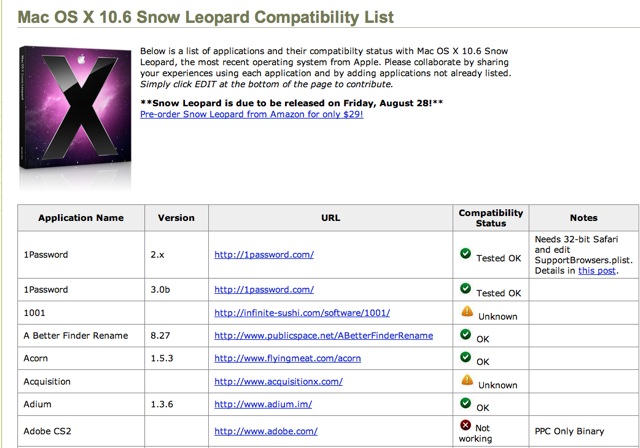
Snow Leopard (in)compatibility list – extract

Unless you are positively insane or unless you have checked this compatibility list and are willing to believe what you read, you really should hold off upgrading, no matter how cheap it is.

Older PPC applications like Adobe Photoshop CS2 (will not run) and Intuit’s Quicken (Intuit says it will run but they are a business which shares business morals with eBay and PayPal – no earthly way you can trust a company that disables its software every other year to force you to upgrade) are problem areas. I don’t know about you but I am not about to shell out hundreds of dollars on the latest version of Photoshop which does nothing for me, or trust Intuit, only to do my photo processing or mess up my on-line banking.

But there are bigger shockers in this list. SpamSieve, the ne plus ultra of email spam apps, superb in every way and leaving Apple’s Mail Spam function in the dust, will not run. Photoshop Elements will not run. Really! Disk Warrior (serious $) will not run. MenuMeters will not run. NeoOffice may not run (the thinking man’s free alternative to the garbage called Office from Microsoft). SafariBlock – a key ad blocker for me which stops all ads, including those irritating flash ads – will not run. SmartScroll will not run. Dozens of others are in ‘Unknown’ status.

And no news of all those fan (Fan Control, SMC Fan Control) and temperature measurement (Temperature Monitor) utilities which are essential to stop your Mac from frying. What if they don’t run? And what if your new OS fries the GPU twice as fast as the old one, seeing as Snow Leopard is meant to be so much faster?

Well you get the idea. Updating now is simply crazy. Let the guinea pigs who see no wrong in anything Apple do the bleeding for you.


Snow Leopard – run away fast or it will bite you in the rear.