In the Mission District, SF.
For an index of all Leica-related articles click here.
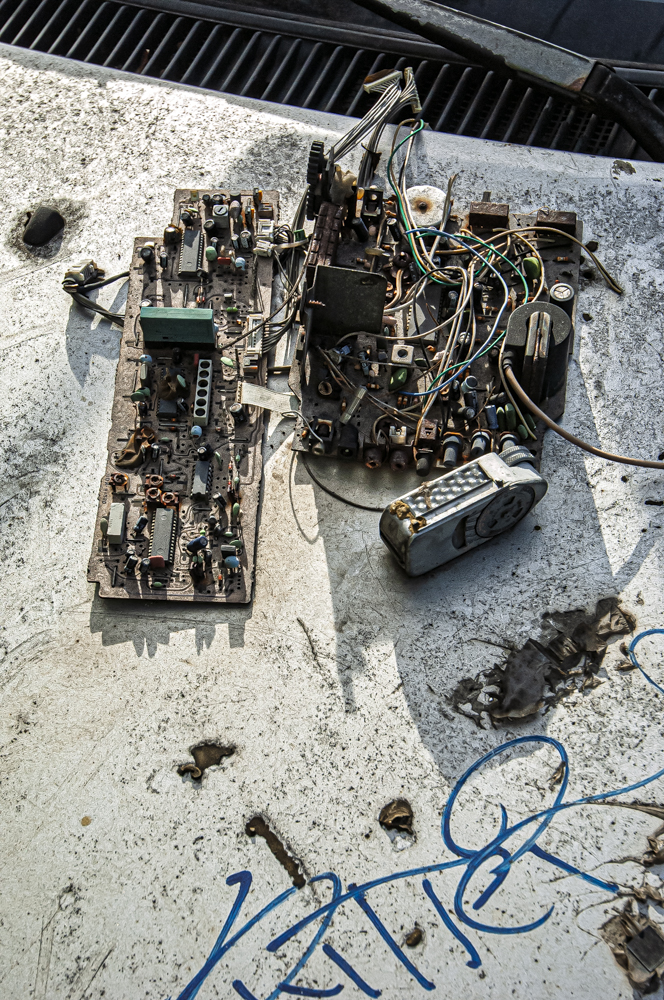
Strangest ever hood ornament.
Nikon D2x, 16-35mm AF-S Nikkor.
In the Mission District, SF.
For an index of all Leica-related articles click here.
Nikon D2x, 16-35mm AF-S Nikkor.
Truly tiny.
For an index of all Leica-related articles click here.
I hardly have to tell readers how ridiculously overpriced Leica lenses for their M bodies have become. Just look at this idiocy. Any Leica M user already knows that and he’s either too wealthy to care or too poor to afford these. And that’s just the standard 50mm range, which starts at $3,000 and goes all the way up to over $13,000. The price of a half decent used Toyota sedan. And no autofocus or VR. These are truly Veblen Goods, having transitioned from being the working pro’s hardware of choice in the 1950s to the hedge fund manager’s collectibles today. The greatest shame is that most of this hardware will never be used. Testifying to their Veblen status – meaning increasing prices see increased demand – Leica just had the most profitable year in its long history.
So it’s hardly a wonder that a substantial business has arisen in offering aftermarket optics in the M mount for both film and digital bodies. But the big issue I have with many of these offerings is that the focus (!) is on very fast lenses and that means weight and bulk. To me both are anathema to the Leica M concept which is about a small package capable of high quality results. Hang a monstrous f/1.0 or faster aperture optic on that poor body and you have a camel – a horse designed by a committee. You can read excellent reviews of many of those optics on Phillip Reeve’s site, which tests lenses with focal lengths as short as 11mm, all the way up to 135mm, the limit of the Leica M’s viewfinder frame lines.
And while it’s tempting to purchase one of these aftermarket optics at a fraction of Leica’s prices, there’s no need to abandon the marque and get something from the far east. There’s a rich variety of affordable Leica lenses to be found on the used market and as long as you can satisfy yourself that mold, scratches and haze are absent, and that the lubricants have not dried to the consistency of treacle on an Anchorage winter’s day, then you can get some fine glass for relatively little. Or be prepared to pay a little more for a professional overhaul.
Having recently added a pristine Leica M3 and 35mm Summaron lens to my small home collection – both recently cleaned, lubricated and adjusted – I quickly realized that letting these machines rot in a display case was a crime and determine to use them to take pictures on film instead. And because for me the ideal Leica M outfit is one body with 35mm and 90mm lenses, I set about finding a 90mm to go along with the 35mm Summaron.
There is a very large range of Leica (more correctly Leitz, if you go back before the many changes of ownership) 90mm lenses to choose from. When I bought my first M3 in 1971 I quickly added a 35mm Summaron and a 90mm Elmar to the modest 50mm Elmar with which it came. And while these were the bottom of the line choices for this impoverished snapper, they worked fine, delivered large prints when asked to do so and never let me down. While that 90mm Elmar came in a rotating mount (as with the 50mm Elmar the aperture numbers rotate as you focus the lens) and had no such luxury as click stops, the lens was made in very large numbers and can be easily found for around $100. For twice that sum you can find it in a retractible barrel version with a non-rotating barrel and click stops. Add another $100 and you get a Leitz Canada Elmar-C which is also f/4 but benefits from later glass and optical design. It’s also very small.
And don’t knock Leitz Canada. The optical works were run by a German named Walter Mandler, one of the outstanding lens designers of the previous century, back when designers had names and breathed air, unlike the computer dominated environment of today.
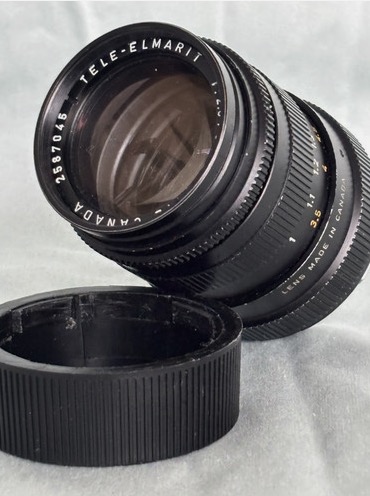
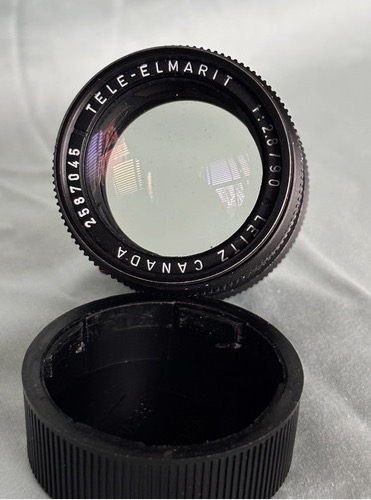
But when it comes to size, one of the smallest and lightest 90mm lenses Leitz ever made was the second version of the Tele-Elmarit. The original ‘fat’ version weighed in at 335 grams (chromed brass mount) but when reissued in a ‘thin’ barrel (black anodized alloy and with 4 elements instead of the earlier 5) the weight dropped to 225 grams (8 ounces) and you gained a stop compared with all those Elmars as the lens, also made in Canada, is f/2.8. And the second, alloy barrel version is actually lighter than the 90mm f/4 Elmar-C, a lens intended for the Leitz/Minolta CL small body camera, which apparently works fine on regular M bodies.
There’s also a 90mm f/2.8 Elmarit in a non-telephoto design, meaning the lens is physically longer, and it is optically fine, if less compact. Reckon on $250 for a good one. The later Elmarit-M was a rehoused and bulky Leicaflex lens and, well, the pricing is silly. As maximum apertures rise prices tend to rise with them, and the f/2 and up offerings really are too bulky to meet my idea of ‘small camera, big picture’ as the Leica used to be marketed. If Auntie Mame just passed and left you an inheritance, and if you now have more money than sense, I suggest you spring for a 90mm f/1.5 Summilux-M at $13,995. This is a 2.2lb abomination of everything that Oskar Barnack intended. Just try and avoid getting mugged with it.
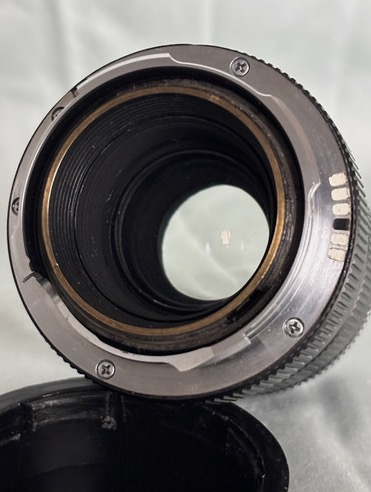
My Tele-Elmarit ran me $454 shipped and some previous owner has added the 6-bit coding on the mount to optimize performance with digital sensors. Plus $8 for a cheap aftermarket multicoated 39mm protective UV filter.
How does it perform? Well, how long does it take for film scans to become available?
On the Leica M3:
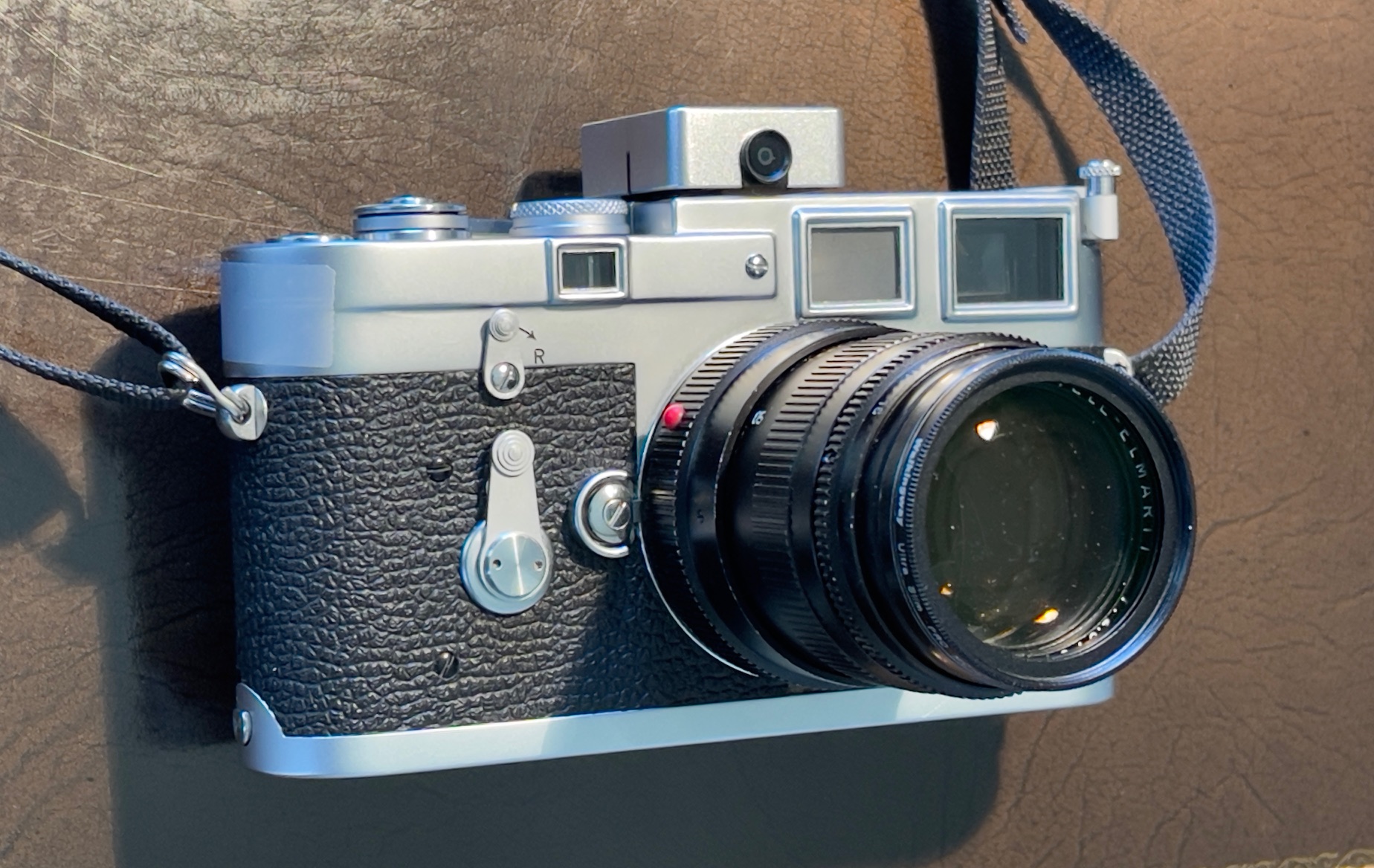
Used without a lens hood this short telephoto design does not impinge on the view within the 90mm viewfinder frame of the M3, even at its closest focus distance of 39″ with a protective filter installed. The stock Leitz hood is unbelievably inept – gargantuan and ugly. If you must use a hood I recommend a folding rubber design which is in keeping with the design spirit of the lens. 39mm thread.
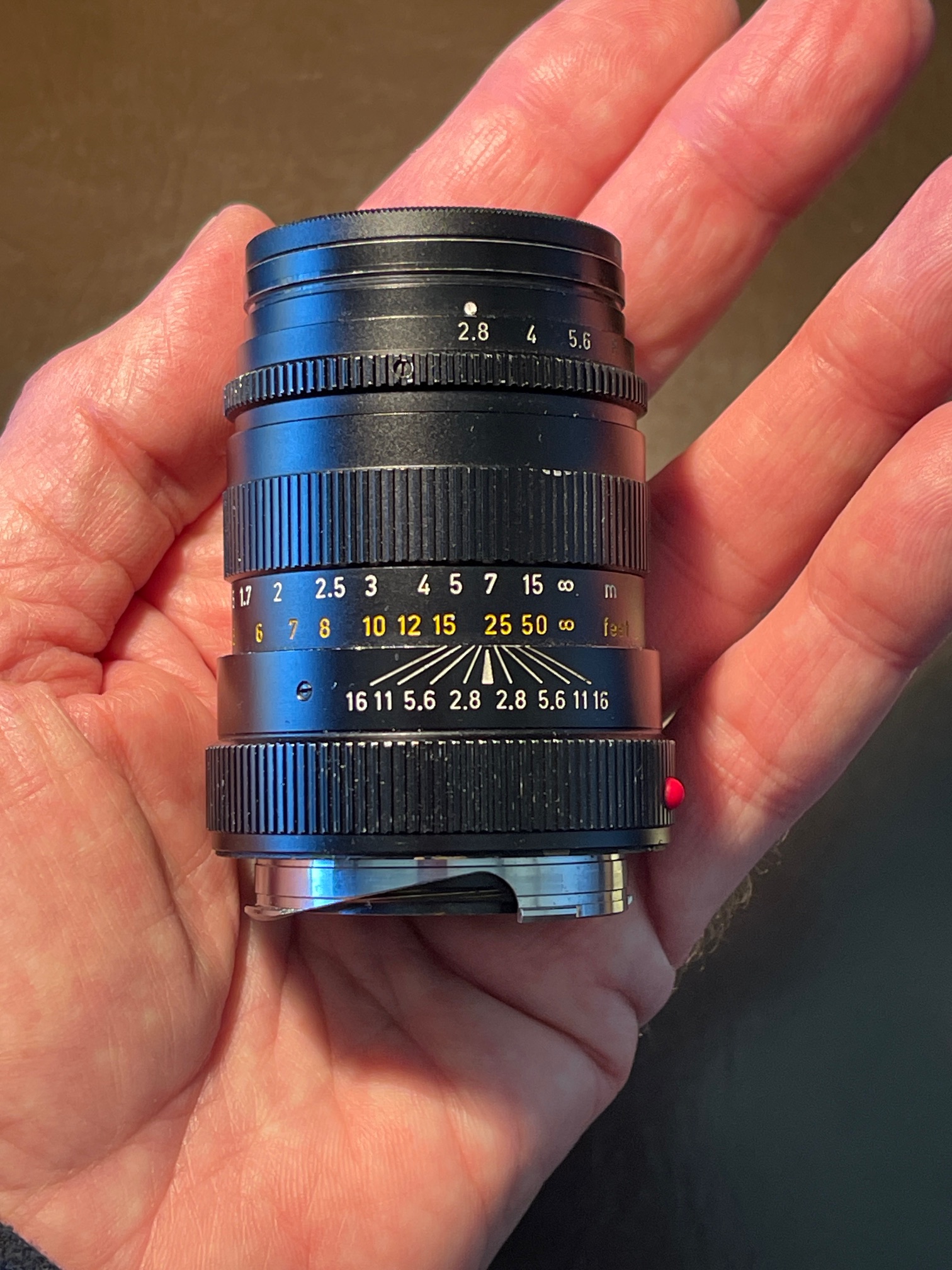
The lens is very small indeed. 1/2 click-stops all the way through f/16:
The film outfit grows:
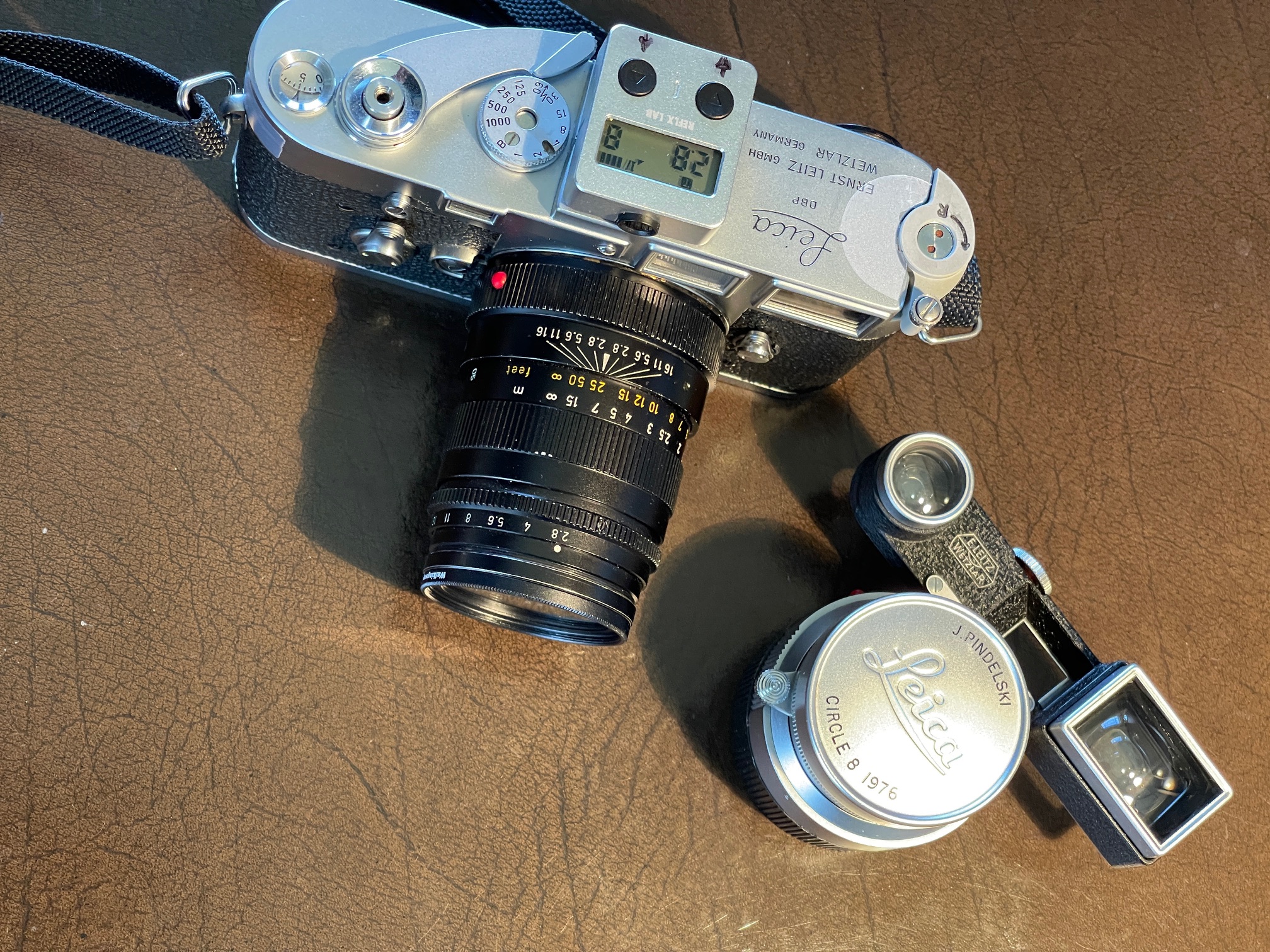
The strap is the excellent Upstrap, now seemingly discontinued, but available used on eBay. The anti-slip two-sided shoulder pad is especially safe, and the strap is highly recommended. I have decades on this one and recommend you read my linked page for proper installation. If you really want your Leica to go crashing into the sidewalk after slipping off your shoulder then I strongly recommend one of the extremely costly all leather straps made from genuine German cows. Incredibly inept. But these do prove that there is one born every minute.
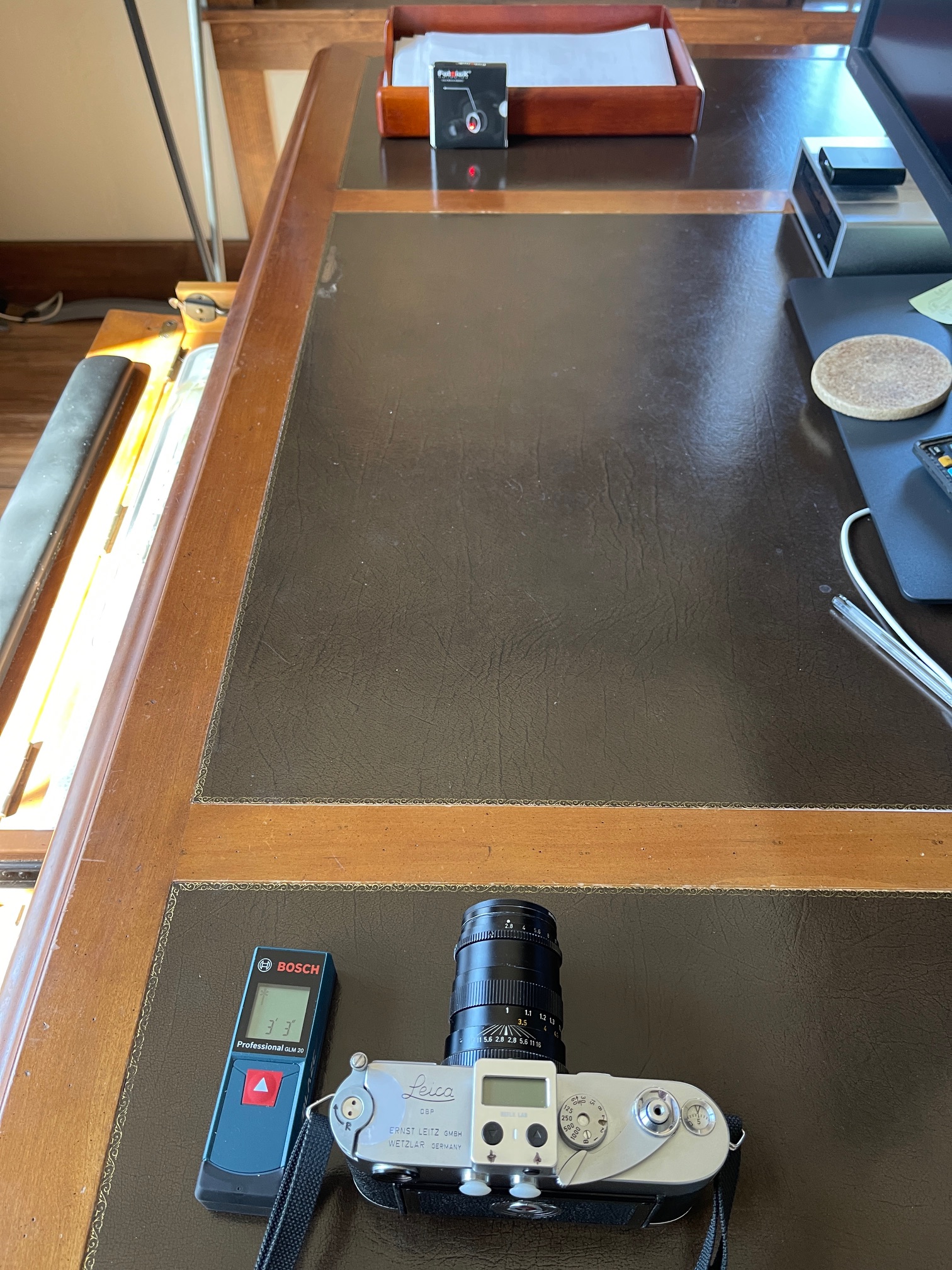
Rangefinder accuracy with a 90mm lens, especially at wider apertures, is far more critical than with a 35mm wide angle optic. Accordingly I first confirmed that the rangefinder was in agreement with the lens with both set/aimed at a subject at infinity. Then I set up my high tech optical test bench with the target at 39.37″ (or 1 meter) from the camera using the rangefinder at the minimum focus distance of the lens, and then measured the distance from the Leica’s film plane to the target using the laser measure. Here is my result:
That is a startlingly good result, testifying to the quality of the CLA performed before I purchased the body and well within the depth of field error even at full aperture of f/2.8. And this was measured/focused in the relatively weak lighting in my home office, which came in at 1/30th at f/2.8 at ISO100. The focus accuracy is certainly far better than any conventional manual focusing SLR could manage, where the process is ‘back and forth with the focus collar until it looks sharp’. That’s the beauty of a well adjusted Leica M3 rangefinder. There’s nothing more-or-less about the point of focus. It’s binary. Right or not.
So this lens may be a good one. In case you are wondering where to measure to on the camera’s top plate, as it is not marked on the top plate of M2, M3 and M4 Leicas, the film plane mark coincides with the base of the engraved top plate words which read ‘Wetzlar Germany’. (From the M4-2 onward a film plane mark was engraved on the top plate and is hidden by the film advance lever). If you want to be even more accurate, the film plane is 0.1900″ from the rear of the top plate in that location, measured with my “Dead on balls accurate” to 4 decimal places killer dial caliper. I determined that by measuring from top plate to film rail, with the hinged back removed! (With thanks to “My Cousin Vinnie“).
Early results appear here.
A wonderful anthology.
Click here to see my library of Photo and Art books.
Ask any photography enthusiast to name the great manufacturers of the 20th century and most would likely include Leitz, Zeiss, Graflex, Nikon and …. Kodak. There’s a strong case to be made that if you had to name just one it would be the latter for without Eastman Kodak of Rochester, New York none of the others would likely have come into existence.
Kodak, of course, was not just the dominant film maker of the past century, it was also a major manufacturer of cameras and its advertising frequently speaks to both businesses. Vertical integration at its best.
And much of that early advertising is to be found, in abundance, in the book aptly named ‘The Kodak Girl’. Neither Kodak nor the book’s title were into the poison of Political Correctness, thank goodness.

As with all the best books about photography text is sparse and the illustrations are everything. Here are a couple of favorites:
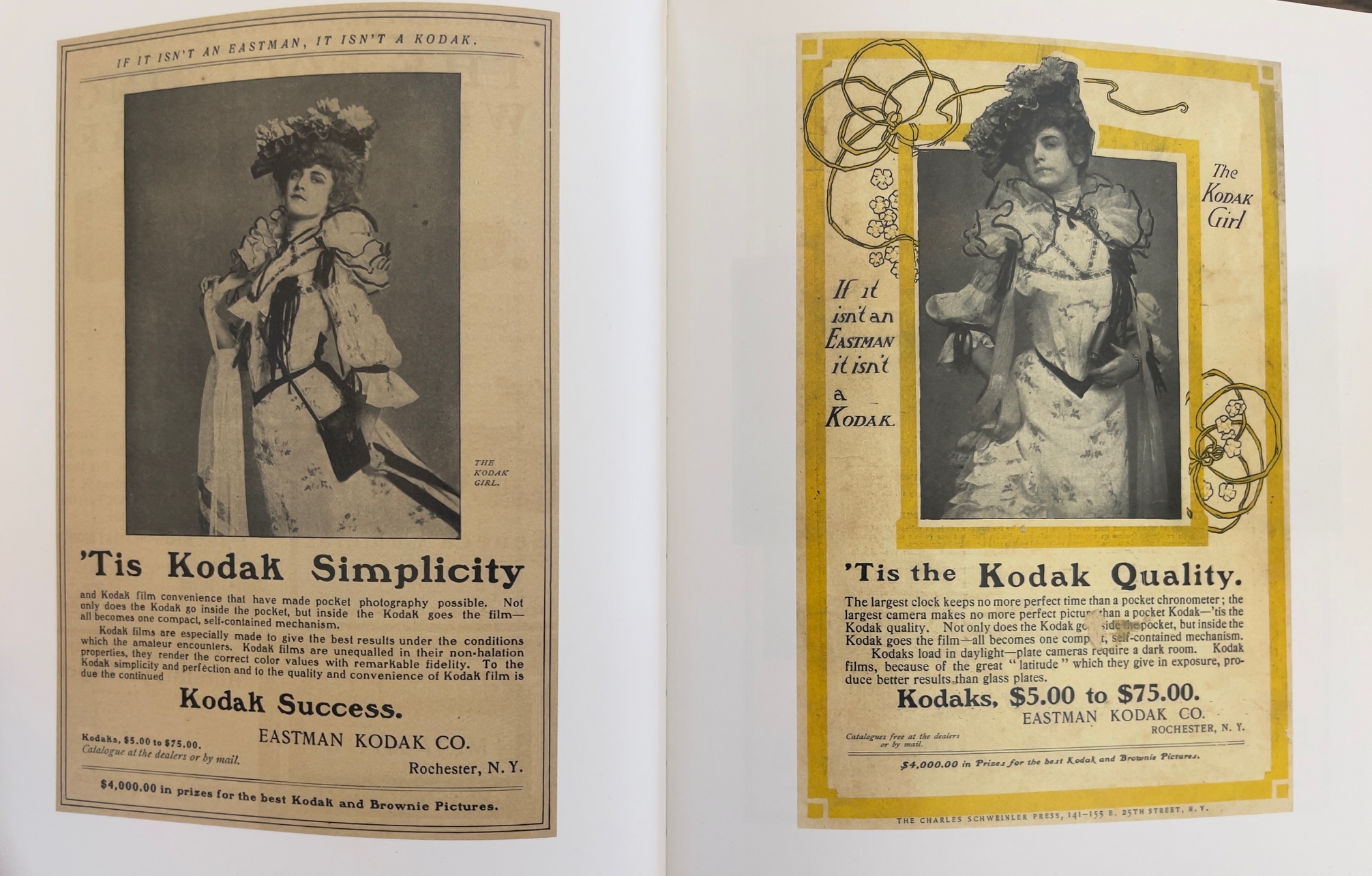

Not much to choose between them.
For an index of all my Film related articles, click here.
The Sharpprints lab does an excellent job of processing Ektar 100 film and providing high quality scans (at a small premium over regular ones). The scans are clean and there is no evidence of dust or scratches, and the colors are true.
For my first roll of Ektar 100 from the Leica M3 I asked the lab to also return the uncut film by mail so that I could determine whether scans made with the Nikon D800 would be better than the high quality scans from their costly Noritsu scanner. The Nikon scans, like those from the Noritsu scanner, come in at around 30mb using 12-bit lossless compressed RAW files from the Nikon.
I use the Negative Lab Pro plugin for Lightroom Classic to remove the orange mask, reverse the negative image to positive and to adjust color, brightness, etc. After first cropping to remove unwanted margins I select the whole roll of negative orange-masked scans and use the whole roll option to analyze the whole roll and convert it in one fell swoop. After tailoring this sophisticated plugin to deliver proper colors from Ektar 100 I get good results. The plugin is rich in options and repays study of the related documentation.
It should be pointed out that the D800 scans produced using this technique are very good indeed. I had previously scanned over 2,200 black and white film images and they easily make 18″x24″ prints from 50 year old Kodak TriX originals, sharp as a tack and superior to scans from dedicated Nikon and Canon (not flatbed) film scanners. As for flatbed scanners, forget it. They deliver very poor quality very slowly.
So with my technique well established and solid, how do the D800 scans compare with those made by the Noritsu scanner? The answer is that at 100% pixel peeping it is very hard to see much difference. Resolution of the image is comparable, maybe marginally higher with the Nikon, and that’s for images taken at f/8 using the 35mm Leitz Summaron which is its sweet spot, easily comparable to the costliest and latest lenses made today. (The Summaron is now some 70 years old!). On the other hand, fine tuning colors to get them just right is a time consuming chore for the D800 scans where the Noritsu ones look pretty much perfect in the downloaded images. (Sharpprints uploads the scans to Dropbox for customer download).
Here’s a colors and vibrance comparison:
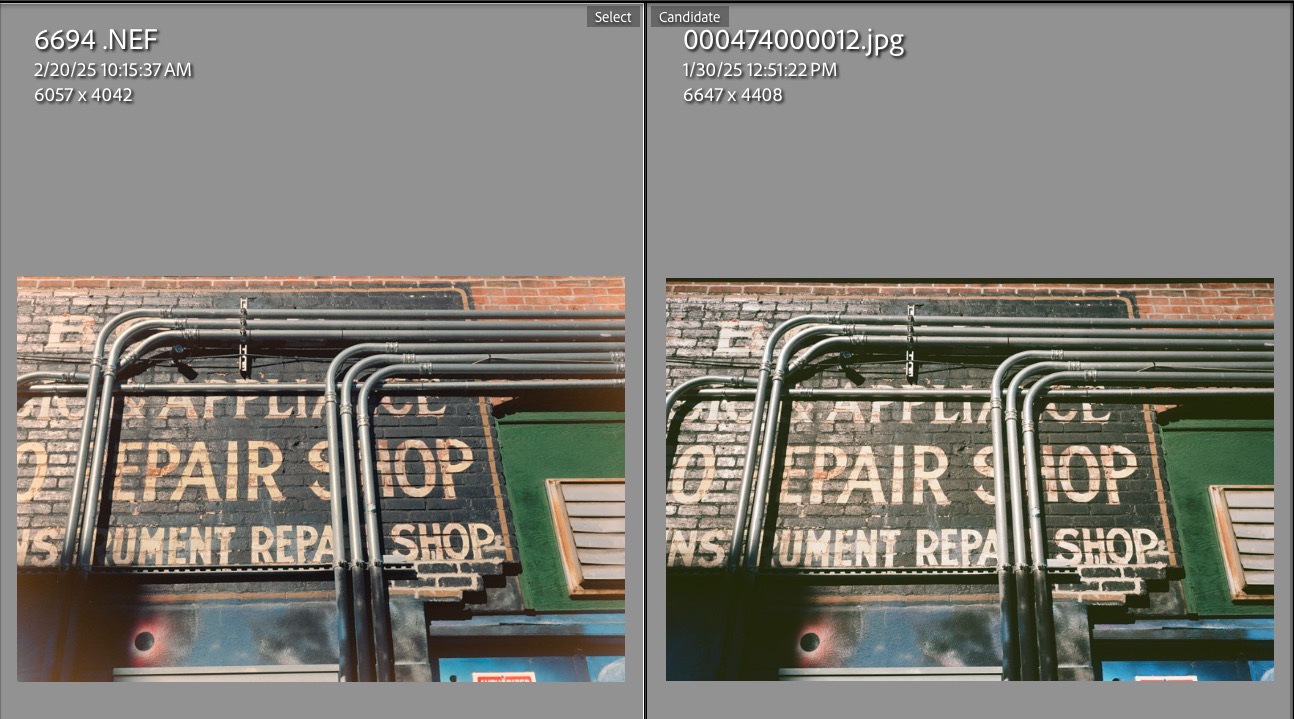
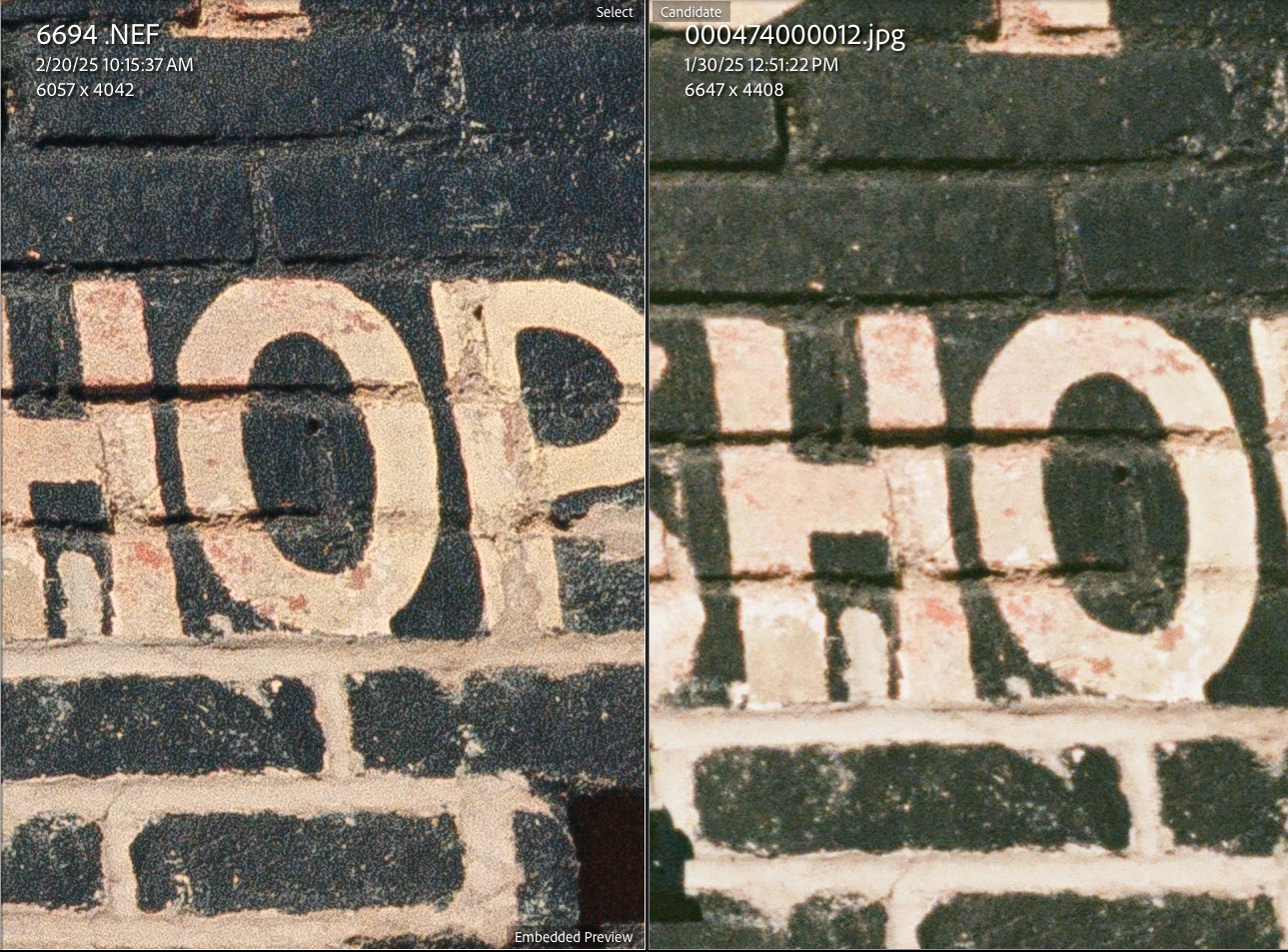
Clearly the Nikon scan’s resolution is superior but not only does it take quite some time to get there, the above is from a 100% zoom in LRc which would yield a 72″ x 48″ monster print. It’s unlikely you will be making prints that large ….
Here’s a more colorful scene – as you can see the colors are largely identical though the Nikon scan needed quite some time in post to get there:
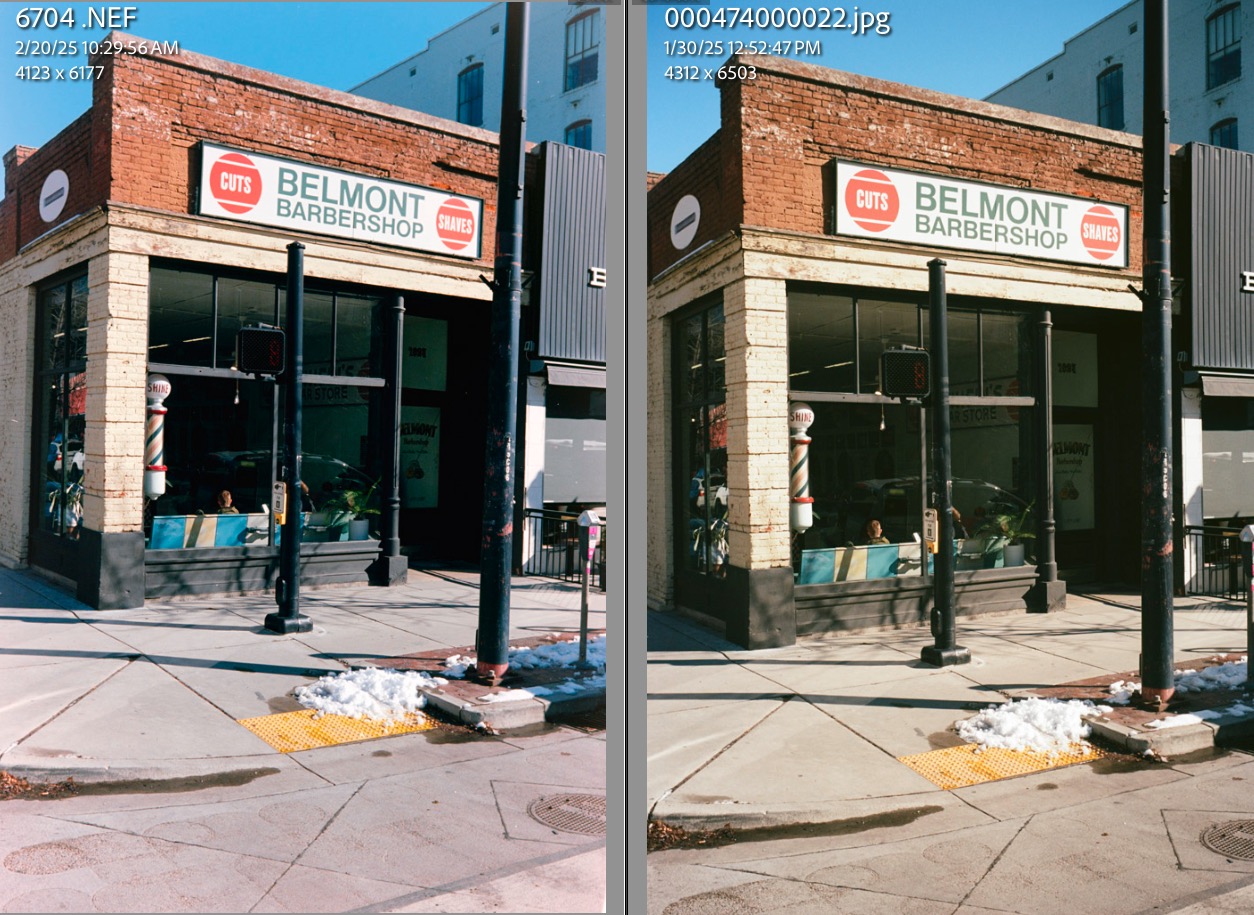
So my conclusion is that doing your own scanning, even with a high quality sensor and lens (I used the Nikon AF-S 60mm Micro Nikkor, with autofocus) is simply not worth it. It takes 11 days to get the processed film back, compared with 4 days for the scans to become available in Dropbox. You have to carefully cut the film into strips of six images to fit in the film holder for scanning – a tedious process in itself, though the lab helps by encasing the roll in a long, clear glassine protector which can be removed after cutting. You need to go through the process of using the camera to scan the negatives (which is very fast) and then crop, convert and color tune the files (which is anything but). Sharpprints charges $24 a roll for processing and HQ scans, or $25 a roll for process only and return of the uncut negatives.
Now that I have satisfactorily scanned my archive of old black and white images and convinced myself that scanning color negatives is a waste of time, my Nikon Micro-Nikkor lens is going to eBay for sale, along with the film scanning attachment from JJC which has served me so well.
Tiny and accurate.
Finding a working and accurate Leicameter light meter for the Leica M2/3/4 is an exercise in frustration. The earlier selenium cell batteryless ones are mostly dead, their cells exhausted after some 70 years or more on planet earth. Search long and hard for the later Leicameter MR or MR4 and one in twenty auction listings will actually include words that the device has been tested and is accurate. Why even bother looking at the others? And then it’s far from inexpensive. Reckon on $200 for a decent one which does not look like a survivor of the Tet Offensive. And if you have fitted your Leica M2 or M3 with a rapid rewind crank or you use an M4 with the stock canted crank, then you must opt for the Leicameter MR4, over the earlier MR, to provide clearance for those cranks, or be prepared to remove the meter every time you have to rewind a roll of film. So now your chances of finding a good MR4 are further halved. Ugh!
The advantage of the Leicameter is that it couples to the Leica’s shutter speed dial and provides its own considerably larger dial for adjustment of shutter speeds.
But if you have despaired of finding a good one there is a host of inexpensive aftermarket alternatives, any one of which will fit in your accessory shoe and which can be found for under $100. Downside? None couples to the shutter speed dial. B&H lists no fewer than seventeen choices from the overpriced Voigtländer at $225 to the Reflx for $50, and it’s the latter I’m writing about. It’s what I chose because its size and looks most closely conform to the Leica film camera ethos. The fitment and positioning are just right.
It ships without a battery so buy a CR1632 when ordering the meter. The meter uses a silicon cell (so does not suffer from the excess red sensitivity of the Cadmium Sulphide cell in the Leicameter MR/MR4) and like the MR/MR4 measures over a center weighted 30 degree angle. It is small, encased in alloy and looks just perfect on my Leica M3. The accessory shoe foot can be mounted in one of three positions and is shipped centered. Looking from the back I had to shift the foot to the right whereupon the meter aligns perfectly with the shutter speed dial.
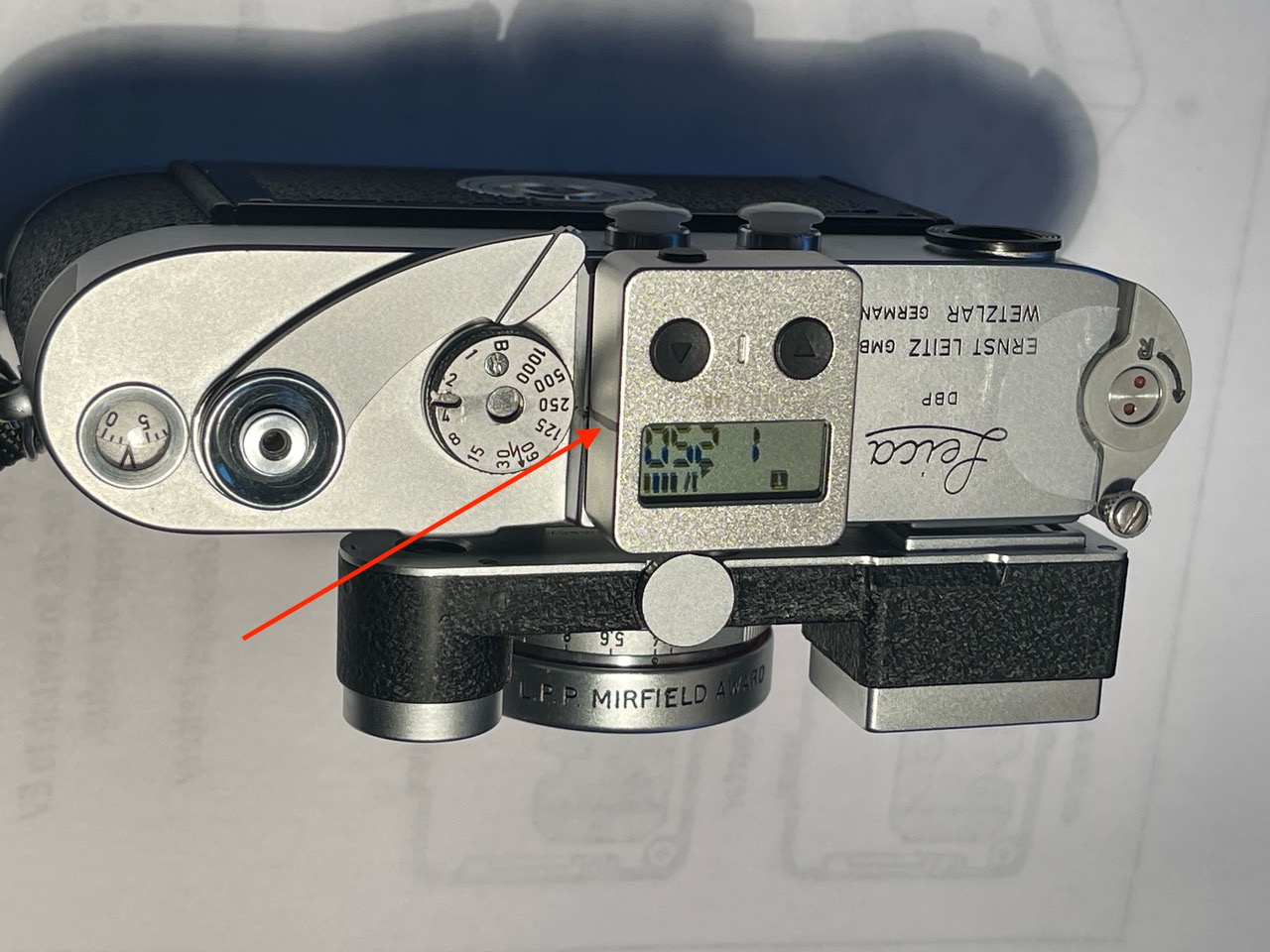
Note the black felt tip shutter speed indexing line (red arrow), added by yours truly.
The meter ships with a spare battery holder – it’s hard to remove for battery insertion and requires that you push the flexible tab away from you and then tug on the door to the right. Broken fingernails are likely so I used a plastic pointer (for the tab) and spudger (for the holder). The battery goes in with the + sign showing, when the meter is upside down. Reflx provides a spare battery holder as well as two spare mounting screws for the shoe and a small slotted head screwdriver. They claim a battery life of one year. The screws are a tight fit and are unlikely to come out. Should they loosen I will apply a tiny drop of blue Loctite thread locker #242 to each to confer safety.
Is the chrome plating on the meter as good as that on the Leica? No. It’s coarser and slightly differently colored. Nothing compares with the chrome plating on a Leica.
The Reflx meter weighs 19 grams, or 2/3rds oz. By contrast the Leicameter MR4 weighs 76 grams (2 2/3rds oz.).
The included instruction sheet is printed in such a small typeface that it’s next to useless. I went to the maker’s web site and enlarged/copied the instruction sheet there. Even so, it could be less confusing.
Here’s what you need to know.
After inserting the CR1632 battery, mount the meter on your camera. On my M3 it’s a reassuringly snug fit. No way it’s going to fall out, even if brutally nudged. Now single press the black button on the rear. The LCD display will show the ISO you have set (it ships set at ISO100) then switches to aperture (left) and shutter speed (right). Nice that you get this ISO reminder. That single press locks the exposure reading so if you need a new reading simply depress the rear button again – whether the meter is on or off – being sure to point the meter at your subject area.
For street photographers who need to be unobtrusive, a light meter should be decipherable when looking down on the camera. Many shoe mounted meters have the display in the back which defeats the unobtrusiveness goal. With the Reflx you look down. By the way, the single biggest complaint I had with my Leica M6 (apart from the lower build quality compared with my M2 and M3) was that its built-in TTL meter could only be set with the camera to the eye. The diodes indicating exposure were in the viewfinder. There was no top plate readout of exposure. So you had to raise the camera to your eye to first measure the light, then take the picture. Completely wrong. Are you a street snapper? Get a meter you look down on to take the light measurement. An iPhone metering app is almost as obtrusive as that Leica M6 of old.
To change the ISO, after a single press on the rear button hold the right top Up arrow button for three seconds and then increase or decrease the ISO using the two top arrow buttons.
The worst description in the instructions is the meaning and use of the Aperture Priority and Shutter Priority modes available. You switch from Aperture Priority (‘A’ at top left of the LCD display) to Shutter Priority (‘T’). with a double press of the rear button. In ‘A’ mode the meter will restart showing the last aperture you used. In T mode the meter will start showing the last shutter speed you used. For street snapping I ordinarily leave the shutter speed fixed – say at 1/250th of a second – so I set the meter to T mode and to a shutter speed of 1/250 using the Up and Down button on top. Then taking a light reading becomes a one button press affair, every bit as fast as the Leicameter. Point the camera at the area to be measured, press the rear button once and transfer the indicated aperture to the lens. No need for any other button presses as long as you stick with the shutter speed dialed in on both camera and meter.
This single button press method is quite different from that used by the costly Voigtländer or the TT Artisan $62 knockoff of that design. On those you have to turn either a top mounted physical click stopped aperture or shutter speed dial until the center one of three LEDs alights. Far less elegant, though analog dials and click stops are always nice for an analog human being.
Finally, a long single press on the rear button puts the Reflx into exposure compensation mode, adjustable with the top buttons in 1/2 stop changes. A separate flag notifies the user that EV mode is engaged. This is actually quite handy should you find that your meter is reading incorrectly compared with one of known accuracy, allowing for one – albeit across the board – exposure correction without having to input a misleading ISO value for film speed.
Accuracy? Dead on. I checked it against the meter in my Nikon D800 with the zoom lens at 90mm and in averaging mode, which approximates the measurement angle and method of the Reflx and in both weak interior and a variety of bright exterior lighting the Reflx was in agreement with the Nikon.
Display size? Though the Reflx is very small indeed the aperture and shutter speed display is easily large enough for stress free reading, and much larger than the engraved digits on any Leicameter.
Battery life? I have no idea. There are four bars showing at the top right of the meter with a fresh cell but it remains to be seen whether the one year life is accurate. These trend down to three or two bars after one minute of use suggesting either excess current draw or incorrect calibration of the battery strength indicator. Let’s hope it’s the latter, because I really do not want to remember to carry spare batteries. (The display pops right back to four bars after a minute or two of rest). You can turn the meter off with a three second press on the Down button or it switches itself off after 55 seconds (during which time the battery is working only to power the LCD display, not the light measuring circuitry so current draw should be light). The instructions confusingly refer to this as ‘sleep mode’. If you turn the meter on again in under 5 minutes the ISO display, which is otherwise the first thing you see, is turned off. No biggie, as it’s unlikely that you will change the ISO setting by accident. After a 5 minute off period the ISO display will show once more on start-up.
One missing feature is no provision of an illumination option for low light use. The black on grey figures in the LCD display get hard to read in poor light. Well, there’s always the flashlight in your cell phone, I suppose, a sub-optimal solution at best. In this regard the white galvanometer needle in the Leicameter is superior. Further, there’s no continuous reading option available in the Reflx like there is in all Leicameters (with the black side button depressed with the MR/MR4, by default in the M and MC). One press of the rear button of the Reflx and the light reading is locked. To take another reading you have to press the rear button again.
One other missing feature is the absence of any warning that you have reached the limits of the meter’s range. For example, in very poor light the meter will show an aperture of f/1 in shutter priority mode whereas in fact something even faster than f/1 is called for. It would be nice if the manufacturer would revise their software to flash the aperture symbol at the limit, warning you that you need a far slower shutter speed for a usable aperture. A like issue affects the shutter speed setting in aperture priority mode. I get around this by reminding myself that if a ridiculous aperture like f/1 is indicated (see the image above) that I need a far slower shutter speed setting. Not a big deal.
Leica ethos, you ask? Well, small, silver chrome, accurate and unobtrusive, not to mention fast. And, unlike that Leica, inexpensive. What’s not to like?
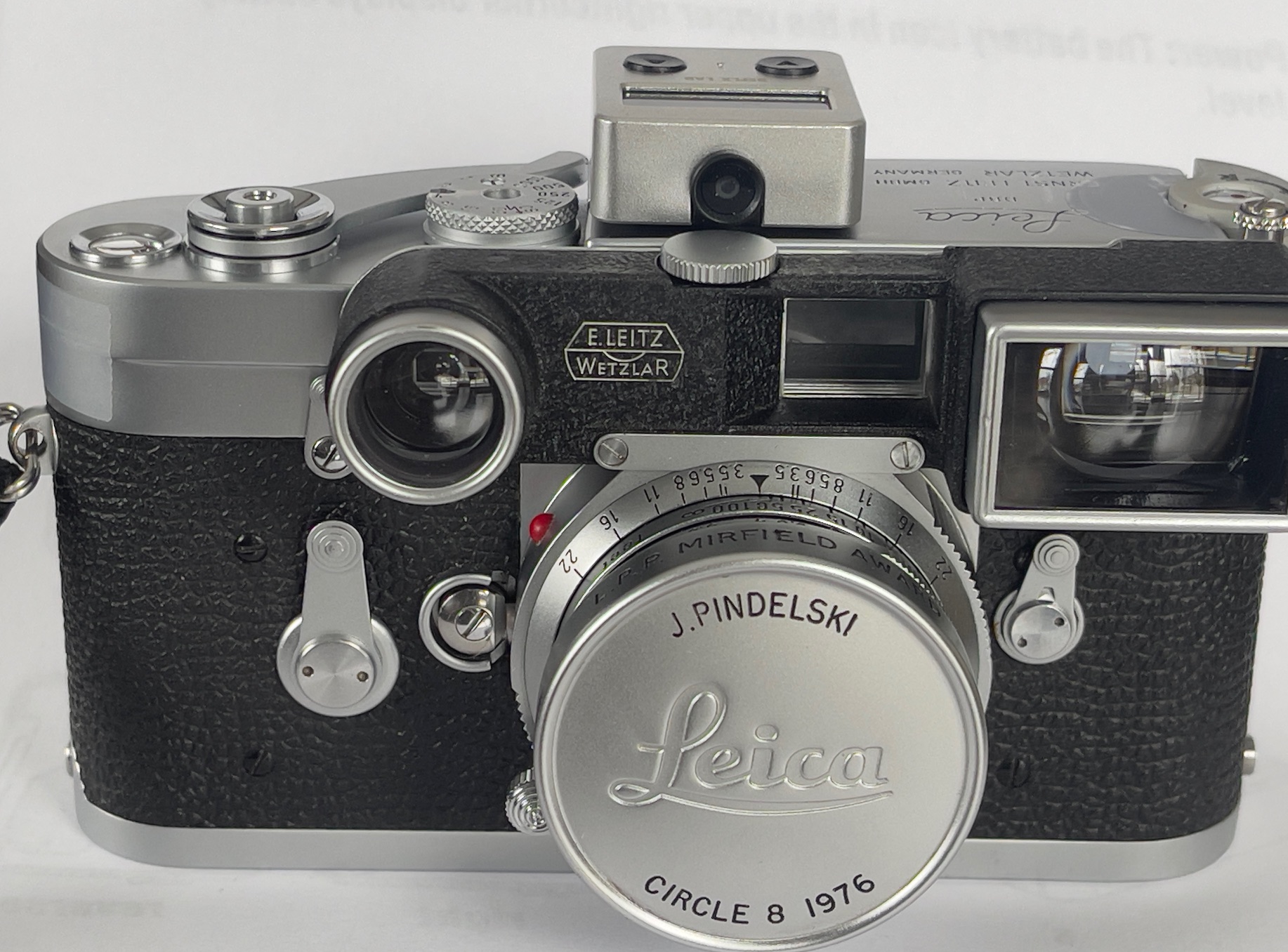
Plus, unlike that Leicameter of yore, it’s easily pocketed for use on any camera without an accessory shoe and far easier to use ‘off camera’.
One last thought. Many aver that black and white film has such a broad tolerance of incorrect exposure that no meter is needed. This is pure rot. Expose even monochrome film stock incorrectly and definition goes down, highlights or shadows get lost and grain shoots up. There is no excuse for poor exposure whether with color or black and white stock, and there’s simply no way, regardless of how experienced you are, that you will nail exposure without a meter. Would you rather have great originals with a $50 additional outlay or crap that cannot be printed larger than 5″ x 7″ from your $2,000 piece of hardware? And if you do not regard large prints as your goal, why are you wasting money on gear?