Micro Four Thirds

Yet another format and lens mount?

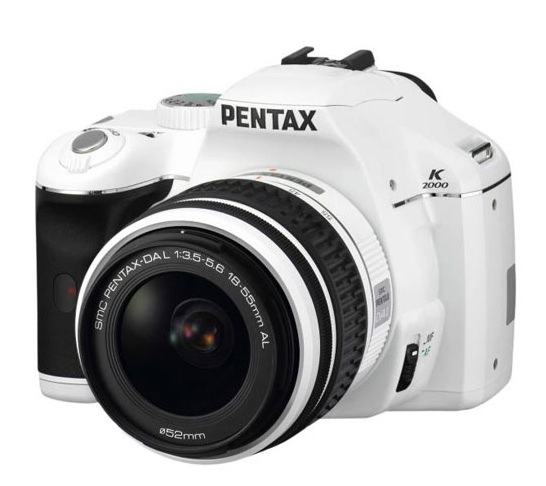
When Olympus and Panasonic announced their Micro Four Thirds (what?) camera system a few months back, I confess to stifling a yawn. Yet another cropped sensor format with claims to compactness and ‘newness’. Please.

Further, reading preliminary reviews of the first camera to use this format, the Panasonic G1, left me underwhelmed. Sure, the camera was a DSLR and it was small, albeit not much smaller than the smallest DSLRs from Olympus and Pentax, and yes, the camera offered the opportunity of using rationally priced lenses from Leica not otherwise available, but as I am no lover of cropped, small sensors I gave the new products little thought.

However, I chanced on a review of the Panasonic G1 DSLR the other day and noticed something to like amongst the otherwise unexciting product features. The camera, although a DSLR, dispenses with the noisy flapping mirror and bulky pentaprism and condenser lens, replacing both with an electronic viewfinder. Heretofore, every consumer grade camera I have tried with an electronic viewfinder has been simply awful. A small, unsharp image with enormous latency (you move the camera and the image smears and follows along later) made this gimmick of no practical use for photographers. Now, maybe, things are changing, as most reviewers state that the EVF in the G1 is close to optical quality and latency is a thing of the past.

The micro four thirds system uses the same sensor size as the four-thirds one, meaning a 17mm x 13mm useable area, compared to 36mm x 24mm for full frame 35mm DSLRs. However, the cameras use a smaller lens mount for lenses, as these no longer have to be designed to clear a flapping mirror, as no mirror is used.

Why is this interesting? Well, it’s no secret that while I find the Panasonic LX-1 point-and-shoot a usable proposition – click in the left column to learn more – no one could accuse the microscopic sensor in this camera of boasting great image quality or low noise. Nor is the poor shutter lag anything to get excited about. And I continue to long for a truly pocketable camera with a proper viewfinder (no, not an LCD screen) to emulate the film Leica of yore with the addition of a half decent digital sensor. The one used in the micro four thirds cameras is many times the surface area of that in the LX1 so there is hope. As for the Leica M8, I consider its price and feature set to be nothing more than a joke. Limited automation, ridiculous and bulky variable focus length lenses (not true zooms) and a viewfinder last perfected in 1954 on the Leica M3 by a factory with little capital which checked its design originality at the door in 1938 or so.

However, the Panasonic G1 is of no interest to me, as for some reason Panasonic has seen fit to emulate the traditional SLR-looking design of the body, rather than doing something really revolutionary. Maybe they felt that buyers would turn away from something with true minituarisation and new looks, which only prompts me to ask why bother when like size can be had in the smallest Olympus DSLR for a fraction of the G1’s $800 price tag?


The Panasonic G1. Yet another DSLR-shaped waste of capital investment

But there is hope. If the EVF really is as good as the reviewers say (I have yet to try it) then there is no reason why the manufacturers shouldn’t get rid of the faux prism hump, making the whole thing yet smaller, and still permit the use of those great Leica lenses, the latter being easily the best feature of my Panasonic LX1. And, hey presto!, before you know it you have a camera as small as the Leica CL, that little jewel made by Minolta all those years ago, with all the advantages of automatic-everything and image stabilization to boot. And no noise or vibration from that wretched flapping mirror.


The (Minolta) Leica CL, first sold in 1973. A sweet full frame film camera with Leica interchangeable lenses.

So, Olympus and Panasonic, given that you have some of the best designers on this earth and have made the rational and praiseworthy decision to delegate the optical part to the best there is – Leica – why not a truly innovative update of the classic rangefinder camera body for those of us praying for something like this for over a decade? I will be the first in line to buy one if noise is low and shutterlag minimal. And while I’m at it, why is shutter lag hardly ever mentioned by reviewers? I can only think they are conflicted by commercial consderations or, more likely, judging by the quality of the test snaps included with many reviews, these people have yet to learn the difference between a good photograph and a hole in the gound.

Happy Thanksgiving

The best time of the year.

For an index of articles on art illustrators, click here.

For an index of cooking articles on this blog click here.

This year we are blessed with friends from England and my in laws from San Diego. I managed to track down a Diestel turkey – you know, the kind that wanders California’s great wide expanses while listening to Mozart. This translates into a tasty and juicy bird.

And, in protest against our government’s woeful ways with our money and our citizenry’s placid, nay, complicit, acceptance of the rape of our economy, the wines this year are Spanish (a nice Rioja to start) and French (thank you Bordeaux!) Even the port is from where port should be from, meaning Portugal, US winemakers being clueless when it comes to making this grog.

On the hardware front I have finally invested in a genuine French Sabatier chef’s knife. It’s from Thiers, in France, and if you decide to get one be super careful as the name is not trade marked, meaning there are lots of nasty imitations out there. You will not find this one at WalMart. The one I got has a carbon steel (non-stainless) blade, meaning a little more care is called for when cleaning, but provides a far keener and longer lasting edge, something stainless steel cannot equal. I toyed with the idea of one of those Japanese ones where the metal has been folded on itself a billion times or something, like one of those Samurai swords, but found the look beyond ugly. Form cannot be forgotten even when function is superior.

I was rather taken with the ‘rosewood’ handle on this one, though it’s actually epoxy. Unlike Apple’s deceitful ads (twice as fast, twice as light, blah blah blah) this one makes no claim to anything other than a sharp edge. Heck, it will rust on you before you can say Vive la France if you don’t dry and oil it after use. Note the lovely design of the bolster, where the blade enters the handle. Unlike your camera, this will still be a current model in fifty or a hundred years’ time. And spare parts will remain available ….

Sharpening? Why trust the Village Idiot with missing digits to do this the old way? The answer is the right tool to confer the right angles of grind and a proper steeling, something your local ‘expert’ knife sharpener knows nothing of. I use one of these and immediately ran my new knife through it producing, yes you guessed it, a finer edge than the factory managed before shipping. Proof? How about two millimeter thick tomato slices, the skin intact? The ultimate test of a kitchen knife.


The ultimate test. Two millimeter thick tomato slices.


The Chef’s Choice 130 knife sharpener’s Stage 2 burnishing steel, removed for clarity.

After re-establishing the proper 25 degree edges on your trashed knives – using the Stage 1 coarse diamond wheel – you pass the blade over the Stage 2 burnishing steel a dozen times a side. Then one final quick swipe through the fine stropping wheel in Stage 3 and you are set. In each case, you torque the knife’s handle so that the blade is gently forced against the tool, something the instructions fail to point out. So twist CCW on the left and CW on the right. Thereafter a swipe across the Stage 2 steel every now and then is all that’s needed and the amount of material you will be removing will be one thousandth of that destroyed by the Village Idiot. And Stage 2 needs no mains power – it’s simply a stationery hard steel.

Well, I’m off to the kitchen where the bird awaits.


Diestel turkey with rosemary from the garden, ready for the oven.

Happy Thanksgiving.

Update September, 2020.

The chef’s knife gets little use nowadays, obsoleted by a cleaver – a superior tool in every way.

In the tide pool

Wading about

On a favorite, secluded beach off Highway One the other day, I was wading about in the tide pools at low tide and came across this beautiful collection of kelp. Well hidden in the shade of a giant boulder, it was a moment’s work with the ring flash to bring out the gorgeous cornucopia of colors, shapes and textures otherwise hidden from view.


5D, 100mm macro, ring flash, 1/60, f/4, ISO 200

The auto-everything E-TTL of the ring flash makes this sort of thing close to child’s play. Just bring your imagination.

Tide tables are very useful for this sort of thing as you don’t want to arrive at high tide. These are my local ones.

Exciting times for medium format digital

Bigger sensors and cheaper cameras coming.

Right now if you want a step up in sensor size (and dynamic range, resolution, color fidelity, etc.) your choices have been limited to the established Hasselblad (made by Fuji) H3D range which tops out at 50 megapixels from a 48mm x 36mm Kodak sensor and costs more than most new cars. There’s a coming offering from Mamiya, the DL28 at $15,000 and Pentax is rumored to have filed patent papers for a medium format DSLR. The latter makes especial sense given that Pentax already has fine medium format lenses available for both 6x7cm and 6×4.5cm film formats.

Now rumors abound of a medium format offering from Nikon which may be 48x48mm or 48x36mm (like the Leica S2 at $40,000 and counting) and may be a DSLR or a rangefinder along the lines of the great Mamiya 6 and 7. I used a 6 for many years and just loved the compromise of negative size and reasonable bulk in a near-silent rangefinder body.

The significance of these rumors is that Nikon is more than likely to make a working proposition of a medium format digital than most. The Hasselblad relies on the traditional waist level format at a ridiculous price. I haven’t used one but reviews suggest the camera is clunky in the extreme with slow operating controls, a lousy LCD display and limited in-camera adjustments, not to mention seriously compromised metering. So the rumors about Nikon are especially appealing. If Nikon can confer its trade mark ease of use on a medium format body with a 50 megapixel low noise sensor at a price of, say, $10,000, I do believe the floodgates will open. Any number of pros and advanced amateurs will hold their breath at the price, much as they did when Canon started asking $7,000 for its pro full frame 1Ds bodies, but will nevertheless bite the bullet. With so relatively few pixels on such a large sensor the image quality should easily match 4 x 5 film cameras at a fraction of the weight and inconvenience, not to mention an increase of an order of magnitude in productivity. Have you ever tried scanning 4×5 film? I have. Not fun and not fast.

Whatever the rumors, this all spells good news for image quality mavens. More sensors by more manufacturers will mean lower prices and we can expect to see better ergonomics as manufacturers learn from smaller format DSLRs which have largely got the user interface right.

Finally, there’s the Phase One 645 body (looking for all the world like the Mamiya DL28 but with a Phase One back rather than a Leaf), rumored to take all sorts of different lenses from Hasselblad and Pentax. These are exciting times.

Probably costly, but this is all pointing in the right direction.

HP Designjet paper profiles in Lightroom 2

Trust HP to design this for engineers, not humans

In yesterday’s column I mentioned the existence of aftermarket profiles for some interesting papers made by the likes of Hahnemühle and Arches. These are swellable papers designed to absorb the ink dyes used in the HP DJ 30/90/130 printers. That’s all well and good, but how on earth do you get these to show up as choices in Lightroom when you are in the Print module? Especially as the instructions from HP for the right place to install these simply do not work.

Well, HP is first and foremost an engineering company which means that things obvious to engineering graduates are gobbledeegook to regular humans. Mercifully, your instructor, Dr. Pindelski, happens to have an engineering degree, so if you use an HP Designjet 30, 90 or 130 printer, follow the instructions below and all will be well …. so long as you have the good sense to get a life and use a Mac. PC users can probably figure things out from what follows, but please do not ask as I neither use nor propose to ever use a PC again.

Here’s the Print module in LR2:

Click on ‘Managed by Printer’ then click ‘Other’ and you get a listing of the standard HP paper profiles:

Now go to Finder and click on the Library (this is the Mac’s library on the root of your internal hard drive, not the one under your name in Users) and navigate to the directory show – navigation is from bottom to top (this is for OS Tiger – see below for the changed location in Snow Leopard):

Your Finder screen now looks like this:

Now Control-Click on the file named ‘hp_designjet_pm.plugin’ then click on ‘Show Package Contents’:

Now drag and drop the downloaded package of profiles (see yesterday’s entry for the download link) onto the directory named ‘ICCProfiles’:

The ‘designjet’ directory is the one with the new profiles, which you just dragged and dropped.

Click on the ‘designjet’ directory in ‘ICCProfiles’ and you will see all the additional profiles, thus:

Snow Leopard update:

Additional paper profiles are stored in your user directory thus:

Location of additional paper profiles in Snow Leopard.

The remaining task is to edit the ICC profiles of your choice so that they will show up in the LR2 drop-down box. The snag is that you have to use one of the tailored HP name strings to force the choice to show. This means two things:

1 – You must use a file name identical to one of the existing ones used by HP for their papers
2 – You will have to embed your profile description of choice in the replacement new paper profile for it to display meaningfully in the LR2 drop-down box.

First, then, we have to determine which of HP’s standard paper choices we can dispense with. That’s easy, because you didn’t buy this fabulous printer to use Brochure or Proofing paper or for that matter generic Coated paper, so that means at least nine of HP’s file names can be reused. Further, if you stick with the ‘Max Detail’ drivers, you get even more redundant file names to use – and why would you want anything but maximum detail in your display prints?

First, determine the new papers for which you would like to install profiles – here’s the list from the file downloaded from HP:

I’m intrigued by the Arches, Hahnemuhle and Ilford papers. so in the following screen snap I have erased those imported profiles which are not wanted and also erased all the clutter from the inclusion of the HP Z2100/Z3100 profiles which are for HP’s latest – and very expensive – wide carriage pigment printer, thus:

As I am adding nine new profiles I will need to reuse nine of HP’s file names to make these show up – here’s the ‘conversion’ table:

To embed these paper names in the new profile ICC files we have to edit the profiles, rename them using HP’s cryptic file naming convention, rename the original files rather than erase them, in case they are needed in future, then move the new files down one level in the directory so that LR2 can read them.

Double-click on the first new file, the one for Arches Infinity Smooth 230 paper. You will see this as Colorsync opens:

Click on ‘Localized description strings’ and enter the name you want for the paper of choice – the default looks like this:

Those names are awful (this is the text which will show up in LR2) so I make them more user friendly, like so:

Now save the file in Colorsync (Command-S) and move on to the next one, repeating as necessary with descriptive names for each paper.

Next we have to rename the original files which are no longer needed; I do this by simply appending the text “.old” to the name of the original file; use the conversion table you created above to determine which files need to have ‘.old’ appended to their names:

Next, rename the new paper profile files using the old HP file names – the same ones where you just added the “.old” extension, like so, repeating for each new profile and making sure to use unique HP file names from the original files, with no duplications:

Here all all the name changes on the new files:

Finally, drag these renamed .icc files down one level to where the “.old” files reside, thus:

Load LR2 and click on Profile->Other in the Print module and this is what you will see:

To further clarify matters, I then add the text “HP” to the HP paper profiles, using Colorsync as before, with the following result – compare with the previous screen snap:

Now check all the boxes thus to make these properly named profiles show up in future when you click in LR2 and hit ‘OK’:

Next time you click profiles in the LR2 Print module you will see this:

Select the profile of your choice, load the appropriate paper in the printer and off you go! But do first make sure your display is profiled properly and, of course, I highly recommend Dr. P’s free screen profiling approach which will not only save you money on the colorimeter you do not need, but will get you more accurate colors to boot.

I took the additional precaution of making the new, renamed .icc files ‘read only’ to make sure that any new profile or application updates do not overwrite the files created above. You can do this by control-clicking the .icc file, clicking on ‘Get Info’ and making it ‘read only’ in the dialog box that pops up.

Why use printer-managed profiles rather than application managed colors? For the simple – and vital – reason that when you hit Print->Preview in LR2, Apple’s Preview application will display a Preview; at the lower left you will see a box for previewing the print on the screen using the color profile you have chosen – so much for all the ‘experts’ who maintain that you cannot soft proof with applied paper profiles in Lightroom:

You are now viewing a Print Preview of your picture with the paper profile of choice applied to the image. And you can use a selection of non-HP branded printing papers. What’s not to like?

And I can think of no better time to buy one of the truly great wide carriage printer bargains – HP still lists the Designjet 90 (18″) for $995 and the Designjet 130 for $1,295 (24″). I would not hesitate to buy another today and do, on rare occasions, rue the fact that I did not buy the 24″ model as the form factor is much the same with six inches added to the width. Either takes up little room for such a large format printer. OK, so they go ‘clankity-clank’ when they print, but you can afford ear plugs from the $2,000 saved on not buying their latest Z series machines. And ink use is so frugal, even a Scot would approve.