Lightroom soft proofing and printing

Soft proofing in Lightroom is easy.

I do not propose to address image cataloging and developing in Lightroom at any length in this journal as there are lots of tutorials and blogs out there that know a thousand times more than I ever will. Adobe even has a couple of video tutorials out there though they are really poor compared to Aperture’s slick offerings. While presented by real photographers, rather than blackshirts, Adobe opts for a folksy, joking style. The last thing I need in technical instruction materials, Adobe, is someone’s idea of what passes for humor. Just the facts, ma’am. You want humor, you read my blog, OK?

What I want to address here is soft proofing of your Developed Lightroom picture.

You do not need Photoshop for soft proofing if you use a Mac.

‘Experts’ will tell you that Lightroom does not offer soft proofing of the image, meaning the ability to preview the photograph on the screen with the relevant printer drivers invoked to show how the printed picture will look. (Aperture has soft-proofing built in, as does Photoshop).

A soft proof can look quite a bit different from the regular screen image as a print has a much narrower dynamic range than the regular screen image and also has its own color characteristics conferred by your printer and paper of choice.

If you are taking studio portraits then you really must use soft proofing as the eye is especially critical of accurate skin tones. The color differences are significant and easily noticed when switching between regular and soft-proofs.

Profiling your monitor:

The first problem is that monitors are rarely properly profiled – do this right and what you see in Lightroom is what the printer will print, allowing for the lower dynamic range of a print compared to a monitor.

Here’s how to properly profile your monitor:

1. If you can afford one, get a really good colorimeter like the Eye-One Display 2. If not, go to Apple System Preferences->Displays->Color->Calibrate. You must profile the monitor in the same light as you use to compare it to the print. Use daylight – artificial light will give erroneous results as it is missing many colors in the natural light spectrum.

2. In Lightroom, make your adjustments to the image and make a test print. While there are two ways to work with printer profiles – Lightroom Managed or Printer Managed – I find that Printer Managed gives marginally truer colors – there’s little in it. So when in the Print module of Lightroom, you need to set the program up for Printer Managed colors, like so:

3. When you click on Print, set up the printer to use Colorsync, Apple’s color management utility.

Make your test print (use a familiar person as a subject with flesh tones) after checking that you have chosen the printing paper you are using – this forces the application to use the relevant printer driver. The printer cannot know which paper profile to use if you do not tell it. That is what Lightroom means in the previous picture when it states “When selecting ‘Managed By Printer’ remember to turn on the printer’s color management in the Print dialog box before printing”. (Frustratingly, Lightroom defaults to ColorSmart/sRGB and I can find no way to permanently save the Colorsync choice in a Print Template – meaning you have to choose Colorsync every time you want to print).

4. Now compare your test print to the image in the Lightroom Print module. They will not match.

5. You must now fine tune your monitor color profile. The printer is doing what Lightroom is telling it, but the monitor is not properly profiled for your environment. It is still not displaying colors correctly. Go back into the Apple System Preferences->Displays->Color->Calibrate tool, making sure to choose the display profile you saved in step 1, above, while keeping the Lightroom screen display unchanged. Now work through the Apple software again until what you see on the screen matches the print you just made, wrong as it is – hold the print up to the screen. Doing this at night with incandescent lighting is a complete waste of time.

The key adjustments are Target White Point and Target Gamma. Forget everything you have read about setting your screen to a specific color temperature or to a gamma dictated by some academic. Academics do not make prints. Use your eyes to get the best color match. I ended up with a Target Gamma=1.75 and a Target White Point =6707K. Whatever. Meaningless numbers.

Save the revised profile – you have now matched the monitor profile to the test print.

6. We are done with the test print. Discard it.

Soft proofing:

a. Now go back to Lightroom, choose the Develop module, and adjust the tones to your satisfaction.

b. In the Print module choose Print->Preview. Check the Soft Proof box at the lower left of Preview. This refreshes the display in Preview, forcing the image to use the printer paper profile you elected earlier (see #3, above). To confirm you are using the right paper profile, hover the mouse cursor over the words “Soft Proof” and the driver will be disclosed as in the following screen picture.

You are previewing a soft proof of your photograph which shows what the printer will print.

c. If you don’t like what you see, re-Develop the picture and try again. Do not even think of changing your monitor profile.

d. Make the final print. No need to return to Lightroom – just click on ‘Print’ at the lower right of the picture in Preview.

* * * * *

I get a near perfect match using this technique, and have no need of a colorimeter to effect proper display profiling – my eyes and Apple’s built in tools tell me what I see. In fact, I have found this method to be so powerful that I am going back and reprinting several 18″ x 24″ prints hanging on the wall which simply were not quite right with regard to color fidelity, contrast and brightness. Spot on results every time from originals of widely differing tonal and contrast ranges.

The monitor I use with my MacBook? No, not a mega-bucks Apple Cinema Display – a dirt cheap ($235 at the time of writing) Samsung 216BW, 21.6″ diagonally and with 1680 x 1050 pixel definition. Heck, the articulated wall arm I use to mount this on the wall ran me almost half the cost of the monitor.

The print module in Lightroom is really well implemented in most other respects, not least in its ability to support multiple disparate pictures on one sheet of paper (Command-click non-contiguous images to select them in grid view, then go into Print view, electing, say, the 2×2 template).

Bear in mind that Lightroom is just one year old and is still in its first commercial iteration at v1.3.1. And it’s not as if I am the first person to note the absence of soft proofing within Lightroom, so you can bet Adobe knows of the issue. I would expect them to offer soft proofing within the application in the next major release. But it is not essential if you adopt the approach above and it’s not like it’s a big deal if you use Colorsync.

Now all I will need PS for is to correct lens distortion (Adobe may even add that in Lightroom) and for de-fishing fish eye snaps – though Comment #8 here suggests CS3 can do this. As I use the ImageAlign plug-in in CS2, I’m happy to save my money. A round trip to PS CS2 from Lightroom takes 60 seconds.

And if you think Adobe will cut the price of Lightroom by $100 to $200 like Apple did with Aperture, don’t hold your breath. Apple’s move smacks of desperation. Adobe has no need to cannibalize its pricing if it’s the only game in town and selling like hot cakes, though if they do drop the price all photographers will cheer. Investors may not.

HP Designjet printer head cleaning and repair

Two years of use

3/3/2011: For a comprehensive update to what follows, click here. I have also extensively annotated one of the illustrations below and provided a click-through to an HP print quality document which helps with diagnosis of printing problems.

This article is of use solely to those using or contemplating purchase of one of the Hewlett Packard 30/90/130 DesignJet dye ink printers. Actually, even if you do not have one but enjoy pithy comments, read on in any case, as it gives me a chance to unload on a brilliant engineering company that couldn’t organize a drink-fest in a brewery when it comes to diagnostic information.

It is now two years since I placed the HP Designjet 90 printer in service, and I remain delighted with this device. Sure, it only uses six ink cartridges compared to eight or twelve found in more recent printers, but there’s no arguing with the quality of the prints this fine machine makes.

I’m on my second or third set of print cartridges (depending on color) and when reprinting one of my pictures I ran into a snag.

Here’s the problem:

Doubly irritating as I had just wasted a 24″ x 18″ piece of paper – I had set the job to print while taking a shower and this is what rewarded my return. I thought it might be a glitch in Aperture 2.0 so I printed from Photoshop CS2 and everything was pink, so suspicion fell on the printer.

The DesignJet series of printer (30, 90, 130) include a useful status panel telling you about ink levels:

The vertical black bars denote ink level and the symbols that look like a felt-tip pen tell you about the status of the print heads – one head per ink color. If one of these is blinking it means the head is faulty and needs replacement. Or not – read on. They don’t cost too much in the US – $35 – but it’s not the sort of thing you stock as a spare if you, like me, are an amateur low volume printer.

However, the status screen on my DJ90 showed all the ink levels were fine and none of the ‘felt tips’ was blinking, so I checked the HP web site. Now HP, you must know, is an engineering company which means they have one of the worst web sites imaginable. It wouldn’t do for great engineers to write clear instructions now, would it, (real men do not need instructions and God help women) and the HP Systems Maintenance Utility resolutely refuses to run on my MacBook. Eventually I came across HP’s printer head cleaning instructions and applied these rigorously.

First, open the printer ink cartridge flap then open the cover for the printer heads when they have ceased moving. Pull the power cord now, then remove all the heads. They are color coded so no mix-up is possible. I believe they are actually identical but, once loaded with dye, you don’t want to switch these!

Using a coffee filter (these are lint free) and distilled water (not dirty tap water) wipe each head.

You want to keep wiping with a moist (not wet) filter until you get two clean ink streaks from the base of the head – the part that goes down into the well. That denotes good dye flow. You can see the twin tracks from the Magenta head in the picture above. Then wipe the contacts on the rearward facing (when in the printer) part of the head.

Next, wipe the receptor contacts in the printer as shown below.

A lot of gunk comes out. I would guess I have made one hundred 13″x19″ and thirty 18″x24″ prints since I bought the printer, to give you an idea of the use it has had. I was actually surprised to have this failure as HP keeps the heads warm even when the printer is off (as long as it’s plugged into the mains) and I have not had any of the repeat clogging that I experienced with the Epson 1270. This is important as I tend to print in batches and with this last print run the printer remained idle for three months. (I was working for the US Government, filling out income tax returns and sending them 50% of my 2007 income the better to feed the losers who increasingly dominate our once free country, hence the inactivity).

A first print test showed a repeat of the problem (the print was as sharp as can be) but after a second cleaning the problem persisted. Additionally, I got three blinking head errors second time around, but removal and reinsertion of the relevant heads fixed the problem.

Don’t make my mistake and let the ink dry on your fingers. I couldn’t get it off with isopropyl alcohol and had to resort to an abrasive Scotch pad. I now have no fingerprints, a status that equips me for a life of crime. Maybe I should run for Congress?

Head alignment and diagnostics

OK, so despite manual cleaning of the heads I was still having the ‘pink part way through the print’ issue.

Once Apple’s OS X Tiger (10.4.x) was introduced HP failed to properly update its System Maintenance Utility for Mac OS X, meaning that when you fire it up you will get an error message. (But see ‘Follow up’, below). Don’t even think of calling HP for help. First, they will charge you for fixing their errors and second, the chances of finding someone who has the answer is slim to none. Don’t believe me – check their chat board. A lot of unhappy Apple users there. Maybe HP hasn’t heard that creative people use Apple computers?

However, you can do everything that’s needed using the three buttons on the control panel by referring to this document. Though it says it’s for the 100, 110, 120 and 130 printers, it also works fine with the 90 model I have. And I’ll bet it works for the 30 model, too, as the 30/90/130 range share the same ink cartridges and print heads. Too bad HP does not know about it!

Using this document you can run usage and information reports, clean the print heads (in addition to the technique illustrated above), lock the heads for transport, align the print heads and – wait for it – switch off that piercing end-of-job buzzer which has irritated me from day one of ownership.

So by holding the Power button down and pressing the OK button thrice, I aligned the heads. Then, holding the Power button down I pressed the Cancel button twice to force a ‘Soft’ Printhead Recovery (HP speak for flushing the heads). Sure enough, the printout disclosed that the Light Cyan head was not performing properly (the color bars were either discontinuous or completely missing and came with a big black ‘X’ at the bottom right on the all three pages of the report). So I ran the ‘Hard’ Printhead Recovery cycle by pressing both the Cancel and OK buttons sequentially twice while holding the Power button down. Now all was well. You are looking for a cyan check (UK: tick) mark on the bottom right of the report and continuous tone in the test patterns. You can run these reports on regular 8.5″ x 11″ letter size paper – save your photo paper for pictures. The process takes several minutes, so be patient.

In case some yo-yo at HP deletes it, here’s what you need to know for future use:

The ink use report is far more accurate than the one provided by the LCD status bars on the front panel of the printer.

Mine is not a network-capable version so the last choice is inapplicable.

Interpreting test print results is addressed in this very poorly written document on HP’s site. Have patience – they use some of the slowest servers in the world and the page takes a while to appear. That’s when their servers are not down, which seems to be much of the time.

Yes, I do have an engineering degree and, no, I do not have dirty fingernails (just dirty fingers after this job), facial hair or an inability to communicate clearly. Let’s leave the last three to HP’s engineers.

Follow-up:

Well, my ‘repair’ lasted a couple of prints then the problem resurfaced. I determined the Light Cyan head was at fault and ordered a replacement. Now all is well. No thanks to HP and it’s poorly documented diagnostics. Hopefully this will help others using this fine printer who run into problems.

To run color test prints run the HP Designjet System Maintenance utility going to Calibrate Color->Image Quality on the web page that will load (if you are lucky; if not, reboot and try again).

Here are the ‘Before’ and ‘After’ test prints – the second after installing a new Light Cyan print head. As you can see, light cyan is largely missing in cell D3 and the Green has trended to yellow in cell C3, leading me to conclude that the Light Cyan head is at fault. Not that you can divine that from HP’s on line ‘diagnostic’ illustration.

Before – faulty Light Cyan cartridge diagnosed. Plus head alignment is needed.

After – faulty Light Cyan cartridge replaced. Head alignment still needed.

HP says to align heads after any printhead change; in practice, run the above report first and if you see problems in the areas annotated, above, run the printhead alignment routine then. No point in running it if not needed. In the above picture, the white vertical line in the big color chart and the magenta shading in cell B2 indicate that head alignment is needed.

Had cell D1 been flaky, I would have replaced the Light Magenta head. The other cells and their respective error conditions are addressed in HP’s referenced diagnostic document, which largely seems to forget about its six head printers. I don’t know but I would bet that the 100, 110 and 120 models they reference use four heads and inks.

Once the new LC head was in place the printer ground away for a good five minutes before being ready to print, with the hour glass displayed on the LCD screen on the front panel.

Here is a later illustration from HP’s web site which is a bit clearer:

There’s also a print quality manual which you can download by clicking the image below:

Click to download

Making Systems Maintenance work on a Mac:

I finally got the HP System Maintenance Utility to run on my MacBook. I first erased all the HP files in MacBook->Library->HP and in User->Library->HP, downloaded the utility and reinstalled it. If your Mac fails to respond to this approach the hard key method described above is every bit as good and a lot less frustrating as you are not confronted with HP’s constant page errors caused by mistakes in their code. The only thing that will not work is the firmware upgrade, but then we Mac users are just so much scum to the brilliant engineers at HP, no?

After changing the print head it is necessary to run the HP System Maintenance->Calibrate Color utility for each type of paper you propose using. If you cannot get the HP System Maintenance Utility to run you are out of luck. I did this for HP Premium Plus Photo Satin Best (bi-directional printing) and for HP Premium Plus Photo Satin Best Maximum Detail (mono-directional printing – slower). HP Premium Plus Photo Satin is the only paper I use in this printer as it looks great when mounted and has a slight sheen which allows retention of a decent contrast range without the specular reflections of glossy paper. The utility uses the HP’s built-in spectrometer to maximize color accuracy by comparing a test print to what it ideally should be – a feature generally found on printers costing several times as much – like the new, and very costly, Z3100 series. Each calibration run takes some 10-12 minutes and you must not mess with the printer while it is doing this. You must use test sheets (letter size) of the paper you are calibrating the printer for something, amazingly, that HP’s on-screen instructions never mention.

Conclusion:

Suffice it to say that all ended well, and the 18″ x 24″ annual birthday snap of our son is ready for mounting and framing, after a 24 hour drying period to let the inks firm up nicely. Oh! and one other thing – it was printed out of Lightroom, Aperture being softwara non grata in the Pindelski household.

Despite HP’s lousy diagnostic instructions I still remain over the moon delighted with the DesignJet 90 printer.

Update – 4/2009:

Another head gave out – the banding in cells C2, D1 and D2 pointing to a faulty Light Magenta printhead. It’s nice to have HP’s good diagnostic tools, even if the instructions are so poor.

Here’s the full troubleshooting table for printheads in case you cannot access the web-based utility offered by HP:

Paint Job

Always carry a camera….

I remember hearing that advice when I was still wearing short trousers.

“Always Carry a Camera”.

Often I have thought that it’s like the English invocation to always carry an umbrella. Whenever you do, nothing happens.

Then again, sometimes you come across a little bit of magic and it all seems worthwhile. Sometimes it actually rains.


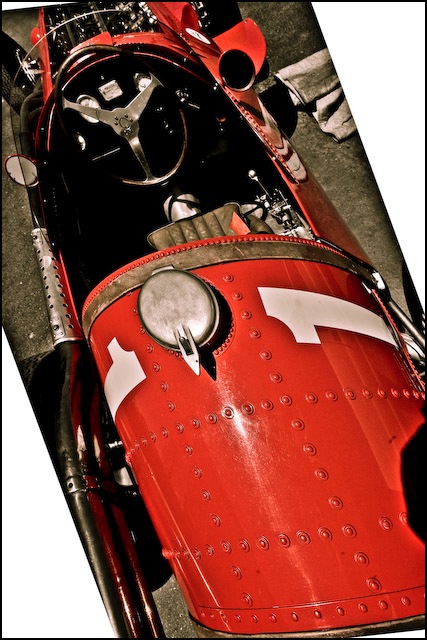
Paint Job. Lumix LX1, 1/200, f/4, ISO 100. Processed in Lightroom in Widescreen format

Always carrying a camera became a lot easier with today’s pocketable digital marvels. No one could accuse my street shooter of days past, the Leica M, of being pocketable. And you certainly do not want to try this with a DSLR. As Mae West might have said: “Is that a Leica in your pocket or are you just happy to see me?”

The Leica lens (so some continuity there, I suppose) in the Lumix LX1 suffers from red chromatic aberration (visible in large prints), easily removed with Lightroom’s built-in controls. That and a tad of noise reduction to counter the small sensor’s interference, does the trick in seconds. Another three seconds and the picture is in JPG on the desktop, ready for uploading.

Lightroom on an older Mac

It still cooks!

You can read about how to migrate from Aperture to Lightroom here.

Given the great speed and smoothness of Lightroom on my MacBook (1.83gHz Intel Core2Duo, 2gB RAM, Intel GMA950 graphics card, OS 10.4.11) I thought it might be fun to try it on my old iMac (1.25gHz IBM G4 PPC, 1gB of RAM, OS 10.4.11). This is the elegant ‘screen-on-a-stick’ design after which the iMac’s ergonomics went downhill – the poorly thought out stands on the current crop (G5 and later) need a couple of thick books to raise the screen to the right height. We keep that old Mac around in the living room primarily as an email and Internet browser for guests. The screen is superior too – far less color change occurs as you move your head. Needless to add, Aperture will not even run on this machine which uses a GeoForce FX5200 graphics card. Finally, it’s further distinguished by having a proper, horizontal disk drive which not only accepts 3″ discs (put one of those in your MacBook and it’s toast) but also burns DVDs (an option I avoided, to save money, on my MacBook). Unlike the disc slot in my MacBook, which refuses to read discs 50% of the time, this one really works. So much for progress.

Therefore I loaded Lightroom on the old Mac and tried to access my library of pictures by neworking the two. Well, Lightroom reported that it does not support networked volumes, meaning the drive has to be hard wired to the computer running Lightroom. No problem. I plugged the hard drive with the Lightroom database into the old Mac and fired her up. Loading the largest picture in the database – a 100mB TIFF file – was a snap. It takes a few seconds longer than with the MacBook but thereafter the processing controls that so dog Aperture – spot retouching, cropping, horizon levelling – were every bit as smooth as on the MacBook. The dead reliable iMac is some five years old, the MacBook has but a few months (and one repair already) on it.


The wonderful G4 iMac

So anyone running a machine of this vintage and thinking of using Lightroom should be just fine. If your Mac is even older and you are running Lightroom on it, I would be interested in your comments. There are many fine G3 Powerbooks still in daily use out there.

So, finally, a proper break with the incessant, money wasting, perennial hardware upgrade cycle dictated by Apple’s software design. And now I have total redundancy (hardware and data back-up) if my MacBook breaks down again – I wouldn’t be betting against that given my recent experience with Apple’s poor quality control.

Note that both machines are running the last version of OS Tiger (10.4.11). I have not upgraded to OS X Leopard (10.5) as I try never to buy ‘first of breed’, preferring to let others act as Apple’s unpaid guinea pigs. Indeed, there are many comments out there on chat boards that suggest that Adobe (or Apple – much finger pointing here) has work to do to make Lightroom render colors properly with Leopard. Additionally, all this user sees in Leopard is glitz and gloss, with little improvement in the way of function. Just like Aperture 2.0, in fact.

Aperture on a G4 machine? Fugghedaboutit! Neither that graphics card or the G4 CPU are even supported.

For those photographers out there looking to migrate their Lightroom application from Windows to a Mac (a trivial process requiring copying of your picture files and installation of the Mac version that came on your disc), there are some superb, lightly used, bargains to be had out there in G5 iMacs, Powerbooks and MacPros. A great way of fighting back against hardware upgrade tyranny. The LCD screens are reputed to be better than those on many current models (my G4 iMac testifies to that) into the bargain.

Migrating to Lightroom from Aperture

What a shame and what a waste of time.

This article is very long, very detailed and very important if you want to migrate from Apple’s Aperture (any version) to Adobe’s Lightroom. Oh! boy, does that sound pompous or what? As far as I know these are the only two applications which integrate all the aspects of managing, editing and printing/outputting digital picture files in RAW or other common formats. That level of integration saw me as one of the earliest users of Aperture 1.0 and although that experience was worthwhile, it is time to move on.

Thus, I have commenced the process of exporting (File->Export->Master) my master images from Aperture 2.0 to Lightroom.

Life’s too short to live with Aperture’s fragility, slowness, constant costly hardware upgrade needs and sheer unreliability.

Further, the biggest issues for photographers with regard to Apple’s and Aperture’s future are:

  • No visible sign of succession planning for the ‘rock star’ CEO. What happens to the ‘vision’ at Apple when Jobs moves on/gets run over by a bus/whatever? Remember the cancer scare? How about politics of envy rearing its ugly head upon the forthcoming change of administrations in Washington? Remember the option cheating scandal at Apple? Easy for a ‘soak the rich’ populist politician to revive, no? What happens to product enhancements and upgrades when the rock star is no more? What about that 175 foot yacht Jobs has commissioned? Early retirement?
  • The economics of Aperture to Apple compare very unfavorably with the complaint rate. Read the chat boards. Why continue increasing your reputational risk when the path of least resistance is to simply drop Aperture? Apple probably sells more iPods in a day than they sell Aperture packages in a year. So Aperture may well not survive.
  • Apple has had a famously testy relationship with Adobe for many years. Recall that at one time Adobe ceased to write Mac software because of disputes. Now the relationship issue is coming to a head once more over the possible use of Flash on the iPhone. So let’s assume that Adobe gets miffed, again, if Apple develops its own version of Flash. What then? No more Lightroom or Photoshop enhancements for the Mac?
  • Check Apple’s discussion forum on Aperture. More horror stories of lost photos than you can shake a stick at. I can pretty much tolerate most faults, but not the risk of permanent loss of my images. That pretty much put me over the top.

Here’s one of the beauties of Lightroom – you can run the application, with all your edits, on either a Mac or on Windows. Now hell will have to freeze over before I revert to Windows, but if it becomes the only game in town, migrating my files to work with the Windows version of Lightroom (both Win and Mac versions come on the installation disk) is a trivial matter. My pictures mean more to me than my dislike of Windows. Roy Hammans has confirmed that the Lightroom database works with both Mac OS X and Windows operating systems. The Aperture user, of course, is dead in the water as Aperture is Mac-only.

Following up on Roy’s thinking, I see no reason why you shouldn’t keep both the Windows and Mac versions of Lightroom on your external disk drive, together with your Lightroom library and related files. That makes for a portable and executable library which you can run on most computers out there – very useful if there’s not a Mac in sight. I do not know if Windows PCs have Firewire connectors but a portable drive like this, which has USB2, FW400 and FW800 connections, would seem to be the answer.

After trying out the Lightroom trial I have decided to import all my images and bang away at it for a month to see if matters improve. The current version of Lightroom offers greatly improved functionality over the Beta 1.0 test version I tried before Adobe released the product. And credit is due to Aperture here – the two competing products push one another to excellence. In much the same way as the elegant user interface in Aperture (now some 3 years old) pushed Adobe to develop Lightroom, the wonderful image editing sliders in Lightroom (which is just one year old) for highlight and shadow recovery have been added to Aperture 2.0. My previous reluctance to try Lightroom reflects a dislike of having to learn yet another application as well as my general disgust with the user interface of Photoshop. Enough carping – on with the conversion.

The migration process is laborious and must not be rushed. It is made no easier by the fact that Aperture’s export function is unreliable.

Lightroom can emulate the directory structure of Aperture so I can mirror the file layout in Lightroom, but there is a lot of manual work involved. Many files never make it and have to be re-exported. Of course all edits are lost though IPTC metadata and XMP sidecar data can be optionally exported from Aperture 2.0 – I elected to do so by checking the relevant boxes in the Aperture 2.0 export dialog. These functions are not available in 1.5.6 so it actually makes sense to convert to Aperture 2.0 before moving on to Lightroom if these things matter to you.

The Lightroom file structure is dead simple – you can see all your files in their native format in the database, to which Lightroom adds a set of separate compact reference files. I keep the database in an external Lacie Firewire drive and by moving the ‘Lightroom Catalog.lrcat’ and ‘Lightroom Catalog Previews.lrdata’ reference files from their default internal disk drive location (the ‘Pictures’ directory on a Mac) to the external drive I can have all Lightroom files on the one external drive.

The first time you start Lightroom after this move, do so by dropping the ‘Lightroom Catalog.lrcat’ file from the external drive onto the Lightroom application and, thereafter, Lightroom will save all its reference and preview files on the external drive, together with the photo database. The preview file can get quite large, so this makes sense. More about previews later.

I decided to bite the bullet and do this now while Aperture is still manufactured and while the number of pictures in it is manageable. All told Aperture reports 4,056 images (which includes stacked copies so it’s not a meaningful number). Because this is a tiring process I am doing a few projects each day – there’s much to be said for breaking up your work into manageable chunks in this manner.

Before going further, just look at how bloated the Aperture application is becoming:

Aperture 1.5.6 – 193.5 mB
Aperture 2.0.0 – 305.5 mB
Aperture 2.1.4 – 315.1mB

Lightroom 1.3.1 – 69.4 mB
Lightroom 2.5 – 87.2mB
Lightroom 3 Beta – 91.1mB

Little wonder it’s not getting any faster. There is an incentive for writing tight code – things run faster – unless you are in the business of selling hardware, I suppose. And let us never forget that is the business Apple is in.

Now let’s compare the library structures.

Here’s Lightroom’s – the files are in their native format and could not be easier to find if that is ever needed:

Now here’s Aperture – all the overlay data thoroughly mixed in with the files in hundreds of sub- and sub-sub-directories – fancy finding your file here?

That, dear reader, is what is known as locking in the customer into your product. Reprehensible, not to mention lousy database design. Note that you can separate image files from previews and edit data in later versions of Aperture by using referenced files but that is not the default so who would know?

Here is the conversion routine to move files from Aperture to Lightroom:

In general, I find most of the writing on both Aperture and Lightroom seriously commercially conflicted, often being little more than hype for the photographer’s latest book or services. Accordingly, I have written the following instructions. As this routine worked fine with a ~3,000 picture database you may even conclude that it is solid.

1 – Make sure you have a good, working, current copy of your Aperture database on a separate drive. In Aperture, open all your projects. You want to do this project by project as Aperture’s Export function is unreliable and you want to be able to take bite-sized chunks to permit verification of the export.

2 – Close all stacks in the project. (Update: refer to the second comment by Nikos Bournas, below, on electing stack picks)

3 – Take a screen picture (Command-Shift-3) and print it from Preview. Select all the pictures (shift-click on the first and last picture) in one project. The purpose of the printout is to allow you to check off each project as it is exported.

4 – Click on File->Export->Masters and direct the export to your location of choice. If you are using Aperture 2.0 you will be asked whether you want to export IPTC and XMP data (camera,lens, etc) – do so. Make sure that destination for your exported files has sufficient room. If your Aperture library is 50 gB you will need an additional 50gB to store the Lightroom library – the database sizes are very similar.

5 – In Lightroom go to Library-Folders and create a new folder (+ sign) and name it the same as the exported project.

6 – In Lightroom click File->Import Photos from Disk, point to the exported Aperture masters and hit Enter. If Lightroom asks you to elect Preview size, elect ‘Initial’ for now. You can set Lightroom’s Preferences to alert you with a tone when an import is finished. Handy.

7 – If your Aperture project contains sub-folders, create sub-folders in Lightroom by highlighting the new Project folder you just created, then hit + to create each nested folder, naming it accordingly. Multiple layers of nesting are permitted but I would discourage this approach as locating files gets geometrically more difficult. Keep it simple. One enclosing folder for multiple sub-folders works best for me and largely reduces the need to enter lots of metadata for each picture in the hope of making it easier to find.

8 – In Lightroom drag and drop (shift-click for a contiguous range, Command-click(s) for non-adjacent files) the relevant files from the Aperture export to each nested folder. Lightroom will issue a warning message that moving files may take a while. With a speedy external Firewire drive the process takes no time at all, and I urge you to opt for Firewire over USB. Despite claims to the contrary, FW tests faster than USB2 every time. USB1 is a complete dog. Click to proceed. Once the import is done, check your files against those in Aperture visually and, if OK, mark off the project on the page you printed in #3, above. I actually ran Aperture and Lightroom simultaneously on my 1.83gHz, 2 gB MacBook (Intel Core2Duo CPU) and did get some spinning beach balls when switching between applications – hardly surprising when you look at the sheer computer horse power needed to run these things. However, the time spent is worthwhile in the interest of maintaining database integrity for Lightroom. I found that Lightroom’s import was approximately twice as fast as Aperture’s export.

9 – If your Aperture project has many folders, export masters from each folder in turn to make cataloging/rearranging easier, but do make sure that all the files in the Project have been distributed to subordinate folders. This is one of the biggest design errors in Aperture. You can have a master in the Project, or in the Folder or in both. Lightroom will automatically place any file in a folder to the containing project, which is the right way to do it.

10 – Files over 10,000 pixels on either dimension will NOT be imported and Lightroom will alert you how many exist in the directory you are importing from. This is very well implemented by Adobe – normally the source directory from which you are importing is deleted on completion of the import. However, files which are too large will be left behind with their directory. I have a few like this, all of them scans from medium or large format film, 175-225mB in size. I simply roundtrip these files through Photoshop (Image->Image Size) and reduce the file size to manageable proportions (100mB) – the original enormous size adds no functionality in any case and Aperture chokes if you try to print them. The reduced files are then imported into Lightroom.

11 – When you are done, make sure all the files I illustrate are on your disk drive (move them over if needed) and immediately back-up your Lightoom database and related files to a separate drive. These are the files you need to back-up:

I would advise against using Apple’s Time Machine for the back-up. The storage format is proprietary to Apple. Do a proper clone back-up using something like SuperDuper! or Carbon Copy Cloner – you will then be able to see the backed-up files just as in the original. If your primary drive goes down all you have to do is repoint Lightroom to the back-up – no restoration of files is required.

My 50gB Lightroom Library resulted in a 1.5gB Lightroom Catalog Previews.lrdata file. That’s where the Initial previews I elected reside. The Lightroom Catalog.lrcat file is a scant 38mB but will likely grow as I create more edits to my pictures. All the versions in Aperture will be lost unless you go back and export them – I did not as it’s simply quicker to re-edit pictures than to go through the agony of yet another buggy export. There is one exception – if you roundtripped an Aperture file through Photoshop, Aperture erroneously thinks it is a master so ‘Export Masters’ will export the PS version – that’s actually a nice bug in this case, as most of my round trips were to use Photoshop’s stamp and clone tool to remove dust, given the near useless tool in Aperture 1.5.6. To Apple’s credit, the stamp and clone tool has been improved and speeded up in 2.0, but too late for this user. Within Aperture the bug is serious – go to delete the PS version and Aperture will warn you that you are about to delete a master – completely wrong and not at all consonant with breeding trust in the product. This bug persists in Aperture 2.0.

Previews:

An understanding of Previews in Lightroom is key to smooth processing operation and avoidance of delay and irritation.

By electing ‘Initial’ previews when importing your files from Aperture you are telling Lightroom to create small thumbnail previews. These average 50kB in size (surprisingly large for their intended purpose) and are used to present the Grid view in Lightroom, thus:

You can see my nested directory structure in the left pane – it is identical to the structure in Aperture. Numbers like 10/12 indicate 10 masters with 2 additional versions – Aperture only reports the higher number. The snag with the Initial previews is that if you click on a thumbnail for a full screen or a 1:1 (actual pixels) view, Lightroom will pause (several seconds on my MacBook) as it generates the full size preview. Thus it makes sense to generate 1:1 previews for the whole database if you access your pictures often and have the disk space to store these. You need full size previews to edit a picture, check sharpness, etc. Stacked files are denoted by the white rectangles in the top left corner of the previews. Lightroom has the same stacking feature as Aperture, which is nice for aggregating versions when these are created. Shift-click to select, then Command-G to stack.

You can decide whether you want to generate full size previews for the whole library or just for selected folders or even for selected images. That’s nice. Highlight the library at the appropriate level. In the following illustration I have highlighted the whole library and executed the key strokes shown:

Note that if file bloat becomes an issue you can delete 1:1 Previews – all, some projects or just for individual images by choosing the delete level appropriately before executing the command.

Now my library includes a mix of Canon 5D and Lumix LX1 RAW files (10 to 15mB each) and a bunch of TIFF and PSD files (30-90mB each – mostly from film/scanner days of yore) with the scans outnumbering the digital originals by a factor of 2:1, so I cannot give you a rule of thumb for how long this process will take, but it is not fast. For my library, stored on an external Lacie 250gB Firewire drive the process took 198 minutes or 3.7 seconds per image. As the process is very CPU intensive, I exited all other applications and left the MacBook to cook while this was going on. Adobe thoughtfully provides a progress bar to let you know what is happening, together with a small thumbnail picture of the file currently being processed:

One great advantage of doing preview generation on a laptop computer, in contrast to a desktop, is that if the power goes down your machine will continue working (assuming you are connected to mains power and that your battery is charged). A strong argument for a back-up battery power supply for a desktop machine. I have no idea whether the preview file would be corrupted in the event of a power failure but something tells me the results would not be pretty and you really only want to do this once.

Your Lightroom Catalog Previews.lrdat file will swell, reflecting the increased size of the preview files – here are my statistics:

With Initial Previews only: 1.5gB
With 1:1 Previews added: 6.3gB

The main catalog file does not change in size as it contains original picture files only.

I say ‘added’ as the original Initial previews will be retained, as they are required to service the Grid view.

As I get very irate when the spinning beach ball shows up – a major driver in my decision to dump Aperture where version 2.0 is significantly worse than 1.5.6 – I will elect 1:1 previews with future file uploads to the Lightroom library. The last thing I want during a processing blitzkrieg is any pauses or delays. When you choose 1:1 previews on import you will see that Lightroom displays two progress bars at top left. The first reports picture import, the second preview generation. The latter takes some four times as long, but you can work on imported pictures right away as the grid view previews will already have been generated and a 1:1 zoom will force immediate generation of a large preview for the picture in question, albeit with an attendant delay if such preview has not yet been generated.

Suffice it to say that Lightroom has crafted this background processing in an elegant manner and Aperture 2.0 has emulated this approach – which probably explains why Aperture 2.0 file uploads are so much slower than in 1.5.6. Anyone telling you that Aperture 2.0 is faster in this regard is not comparing like with like as they almost certainly have preview generation switched off while doing the file upload. Doing an apples-to-apples comparison I have found that Lightroom 1.3.1 and Aperture 2.0 take the same amount of time to upload files from your camera’s card. For Lightroom that works out to 2 minutes for importing RAW files and another 4 minutes to generate 1:1 previews, using a 2gB Sandisk Extreme III card with 140 images on it.

Phew! Enough about previews.

Lightroom in use:

Whatever you say about Aperture it has one of the most elegant user interfaces in the software world. So objective comparisons are hard, especially as I have some three years with Aperture and just a few days with Lightroom.

I will comment further on Lightroom in use in subsequent articles, but my first efforts with Lightroom, which included a four hour heavy processing session with lots of retouching, use of sliders, printing, roundtrips to PS CS2 (for lens distortion correction mostly as Lightroom does not yet offer a plug-in to do this natively), disclosed none of the bugaboos that continue to haunt Aperture:

  • Lightroom did not slow down after a period of use. This happens in Aperture and dictates a reboot of the application – the bug has been there since version 1.0
  • No spinning beachballs – not a one! Try that in Aperture where’s it’s even worse in 2.0 than in 1.5.6.
  • No jerky, hesitant sliders in the processing controls. A worthwhile change for this aspect alone – not to mention a great deal of money saved on not having to buy Apple’s latest and greatest computer. I have read that Lightroom runs nicely even on G4 PPC Macs, and I’m inclined to believe it. So I tried it – read this. Don’t even think of doing that with Aperture.

And that’s just with the trial version with occasional reference to the on line (and quite horrid) instruction book. If anyone out there knows of a good aftermarket book which addresses Lightroom version 1.3 and which you have used please drop me a line (see my profile for the email address) or post a Comment to this piece. (Update September, 2009: Check out Martin Evening’s excellent book on Lightroom 2).

On the downside:

  • You cannot properly use dual monitors with Lightroom. No matter to me as I do fine with one big one. (This has been fixed in Lightroom 2).
  • The workflow approach is much more structured in Lightroom (Catalog-Process-Output), compared to the more free form approach adopted by Aperture. Engineers will like this and artists will not. Then again, how does a struggling artist afford a $5k 8-core Mac tower to make Aperture run half decently?

RAW conversion quality? Lightroom uses Adobe Camera Raw so it’s state of the art. Aperture 2.0 is great too. No complaints on either count though their respective track records suggest that Adobe will release RAW conversion support for new cameras far faster than Apple.

And now, finally, for some photography.


WW2 fighter. Speed Graphic 4″ x 5″, Vericolor, 135 mm Schneider Xenar. Processed in Lightroom

The original is a 100mB TIFF file – JPG Export took just three seconds. Spooling this enormous file to make an 18″ x 24″ print to the HP DesignJet printer took exactly 20 seconds. Try either of those in Aperture ….

Finally a bit of fun, because after going through this hell I need it.

For the digital snaps in my library (about one third of the total – the scans from film obviously have no data) here’s how my lens use breaks down (the 17-85mm is on a Digital Rebel and it looks like data for the Lumix LX1 are missing, so your are mostly seeing 5D data which exclude deleted files):

Neat, huh? Numbers testify louder than words to the quality – or lack thereof – of the Canon 20mm.

Snow Leopard update – November 2009:

You think things are getting better with Snow Leopard for Aperture? Think again:

One of the most read and commented Aperture posts on the Apple Discussions board